


 ממיר וידאו אולטימטיבי
 מקליט מסך
 תיקון וידאו
 הורדה מאובטחת
האצת קבצי אודיו: 5 הדרכים הקלות ביותר לשנות מהירות
אתם תוהים איך לשנות את האווירה של הוייבים הקוליים שלכם? למשל, רציתם לערוך וידאו קצבי ולהשתמש במוזיקה האהובה עליכם כרקע, אבל היא לא מתאימה משום שהיא אולי איטית מדי ביחס לסרטון. הרמוניית אודיו מושלמת לסרטון היא בהחלט הגיונית, כך שאם אתם מחפשים דרכים להאיץ אודיו, אתם בעמוד הנכון. הכירו 5 דרכים שונות ופשוטות לשנות את מהירות קובץ השמע כך שתתאים באופן מושלם לאנרגיה של הווידאו, תיצור חוויית צפייה רציפה ומעוררת ותלכוד את הרגש והדינמיות שאתם מתכוונים אליהם בפרויקט שלכם.

חלק 1: השיטה הקלה ביותר להאיץ את האודיו ב-Video Converter Ultimate [למתחילים]
הדרך הקלה ביותר להאיץ אודיו היא להשתמש ב־Video Converter Ultimate שנבחר על ידי FVC. הסיבה לכך היא שהכלי הזה יאיץ ישירות את קובץ השמע או את המוזיקה המוטמעת בקובץ הווידאו. יש בו מגוון רחב של אפשרויות למהירות שאליה תרצו שהאודיו שלכם יגיע, ואתם יכולים לבחור בין 1.25× ועד 8× בהתאם לצורך.
הכלי הזה מושלם עבור כל אחד, במיוחד עורכי וידאו ויוצרי תוכן עולים שדורשים שליטה מדויקת על הקצב של רצועות האודיו שלהם. עם הממשק הידידותי למשתמש ומגוון רחב של אפשרויות כוונון מהירות, Video Converter Ultimate מבטיח שתוכל להתאים את האודיו שלך כך שיתאים באופן מושלם לקצב הווידאו שלך, בין אם אתה זקוק להגברה עדינה או להאצה דרמטית.
כדי להשתמש בזה, בצע את השלבים הבאים:
שלב 1. קודם כול, התקינו והורידו את כלי ה־Video Converter Ultimate למכשיר שלכם.
הורדה חינמיתל-Windows 7 ומעלההורדה מאובטחת
הורדה חינמיתל-MacOS 10.7 ומעלההורדה מאובטחת
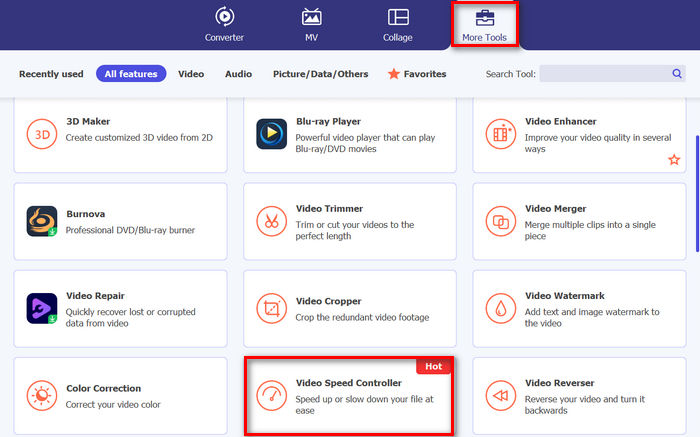
שלב 2. הפעילו את הכלי, עברו ללשונית Toolbox ובחרו Speed Video Controller.
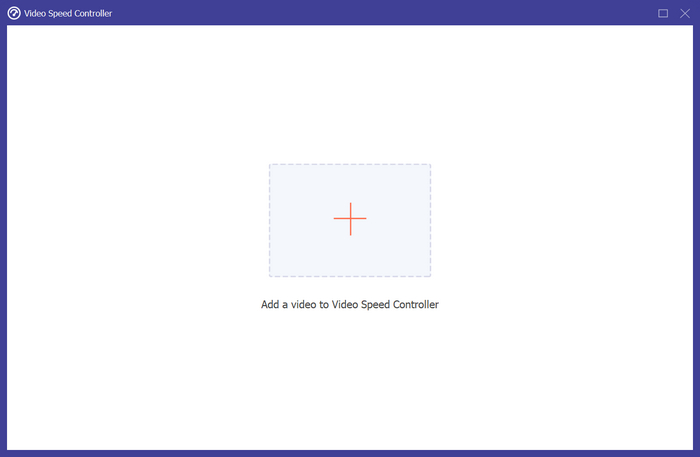
שלב 3. לאחר מכן, הקליקו על Add a Video to Speed Video Controller כדי לייבא את קובץ השמע שברצונכם להאיץ. אם תרצו להאיץ קובץ וידאו, גם זה נתמך כאן.
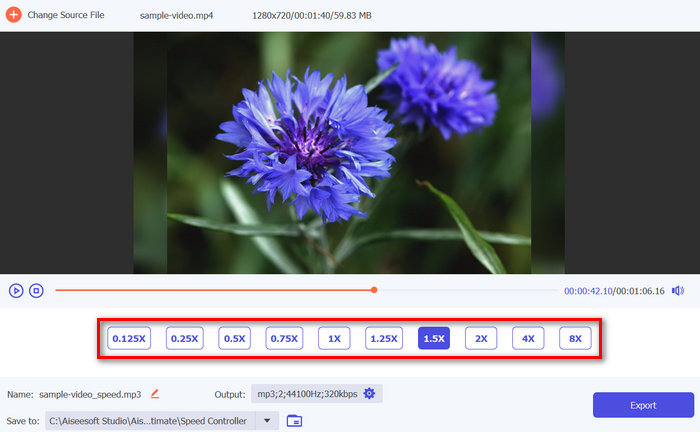
שלב 4. לאחר שסיימתם, פשוט בחרו את המהירות שתרצו להחיל על קובץ השמע שלכם.
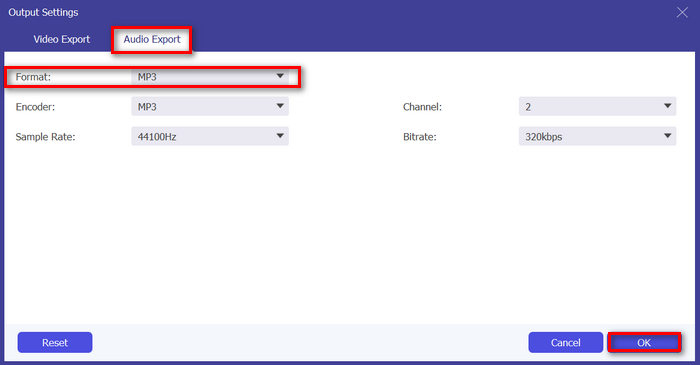
שלב 5. כעת עברו אל Output Setting על ידי לחיצה על סמל הגלגל שיניים למטה. משם לחצו על Audio Export ובחרו ב־MP3 כפורמט הפלט.
שלב 6. לבסוף, לחצו על כפתור Export.
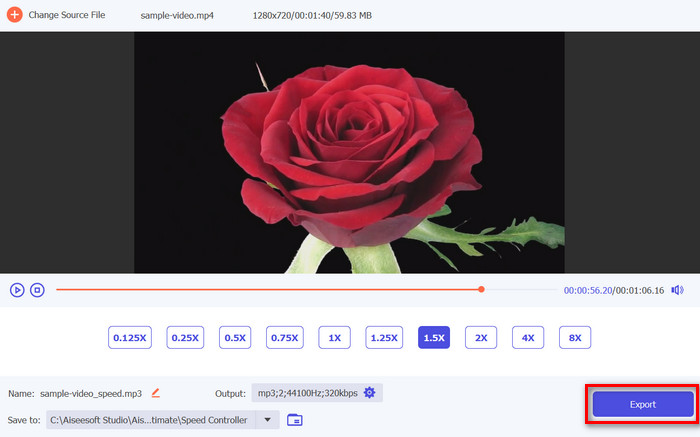
הדבר הטוב ביותר בפונקציית בקר מהירות הווידאו ב־Video Converter Ultimate הוא שניתן ישירות להאיץ וידאו, והוא ייוצא כקובץ MP3. זה נוח הרבה יותר מאשר לחפש כלי שימיר קודם MP4 ל־MP3 לפני שמשנים את המהירות או הטמפו של הסרטון. בנוסף, הוא תומך במגוון רחב של פורמטי וידאו ואודיו, מה שהופך אותו לפתרון נהדר מבחינת תאימות.
לבסוף, הממשק האינטואיטיבי שלו מקל על המשתמשים להשתמש בתכונות הכלי ביעילות. כמו כן, תכונת התצוגה המקדימה שלו יכולה לעזור להבטיח שהתאמות המהירות עומדות בציפיות שלך לפני סיום הייצוא.
חלק 2: האץ את האודיו ב-Audacity
Audacity היא תוכנה חופשית ידועה המשמשת בדרך כלל להקלטה ועריכת אודיו. בעזרת הכלי הזה, משתמשים יכולים להאיץ את האודיו בקלות, ולאפשר להם להתאים את הקצב מבלי להשפיע על גובה הצליל. תכונה זו שימושית במיוחד ליצירת רצועות אודיו ב-Time-lapse, האצת פודקאסטים או סנכרון אודיו עם תוכן וידאו בקצב מהיר יותר.
כדי להשתמש בזה, בצע את השלבים הבאים:
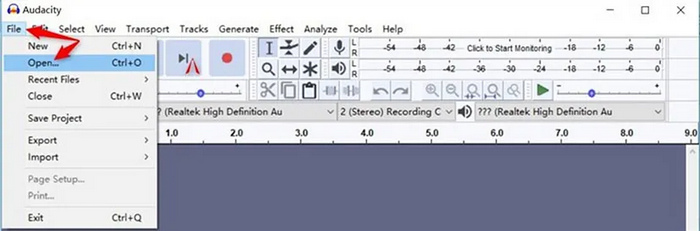
שלב 1. הפעילו את הכלי, עברו אל File ולאחר מכן לחצו על Open כדי לייבא את קובץ השמע שברצונכם להאיץ.
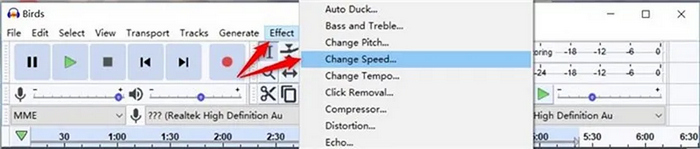
שלב 2. לאחר מכן, לכו לתפריט Effect, לחצו על Change Speed, ומשם תוכלו לכוונן את מהירות קובץ השמע שלכם. בסיום, לחצו על OK כדי להחיל את השינויים.
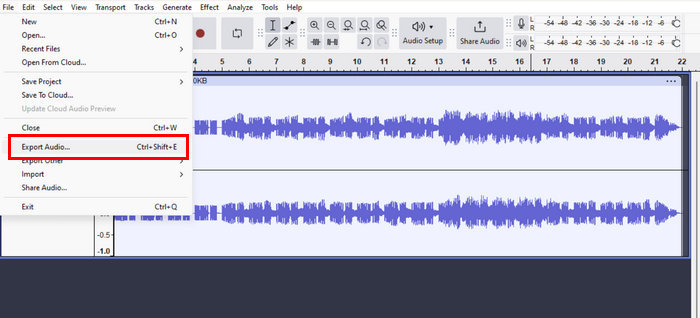
שלב 3. לבסוף, עברו אל תפריט File וחפשו את אפשרות ה־Export. לאחר מכן בחרו את אפשרות הייצוא המועדפת עליכם כדי לשמור את קובץ השמע שעבר שינוי.
מה שטוב ב־Audacity הוא שהוא באמת משמש כתוכנת עריכת אודיו עוצמתית וחינמית, המציעה מגוון פונקציות שיכולות לעזור בהאצת אודיו, מיזוג קובצי שמע ועוד. לכן, הרב־שימושיות שלו, התאימות למערכות הפעלה שונות ויכולות העריכה הלא־הרסניות הופכות אותו לבחירה נפוצה עבור רבים. עם זאת, יש עקומת למידה למתחילים, מגבלות בממשק ותלות בתוספים עבור פונקציות מתקדמות מסוימות. אף על פי כן, Audacity נשאר בחירה אמינה עבור כל מי שמעוניין לשנות ולשפר את תוכן האודיו שלו באופן יעיל.
חלק 3: האץ את האודיו עם Premiere Pro
Adobe Premiere Pro הוא כלי מקצועי ידוע לעריכת וידאו, שימושי להאצת קבצי אודיו. תכונה זו מבית Premier עוזרת בסנכרון אודיו עם תוכן וידאו מהיר, מה שהופך אותו לאידיאלי ליצירת סרטונים דינמיים ומושכים.
כדי להשתמש בזה, בצע את השלבים הבאים:
שלב 1. תחילה, הפעילו את Adobe Premiere Pro במכשיר שלכם.
שלב 2. לאחר מכן, ייבאו את הקליפ באמצעות ה־Timeline של Adobe Premiere Pro.
שלב 3. לאחר מכן, לחצו קליק ימני על הקליפ כדי לבחור אותו ולחצו על Speed/Duration.
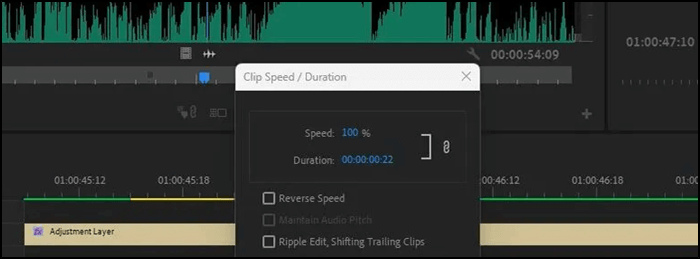
שלב 4. כעת, כדי להאיץ את האודיו, פשוט שנו את ערך ה־Percentage למהירות שברצונכם להגדיל אליה.
שלב 5. לאחר שסיימתם, לחצו על כפתור OK כדי להשלים את התהליך.
לאחר מכן תוכלו לשלב את האודיו והווידאו המואצים כדי ליצור אפקט סרט חדש.
עם Adobe Premiere Pro, האצת השמע יכולה להיעשות ביעילות ובדייקנות. תכונות מפתח כוללות אינטגרציה עם כלים אחרים של Adobe. עם זאת, המורכבות שלו מציבה עקומת למידה תלולה למתחילים, והיא דורשת מערכת הפעלה חזקה כדי לפעול בצורה חלקה. למרות מגבלות אלו, Premiere Pro היא בחירה מצוינת עבור אנשי מקצוע בשל היכולות המקיפות והתוצאות המעולות שלה.
חלק 4: האץ את האודיו באמצעות Garageband
בינתיים, אם אתה משתמש מק, הכלי הטוב ביותר עבורך להאיץ את האודיו הוא באמצעות GarageBand. זהו כלי חינמי שפותח על ידי אפל עבור משתמשי iOS, iPadOS ו-macOS ליצירת מוזיקה ופודקאסטים. עם זאת, כלי זה אינו מיועד רק להפקה מוזיקלית, הוא גם מצטיין במניפולציה של אודיו. אחת התכונות הבולטות שלו היא היכולת להתאים את הקצב של רצועות השמע, מה שמאפשר לך להאיץ או להאט בקלות את ההקלטות שלך כדי להתאים לצרכי הפרויקט שלך.
כדי להשתמש בזה, בצע את השלבים הבאים:
שלב 1. פתחו את GarageBand במק שלכם וייבאו את קובץ השמע. לאחר מכן, הקליקו פעמיים על הרצועה או לחצו על מקש ה־E כדי לפתוח את העורך.
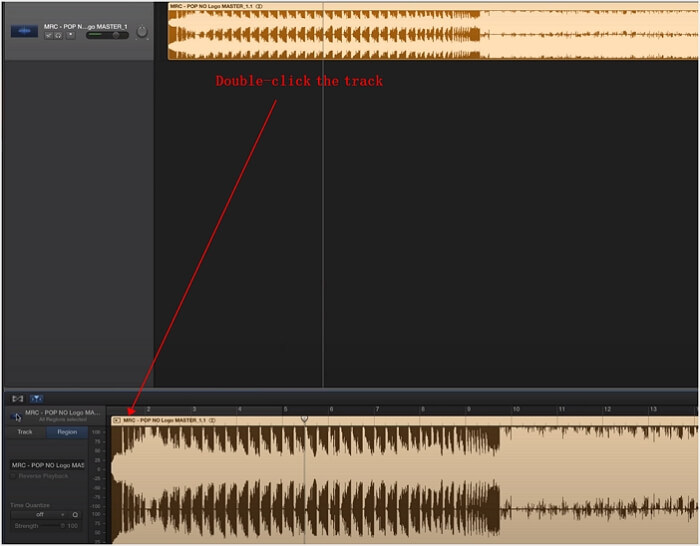
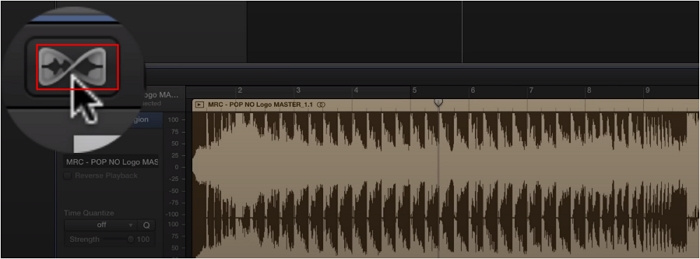
שלב 2. אחרי זה, לחצו על הסמל, בחרו Track וסמנו Enable Flex כדי לאפשר שינויים ברצועות השמע.
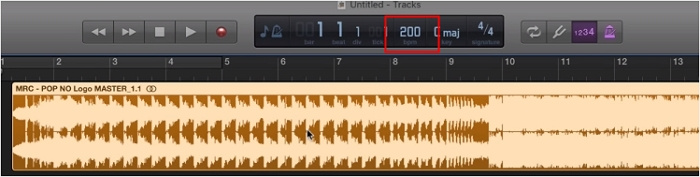
שלב 3. לבסוף, עברו אל הגדרות ה־Tempo והקלידו ערך גבוה יותר בהתאם להעדפתכם כדי להאיץ את רצועת השמע שלכם.
זהו! עם GarageBand, האצת השמע קלה מאי פעם. כלי ידידותי למשתמש זה באמת מספק תהליך פשוט להתאמת הקצב של רצועות האודיו שלך כדי להתאים לצרכים שלך. עם זאת, בעוד שהכלי הזה מציע קלות שימוש ושילוב חלק עם מכשירי Mac, יש לו מגבלות. הוא חסר חלק מהתכונות המתקדמות, ולעתים קרובות הוא מתמודד עם בעיות תאימות בעת העברת פרויקטים לפלטפורמות או תוכנות אחרות. עם זאת, עבור משתמשי Mac המחפשים פתרון פשוט ויעיל להאצת השמע, GarageBand נשאר בחירה אמינה.
חלק 5: שינוי אודיו מקוון
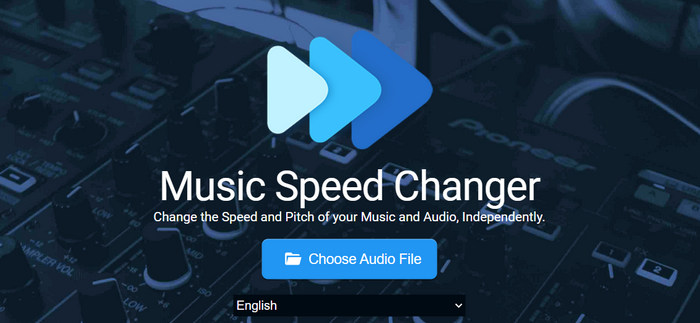
אם אתם מחפשים כלי אונליין להאצת אודיו, Music Speed Changer הוא הכלי בשבילכם. זהו יישום אינטרנט נוח המאפשר למשתמשים לשנות ולתמרן את המהירות והגובה (Pitch) של קובצי שמע בזמן אמת. באמצעות כלי זה תוכלו לשנות את הטמפו של קובץ השמע מבלי להשפיע על הגובה, או לשנות את הגובה בלי לשנות את המהירות – פתרון מצוין למי שצריך לסנכרן אודיו עם ויזואליים מהירים בסרטונים.
כדי להשתמש בזה, בצע את השלבים הבאים:
שלב 1. ראשית, לחצו על כפתור Choose Audio File כדי לייבא את קובץ השמע שברצונכם להאיץ.
שלב 2. כדי להאיץ את קובץ השמע שלכם, פשוט לחצו על כפתור הPlus או הזיזו את הסרגל הצהוב ימינה כדי לכוונן בקלות את המהירות.
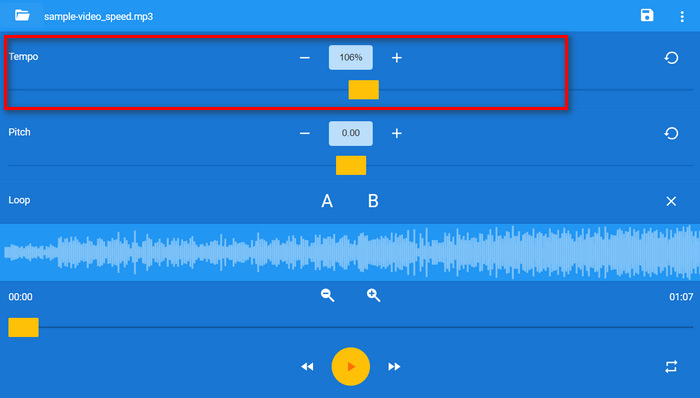
שלב 3. אם תרצו להאזין לתצוגה מקדימה של קובץ השמע, תוכלו ללחוץ על כפתור ה־Play למטה כדי לבדוק אותו.
שלב 4. כשתהיו מרוצים, לחצו על כפתור Save בפינה הימנית העליונה של המסך. קובץ השמע המואץ יישמר ישירות במחשב שלכם.
בעוד Music Speed Changer מציע ממשק פשוט ואינטואיטיבי להאצת קבצי אודיו, יש לו גם מגבלות. לדוגמה, ייתכן שחסרות בה חלק מהתכונות המתקדמות שנמצאות בתוכנת שולחן העבודה. בנוסף, משתמשים עשויים לחוות הגבלות על האורך או הגודל של קבצי האודיו שהם יכולים לעבד. למרות מגבלות אלו, Music Speed Changer נותר פתרון נוח להתאמת מהירות אודיו מהירה באינטרנט.
חלק 6: שאלות נפוצות לגבי האצת אודיו
כיצד להאיץ את השמע מבלי לשנות את גובה הצליל?
כדי להאיץ את האודיו מבלי לשנות את גובה הצליל, אתה יכול להשתמש בתוכנה כמו Audacity או Adobe Premiere Pro, המציעות אפשרויות לכוונון קצב תוך שמירה על גובה הצליל. לחלופין, כלים מקוונים כמו Music Speed Changer מספקים גם פונקציונליות זו.
איך אני משנה את מהירות השמע באייפון שלי?
אתה יכול לשנות את מהירות השמע באייפון שלך באמצעות אפליקציות שונות כמו GarageBand, Voice Record Pro, או כל אפליקציית עריכת אודיו אחרת התומכת בתכונות של התאמת מהירות.
באיזו אפליקציה אני יכול להשתמש כדי להאיץ את האודיו?
ישנן מספר אפליקציות בהן תוכל להשתמש כדי להאיץ את השמע, בהתאם למכשיר ולדרישות שלך. עבור משתמשים שולחניים, תוכנות כמו Video Converter Ultimate, Audacity, Adobe Premiere Pro או GarageBand הן בין האפשרויות הפופולריות. אם אתה מעדיף כלים מקוונים, אפשרויות כמו Music Speed Changer מציעות דרכים נוחות להתאים את מהירות השמע.
מה המהירות של שיר במוזיקה?
המהירות של שיר במוזיקה נמדדת בדרך כלל בפעימות לדקה או BPM. זה מתייחס לקצב או לקצב של המוזיקה, המציין כמה מהירים או איטיים המקצבים. לז'אנרים שונים של מוזיקה עשויים להיות טווחי BPM ממוצעים שונים, כאשר לז'אנרים בקצב מהיר יותר כמו ריקוד או מוזיקה אלקטרונית יש ערכי BPM גבוהים יותר בהשוואה לז'אנרים איטיים יותר כמו בלדות או מוזיקה קלאסית.
סיכום
הנה לך! עם כל השיטות המוצגות במאמר זה, האצת קובץ האודיו שלך היא פשוטה ונגישה, ללא קשר לרמת המיומנות שלך או הכלים שיש לך בהישג יד. בין אם תבחרו בקלות של Video Converter Ultimate, ביכולות החזקות של Audacity, בתכונות המקצועיות של Adobe Premiere Pro, ב-GarageBand הידידותי ל-Mac, או בפשטות של כלים מקוונים כמו Music Speed Changer, יש לכם מגוון אפשרויות שיתאימו הצרכים הספציפיים שלך. הכלים האלה לא רק עוזרים לך להתאים את קצב האודיו שלך, אלא גם להבטיח שהמוצר הסופי שלך מתיישר בצורה מושלמת עם הקצב והאנרגיה של הסרטון שלך.
התחילו כבר היום להאיץ את קובצי האודיו שלכם ותראו את ההבדל שזה יוצר בעבודה היצירתית שלכם!
-
 [4 דרכים] כיצד להאיץ בקלות את הסרטונים שלך באינטרנט
 האם אתה רוצה להאיץ סרטון באינטרנט? קרא מאמר זה כדי לדעת יותר על זירוז סרטון בדרכים שונות אפשריות.
-
 דרכים קלות יותר להאיץ סרטוני וידאו בפורמט MP4 [לא מקוון ומקוון]
 האם אתה רוצה להאיץ את הווידאו שלך בפורמט MP4? מאמר זה עשוי לעזור לך לדעת את ההבדלים כיצד להאיץ את הסרטון שלך באינטרנט או לא מקוון.
-
 [חינם ובתשלום] מחליף מהירות GIF: הבחירות החמות של 2025
 האם אתה לא מרוצה מה-GIF שיצרת באינטרנט מכיוון שהוא מייגע ואיטי? זה יהיה יום המזל שלך מכיוון שאנו מציגים מאמר על מחליף מהירות GIF והפרטים שעוזרים לך להשתמש בו ולשלוט בו.
