


 ממיר וידאו אולטימטיבי
 מקליט מסך
 תיקון וידאו
בחר את מקליט מסך GIF הטוב ביותר להקלטת GIF [מקוון ולא מקוון]
זו העובדה שקובצי GIF פשוטים אך קלים לגישה לפורמט קובץ ברחבי האינטרנט. גודל הקובץ של קובצי GIF כל כך קטן שהוא הפך לאחת הדרכים היעילות ביותר לשלוח וידאו או תמונות קולנוע דרך האינטרנט. במהלך צפייה בסרט מצאת סצנה נהדרת על הסרט שאתה צופה בו ואתה רוצה שתשתף אותה עם החברים, יקיריכם או המשפחה. אבל רוב מקליטי המסך הם בפורמט של MP4 ו-MOV שהם אחד מהפורמטים הגדולים ביותר של גודל הקבצים. זה לא חדש לנו שהעברת פורמטים מסוג זה תארך שעה או יותר ורוב הזמן הם נכשלים בגלל הפרעה באינטרנט או במקרים אחרים הפורמט הופך לא זמין מכיוון שלא כל נגן המדיה המקומי תומך בכל פורמטים.
תוך כדי גלילה ברשת וחיפוש אחר פתרון אתה נתקל בקובצי GIF. פורמט קובץ זה קטן הרבה יותר בנפח וקל לשיתוף. לכן אתה תוהה מהו מקליט ה‑GIF הטוב ביותר שכדאי להשתמש בו כדי להקליט סצנה מהסרט שאתה צופה בו. הרשימה למטה מדברת על כמה כלי הקלטת GIF פופולריים שאולי כבר נתקלת בהם ברשת ואולי לא. המשך לקרוא כדי להכיר את הכלים האלה וכיצד להשתמש בהם כדי ללכוד קבצי GIF מונפשים.

חלק 1. המאפיינים הטובים ביותר של מקליט GIF צריך להיות
לפני הכול, בחירת מקליט המסך הטוב ביותר היא חובה. אבל אולי אתה תוהה מה עליך לתת לו עדיפות כשאתה בוחר מקליט GIF? הרשימה למטה נותנת לך מושג אילו מאפיינים צריכים להיות למקליט איכותי.
● עליו להיות ידידותי למשתמש – בחר מוצר שלא יגרום לך בעיות בזמן ההקלטה.
● ידידותי לתקציב – עניין זה רלוונטי רק אם מדובר בכלי בתשלום. עדיף לבחור משהו לא יקר מאשר לבזבז כסף על דבר שגרסה זולה יותר יכולה לספק. זה נכון שכלי פרימיום נותן את התוצאה הטובה ביותר. זה משנה רק לגבי כלים בתשלום, כך שכלים חינמיים אונליין או אופליין לא צריכים לדאוג לעניין הזה.
● זמינות התוכנה – במקרה שאתה מחליף מ‑PC ל‑Mac או להפך, לא תצטרך להסתגל למקליט חדש. לכן חובה לבחור מקליט מסך GIF זמין בכל הפלטפורמות. בנוסף, כדי לצמצם טרחה, אם יבוצעו שינויים בתוכנה, עדיף שהם יהיו פשוטים, כמו שינוי שם, ולא שינוי מלא של כל הממשק.
● ללא תוכנות זדוניות או וירוסים – זה יכול לחול גם על כלים אונליין וגם אופליין. כל תוכנה צריכה לספק לך לא רק הקלטה איכותית אלא גם אבטחה מקסימלית, כדי למנוע אובדן או דליפה של נתונים.
למרות שאלו המאפיינים הפשוטים שרשמקול צריך לספק, הייחודיות של הכלי שאתה יכול לבחור נמצאים ברשימה למטה. מצא את ההבדל בין כל כלי ובחר את מקליט ה-GIF הטוב ביותר מהרשימה עבור ההקלטה שלך.
חלק 2. מקליטי ה-GIF הטובים ביותר באינטרנט
1. מקליט מסך FVC חינם
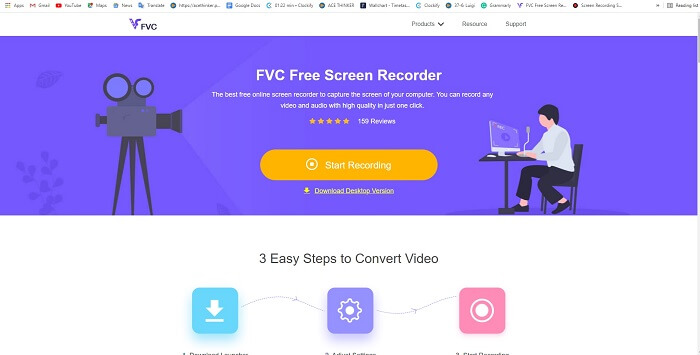
הדרך הטובה ביותר לשתף רגע היא להקליט אותו, והדרך הטובה ביותר להקליט סצנה או פעולה שעל המסך שלך היא באמצעות FVC Free Screen Recorder. כלי קוד פתוח זה מאפשר למשתמש להקליט בעזרת חיבור לאינטרנט. אם יש חיבור אינטרנט, תוכל להשתמש בכלי הזה. בנוסף, הוא תומך בפורמטי קבצים בסיסיים, קודקים ועוד. למרות שזהו מקליט GIF מקוון קל משקל עבור PC ו‑Mac, הוא מעניק לך אפשרות מעולה לבצע הקלטות רבות ללא הגבלה וללא סימן מים. כדי להציג בפניך כיצד להשתמש בכלי, עליך לפעול כך:.
שלב 1. לחץ על הקישור המצורף כדי לעבור לעמוד הראשי.
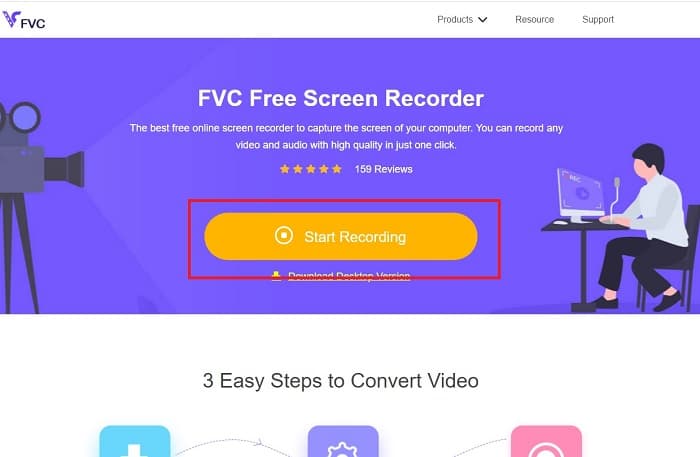
שלב 2. אתר כמו זה יופיע על המסך שלך. לחץ על Start Recording ולאחר מכן על Allow כדי להפעיל את הכלי המקוון.
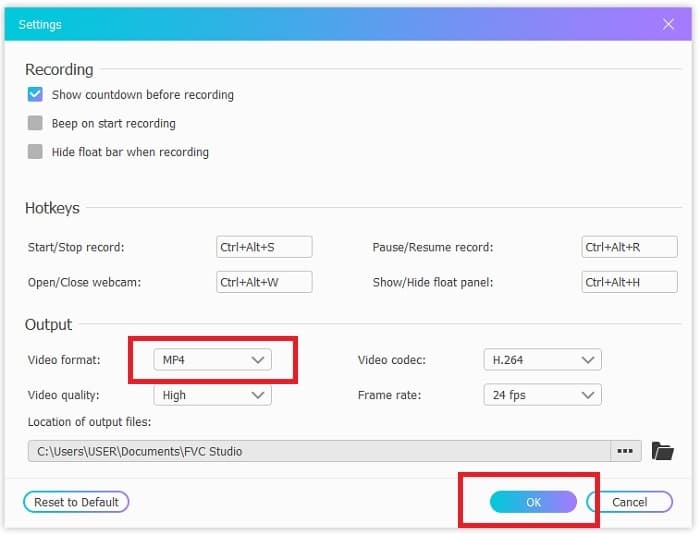
שלב 3. סרגל כלים צף יופיע על המסך. לחץ על סמל ההילוך כדי להיכנס להגדרות, לשנות את פורמט הווידאו והגדרות נוספות לפי הצורך. לחץ על OK כדי לשמור את השינויים.
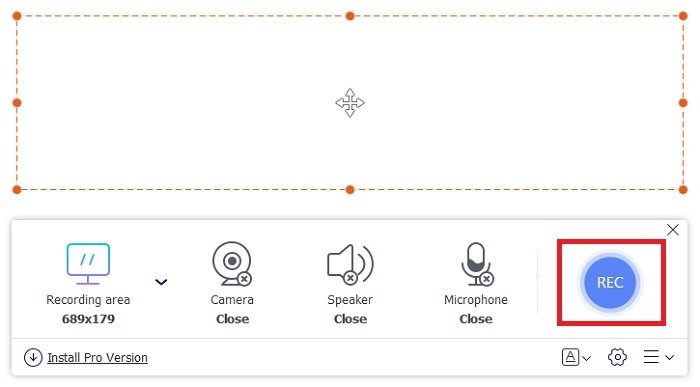
שלב 4. התאם את אזור ההקלטה או לחץ על Full screen לתצוגה מלאה. רמקול ומיקרופון אינם כלולים ביצירת GIF, משום שאין בו צליל. אבל תוכל להוסיף את פניך באמצעות פתיחת Webcam. כאשר אתה מוכן להתחיל בהקלטה, לחץ על כפתור REC כדי להתחיל.
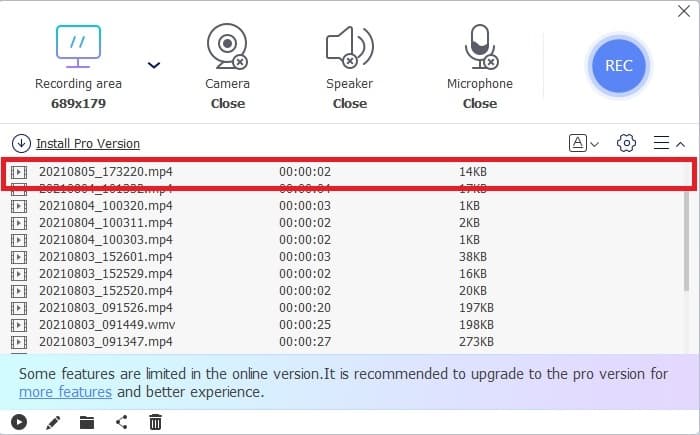
שלב 5. כדי לסיים את ההקלטה לחץ על כפתור הריבוע כדי לעצור. באפשרותך גם לבדוק את ההקלטות שסיימת ברשימת ההיסטוריה.
2. מקליט מסך FVC
אם הכלי המקוון החינמי של FVC גורם לך התרגשות, אז התקנת מקליט ה‑GIF הטוב ביותר - FVC Screen Recorder תיתן לך את אפקט ה"וואו" שאתה כל‑כך מחפש. מה נותן הכלי הזה שגורם לאפקט ה"וואו"? הוא לא נועד רק להקלטת GIF. הוא גם מאפשר הקלטת וידאו ואודיו והקלטת משחקים מרשימה. אבל זו רק תכונה משנית: הוא גם מייצא בפורמטים שונים כמו MP4, GIF, MOV ועוד רבים.
תכונה נוספת שלו היא תכונת המסך הנעילה, זו התכונה הייחודית של הכלי הזה אפילו מקליט במשקל כבד כמו Bandicam לא יכול לספק את התכונה הזו. הקלט וצילום מסך בפורמט GIF מבלי להציג את הכלי עצמו. מקליט מסך FVC מספק את הפאונד עבור הפאונד המלך בהקלטה. אז, לא משנה מה אתה מקליט, מקליט זה יכול להקליט את זה. כדי לדעת כיצד להשתמש בכלי זה, בצע את השלבים הפשוטים הבאים בדרך להצלחת הקלטת GIF.
שלב 1. כאן מסופק לך קובץ ההתקנה של הכלי. בחר בין שתי מערכות ההפעלה הזמינות. התקן את הכלי על הכונן הקשיח, שנה את ההעדפות בהתאם לצרכים שלך ולחץ על finish כדי לשמור.
הורדה חינמיתעבור Windows 7 או גרסה מאוחרת יותרהורדה מאובטחת
הורדה חינמיתעבור MacOS 10.7 או גרסה מאוחרת יותרהורדה מאובטחת
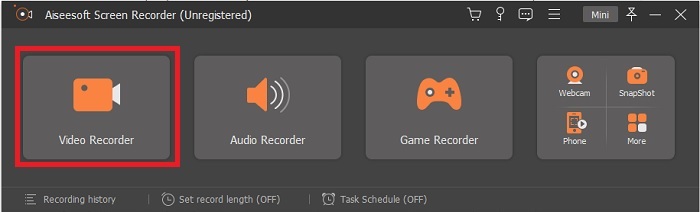
שלב 2. בחר ב‑Video Recorder כדי להקליט את מה שמופיע על המסך שלך. אפשרויות זמינות כמו מקליט אודיו ומקליט משחקים יהיו שימושיות בהמשך.
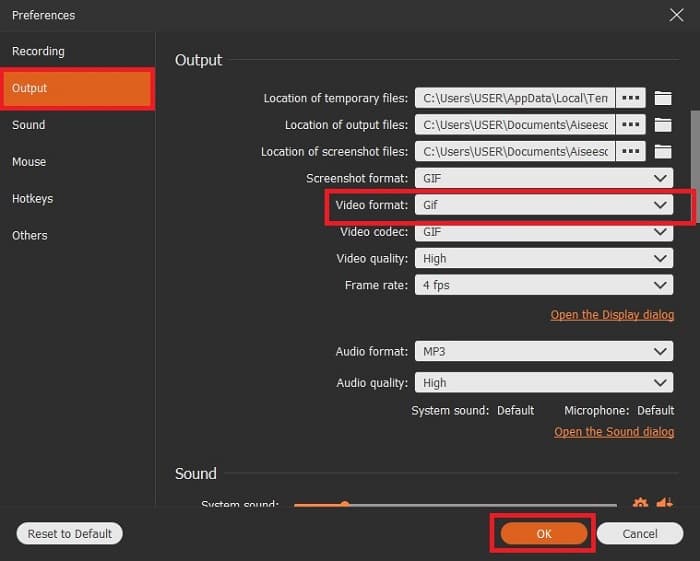
שלב 3. סרגל כלים צף יופיע על המסך. לחץ על סמל ההילוך כדי להיכנס להגדרות, ובOutput שנה את הפורמט ל‑GIF או לכל פורמט אחר שברצונך להשתמש בו. כדי לשמור את ההתאמה לחץ על OK להמשך.
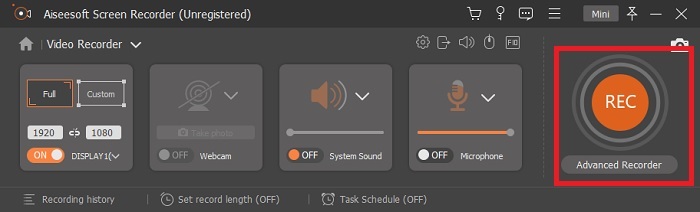
שלב 4. בסרגל הכלים הראשי התאם את יחס המסך, או אם ברצונך תצוגה מלאה לחץ על full screen. בהקלטת פורמט GIF, הצליל והמיקרופון אינם מהותיים. עם זאת, תוכל להוסיף Webcam כדי להציג את התגובה שלך. כשתהיה מוכן לצאת לדרך, לחץ על הכפתור העגול כדי להתחיל בהקלטה.
שלב 5. כאשר ההקלטה הסתיימה תוכל ללחוץ על כפתור הקובייה כדי לעצור. לחץ על Save ואז על Next כדי לשמור את ההתקדמות. כדי לצפות מחדש ב‑GIF שהקלטת קודם, לחץ על סמל השלושה קווים והיסטוריית ההקלטות תופיע על המסך שלך.
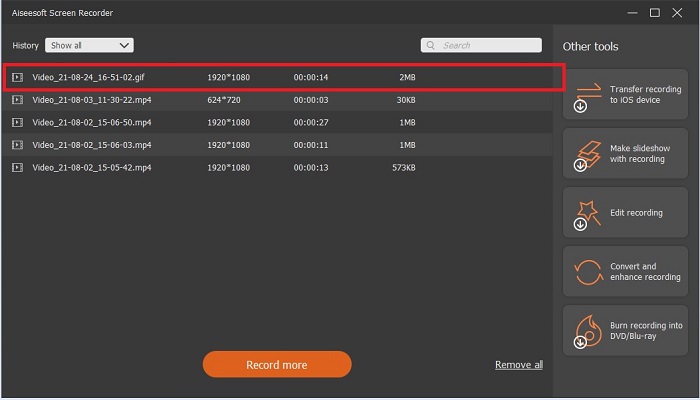
3. ScreenToGif
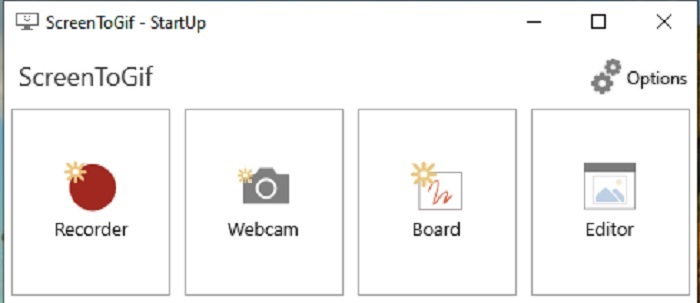
הכלי הזה, שהוא מקליט GIF להורדה עבור Mac ו‑PC, מגיע בשתי גרסאות: מתקין (Installer) וגרסה ניידת (Portable). בחר באחת מהן לפי ההעדפה שלך. עם זאת, ייתכן שבזמן שהכלי פועל תיתקל בכמה תקלות קטנות. וגם, הפורמט היחיד הזמין בתוכנה הזו לפלט סופי הוא .gif. אם אתה זקוק לפורמט אחר, הכלי הזה לא יוכל לספק זאת. מצד שני, הוא חינמי לשימוש, כך שאם ברצונך להקליט GIF‑ים תוכל בהחלט להשתמש בו. רק שהממשק שלו קצת דל, בגלל הרקע הלבן, שנראה מעט משעמם – אבל מבצע את העבודה.
4. גיאזו
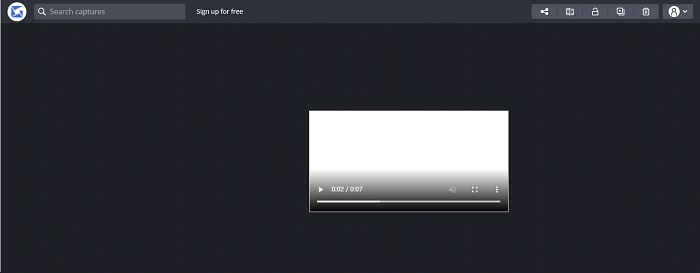
זה אחד ממקליטי ה‑GIF הטובים ביותר ל‑Windows. Gyazo היא תוכנה המוקדשת להקלטת GIF‑ים. עם זאת, לאחר ההתקנה יתווספו אוטומטית שלושה כלים לאחסון שלך. הם חלק מהמערכת אך שונים זה מזה גם בפעולה. שלושת הכלים הם: Gyazo, Gyazo GIF ו‑Gyazo Replay. ההקלטה ב‑Gyazo GIF מוגבלת ל‑7 שניות, כך שאם ההקלטה שלך ארוכה מ‑7 שניות זה לא הכלי המתאים. בנוסף, הסרטון שנשמר לא יורד אוטומטית לאחסון שלך. ייפתח לשונית חדשה בדפדפן ותצטרך להוריד אותו משם. הורדת הפלט הסופי תלויה בחיבור האינטרנט שלך, לכן היה מודע לכך.
5. RecordIt!
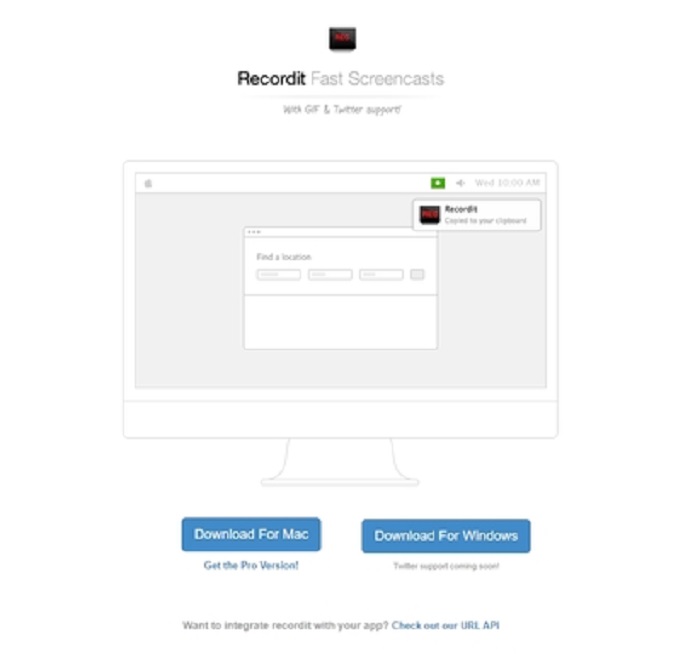
עוד כלי ליצירת GIF‑ים הוא RecordIt!, שנחשב למקליט ה‑GIF הטוב ביותר ל‑Mac. לכלי זה יש גם גרסת Windows. הבעיה בכלי הזה היא ההתקנה שלו. לאחר סיום תהליך ההגדרה ייתכן שתיתקל בקשיים בהתקנתו. זה טבעי, משום שאם אינך מעדכן יישומים במערכת שלך, הכלי לא יותקן. יש אפשרות לעקוף זאת, אבל היא עלולה לגרום נזק למחשב: באפשרותך ללחוץ על Ignore כדי להתקין ולהתעלם מכל ההודעות. לכן ההורדה היא על אחריותך בלבד. כמו כן, לכלי יש פרסומות, וגם מהן צריך להיזהר, מפני שחלקן אינן מוגבלות. מעבר לכך, קיימת גם גרסת Pro שמסירה את הפרסומות ומוסיפה תכונות נוספות.
חלק 3. שאלות נפוצות אודות מקליט GIF
האם אני יכול להמיר GIF לפורמט MOV?
כן, אתה יכול להמיר GIF לפורמט MOV בעזרת ממיר וידאו מקוון כמו FVC Free Online Video Converter.
מהם הסוגים השונים של קובצי GIF?
ישנם 5 קובצי GIF: ה-GIF החוזר, Reaction GIF, גרף הקולנוע, לולאה מושלמת וה-GIF הטכני. כל אלה יכולים להיות מבוססי אנימציה, מבוססי וידאו ומדבקות.
מהן האלטרנטיבות האחרות לקובצי GIF?
למרות יצירת קובצי GIF במשך יותר מ-30 שנה. יש כמה מתחרים באינטרנט שמייצרים סרטי קולנוע וגם GIF. אלו הן החלופות הטובות ביותר לקובצי GIF מונפשים: APNG, WebP, AVIF, MNG ו-FLIF.
סיכום
הגענו לסיום; נהוג לומר שכל סיפור טוב מסתיים במסקנה טובה. לסיכום הפרטים שלעיל, קובצי GIF מעבירים רגש מוחשי ומביע כלפי המקבל. אבל לא כל סרטון שאתה רוצה קיים בפורמט GIF. במקום לחכות שמישהו ייצור GIF, למה שלא תיצור אחד בעצמך? בעזרת מקליט ה‑GIF הטוב ביותר – FVC Screen Recorder. הכלי הזה מאפשר לך להקליט GIF ולהוסיף לו נגיעה אישית. אם אתה עדיין מתלבט מה עליך לבחור, חובה לחזור ולקרוא את המאפיינים החשובים – וכל המאפיינים הללו שייכים ל"נבחר", שהוא FVC Screen Recorder.
-
 [2 פתרונות] כיצד להמיר קבצי SWF ל-GIF בקלות בחינם
 כאשר אינך מצליח לייצא פורמט GIF באמצעות תוכנת Flash, תוכל לנסות לשמור את הקבצים בפורמט SWF בהתחלה. אז אתה יכול ללמוד 2 דרכים קלות להמיר SWF לקבצי GIF ממאמר זה.
-
 4 דרכים למזג סרטונים יחד בחינם ב- Windows / Mac / Online
 הנה 4 דרכים מהירות למזג סרטונים יחד לסרטון חדש. אין הגבלת גודל או פורמט של קובץ וידאו. אתה יכול להצטרף 2, 3, 4 ואפילו יותר וידאו קליפים בפורמטים ורזולוציות שונות עם בהצלחה.
-
 (2 פתרונות) כיצד להמיר סרטוני WMV לקבצי GIF בחינם
 אם אתה רוצה לצלם את החלקים הנפלאים של קטעי הווידאו מסוג WMV ולהכין מהם קובצי GIF, תוכל ללמוד על 2 שיטות פשוטות להעברת קטעי וידאו ל- GIF במאמר זה.
