


 ממיר וידאו אולטימטיבי
 מקליט מסך
 תיקון וידאו
הפק יצירת מופת בעזרת מחליף מהירות GIF
השעה עומדת להתחלף לחצות, ואתה רוצה לברך את חברך ליום הולדתו. כחבר טוב, אתה רוצה שיזכרו אותך ביום המיוחד שלו גם אם אינך לידו, ולכן אתה מחפש את ה‑GIF המושלם שיתאים להודעה הארוכה שלך. אבל קובץ ה‑GIF שיש לך בטלפון או במחשב אינו כל‑כך מרגש לצפייה, ולכן אתה מסתבך עם מה לעשות וחושב על איך לשנות את מהירות ה‑GIF. קרא את המאמר שלמטה כדי להבין – במיוחד במצבים הקריטיים האלה – מה לעשות ואילו דרכים קיימות לפתור את הבעיה שתוארה לעיל.

חלק 1. כיצד להאיץ GIF באופן מקצועי [בתשלום]
Video Converter Ultimate היא תוכנה ארוזה הכוללת להורדה בחינם, שיש לה את היכולת להתאים את מהירות קובצי ה-GIF באמצעות כלי בקר מהירות הווידאו. יתר על כן, הוא גם מציע כלים רבים שיעזרו לך להמיר ולערוך קובצי GIF. בנוסף, כל הכלים קלים לשימוש ויש להם תבניות זמינות לשיפור הסקירה הקולנועית של ה-GIF שלך. Video Converter Ultimate זמין ב-Windows וב-Mac.
יתרונות
- הצע כלים קלים לשימוש ותכונות אחרות.
- הפקת פלט באיכות גבוהה.
חסרונות
- צריך לרכוש תכונות אחרות כדי לקבל גישה מלאה.
שלב 1: באפשרותך לשמור את תוכנת המחשב על‑ידי לחיצה על כפתור Free Download. לאחר מכן תוכל להתאים אישית ולהתקין את התוכנית.
הורדה חינמיתל-Windows 7 ומעלההורדה מאובטחת
הורדה חינמיתל-MacOS 10.7 ומעלההורדה מאובטחת
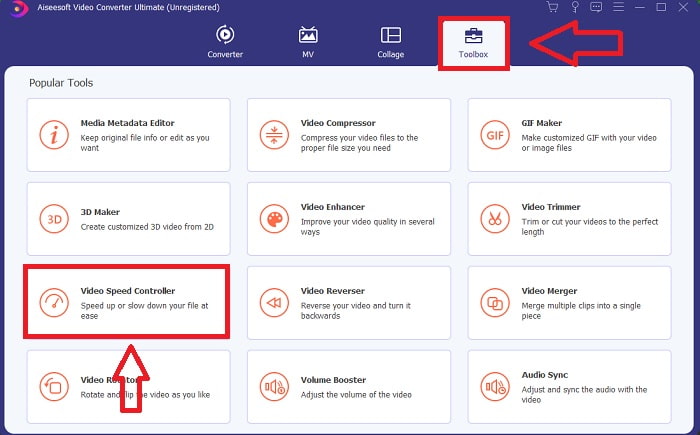
שלב 2: לאחר התקנת התוכנה, עבור אל אפשרות הToolbox ובחר Video Speed Controller.
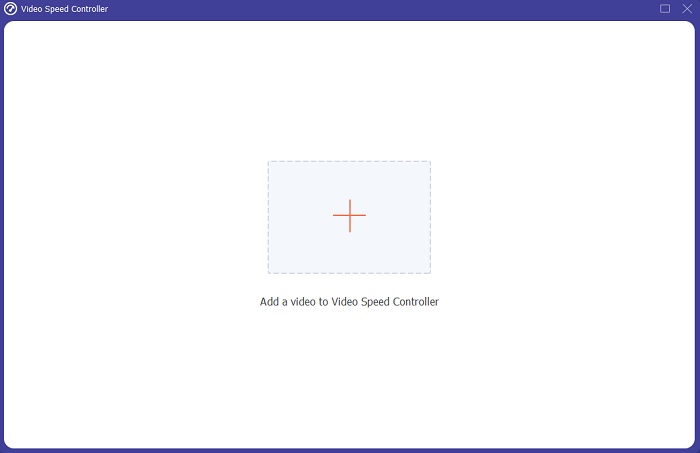
שלב 3: על‑ידי לחיצה על כפתור ה‑+ בהתאם להעדפתך, תוכל להוסיף כל קובץ GIF ולהמשיך לערוך את קליפ הווידאו.
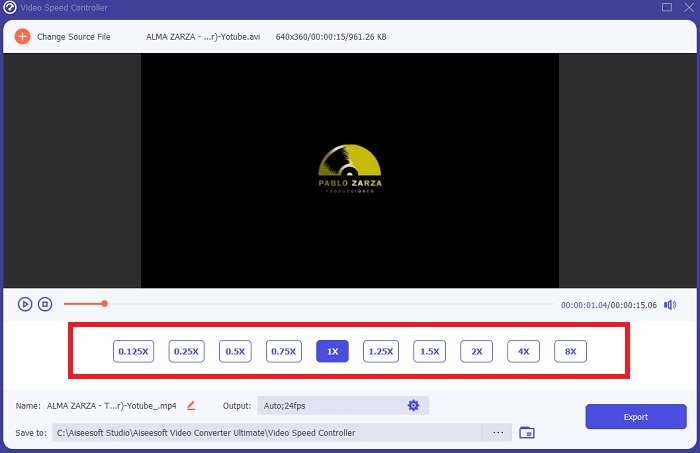
שלב 4: לאחר מכן תוכל לכוונן את מהירות הווידאו על‑ידי הגברה או הפחתה של מהירות הניגון.
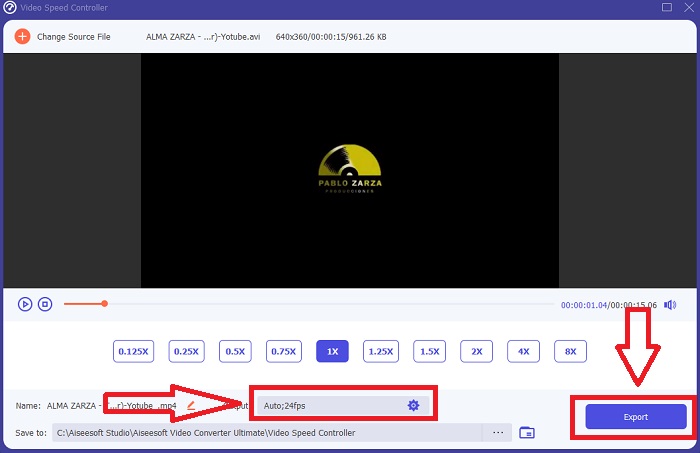
שלב 5: לאחר שסיימת לשנות את מהירות הניגון של קליפ הווידאו שלך, תוכל לבחור את פלט הווידאו הרצוי על‑ידי שינוי הפורמט, הרזולוציה והאיכות, בין היתר. כשתהיה מוכן, לחץ על Export ובחר מיקום לשמירת העבודה שלך.
חלק 2. דרכים אחרות להאיץ GIF [חינם]
כיצד להאיץ GIF באמצעות ImageOnline.co
ניתן ליצור תמונות GIF עם הכלי החינמי הזה לשימוש בקלות, כל עוד יש לך גישה למחשב ולדפדפן אינטרנט. יתר על כן, כלי זה אינו פשוט לשימוש כעורך מהירות GIF; אין הגבלה למספר תמונות ה-GIF שתוכל ליצור באמצעות כלי אינטרנט זה. ניתן ליצור כל תמונת GIF ללא הגבלה, והדיוק שלנו נשאר קבוע לאורך כל הדרך.
יתרונות
- זה נגיש למגוון רחב של משתמשים.
- הוא מציע הרבה תכונות לשימוש.
- הוא מספק תזכיר לעקוב אחר השימוש בכל תכונה.
חסרונות
- בממשק יש הרבה פרסומות ופרסומות.
- הממשק פשוט מדי.
שלב 1: אתר את GIF Image Tools בפינה השמאלית של הממשק ולחץ על Make GIF animations.
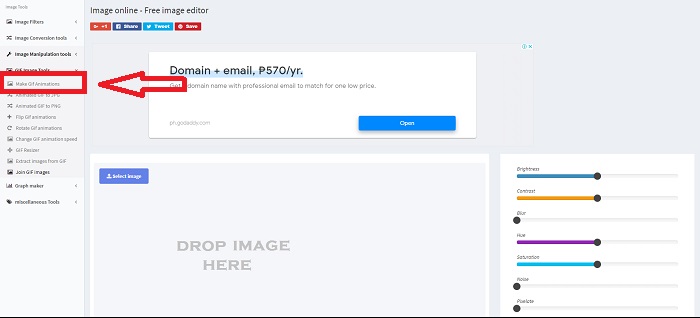
שלב 2: בחר תמונה מהמחשב שלך על‑ידי לחיצה על Select Image, או שניתן לגרור קבצים ולשחרר אותם לממשק האתר.
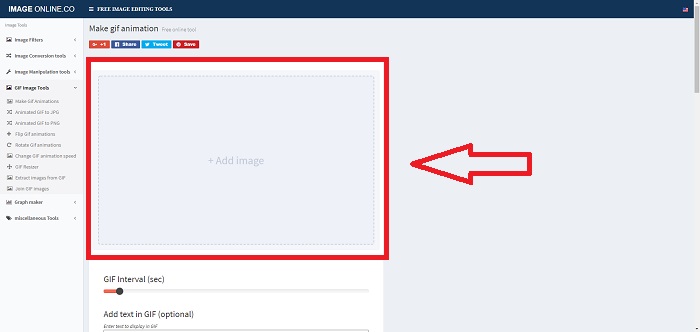
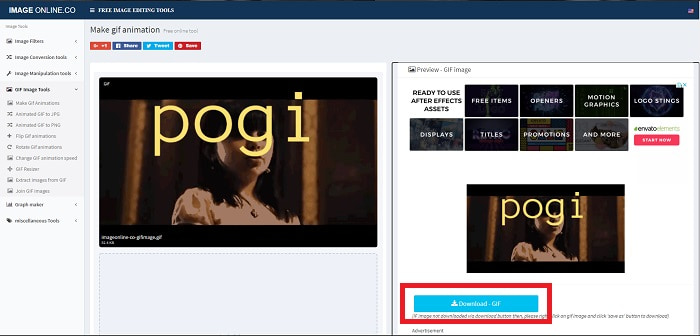
שלב 3: כוונן את מרווח הזמן של ה‑GIF שלך על‑ידי גרירת הSlider. באפשרותך להוסיף טקסט ל‑GIF או לשנות את גודלו על‑ידי התאמת המידות שלו. אם הכול מוכן, לחץ על Apply Changes. לבסוף, לחץ על Download כדי להוריד את הקובץ למחשב שלך.
כיצד להאיץ GIF באמצעות LunaPic
כלי אינטרנט זה הוא עורך דל תקציב המכסה כלים שונים הזמינים עבור כלי אינטרנט חופשי לשימוש שיכול לתת לך עריכת פרספקטיבה מקצועית. העריכה הופכת לפרוסת לחם, והיא מספקת חוויה מצוינת לחלק מהעורכים המקצוענים מכיוון שכלי אינטרנט זה מכסה את רוב הפורמטים והמדיה החברתית הזמינים. תראה כלים שונים שכלי אינטרנט אחרים אינם מציעים. הממשק פשוט וניתן להתאים אותו לפי העדפתו של כל משתמש.
יתרונות
- הוא מכיל כלים מסיביים לשימוש בעריכה.
- עורך דמוי מקצועי.
חסרונות
- כלים מסוימים צריכים הבהרה או תיאור כדי להכיר את הקהלים או המשתמשים הכלליים.
- זה מסובך לשימוש עבור משתמשים מתחילים.
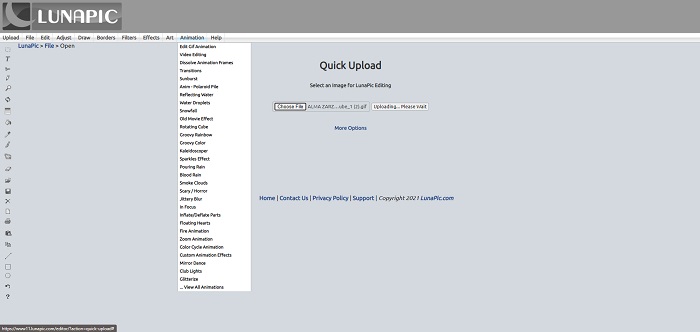
שלב 1: לחץ על הלשונית Upload בפינה השמאלית העליונה של ממשק האתר והוסף קבצים על‑ידי לחיצה על Choose file.
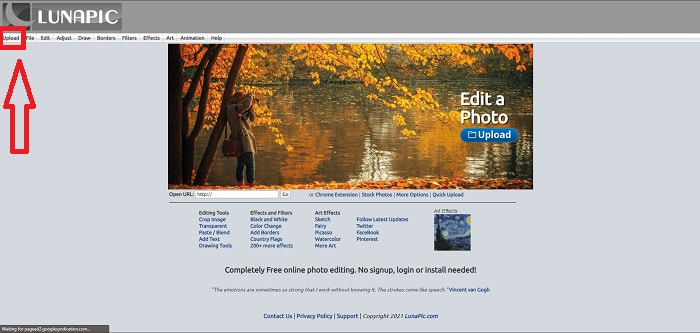
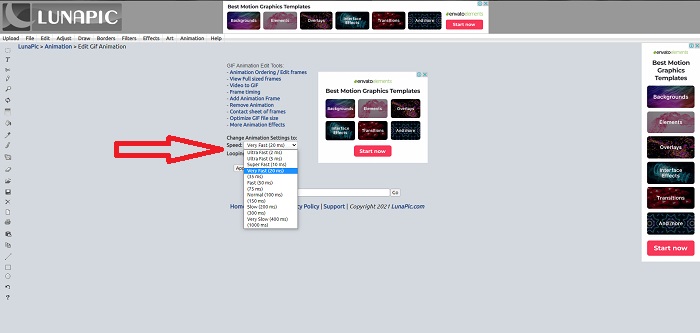
שלב 2: כבר במסך הראשון שמופיע לאחר העלאת הקובץ תוכל לערוך את ה‑GIF שלך. אך אם ברצונך להגדיל את מהירות ה‑GIF, המשך על‑ידי לחיצה על לשונית Animations, ואז לחץ על Edit GIF Animation.
שלב 3: כוונן את המהירות על‑ידי בחירת מהירות הניגון של ה‑GIF שלך. לחץ על Apply לאחר שסיימת לבחור את מהירות ה‑GIF. מתחת לתצוגה המקדימה של ה‑GIF שלך, לחץ על More Options ובחר באיזה פורמט ישמש ה‑GIF שלך.
כיצד להאיץ GIF באמצעות Gifntext
זהו גם כלי אינטרנט חופשי לשימוש המספק כלי עריכה שונים וכולל הגדלת המהירות והאטת מהירות ה-GIF. כלי אינטרנט זה פשוט לשימוש, ובניגוד לכלי האינטרנט האחר, Gifntext תומך בכתובות GIF ומספק הדרכות כיצד להשתמש בכלים המופיעים הזמינים בכלי האינטרנט. כמו כן, זה לא משאיר סימני מים על קובץ הווידאו הפלט שיכולים להוביל לטכניקות פרסום.
יתרונות
- בממשק אין פרסומות ופרסומות.
- הוא מספק הדרכות כיצד להשתמש בכלים.
חסרונות
- הוא מכיל פחות כלים לשימוש בעריכה.
- זה ממיר לאט יותר מהכלים האחרים.
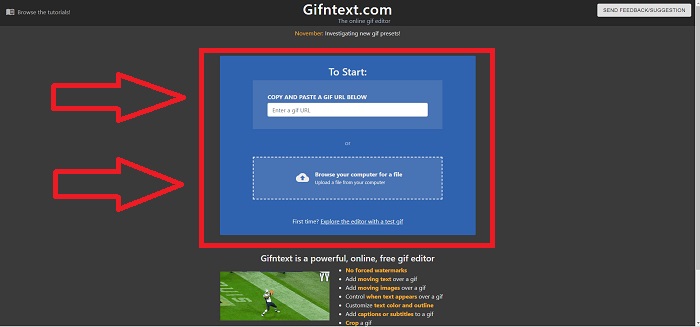
שלב 1: בממשק הראשי תוכל לבחור אם להעלות כתובת URL של GIF או לבחור קובץ GIF מהמחשב שלך.
שלב 2: ערוך את המהירות על‑ידי גרירת הSlider.
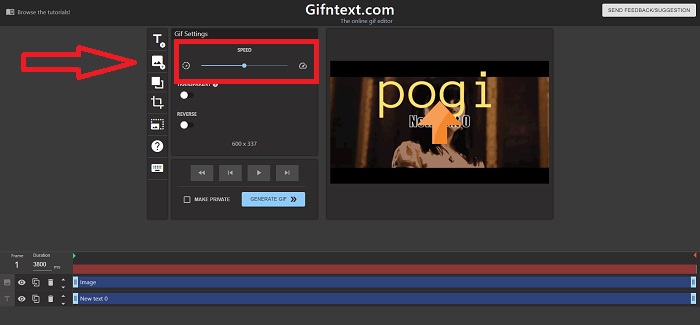
שלב 3: לחץ על Generate GIF כדי לעבד את ה‑GIF שלך. המתן בסבלנות לסיום העיבוד, ואז לחץ על Download GIF כאשר זה מסתיים.
חלק 3. שאלות נפוצות על מחליף מהירות GIF
מה זה GIF?
בגלל התמיכה והניידות שלו, פורמט ההחלפה הגרפית (Graphic Interchange Format, בקיצור GIF) נמצא בשימוש רחב באינטרנט. בפורמט GIF ניתן להשתמש בפלטה נפרדת של עד 256 צבעים לכל פריים. מגבלת הפלטה של GIF הופכת אותו לפחות מתאים מאשר פורמטים אחרים, כמו JPEG, לתמונות מורכבות יותר, בכל הקשור לשחזור צילום צבעוני ואיורים אחרים בעלי מעברי גוונים.
איך אני הולך להמיר MP4 ל-GIF?
פורמטי וידאו אחרים אינם זמינים להמרה ל‑GIF. אך מאחר ש‑MP4 הוא קובץ וידאו סטנדרטי, יש מאמר על המרת MP4 ל‑GIF.
האם אני מאבד את האיכות אם אני ממיר פורמטים אחרים ל-GIF?
כן, המרה של כל פורמט ל‑GIF עלולה להרוס את איכות הווידאו משום שיצירת GIF מחייבת דחיסה של הקובץ. אך יש ממירים שיכולים ליצור GIF שממזער את הירידה באיכות הווידאו. Video Converter Ultimate מספק פלט באיכות גבוהה במיוחד בעת יצירת GIF, ואף מאפשר האצת מהירות ה‑GIF בצורה יעילה ומהירה.
סיכום
לאורך המאמר, אנו יודעים ש-GIF הוא פורמט שצריך להאט ולהגביר את מהירותו כדי להציג את התמונה או את ההודעה עצמה מכיוון שאין ל-GIF צלילים. ישנן דרכים רבות לעשות זאת, בחינם או בתשלום; כלי האינטרנט והתוכנות הללו מדגישים את העריכה לשלב הבא. אבל אם אתה רוצה לגשת לתוכנת העריכה כך שחיבור לאינטרנט לא יכול לגרום לבעיות בשימוש בה. הורד את Video Converter Ultimate והשתמש בו כעורך ואמין בפורמטים אחרים של וידאו קליפים, כמו GIF.
-
 5 האפשרויות הטובות ביותר להקלטת פורמט GIF עם מקלידי GIF למחשב ו- Mac
 מהו מקליט ה- GIF הטוב ביותר שעליך להשתמש בו כדי להקליט קובצי GIF? הרשימה שלהלן מספקת הוכחות על איזה מהם הוא מקליט המסך הטוב ביותר.
-
 כיצד להמיר פורמט MPG לפורמט GIF [מקוון ולא מקוון]
 רוצה להביע רגש הרבה יותר טוב? לאחר מכן עליך להשתמש ב- GIF במקום זאת. מאמר זה ילמד אותך כיצד להמיר קובץ MPG ל- GIF כדי להביע את הרגשתך הרבה יותר טוב.
-
 [2025 עודכן] 9 עורכי ה-GIF הטובים ביותר עבור PC, Mac, iOS ואנדרואיד
 צריך להוסיף מגע אישי ל-GIF שלך כדי שיוכל להיות אקספרסיבי יותר? המשך לקרוא מאמר זה כדי לדעת כיצד לערוך והכלי הטוב ביותר לעבודה.
