


 ממיר וידאו אולטימטיבי
 מקליט מסך
 תיקון וידאו
 הורדה מאובטחת
כיצד לחתוך במומחיות קובצי GIF כדי לשפר את סיפור הסיפור החזותי שלך
קובצי GIF, או תמונות מונפשות, הפכו נפוצות בכל מקום בתקשורת מקוונת וביצירת תוכן. בין אם אתה מחפש להוסיף קצת כשרון ויזואלי לפוסטים שלך במדיה החברתית, ליצור חומרים שיווקיים מושכי עין, או פשוט לבטא את עצמך באמצעות אנימציה מהנה, אין להכחיש את הערעור של GIF עשוי היטב. עם זאת, עם הפופולריות של תמונות מונפשות אלה מגיע הצורך לערוך ולהתאים אותן כך שיתאימו לצרכים הספציפיים שלך.
אחד ההיבטים החשובים ביותר בעבודה עם קובצי GIF הוא לדעת כיצד לחתוך אותם בצורה יעילה. למרבה המזל, קיימים מגוון כלים עבור משתמשים אונליין ואופליין שהופכים את תהליך חיתוך ה‑GIF לפשוט וברור. החל מאפשרויות ידידותיות למתחילים ועד תוכנות מתקדמות לאנשי מקצוע, יש כאן משהו לכל מי שרוצה לשדרג את יכולות עריכת ה‑GIF שלו. אז בואו נצלול פנימה ונלמד איך לחתוך קובצי GIF אונליין ואופליין.

חלק 1. חתוך GIF במצב לא מקוון
1. ממיר וידאו FVC Ultimate
פונקציית חיתוך ה‑GIF ב‑FVC Video Converter Ultimate משנה את כללי המשחק עבור כל מי שמכוון ליצור קובצי GIF באיכות מקצועית. הכלי הזה הוא האפשרות הטובה ביותר לקיצוץ GIF, בין אם אתה עורך וידאו שיוצר אנימציות ללקוח ובין אם אתה משווק ברשתות חברתיות שמנסה להמציא רעיונות חדשים לפוסטים.
עם זה, אתה יכול להגדיר את נקודות ההתחלה והסיום של קובץ ה-GIF שלך. תכונה זו מועילה במיוחד כאשר קובץ ה-GIF שלך ארוך מדי. בנוסף, זה מאפשר לך לפצל GIF בקלות רבה. נוסף על כך, אתה עשוי להחיל אפקטים כגון דהייה ודעיכה. אם ברצונך ללמוד כיצד לחתוך קובצי GIF במצב לא מקוון או במחשב שלך, בצע את השלבים הנתונים:
שלב 1. הורדה והתקנה של התוכנית
ראשית, לחץ על אחד מכפתורי הורדה חינמית המופיעים למטה כדי להתחיל. לאחר מכן, פעל לפי תהליך ההתקנה כדי להשלים את התקנת התוכנה במכשירך. לאחר ההתקנה, הפעל את התוכנית כדי להיכנס לממשק הראשי שלה.
הורדה חינמיתעבור Windows 7 או גרסה מאוחרת יותרהורדה מאובטחת
הורדה חינמיתעבור MacOS 10.7 או גרסה מאוחרת יותרהורדה מאובטחת
שלב 2. העלאת קובץ GIF
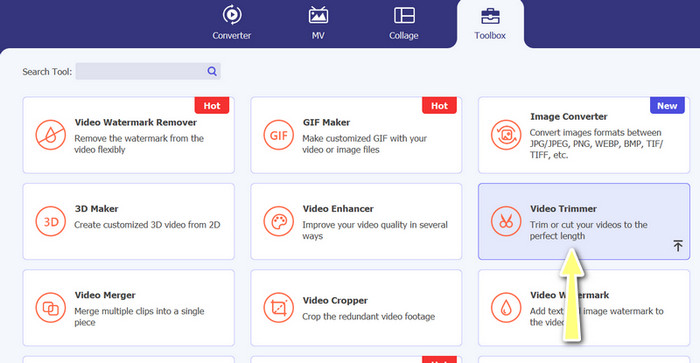
כעת עבור ללשונית ארגז כלים וגשת לאפשרות חיתוך וידאו. לאחר מכן באפשרותך להעלות קובץ GIF בלחיצה על כפתור סימן הפלוס.
שלב 3. גזירת קובץ ה‑GIF
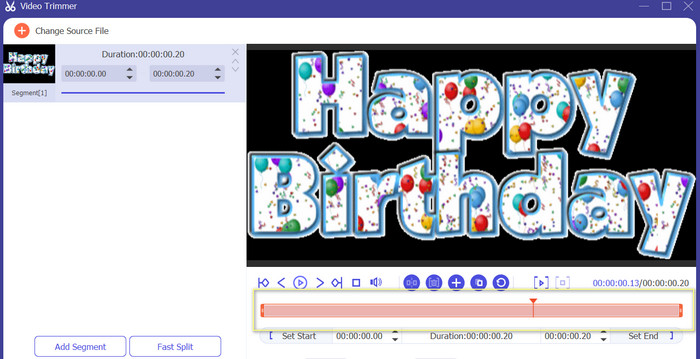
לאחר העלאת ה-GIF, תראה אותו מממשק העריכה של התוכנית. בעזרת המחוון זהה את ההתחלה והקצה של קובץ ה-GIF שברצונך להסיר.
שלב 4. שמירת קובץ ה‑GIF
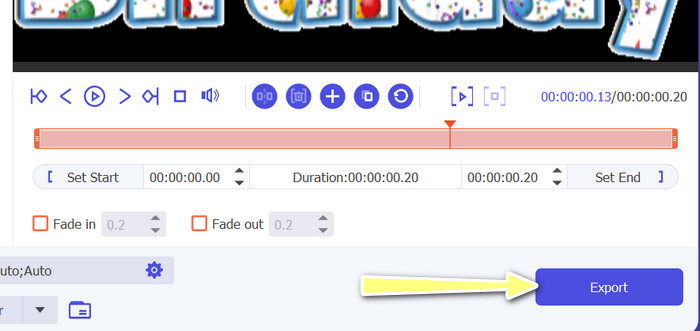
לאחר שסיימת לחתוך חלקים מה‑GIF, לחץ על כפתור ייצוא הממוקם בצד הימני‑תחתון של הממשק כדי להתחיל בעיבוד הקובץ.
2. יוצר GIF
יצירת GIF יכולה להיות אתגר עבור אלה ללא ניסיון בעריכת וידאו או עיצוב גרפי. כאן נכנס לתמונה יוצר GIF, המספק דרך קלה ויעילה ליצור, לערוך, לשתף ולחתוך קובצי GIF מונפשים. כמו כן, תוכנית זו מאפשרת למשתמשים לחתוך קובצי GIF, להתאים את מהירות ההשמעה ולהוסיף טקסט או אפקטים אחרים כדי ליצור את ה-GIF המושלם לצרכיהם. להלן השלבים כיצד לחתוך קובצי GIF מונפשים במצב לא מקוון באמצעות הטלפון שלך
שלב 1. ראשית, הורד את התוכנית מחנות Play על‑ידי הקלדת שמה בשורת החיפוש. לאחר מכן התקן אותה במכשיר הנייד שלך.
שלב 2. כעת הפעל את האפליקציה במכשירך. עם ההפעלה, התוכנית תציג את כל מה שמאוחסן במכשיר שלך, כולל קובצי ה‑GIF. לאחר מכן, בחר את קובץ ה‑GIF המבוקש.
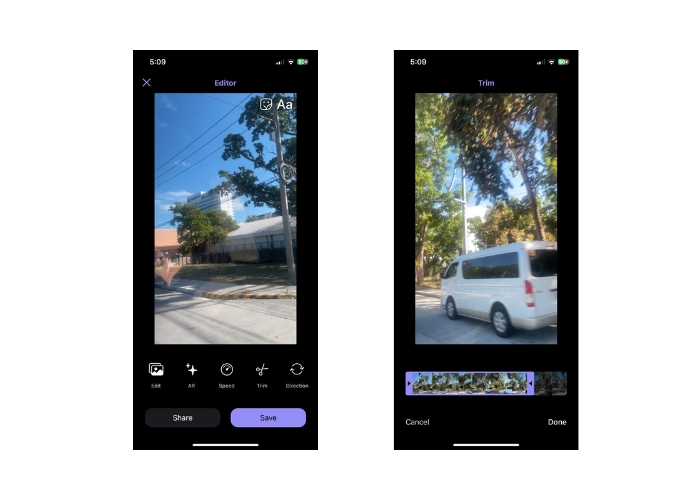
שלב 3. לאחר מכן, הקובץ ייטען. אחר כך הקש על כפתור Trim וקבע את נקודת ההתחלה והסיום של ה‑GIF והתאם את המחוון.
שלב 4. לבסוף, הקש על כפתור Done כדי לסיים את תהליך חיתוך קובצי ה‑GIF.
חלק 2. גזור GIF באינטרנט
1. EZGIF
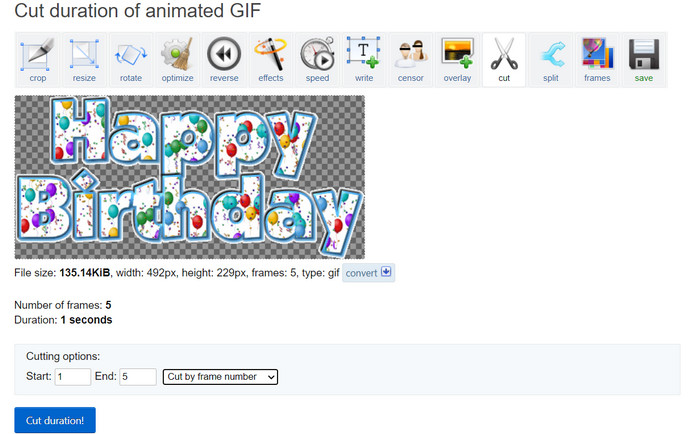
אם ברצונך תהליך פשוט לחיתוך ועריכת קובצי GIF אונליין באמצעות המחשב, תוכל להשתמש ב‑EZGIF. התכונות המרכזיות שלו כוללות אפשרות לחתוך או לשנות גודל ל‑GIF, להתאים את מהירות ההפעלה, להוסיף טקסט או מדבקות, לייעל את גודל הקובץ ואף להמיר את ה‑GIF לפורמטים אחרים, כגון MP4 או WebM. עקוב אחר השלבים הפשוטים הבאים כדי ללמוד איך לחתוך GIF אונליין באמצעות EZGIF.
שלב 1. פתח את הדפדפן המועדף עליך במחשב ונווט לאתר הרשמי של EZGIF.
שלב 2. כעת עבור לאפשרות Cut כדי לחתוך את אורך ה‑GIF אונליין. לאחר מכן לחץ על כפתור Choose File ואחריו על כפתור Upload.
שלב 3. בסעיף אפשרויות החיתוך, קבע את נקודת ההתחלה והסיום באמצעות מספר הפריים.
שלב 4. לאחר שקבעת, לחץ על כפתור Cut duration כדי להתחיל לחתוך את קובץ ה‑GIF.
2. GIPHY
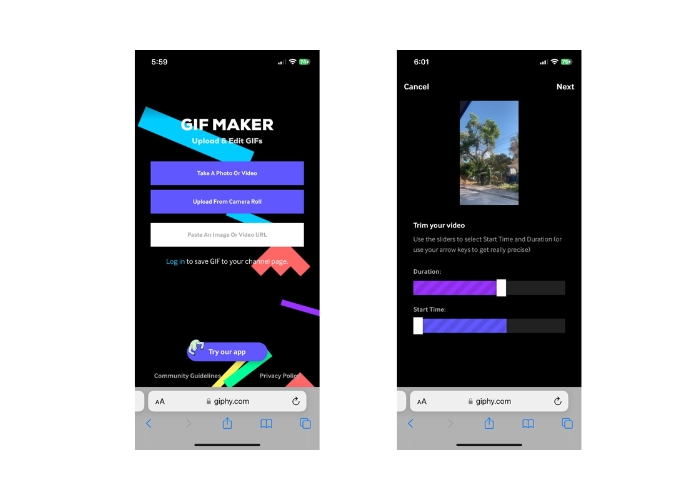
אתה יכול גם לנסות להשתמש באפליקציה לנייד של GIPHY כדי לערוך או לחתוך קובצי GIF באינטרנט באמצעות הטלפון שלך. עם אפליקציית Giphy לנייד, משתמשים יכולים לגשת בקלות לקובצי ה-GIF המועדפים עליהם ולשתף אותם, כמו גם ליצור קובצי GIF מותאמים אישית משלהם באמצעות מצלמת הטלפון החכם שלהם או קבצי וידאו קיימים. יתר על כן, אפליקציה זו כוללת תכונות עריכה כגון חיתוך וגיזום. ללא עיכובים נוספים, הנה השלבים שיש לבצע כדי לחתוך קובצי GIF מקוונים במכשיר הנייד שלך:
שלב 1. הורד והתקן את אפליקציית Giphy מחנות האפליקציות. פתח את האפליקציה ובחר את קובץ ה‑GIF שברצונך לערוך מגלריית התמונות או ספריית המצלמה שבטלפון.
שלב 2. השתמש במחוון כדי לבחור את נקודות ההתחלה והסיום של הקטע שברצונך לשמור. באפשרותך גם להוסיף טקסט או מדבקות ל‑GIF.
שלב 3. לאחר שסיימת את העריכות, הקש על כפתור Next ובצע כמה התאמות לפי טעמך. לאחר מכן תוכל לשתף את היצירה שלך עם אחרים אונליין.
חלק 3. שאלות נפוצות על חיתוך GIF באינטרנט
האם אוכל לבטל עריכות שבוצעו ב-GIF באמצעות חותך מקוון?
זה תלוי בחותך ה-GIF המקוון הספציפי שבו אתה משתמש, אבל רבים מציעים כפתור ביטול או אפשרות לבטל שינויים שבוצעו ב-GIF. עם זאת, ראוי לציין שלא כל חותכי ה-GIF המקוונים מציעים את היכולת לבטל עריכות, כך שתמיד כדאי לשמור גיבוי של הקובץ המקורי לפני ביצוע שינויים כלשהם.
האם אוכל לשתף פעולה עם אחרים בפרויקט עריכת GIF באמצעות חותך מקוון?
רוב חותכי ה-GIF המקוונים מיועדים לשימוש אינדיבידואלי ועשויים שלא להציע תכונות מובנות של שיתוף פעולה. עם זאת, חלק מהכלים המקוונים מאפשרים לך להעלות ולשתף את קובצי ה-GIF הערוכים שלך עם אחרים על ידי מתן קישור או קוד הטבעה שניתן לשתף בפלטפורמות מדיה חברתית או באתרי אינטרנט. בנוסף, אתה יכול להשתמש בכלי שיתוף פעולה של צד שלישי כמו Google Drive או Dropbox כדי לשתף את קובץ ה-GIF המקורי וכל גרסה ערוכה עם אחרים לצורך משוב או עריכה נוספת.
האם אני יכול להמיר GIF לפורמט קובץ אחר באמצעות חותך מקוון?
כן, חותכי GIF מקוונים רבים מציעים את האפשרות להמיר GIF לפורמט וידאו, כגון MP4, AVI, WebM או MOV. המרת GIF לפורמט קובץ אחר יכולה להיות שימושית אם אתה רוצה להשתמש בו בפרויקט עריכת וידאו או להעלות אותו לפלטפורמה שתומכת רק בסוגי קבצים מסוימים.
סיכום
חיתוך קובצי GIF אונליין הוא דרך מהירה וקלה לעריכה ושינוי של קובצי GIF מונפשים, בלי צורך בתוכנה ייעודית או בידע טכני. חותכי GIF אונליין מציעים מגוון תכונות, כגון קיצוץ, שינוי גודל, התאמת מהירות ההפעלה, הוספת טקסט ומדבקות, אופטימיזציית גודל הקובץ והמרה לפורמטים אחרים. מצד שני, כלים אופליין אינם מוגבלים בכוח העיבוד של אתר או שרת ויכולים לרוץ מקומית על המחשב או המכשיר שלך. כתוצאה מכך, כלים אופליין יכולים להציע בקרות עריכה מדויקות יותר, איכות פלט גבוהה יותר ואפשרויות התאמה אישית נרחבות יותר. למרבה המזל, יש שפע כלים אונליין ואופליין שעוזרים לך לחתוך קובצי GIF.
-
 5 התוכנות האחרונות שבהן אתה יכול להשתמש כדי ליצור GIF הפוך מדהים
 רוצה לדעת איך לשפר את ה-GIF שלך? לאחר מכן נסה להפוך GIF כדי להוסיף אפקטים מדהימים בעזרת הכלים האלה.
-
 5 ממכוני ה-GIF הטובים ביותר הזמינים בכל הפלטפורמות [2023]
 רוצה לדעת את מכשירי שינוי ה-GIF שבהם אתה יכול להשתמש? במקרה כזה, המידע שסופק להלן ידבר על השינויים שבהם אתה יכול להשתמש ב-GIF שלך בכל הפלטפורמות.
-
 [חינם] 4 דרכים קלות לחתוך קובצי GIF מונפשים באופן מקוון ולא מקוון
 רוצה לחתוך קובצי GIF בקלות? ובכן, אתה יכול לעשות את זה בעזרת חותכי GIF אלה הזמינים במאמר זה, לקרוא אותו היטב וללמוד כיצד לעשות זאת.
