


 ממיר וידאו אולטימטיבי
 מקליט מסך
 תיקון וידאו
 הורדה מאובטחת
מפצלי GIF: כלים מובילים לפיצול והתאמה אישית של תמונות מונפשות
אם אי פעם רצית להשתמש בחלק מסוים של GIF אבל מצאת את עצמך תקוע עם כל האנימציה, אתה לא לבד. קובצי GIF פופולריים בזכות יכולתם להעביר רגשות ותגובות בפרק זמן קצר, אבל לפעמים אנחנו צריכים רק חלק מהדבר כדי להעביר את המסר שלנו. כאן נכנסת לתמונה החשיבות של פיצול קבצי GIF.
בעזרת מפצלי GIF תוכלו לחלץ בקלות את החלק המדויק מה‑GIF שאתם צריכים ולהשתמש בו עבור הפרויקט שלכם או עבור פוסט ברשתות החברתיות. בפוסט זה נסקור כמה ממפצלי ה‑GIF המובילים הזמינים כיום בשוק.

חלק 1. דרך קלה לפצל קובצי GIF
1. ממיר וידאו FVC Ultimate
אם אתם צריכים רק לחתוך חלק קטן מ‑GIF, תוכלו להשתמש ב‑FVC Video Converter Ultimate. זהו כלי תוכנה רב‑תכליתי שמציע מגוון פונקציות להמרת ועריכת וידאו. בנוסף, הכלי תומך במגוון רחב של פורמטים של וידאו ומאפשר למשתמשים לכוונן הגדרות וידאו כמו רזולוציה, קצב נתונים (bitrate) וקצב פריימים. אמנם אין בו פונקציה ייעודית לפיצול קובצי GIF, אך פונקציית חיתוך הווידאו יכולה לבצע משימה זו.
FVC Video Converter Ultimate יכול להיות כלי רב ערך עבור אלה שמחפשים דרך פשוטה וישירה לפצל קבצי GIF. עם הממשק האינטואיטיבי שלו ותכונת חיתוך הווידאו הקלה לשימוש, הוא מספק פתרון נוח למשתמשים שצריכים לבצע רק עריכות קטנות בקובצי ה-GIF שלהם. בנוסף, הוא מגיע עם מגוון תכונות אחרות, כגון עיבוד אצווה והאצת GPU, שהופכים אותו לכלי המרת ועריכת וידאו מקיפים. אם ברצונך ללמוד כיצד לפצל קובצי GIF במצב לא מקוון, הנה השלבים שאתה יכול לבצע:
שלב 1. הורדת התוכנה
כדי להתחיל, בחרו פשוט קישור מאחד מכפתורי ה‑Download החינמיים למטה. לאחר מכן, עקבו אחר ההנחיות המופיעות על המסך כדי להשלים את התקנת התוכנית במכשירכם. לאחר סיום ההתקנה תוכלו להפעיל את האפליקציה ולהיכנס לתפריט הראשי שלה.
הורדה חינמיתעבור Windows 7 או גרסה מאוחרת יותרהורדה מאובטחת
הורדה חינמיתעבור MacOS 10.7 או גרסה מאוחרת יותרהורדה מאובטחת
שלב 2. צרפו קובץ תמונת GIF
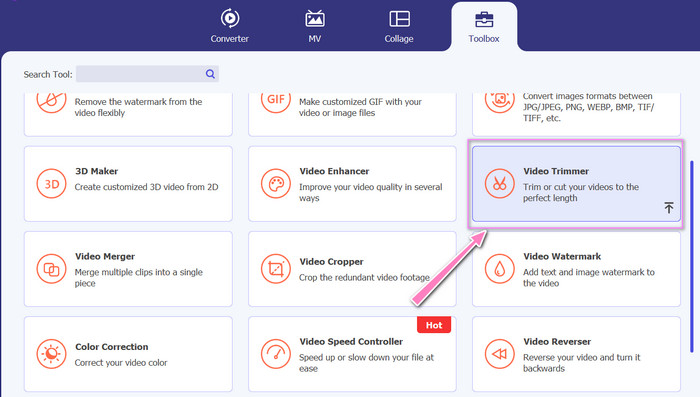
בחרו את כלי ה‑Video Trimmer מתפריט ה‑Toolbox. לאחר מכן לחצו על כפתור ה‑+ כדי להעלות GIF.
שלב 3. פיצול קובץ ה‑GIF
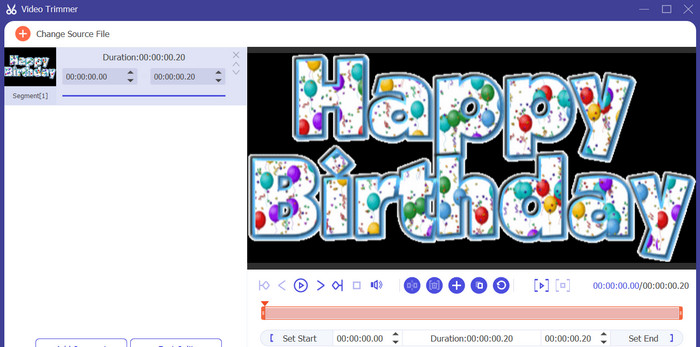
לאחר העלאת ה-GIF, הוא יוצג בממשק התוכנית לביצוע שינויים. בחר את נקודות ההתחלה והסיום של ה-GIF שברצונך למחוק באמצעות המחוון.
שלב 4. שמירת ה‑GIF שיצרתם
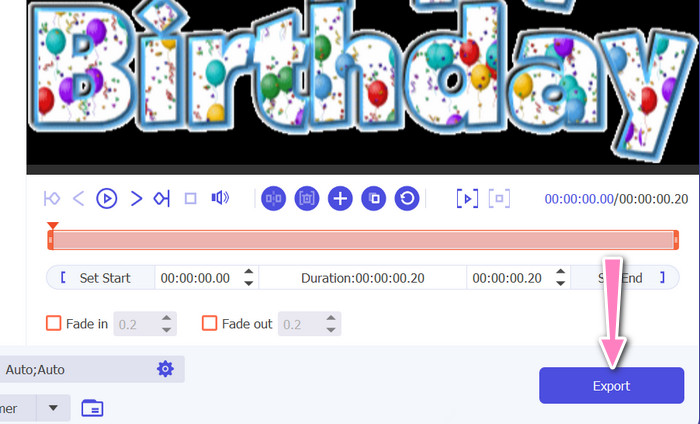
לאחר שתסיימו להתאים אישית את ה‑GIF, לחצו על כפתור ה‑Export בפינה הימנית‑תחתונה של הכלי כדי להתחיל בתהליך הרינדור.
2. EZGIF
EZGIF הוא כלי מקוון שמציע מגוון פונקציות לעבודה עם קובצי GIF. האתר מספק כלים שונים ליצירה, עריכה ואופטימיזציה של GIF‑ים, כולל שינוי גודל GIF, חיתוך ופיצול. הוא כולל גם אפשרויות להוספת טקסט ואפקטים מיוחדים ל‑GIF‑ים שלכם, ואף מאפשר להמיר סרטונים ותמונות לפורמט GIF. לכן, אם אתם מעוניינים לפצל GIF לפריימים באופן מקוון, זהו פתרון מצוין. נוסף על כך, EZGIF הוא פלטפורמה ידידותית למשתמש שאינה דורשת הורדה או התקנה, כך שניתן לגשת אליה בקלות מכל דפדפן אינטרנט. גלו כיצד הכלי הזה עובד ופצלו GIF‑ים לתמונות.
שלב 1. כדי לפצל GIF באמצעות Ezgif, פתחו את אתר EZGIF בדפדפן האינטרנט שלכם.
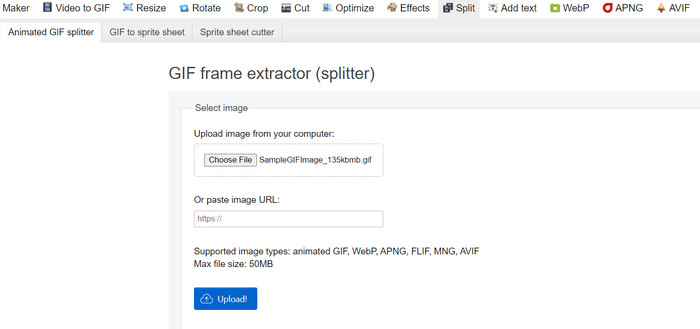
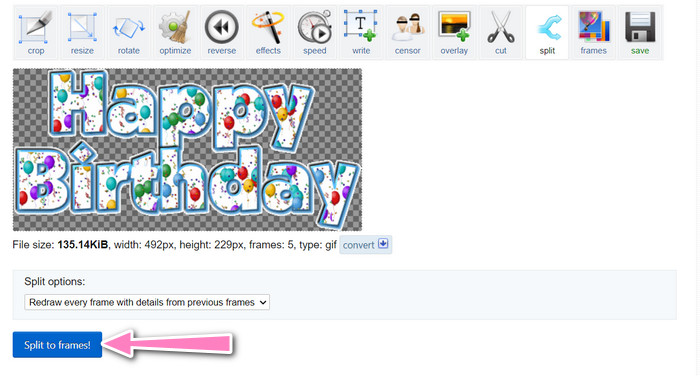
שלב 2. בחרו באפשרות Split מהתפריט העליון, ואז כווננו את ההגדרות לפי הצורך.
שלב 3. לחצו על כפתור Choose File כדי להעלות את קובץ ה‑GIF שברצונכם לפצל. לחלופין, תוכלו לגרור ולשחרר את הקובץ אל ממשק EZGIF.
שלב 4. לאחר מכן, בחרו את שיטת הפיצול שברצונכם להשתמש בה. תוכלו לפצל את ה‑GIF לפי מספר פריימים מסוים, לפי מרווחי זמן מסוימים, או על‑ידי בחירת פריימים מסוימים שברצונכם לשמור.
שלב 5. התאימו את ההגדרות לשיטת הפיצול שבחרתם. לחצו על הכפתור Split to frames! כדי להתחיל בתהליך הפיצול. קיימות גם אפשרויות זמינות לפיצול GIF ל‑PNG או JPG, בהתאם לצרכים שלכם.
חלק 2. דרך מקצועית לפצל קבצי GIF
פיצול GIF לפריימים ב‑Photoshop אפשרי בהחלט. התוכנה מציעה גמישות ושליטה רבות בעת עבודה עם GIF‑ים מונפשים. בעזרת Photoshop ניתן לפתוח קובץ GIF ולערוך כל פריים בודד של האנימציה, וכך לבצע התאמות ו‑להוסיף פילטר לכל פריים בנפרד. משמעות הדבר היא שניתן ליצור אנימציות מורכבות, להוסיף טקסט או גרפיקה, ולכוונן את התזמון של כל פריים כדי ליצור אנימציה חלקה ומלוטשת. כדי ללמוד עוד על אפשרויות העריכה הזמינות ב‑Photoshop עבור GIF‑ים, עיינו בשלבים שלהלן:
שלב 1. פתחו את קובץ ה‑GIF ב‑Photoshop דרך File > Open ובחירת הקובץ.
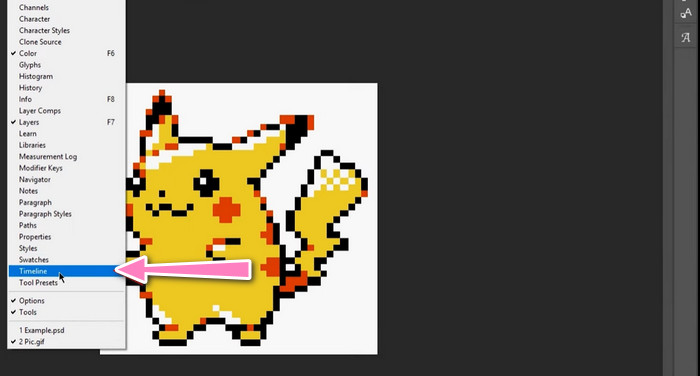
שלב 2. לאחר פתיחת הקובץ, עברו אל Window > Timeline כדי לפתוח את חלונית ה‑Timeline.
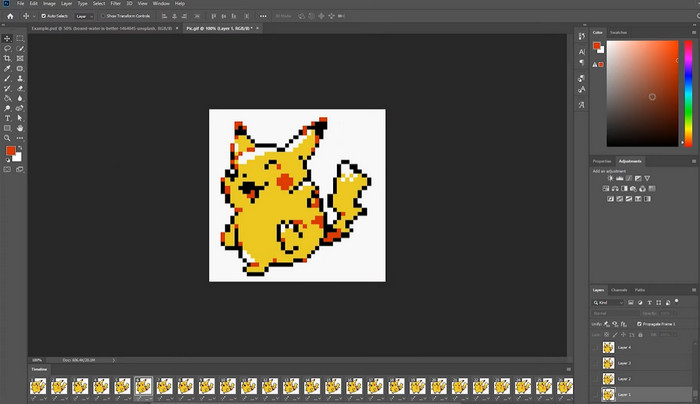
שלב 3. בחלונית ה‑Timeline אמורים להופיע כל הפריימים של האנימציה כשכבות נפרדות. אם אינכם רואים את חלונית ה‑Timeline, לחצו על כפתור התפריט בפינה הימנית‑עליונה של החלונית ובחרו Create Frame Animation.
שלב 4. כדי לפצל את ה‑GIF, לחצו על כפתור התפריט בחלונית ה‑Timeline ובחרו Make Frames From Layers. פעולה זו תיצור פריים נפרד עבור כל שכבה באנימציה.
שלב 5. כעת תוכלו לערוך כל פריים בנפרד על‑ידי בחירתו בחלונית ה‑Timeline וביצוע השינויים הרצויים.
שלב 6. עברו אל File > Export > Layers to Files כדי לייצא כל פריים כקובץ נפרד. בתיבת הדו‑שיח של הייצוא בחרו את פורמט הקובץ הרצוי ואת תיקיית היעד, ואז לחצו על Run כדי לייצא את הקבצים.
חלק 3. שאלות נפוצות על פיצול קובצי GIF
האם אני יכול לפצל GIF למקטעים או מרווחי זמן ספציפיים?
כן, אתה יכול לפצל GIF למקטעים או מרווחי זמן ספציפיים באמצעות כלים מקוונים או תוכנת עריכת תמונות.
האם אוכל להשתמש בתוכנת עריכת וידאו כדי לפצל קובצי GIF?
כן, ניתן להשתמש ביישומי תוכנה רבים לעריכת וידאו כדי לפצל קובצי GIF. לדוגמה, FVC Video Converter Ultimate, Adobe Premiere Pro ו-Final Cut Pro X הן אפשרויות פופולריות.
כיצד אוכל להתאים את התזמון של פריימים בודדים ב-GIF?
אתה יכול להתאים את התזמון של פריימים בודדים ב-GIF באמצעות כלי מקוון או תוכנת עריכת תמונות כמו Photoshop.
סיכום
פיצול קובץ GIF יכול להיות טכניקה מועילה ליצירת אנימציות חדשות, עריכת אנימציות קיימות או שיתוף פריימים או קטעים מסוימים. בין אם אתם מעדיפים להשתמש בכלים מקוונים ובין אם בתוכנות עריכת תמונה כמו Photoshop, עומדות לרשותכם אפשרויות שונות ל‑פיצול GIF‑ים. על‑ידי ביצוע השלבים המפורטים במאמר זה והתנסות בכלים השונים, תוכלו לפצל את קובצי ה‑GIF שלכם בקלות וליצור אנימציות חדשות.
-
 שיטות מצטיינות כיצד לפצל סרטונים ביעילות
 מאמר זה יסביר כיצד לפצל סרטון לחלקים. אז אם אתה מעוניין, לחץ על פוסט זה מכיוון שאנו מציעים לך את הדרכים הפשוטות ביותר לנסות.
-
 למד 4 דרכים כיצד ליצור GIF מתמונות [מקוון ולא מקוון]
 האם אתה רוצה לדעת איך ליצור GIF מתוך קומפילציה של התמונות שלך? לאחר מכן לחץ על קישור זה וקרא את הדוגמאות הבאות.
-
 3 הדרכים הקלות ביותר להוסיף סימן מים ל-GIF באופן מקוון ולא מקוון
 הוספת סימן מים ל-GIF יכולה להיות קלה כמו 1-2-3 אם אתה משתמש נכון בכלי הנכון. הכלים בשוק רחבים מדי, אך נציג את שלושת הכלים בהם ניתן לסמוך.
