


 ממיר וידאו אולטימטיבי
 מקליט מסך
 תיקון וידאו
 הורדה מאובטחת
מדריך מלא להמרת תמונה לשחור-לבן
נראה כי הופעתן של תמונות צבעוניות הפכה את השחור‑לבן לחסר תועלת. אך האם זה באמת כך? מסתבר שגווני השחור‑לבן לא נעלמו לחלוטין מחיינו. כאשר אנשים מסתכלים על תמונות בשחור‑לבן, הם נוטים להתרכז יותר בקווי היסוד של הדמויות ובתחושת המרקם של האובייקטים. אמנים משתמשים לעיתים קרובות בשחור‑לבן כדי להדגיש אפקט וינטג' לסרטים תיעודיים היסטוריים. חלק מהמעצבים גם בוחרים להמיר תמונה לשחור‑לבן לפני הוספת צבע בוהק נוסף כדי להבליט חלק מסוים בתמונה. אם גם אתה רוצה לגרום לתמונות שלך להיראות כאילו נסעו בזמן או להיות דרמטיות יותר, תוכל לנסות את השיטות שאנו ממליצים עליהן במאמר זה כדי להפוך תמונות לשחור‑לבן. נספק גם אפשרויות לשולחן עבודה וגם אפשרויות מקוונות עבור משתמשים בפלטפורמות שונות.

חלק 1. איך ליצור תמונה בשחור לבן בפוטושופ
כשאנחנו צריכים לבצע שינויים בתמונה, הכלי הראשון שעולה בראש הוא אדובי פוטושופ, תוכנה שהפכה כל כך פופולרית עד שהפכה לסטנדרט בתעשיית הצילום. תוכנה זו הפכה לסטנדרט בתעשיית הגרפיקה, והיא יכולה לעזור לנו לגרום לתמונות שלנו להיראות כמו כל דבר, כולל שחור-לבן, כמובן. לא משנה איזו מערכת יש לכם במחשב. אתם יכולים להתקין את פוטושופ במחשב שלכם ולהתחיל להשתמש בו. מלבד שינוי גווני הצבע, אנחנו יכולים להשתמש בו כדי להוסיף אפקטים נוספים לתמונה, כגון חיתוך, בחירה, שיפור האיכות, הסרת זיהומים וכן הלאה.
כאן נסביר כיצד להמיר תמונה לשחור-לבן בפוטושופ. בצעו את השלבים הבאים.
שלב 1. הורד והתקן את Adobe Photoshop במחשב שלך. שים לב שאם אתה משתמש חדש, תוכל ליהנות תחילה מניסיון חינמי של 7 ימים. עם זאת, Photoshop היא תוכנה בתשלום, ותצטרך לשדרג את החשבון שלך אם תרצה להמשיך ולנעול את מלוא השירותים.
שלב 2. לאחר ההפעלה, לחץ על File > Open ובחר את תמונת הצבע שברצונך להמיר.
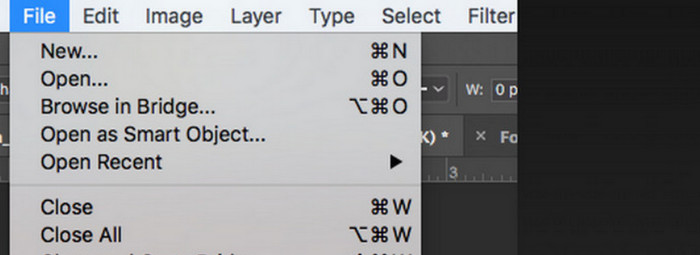
שלב 3. כאשר התמונה נטענת, עבור אל Window ולחץ על Adjustments. כאן תמצא סמל של black-and-white. לחץ עליו.
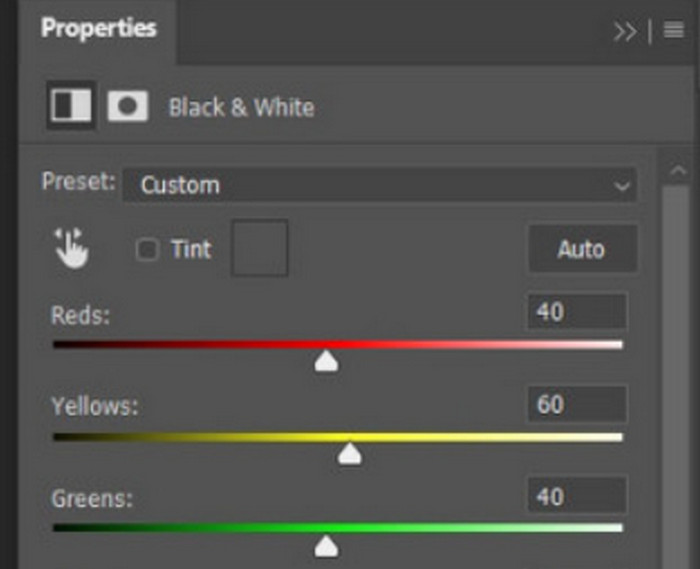
שלב 4. חלונית Properties תיפתח. בחר Color Slider, ולאחר מכן הזז את המחוונים כדי להתאים את גווני האפור בתמונה. הקדש זמן לכוונון עד שתהיה מרוצה מהמראה השחור‑לבן של התמונה.
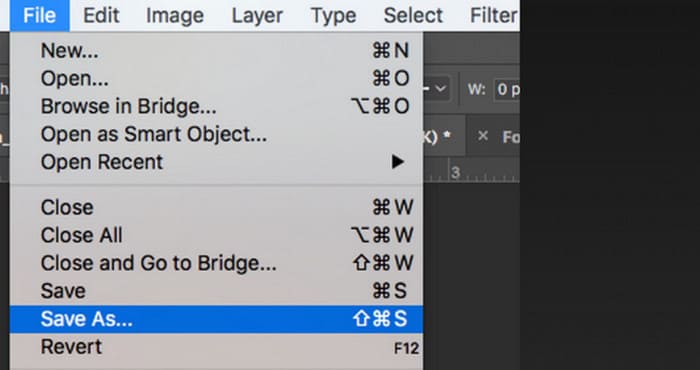
שלב 5. לאחר מכן, לחץ על File בפינה השמאלית העליונה ובחר Save As מהרשימה הנפתחת. אחר כך, בחר נתיב אחסון לתמונות המומרות שלך.
לאחר השלמת השלבים הנ"ל, הצלחנו להפוך את התמונה לשחור-לבן. עם זאת, במהלך הפעולה, משתמשים עשויים לגלות שהממשק של פוטושופ מסובך מאוד, וחלק מהכפתורים אינם קלים למציאה. למרות התכונות המלאות, מתחילים כמעט ולא יכולים להשתמש בפוטושופ; לעתים קרובות נדרש זמן רב ללמידה ותרגול כדי להכיר את אופן פעולתה האיטית של התוכנה. אם אינכם רוצים להסתובב שוב ושוב ורוצים לגשת ישר לעניין ולהתחיל להפוך את התמונה לשחור-לבן באופן מיידי, המשיכו לקרוא כדי למצוא פתרון פשוט יותר.
חלק 2. המרת תמונה לשחור-לבן באינטרנט
חלק מהכלים המקוונים בהחלט טובים יותר להמרת תמונה צבעונית לשחור-לבן מאשר Adobe Photoshop המסורבל למדי. הם אינם דורשים מאיתנו לבצע שלבי התקנה והורדה וניתן להשתמש בהם ישירות בדפדפן. כאן, אנו ממליצים לנסות את Pixelied Photo Editor, שיכול להתאים את גווני הצבע לשחור-לבן ותומך כעת בהעלאת תמונות בפורמטים כמו JPG, PNG, SVG וכן הלאה. לעוזר המקוון הזה יש גם כמה מדורים טובים לחיתוך ועריכה של תמונות שיכולים לעזור לנו להפוך את העבודות שלנו ליפות יותר.
כך יוצרים תמונה בשחור-לבן בעזרת עורך התמונות Pixelied.
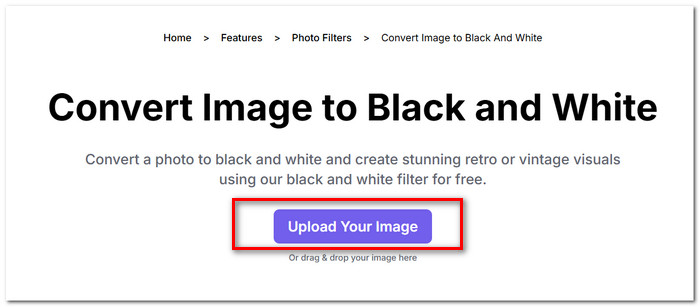
שלב 1. עבור לאתר של ממיר התמונות לשחור‑לבן של Pixelied. לחץ על Upload Your Image והעלה את הקובץ שברצונך להמיר.
שלב 2. כאשר התמונה שהועלתה נטענת, עבור אל Edit Image > Filters. מצא את מסנן Black and White ויישם אותו על התמונה שלך.
שלב 3. לאחר סיום ההמרה, לחץ על Download כדי לשמור את התמונה במחשב שלך.
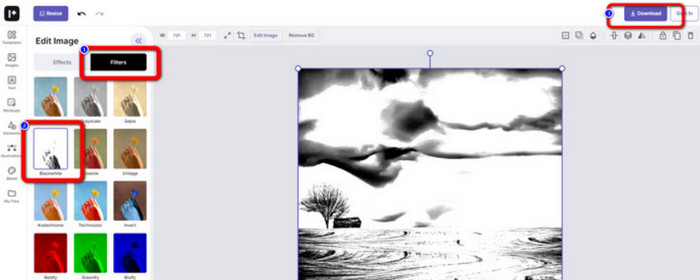
המרת תמונה לשחור‑לבן באמצעות Pixelied היא מיידית, וממשק הפלטפורמה נקי הרבה יותר מזה של Adobe Photoshop. עם זאת, כדי להחיל את מסנן השחור‑לבן כראוי, משתמשים חייבים לשלם כדי לשדרג את החשבון שלהם. הגרסה החינמית של משפר צבעי התמונות הזה מציעה רק 2GB של שטח אחסון. אלה הם הנקודות שעלינו לשים לב אליהן כשאנו משתמשים בו.
חלק 3. טיפ בונוס - הפוך תמונה בשחור-לבן לצבעונית
צביעת תמונות של Picwand
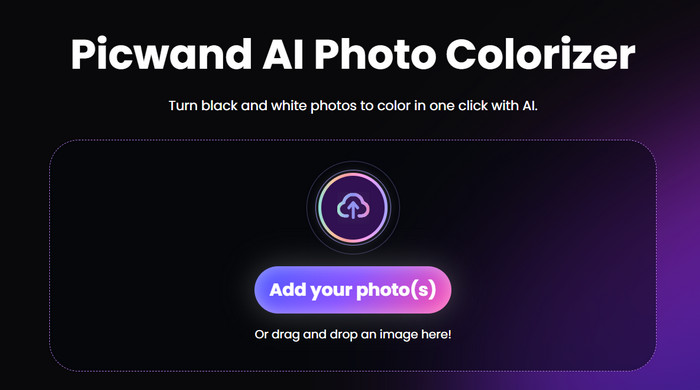
כעת אנחנו יודעים בדיוק איך להפוך תמונה לשחור‑לבן. אז, להיפך, האם קיים כלי שיכול לתקן צילום שהיה במקור בשחור‑לבן ולהחזיר את הצבע לאנשים שבתמונה? זה מוביל אותנו לעורך תמונות מקוון בשם Picwand Image Colorizer. בתמיכת טכנולוגיית ה‑AI המתקדמת ביותר, הוא יכול להשתמש באלגוריתמים מתקדמים כדי לצבוע תמונות ישנות. איננו צריכים לבצע פעולות עדינות ומורכבות רבות; בלחיצה אחת בלבד, Picwand Image Colorizer יכול להחזיר תמונות בשחור‑לבן להיות שוב צבעוניות.
חלק 4. שאלות נפוצות על המרת תמונה לשחור-לבן
האם ניתן להמיר תמונה ישירות מצבע לשחור-לבן?
בטח. אנחנו יכולים להשתמש בכמה כלים חכמים שלא דורשים התאמות צבע ידניות. כלים אלה יכסו פילטר שחור-לבן על התמונה המקורית.
אילו תמונות הופכות לשחור לבן הכי טוב?
תמונה עם קווים, צורות וגבולות ברורים עובדת בצורה הטובה ביותר כאשר היא מומרת לשחור-לבן. פילטר שחור-לבן מאפשר להתעלם מהזיהומים בתמונה ולהתמקד רק בקווים המקוריים ביותר.
מהו הפורמט הטוב ביותר לתמונות בשחור-לבן?
כמובן, הבחירה הטובה ביותר היא JPG, שהוא הפורמט המותאם ביותר ומשיג איזון בין גודל התמונה לאיכותה, כך שהקובץ לא יהיה גדול מדי מבלי לאבד יותר מדי מאיכות התמונה. אם התמונה שלך נמצאת בפורמט אחר, תוכל גם להשתמש בכלי כדי להמיר אותה לקובץ JPG לפני העריכה והעיבוד.
סיכום
במאמר זה סקרנו שתי דרכים להפוך תמונות לשחור‑לבן, כולל שימוש בתוכנת עריכת התמונות הקלאסית ביותר, Photoshop, וניסיון בעורך מקוון. Adobe Photoshop מבצע את המשימה בעדינות הרבה ביותר, אך המנוי יקר ומסובך לשימוש. משתמשים חסרי ניסיון יכולים לבחור ב‑Pixelied, שהממשק שלו ידידותי יותר למתחילים.
-
 כיצד לשנות צבע בפוטושופ | מדריך מקיף לשנת 2025
 רוצה לקחת את היצירתיות שלך לשלב הבא על ידי לימוד כיצד לשנות צבע רקע בפוטושופ? במאמר זה יש את כל מה שאתה צריך לדעת. קרא את זה עכשיו!
-
 כיצד להסיר רקע מתמונה באמצעות GIMP
 התחל ב-GIMP ובתהליך שלב אחר שלב של הסרת רקעים מתמונות. גלה דרכים יעילות ליצור תמונות שקופות באמצעות GIMP היום!
-
 כיצד להסיר רקע מתמונה: כלים ללא טרחה
 גלה שישה כלים להסרת הרקע מכל תמונה ללא מאמץ. תגיד שלום לעריכה מסובכת ומחק רקע תמונה בקלות היום!
