


 ממיר וידאו אולטימטיבי
 מקליט מסך
 תיקון וידאו
 הורדה מאובטחת
כיצד להמיר תמונות ל-SVG: גלה את הממירים המושלמים עבורך
קובץ SVG יכול להציג גרפיקה באיכות גבוהה בכל סקלת גודל. הוא יכול לשפר את ה‑SEO ולהאיץ את מהירות האתר. הוא גם מסוגל לאנימציות דינמיות. אלה חלק מהסיבות לכך שמשתמשים בוחרים להשתמש בפורמט קבצים SVG. במקרה כזה, האם גם אתה רוצה להמיר את התמונות שלך לקובצי SVG? אם כן, כדאי שתקרא מאמר זה. תגלה בו את הדרכים היעילות ביותר להמיר את התמונות שלך ל‑SVG. בנוסף, נציע לך את ממירי התמונות הטובים והאמינים ביותר שתוכל להשתמש בהם להמרת תמונות. קרא את המאמר בקפידה, כאשר אנו נותנים לך את כל הפרטים הדרושים להמרת קובצי תמונה.

חלק 1. דרכים יוצאות דופן להמרת תמונות ל-SVG באינטרנט
כיצד להמיר תמונות ל-SVG ב-Convertio
כלי מקוון נוסף שתוכל להשתמש בו כדי להמיר תמונות ל‑SVG הוא Convertio. הכלי המקוון הזה מסוגל להמיר את התמונות שלך לפורמט SVG. ניתן להמיר את התמונות שלך בשלושה שלבים בלבד. בנוסף, ל‑Convertio יש יכולת המרה באצווה. כך תוכל להעלות ולהמיר קבצים מרובים בלחיצה אחת. יתרה מזו, יש לו פריסה ואפשרויות מובנות, מה שהופך אותו למתאים יותר לכל המשתמשים, במיוחד למתחילים. מלבד פורמט SVG, הוא גם תומך בפורמטי תמונה נוספים, כולל JPG, PNG, BMP, TIFF, ICO ועוד. נוסף על כך, אפשר לגשת ל‑Convertio בדפדפנים שונים, כולל Google, Mozilla, Edge, Explorer ועוד. עם זאת, ל‑Convertio יש חסרונות, במיוחד בעת שימוש בגרסה החינמית. גודל הקובץ המרבי שתוכל להעלות הוא עד 100MB. כמו כן, אם אתה מתכנן לבצע תהליך המרה באצווה, תוכל להמיר רק שני קובצי תמונה בו‑זמנית. כדי ליהנות מהאפשרויות הבלתי מוגבלות, עליך לרכוש את תכנית ה‑Unlimited.
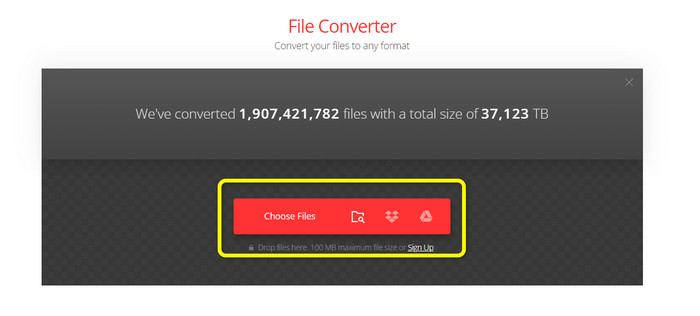
שלב 1. פתח את הדפדפן שלך ובקר באתר הראשי של Convertio. בדף הבית, לחץ על הכפתור Choose Files. לאחר הלחיצה, תראה שחלון קבצי המחשב שלך יופיע על המסך. בחר את התמונה שברצונך להמיר לקובץ SVG ופתח אותה.
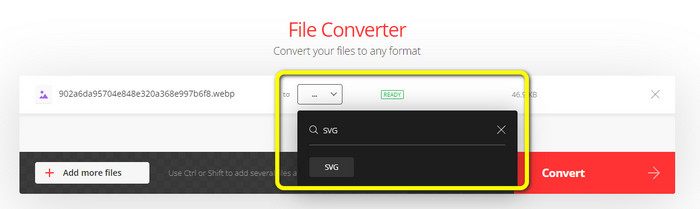
שלב 2. לאחר העלאת הקובץ שברצונך להמיר, עבור אל אפשרויות הפורמט. מצא את פורמט הקובץ SVG ולחץ עליו. תוכל לחפש SVG בתיבת החיפוש כדי לאתר אותו בקלות.
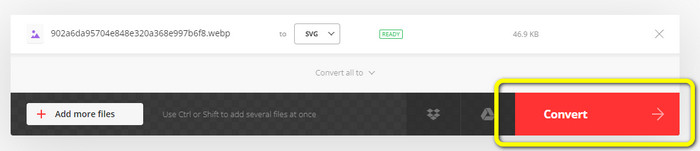
שלב 3. לאחר שסיימת לבחור את פורמט הקובץ SVG בתור פורמט הפלט, לחץ על הכפתור Convert. תהליך ההמרה יתחיל. המתן מספר רגעים עד לסיומו.
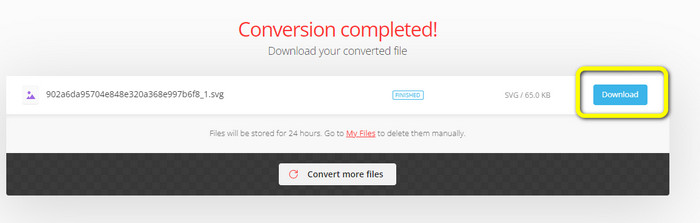
שלב 4. כשהמרת הקובץ הסתיימה, לחץ על הכפתור Download. כך תוכל לשמור את התמונה המומרת על שולחן העבודה שלך. לחץ על הכפתור Add more files כדי להמיר תמונות נוספות.
בונוס: כיצד להמיר תמונות SVG
אם אתה זקוק לממיר תמונות יעיל להמרת תמונות SVG ל‑JPG ולפורמטי תמונה נפוצים נוספים, FVC Free Image Converter הוא הבחירה הטובה ביותר עבורך. קל להמיר תמונות באמצעות כלי זה בזכות הממשק האינטואיטיבי שלו. ניתן להמיר תמונות בכמה לחיצות בלבד. בנוסף, מלבד SVG, הוא תומך גם בהמרת פורמטי תמונה אחרים ל‑PNG, JPG ו‑GIF, כולל WebP, BMP, TIFF ועוד. FVC Free Image Converter מציע גם אפשרות להמרה באצווה. כך באפשרותך להמיר תמונות רבות בו‑זמנית. יתרה מזו, ממיר התמונות נגיש מכל הפלטפורמות. תוכל להמיר קובצי תמונה ב‑Google, Explorer, Edge ועוד.
שלב 1. היכנס לאתר FVC Free Image Converter. לאחר מכן, לחץ על פורמט JPG, PNG או GIF מתוך אפשרויות הפורמט.
שלב 2. לחץ על הכפתור Add Images בממשק האמצעי כדי להעלות את תמונות ה‑SVG שברצונך להמיר. תוכל להוסיף מספר רב של תמונות כדי להמיר אותן בלחיצה אחת.
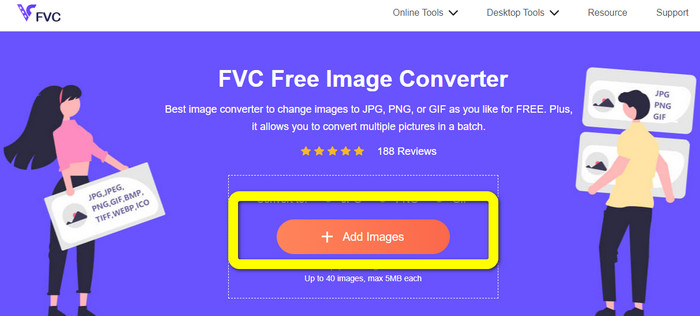
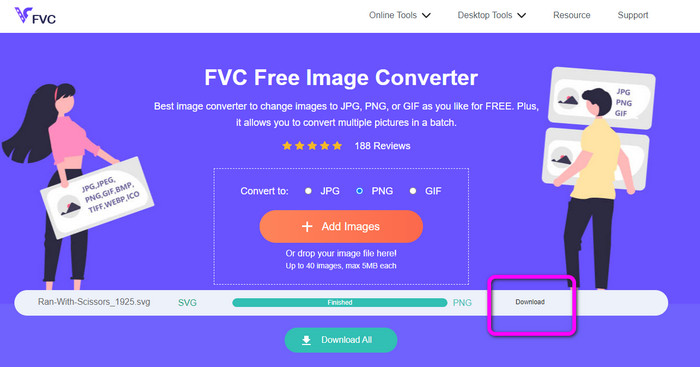
שלב 3. התמונות שלך בפורמט SVG יומרו אוטומטית בכלי זה. לאחר מכן, לחץ על הכפתור Download כדי לשמור את התמונות המומרות.
חלק 2. השיטה הטובה ביותר להמרת תמונות ל-SVG במצב לא מקוון
השימוש ב‑Converseen הוא הדרך הטובה ביותר לשנות תמונות ל‑SVG. הוא כולל הוראות המרה פשוטות וישירות. נוסף על כך, ממיר תמונות לא מקוון זה (image converter) מציע ממשק בסיסי עם מערך אפשרויות פשוט. כלומר, הממיר מתאים לכל המשתמשים. ל‑Converseen יש גם פונקציית המרה באצווה. כך תוכל להמיר קבצים רבים בפעולה אחת. הממיר תומך גם במגוון רחב של פורמטי קבצים. בין היתר הוא כולל PNG, JPG, BMP, WEBP, TIFF ו‑SVG. יתרה מכך, אין דמי מנוי נדרשים כדי להוריד את הממיר הלא‑מקוון הזה. Converseen זמין גם עבור משתמשי Windows וגם עבור משתמשי Mac. לאחר סיום תהליך ההמרה, התוכנה לא תוסיף סימני מים לתמונות שהמרת. כך תוכל לראות את התמונות שלך נקיות מאובייקטים מטרידים ומיותרים. עקוב אחר ההוראות הפשוטות למטה כדי להמיר תמונות ל‑SVG בקלות.
שלב 1. הורד את קובץ ההתקנה של Converseen מאתר האינטרנט שלו. לאחר התקנת הממיר הלא‑מקוון, הפעל אותו במחשב שלך.
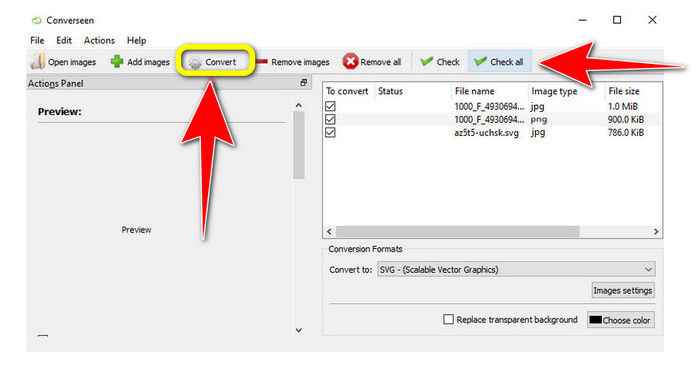
שלב 2. השימוש בכלי הוא פשוט. תוכל לראות את כפתורי הפונקציות בחלק העליון. בחר את התמונות שלך על‑ידי לחיצה על הכפתור Add images במסך הראשי.
שלב 3. לאחר מכן, נווט אל האפשרות Convert to. לאחר מכן, בחר את פורמט הקובץ SVG מתוך אפשרויות הפורמט.
שלב 4. תוכל לאשר שאתה עומד להמיר את התמונות שנטענו על‑ידי סימון תיבות הסימון. פשוט בחר Check או Check All מהתפריט העליון. כדי להתחיל את הפעולה, לחץ על הכפתור Convert בסיום.
חלק 3. כיצד להמיר תמונות ל-SVG באייפון ובאנדרואיד
ממיר קבצים הוא האפליקציה הטובה ביותר להמרת תמונות ל-SVG שתוכל להשתמש בה באייפון ובאנדרואיד שלך. כמו כן, אתה יכול להשתמש באפליקציה בחינם. זה זמין בחנות Google Play וב-App Store. עם זאת, תהליך ההתקנה איטי מדי. והתהליך מאתגר, במיוחד למתחילים. כמו כן, ודא שיש לך חיבור לאינטרנט.
שלב 1. התקן את אפליקציית File Converter במכשיר הנייד שלך. לאחר מכן, הפעל את האפליקציה.
שלב 2. עבור לאפשרות Image Converter. לאחר מכן, בחר את קובץ ה‑SVG כפורמט הפלט שלך.
שלב 3. לאחר מכן, יופיע ממשק נוסף. לחץ על האפשרות File כדי להוסיף את התמונה שברצונך להמיר.
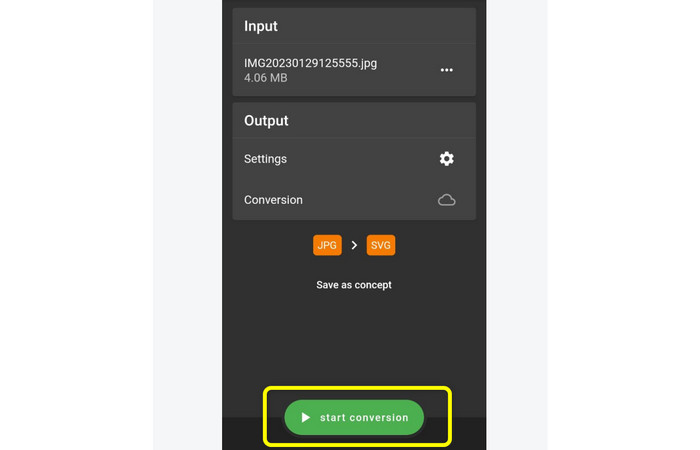
שלב 4. לבסוף, לחץ על הכפתור Start Conversion כדי להתחיל את תהליך ההמרה. לאחר מכן, תוכל לשמור את התמונה שהומרה בטלפון שלך. לחץ כאן כדי ללמוד כיצד להמיר תמונות ל‑PNG.
חלק 4. שאלות נפוצות לגבי המרת תמונות ל-SVG
1. באיזו סכימת דחיסה משתמש ה-SVG?
קובץ ללא אובדן הוא SVG. קבצי SVG, לפיכך, כוללים דחיסת קבצים ללא אובדן. כתוצאה מכך, אתה עשוי להגדיל ולהקטין את הקבצים האלה מבלי לאבד איכות. לאחר הדחיסה, לא תאבד שום מידע.
2. בשביל מה מתאימים קבצי SVG?
תמונות וקטוריות, כמו SVGs, לעולם אינן מאבדות רזולוציה לא משנה כמה גדולות או קטנות תעשו אותן, בניגוד לקובצי רסטר, כמו JPG, המורכבים מפיקסלים. הם מצוינים עבור עיצובים דיגיטליים כמו אינפוגרפיקה, אייקונים ולוגואים.
3. איך לשמור JPG כ-SVG?
אתה יכול להשתמש בממירי תמונות רבים כדי לשמור את פורמט ה-JPG שלך כ-SVG. אחת הדרכים הנפוצות להמיר את התמונה היא להזין את קובץ ה-JPG, לבחור את ה-SVG כפורמט פלט ולהמשיך לתהליך ההמרה. בדרך זו, תוכל לשמור את קובץ תמונת ה-JPG שלך בפורמט SVG.
סיכום
מדריך זה לימד אותך את השיטות הטובות ביותר להמרת תמונותיך ל‑SVG באופן מקוון, לא מקוון ובמכשירים ניידים. בנוסף, תוכל להשתמש ב‑FVC Free Image Converter כדי לשנות SVG לפורמטי תמונה אחרים. לכלי המקוון הזה קל מאוד להשתמש, והוא מציע תהליך המרה באצווה מבלי לדרוש תכנית מנוי.
-
 שיטות כיצד להמיר תמונות ל-JPG באופן מקוון ולא מקוון
 האם אתה רוצה להמיר את הקובץ לפורמט JPG מסיבה כלשהי? אז המאמר הזה הוא בשבילך. אנו נלמד אותך את השיטה הטובה ביותר להמיר את התמונה שלך ל-JPG
-
 השיטות הפשוטות ביותר להמרת SVG ל-PNG
 דע כיצד לשנות את קובץ התמונה שלך מ-SVG ל-PNG באמצעות ממירי תמונה שימושיים. קרא את פוסט המדריך הזה כדי ללמוד את כל מה שאתה צריך לדעת על המרה.
-
 שיטות ללא מאמץ כיצד להמיר SVG לפורמט JPG
 מוצא את הדרך הטובה ביותר להמיר SVG ל-JPG? פוסט זה ייתן כמה הדרכות בטוחות שתוכלו לנסות. אתה גם תגלה עבורך את ממיר SVG ל-JPG.
