


 ממיר וידאו אולטימטיבי
 מקליט מסך
 תיקון וידאו
 הורדה מאובטחת
תהליך שלם כיצד להשתמש ב- GIMP כדי לשנות את גודל התמונות
שינוי גודל תמונה חיוני כאשר מדובר לעריכת תמונה. לפעמים, אתה צריך לשנות את הגובה והרוחב של התמונה שלך כך שתקבל את הגודל המועדף עליך. כמו כן, שינוי גודל תמונה נעשה על ידי עורכי תמונות אחרים כדי להקטין את גודל התמונה שלהם או לשפר את האיכות. למרבה המזל, מצאנו אפליקציה המאפשרת לשנות את גודל התמונה.
GIMP הוא תוכנת עריכת תמונות מקוונת שבאמצעותה ניתן לערוך את התמונה שלך. בנוסף, GIMP מאפשרת לך לשנות את הגובה והרוחב של התמונה, וכך לשפר את האיכות שלה. לכן, אם ברצונך להשתמש ב־GIMP כדי לשנות את גודל התמונה, קרא את המאמר הזה כעת.

חלק 1. כיצד להשתמש ב-GIMP כדי לשנות את גודל התמונות
GIMP היא פלטפורמת יישומי מניפולציה גרפית המאפשרת למעצבים גרפיים ליצור פלטים מצוינים. זה מאפשר למשתמשים ליצור אלמנטים עיצוביים, תמונות סקריפט, אייקונים ועוד. בנוסף, זהו יישום חינמי בקוד פתוח שבו אתה יכול להשתמש כמעט בכל פלטפורמות המדיה, כמו Windows, Mac ו- Linux. אנשים רבים ממליצים על יישום זה כאשר הם מחפשים חלופה ל-Adobe Photoshop.
ולמרות זאת יש לו ממשק קל יותר מפוטושופ, יש אנשים שעדיין מתקשים להשתמש ב-GIMP. מה שעוד יותר מעניין ב-GIMP הוא שהוא מאפשר לך לערוך את הפיקסלים של התמונה שלך. ואם אתה מחפש את מתקן התמונה הטוב ביותר, אולי תרצה לשקול את GIMP כהעדפה שלך.
בחלק זה, נציג בפניכם שתי שיטות לשימוש ב-GIMP לשינוי גודל תמונה (מידות וגודל).
כיצד להשתמש ב-GIMP כדי לשנות את גודל התמונה
שלב 1. תחילה, הורד את היישום GIMP למכשיר שלך והתקן אותו. לאחר ההתקנה, פתח את האפליקציה במכשיר. לאחר מכן, פתח את התמונה ב־GIMP.
שים לב שכאשר אתה פותח את התמונה שלך ב-GIMP, התמונה תוקם כך שכל התמונה תתאים לקנבס התמונה שלך. אתה תראה את הגודל הנוכחי של התמונה שלך בפינה השמאלית העליונה של החלון שלך.
שלב 2. כדי לשנות את הממדים של התמונה, עבור אל Image ואז בחר ב־Scale Image dialog. ובחלון Scale Image תוכל לשנות את ה־Width and Height (הרוחב והגובה) של התמונה. הקלד את גודל הממדים המועדף עליך והמשך לשלב הבא. בנוסף לגובה ולרוחב של התמונה, תראה שרשרת המציינת שהגובה והרוחב של התמונה מקושרים זה לזה, כלומר כשאתה משנה את הגובה, הרוחב יתעדכן בהתאם.
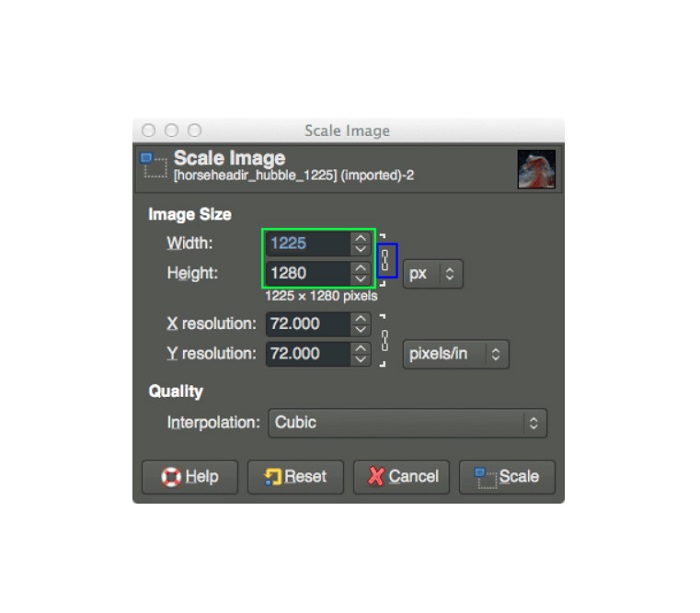
שלב 3. לאחר שסיימת לשנות את ממדי התמונה שלך, תוכל לעבור לייצוא התמונה. כדי לייצא את התמונה, עבור אל File > Export. וכדי לייצא את הקובץ בשם חדש, עבור אל File > Overwrite, ולאחר מכן תן שם לקובץ.
כיצד להשתמש ב-GIMP כדי לשנות את גודל התמונות מבלי לאבד איכות (גודל קובץ):
במדריך זה, נשתמש בתמונת JPEG מכיוון שסוג זה של פורמט הוא דחיסה מאבדת, כלומר כאשר דוחסים את הגודל של תמונה זו, נקריב חלק מאיכותה. אך באמצעות GIMP, ניתן לשנות את גודל התמונה מבלי להשפיע על איכותה.
שלב 1. תוך שימוש באותה תמונה כמפורט למעלה, נשנה את גודל התמונה לרוחב של 200 פיקסלים ונייצא את הקובץ עם רמות דחיסת JPEG שונות. תוכל לראות בדוגמה שלמטה שבאיכות מוגדרת על 80, גודל הקובץ של התמונה קטן יותר מאשר ב־100, בעוד שהאיכות כמעט זהה.
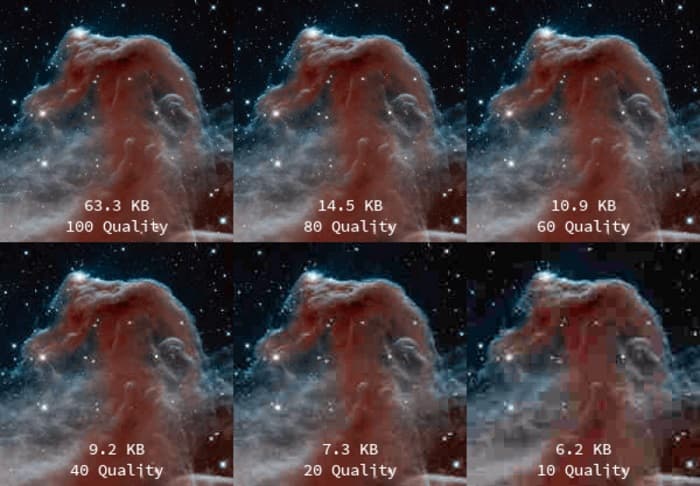
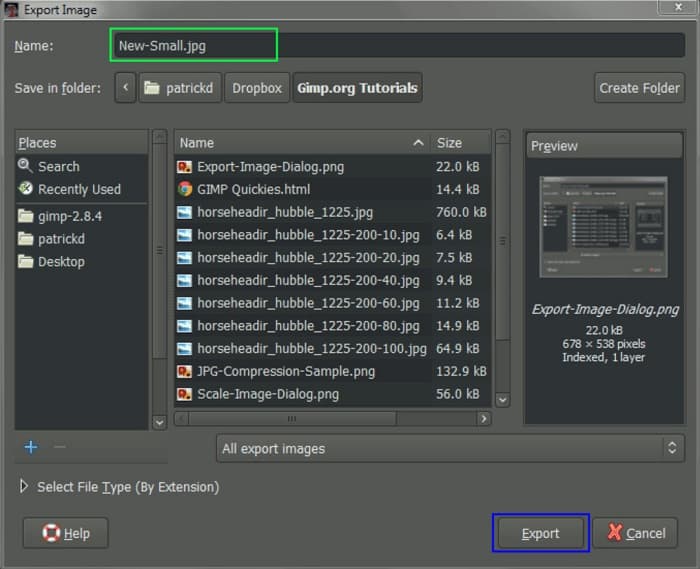
שלב 2. לאחר שסיימת לשנות את גודל התמונה, נעבור כעת לייצוא התוצאה. לחץ על כפתור File ובחר Export.
שלב 3. בלשונית Export Image, הזן את השם החדש של התמונה. אם אתה מודאג באיזה פורמט תישמר התוצאה, GIMP מייצאת אוטומטית בפורמט הקובץ המקורי. בדוגמה שלנו תראה שפורמט הפלט עדיין .jpg.
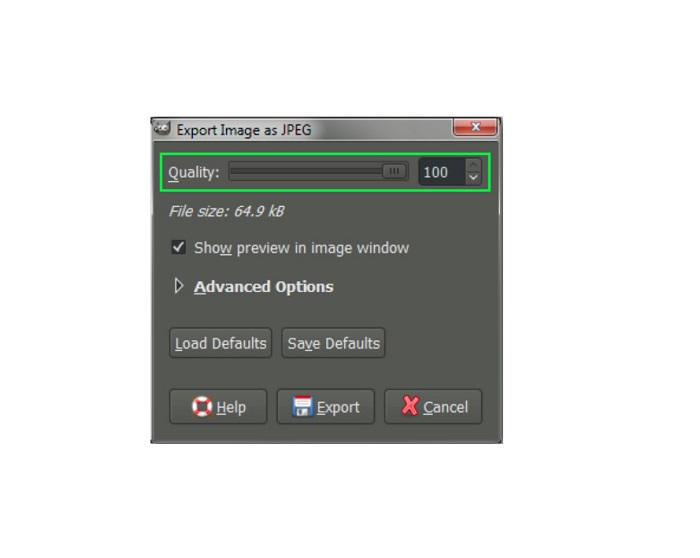
שלב 4. לאחר הלחיצה על כפתור Export, תיפתח לשונית Export Image as JPEG, שבה תוכל לשנות את איכות התמונה שאתה מייצא. אם ברצונך לראות תצוגה מקדימה בחלון התמונה, תוכל לסמן את האפשרות Show preview in the image window ולראות את התצוגה המקדימה. בנוסף תראה את פרטי File size, כדי שתדע מה יהיה גודל הקובץ הסופי של התמונה.
שלב 5. ולבסוף, סמן את כפתור Export כדי לייצא את התמונה ולשמור אותה במכשיר שלך.
וכך להשתמש ב-GIMP כדי לשנות את גודל התמונה וגודל הקובץ. אתה יכול לבצע עריכה נוספת בתמונה שלך, כמו לסובב תמונה, להפוך תמונה וחיתוך התמונה שלך. קרא את החלק הבא אם אתה עדיין רוצה אפשרות לשנות את גודל התמונה שלך או לשפר את איכות התמונות שלך.
חלק 2. אלטרנטיבה ל-GIMP
GIMP הוא בין יישומי עריכת התמונות הסטנדרטיים ביותר שאנשי מקצוע רבים משתמשים בהם. עם זאת, חלק מהמשתמשים מתקשים להשתמש בתוכנה זו כדי לערוך תמונות, כמו שינוי גודל תמונות. ואם אתה בין המשתמשים שרוצים להשתמש באפליקציה פשוטה יותר, אז יש לנו את הפתרון בשבילך.
FVC Free Image Upscaler הוא יישום מקוון בחינם עם ממשק משתמש פשוט, מה שהופך אותו לכלי ידידותי למתחילים אם אתה מחפש את כלי הגדלת התמונה הטוב ביותר לשיפור איכות התמונה שלך. הוא משתמש בתהליך הגדלה מבוסס בינה מלאכותית, שמזהה אוטומטית את החלקים המטושטשים בתמונה שלך ומשפר אותם. נוסף על כך, באפשרותך לשפר את התמונה בעד הגדלה של פי 8. הוא תומך גם בפורמטי התמונה הנפוצים ביותר, כגון JPEG, JPG, PNG ו־BMP. בשונה מיישומי עריכה אחרים, FVC Free Image Upscaler יכול לשנות את גודל התמונה שלך מבלי לפגוע באיכותה. לכן, אם ברצונך להשתמש בכלי זה כדי לשנות את גודל התמונה ולשפר אותה, עקוב אחר הצעדים הפשוטים שלהלן.
כיצד לשנות את גודל התמונה מבלי לאבד חלופת GIMP איכותית:
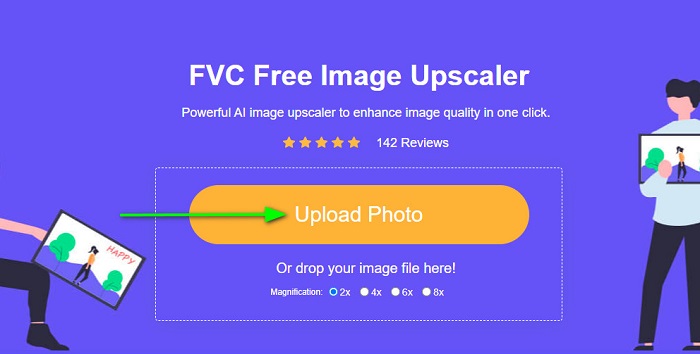
שלב 1. פתח את דפדפן האינטרנט וחפש FVC Free Image Upscaler בתיבת החיפוש. באפשרותך גם ללחוץ ישירות על הקישור לדף הראשי. ובממשק המשתמש הראשי של התוכנה, לחץ על כפתור Upload Photo כדי להפעיל את הכלי במכשיר שלך.
שלב 2. לאחר מכן, לחץ על כפתור Upload Photo בממשק המשתמש הראשי כדי להוסיף את התמונה שברצונך לשנות את גודלה/להגדילה.
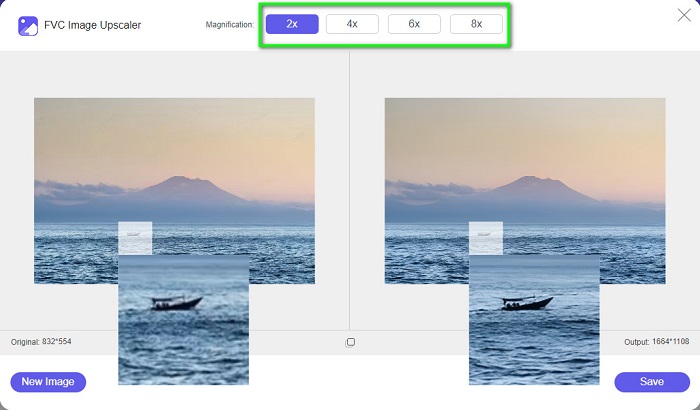
שלב 3. לאחר העלאת הקובץ, בחר אחד מבין ערכי ההגדלה המוגדרים מראש. באפשרותך לבחור בין 2x, 4x, 6x ו־8x. לאחר מכן תוכל לבדוק את תצוגת הפלט על ידי גרירת הסמן על גבי התמונה.
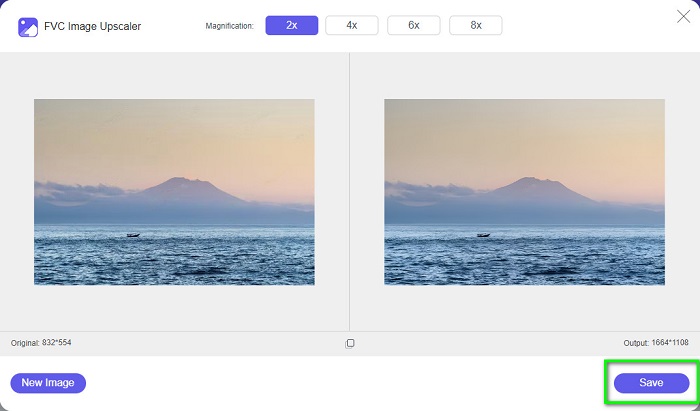
שלב 4. לבסוף, לחץ על כפתור Save בפינה הימנית התחתונה של הממשק כדי לשמור את הפלט במכשיר שלך.
קשור אל:
כיצד לאופטֵּם תמונה לאינטרנט באמצעות הפתרונות הטובים ביותר [מהיר]
3 דרכים לשנות את גודל התמונה לטוויטר מבלי לאבד איכות
חלק 3. שאלות נפוצות לגבי אופן השימוש ב-GIMP לשינוי גודל תמונות
האם ל-GIMP יש גרסה מקוונת?
כן זה כן. GIMP אינו רק אפליקציית עריכת תמונות במצב לא מקוון; יש לו גם גרסה מקוונת. עם זאת, GIMP מקוון אינו מכיל את כל התכונות כמו גרסת שולחן העבודה של GIMP.
האם GIMP הוא הפוטושופ החינמי הטוב ביותר?
GIMP אינו בר השוואה לפוטושופ. פוטושופ היא עדיין תוכנת עריכת התמונות המצוינת ביותר למחשבים שולחניים. עם זאת, GIMP היא אחת החלופות הטובות ביותר עבור Adobe Photoshop.
האם GIMP תומך בקבצי PNG?
כן. GIMP מאפשר לך לשמור את הפלטים שלך ב-JPEG, JPG, PNG ופורמטים אחרים.
סיכום
זהו התהליך של שימוש ב־GIMP כדי לשנות את גודל התמונות. אף על פי של־GIMP יש ממשק מורכב, אם תעקוב אחר השלבים שסיפקנו לעיל, תוכל לשנות את ממדי וגודל התמונה שלך. אך אם אתה מעדיף להשתמש במגדיל תמונות מקוון וחינמי שיכול גם לשפר את איכות התמונה, השתמש ב־FVC Free Image Upscaler.
-
 6 דרכים להגדיל תמונה באינטרנט ובאופן לא מקוון [100% עובד]
 עם המדריך שאנו מוסיפים כאן, כעת תוכל לשנות בקלות את גודל התמונה בהתאם לגודל המועדף עליך. למד כיצד לעשות זאת כאן!
-
 סקירת PicResize עובדתית שאתה חייב לדעת זאת 2022
 האם אתה רוצה לדעת אם PicResize היא האפשרות הטובה ביותר לעריכת תמונה? קרא את המאמר הזה כשאנחנו סוקרים את הכלי הכולל.
-
 כל מה שאתה צריך לדעת על Waifu2x ועל האלטרנטיבה
 צריך לדעת יותר על Waifu2x? מאמר זה מספק את המידע שיש להדגיש באפליקציה הזו ואת החלופה שלה.
