


 ממיר וידאו אולטימטיבי
 מקליט מסך
 תיקון וידאו
 הורדה מאובטחת
כיצד להמיר MP3 לרינגטונים באייפון ללא מאמץ
האם צלילי הרינגטון המוגדרים כברירת מחדל באייפון שלך פחות אהובים עליך, ואתה מקווה שאחד מקבצי ה‑MP3 שלך יוכל לשמש כרינגטון באייפון? מה אם נאמר לך שאפשרי להמיר MP3 לרינגטון באייפון?
במאמר זה, למד 3 דרכים שונות להפוך את קובצי המוסיקה שלך MP3 באייפון שלך להפוך לרינגטון. המרתם קצת מסובכת, אבל עם הכלי והשיטה הנכונים, בואו נעשה את זה פשוט ונוח עד הסוף שלכם. למה אתה מחכה? בואו לצלול פנימה!

חלק 1. המר MP3 לרינגטון עבור iPhone ב-Mac/Windows
אחת הדרכים הפשוטות והמהירות ביותר להמיר MP3 לרינגטון באייפון היא להשתמש ב‑Video Converter Ultimate, שנבחר על ידי FVC, דרך מחשב Windows או macOS. כלי המרה הכול‑באחד הזה תומך בלמעלה מ‑300 פורמטים שונים, כולל פורמט M4R, מה שהופך אותו לכלי אמין להמרת קובצי מוזיקת MP3 לרינגטון לאייפון. נוסף על כך, מהירות ההמרה שלו גבוהה עד פי 120 מכלי המרה אחרים, כך שתהליך ההמרה מהיר וללא טרחה.
כך תשתמש ב‑Video Converter Ultimate שנבחר על ידי FVC כדי להמיר את קובץ ה‑MP3 שלך לרינגטון:
שלב 1. קודם כל, הורד והתקן את הכלי במחשב שלך, בין אם זה Windows ובין אם Mac.
שלב 2. פתח את הכלי, וברגע שאתה בממשק הראשי שלו, לחץ על הכפתור Add Files. פעולה זו תאפשר לך לייבא את קובץ ה‑MP3 שברצונך להמיר לרינגטון באייפון.
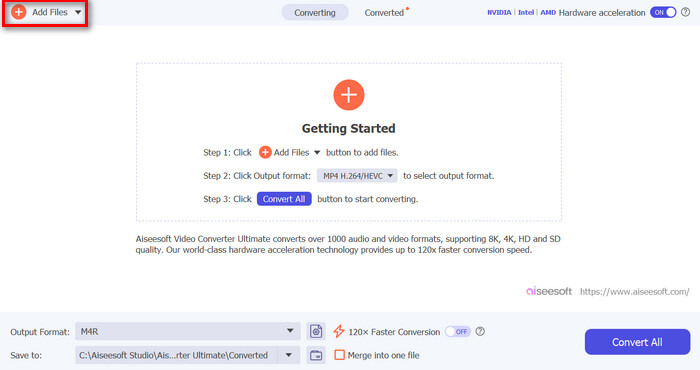
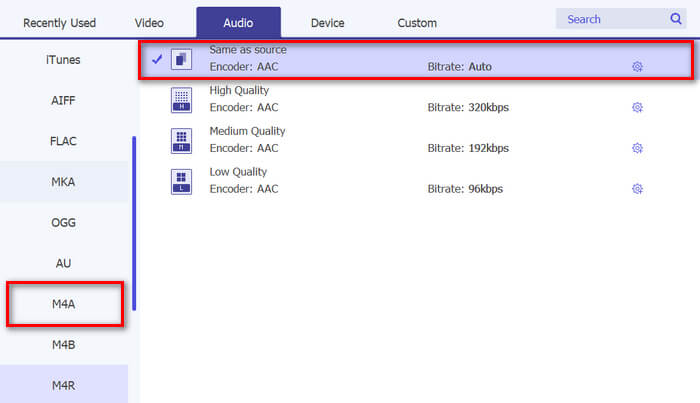
שלב 3. כעת עבור אל Output format, ומרשימת פורמטי האודיו השונים בחר ב‑M4R. M4R הוא פורמט הקובץ עבור רינגטונים באייפון.
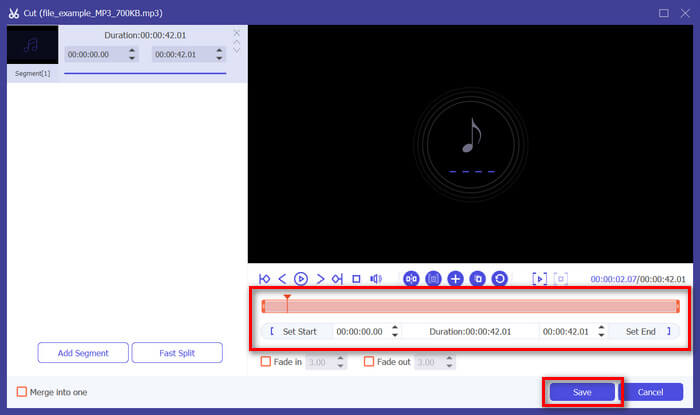
שלב 4. לאחר מכן ודא שקובץ ה‑MP3 שלך הוא באורך 30 שניות בלבד. אם הוא ארוך יותר, עבור אל כפתור Cut והתאם את אורך הקובץ על‑ידי הזזת הסרגל בציר הזמן או על‑ידי הגדרה ידנית של זמן הסיום ל‑30 שניות.
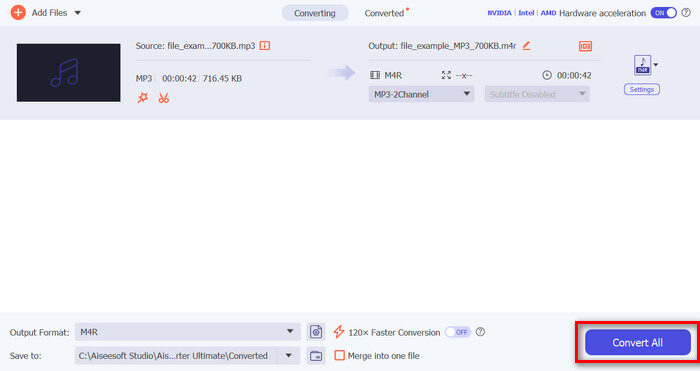
שלב 5. כעת לחץ על כפתור Convert All כדי להתחיל להמיר את קובצי ה‑MP3 שלך לרינגטונים לאייפון. הקבצים שהומרו נשמרים ישירות לתיקייה במחשב שלך.
זה מהיר, נכון? זה באמת מדהים איך הכלי האולטימטיבי של ממיר וידאו זה שנבחר ב-FVC הופך את ההמרה של MP3 לרינגטון לאייפון לקלה ומהירה. אז, אם אתה מחפש כלי ממיר שיכול לחסוך לך זמן, נסה את הכלי הזה עכשיו.
חלק 2. המרת MP3 לרינגטונים באייפון
אם אתה מעדיף שיטה ישירה ללא שימוש במחשב, GarageBand מציע פתרון נוח להמרת MP3 לרינגטונים ישירות באייפון שלך. כלי זה הוא אפליקציה רבת עוצמה ליצירת מוזיקה המותקנת מראש ברוב מכשירי האייפון. כלי זה אינו רק ידידותי למשתמש אלא גם מספק תכונות שונות להתאמה אישית של קבצי האודיו שלך ביעילות.
כך תשתמש ב‑GarageBand כדי להמיר את קובץ ה‑MP3 שלך לרינגטון:
שלב 1. ראשית, פתח את אפליקציית GarageBand באייפון שלך. אם האפליקציה אינה מותקנת, עבור ל‑App Store והתקן אותה.
שלב 2. הקש על סמל Project ולאחר מכן על סמל Loop בפינה הימנית‑עליונה.
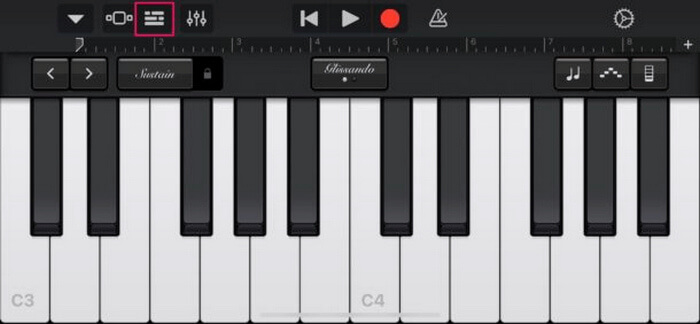
שלב 3. כעת הקש על Music or Files כדי לבחור את קובץ ה‑MP3 והחזק אותו לחוץ כדי לייבא אותו ל‑GarageBand.
שלב 4. לאחר מכן הקש על הרצועה וגרור את שני הקצוות כדי לחתוך את האודיו. ודא שהרינגטון קצר מ‑30 שניות.
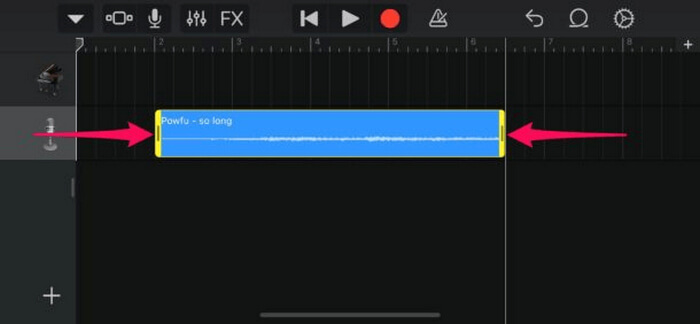
שלב 5. תראה חץ מטה בפינה השמאלית‑עליונה. הקש עליו ולאחר מכן בחר My Songs כדי לשמור את הקליפ.
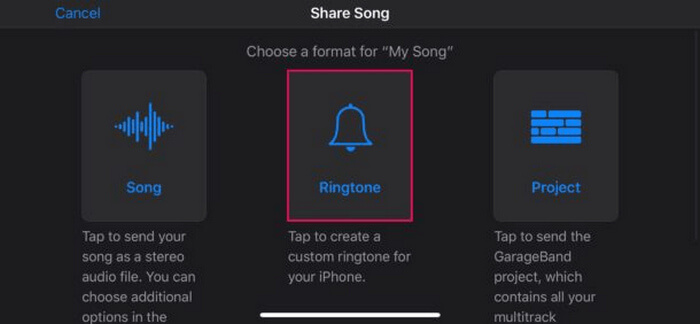
שלב 6. מצא את הקליפ שיצרת, החזק אותו לחוץ, הקש על Share ובחר באפשרות Ringtone. אל תשכח לתת לרינגטון שם ולהקיש על Export.
שלב 7. כדי להשתמש בקובץ ה‑MP3 שהומר כרינגטון באייפון שלך, הקש Use Sound As כדי להגדיר את הרינגטון כברירת המחדל להודעות טקסט או לקשר אותו לאיש קשר מסוים. לחלופין, עבור אל Settings, Sounds & Haptics ו‑Ringtone כדי לשנות את הרינגטון באייפון.
אם אתה מעדיף להמיר קבצי MP3 ישירות לרינגטונים באייפון שלך, שיטה זו מתאימה לך באופן מושלם. עם זאת, משתמשים חדשים יצטרכו קצת זמן כדי ללמוד זאת, מכיוון שהוא מכיל תכונות מורכבות שעלולות להציף אותם בהתחלה.
חלק 3. המר MP3 לרינגטון לאייפון [מקוון ובחינם]
אם אתה מעדיף שיטה חינמית ומקוונת להמרת MP3 לרינגטון לאייפון, FVC Free Audio Converter הוא הכלי בשבילך. בעזרת הכלי הזה תוכל להמיר בקלות כל פורמט של קובץ אודיו, במיוחד MP3 ל‑M4R, שכן הוא תומך בפורמטי האודיו MP3, AAC, AC3, WMA, WAV, AIFF, FLAC, MKA, M4A, M4B ו‑M4R. בנוסף, הכלי הזה מושלם למי שזקוק לממיר אודיו זמין בכל מקום, בזכות הממשק המאוד אינטואיטיבי והפשוט שלו.
כך תשתמש ב‑FVC Free Audio Converter כדי להמיר את קובץ ה‑MP3 שלך לרינגטון:
שלב 1. לחץ על כפתור Add Files כדי לייבא את קובצי ה‑MP3 שברצונך להמיר לרינגטון.
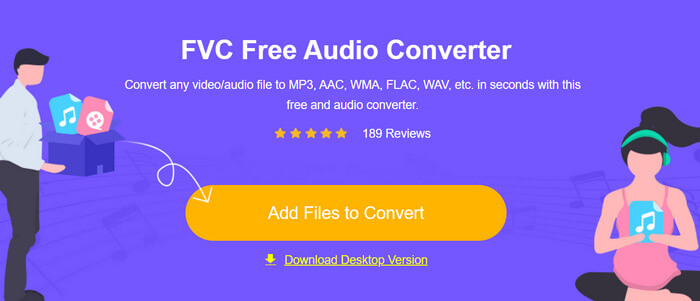
שלב 2. בחר M4R כפורמט פלט האודיו שלך.
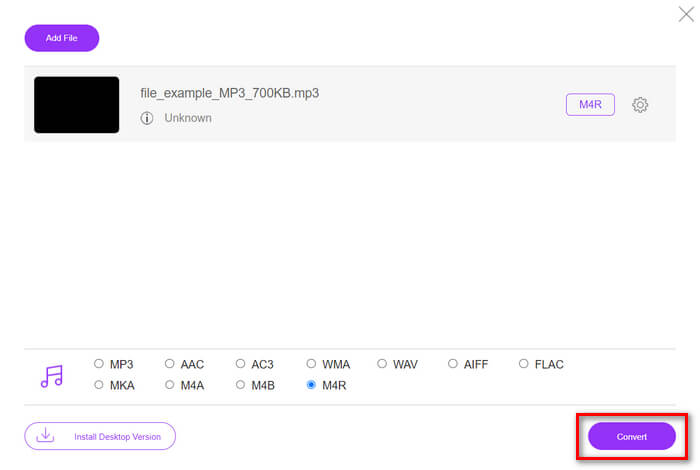
שלב 3. לבסוף, כדי לבצע את המרת קובץ ה‑MP3 לרינגטון, לחץ על כפתור Convert. הקובץ שהומר יישמר ישירות במחשב שלך.
אם אתה מחפש שיטה חלופית, חינמית ומקוונת, להמרת MP3 ל‑M4R כרינגטון באייפון, FVC Free Audio Converter הוא פתרון מצוין. הממשק האינטואיטיבי שלו מפשט את תהליך ההמרה, והוא תומך במגוון רחב של פורמטי אודיו, מה שמבטיח תאימות לסוגי קבצים שונים.
חלק 4. כיצד להעביר רינגטונים מומרים לאייפון ממחשב
כעת, לאחר שהמרת סוף סוף את קבצי ה-MP3 שלך לרינגטונים במחשב, הדרך המהירה ביותר להעביר אותם לאייפון שלך היא באמצעות iTunes.
כך תעביר רינגטונים שהומרו לאייפון באמצעות iTunes:
שלב 1. פתח את iTunes במחשב וחבר את האייפון באמצעות כבל USB.
שלב 2. גרור את קובץ הרינגטון שהומר לספריית iTunes. ודא שהוא מופיע תחת הקטגוריה Tones.
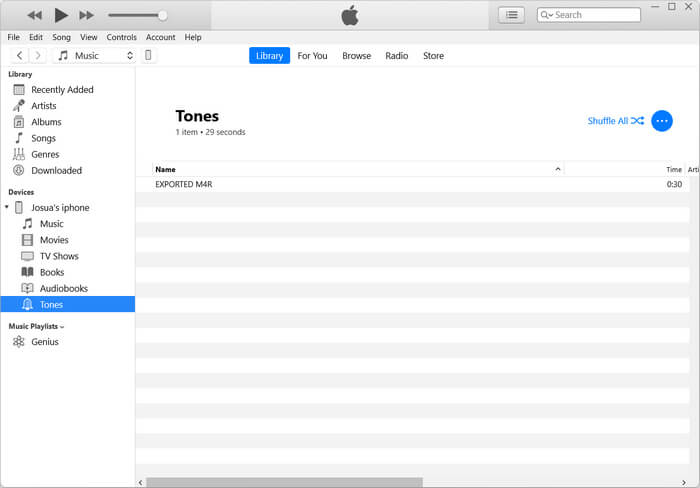
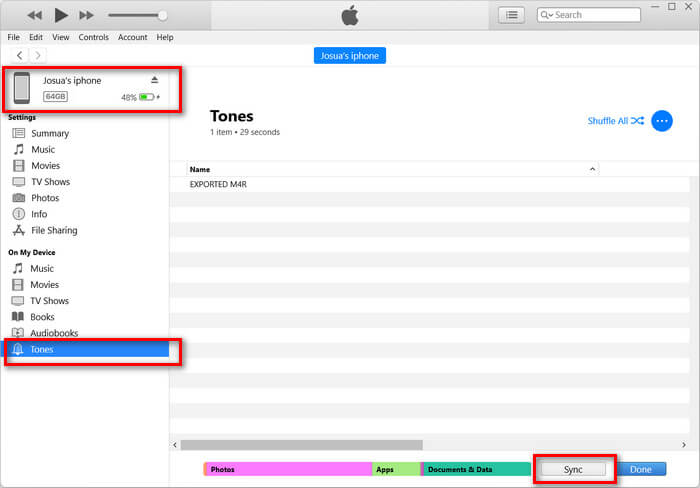
שלב 3. בחר את סמל האייפון שלך ב‑iTunes, עבור לכרטיסיית Tones וסמן את Sync Tones. לאחר מכן בחר את קובץ הרינגטון שייבאת ולחץ על Apply כדי לבצע סנכרון.
שלב 4. כעת, באייפון שלך, עבור אל Settings, בחר Sounds & Haptics, הקש על Ringtone ובחר את הרינגטון החדש שלך.
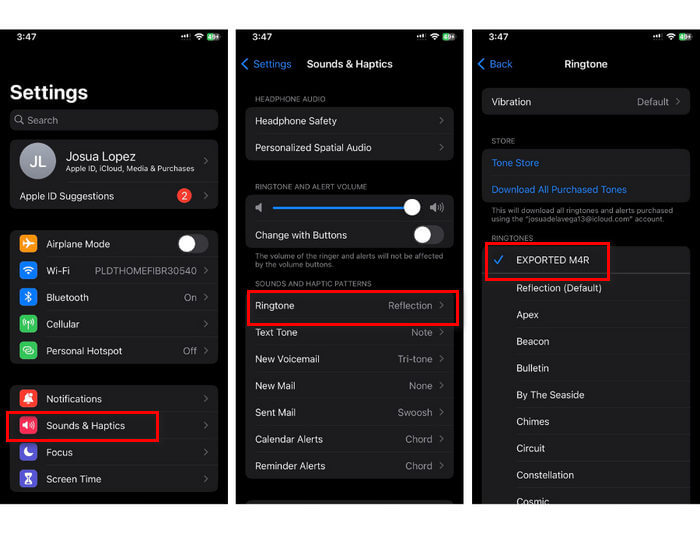
הנה לך. כעת אתה יכול להעביר בקלות ולהשתמש ב-MP3 שהומר לרינגטון באייפון שלך, לתת למכשיר שלך מגע אישי עם הצלילים האהובים עליך.
חלק 5. שאלות נפוצות על המרת MP3 לרינגטונים
מהו אתר הרינגטון החינמי הטוב ביותר?
אתרים רבים מציעים רינגטונים בחינם, אבל כמה מהפופולריים והאמינים כוללים את Zedge, Mobile9 ו-Tones7. אתרים אלו מספקים מגוון רחב של רינגטונים שתוכל להוריד ולהשתמש בטלפון שלך.
איזה פורמט הוא רינגטון MP3 לאייפון?
פורמט הרינגטון של האייפון הוא M4R. בעת המרת קובץ MP3 לשימוש כרינגטון באייפון, יש לשמור אותו בפורמט M4R.
כיצד להוסיף MP3 לרינגטון לאייפון?
כדי להוסיף MP3 לרינגטון האייפון שלך, תחילה עליך להמיר את קובץ ה-MP3 ל-M4R באמצעות כלי ממיר כמו ה-Video Converter Ultimate שנבחר ב-FVC. לאחר שהמרת את קובץ ה-MP3, השתמש ב-iTunes כדי להעביר אותו לאייפון שלך ולהשתמש בו כרינגטון החדש שלך.
סיכום
כעת תוכל להשתמש בקובצי ה‑MP3 האהובים עליך ול‑יצור רינגטון לאייפון שלך. פשוט בחר את כלי ההמרה שהכי מתאים לצרכים שלך. כל אחד מהם מציע דרך ישירה להמיר MP3 לרינגטון באייפונים. אז למה לחכות? התחל ליצור עכשיו את הרינגטון הייחודי שלך והפוך את האייפון שלך לשייך באמת לך!
-
 MOV VS MP4 - איזה מהם תבחר?
 MOV VS MP4, איזה מהם עדיף? פוסט זה מציג את ההבדל בין MP4 ל- MOV, כך שתוכל לקבל את הבחירה הטובה יותר לשימוש בקבצי הווידאו שלך.
-
 FLAC לעומת MP3: איזה פורמט קובץ אודיו שולט
 פוסט זה ישווה את ההבדלים העיקריים בין FLAC לעומת MP3. זה כולל את איכות הצליל שלהם, גודל הקובץ, התאימות ועוד.
-
 כיצד להמיר MP3 ל-M4A לאיכות צליל משופרת
 שפר את האיכות של קבצי המוזיקה שלך על ידי המרת MP3 ל-M4A עם הטיפים והטריקים של המומחים שלנו. המדריך שלנו מציע הוראות שלב אחר שלב ותוכנה מומלצת.
