


 ממיר וידאו אולטימטיבי
 מקליט מסך
 תיקון וידאו
 הורדה מאובטחת
המר JPG ל-MP4 ב-Windows/Mac מבלי לאבד את איכותו
JPG הוא פורמט התמונה הנפוץ ביותר, ואנו משתמשים בו למטרות שונות, החל משיתוף תמונות באינטרנט ועד לאחסון תמונות דיגיטליות במכשירים שלנו. עם התאימות הנרחבת שלו וגודל הקובץ הקטן יחסית שלו, JPG הפך לבחירה הנכונה ללכידה ושימור של זיכרונות חזותיים בחיי היומיום.
אבל בימינו, יצירת סרטונים מתמונות הופכת לעניין מקובל. זו גם דרך נוספת לשמור זיכרונות בצורה יצירתית ומלאת תשוקה יותר. באפשרותך להוסיף אודיו, מעברים, או פשוט מצגת שקופיות בסיסית בקובץ וידאו MP4 עם המוזיקה האהובה עליך ברקע. אז אם זה מעניין אותך ואתה מתכנן להמיר JPG ל‑MP4, המשך לקרוא מאמר זה ולמד כיצד להמיר אותם באמצעות 4 שיטות שונות, בלי לאבד מאיכותם. שחרר היום את היצירתיות החבויה בך!

חלק 1: הדרך האולטימטיבית להמיר JPG ל-MP4 ב-Windows/Mac [הטוב ביותר למתחילים]
הדרך האולטימטיבית להמיר JPG ל‑MP4 היא באמצעות FVC Video Converter Ultimate. לכלי זה יש פונקציה מיוחדת בשם MV, המאפשרת למשתמשים ליצור סרטוני MP4 באיכות טובה מתמונות ה‑JPG שלהם. הוא מגיע עם ערכות נושא מוכנות לשימוש, וכן אפקטים ופילטרים שונים. בנוסף, ניתן בקלות לסובב ולחתוך קובצי JPG לפי הצורך לפני הייצוא ל‑MP4. הדבר המהנה ביותר בכלי הזה הוא שניתן לייבא אודיו משלך, להתאים אישית בעזרת סימן מים, ועוד. לבסוף, הכלי אינו מכביד לשימוש, שכן יש לו ממשק אינטואיטיבי וידידותי למשתמש. כדי לבצע זאת, פעל לפי השלבים הבאים:
שלב 1. ראשית, עליך להשיג את התוכנה למחשב Windows או Mac, ואז להוריד ולהתקין אותה.
הורדה חינמיתל-Windows 7 ומעלההורדה מאובטחת
הורדה חינמיתל-MacOS 10.7 ומעלההורדה מאובטחת
שלב 2. לאחר מכן, פתח את הכלי, ומבין 4 הלשוניות למעלה, לחץ על MV.

שלב 3. כעת, כאשר אתה בממשק הראשי של MV, לחץ על הכפתור Add File כדי להוסיף את קובצי ה‑JPG שברצונך להמיר ל‑MP4.

שלב 4. כדי להוסיף, לערוך ולגזור (Trim) את סרטון ה‑MP4 שלך, לחץ על הכפתור בחלק העליון שמעל Add File. בנוסף, ניתן לבחור ערכת נושא מוכנה מראש על‑ידי לחיצה על לשונית Theme למעלה.

שלב 5. במקביל, כדי לחתוך ולסובב את התמונות, להוסיף פילטרים ואפקטים, ולהוסיף סימן מים כדי להפוך את הווידאו לאישי יותר, פשוט לחץ על סמל Edit בתחתית, וזה יעביר אותך לחלון נוסף.

שלב 6. אם הכול מוכן, לחץ על כפתור Export, שם תוכל לשנות את הפורמט ל‑MP4 ולערוך את קצב הפריימים, הרזולוציה והאיכות. בנוסף, ניתן לציין באיזה תיקייה יישמרו קובצי ה‑JPG שהומרו ל‑MP4. לבסוף, כדי לשמור את הקובץ שלך, לחץ על הכפתור Start Export.

FVC Video Converter Ultimate מפשט את הפיכת JPG ל-MP4 עם הממשק הידידותי למשתמש, תכונות הניתנות להתאמה אישית, ערכות נושא מוגדרות מראש, כלי עריכה, פלט באיכות גבוהה ותאימות למערכות ההפעלה של Windows ו-Mac. זו אכן הדרך האולטימטיבית לגרום לתמונות משעממות להפוך לסרטונים מהנים ויצירתיים.
חלק 2: המר JPG ל-MP4 ב-Windows 11/10 עם תמונות כלי ברירת מחדל
ב-Windows 10 ו-11, Clipchamp משולב כעת עם אפליקציית Photos, המאפשרת למשתמשים להמיר JPG לקבצי MP4. אינטגרציה זו מקלה על העריכה אשר לאחר מכן ניתן לשמור אותה ב-MP4. אז כדי להדריך אותך בזה, עקוב אחר התהליך שלב אחר שלב להלן:
שלב 1. במחשב Windows שלך, גש אל תפריט Start ומשם לחץ על Photos.
שלב 2. באפליקציית Photos, עבור אל Folders בלשונית השמאלית. תתבקש להוסיף תיקייה, או שתוכל פשוט לבחור תמונות מתוך ספריית התמונות שברצונך להפוך ל‑MP4.
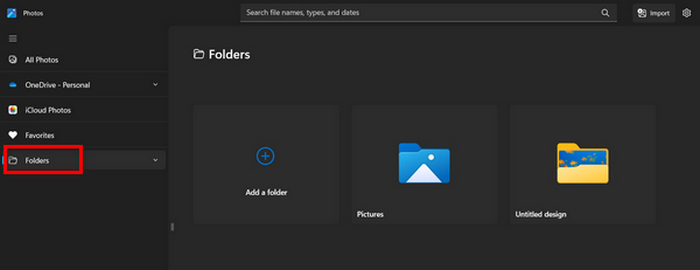
שלב 3. לאחר בחירת תמונות ה‑JPG שברצונך להמיר, לחץ על סמל Create a video.
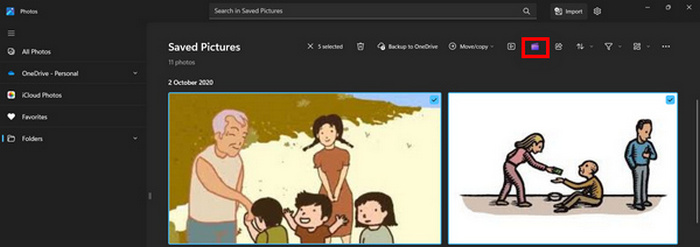
שלב 4. בחלון חדש תישאל אם להוסיף קובצי מדיה לסרטון זה. לחץ על Yes to Add Video.

שלב 5. כעת, גרור את קובצי המדיה שיובאו אל ציר הזמן (Timeline). תוכל להשתמש באפשרויות העריכה בלשונית השמאלית, שם ניתן להוסיף טקסט, לבחור תבניות ועוד. בלשונית הימנית, ניתן להוסיף אודיו, אפקטים, פילטרים וכו'. בסיום, יש פשוט ללחוץ על כפתור Export, וקובץ ה‑MP4 יישמר ישירות במחשב שלך.
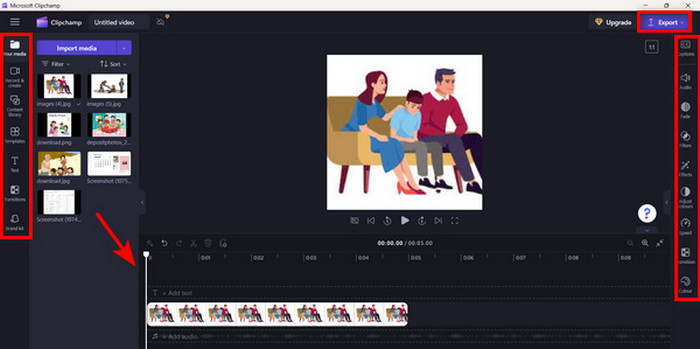
אם אתה משתמש של Windows, שיטה זו הופכת את המרת JPG ל-MP4 למהירה ממש. עם זאת, שיטה זו הייתה יכולה להיות קלה יותר בהשוואה לכלים אחרים. כמו כן, אינך יכול לייצא רזולוציית וידאו של 2K/4K באמצעות הגרסה החינמית שלו ואין לך גישה לאפקטים ומסננים טובים אחרים בהשוואה לכלי המרה אחרים.
חלק 3: המר JPG ל-MP4 ב-Mac עם iMovie
אם אתה משתמש מק, יש פתרון שימושי להמרת JPG ל-MP4 עבורך. ל-Mac יש אפליקציה מובנית בשם iMovie. מדובר באפליקציית עריכת וידאו המציעה עריכה בסיסית למשתמשיה, אך מלבד זאת ניתן להשתמש בה גם כדי להפוך קבצי JPG ל-MP4. הם רק צריכים לייבא את התמונות שלהם, להוסיף כמה אפקטים ומסננים ואז לשמור אותם כ-MP4.
שלב 1. ב‑Mac שלך, הפעל את אפליקציית iMovie ולחץ על Create New.
שלב 2. לאחר מכן, הוסף את קובץ ה‑JPG לאפליקציה על‑ידי לחיצה על הכפתור Import Media בממשק הראשי.
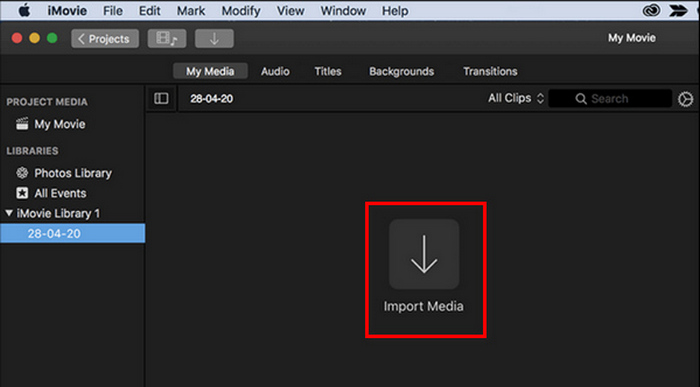
שלב 3. כעת, מצא את קובצי ה‑JPG שברצונך להמיר ל‑MP4.
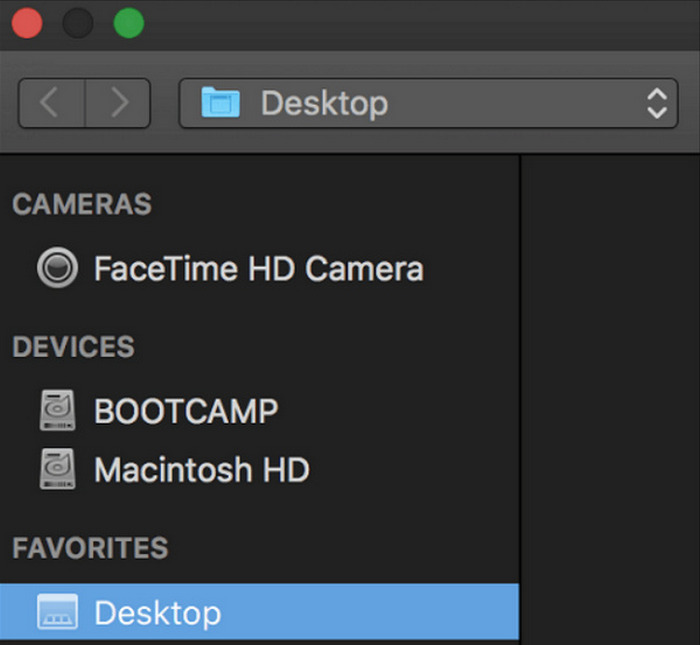
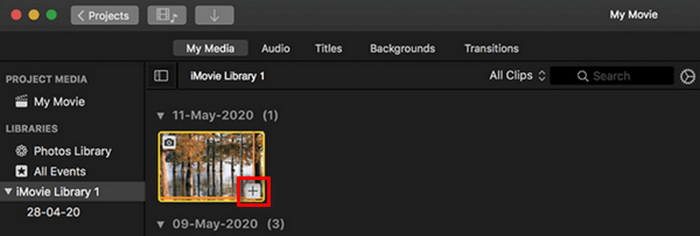
שלב 4. לאחר שקובץ ה‑JPG מופיע בממשק האפליקציה, בחר בו ותבחין בסמל Plus. לחץ עליו כדי לאפשר הוספת התמונה לציר הזמן.
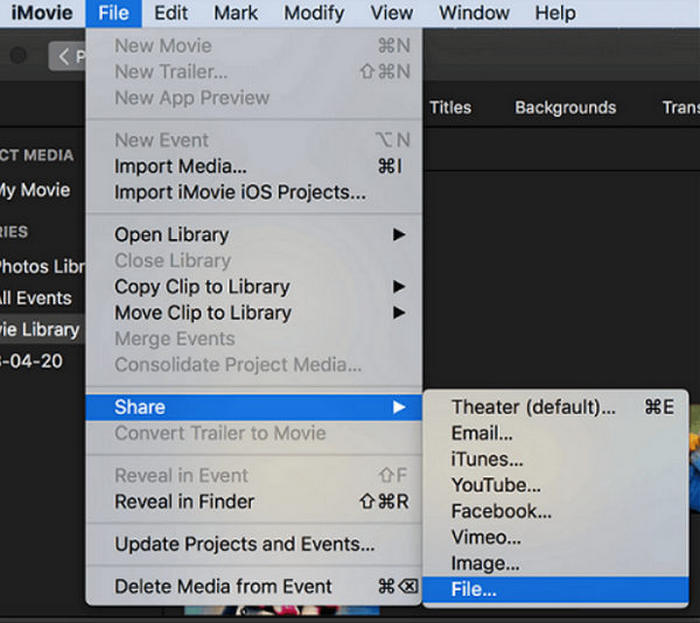
שלב 5. לאחר הוספת קובצי ה‑JPG לציר הזמן, באפשרותך לגרור את הפינות כדי להאריך את משך קובץ ה‑MP4 הסופי. לאחר מכן, לחץ על תפריט File בחלק העליון, בחר Share, ולאחר מכן File כדי לייצא את הקובץ.
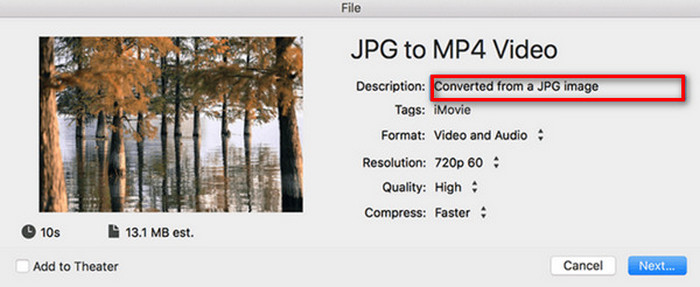
שלב 6. לבסוף, תן שם לקובץ ה‑MP4 בראש החלון, מלא שדות מטא־נתונים נוספים של קובץ הווידאו, ולחץ על Next. בחר את המיקום הרצוי לשמירת קובץ ה‑MP4 שברצונך להמיר. לאחר שבחרת את המיקום, תהליך ההמרה יתחיל.
iMovie מציעה למשתמשי Mac דרך נוחה להמרת קובצי JPG ל‑MP4 באמצעות ממשק ידידותי לכל משתמש וכלי עריכה מובנים. עם זאת, ייתכן שהיא חסרה תכונות מתקדמות בהשוואה לכלי המרה אחרים, מה שמגביל אפשרויות התאמה אישית ואפקטים. בעוד שהיא מתאימה לעריכה בסיסית, משתמשים כיום הופכים לתחרותיים ויצירתיים יותר, ומחפשים כלי שיכול באמת לענות על הצרכים והציפיות של כולם. בנוסף, הכלי הזה לא פועל על Windows. אם אתה אוהב את iMovie, תוכל למצוא כאן כלים של iMovie for Windows.
חלק 4: המר JPG ל-MP4 באינטרנט
עכשיו, אם אתה מחפש דרך אחרת להמיר JPG ל-MP4, אז המרת אותם באינטרנט עשויה להיות בשבילך. אחד מהממירים המקוונים הטובים ביותר לכך הוא ה-Online Convert.com. אתה יכול להפעיל את הכלי הזה מדפדפנים שונים במחשב שלך, וניתן להשתמש בו בקלות בשל ממשק המשתמש האינטואיטיבי שלו.
שלב 1. בדפדפן שלך, חפש את האתר Online Convert.com.
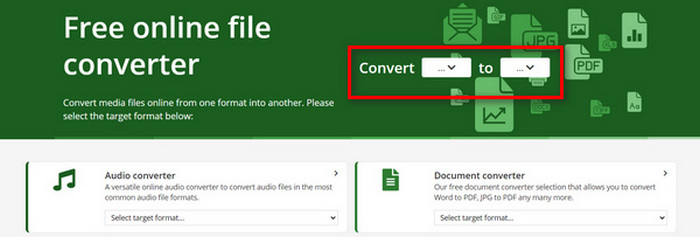
שלב 2. לאחר שנכנסת לאתר, בחר את הפורמטים בהתאם. מאחר שאתה עומד להמיר JPG ל‑MP4, בחר JPG מתפריט הנפתח Convert ו‑MP4 מתפריט הנפתח To.
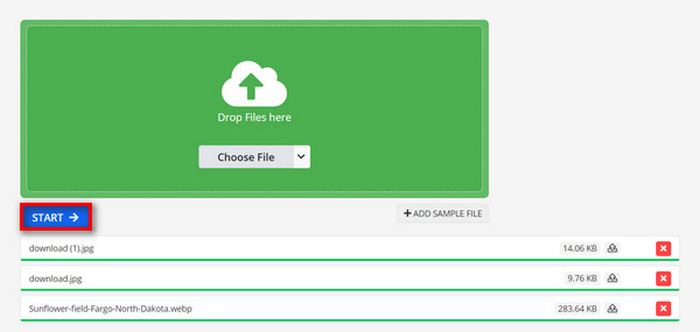
שלב 3. לאחר מכן, העלה את קובצי ה‑JPG שברצונך להמיר על‑ידי לחיצה על תפריט הבחירה Choose File, שממנו ניתן לייבא קבצים מהמכשיר שלך, Dropbox, Google Drive ואפילו מכתובת URL.

שלב 4. לאחר שהעלית את קובצי ה‑JPG שברצונך להמיר ל‑MP4, לחץ על הכפתור Start.
שלב 5. לבסוף, הורד את קובץ ה‑MP4 שלך על‑ידי לחיצה על הכפתור Download.
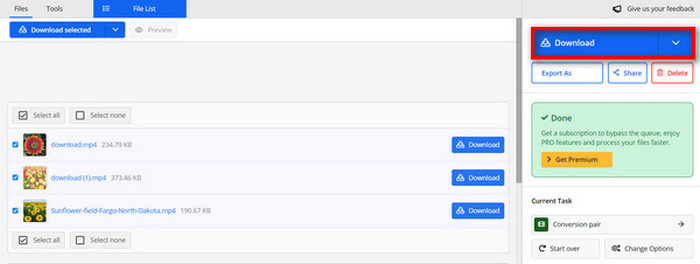
פלט שהומר מכלי זה הוא תוצאה של הגדרת וידאו מוגדרת מראש שהמשתמשים התאימו ידנית לפני המרת הקבצים. אמנם זה הופך בקלות JPG ל-MP4, אבל אתה לא יכול לשפר ישירות את הסרטון שהומר בהתבסס על הסגנון היצירתי שלך.
חלק 5: שאלות נפוצות על המרת JPG ל-MP4
האם JPEG זהה ל-JPG?
JPEG ו‑JPG הם למעשה אותו פורמט תמונה דיגיטלי, ושתי הסיומות מתייחסות לפורמט JPEG שנוצר על‑ידי Joint Photographic Experts Group (JPEG). למד כאן כיצד להמיר JPEG ל‑JPG.
מתי עלי להמיר JPG ל-MP4?
עליך להמיר JPG ל-MP4 כאשר אתה רוצה ליצור מצגת חזותית או לשתף סדרה של תמונות כסרטון, כמו יצירת מצגות, אלבומי תמונות דיגיטליים או שקופיות וידאו. מלבד זאת, אם אתה רוצה להיות יצירתי עם האופן שבו אתה רוצה לראות את קובצי ה-JPG שלך, אז המרתם ל-MP4 היא הדרך האולטימטיבית להוסיף מעברים, מוזיקה, שכבות טקסט ואלמנטים מולטימדיה אחרים.
איך אני משלב JPG ו-MP4?
הדרך היחידה לשלב JPG ו-MP4 היא באמצעות כלי עריכת וידאו. עם גישה זו, יש לך שליטה מלאה על הסידור, התזמון וההתאמה האישית של התמונות והסרטון שברצונך לשלב.
סיכום
עכשיו תורך! המרת JPG ל‑MP4 היא דרך נוספת לשמור זיכרונות באופן יצירתי. אם יש לך קובצי JPG ואתה רוצה להמיר אותם, עקוב אחר כל השיטות שהוצגו במאמר זה ובחר את זו שהכי מתאימה לך. התחל כבר היום וראה איך הקסם קורה!
-
 5 הדרכות המובילות להמרת PNG ל-JPG במהירות
 אם אתה צריך להמיר את קובץ ה-PNG שלך לפורמט JPG, תוכל ללמוד את הדרכים הטובות ביותר כאן. תלמד גם את ההבדל בין פורמטים של קבצי PNG ו-JPG.
-
 שיטות ללא מאמץ כיצד להמיר SVG לפורמט JPG
 מוצא את הדרך הטובה ביותר להמיר SVG ל-JPG? פוסט זה ייתן כמה הדרכות בטוחות שתוכלו לנסות. אתה גם תגלה עבורך את ממיר SVG ל-JPG.
-
 שיטות שימושיות כיצד להמיר TIFF ל-JPG/PNG בקלות
 אל תחמיצו את הדרכים המצוינות הללו להפוך TIF לפורמטים של JPG/PNG. פוסט זה יספק את המידע הדרוש שאתה צריך לדעת. זה כולל את ההבדלים ביניהם.
