


 ממיר וידאו אולטימטיבי
 מקליט מסך
 תיקון וידאו
 הורדה מאובטחת
כיצד להמיר MP4 ל- WMV עבור Mac / Windows
לפני שנציג רשימה מוצעת של ממירים מ‑MP4 ל‑WMV, תרשה לי לשאול אותך משהו על פורמטי וידאו.
כדי לשמור נתוני וידאו דיגיטליים במערכת מחשב, עלינו להשתמש בפורמט קובץ שנועד לוידאו. אז אילו פורמטי וידאו אתה מכיר? MP4? WMV? FLV? AVI? אלה אכן פורמטי וידאו נפוצים מאוד לאחסון נתוני וידאו דיגיטליים. אבל האם אי פעם תהית מדוע יש כל‑כך הרבה פורמטי וידאו? מה ההבדל בין MP4 ל‑WMV?
באופן כללי, MP4 תואם כמעט לכל סוג המכשירים בשוק, מה שאומר שתוכלו לנגן MP4 בכל מקום, אפילו בנגן הווידיאו המוגדר כברירת מחדל במחשב או בטלפון. עם זאת, אם אתה משתמש במכשירי Windows, אני מאמין ש- WMV יכול לשרת אותך טוב יותר. לא רק בגלל שהוא פותח על ידי מיקרוסופט, אלא בגלל שהוא יכול לשמור את וידיאו HQ במרחב דיסק קטן.
היום אתה הולך ללמוד איך להמיר קובץ MP4 ל‑WMV בעזרת ממירי הווידאו הטובים ביותר שאנחנו ממליצים עליהם.

חלק 1. כיצד להמיר MP4 ל- WMV באופן מקוון בחינם
מלבד התקנת תוכנה שולחנית קלאסית, שימוש בימי ממיר מבוסס אינטרנט הוא גם אפשרות בימינו. אם כי פשוט, ממירים מקוונים רבים מעט איטיים במהלך ההמרה. חלקם אפילו מגבילים את גודל וכמות הקבצים שאתה מעלה ואינם יכולים להבטיח את איכות סרטוני הפלט.
לכן, אנחנו מציגים כאן את FVC Free Online Video Converter, ממיר וידאו חינמי, מהיר ויעיל, שיכול לעזור לך להמיר אצווה של סרטונים או קבצי אודיו ללא איבוד איכות.
כממיר MP4 ל‑WMV מקוון חינמי ורב‑תכליתי, FVC Video Converter תומך כמעט בכל סוגי פורמטי הווידאו. באפשרותך להמיר קובצי MP4 גדולים אל/מ‑MKV, MOV, WMV, AVI, TS ועוד. אתה גם יכול לערוך את הווידאו לפי הצורך שלך. קל מאוד לכוונן את קצב הסיביות (bitrate), קצב הדגימה, קצב הפריימים, הרזולוציה והווליום ב‑FVC. ואין שום סימן מים על הווידאו שלך לאחר ההמרה.
עכשיו אתה יכול לדאוג שעם כל התכונות הללו, יהיה קשה להבין כיצד להפעיל את הממיר הזה. למעשה האמת מנוגדת לגמרי. זה לוקח רק כמה צעדים כדי לשלוט בממיר MP4 ל WMV זה.
שלב 1. לחץ כאן כדי לעבור אל FVC Free Online Video Converter. לאחר מכן לחץ על Add Files to Convert כדי להוריד תחילה את FVC Launcher.
הורד את גרסת הדסקטופ כדי להמיר קבצים במצב אצווה.
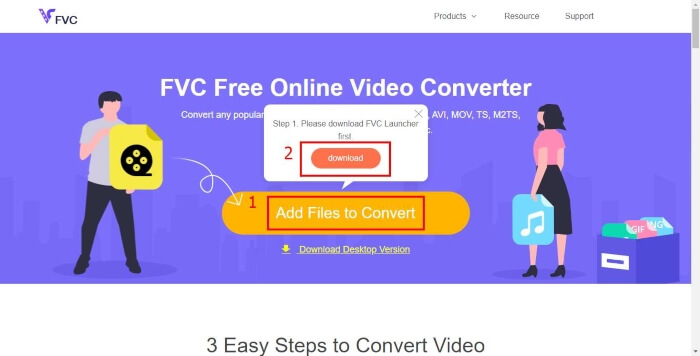
שלב 2. לאחר התקנת המשגר, חלון Open File יקפוץ. פשוט מצא את קובץ ה‑MP4 שברצונך להמיר.
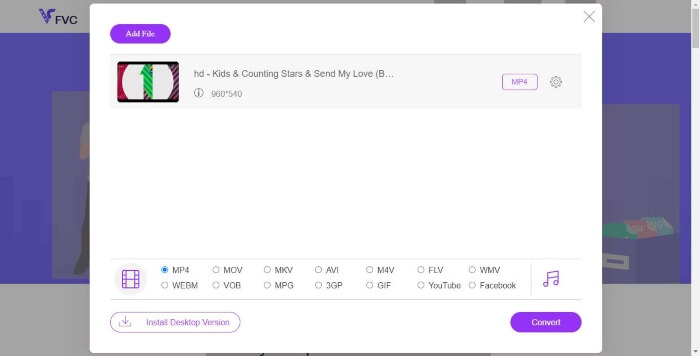
שלב 3. בעמוד ההמרה, בחר פורמט פלט WMV. דרך אגב, אם תרצה לשנות את פרמטרי הווידאו, פתח את חלון ההגדרות בלחיצה על סמל ה‑Setting. לחץ על הכפתור Convert ובחר מיקום יעד לשמירת הווידאו שהומר.
חלק 2. המרת MP4 ל- WMV באמצעות תוכנת שולחן עבודה
1. RealPlayer
RealPlayer הפך מאז 1995 לאחד מנגני המדיה הפופולריים ביותר. הוא לא רק עוזר לך לנהל בקלות את הסרטונים, המוזיקה והתמונות שלך, אלא גם להמיר וידאו לפורמטים שונים ולהעביר אותם למכשירים ניידים אחרים.
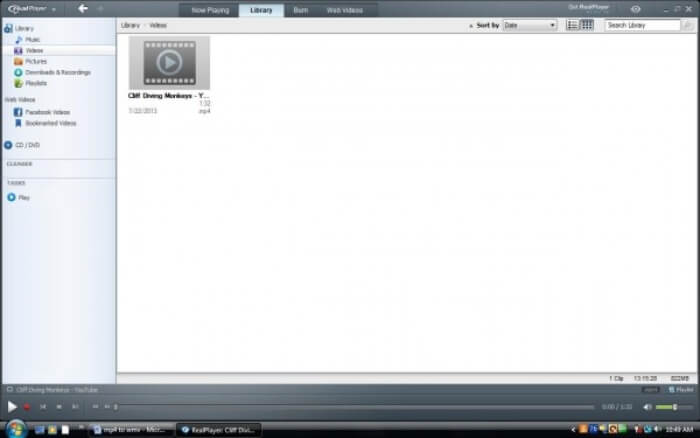
שלב 1. אם RealPlayer מותקן במחשב שלך, שמור את קובץ ה‑MP4 בספריית library של RealPlayer. לאחר הפעלת RealPlayer בחר Library. מצא את הקובץ שלך ברשימת Video.
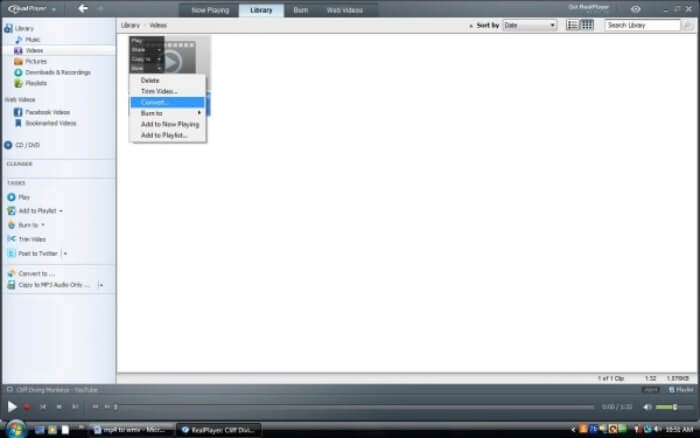
שלב 2. לחץ על הקובץ ובחר את האפשרות More מהתפריט הקופץ. לאחר מכן בחר באפשרות Convert.
שלב 3. בחר WMV מתפריט Select a Device ולחץ על OK. כעת לחץ על כפתור ה‑Start. בתוך כמה שניות הווידאו שלך יופיע בספריית RealPlayer.
2. נגן מדיה VLC
VLC הוא נגן קוד פתוח ורב‑פלטפורמות שיכול לנגן וידאו בפורמטים שונים. הוא גם תומך בהמרת קבצים לפורמטים פופולריים רבים. עקוב אחר השלבים הבאים כדי לייצא קובץ WMV מ‑MP4.
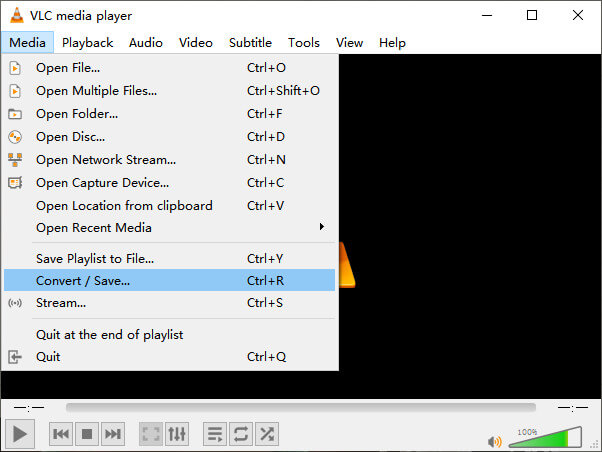
שלב 1. פתח את VLC Media Player ולחץ על Convert / Save בתפריט Media.
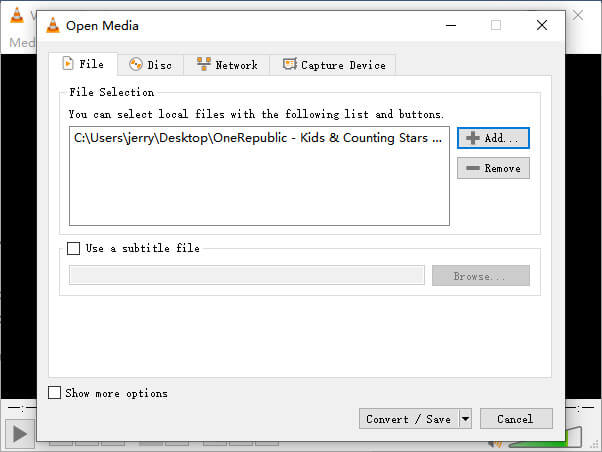
שלב 2. הוסף את הקובץ ל‑VLC. לאחר מכן לחץ על הכפתור Convert / Save.
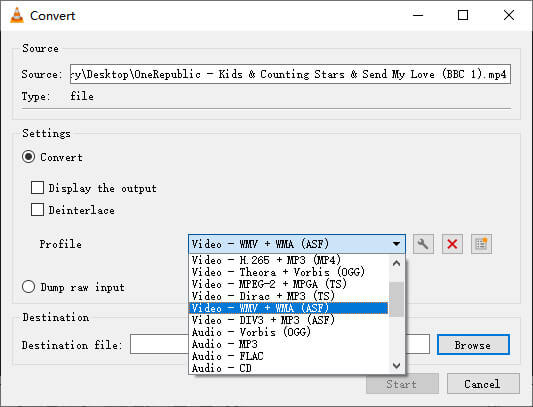
שלב 3. מצא WMV תחת Profile ובחר תיקייה כיעד שמירת קובץ הפלט. לאחר מכן לחץ על Start.
MP4 לעומת WMV
פורמט MP4 שוחרר על ידי Moving Picture Experts Group (MPEG) בשנת 2001, ופורמט MP4 יכול לעזור לך לשמור נתוני וידאו, אודיו, כתוביות ותמונה ברצועות נפרדות. זה קיצור של MPEG-4 Part 14. בנוסף, זהו אחד הפורמטים הפופולריים ביותר המשמשים להזרמת ושיתוף סרטונים.
הופק על ידי מיקרוסופט, WMV היה אחד מפורמטי הווידאו הנפוצים ביותר בשנות ה-2000. ניתן לראות אותו דרך האינטרנט ולהפעיל אותו על ידי נגני מדיה שונים ב-Windows. וזה גם פורמט ברירת המחדל של קובץ הווידאו של Windows Media Player. אבל זה השתלט על ידי פורמטים אחרים לאחרונה.
חלק 3. שאלות נפוצות של המרת MP4 ל- WMV
1. האם בלם יד יכול להמיר MP4 ל- WMV?
לאחר מחקר, לצערנו הגרסה העדכנית של Handbrake אינה יכולה להמיר MP4 ל‑WMV. אמנם Handbrake תומך ברוב קובצי המדיה הנפוצים, אך זה נכון רק לגבי מקורות קלט. אפשרויות פורמט הפלט הן MP4(.M4V) ו‑MKV.
2. האם אוכל להמיר קובץ MP4 שהוא מעל 100MB ל- WMV באופן מקוון בחינם?
זה תלוי. לממירים מקוונים חינמיים שונים יש מגבלות שונות. חלק מהממירים כמו FVC Free Online Video Converter מאפשרים לך להמיר מעל 100MB. אבל ממירים אחרים עשויים לגבות תשלום עבור כך.
3. האם Windows Media Player יכול להמיר MP4 ל- WMV?
אי אפשר להמיר קובץ MP4 ל‑WMV באמצעות Windows Media Player. זאת משום שהוא רק נגן, לא ממיר. אם ברצונך להמיר MP4 ל‑WMV, עליך להשתמש בממיר וידאו יעיל.
4. האם אוכל להפעיל קובץ WMV ב- Mac?
כלי הווידאו המובנים ב‑Mac אינם יכולים לנגן קובצי WMV. אבל יש לך דרכים אחרות לנגן סרטוני WMV ב‑MacOS. אתה יכול להמיר WMV לפורמט אחר שנתמך על ידי Mac. לחלופין, התקן את Windows Media Player for Mac כדי לנגן קובצי WMV.
סיכום
למרות של‑MP4 ול‑WMV יש קווי דמיון, לכל אחד מהם גם מאפיינים משלו. לכן עליך לקבל החלטות בהתאם למצב הספציפי. אנו מקווים שלאחר קריאת הפוסט הזה, נושא ההמרה של MP4 ל‑WMV כבר לא יהווה בעיה עבורך. בפעם הבאה שתזדקק לקובץ WMV, פשוט עקוב אחר המדריך שלמעלה והמר את הקובץ בקלות.
-
 כיצד להמיר קבצי וידיאו MP4 לתמונות GIF מונפשות ללא אובדן איכות
 מחפש את הדרך הטובה ביותר להמיר את סרטון ה- MP4 שלך ל- GIF מונפש? להלן מדריך מפורט לעשות זאת בפוטושופ, Windows Movie Maker, ממיר וידאו מקוון ועוד.
-
 כיצד להמיר קבצי וידיאו FLV ל MP4 מבלי לשלם אגורה
 מדריך זה חולק ארבע שיטות חינמיות להמרת קבצי הווידאו של ה- FLV לפורמט MP4 ב- Windows 10/8/7 / XP וב- Mac OS X, כך שתוכלו ליהנות מהסרטונים בכל המכשירים.
-
 כיצד להמיר MOV ל MP4 מבלי לאבד איכות
 רוצה להמיר קבצי MOV (Apple QuickTime Movie) ל- MP4? הודעה זו חולקת 4 שיטות חינם להמרת קבצי הווידאו MOV שלך לפורמט MP4 ב- Windows 10/8/7 / XP וב- Mac OS X.

