


 ממיר וידאו אולטימטיבי
 מקליט מסך
 תיקון וידאו
 הורדה מאובטחת
כיצד להמיר MPEG ל-MP4 [כולל שיטות חינמיות ומקוונות]
MPEG, או קבוצת המומחים לתמונות נעות, הוא פורמט סטנדרטי לדחיסת מולטימדיה המאפשר למשתמשים לאחסן, להעביר ולהזרים אודיו ווידאו ביעילות. יתר על כן, הוא משתמש בטכנולוגיית דחיסה מתקדמת שאחראית על צמצום גודל הקבצים תוך שמירה על איכותם.
מצד שני, MP4 הוא פורמט וידאו הידוע בגמישותו ובתאימותו. בהשוואה ל‑MPEG, פורמט זה רב־שימושי יותר, משום שהוא תומך בווידאו ואודיו, כתוביות, תמונות ומטא־נתונים. נוסף על כך, הוא מציע יעילות דחיסה טובה יותר. לכן, המרה של MPEG ל‑MP4 הופכת לצורך. כדי ללמוד כיצד לעשות זאת, המשך לקרוא מאמר זה וגלה חמישה דרכים פשוטות להמיר את קובצי ה‑MPEG שלך ל‑MP4.

חלק 1. כיצד להמיר וידאו MPEG ל-MP4 [המרה קבוצתית]
אחד מהפתרונות הטובים ביותר להמרת וידאו MPEG ל‑MP4 הוא שימוש ב‑Video Converter Ultimate שנבחר בקפידה על ידי FVC. כלי ממיר וידאו מלא־תכונות זה מאפשר למשתמשים להמיר במהירות את קובצי הווידאו שלהם לפורמטי פלט מועדפים שונים, שכן הוא תומך ביותר מ‑1,000 פורמטי קלט ופלט יחד. נוסף על כך, אם יש לך כמה קובצי וידאו MPEG שצריך להמיר, כלי המרה זה יאפשר לך להמיר את כולם בבת אחת באמצעות יכולת הדחיסה האצווית (batch).
כך תמירו באצווה וידאו MPEG ל‑MP4:
שלב 1. תחילה הורד והתקן את Video Converter Ultimate הנבחר של FVC במחשב שלך.
הורדה חינמיתעבור Windows 7 או גרסה מאוחרת יותרהורדה מאובטחת
הורדה חינמיתעבור MacOS 10.7 או גרסה מאוחרת יותרהורדה מאובטחת
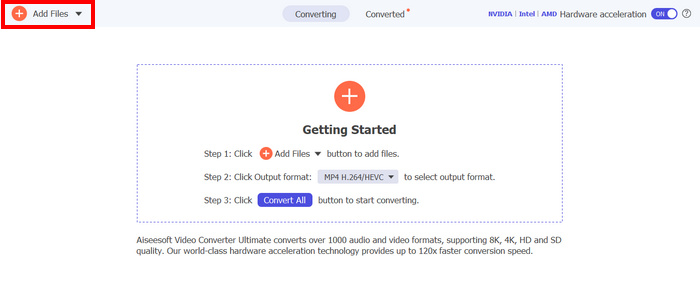
שלב 2. כעת, כדי לייבא את קובצי ה‑MPEG שברצונך לדחוס באצווה ל‑MP4, לחץ על כפתור Add Files.
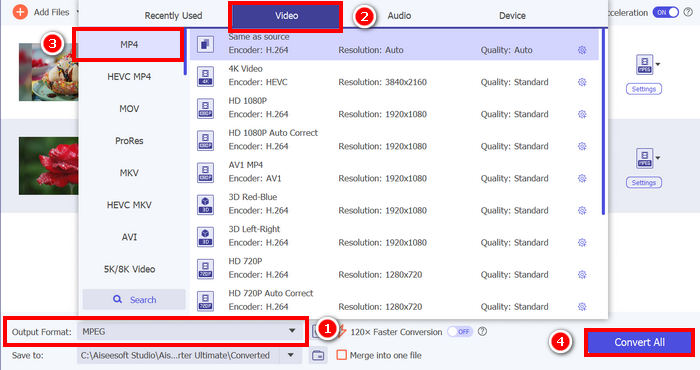
שלב 3. לבסוף, בשדה Output Format למטה, לחץ עליו ועבור ללשונית Video. משם, בחר ב‑MP4 מהרשימה. לאחר הבחירה, לחץ על כפתור Convert All כדי לדחוס באצווה את סרטוני ה‑MPEG ל‑MP4.
בעזרת Video Converter Ultimate שבחרת FVC, תהליך המרת סרטוני MPEG ל-MP4 יכול להתבצע במהירות. אתם צריכים רק 2 או 3 שלבים, בנוסף ממשק המשתמש אינטואיטיבי וידידותי מאוד למשתמש. לבסוף, בעזרת טכנולוגיית הקידוד המתקדמת של הכלי, משתמשים יכולים להבטיח שקבצי ה-MPEG המומרים ישמרו על איכות גבוהה תוך השגת דחיסה אופטימלית.
חלק 2. המרת MPEG ל-MP4 [חינם]
אם אתם תוהים האם ישנם כלי המרה חינמיים בהם תוכלו להשתמש כדי להמיר סרטוני MPEG ל-MP4, אז אתם צודקים! כלי המרת הווידאו החינמיים הללו יאפשרו לכם להמיר קבצי וידאו לפורמטים לבחירתכם. עם זאת, חשוב לציין שמכיוון שהם בחינם, ישנם דברים שיש לקחת בחשבון בעת השימוש בהם. להלן כלי ההמרה החינמיים מ-MPEG ל-MP4:
המרת MPEG ל-MP4 באמצעות נגן המדיה VLC
אני יודע שאתה מכיר היטב את VLC Media Player, משום שהוא בשימוש נרחב כנגן מדיה במכשירים שונים. אבל האם ידעת שגם נגן מדיה זה יכול להמיר סרטוני MPEG ל‑MP4? התשובה היא כן. VLC יכול להיות שימושי גם כשמדובר בהמרת קובצי וידאו לפורמטי וידאו שונים כמו MP4, AVI, MKV ועוד. זהו פתרון חינמי ופשוט להמרות וידאו בסיסיות, אם כי חסרות בו תכונות מתקדמות הקיימות בממירים ייעודיים.
כך תוכל להפוך את קובצי ה‑MPEG שלך ל‑MP4 באמצעות VLC Media Player:
שלב 1. תחילה, עליך להוריד ולהתקין את נגן המדיה VLC במחשב שלך.
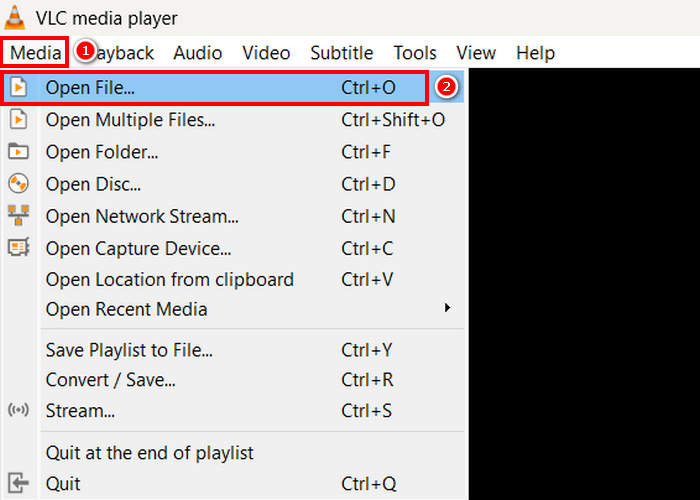
שלב 2. לאחר מכן, עבור ללשונית Media ומתחתיה לחץ על Open File. משם, ייבא את וידאו ה‑MPEG שברצונך להמיר ל‑MP4.
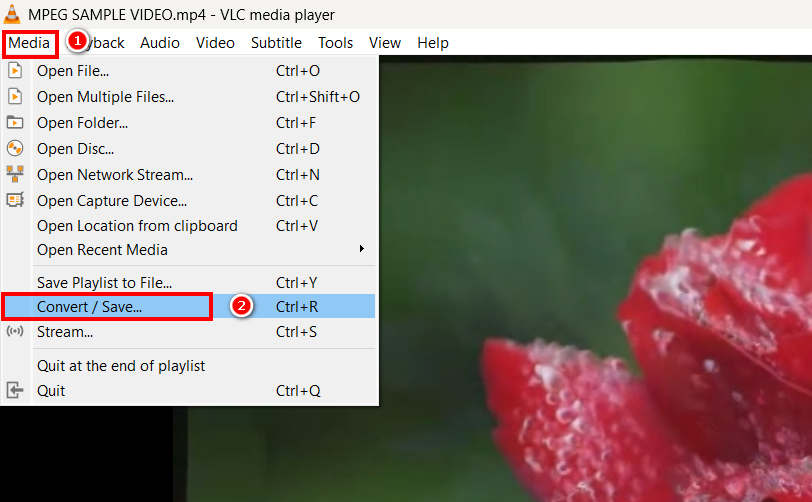
שלב 3. לאחר מכן, חזור שוב ללשונית Media, והפעם בחר ב‑Convert/ Save למטה.
שלב 4. כעת, לחץ על פרופיל ובחר ב‑MP4 כפורמט הפלט שלך. אחרי הבחירה, לחץ על כפתור התחל למטה כדי להתחיל בהמרת סרט ה‑MPEG ל‑MP4.
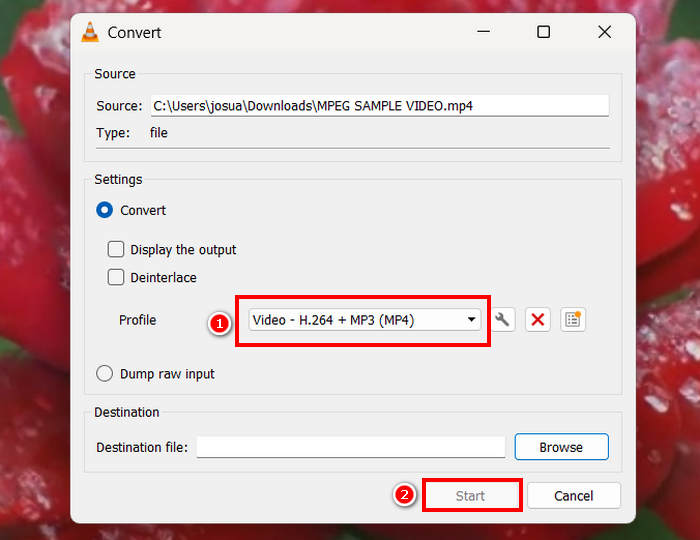
VLC Media Player אכן יכול להמיר סרטוני MPEG ל-MP4 בחינם, אך בניגוד לכלי המרת וידאו ייעודיים, ל-VLC חסרות אפשרויות קידוד מתקדמות, המרת אצווה ותכונות נחוצות אחרות. יש לו גם תמיכה מוגבלת בפורמטים, מה שהופך אותו לפחות יעיל עבור משתמשים הזקוקים לעיבוד מהיר יותר והתאמה אישית רבה יותר.
המרת MPEG ל-MP4 בעזרת HandBrake
כלי נוסף בו ניתן להשתמש כדי להמיר MPEG ל-MP4 בחינם הוא HandBrake. כלי זה ידוע כממיר וידאו בקוד פתוח המאפשר למשתמשים להעתיק תקליטורי DVD. עם זאת, ניתן להשתמש בו גם כדי להמיר קבצי MPEG ביעילות לפורמטים כמו MP4.
כך תוכל להפוך את קובצי ה‑MPEG שלך ל‑MP4 באמצעות HandBrake:
שלב 1. תחילה, הורד והתקן את HandBrake במחשב שלך.
שלב 2. כעת, הפעל את הכלי במחשב שלך ולחץ על Open Video File בפינה השמאלית כדי לייבא את קובץ וידאו ה‑MPEG שברצונך להמיר לפורמט MP4.
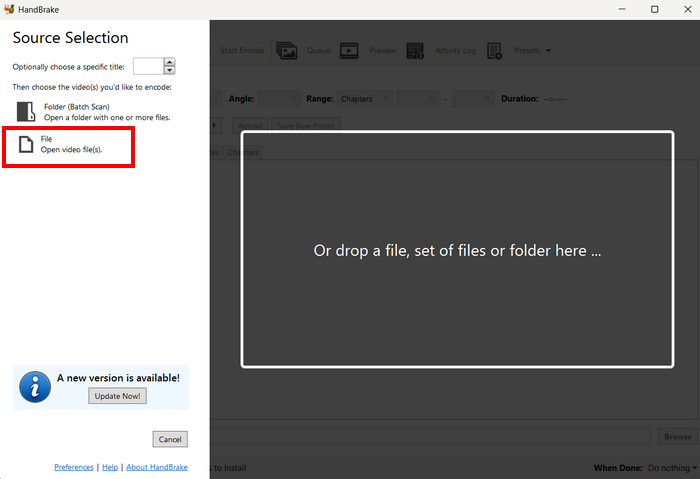
שלב 3. לאחר מכן, לחץ על Format ובחר MP4.
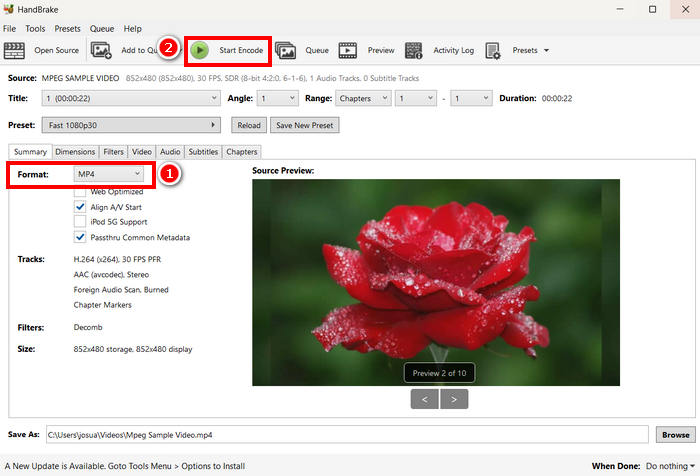
שלב 4. כשתסיים, לחץ על כפתור Start Encode כדי להתחיל להמיר את וידאו ה‑MPEG שלך ל‑MP4.
HandBrake הוא אחד מכלי המרת הווידאו החינמיים הטובים ביותר שניתן להשתמש בהם כדי להפוך סרטוני MPEG ל‑MP4. עם זאת, כלי זה תומך רק בשלושה פורמטי פלט, דבר שעלול להרגיש מוגבל מבחינת אפשרויות הפורמט. HandBrake תומך רק ב‑MP4, MKV ו‑WebM, מה שלא בהכרח אידאלי אם אתה זקוק לפורמטים אחרים.
חלק 3. כיצד להמיר MPEG ל-MP4 באינטרנט
דרך מושלמת נוספת להמיר MPEG ל-MP4 היא לעשות זאת באינטרנט. ישנם כלי המרת וידאו מקוונים המאפשרים למשתמשים להמיר את סרטוני ה-MPEG שלהם באמצעות שיטות מקוונות. בהשוואה ליישומי תוכנה, ממירים מקוונים קלים יותר לשימוש מכיוון שהם אינם דורשים התקנה. עם זאת, ייתכן שיש להם מגבלות גודל קובץ והם דורשים חיבור אינטרנט יציב בעת השימוש בהם.
המרת MPEG ל-MP4 באופן מקוון באמצעות ממיר הווידאו החינמי המקוון FVC
FVC Free Video Converter Online הוא כלי המרת מולטימדיה מקוון וחינמי. הוא מושלם עבור מי שצריך להמיר MPEG ל‑MP4, כיוון שהוא תומך בפורמטי וידאו שונים כגון MP4, FLV, MKV, MOV, M4V ועוד. נוסף על כך, כלי זה תומך בהמרה באצווה, המאפשרת למשתמשים להמיר מספר גדול של קובצי וידאו בבת אחת.
כך תוכל להמיר MPEG ל‑MP4 באמצעות FVC Free Video Converter Online:
שלב 1. בדפדפן Chrome שלך, הקלד וחפש FVC Free Video Converter Online.
שלב 2. לאחר הגעה לדף הכלי, לחץ על כפתור Add Files to Convert כדי לייבא את קובצי ה‑MPEG שברצונך להמיר ל‑MP4.
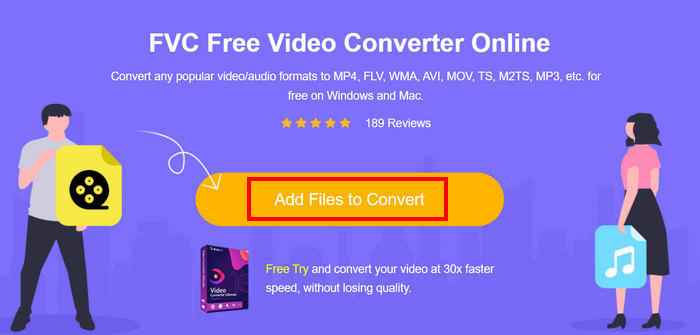
שלב 3. לאחר מכן, פשוט בחר ב‑MP4 כפורמט הפלט שלך ולחץ על Convert כשתסיים.
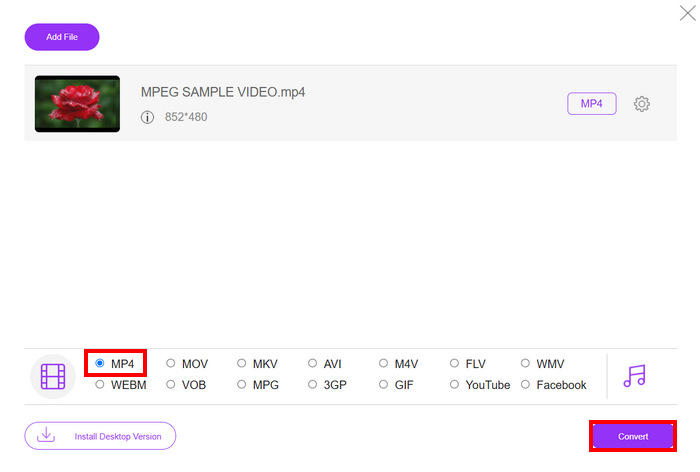
בעזרת ממיר הווידאו החינמי המקוון FVC, תוכלו להמיר בקלות את סרטוני ה-MPEG שלכם ל-MP4 מבלי להתאמץ עם התקנת תוכנה. בנוסף, הוא תומך בפורמטי וידאו שונים, כולל MPEG ו-MP4. לבסוף, הוא קל מאוד לשימוש, מושלם אפילו למתחילים.
המרת MPEG ל-MP4 באמצעות Cloud Convert
לעומת זאת, Cloud Convert הוא כלי מקוון אמין נוסף להמרת MPEG ל-MP4. הוא תומך בפורמטי מדיה שונים ומאפשר למשתמשים להמיר בקלות קבצי וידאו MPEG.
עם זאת, לא ניתן לגשת לכלי זה באופן מלא בחינם, מכיוון שהתוכנית החינמית מגיעה עם כמה מגבלות. ניתן להמיר עד 25 קבצי וידאו ביום, אך כל קובץ חייב להיות בגודל של פחות מ-1GB. בנוסף, ניתן לעבד רק חמש המרות בו זמנית. אם יש לכם מספר קבצי MPEG להמרה, Cloud Convert עדיין היא אפשרות מצוינת לנסות.
כך תוכל להמיר MPEG ל‑MP4 באמצעות Cloud Convert:
שלב 1. תחילה, עליך לבקר באתר הרשמי של Cloud Convert.
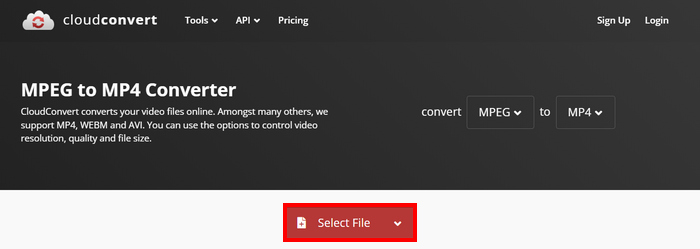
שלב 2. ברגע שאתה באתר הרשמי של הכלי, לחץ על כפתור Select File כדי לייבא את וידאו ה‑MPEG שברצונך להמיר ל‑MP4.
שלב 3. לאחר מכן, באפשרות Format למטה, בחר MP4. כשאתה מוכן, לחץ על כפתור Convert.
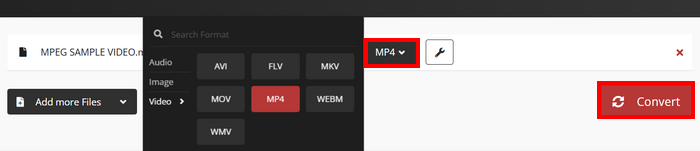
בעזרת Cloud Convert, משתמשים שרוצים להמיר את סרטוני ה-MPEG שלהם ל-MP4 יכולים לעשות זאת בקלות. עם זאת, העניין הוא שאי אפשר להשתמש בכלי בחינם לחלוטין. אם אתם זקוקים להמרות בלתי מוגבלות או לתמיכה בקבצים גדולים יותר, ייתכן שתצטרכו לשדרג לתוכנית בתשלום, שהיא יקרה.
חלק 4. שאלות נפוצות על המרת MPEG ל-MP4
האם ניתן להמיר MPEG ל-MP4 מבלי לאבד איכות?
כן. ייתכן שתוכלו להמיר MPEG ל-MP4 מבלי לאבד איכות באמצעות ממירי וידאו באיכות גבוהה כמו FVC Video Converter Ultimate או HandBrake. כלים אלה מאפשרים לכם להתאים את הגדרות הקידוד כדי לשמור על האיכות המקורית.
האם MPEG זהה ל-MP4?
לא. בעוד ששניהם פורמטי וידאו, MPEG מתייחס לקבוצה של תקני דחיסה, כגון MPEG-1, MPEG-2 ו-MPEG-4, בעוד ש-MP4 הוא פורמט מכיל שיכול להכיל וידאו, אודיו וכתוביות.
האם ניתן להמיר מספר קבצי MPEG לקובץ MP4 באופן אצווה?
כן. ניתן להמיר סרטוני MPEG ל-MP4 באופן אצווה. לשם כך, ניתן להשתמש ב-Video Converter Ultimate שבחרת FVC, מכיוון שהוא תומך בהמרת אצווה לפורמטים שונים של וידאו.
סיכום
המרת MPEG ל‑MP4 עדיין נפוצה מסיבות רבות, וכעת, לאחר שאתה יודע בדיוק כיצד להמיר MPEG ל‑MP4 בשיטות שונות, הצעד הבא הוא לבחור מה שהכי מתאים לך. אז למה אתה מחכה? בחר את הכלי המתאים לך והתחל להמיר את קובצי ה‑MPEG שלך ל‑MP4.
-
 כיצד לדחוס קבצי MPEG-4 באופן מקוון - ללא הורדה, ללא סימן מים
 אין לך מספיק אחסון קבצים כדי לשמור על כל קבצי MPEG-4 שלך? להלן פתרונות תשחץ עבור הקטנת קבצי הווידאו שלך.
-
 4 נגני MPG/MPEG הטובים ביותר עבור Windows/Mac/Android/iPhone [2025]
 רוצה להפעיל את קובץ MPG או MPEG המועדף עליך בצורה חלקה? מאמר זה דן ב-4 נגני MPG/MPEG המובילים עבור מחשבים וטלפונים ניידים.
-
 4 האפשרויות הטובות ביותר להמרת MPEG לפורמט AVI [מקוון ולא מקוון]
 האם אתה מתקשה לחפש ממיר ל-MPEG? לאחר מכן נסה לקרוא את המאמר הזה כאשר אנו לומדים כיצד לשנות MPEG לפורמט AVI עם שלבים מפורטים.
