


 ממיר וידאו אולטימטיבי
 מקליט מסך
 תיקון וידאו
 הורדה מאובטחת
כיצד להמיר QuickTime ל- MP4 ב- Windows / Mac / Online / iOS / Android
ברוב המקרים, פורמט הקובץ QuickTime מתייחס ל- MOV. QuickTime שומר קטעי וידאו כפורמט MOV כברירת מחדל. עם זאת, קבצי MOV של QuickTime אינם תואמים לכל נגני המדיה. בהשוואה ל- MOV, MP4 היא בחירה טובה יותר. אתה יכול לקבל את אותו תוכן וידאו עם גודל קובץ קטן יותר ותאימות טובה יותר. לכן אנשים רבים ממירים את QuickTime לפורמט MP4. ואז מגיעה השאלה, כיצד להמיר סרטון QuickTime ל- MP4 במחשב שלך? להלן 3 פתרונות שבהם תוכל להשתמש.

חלק 1: כיצד להמיר QuickTime ל- MP4 באופן מקוון בחינם
FVC Free Online Video Converter הוא ממיר וידאו ל‑MP4 מקוון בחינם עבור משתמשי Windows ו‑Mac. באפשרותך להמיר קובצי QuickTime MOV וקבצים נוספים ל‑MP4 אונליין בחינם. בשונה מממירי וידאו מקוונים נפוצים, אין מגבלת גודל קובץ מרבית. באפשרותך להמיר באצוות קובצי MOV גדולים ל‑MP4 ללא אובדן איכות. לא תתווסף סימן מים לקובצי הפלט שלך. כך שתוכל לייצא בחופשיות סרטי QuickTime ל‑MP4 אונליין.
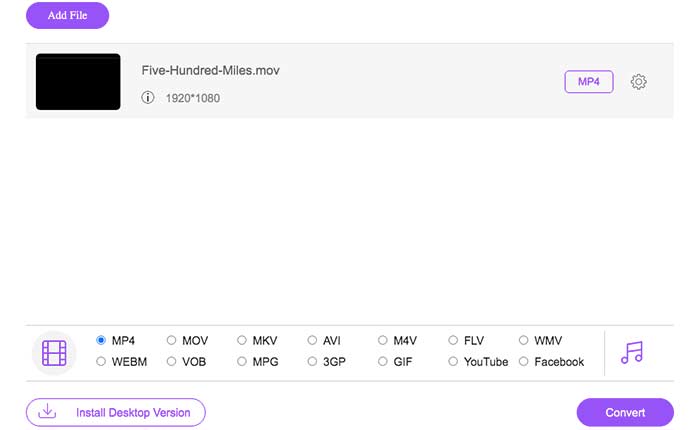
שלב 1: פתח את האתר הרשמי של FVC Free Online Video Converter. לחץ על האפשרות Add Files to Convert. בפעם הראשונה שבה אתה ממיר וידאו ל‑MP4 אונליין, עליך להוריד את משגר FVC.
שלב 2: דפדף וייבא את סרטון ה‑QuickTime שלך בחלון הקופץ.
שלב 3: MP4 הוא פורמט הווידאו המוגדר כברירת מחדל לפלט. אם לא, באפשרותך לשנות ידנית את פורמט הפלט ל‑MP4 בתחתית.
שלב 4: לחץ על Convert כדי להמיר QuickTime ל‑MP4 אונליין בחינם.
חלק 2: כיצד להמיר QuickTime MOV ל MP4 ב- Windows
אם ברצונך להמיר במהירות וידאו MOV ל‑MP4 במחשב, באפשרותך לשנות את סיומת הקובץ. QuickTime MOV הוא פורמט מיכל וידאו מסוג MPEG‑4, בעוד ש‑MP4 הוא גם פורמט קובץ וידאו MPEG‑4. MP4 הוא תת‑קבוצה של פורמט QuickTime MOV. לכן באפשרותך להמיר MOV ל‑MP4 ב‑Windows באמצעות שינוי הסיומת ישירות.
שלב 1: פתח את התיקייה שמכילה את קובץ ה‑MOV שלך.
שלב 2: ודא שסיומת הקובץ גלויה. במילים אחרות, עליך לראות את סיומת הקובץ .mov. אם לא, עליך לבטל את הסתרת סיומות שמות הקבצים באופן ידני.
שלב 3: בחר Rename מתפריט הלחיצה הימנית.
שלב 4: שנה את סיומת הקובץ מ‑.mov ל‑.mp4.
שלב 5: לחץ על מקש Enter במקלדת. לאחר מכן תוכל לשנות וידאו QuickTime ל‑MP4 ב‑Windows.
חלק 3: כיצד להמיר סרט QuickTime ל- MP4 ב- Mac
באשר למשתמשי מקינטוש, באפשרותך להשתמש ב- iMovie כממיר MOV ל- MP4 בחינם. iMovie זמין עבור מכשירי MacOS ו- iOS. אתה יכול להמיר ולערוך קבצי QuickTime MOV במחשב ה- Mac שלך בקלות. חלק זה יראה לכם כיצד להמיר QuickTime ל- MP4 ב- Mac.
שלב 1: הורד, התקן ופתח את iMovie ב‑Mac. בחר New Movie מתפריט File.
שלב 2: לחץ על Import Media כדי להוסיף סרט QuickTime אל iMovie.
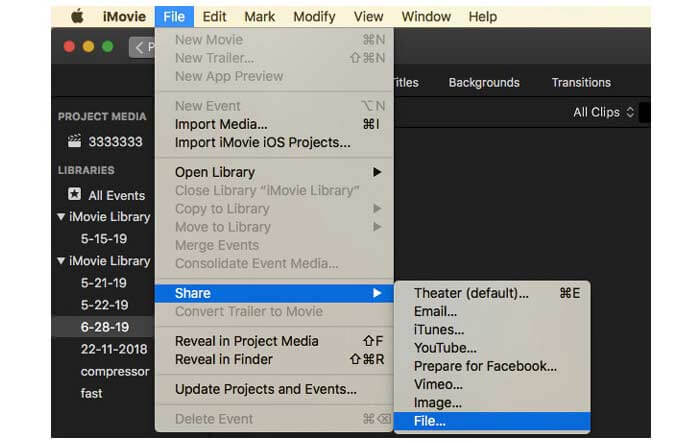
שלב 3: בחר את סרטון QuickTime MOV שיובא. לאחר מכן בחר Share מתפריט הנפתח File. בחר File מתת‑התפריט שלו.
שלב 4: התאם את הגדרות וידאו הפלט של היעד, הרזולוציה, האיכות ועוד. לחץ על Next כדי להמשיך.
שלב 5: הגדר שם קובץ ותיקיית פלט. לבסוף, לחץ על Save כדי להמיר QuickTime ל‑MP4 ב‑Mac באמצעות iMovie.
חלק 4: כיצד להמיר וידאו מ- MOV ל MP4 עם VLC
VLC הוא ממיר וידאו חופשי ופתוח, נגן ועורך למולטיפלט. גם משתמשי ניידים וגם שולחניים יכולים להמיר MOV לקבצי MP4 בחינם באמצעות VLC. לפיכך, אתה יכול להמיר QuickTime ל MP4 גם ב- iPhone ו- Android עם VLC. VLC הוא בחינם ובטוח להורדה. אתה יכול ללכת לאתר הרשמי שלה כדי להשיג את חבילת ההורדות הנקייה.
שלב 1: הפעל את VLC. בחר Convert/Save מתוך רשימת Media.
שלב 2: בחלון Open Media לחץ על Add כדי לייבא סרטון QuickTime MOV. לאחר מכן לחץ על Convert/Save כדי להמשיך.
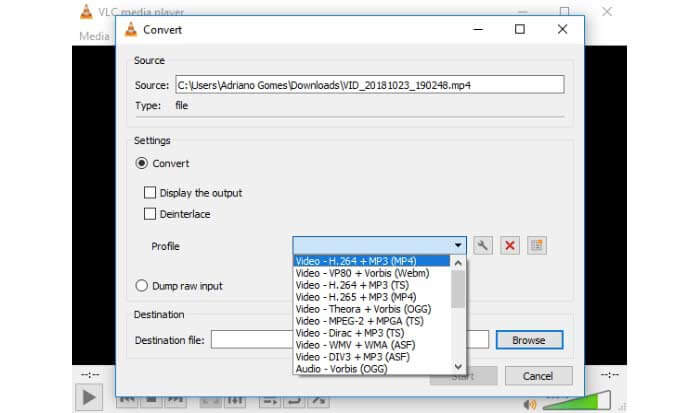
שלב 3: פרוס את רשימת Profile. בחר Video – H.264 + MP3 (MP4).
שלב 4: לחץ על Start כדי להתחיל להמיר QuickTime ל‑MP4 באמצעות VLC.
חלק 5: שאלות נפוצות של המרת QuickTime ל- MP4
האם אתה יכול להמיר MOV ל MP4 עם QuickTime?
לא. אתה יכול לפתוח קטעי MOV באמצעות נגן QuickTime. אבל זה לא נתמך להמיר וידאו MOV ל MP4 באמצעות QuickTime.
האם QuickTime Pro זמין?
כן. הגרסה האחרונה היא QuickTime Player 7. אפל כבר לא מציעה את השדרוג QuickTime Pro. אתה עדיין יכול להשתמש ב- QuickTime Player Pro במחשב Windows או Mac שלך. אבל אפל יצרה לך תמיכה ב- QuickTime.
אילו תוכניות יכולות לפתוח סרטוני MOV?
ניתן להפעיל קבצי MOV עם QuickTime Player, iTunes, VLC, Windows Media Player, Adobe Flash ועוד.
באמצעות ממירי הווידאו המקוונים והלא‑מקוונים לעיל, באפשרותך להמיר QuickTime ל‑MOV בחינם בטלפון ובמחשב. באפשרותך להשתמש בממיר MOV ל‑MP4 אונליין, לשנות את סיומת הקובץ, להשתמש ב‑iMovie וב‑VLC כדי להמיר את פורמט הווידאו מ‑QuickTime MOV ל‑MP4. אם ברצונך להמיר באצווה QuickTime ל‑MP4 ללא אפליקציות של צד שלישי, FVC Free Online Video Converter יכול להיות הבחירה הראשונה שלך. הוא בטוח לשימוש וחינמי לחלוטין. באפשרותך להמיר באצווה וידאו QuickTime ל‑MP4 ולפורמטים אחרים באיכות גבוהה.
-
 MOV VS MP4 - איזה מהם טוב יותר
 MOV VS MP4, איזה מהם עדיף? פוסט זה מציג את ההבדל בין MP4 ל- MOV, כך שתוכל לקבל את הבחירה הטובה יותר לשימוש בקבצי הווידאו שלך.
-
 4 הדרכים המובילות בחינם להמיר MTS ל- MOV
 לא מצליחים להפעיל את קובץ MTS במחשב או בטלפון iPhone / Android? מהו קובץ MTS ואיך מנגנים אותו? מהו ממיר הווידאו MTS הטוב ביותר? פוסט זה משתף 4 דרכים פשוטות וחינמיות לעזור לך להמיר MTS ל- MOV להפעלה טובה יותר.
-
 6 דרכים קלות להמיר TS ל- AVI / MKV / MOV / WMV ב- Windows / Mac
 רוצה להמיר קבצי TS במהירות ל- AVI / MKV / MOV / WMV? מאמר זה מציג ממירי וידאו מקוונים ולא מקוונים עם מדריך מלא. אולי תוכל להשיג את ממיר ה- TS החינמי הטוב ביותר כאן.
