


 ממיר וידאו אולטימטיבי
 מקליט מסך
 תיקון וידאו
 הורדה מאובטחת
3 דרכים לנגן קבצי MKV בנגן המדיה של Windows
לא מצליחים לפתוח קובץ MKV ב‑Windows Media Player?
MKV הוא אחד מפורמטי הווידאו הפופולריים. ייתכן שקיבלתם הרבה סרטים, סדרות טלוויזיה או סרטונים אחרים באיכות גבוהה השמורים בפורמט MKV. עם זאת, בתור משתמשי Windows, נגן ברירת המחדל, Windows Media Player, אינו תומך באופן מובנה בפיצול (פתיחת) מכולות MKV. עכשיו נחזור לשאלה, כיצד לנגן קובצי MKV ב‑Windows Media Center?

גם לאחר שדרוג נגן המדיה של Windows לגירסה העדכנית ביותר, אין כל ערובה שלא תתקל בבעיות נגינה של MKV. בהתחשב בכך, פוסט זה רוצה לשתף 3 דרכים יעילות שיעזרו לך לנגן קבצי MKV במחשב Windows שלך.
חלק 1. כיצד לפתוח קובץ MKV בנגן המדיה של Windows
Windows Media Player לא יכול לנגן קובצי MKV בעיקר בגלל חוסר התאמה בקודקים. חשוב להבין ש‑MKV הוא למעשה מכולת מדיה לזרמי וידאו, זרמי אודיו, כתוביות ועוד. עליכם לספק ל‑WMP את מפצל (splitter) ה‑MKV הנכון, וכן את הקודקים והמסננים (filters) עבור קובצי הווידאו והאודיו. חלק זה ידריך אתכם כיצד לנגן קובץ MKV בתוך Windows Media Player.
שלב 1. פתחו את Windows Media Player ופתחו באמצעותו את קובץ ה‑MKV. ניתן גם ללחוץ לחיצה ימנית על קובץ ה‑MKV ולבחור פתיחה באמצעות WMP.
שלב 2. כעת תופיע הודעת שגיאה שבה כתוב ש‑Windows Media Player אינו יכול לנגן את הקובץ. לחצו על האפשרות סיוע באינטרנט (Web Help) בתיבת הדו־שיח.
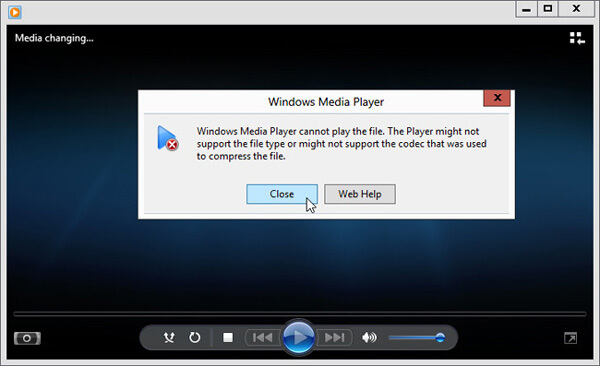
שלב 3. לחצו על קישור הקודק (codec link) תחת Codec is Missing. העתיקו והדביקו את הקישור בדפדפן שלכם. כך תגיעו לקודק MKV המתאים ל‑Windows Media Player. לאחר הורדתו, יש לעקוב אחר ההוראות כדי להשלים את תהליך ההתקנה של קודק ה‑MKV עבור Windows Media Player.
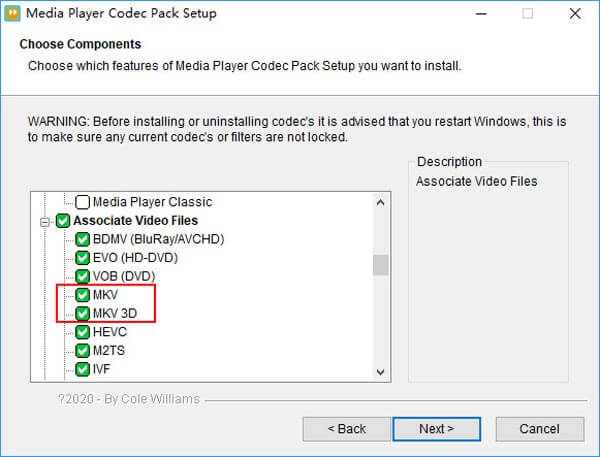
שלב 4. הפעילו מחדש את Windows Media Player ואז נסו לנגן שוב את קובץ ה‑MKV שלכם.

חלק 2. דרך טובה יותר לנגן קבצי MKV באלטרנטיבה של נגן המדיה של Windows
בעזרת רכיב ה- Cod הנכון של MKV, תוכלו לפתוח בקלות את קובץ ה- MKV בנגן המדיה של Windows. עם זאת, משתמשים רבים דיווחו כי יש עדיין כמה בעיות השמעה אחרות בעת הפעלת MKV עם WMP. במקרה כזה, תוכל לבחור חלופה של נגן המדיה של Windows שתעזור לך לנגן קבצי MKV.
FVC Free MKV Player הוא כלי חלופי מצוין ל‑Windows Media Player. הוא תומך באופן מובנה בכל פורמטי הווידאו והאודיו הנפוצים, כגון MKV, MOV, MP4, FLV, AVI, RMVB, MPEG, AAC, MP3, M4A, WMA ועוד. תוכלו להסתמך עליו לצפייה בסרטי MKV באיכות גבוהה.

שלב 1. פתחו את הדפדפן וגלשו לאתר נגן ה‑MKV החינמי הזה. לחצו על כפתור Play Now כדי להתקין קובץ משגר קטן עבור ניגון קובצי MKV. לאחר מכן, חלון הניגון הראשי של MKV יופיע על המסך.

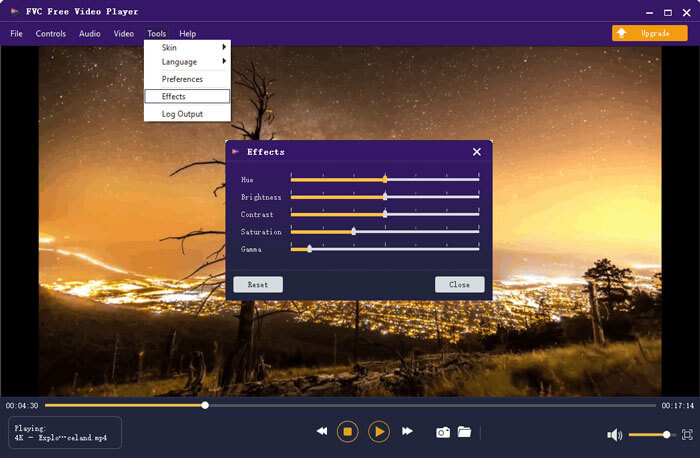
שלב 2. לחצו על כפתור Open File כדי לעיין ולייבא אליו את קובץ ה‑MKV שלכם. לאחר מכן הווידאו ינוגן אוטומטית. בזכות שימוש בטכנולוגיית קידוד וידאו מתקדמת, הוא יכול לנגן קובץ MKV בצורה חלקה ובאיכות גבוהה. בנוסף, הוא תומך ב‑DTS-HD וב‑Dolby TrueHD.

אתה מקבל את כל הפקדים של הפעלת MKV. מלבד הפעולות הבסיסיות כמו הפעלה, השהיה, אחורה, קדימה, כוונון עוצמת הקול ועוד, זה גם מאפשר לך להתאים אפקטים, לשנות רצועת שמע וכותרת משנה, ולהגדיר הגדרות אחרות.
חלק 3. המרת MKV להפעלה בנגן המדיה של Windows
כדי לנגן קובץ MKV ב‑Windows Media Player, תוכלו גם לבחור להמיר את ה‑MKV לפורמט וידאו נתמך כמו MP4. כאן אנו מציגים בפניכם את Free Online Video Converter כדי לעזור לכם להמיר MKV ל‑MP4 ללא אובדן איכות.
שלב 1. עברו בעזרת הדפדפן לדף ממיר ה‑MKV ל‑MP4 המקוון החינמי הזה. הוא תואם לכל הדפדפנים הפופולריים, כולל Chrome, IE, Safari ו‑Firefox.
שלב 2. כשתגיעו לשם, לחצו על כפתור Add File to Convert. בשלב זה עליכם להתקין משגר קטן עבור המרת ה‑MKV. לאחר מכן תופיע על המסך חלון קופץ לבחירת קובץ ה‑MKV שלכם.
שלב 3. תוכלו לראות שם פורמטי וידאו פופולריים רבים, כגון MP4, MOV, AVI, MKV, FLV ועוד. ודאו שפורמט הפלט הוא MP4 ואז לחצו על כפתור Convert.
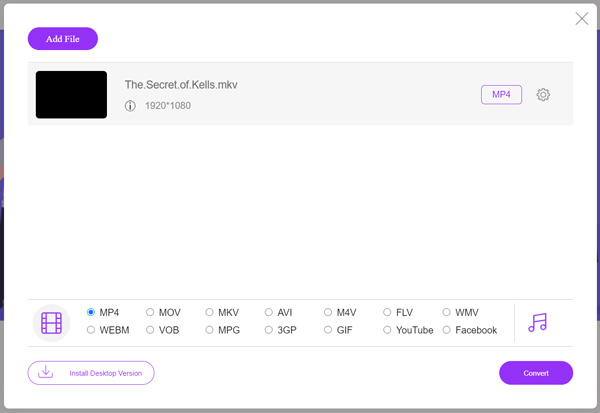
לאחר ההמרת MKV ל‑MP4, תוכלו לנגן אותו באמצעות Windows Media Player. במהלך ההמרה לא תתרחש ירידה באיכות התמונה או הסאונד.
חלק 4. שאלות נפוצות על הפעלת MKV בנגן המדיה של Windows
שאלה 1. כיצד אוכל לשנות את הפורמט של וידאו בנגן המדיה של Windows?
פתח את Windows Media Player וטען את קובץ הווידאו שברצונך להמיר. לחץ על החץ הקטן מתחת ללשונית Rip בתפריט העליון. בחר אפשרויות נוספות ואז לחץ על התפריט הנפתח שכותרתו פורמט. כאן תוכלו לבחור פורמט פלט מתאים ולהתחיל את ההמרה.
שאלה 2. איזה פורמט וידאו הוא Windows Media Player?
פורמט הקובץ המוגדר כברירת מחדל של Windows Media Player הוא WMV, Windows Media Video ו- WMA, Windows Media Audio. כמו כן, הוא תומך בפורמט מערכות מתקדמות ובפורמט רשימות השמעה מבוסס XML משלו, רשימת השמעה של Windows.
שאלה 3. האם Windows 10 יכול להפעיל קבצי MKV?
לא. Windows Media Player 12 המובנה ב- Windows 10 אינו יכול להפעיל קבצי MKV. עליך להתקין את ה- codec של MKV כדי לקבל את ההפעלה.
סיכום
כאשר Windows Media Player לא מצליח להבין את קודק ה‑MKV, הוא פשוט מציג שגיאה. כדי לנגן קובץ MKV ב‑Windows Media Player, עליכם להתקין את הקודק המתאים. בנוסף, תוכלו להשתמש בנגן צד שלישי או להמיר את פורמט ה‑MKV לצורך הניגון. אם עדיין יש לכם שאלות לגבי הדרך לפתוח קובץ MKV ב‑Windows Media Player, אל תהססו להשאיר לנו הודעה.
-
 8 שחקני MKV המובילים להשמעת קבצי MKV עם הכתובית הרצויה
 כאשר ברצונך להפעיל את הווידיאו MKV עם הכותרת הרצויה, תוכל ללמוד עוד על 8 נגני הקבצים המובילים ביותר עבור PC / Mac ולבחור את הרצוי בהתאם לדרישתך.
-
 MKV ל- MOV - כיצד להמיר MKV ל- MOV
 כיצד ניתן להמיר MKV ל- MOV ב- Mac? האם iMovie יכול לקרוא MKV? מה הפירוש של פורמט MOV? פוסט זה מספר שתי דרכים פשוטות לעזור לך להמיר MKV ל- MOV עם ממירי וידאו מקוונים ומקצועיים בחינם.
-
 נגן AC3 - סקירה של 10 שחקני AC3 בחינם הטובים ביותר לשנת 2021
 מהו נגן ה- AC3 הטוב ביותר? האם נגן MX יכול לפתוח AC3? פוסט זה מכין רשימה של 10 נגני AC3 בחינם למכשירי Mac, Windows PC, iOS ו- Android.
