


 ממיר וידאו אולטימטיבי
 מקליט מסך
 תיקון וידאו
 הורדה מאובטחת
3 הדרכים המובילות להפעלת MP4 ב- Chromebook
האם Chromebook כבר לא מנגן קטעי וידאו MP4? לאחרונה, משתמשים רבים התלוננו על כך שהסרטון לא הופעל בבעיית Chromebook. האם אתה מתמודד עם אותו מצב?
Chromebook הוא מחשב נייד שמיוצר על‑ידי Google. הוא פועל על מערכת ההפעלה Chrome OS ותומך בסוגי קבצים רבים ובשירותי אחסון בענן. הוא מסוגל לאחסן סרטונים ב‑Google Drive ובאחסון הענן של Google לצפייה. האם אתה יודע איך להפעיל קובצי MP4 ב‑Chromebook?

ל‑Chromebook יש נגן וידאו מובנה להפעלת קובצי מדיה. עם זאת, יש קובצי MP4 שפשוט נכשלים בהפעלה. לאור זאת, פוסט זה רוצה לשתף 3 דרכים יעילות שיעזרו לך להפעיל קובצי MP4 ב‑Chromebook.
חלק 1. כיצד לנגן MP4 ב- Chromebook עם כונן Google
כאשר נגן הווידאו המקורי של מערכת ההפעלה של Chrome אינו יכול לקרוא את ה- codec של מיכל ה- MP4 שלך, הוא אינו יכול להפעיל MP4 ב- Chromebook. במקרה כזה, תוכלו לבחור לנגן קבצי MP4 דרך כונן Google. Chromebook מאפשר לך לאחסן קטעי וידאו MP4 ב- Google Drive, Dropbox ושירותי אחסון ענן אחרים. אתה יכול לפתוח וידאו MP4 עם כונן Google ב- Chromebook.
כשרוצים לשחק MP4 ב- Chromebook, עליכם להעלות תחילה את קבצי ה- MP4 ל- Google Drive. אז אתה יכול לאתר MP4 ב- Google Drive ולהפעיל אותו.
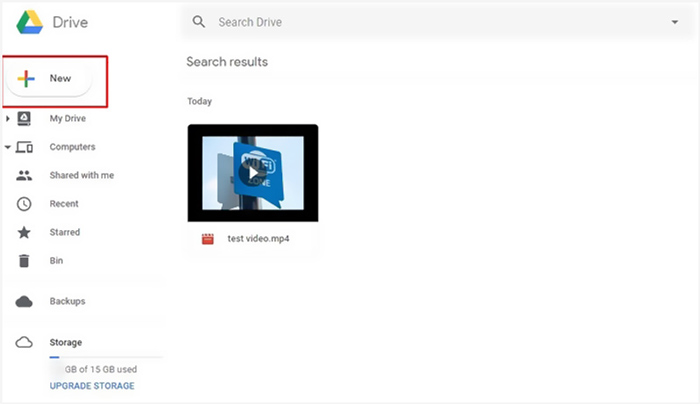
שים לב, כדי להפעיל קבצי MP4 ב- Chromebook דרך Google Drive, אתה נדרש לחיבור רשת טוב.
חלק 2. התקן VLC עבור מערכת ההפעלה של Chrome להפעלת MP4 ב- Chromebook
בנוסף לשיטה שלמעלה, תוכל גם להתקין נגן מדיה חיצוני כדי להפעיל קובצי MP4 ב‑Chromebook שלך. מאחר ש‑Chromebook פועל על Chrome OS, ייתכן שאין לך הרבה אפשרויות טובות של נגן. למרבה המזל, VLC Media Player הפופולרי מציע גרסה ל‑Chrome OS שמאפשרת לך ליהנות מכל סוגי קובצי הווידאו והשמע על Chromebook. תוכל להיעזר בו כדי להפעיל MP4 ב‑Chromebook בלי קושי.
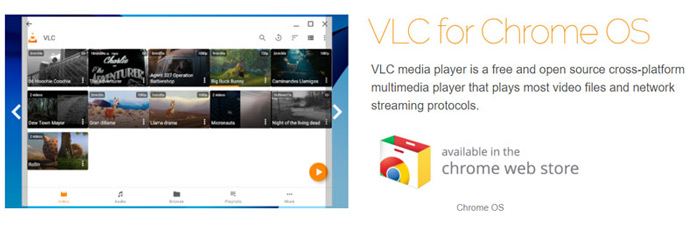
פתח את Chrome Web Store ב‑Chromebook שלך וחפש VLC. לאחר שתמצא את VLC for Chrome OS, פעל לפי ההוראות כדי להתקין אותו. לאחר מכן תוכל להפעיל קובצי MP4 ב‑Chromebook באמצעות VLC. הוא תומך במרבית קובצי המדיה, בזרמי רשת וב‑DVD‑ים. מעבר ל‑MP4, VLC for Chrome OS יכול גם להפעיל קובצי MOV, MKV, AVI, OGG, TS, M2TS, AAC, MP3, FLAC ועוד.
חלק 3. המרת פורמט וידאו להפעלת MP4 ב- Chromebook
MP4 הוא מיכל קבצים לקודקי וידאו ושמע. Chromebook תומך רק בווידיאו MP4 שקודד עם רכיבי codec דחיסה H.264 או MPEG-4. לכן, כאשר ברצונך לשחק MP4 ב- Chromebook, עליך להמיר MP4 לפורמט הנתמך ב- Chromebook. מלבד MP4, Chromebook תומך גם בסרטונים ב- 3GP, WebM, MOV ו- AVI עם קודק ספציפי.
כדי להמיר MP4 לפורמט שנתמך על‑ידי Chromebook, תוכל להסתמך על ממיר הווידאו המקצועי ל‑Chromebook, Video Converter Ultimate. יש בו קטגוריה ייעודית ל‑Chromebook המאפשרת לך להמיר ישירות MP4 לפורמט שנתמך על‑ידי Chromebook. חשוב מכך, הוא יכול להמיר וידאו ללא איבוד איכות.
- • המר וידאו MP4 לקובץ נתמך ב-Chromebook מבלי לאבד איכות.
- • המר וידאו 8K/5K/4K, 1080p/720p HD ו-SD ליותר מ-500 פורמטים כמו MOV, MP4, AVI, FLV, MP3, ועוד.
- • תכונות עריכה עוצמתיות, הוסף פילטרים ואפקטים שונים ושפר את האיכות.
- • תמיכה בהאצת חומרה חסרת תקדים ובאופטימיזציה של מעבדים מרובי ליבות.
שלב 1. קודם כול, עליך להתקין ללא תשלום את ממיר ה‑MP4 ל‑Chromebook במחשב שלך. הוא תואם גם למחשבי Windows 10/8/7 וגם ל‑Mac.
הורדה חינמיתל-Windows 7 ומעלההורדה מאובטחת
הורדה חינמיתל-MacOS 10.7 ומעלההורדה מאובטחת
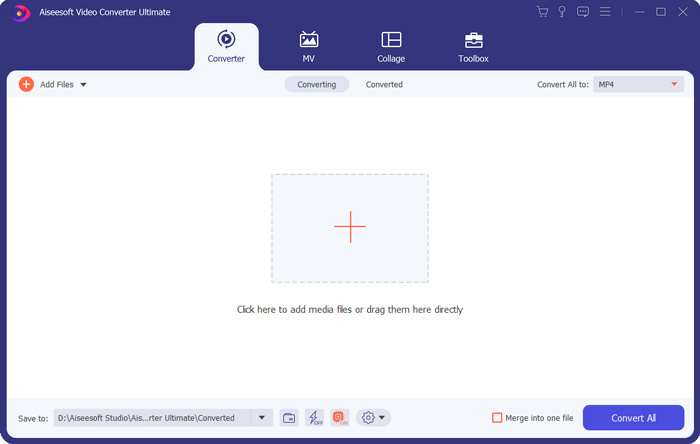
שלב 2. הפעל אותו וודא שאתה משתמש בתכונת ה‑Converter. לאחר מכן לחץ על סימן ה‑+ הגדול או על כפתור Add Files כדי לייבא את קובץ ה‑MP4 שלך. באפשרותך להוסיף ולהמיר וידאו אחד או יותר בו‑זמנית.
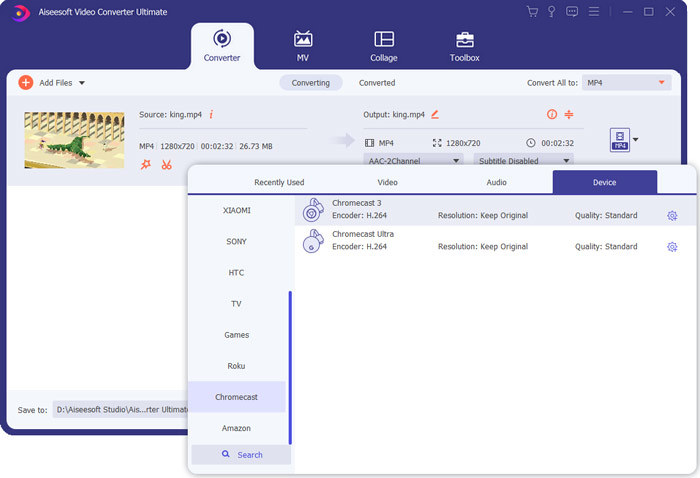
שלב 3. לחץ על סמל ה‑format בצד הימני של הווידאו שיובא. בחר פורמט פלט מתאים מהרשימה הנפתחת. כאן באפשרותך ללחוץ על הלשונית Device כדי לאתר פורמט שנתמך על‑ידי Chromebook.
שלב 4. לפני ההמרה הסופית, תוכל להשתמש בפונקציות עריכה שונות כדי לערוך את הווידאו, לשפר את איכותו ולהתאים אישית את אפקטי הפלט. לאחר כל הפעולות הללו, תוכל פשוט ללחוץ על הכפתור Convert All כדי להתחיל להמיר MP4 ל‑Chromebook.
תוך מספר לחיצות בודדות, תוכלו להמיר בקלות וידאו לקובץ הנתמך על ידי Chromebook. אז אתה יכול להעביר אותו ל- Chromebook שלך להפעלה.
חלק 4. שאלות נפוצות על הפעלת MP4 ב- Chromebook
שאלה 1. אילו פורמטים של וידאו מנגנים ב- Chromebook?
מחשבי Chromebook יכולים לתמוך בסוגי קבצים רבים, התקנים חיצוניים ומערכות אחסון בענן. בפורמטי הווידאו הוא יכול לנגן MP4, MOV, M4V, MKV, OGG, 3GP, OGM, WebM, WAV, AVI ועוד.
שאלה 2. מדוע איני יכול להשתמש ב- Google Play ב- Chromebook?
מותר להשתמש ב- Google Play ב- Chromebook. אבל עליך להפעיל תכונה זו תחילה. אתה יכול לעבור להגדרות ב- Chromebook, לבחור בסעיף חנות Google Play ואז להפעיל את התכונה. לאחר מכן, תוכל להשתמש ב- Google Play ב- Chromebook כרגיל.
שאלה 3. כיצד להפעיל נגן פלאש ב- Chrome?
כשתרצה להשתמש בנגן פלאש ב- Google Chrome, תוכל ללחוץ על סמל הנעילה בצד שמאל של סרגל הכתובות. לחץ על תיבת ה- Flash ואז בחר בלחצן אפשר. לחץ על טען מחדש כדי לשמור את השינוי. על ידי כך תוכל להשתמש בנגן פלאש ב- Chrome.
סיכום
לא מצליחים להפעיל MP4 ב‑Chromebook? לאחר קריאת הפוסט הזה תוכלו לקבל 3 טיפים שימושיים לפתרון הבעיה. לעוד שאלות על איך להפעיל MP4 ב‑Chromebook, אתם מוזמנים להשאיר לנו הודעה.
-
 הדרכה לפתיחה והמרת קבצי ARF באמצעות נגן WebEx ARF
 להלן השלבים המפורטים לשימוש בנגן ה- ARF של WebEx. אתה יכול לשחק ולהמיר קבצי WebEx ARF במחשב Windows ו- Mac שלך בקלות. יתר על כן, תוכלו לשפר את חווית ההשמעה גם עם נגן ARF תלת-ממדי.
-
 קבל את נגן ה- MP4 הטוב ביותר שלך להשמעת קבצי MP4 באיכות חזותית גבוהה
 קרא וקבל את נגן ה- MP4 הטוב ביותר שלך מההמלצות של 10 תוכנות נגן הווידאו MP4 האחרונות. אתה יכול לנגן קבצי וידאו MP4 ב- Windows ו- Mac בצורה חלקה ללא השהיה.
-
 AVI VS MP4 - הבדלים ודמיון בין פורמטים AVI ו- MP4 - FVC
 מהו פורמט וידאו טוב יותר, AVI או MP4? אם אתה רוצה לקבל את ההשוואה המפורטת, אתה יכול לבדוק מאמר זה של AVI VS MP4. אתה יכול לדעת את ההבדלים והדמיון בין AVI ל- MP4 בהיבטים רבים.
