


 ממיר וידאו אולטימטיבי
 מקליט מסך
 תיקון וידאו
 הורדה מאובטחת
כיצד לנגן MP4 בנגן המדיה של Windows במחשב Windows 10
לפעמים קובץ MP4 אינו פועל בנגן המדיה של Windows, אך ניתן להשמיע אותו בנגנים אחרים כמו נגן המדיה VLC או נגן KM. מאז MP4 הוא פורמט הווידיאו הפופולרי ביותר שתואם את כל נגני המדיה והתקני המולטימדיה. יתכן שיש לך קבצי וידאו רבים שנשמרו בפורמט MP4. זה די מעצבן אם קובץ MP4 נכשל בהפעלת נגן המדיה של Windows. אז איך מנגנים קבצי MP4 ב- Windows 10? ובכן, אין צורך לדאוג. להלן כל הפתרונות לתיקון נגן המדיה של Windows שאינו מנגן קבצי MP4.

חלק 1. מדוע נגן המדיה של Windows אינו מנגן MP4
לפי מיקרוסופט, לא כל הגרסאות של Windows Media Player תומכות בפורמט הקובץ MP4. Windows Media Player 7, Windows Media Player for Windows XP, Windows Media Player 9 Series, Windows Media Player 10/11 אינן תומכות בפורמט MP4.
אם נגן המדיה של Windows אינו יכול להפעיל את הווידיאו קליפ MP4, אולי סרטון ה- MP4 ניזוק או פגום. במקרה זה, אתה יכול לנסות לנגן את קובץ ה- MP4 שלא ניתן להנגן בנגן מדיה אחר.
סיבה אחרת לכך שנגן המדיה של Windows אינו מנגן MP4 היא שקובץ ה- MP4 אינו כולל את חבילת ה- Codec המתאימה לו.
חלק 2. הפעל את MP4 עם האלטרנטיבה הטובה ביותר ל- Windows Media Player
אם סרטוני MP4 עדיין אינם מתנגנים, אפשר לעבור לנגן מדיה כמו FVC Free Video Player. זהו נגן וידאו מקוון חינמי שמנגן את כל קובצי המולטימדיה הפופולריים כמו MP4, MKV, FLV, MOV, AVI, 3GP, MP3, FLAC, AAC ועוד, ב-Windows וב-Mac. המבוסס על טכנולוגיית HTML 5, הוא מאפשר לנגן כל קובץ וידאו, בין אם הוא מהמחשב המקומי או שהורד מהאינטרנט.
שלב 1. בקר באתר הרשמי של FVC Free Video Player (https://www.free-videoconverter.net/free-video-player/). לחץ על כפתור Play Now כדי להוריד ולהתקין את המשגר.

שלב 2. לחץ על כפתור Open File כדי לטעון את קובץ ה-MP4 שברצונך לנגן. אפשר גם ללחוץ על תפריט File ולבחור Open File כדי להוסיף את קובץ ה-MP4.

לאחר שקובץ ה-MP4 הועלה, הוא ינוגן במחשב ה-Windows שלך באופן אוטומטי. אם ברצונך לערוך את אפקטי הווידאו, אפשר ללחוץ על Tools ולבחור באפשרות Effects, ואז ניתן לכוונן גוון, בהירות, ניגודיות, רוויה וגאמה כדי לשפר את הווידאו.

חלק 3. המרת MP4 להפעלה בנגן המדיה של Windows
אם Windows Media Player אינו מצליח לנגן את קובץ ה-MP4, דרך פשוטה היא להמיר את קובץ ה-MP4 לפורמט אחר הנתמך על ידי Windows Media Player. אפשר להשתמש בכלי להמרת וידאו כמו FVC Video Converter Ultimate כדי להמיר את ה-MP4 לפורמט ברירת המחדל של Windows Media Player, כגון WMV, ASF או WMA.
הורדה חינמיתל-Windows 7 ומעלההורדה מאובטחת
הורדה חינמיתל-MacOS 10.7 ומעלההורדה מאובטחת
שלב 1. הורד בחינם, התקן והפעל את Video Converter Ultimate במחשב ה-Windows שלך. לחץ על כפתור Add Files כדי להוסיף את קובץ ה-MP4 שברצונך לנגן.

שלב 2. אם ברצונך להוסיף אפקטים לקובץ ה-MP4 שלך, אפשר ללחוץ על סמל Edit כדי להיכנס לממשק העריכה. כאן ניתן להוסיף אפקטים, להחיל פילטר, לסובב או לחתוך את קובץ ה-MP4, להוסיף סימן מים, להתאים רצועת שמע וכתוביות.
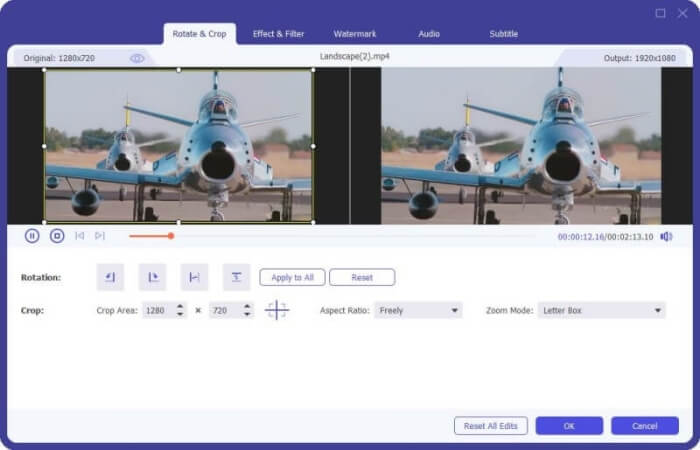
שלב 3. לאחר מכן לחץ על החץ הנפתח שליד Convert All to, עבור ללשונית Video ובחר ASF או WMV כפורמט הפלט.
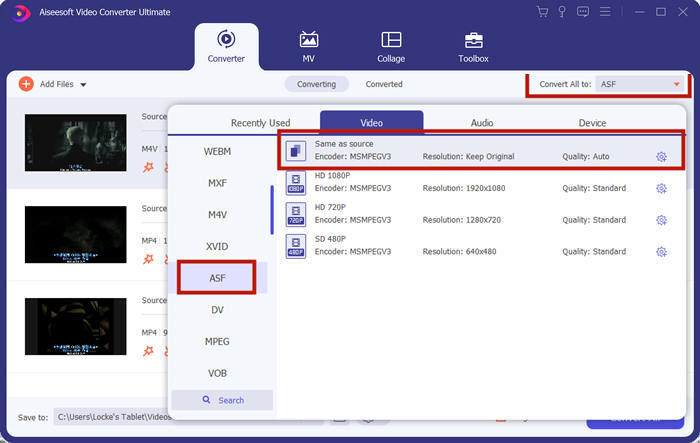
שלב 4. לבסוף, הגדר את תיקיית היעד שבה יישמר קובץ ה-MP4 המומר. לחץ על כפתור Convert All כדי להמיר את קובץ ה-MP4. לאחר ההמרה תוכל לנגן את קובץ ה-MP4 המומר ב-Windows Media Player.

חלק 4. טיפים נפוצים להפעלת MP4 בנגן המדיה של Windows
כדי לנגן MP4 ב-Windows 10, אפשר לעבור לתיקייה שבה מאוחסנים קובצי ה-MP4. לחץ באמצעות לחצן ימני על קובץ ה-MP4 שברצונך לנגן, בחר Open with ובחר Windows Media Player. אף שזה פשוט, לעיתים ייתכן שלא תצליח לפתוח קובץ MP4 ב-Windows Media Player. כדי לפתור את הבעיה, אפשר לנסות את הטיפים הבאים.
1. הפעל MP4 עם נגני מדיה אחרים
אם קובץ ה-MP4 לא מתנגן ב-Windows Media Player, אפשר לנסות נגני מדיה אחרים כדי לפתוח את קובץ ה-MP4. קיימים נגני מדיה רבים כמו FVC Free Video Player, VLC Media Player, KM Player, Real Player, GOM Player, BS Player, DivX Player ועוד.
2. התקן את ה- Codec הנכון עבור Windows Media Player
חסרים רכיבי codec אם נגן המדיה של Windows אינו מנגן קובץ MP4. כדי לפתור את הבעיה, עליך להתקין את ה- codec המתאים עבור Windows Media Player.
שלב 1. פתח את Windows Media Player. לחץ על תפריט Organize ובחר Options.
שלב 2. עבור ללשונית Privacy וסמן את האפשרות Download usage rights automatically when I play or sync a file.
שלב 3. כדי לנגן את קובץ ה-MP4, אפשר ללחוץ על כפתור OK כדי לשמור את השינויים.
3. הפעל פותר בעיות ב- Windows
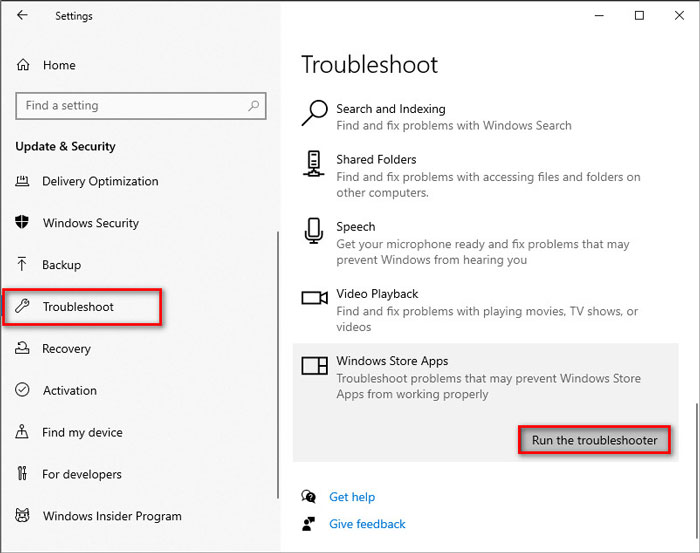
אם MP4 לא הצליח לשחק ב- Windows Media Player, תוכל להשתמש בכלי פותר הבעיות כדי לפתור את הבעיה ב- Windows 10. בצע את השלבים לפתרון הבעיה.
שלב 1. במחשב ה-Windows 10 שלך, פתח את Settings ובחר Update & Security.
שלב 2. עבור לאזור Troubleshoot, ולחץ על Windows Store Apps.
שלב 3. לחץ על כפתור Run the troubleshooter כדי לפתור בעיית ניגון של Windows Media Player.
חלק 5. שאלות נפוצות על הפעלת MP4 בנגן המדיה של Windows
מהו פורמט הווידאו המוגדר כברירת מחדל של Windows Media Player?
פורמט הקובץ המוגדר כברירת מחדל של Windows Media Player הוא WMV (Windows Media Video) ו- WMA (Windows Media Audio). הוא תומך גם ב- ASF (פורמט מערכות מתקדמות) ובפורמט פלייליסט מבוסס XML משלו, רשימת השמעה של Windows.
מהו נגן ה- MP4 הטוב ביותר?
ישנם נגני MP4 פופולריים רבים בשוק, כולל FVC Free Video Player, VLC Media Player, KM Player, QuickTime Player, RealPlayer, Media Player Classic, GOM Player, PotPlayer ועוד.
האם אוכל לשחק MKV ב- Windows Media Player?
נגן המדיה המובנה של Windows 12 ב- Windows 10 אינו תומך בהפעלת MKV. עליך להתקין את ה- Codec המתאים להפעלה.
סיכום
MP4 הוא פורמט המולטימדיה הדיגיטלי הפופולרי ביותר המשמש בדרך כלל לאחסון וידאו ושמע. זה מתסכל אם קובץ MP4 נכשל בנגן המדיה של Windows. מקווה שתוכל לנגן את קבצי MP4 שלך בצורה שוטפת ב- Windows 10 עם כל הטיפים והפתרונות שלנו. אתה יכול לנסות נגן וידאו אחר כמו נגן וידאו חופשי FVC כדי להפעיל את קבצי MP4 שלך.
-
 כיצד לנגן קבצי MP4 בכונן Google
 MP4 לא פועל ב- Google Drive שלי? איך מנגנים קבצי MP4 ב- Google Drive? פוסט זה מספר 3 דרכים להפעלת קטעי וידאו MP4 ב- Google Drive.
-
 הפעל קבצי MP4 ב- Chromebook 2021
 האם אתה יכול להפעיל סרטונים ב- Chromebook? איך מנגנים קבצי MP4 מ- USB ב- Chromebook? פוסט זה משתף שלוש דרכים להפעלת MP4 ב- Chromebook.
-
 כיצד לנגן DVD ב- Windows Media Player בשנת 2021
 מדוע ה- DVD שלי אינו פועל בנגן המדיה של Windows? איך מנגנים DVD בנגן המדיה של Windows 7? פוסט זה משתף 3 דרכים לנגן תקליטורי DVD עם או בלי WMP.
