


 ממיר וידאו אולטימטיבי
 מקליט מסך
 תיקון וידאו
 הורדה מאובטחת
התיקונים הטובים ביותר לסרטונים שלא מתנגנים בכרום: 4 פתרונות
כשתפתח את הדפדפן כרגיל, מוכן ליהנות מסרט או מסרטון קצר מאתר אונליין, אתה מגלה שהסרטונים לא פועלים ב‑Chrome. בשלב הזה אתה ודאי נלחץ, מרענן שוב ושוב את הדף או מחליף אתרי צפייה כדי להבין מה הבעיה. אל תדאג, זו תקלה שכיחה מאוד, ומשתמשים רבים נתקלו בכשל בניגון וידאו בגלל סיבות שונות. מה שעלינו לעשות הוא לזהות את גורם התקלה ואז למצוא את הפתרון המתאים. במאמר זה נספק לך ארבע דרכים לתקן את התקלה ונמליץ על כלי תיקון הווידאו הטובים ביותר עבורך. נקווה שהבעיה הקטנה הזו לא תפגע יותר מדי במצב הרוח שלך לצפייה.

חלק 1. אילו סרטונים ניתן לנגן באייפון
ה-iPhone יכול לנגן מגוון סרטונים מפורמטי וידאו שונים, במיוחד קבצים המקודדים ב-H.264 וב-MPEG-4 עם אודיו AAC בפורמטים MP4, M4V ו-MOV, כמו גם M-JPEG עם אודיו סטריאו בפורמט AVI. מלבד זאת, מכשירי אייפון תומכים בפורמטי הווידאו הבאים:
תיקון וידאו FVC
גיליתם שסרטונים לא מופעלים בכרום, ודף הדפדפן שלכם אומר שהסרטון פגום. לא משנה כמה תרענן את האינטרנט או תחליף נגן וידאו, זה לא יעזור. כל מה שאתם צריכים לעשות עכשיו הוא למצוא דרך לתקן את הסרטון הפגום.
פעולה זו לא באמת דורשת ממך להיות מקצוען או להכיר קוד לעומק; כל מה שאתה צריך הוא למצוא תוכנת תיקון וידאו אמינה ולהפקיד בידיה את כל הבעיות. אנו ממליצים על FVC Video Repair, כלי רב‑תכליתי שיכול לתקן סרטונים שנפגמו עקב כונן פגום, מתקפת וירוס, קריסת מערכת ועוד.
כעת הוא תומך בפורמטי וידאו, כולל MP4, MOV ו-3GP. כל מה שצריך לעשות הוא להעלות את הסרטון הפגום יחד עם סרטון לדוגמה, ו-FVC Video Repair ישחזר את כל הפרמטרים של הסרטון הפגום בהתאם לסטנדרטים של סרטון הדוגמה, כולל רזולוציה, קצב סיביות, מקודד וקצב פריימים. אין צורך במיומנויות מיוחדות, פשוט לחצו על שלושה סמל קטן כדי לקבל את הסרטון המלא.
הורדה חינמיתל-Windows 7 או גרסה מאוחרת יותרהורדה מאובטחת
הורדה חינמיתל-macOS 10.7 או גרסה מאוחרת יותרהורדה מאובטחת
ניקח כדוגמה סרטון יוטיוב פגום שהורד ונראה לכם כיצד לתקן סרטוני יוטיוב שלא פועלים ב-Chrome באמצעות תיקון וידאו FVC.
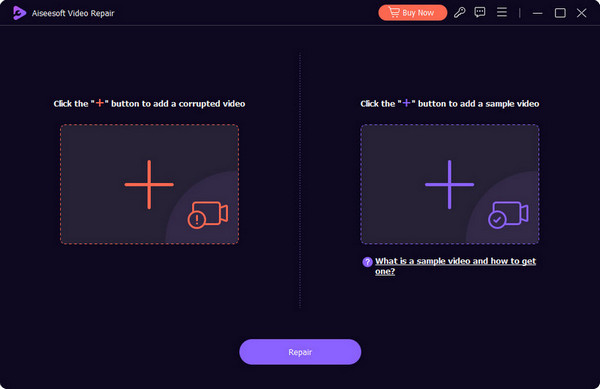
שלב 1. הורד והתקן את FVC Video Repair במחשב שלך. פתח את התוכנה ועבור לממשק הראשי. הכן את הווידאו הפגום ואת סרטון הדוגמה.
עדיף לוודא שסרטון הדוגמה והסרטון הפגום הם מאותו מקור וקרובים זה לזה מבחינת פורמט, חדות, קצב פריימים, קצב סיביות ופרמטרים אחרים. אם אינך יודע כיצד למצוא סרטון לדוגמה, תוכל ללחוץ על עצות העזרה בממשק.
שלב 2. לחץ על כפתור ה‑+ האדום כדי להעלות את הווידאו הפגום, ולחץ על כפתור ה‑+ הסגול כדי להעלות את סרטון הדוגמה.
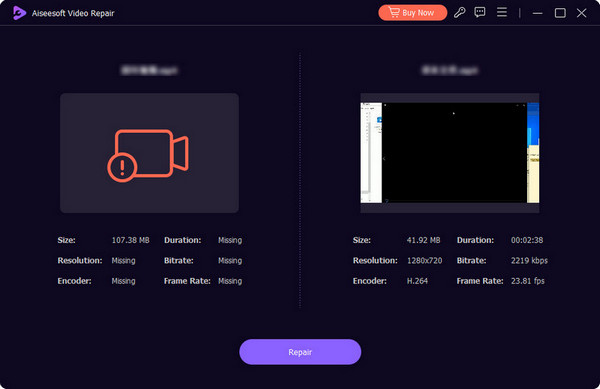
שלב 3. לאחר שהעלית את הסרטונים, כל הפרמטרים שלהם יוצגו בממשק. לאחר מכן לחץ על Repair כדי להתחיל בתיקון הווידאו.
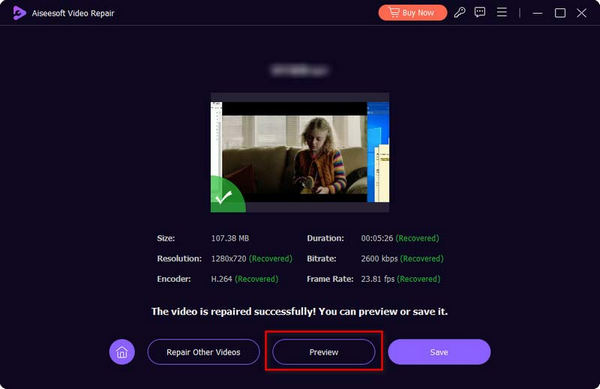
כשהתהליך יסתיים, לחץ על Preview כדי לבדוק את התוצאה.
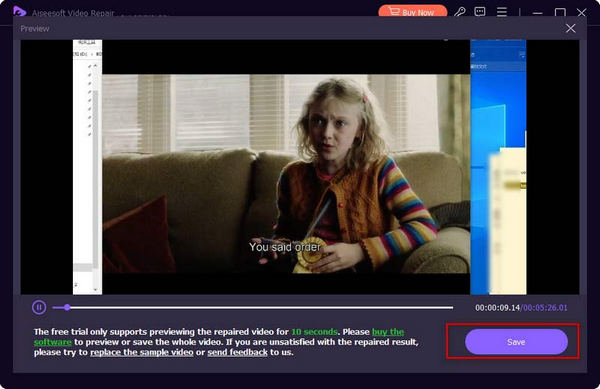
אם הכול תקין, לחץ על Save כדי להוריד את הווידאו המתוקן למחשב שלך.
חלק 2. תוקן: סרטונים לא מתנגנים בכרום
נניח שהבעיה אינה בסרטון. במקרה כזה, עליך לשקול אם ישנה בעיה בדפדפן עצמו, או שחסר בו אחד מהתוספים הדרושים לקריאת הסרטון. להלן, נסקור כל אחת משלוש האפשרויות שיעזרו לך לתקן מדוע סרטונים אינם מופעלים ב-Chrome.
פתרון 1: הפעל את נגן הפלאש
כאשר ברצונך להפעיל סרטון פלאש, אך Adobe Flash Player אינו מותקן בדפדפן שלך, תראה בקשה בחלון הפעלת הסרטון. ההנחיה תאמר לך שעליך ללחוץ על הפעל את Adobe Flash Player. אם אינך רואה הנחיה זו, תוכל לבדוק ידנית אם Flash Player הופעל בהצלחה.
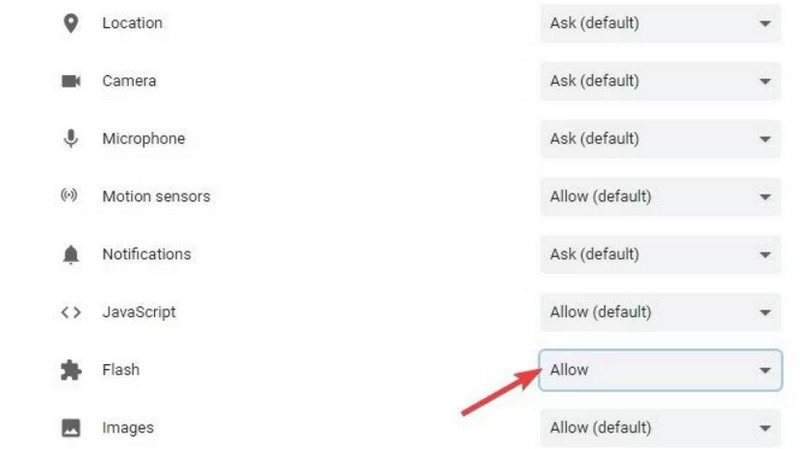
כך תפעילו את Flash Player בדפדפן Chrome שלכם.
שלב 1. פתח את דפדפן Google Chrome במחשב שלך. נווט אל העמוד שבו נמצא הווידאו הרצוי.
שלב 2. מצא את הסמל Lock (מנעול) בצד שמאל של כתובת ה‑URL של הווידאו. לחץ עליו.

שלב 3. תיפתח רשימה. בחר Flash ובתיבה שלצידו בחר Allow (הרשאה).
שלב 4. פתח מחדש את דף ניגון הווידאו ובדוק אם הבעיה נפתרה.
פתרון 2: נקה עוגיות ומטמון
בכל פעם שאתה פותח קובץ כגון סרטון, אודיו או תמונה בדפדפן שלך, הוא יוצר נתונים במטמון, המשמשים כדי להפחית את זמן הטעינה בפעם הבאה שתפתח את הממשק. עם זאת, כאשר מצטברים יותר מדי נתונים במטמון, יהיה זה נטל עבורך להפעיל את הסרטון כרגיל. עליך לנקות את המטמון מעת לעת כדי לפנות מקום נוסף על מנת להבטיח שהדפדפן שלך עדיין יוכל לפעול ביעילות לטעינה והפעלת סרטונים חדשים.
אם קובצי ה-Cookie והמטמון גורמים ל-YouTube שלכם לא להפעיל סרטונים ב-Chrome, השתמשו במדריך למטה כדי לנקות אותם.
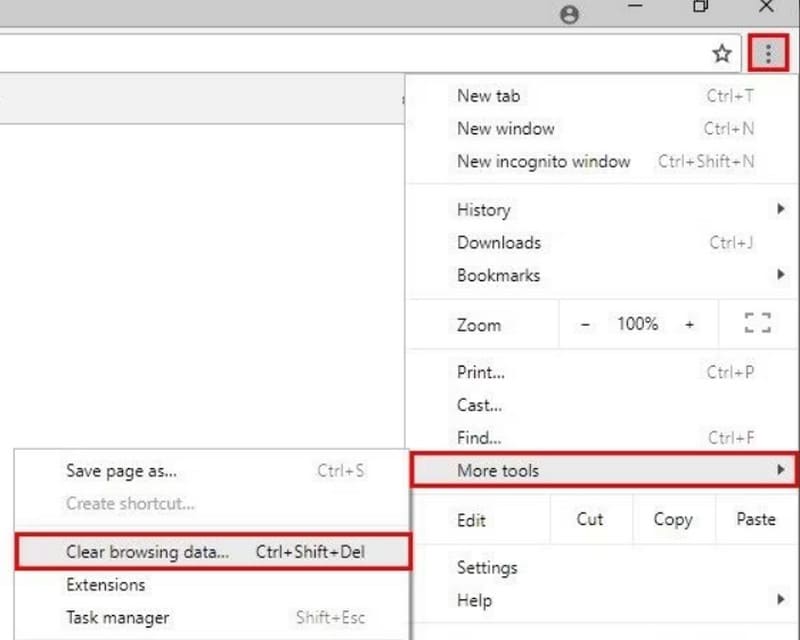
שלב 1. פתח את דפדפן Chrome. עבור לפינה הימנית‑עליונה של דף האינטרנט ולחץ על סמל השלוש הנקודות, שמייצג עוד.
שלב 2. בחר More Tools בתפריט הנפתח ולחץ על Clear browsing data.
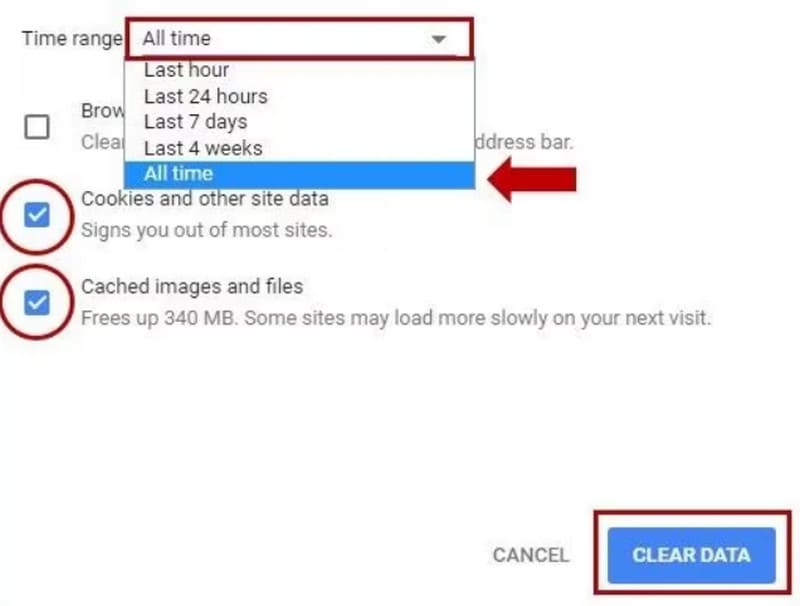
שלב 3. יופיע חלון קופץ חדש. בחר Time range > All time. לאחר מכן סמן את התיבות שליד Cookies and other site data ו‑Cached images and files.
שלב 4. לבסוף, לחץ על CLEAR DATA.
פתרון 3: הפעל מחדש את אפליקציית דפדפן Chrome
לפעמים, הדפדפן שלך יכול להיתקע פתאום או להציג שגיאות בלתי מוסברות, בדיוק כמו המחשב או הטלפון הסלולרי שלך. הפתרון הפשוט ביותר בשלב זה הוא לאתחל את המחשב. אם אתה מגלה שסרטונים מיוטיוב, HBO Max, טיקטוק או אמזון לא פועלים בכרום, נסה לסגור את הדפדפן ולהפעיל אותו מחדש. לאחר מכן, עבור שוב לדף האינטרנט שמכיל את הסרטון שאליו אתה מכוון.
שלב 1. עבור לשורת הכתובת בשורה העליונה של דף האינטרנט.
שלב 2. הקלד chrome://restart בשורת הכתובת ולחץ על Enter במקלדת. תוכל להוסיף את הדף הזה לסימניות בכל פעם שתזדקק לו.

חלק 3. שאלות נפוצות על סרטונים שלא מתנגנים בכרום
למה סרטונים לא מופעלים בכרום?
יש לכך סיבות רבות. ייתכן שהרשת שאליה אתה מחובר אינה יציבה, שהווידאו הנוכחי פגום, שפורמט הקובץ אינו תואם לנגן הווידאו, או שלדפדפן יש יותר מדי מטמון. תוכל לשלול אחת לאחת את האפשרויות הללו כדי לזהות איזו מהן למעשה מונעת ממך לצפות בווידאו כראוי.
למה שידור חי לא עובד במחשב הנייד שלי?
נניח שאתם חווים השהיה (lag) בזמן צפייה בשידורים חיים. במקרה כזה, הסיבה הסבירה ביותר היא שמהירות ה-WiFi שאליה המכשיר שלכם מחובר נמוכה מדי או לא יציבה מאוד. נסו לשנות את חיבור הרשת.
מהו נגן הווידאו הטוב ביותר עבור Chromebook?
הבחירה הטובה ביותר היא כמובן VLC Media Player. ובכל זאת, אפשר לנסות גם חלופות ל‑VLC Media Player, כמו QuickTime Player, Windows Media Player ועוד.
סיכום
בפוסט זה תראה 4 אפשרויות שיעזרו לך לפתור את הבעיה של סרטונים שלא פועלים ב‑Chrome. הן כוללות הפעלה של Adobe Flash Player, ניקוי מטמון הדפדפן והפעלה מחדש של הדפפן. אם תגלה שהבעיה היא בעצם בקובץ הווידאו עצמו, תן ל‑FVC Video Repair לטפל בהכול בשבילך. התוכנה קלה לשימוש, ותוצאות התיקון מתקבלות מיד.
-
 3 דרכים יעילות לצילום מסך בגוגל כרום [מדריך]
 גלה כיצד לצלם במהירות צילומי מסך של אתר ב-Google Chrome בעזרת השלבים הפשוטים האלה. חסוך זמן והגדל את הפרודוקטיביות עם המדריך הידידותי למשתמש שלנו.
-
 10 נגני HD הטובים ביותר לצפייה בסרטי HD ב- Windows / Mac / iOS / Android
 זוהי סקירת נגן הווידיאו HD האחרונה שלך. אתה יכול לקבל יתרונות וחסרונות משוחדים של 10 נגני HD המובילים בשוק. פשוט קרא ובחר את נגן HD הטוב ביותר שלך עם כל התמיכה בפורמטים.
-
 תיקון וידאו רימו: סקירה מקיפה עודכנה ב-2025
 מחפש כלי לתיקון וידאו באינטרנט? תפסנו אותך! קבל סקירה מעמיקה של Remo Video Repair ולמד כיצד הוא יכול לתקן את קבצי הווידאו הפגומים שלך ביעילות.
