


 ממיר וידאו אולטימטיבי
 מקליט מסך
 תיקון וידאו
 הורדה מאובטחת
5 דרכים לתקן את נגן המדיה של Windows לא עובד ב- Windows 7/8/10
נגן המדיה של Windows הפסיק לעבוד. בעיה גרמה לתוכנית להפסיק לעבוד כראוי. זה גם ישמיע אודיו אבל לא וידאו. כיצד לפתור בעיה זו?
כאשר נגן המדיה של Windows מפסיק לעבוד, ייתכן שתקבל את השגיאה "חלון נגן המדיה הפסיק לעבוד" ללא שום מידע ספציפי אודותיה, או שתתבשר כי "סוג הקובץ אינו נתמך". אפילו אין הנחיות והלחיצות שלך פשוט לא עובדות.
There are many reasons causing Windows Media Player not working. The most common problem is that the files are not supported, and it will lead to playing videos without images, or audio, or subtitles. Otherwise, the causes will be very various without any specific prompt. In this case, you have to check all the problems listed in the following article to fix this complex error. But you can also choose the best way to use an alternative video player to watch any video without issues and limitations.

חלק 1: נגן המדיה האלטרנטיבי הטוב ביותר שאסור לכם לפספס
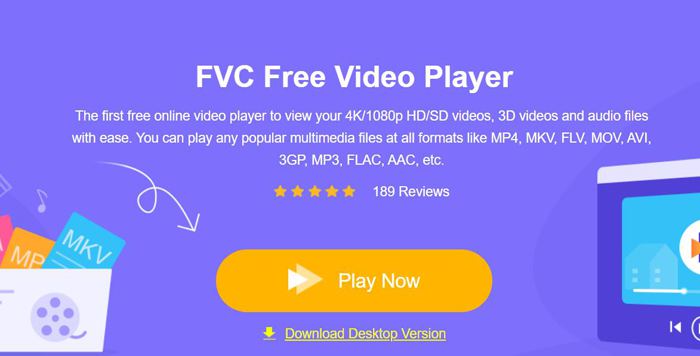
To avoid Windows Media Player not working, you’d better choose a professional alternative. FVC Free Video Player is a free online video player that will solve all of the problems you may encounter when using Window Media Player. It supports playing videos without the limitation of format and resolution. And without downloading any other software, you can play all video formats smoothly.
- 1. תמיכה בנגינת כמעט כל הפורמטים, כולל קבצי FLV, MKV, RMVB ו- DVD או Blu-ray.
- 2. הפעל סרטונים באיכות גבוהה המגיעים לרזולוציית 4K.
- 3. מסוגל להתאים את רצועות השמע והכתוביות בשפות שונות.
- 4. צלם צילום מסך בכל עת בהפעלת סרטונים.
Step 1: Navigate to the website of FVC Free Video Player on any browser. Then click the Play Now button to install the launcher. After a few minutes, click the Play Now button again to start the FVC Free Video Player.
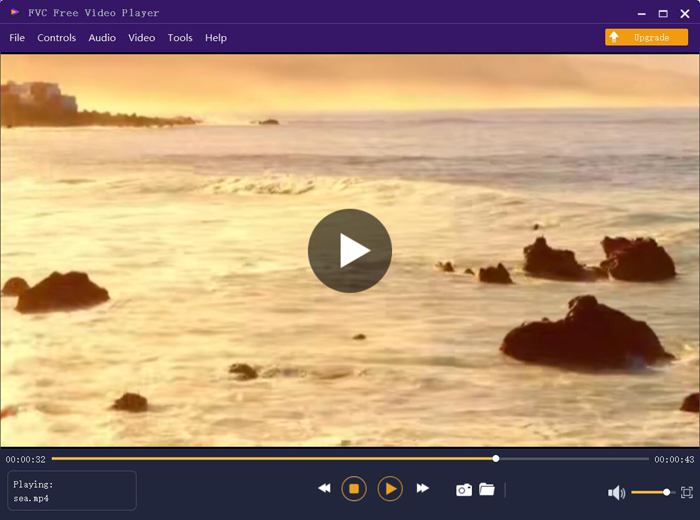
Step 2: Click the Open Files button to choose the desired video. Then it will start playing automatically. In the Control menu, you can see the hotkeys to adjust the volume. And you can also choose the audio or video tracks according to your need. Moreover, if you click the Tools button and choose the Effect option, you can even adjust the hue, brightness, contrast, saturation, and gamma.
חלק 2: כיצד לתקן נגן מדיה של חלון שאינו עובד ב- Windows 7/8/10
כאמור, סיבות רבות יכולות לגרום לנגן המדיה של Windows לא לעבוד, וישנן שלוש שיטות לפתור בעיה זו במצבים שונים.
שיטה 1: הפעל את פותר הבעיות של Windows Media Player
כאשר נגן המדיה של Windows שלך לא מגיב לאחר לחיצות, דרך זו תעזור לך לפתור את הבעיה.
Step 1: Press the Windows and R buttons on your keyboard to start the Run program. Then you should copy and paste msdt.exe -id WindowsMediaPlayerConfigurationDiagnostic in the search bar. Click the OK button to locate to the troubleshooter of Windows Media Player Settings. Then click the Next button to start it.
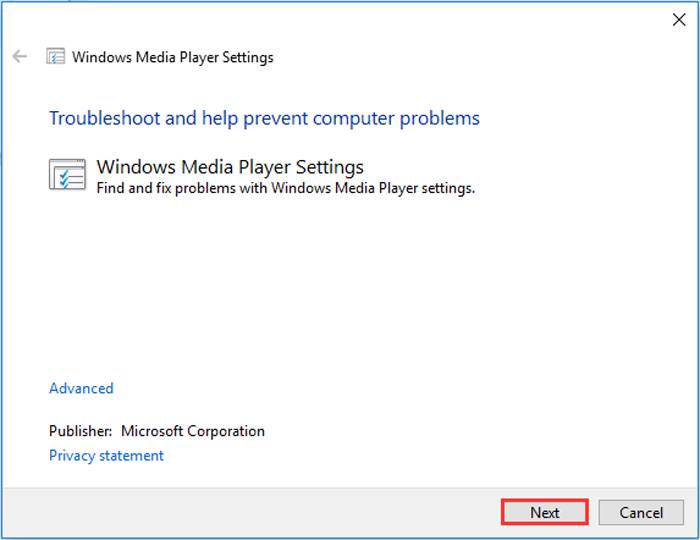
Step 2: After the window pops up, click the Apply this fix button to reset Windows Media Player to the default settings. Then you can try restarting Windows Media Player.
שיטה 2: התקן מפענחים אחרים ב- Windows Media Player
אם נגן המדיה של Windows שלך לא עובד עם כמה קטעי וידאו או אודיו מיוחדים, אתה יכול להוריד את המפענח המגיב כדי להפעיל את הסרטונים האלה.
Step 1: Open Microsoft Store on your computer. Click the Search button, and then input the Video Extension in the search bar. You can download the desired video expansion on your computer.
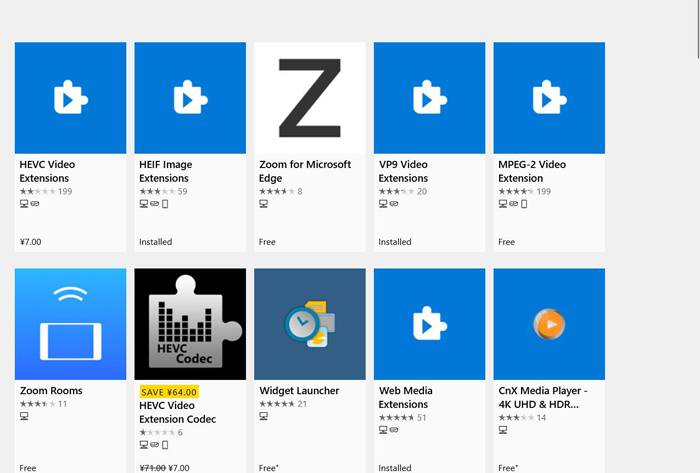
Step 2: After the installation, reopen the videos through Windows Media Player. But you should note that there are still many formats not supported, including FLV, RMVB, etc.
שיטה 3: התקן מחדש את Windows Media Player.
אם השיטה שהוזכרה לא עובדת, עליך לנסות להתקין מחדש את התוכנה כאשר Windows Media Player מפסיק לעבוד.
Step 1: Press Windows and R buttons on your keyboard to open the Run program. Then type optionalfeatures.exe in the search bar. Click the OK button to open or close a function. Then you can cancel the tick of Windows Media Player.
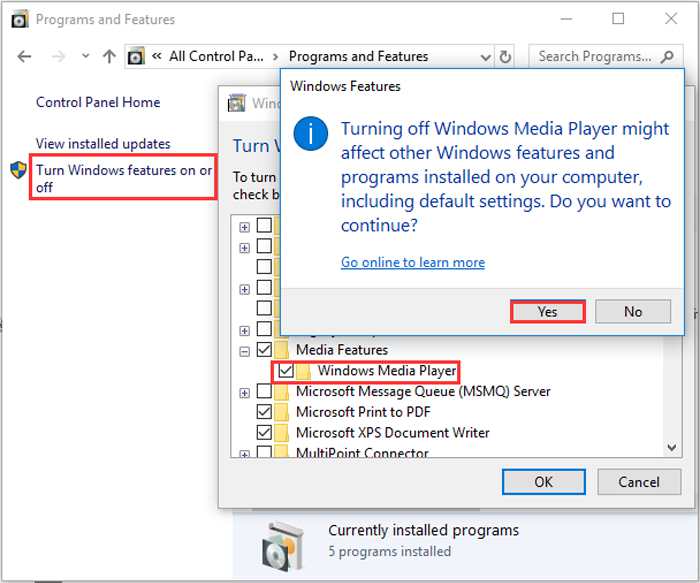
Step 2: Restart your computer and repeat the previous operation. Then tick the Windows Media Player. After that, reboot your computer again, and the software will be installed automatically on your computer.
פרט לבעיות אלה, ל- Windows Media Player יש גם חסרונות רבים. אתה לא יכול להתאים את מהירות הפעלת הווידאו, ומקשי הקיצור תמיד חסרי תועלת. אז למה לא לבחור בנגן הווידיאו המקוון החינמי כדי לפתור את כל הבעיות?
חלק 3: שאלות נפוצות של Windows Media Player לא עובד
1. מדוע קבצי וידיאו FLV אינם יכולים לשחק בנגן המדיה של Windows?
Although Windows Media Player supports installing multiple decoders to playback videos in some uncommon formats, FLV format is not supported. In this case, you can try downloading Windows Media Player alternatives or converting the video formats.
2. מדוע נגן המדיה של Windows אינו פועל לאחר עדכוני Windows 10?
אולי נגן המדיה של Windows נפגם לאחר העדכון. אתה יכול לנסות את השיטה 3 שהוזכרה כדי להתקין מחדש את Windows Media Player.
3. כיצד לבחור רצועות כתוביות ב- Window Media Player?
למרבה הצער, אין אפשרות לבחור כתוביות שונות, רצועות וידאו ושמע ב- Windows Media Player. אתה יכול לבחור חלופות אחרות להפעלת סרטונים.
סיכום
הסיבות לכך שנגן המדיה של Windows אינו פועל יהיו מורכבות מאוד, מה שמקשה על תיקון הבעיה. לפיכך, אתה יכול פשוט להוריד את נגן המדיה האלטרנטיבי הטוב ביותר - נגן הווידיאו FVC חינם בכדי להשמיע קטעי וידאו בצורה חלקה באיכות גבוהה. באופן זה, אתה יכול למנוע מנגן המדיה של Windows לעבוד לא לנצח.
-
 כיצד לנגן DVD ב- Windows Media Player בשנת 2021
 מדוע ה- DVD שלי אינו פועל בנגן המדיה של Windows? איך מנגנים DVD בנגן המדיה של Windows 7? פוסט זה משתף 3 דרכים לנגן תקליטורי DVD עם או בלי WMP.
-
 6 פתרונות מאומתים לתיקון סרטונים שאינם מופעלים ב- Chrome
 כדי לפתור את הבעיה שסרטונים לא מופעלים ב- Chrome, כל שעליך לעשות הוא לקרוא את פתרון הבעיות שלנו ולבצע את הפתרונות המאומתים אחד אחד.
-
 5 פתרונות עבודה 100% לתיקון סרטונים שאינם פועלים ב- iPad
 הסרטונים שלך לא פועלים באייפד? להלן חמישה פתרונות שיעזרו לך להיפטר מבעיה זו ואז תוכל ליהנות מהסרטונים האהובים עליך במכשיר בקלות.
