


 ממיר וידאו אולטימטיבי
 מקליט מסך
 תיקון וידאו
 הורדה מאובטחת
כיצד להקליט משחק ב-PS5 ללא הגבלה [הנחיות מקיפות]
In just a matter of three years, the PlayStation 5 has flown off the shelves. It has hit over 50 million units sold ever since it was released, as it is a cool hardware and 4K gaming-giving console. Now, If you're keen to show off your gaming skills or share your epic gameplay moments with your fans, recording on a PlayStation 5 is a great option. If you are wondering how to record on PS5, it comes with this cool feature that you can use to capture, tweak, and share your gaming adventures on various platforms. But how exactly do you do all of this? Stick around to discover how to record and snap screenshots on your PS5, even how to do it using a limitless recording technique.

חלק 1. כיצד להקליט משחק ב-PS5
אין ספק, ה-PS5 מגיע עם מקליט מובנה שיעזור לך להקליט את המשחק עוצר הנשימה שלך. עם זאת, כדאי לשים לב שהרשמקול של הקונסולה שלך מגיע עם מגבלות ויעילות. בכל הנוגע ליעילות, ניתן לומר בוודאות שהוא יעיל מאוד בהפקת סרטונים מוקלטים באיכות גבוהה. מצד שני, בכל הנוגע למגבלות שלה, עליכם לזכור שהקונסולה הזו יכולה לאפשר לכם להקליט מקסימום של 60 דקות משחק. מלבד זאת, זה יאפשר לך רק להפיק סרטונים ב-MP4 ו- WebM כפורמטי הפלט הנתמכים שלו.
בינתיים, לשאלה כיצד להקליט במסך במקליט המשחק המובנה של PS5, אפשר לשלבים הבאים כדי לספק לך תשובות.
הקלט משחק
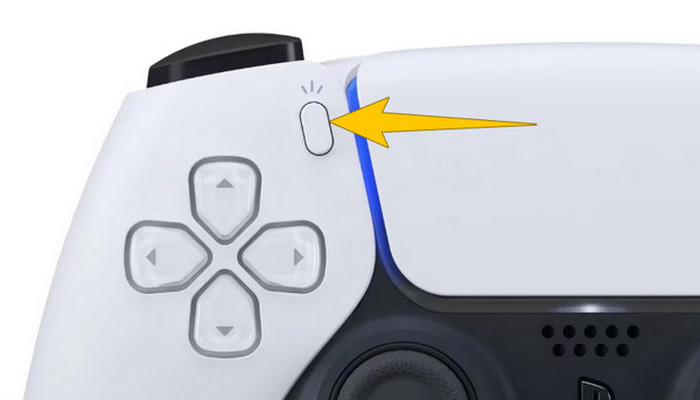
Step 1. Grab your DualSense controller and press the button above the arrow buttons. This represents the Create function and can be pressed when you are about to record your gameplay.
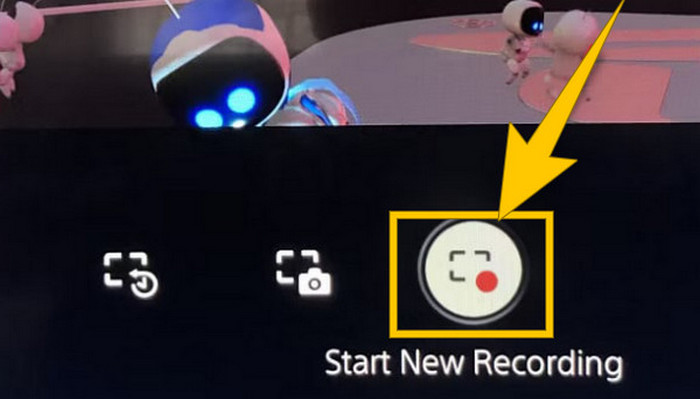
Step 2. After pressing the button, look at your screen and click the Start New Recording option. You will see this option at the bottom part. Immediately, the recording will start so you may begin your gameplay.
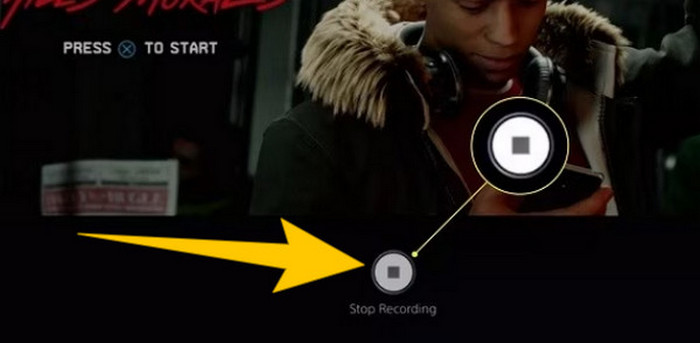
Step 3. Suppose you are done with your game, so here’s how to turn off gameplay recording on PS5. You just need to press the Create button again, and this time, click Stop Recording, which you will see on the screen.
הורד את ההקלטות
לאחר ההקלטה, PS5 ישמור אוטומטית את הפלט בגלריית המדיה שלך, שם כל הקבצים נשמרים. כעת, אם ברצונך לשמור עותק עבור המכשיר הנפרד שלך, מצער לומר לך שלגלריה האמורה אין אפשרות הורדה. עם זאת, עדיין יש דרך לשמור את הקבצים.
Step 1. Connect your external SD or USB drive to your console. Then, go to your Media Gallery and open it.
Step 2. Select the screen recording that you recently saved. Then, click the Ellypsis or the three-dot button at the bottom part of the screen, along with the other options given.
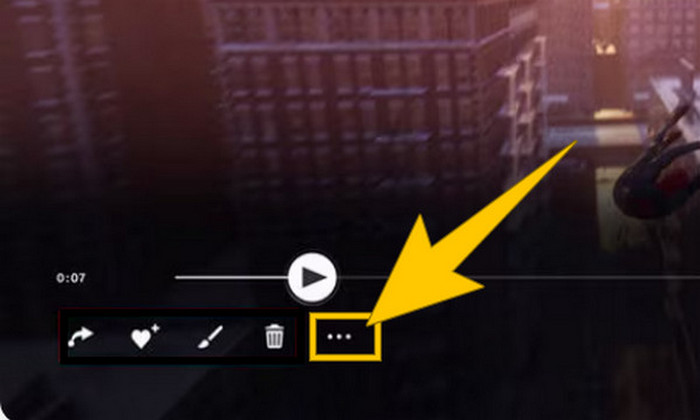
Step 3. Once clicked, select the Copy to USB Drive option to start copying the recorded video to your USB. Once done, transfer the video to the device where you want to keep the recorded file.
חלק 2. כיצד להקליט מסך ב-PS5 באיכות 4K ללא הגבלה
Do not fret if PlayStation 5 only lets you capture up to an hour of gameplay in good quality. We know how frustrating it is for most gamers, and not all games support this. So, for your unlimited recording with 4K quality on all PS5 games, you might want to check out FVC Screen Recorder. Yes, this screen recorder doesn't limit your recording time, just your computer's storage. Plus, it won't slow down your gameplay. With this amazing game recorder, you can also tweak your recordings before saving them. In fact, you can trim, merge, compress, convert, edit metadata, enhance the recording, and share it to your selected platforms breezily.
ראוי גם לציין ש-FVC Screen Recorder מציע כלי הקלטה שונים כדי לעמוד במשימות ההקלטה שלך. בעזרתו, אתה יכול להקליט וידאו, אודיו, חלונות, מצלמות רשת, טלפונים וכו'. למרבה הפלא, אתה יכול ליהנות מההקלטות שלך ללא סימני מים מוטבעים בהן! אז, כדי ללמוד עוד על מקליט מסך FVC, עקוב אחר השלבים שלהלן כדי לראות כיצד להקליט מסך ב-PS5.
Step 1. Get the FVC Screen Recorder by downloading it onto your computer. To do so, just click the Free Download button, then follow the instructions to install and open it.
הורדה חינמיתעבור Windows 7 או גרסה מאוחרת יותרהורדה מאובטחת
הורדה חינמיתעבור MacOS 10.7 או גרסה מאוחרת יותרהורדה מאובטחת
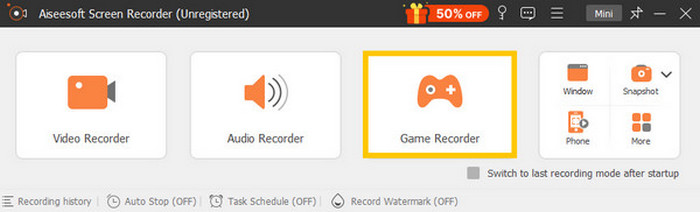
Step 2. Upon reaching the interface of FVC, find and click on the Game Recorder tool. It is located on the right-center side of the screen. From there, click the little arrow beside Select the Game to choose which window where your PS5 is screened.
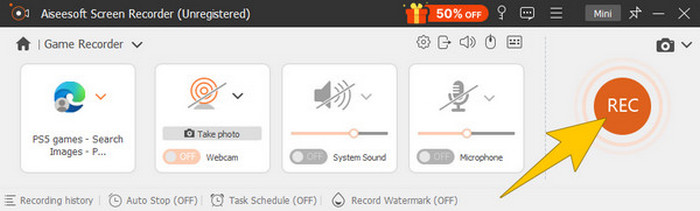
Step 3. Once you have selected the window, you will notice that the recorder will focus on it. Remarkably, you can also decide if you want to include your webcam for picture-in-picture recording, system sound, and microphone audio in your recording. When things are set, click the REC button to begin the game and recording.
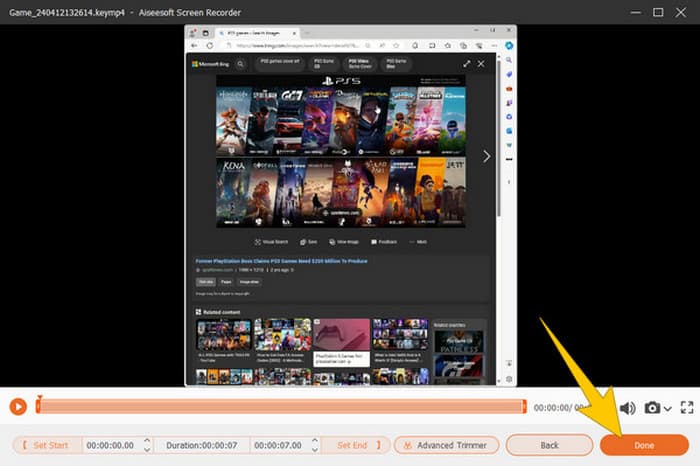
Step 4. When you are done recording, click the Stop button from the floating bar. Then, you can tweak the video using the editing tools provided from the new window. After that, click the Done button to save the recorded file on your gallery.
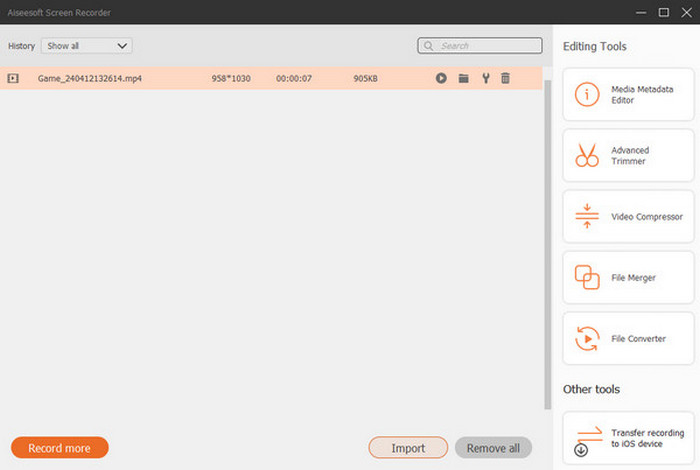
Step 5. This is an optional step. But if you want to share your recording to your social media accounts, you may right-click your most recent gameplay recording and then select the Share option. Also, you can use additional advanced editing tools to enhance your recordings.
אם תרצה לדעת יותר על מקליט זה, הנה טיפים נוספים שכדאי ללמוד.
לקריאה נוספת
5 Efficient Ways How to Record Screen to GIF on Mac & Windows
How to Record the Epic Stunts, Clutches, or Tutorials on Minecraft
חלק 3. שאלות נפוצות לגבי הקלטת משחק ב-PS5
איך מכבים הקלטת משחק ב-PS5?
כדי לכבות או לעצור את הקלטת המשחק ב-PS5 שלך, אתה רק צריך ללחוץ על כפתור היצירה של בקר המשחק שלך. לאחר מכן, על המסך שלך, לחץ על האפשרות הפסק הקלטה.
איפה אני יכול לראות את קטעי המשחק המוקלטים שלי ב-PS5 שלי?
קטעי המשחק המוקלטים מאוחסנים בקטע Capture מהגלריה הראשית. אתה יכול לגשת לגלריה זו ממסך הבית. בעזרתו, תוכל להציג, לערוך ולשתף את הקליפים שלך כפי שהגלריה שלך מאפשרת לך.
איך אחלוק את ההקלטות שלי ב-PS5?
אתה יכול לשתף את הקליפים שלך לאחר ההקלטה ב-PS5 שלך ישירות מגלריית Capture. אתה רק צריך לבחור את הקליפ שברצונך לשתף, ללחוץ על כפתור האפשרויות בבקר שלך ולבחור באפשרות שתף.
סיכום
No more asking how to record on PS5, as this article provided you with the default and best ways. Thus, have qualitative and lengthy gameplay recordings of your desired. Then, share the solutions with your co-gamers for them to have the same exciting recording experience on their PS5!
-
 5 מתוכנות הקלטת המשחקים המובילות ששחקן חייב להכיר [2024]
 האם אתה גיימר שרוצה להקליט משחק? אז מאמר זה ייתן לך את מקליט המשחקים הטוב ביותר שתוכל להשתמש בו כדי לחוות גבהים חדשים במשחקים.
-
 5 אפליקציות מקליט מסך אנדרואיד המובילות שאתם חייבים לרכוש ב-2024
 מתקשה כי אינך יכול לבצע הקלטת מסך באנדרואיד שלך? אם כן, מאמר זה סקר את מקליטי מסך אנדרואיד שתוכל להוריד עליהם.
-
 חמשת מקליטי פגישות זום המובילים להקלטת פגישות בזום [2024]
 צריך להקליט פגישת זום כדי לא לפספס את הפרטים החשובים של הפגישה שלך? אם כן, מאמר זה מספק את מקליטי הזום הטובים ביותר שכדאי להכיר.
