


 ממיר וידאו אולטימטיבי
 מקליט מסך
 תיקון וידאו
 הורדה מאובטחת
מדריך כיצד לצלם מסך GIF במחשב שלך
המרחב המקוון הפך ללא ספק את רוב הפעילויות שלנו לוירטואליות. בין אם אתם מתכוננים לפגישה, יוצרים מצגת, או אפילו רוצים להגיע לאלף אנשים על‑ידי לימוד בישול ארוחה, הקלטת המסך היא פתרון יעיל ללכידת כל הדרוש. עם זאת, הקלטת מסך באמצעות כלי מובנה במכשיר שלכם, כמו Xbox Game Bar או QuickTime Screen Recorder, מגבילה את היכולת למצות את צורכי הסרנת המסך שלכם. בפוסט זה ריכזנו תוכנות מובילות שמעלות את האפשרות ללכוד מסך ל‑GIF לרמה הבאה.

חלק 1: כיצד להקליט מסך ל-GIF ב-Windows/Mac בחינם
1. מקליט מסך FVC חינם
בכמה קליקים בלבד, הקלטת המסך שלכם בהישג יד באמצעות FVC Free Screen Recorder. הפתרון המקוון הזה מציע טווח רחב של צרכי הקלטת מסך בסיסיים, ומשאיר רושם מרשים בקרב משתמשיו. FVC Free Screen Recorder יכול ללכוד את פעילות המסך שלכם, כמו משחקים, סרטונים ושיחות ועידה מקוונות, מבלי להטביע סימן מים על הפלט. בנוסף, הוא מאפשר ללכוד את פעילויות המסך יחד עם צליל המערכת והמיקרופון. כך תוכלו להשאיר את המכשיר בהקלטה ולהפעיל את הסרטון כשצריך. להלן יצרנו מדריך כיצד להקליט GIF ב‑Mac וב‑Windows באמצעות FVC Free Screen Recorder.
שלב 1. היכנסו למקליט המסך המקוון הטוב ביותר
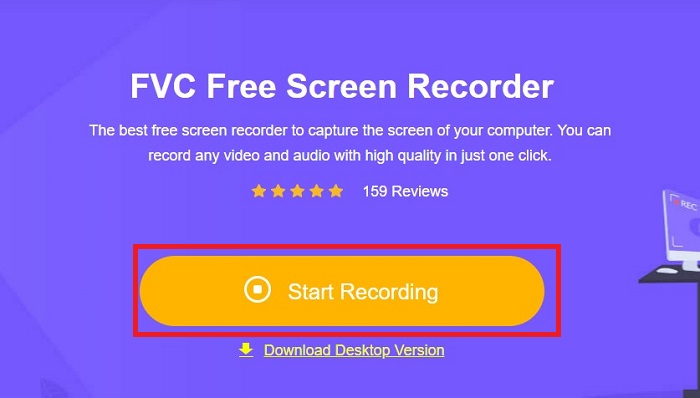
פתחו את מנוע החיפוש במכשיר שלכם והקלידו FVC Free Screen Recorder בשורת החיפוש. לאחר שהכלי יופעל, לחצו על הכפתור Start Recording במרכז כדי לגשת לכלי ההקלטה.
שלב 2. הגדירו את ההקלטה
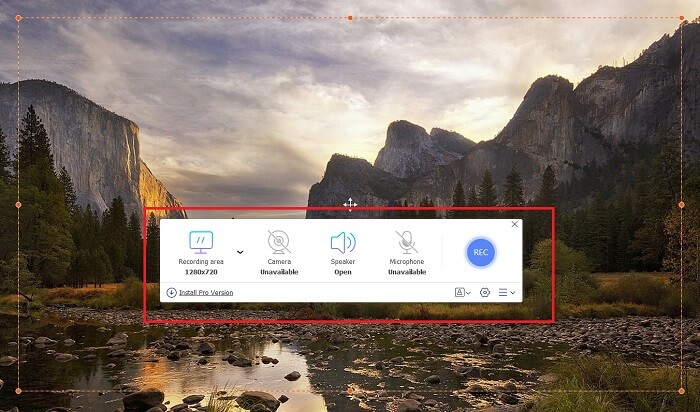
הגדירו את דרישות ההקלטה שלכם ב‑Recording Area, System Sound ו‑Camera. לאחר שכל הדרישות הוגדרו, לחצו על כפתור REC כדי להתחיל את הקלטת המסך.
שלב 3. הוסיפו הערות במהלך ההקלטה
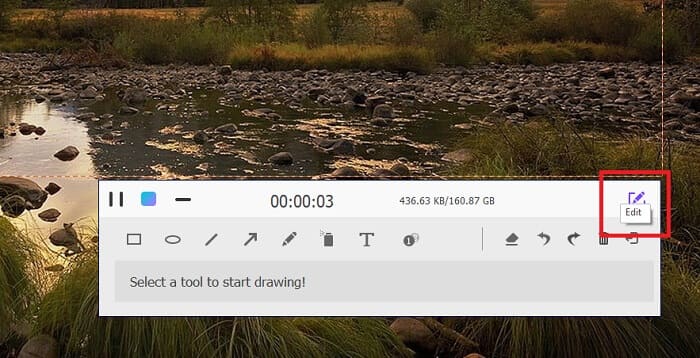
לאחר הספירה לאחור של 3 שניות, כעת אתה מקליט את המסך שלך. אם אתה צריך להוסיף הערות כגון טקסט, צורות, הדגשות ועט, לחץ על הלחצן ערוך בפינה השמאלית התחתונה של תיבת ההקלטה.
שלב 4. שימרו את הפלט
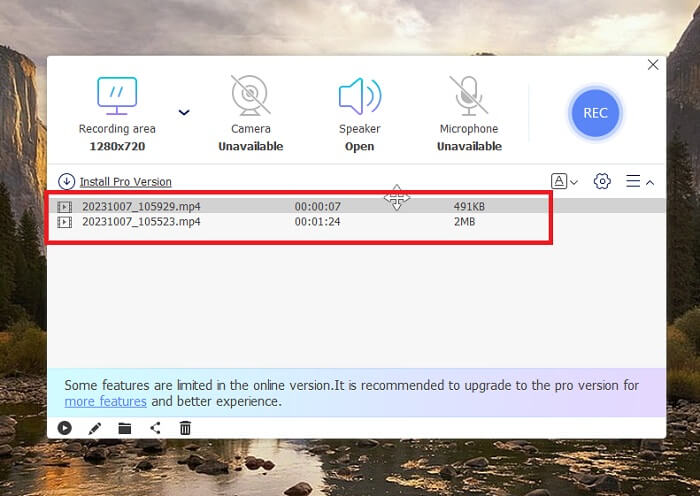
כדי לשמור את הווידאו שהקלטתם, לחצו על כפתור ה‑Stop של FVC Free Screen Recorder. לאחר תהליך השמירה תועברו ללשונית Recorded של הכלי. תוכלו גם ללחוץ על כפתור ה‑Folder כדי לגשת לתיקייה המקומית שבה שמור הפלט שלכם.
תכונות:
◆ תוכנית זו היא כלי מהשורה הראשונה להוספת הערות בזמן אמת בזמן שידור מסך.
◆ מקליט מסך חינם FVC מציע פורמטי פלט תואמים ביותר, כולל MP4 ו-WMV.
◆ כלי זה מספק אפקט תמונה-בתמונה לכיסוי מצלמת אינטרנט על המסך.
◆ כלי זה הוא תוכנת שידור מסך ללא הגבלת זמן.
2. לכידת Chrome - כלי צילום מסך ו-GIF
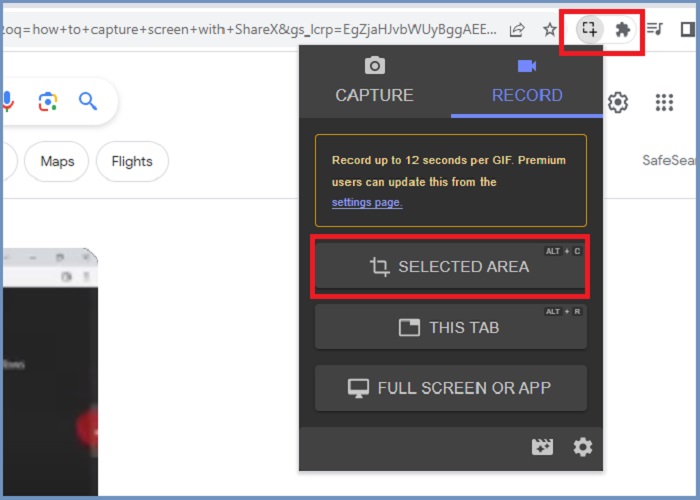
Chrome Capture הוא כלי תוסף של Google שהופך את הקלטת המסך ל-GIF. יישום דפדפן אינטרנט זה מאפשר לך לצלם את המסך שלך באזורים נבחרים, בכרטיסייה או בפעילויות במסך מלא. חוץ מזה, Chrome Capture היא האפשרות הטובה ביותר לתפוס צילומי מסך של עמוד שלם, כך שתקבל את כל המידע הדרוש. מספר משתמשים מתמכרים לכלי הזה בגלל הממשק הקל לשימוש שלו ותכונות אינטואיטיביות כמו כלי חיתוך והערות. ChromeCapture הופך את הקלטת המסך לפחות טרחה בכך שהיא מציעה מקשי קיצור לצילום מסך או עצירת ההקלטה עצמה. צור GIF מהקלטת מסך באמצעות Chrome Capture על ידי ביצוע המדריך למטה.
שלב 1. תחילה, פתחו בדפדפן Google Chrome את הדף שברצונכם ללכוד. לאחר מכן, לחצו על סמל Chrome Capture בסרגל התוספים בפינה הימנית העליונה של הדפדפן.
שלב 2. כעת עברו ללשונית ההקלטה של Chrome Capture ובחרו את סוג ההקלטה המועדף עליכם, כגון אזור נבחר, לשונית או מסך מלא. לאחר שתלחצו על הבחירה שלכם, ההקלטה תתחיל. כשתסיימו, לחצו על כפתור ה‑Stop כדי להמשיך לתהליך השמירה.
שלב 3. כדי ליצור GIF מהקלטת המסך, לחצו על כפתור ה‑Save ובחרו GIF כסוג קובץ הפלט. תוכלו גם לשנות את שם הקובץ לצורך איתור מהיר יותר.
תכונות:
◆ Chrome Capture מציע פורמטי פלט כגון WebM ו-GIF.
◆ כלי זה מקל על השיתוף המקוון של הסרטונים המוקלטים שלך.
◆ כלי העריכה של התוכנית מאפשר להוסיף טקסט, לצייר חיצים, לשנות את מהירות ההקלטות ועוד.
חלק 2: כיצד להקליט ולערוך הקלטות GIF ב-Mac ו-Windows
1. ShareX
מבחינת חוטף מסך יעיל ובו זמנית ללא עלות, ShareX נשאר ברשימה. כלי זה הוא כלי הקלטת מסך בקוד פתוח עבור מערכות ההפעלה של Windows. נוסף על כך, הוא מציע הקלטה אזורית מותאמת אישית, שבה אתה יכול לבחור אזור מסוים במסך ללכוד. חוץ מזה, ShareX כולל את כלי לכידת הגלילה, המאפשר למשתמשים לצלם צילום מסך של תוכן בבת אחת ולא מספר צילומי מסך. אם אתה רוצה ללמוד כיצד ShareX מתפקד להקלטת חלונות GIF, הנה מדריך שלב אחר שלב.
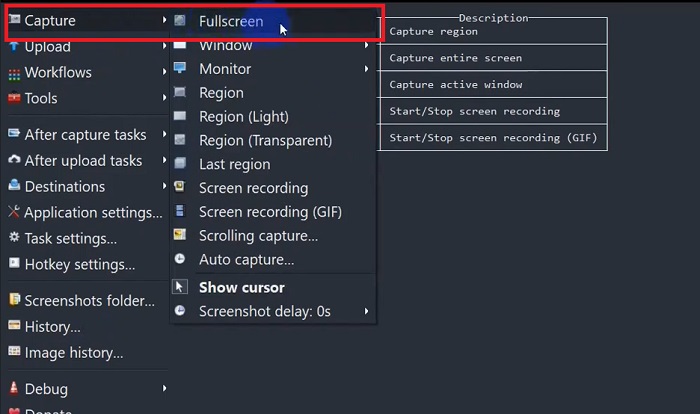
שלב 1. ראשית, פתחו את ShareX במכשיר ה‑Windows שלכם. לאחר מכן עברו ל‑Capture ובחרו את סוג ההקלטה המועדף עליכם.
שלב 2. כאשר תופיע תיבת הבחירה, הזיזו את הסמן כדי לסמן את האזור במסך שברצונכם ללכוד. לאחר מכן לחצו על Start.
שלב 3. לאחר סיום ההקלטה לחצו על כפתור ה‑Stop. לאחר מכן יופיעו שוב אפשרויות הקלטת המסך, ותוכלו לבחור את פורמטי הפלט של ה‑Video וה‑Audio. לבסוף, לחצו על כפתור ה‑Download כדי לאתר את הקובץ המוקלט במחשב.
תכונות:
◆ הוא מציע מקשי קיצור מיוחדים לשליטה בפעילות הקלטת המסך שלך בקלות.
◆ ShareX מאפשר למשתמשים להמיר הקלטת מסך ל-GIF.
◆ לכלי יש שלושה סוגים של לכידת מסך בכל אזור: מלבן, אליפסה או יד חופשית.
2. Recordit
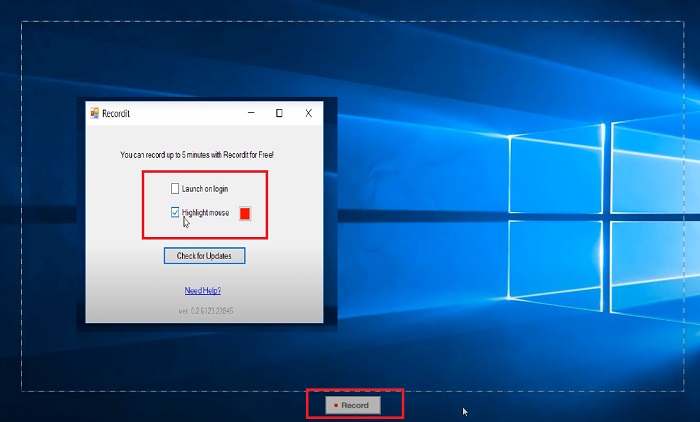
Recordit היא עוד תוכנה למופת המאפשרת לך לתפוס את פעילויות המסך שלך. כלי זה הוא כלי הקלטה מבוסס GIF והוא תואם למכשירי Windows ו-Mac. עם זאת, תקופת הניסיון החינמית של התוכנית יכולה להקליט רק עד חמש דקות לכל היותר, ותצטרך לשדרג לגרסת הפרימיום של התוכנה כדי לעבור את המגבלה הזו. כעת, נלמד כיצד לכידת מסך GIF עם התוכנית.
שלב 1. לאחר התקנת Recordit במכשיר שלכם, תראו את הסמל שלו ב‑System Tray.
שלב 2. לאחר מכן, המתינו שהכלי יוצג על המסך. גררו כדי לבחור את אזור המסך שברצונכם להקליט, ולאחר שהכול מוגדר, לחצו על Start כדי להתחיל בהקלטה.
שלב 3. לבסוף, לחצו על כפתור ה‑Stop כשסיימתם את ההקלטה. לחצו על GIF כדי לאתר את הפלט שלכם עם סיומת קובץ GIF בהגדרות.
תכונות:
◆ Recordit מספק יומן היסטורי של הקלטות המסך האחרונות והקודמים שלך.
◆ כלי זה מאפשר למשתמשים להתאים אישית את פעילויות הקלטת המסך שלהם באזורים שונים.
3. ScreenToGIF
תופס מסך נוסף שלא כדאי לוותר עליו הוא הכלי ScreentoGIF. כפי שהשם מרמז, תוכנה זו מאפשרת למשתמשים ליצור GIF ישירות מהקלטות המסך שלהם. בנוסף, זה נחשב לכלי קוד פתוח, כלומר אתה לא צריך להוציא כסף כדי לקבל אותו. ScreenToGIF יכול לצלם מסך ולייצא את הפלט שלך ל-PNG, PSD ווידאו. כמובן, אם ברצונך לשתף את קובץ ה-GIF שלך באינטרנט, ScreenToGIF יכול להעלות אותם בקלות ב-Imgur וב-Gfycat.
שלב 1. פתחו את ScreenToGIF במכשיר שלכם כדי להקליט GIF ב‑Mac או ב‑Windows.
שלב 2. כדי להתחיל בלכידת המסך, עברו ל‑Toolbox של הכלי ובחרו Recorder. לאחר מכן הזיזו את סמל הכוונת לאזור מסוים שברצונכם ללכוד.
שלב 3. לאחר מכן, לחצו על F8 במקלדת כדי לעצור את ההקלטה.
תכונות:
◆ זה מאפשר שכבת-על של מצלמת אינטרנט להקליט את עצמך ואת המסך שלך בו זמנית.
◆ באמצעות Sketchboard, אתה יכול להקליט את הציורים שלך בזמן אמת.
לקריאה נוספת:
מדריך צעד‑אחר‑צעד להמרת MP4 ל‑GIF במחשב שולחני או אונליין
5 הדרכים הטובות ביותר להפוך תמונה ל‑GIF מונפש [עודכן 2023]
חלק 3: שאלות נפוצות על המסך הקלט ל-GIF
האם ל-Mac יש כלים מובנים להפוך הקלטת מסך ל-GIF?
מבחינת מקליט מסך מובנה, למכשירי Mac יש כזה המוצע באפליקציית QuickTime. עם זאת, הפלטים המוקלטים מוגדרים ב-MOV כברירת מחדל, וייתכן שתזדקק לתוכנת צד שלישי כדי להמיר אותם ל-GIF.
האם יש כלים להקלטת GIF באייפון ובאנדרואיד?
בהחלט כן! מכשירי אייפון ואנדרואיד ניידים מגיעים עם מקליט מסך מקורי. הם יכולים גם ללכוד את צליל המערכת ואת הקול שלך דרך מיקרופון.
האם ScreentoGIF בטוח?
בהחלט, ScreenToGIF היא תוכנה חינמית במכשירי Windows והיא נקייה מתוכנות זדוניות.
האם אתה יכול להגדיר GIF למסך הבית ב-Mac?
הגדרת קובץ GIF כרקע בית ב‑Mac אפשרית ללא צורך באפליקציה נוספת. רק צריך לפתוח את Settings > System Preferences > Desktop and Screen Saver, ולבחור את קובצי ה‑GIF הזמינים.
האם מסך הנעילה של Windows יכול להיות GIF?
רוב הטפטים של Windows הם סטטיים, בניגוד למכשירי Mac. ייתכן שתזדקק לאפליקציית צד שלישי, כמו Lively Wallpaper, כדי להפעיל טפט GIF במכשיר Windows שלך.
סיכום
בין אם ברצונכם להקליט מסך ל‑GIF או ליצור GIF סטטי, להוסיף הערות ולהטמיע שכבת מצלמת רשת, משימת הסרנת המסך שלכם בהחלט אפשרית באמצעות הכלים שצוינו לעיל. פתרונות מקוונים מתאימים להקלטה מזדמנת, אך תוכנות לא‑מקוונות מומלצות מאוד אם אתם רוצים להתגבר על ניתוקים והשהיות בלתי רצויים בחיבור האינטרנט שלכם.
-
 חיתוך GIF: הכלים הטובים ביותר באינטרנט, שולחן עבודה ונייד לקיצוץ GIF
 האם אתה רוצה לצלם חלק מ-GIF כדי להעביר את הרגשות והתגובות שלך במדויק? כאן, תנו לגלות ולמטב כלים שונים כדי לחתוך קובצי GIF מונפשים.
-
 6 אפליקציות GIF מדהימות לאייפון בשנת 2023 (ביקורות)
 פוסט זה ידריך אותך דרך האפליקציות הטובות ביותר ליצירת GIF לאייפון ולמחשבים. בדוק אותם ולמד מה יש להם להציע.
-
 תוכניות 3D GIF Maker מהשורה הראשונה שלא תרצו לפספס
 הצורך למצוא ולהעריך כל יישום 3D GIF Maker שאתה רואה יכול להיות גוזל זמן. למרבה המזל, ערכנו רשימה שתוכל לקרוא.
