


 ממיר וידאו אולטימטיבי
 מקליט מסך
 תיקון וידאו
 הורדה מאובטחת
How to Take, Save, and Find Genshin Impact Screenshots [2026 Guide]
My initial visit to the world of Teyvat is still vividly etched in my memory, mainly the moment when I came across a stunning view just as the sun was setting behind the mountains. Like lots of players, my natural reaction was to take a photo of the scene before it was gone. This is just one of the reasons why Genshin Impact is such a wonderful game.
To take a Genshin Impact screenshot might appear easy at first glance; Still, there are quite a few techniques to get the best snapshot.
This article is dedicated to educating you on the most efficient methods of taking screenshots in Genshin Impact, providing you with information about the shortcut keys for various devices, and helping you locate your stored pictures later.

Part 1. How to Take a Genshin Impact Screenshot
Genshin Impact not only lets you shoot some great scenery of Teyvat but also helps you save a character pose that will remain memorable for a long time. The game gives various ways to take screenshots. For people who may be wondering how to screenshot in Genshin Impact on PC, below is a guide that will show you how to get everything from a battle scene to an interface-free photo of very high quality.
Method 1. Using the “Kamera” Gadget for Action Shots
The Kamera gadget is definitely one of the simplest tools if you'd like to capture a battle, a moment of gliding, or other dynamic scenes. It is different from Photo Mode as it gives you the possibility to capture pictures while you are playing your main activity without pausing the game. Once the picture is taken, you can find it in the Genshin Impact game directory screenshot folder or the default screenshot location of your device.
Step 1. Launch your Inventory in Genshin Impact. Now, go to the Gadgets tab.
Step 2. Use the Kamera or Special Kamera gadget. Go back to the game and find a good spot for your character or scene.
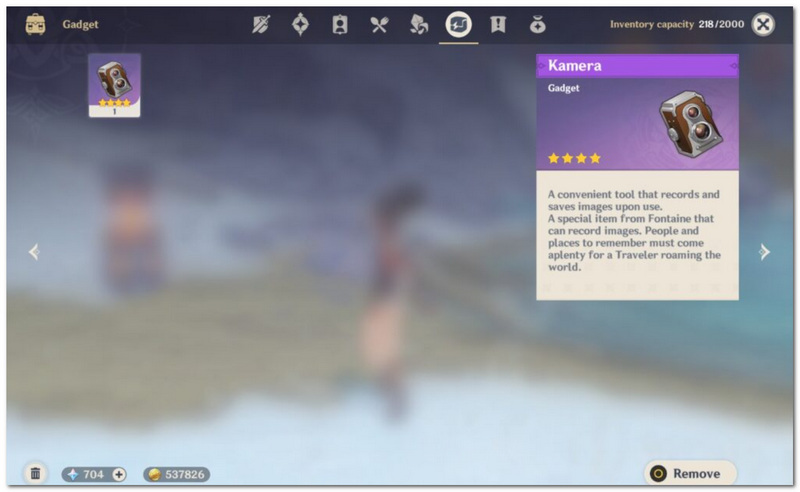
Step 3. Press your gadget activation button to access the camera interface. Make changes to the angle and framing if you want.
Step 4. Hit the capture button to freeze the moment. Carry on with this method when you wish to take more action pictures.
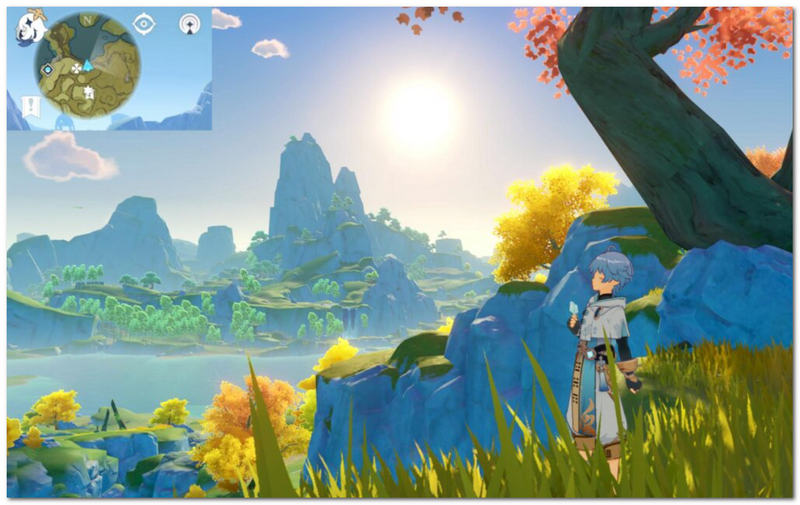
Players who want quick screenshots without using Photo Mode will find the Kamera gadget perfect.
Method 2. Using the In-Game Photo Mode (Hiding UI & Posing)
Genshin Impact's native Photo Mode is definitely the preferred option if you are going for neat and professional-looking screenshots. With it, you can easily hide the user interface, change the camera perspective, or even strike a pose for the character to give more variety to the shots. Although some may think of a simple Genshin Impact screenshot hotkey, Photo Mode is, in fact, more capable of letting you refine your resulting picture.
Step 1. Open Paimon's menu in the game. Tap the camera icon to launch Photo Mode.
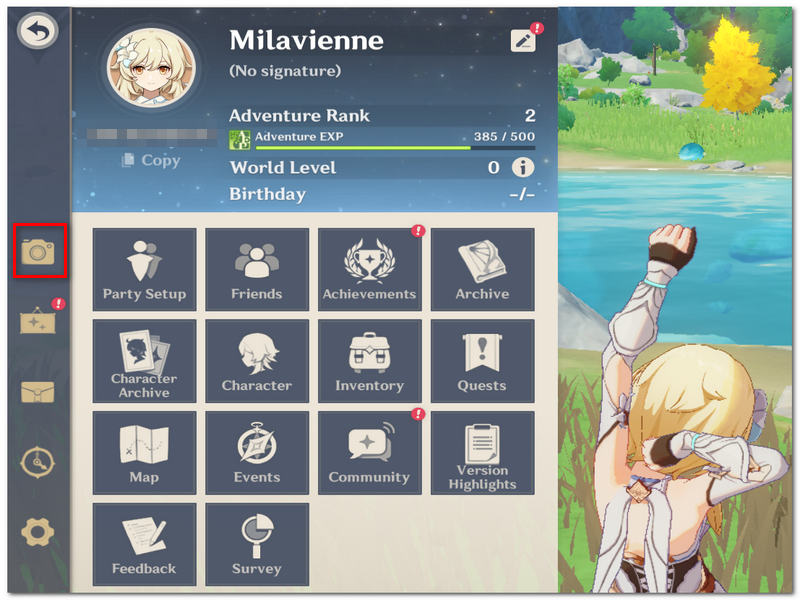
Step 2. Move the camera around to your liking, zoom in/out, and change character location.
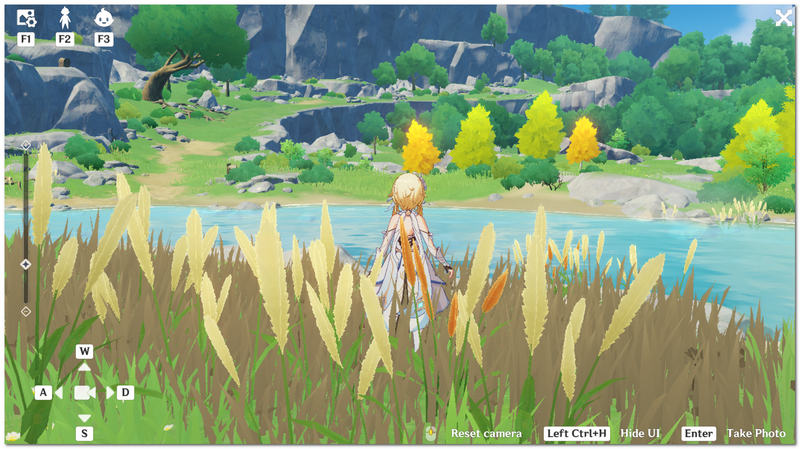
Step 3. Use the hide UI option, so no one can tell you took the image from a game.
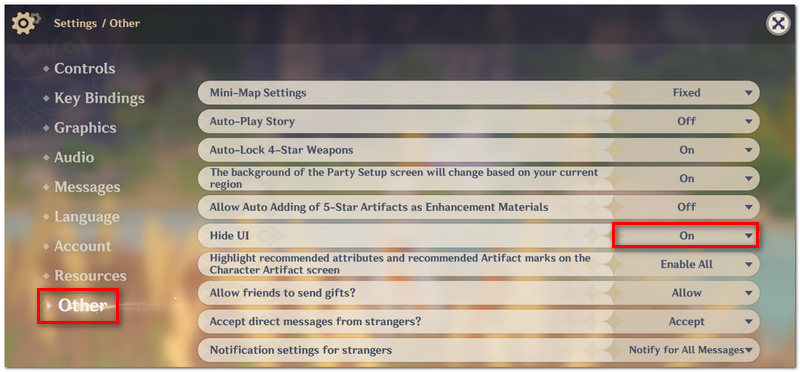
Step 4. Select a suitable character pose and/or expression if you want. Adjust the composition to get a great photo.
Step 5. Press the Take Photo button and save your picture and back out of Photo Mode.
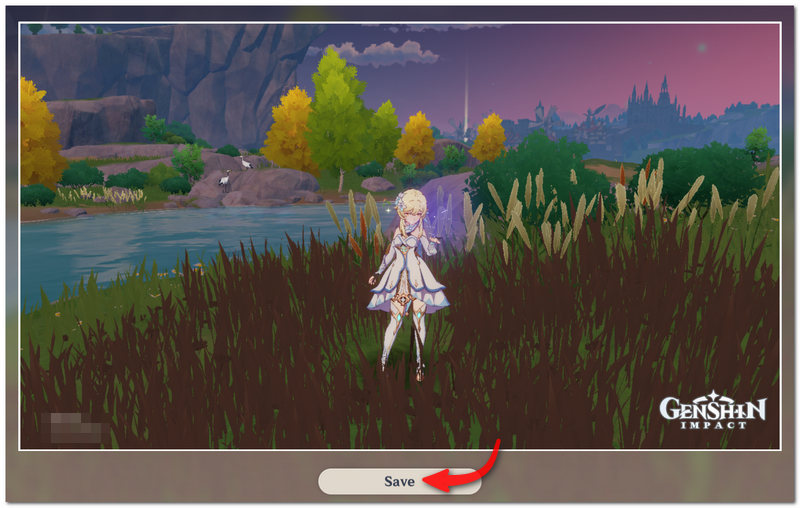
Photo Mode is the best choice when you want a beautiful landscape, a detailed character close-up, or high-quality screenshots for your social networking sites. This is because it not only hides the distractions but also gives you more control over picture customization.
Method 3. Using a Professional Screen Recorder
Perhaps the built-in screenshot tools are too restrictive for you, so you want to have more flexibility. If this is the case, you should consider using FVC Screen Recorder as it is an excellent alternative. It is capable of taking screenshots and recording gameplay videos, as well as allowing you to select custom capture areas and save images in very high quality. This makes it a great tool for anyone who wants to make guides, share their game moments with others, or even just take photos of scenes that are hard to capture with the in-game camera.
Steps to Take a Genshin Impact Screenshot with FVC Screen Recorder
Step 1. Get FVC Screen Recorder downloaded and installed on your system.
הורדה חינמיתעבור Windows 7 או גרסה מאוחרת יותרהורדה מאובטחת
הורדה חינמיתעבור MacOS 10.7 או גרסה מאוחרת יותרהורדה מאובטחת
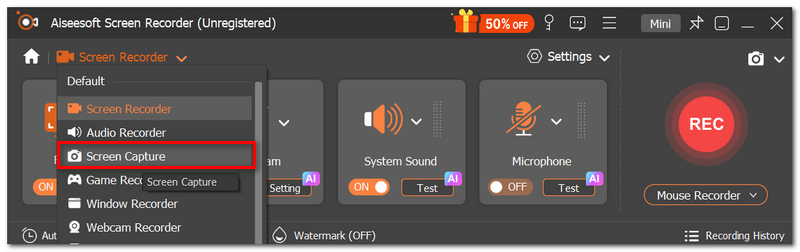
Step 2. Open the app and click on Screen Capture on the main screen.
Step 3. Start Genshin Impact and get to the point that you want to screenshot. Select the portion you want to screenshot by dragging the mouse, or pick the capture full screen option.
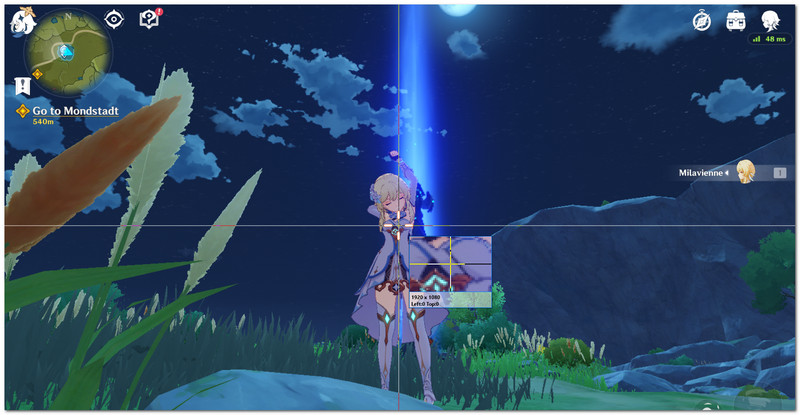
Step 4. Move your mouse that initiates capture to snap your screenshot. If you want, you can make use of the tools for editing inside the program to make additions, draw arrows, write text, or highlight.
Step 5. Click to save the screenshot. To check the image quality, open the screenshot you have saved.
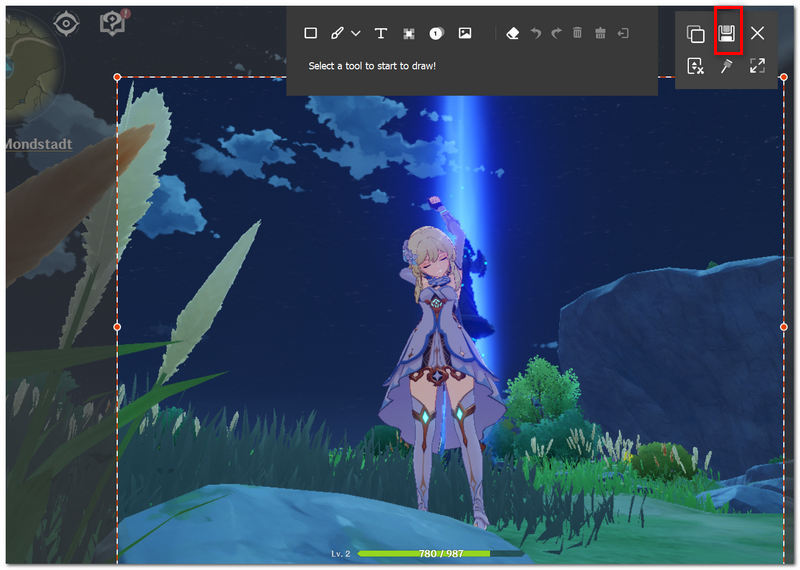
FVC Screen Recorder is a significant tool for gamers who are interested in getting higher-quality screenshots and taking scrolling screenshots, using features for editing, and also being able to take pictures even when outside of Genshin Impact's camera features.
Part 2. Screenshot Shortcuts in Genshin Impact (PC, PS4/PS5, iOS/Android)
You can quickly take a Genshin Impact screenshot without going through menus if you know the correct shortcut. Depending on your platform, different screenshot buttons are available.
| פּלַטפוֹרמָה | Screenshot Shortcut |
| PC (Windows) | PrtScn (Print Screen) to capture the entire screen, or Windows + Shift + S to capture a selected area. |
| PC (Genshin Photo Mode) | Open Paimon Menu > Camera and click Take Photo. |
| PS4 | Press and hold the SHARE button to save a screenshot. |
| PS5 | לחץ על הלחצן "צור" ולאחר מכן בחר "צלם צילום מסך". |
| אייפון (iOS) | לחץ על לחצן הצד + הגברת עוצמת הקול בו-זמנית. |
| דְמוּי אָדָם | לחץ על לחצן ההפעלה + הפחתת עוצמת הקול בו-זמנית. |
Quick Tips
- • כדי לצלם שוטים של אקשן, השתמש בגאדג'ט המצלמה או בקיצור הדרך לצילומי מסך במכשיר שלך.
- • עבור פורטרטים נקיים של דמויות ונופים יפים, תוכל להשתמש במצב צילום (Photo Mode) כדי להסתיר את ממשק המשתמש (UI).
- • אם ברצונך לכידות ברזולוציה גבוהה יותר או אם אתה צריך להוסיף הערות, ייתכן שתרצה להשתמש בתוכנת לכידת מסך כמו FVC Screen Recorder.
Part 3. Where Are Genshin Impact Screenshots Saved
After you've taken a screenshot, your next question would be where to find Genshin Impact screenshots on your device. The storage place of the captured images differs based on the platform and the method of taking the screenshot.
| פּלַטפוֹרמָה | מיקום צילום המסך |
| מחשב (מצב צילום בתוך המשחק) | Genshin Impact\Genshin Impact Game\ScreenShot |
| מחשב (Windows + PrtScn) | Pictures\Screenshots |
| מחשב (Windows + Shift + S) | נשמר תחילה ללוח; עליך להדביק ולשמור ידנית או לגשת אליו דרך כלי החיתוך (Snipping Tool). |
| PS4 | גלריית לכידת |
| PS5 | גלריית מדיה |
| אייפון (iOS) | אפליקציית התמונות > אלבום צילומי מסך |
| דְמוּי אָדָם | אפליקציית גלריה/Photos > תיקיית Screenshots |
Can't Find Your Screenshots?
Here are some suggestions you could follow to find your missing screenshots:
- 1. בדוק שאכן צילמת צילומי מסך באמצעות המצלמה בתוך המשחק או בעזרת קיצור הדרך לצילומי מסך במכשיר שלך.
- 2. לחלופין, תוכל לנסות לחפש במכשיר קבצים בשם "Screenshot".
- 3. בנוסף, בדוק את הגדרת תיקיית השמירה של צילומי המסך בתוכנת צילום המסך שאתה משתמש בה.
- 4. כדי לאתר את צילומי המסך החדשים, תוכל לפתוח את תיקיות התמונות ולמיין אותן לפי תאריך השינוי.
After discovering the correct path where your screenshots are saved, you will find it easier to organize and share the moments you had playing Genshin Impact that you like the most.
Part 4. FAQs on Genshin Impact Screenshot
מדוע חלק מצילומי המסך של Genshin Impact נראים לי כהים יותר מאשר הסצנה בפועל במהלך המשחק?
מכיוון שתאורה דינמית, יכולות HDR ושינויים באפקטים בשלב הפוסט-פרוססינג עשויים לפעמים לגרום לכך שהתוצאה המצולמת תיראה שונה ממה שאתה רואה על המסך בזמן אמת.
מדוע בעיני הדמות שלי בצילומי המסך נראה שהן סגורות, בעוד שעל המסך הן נראו פתוחות עבורי?
לדמויות יש לא רק אנימציות עמידה, אלא גם מחזורי מצמוץ שיכולים להתרחש בדיוק ברגע שבו מצולמת התמונה.
האם ניתן להשתמש בצילומי מסך כדי לעקוב אחר ההתקדמות שלי ב‑Genshin Impact?
כן. גיימרים רבים מתעדים את מבני הדמויות שלהם, השלמת משימות, חקר אזורים והשתתפות באירועים באמצעות צילומי מסך.
סיכום
I'm sure after you read Genshin Impact how to screenshot PC, you're capable of effortlessly capturing, saving, and locating your favorite moments in the game. No matter if you employ the Kamera gadget, Photo Mode, or a screen capture tool, deciding on a proper method will assist you in making quality screenshots of your journeys in Teyvat.
-
 גלו אתרי הורדת משחקי מחשב בחינם: 6 אפשרויות עבורכם
 אם אתם מוכנים ליהנות ממשחקי מחשב מרגשים אבל לא יודעים היכן להוריד משאבים, עיינו במדריך הזה. הנה 6 אתרים להורדת משחקי מחשב בחינם.
-
 [סקירה מלאה] מקליט משחקים FBX: האם זה באמת שווה לנסות?
 אם אתם רוצים להשתמש ב-FBX Game Recorder אבל לא יודעים מאיפה להתחיל, מאמר זה מכסה את כל מה שאתם צריכים לדעת, כולל האלטרנטיבה הטובה ביותר שלו.
-
 כיצד לקבל איכות 4K ב-OBS: התיאור המפורט ביותר
 אם אתם משחקים במשחק ברזולוציה גבוהה ורוצים להקליט את הווידאו הברור ביותר של הפעולות שלכם, קראו את המדריך הזה. נלמד אתכם כיצד להשיג איכות 4K ב-OBS.
