


 ממיר וידאו אולטימטיבי
 מקליט מסך
 תיקון וידאו
 הורדה מאובטחת
כיצד לצלם מסך מפות Google: תכנן, צילום מסך וחקור
Google Maps stands out as a beacon of navigation excellence. Whether you're mapping out your next road trip, scouting a new hiking trail, or simply navigating through the urban jungle, Google Maps has become an indispensable tool for travelers and explorers alike. But what happens when you stumble upon the perfect route or stumble upon a hidden gem? Capturing these moments is essential, and that's where knowing how to Google Maps screenshot comes into play. In this article, we'll walk you through 3 ways to plan your journey effectively, get those critical screenshots ready by means of software tools and on mobile devices, and embark on a seamless exploration adventure. What are you waiting for? Hope in and continue reading to unlock the full potential of Google Maps and screen capturing together.

חלק 1. כיצד לצלם מסך של מפות Google ב-Windows/Mac עם מקליט מסך
How do you screenshot Google Maps? To take a screenshot of Google Maps, you can use software such as FVC picked Screen Recorder. This tool is easy to use and allows you to capture images of anything displayed on your screen. It is available to download for free on both Mac and Windows computers, so it's a great choice for capturing Google Maps screenshots and other activities.
Step 1. Install this Google Maps screenshot tool, by visiting their official website, and download the software if you haven't already.
הורדה חינמיתעבור Windows 7 או גרסה מאוחרת יותרהורדה מאובטחת
הורדה חינמיתעבור MacOS 10.7 או גרסה מאוחרת יותרהורדה מאובטחת
Step 2. Open the software on your computer, then select Snapshot in the main interface to capture the Google Maps image you want.
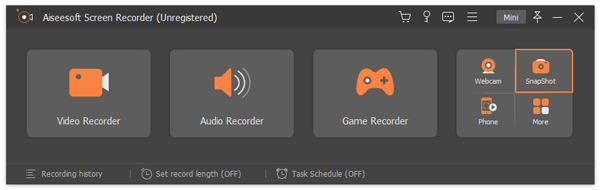
Step 3. To select the area you want to capture, move your mouse to the area you want to capture and left-click on it.
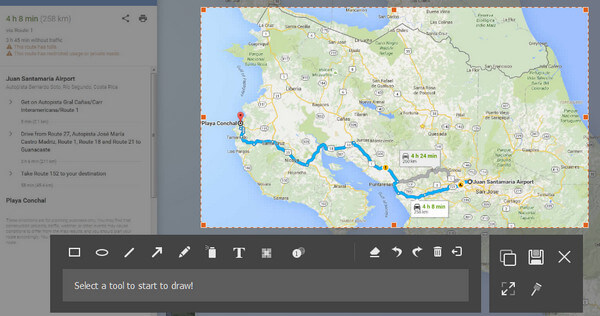
Step 4. You may edit your screenshot by adding/drawing shapes and text on it to highlight or emphasize the locations, and once satisfied, click the Save button in the lower-right corner of the tool.
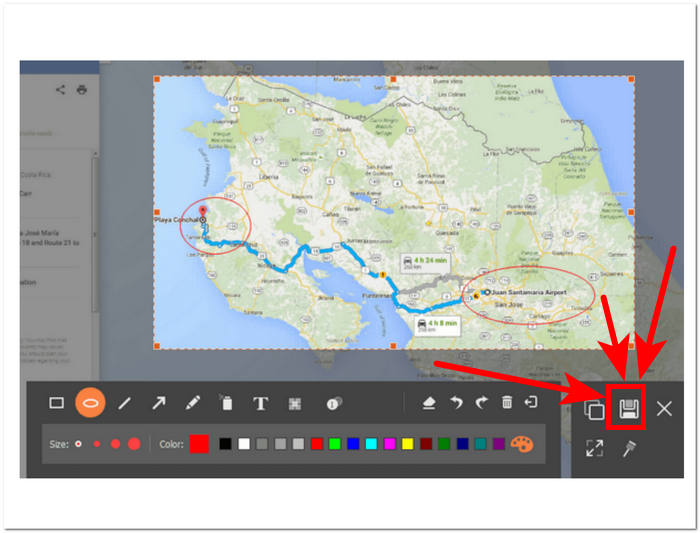
כלי צילום מסך זה הוא תוכנה רב תכליתית ללכידת צילומי מסך. זה לא רק מאפשר למשתמשים לצלם צילומי מסך אלא גם להקליט מסכים, אודיו ומשחקים. זהו כלי נוח שניתן למקסם עבור משימות צילום מסך שונות מעבר לצילום מסך של מפות Google.
חלק 2. כיצד לצלם מסך של מפות גוגל עם כלי חיתוך וקיצורי דרך
כדי לצלם צילום מסך של מפות Google שלך, תוכל להשתמש בכלי החיתוך ובקיצורי ברירת המחדל של המחשב שלך. זה מאפשר לך ללא מאמץ ללכוד תוכן על המסך שלך ללא צורך להשתמש בתוכנה נוספת. עם זאת, חשוב לציין ששיטה זו אינה מספקת תכונות עריכה כלשהן, כך שלא תוכל להוסיף דגשים או הערות לצילום המסך שלך, ובמקרה זה, למפות Google שלך.
חלונות
Step 1. Open Google Maps from your local browser and find the location or route you want to capture.
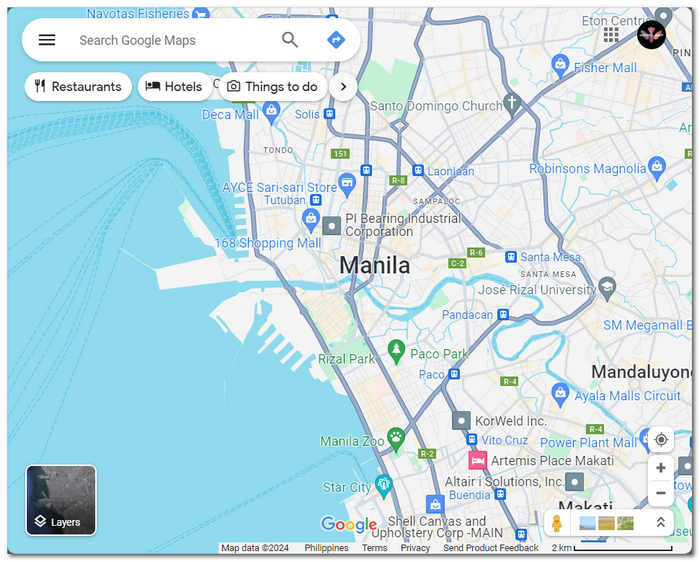
Step 2. Open the Snipping Tool by either searching for it in the Start menu or pressing the Windows Logo Key + Shift + S simultaneously on your keyboard.
Step 3. Choose one of the four modes available: Rectangular Mode, Freedom Mode, Window Mode, or Fullscreen Mode
If you want to take a scrolling screenshot on Windows, check it here.
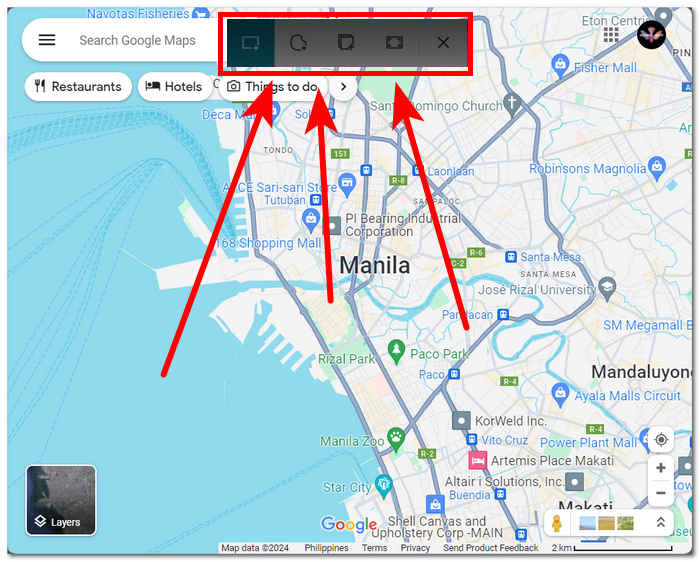
Step 4. Once you have captured the screenshot, you can save it or paste it on any email or messaging platform by pressing Ctrl + V.
מק
Step 1. Open Google Maps in Safari and navigate to the desired map.
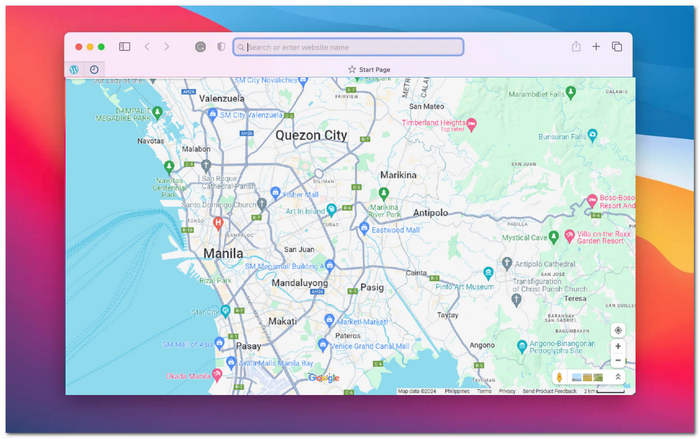
Step 2. Press and hold Shift + Command + 4 + Spacebar keys all at once. Your cursor will automatically transform into a camera icon.
Step 3. Click on the Safari window to capture the desired Google map.
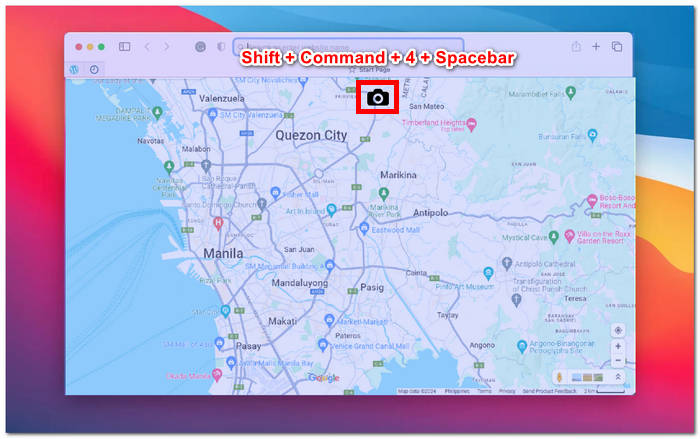
Step 4. Once you have a thumbnail of your screenshot pop-ups on your screen, click on it to edit and save to your local storage. It's that simple!
For taking a scrolling screenshot on Mac for Google Maps, check it here.
בעת צילומי מסך של מפות Google, ייתכן שהשתמשת בכלי החיתוך המוגדרים כברירת מחדל שסופקו על ידי המחשב שלך, שיכולים לחסוך זמן ולמנוע את הצורך בהורדת תוכנה או שימוש בכלים של צד שלישי. עם זאת, כלי חיתוך ברירת המחדל הללו חסרים תכונות עריכה. אם ברצונך לערוך את צילום המסך שלך, תצטרך להוריד תוכנה נוספת למטרה זו או, יותר טוב, להוריד כלי תוכנה המציעים גם צילום מסך וגם עריכה במשימה אחת כמו FVC Screen Recorder המומלץ.
חלק 3. כיצד לצלם מסך מפות גוגל באייפון/אנדרואיד
לכידת צילום מסך של מפת Google במכשיר אנדרואיד או אייפון היא דרך שימושית לשמור תצוגת מפה או הנחיות לעיון מאוחר יותר. כדי לעשות זאת, עליך לבצע כמה צעדים פשוטים שנמצאים במאמר זה. בין אם אתה משתמש באנדרואיד או באייפון, צילום מסך של מפות Google הוא קל עם ההדרכה הנכונה.
דְמוּי אָדָם
Step 1. Through your Android device, open the Google Map app.
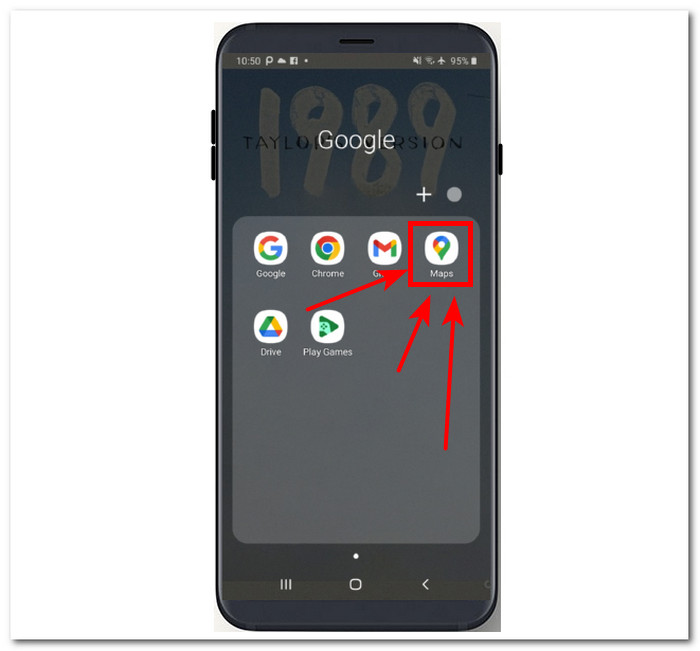
Step 2. Navigate to the location on the map that you want to capture.
Step 3. To capture your screen, press the Volume Down and Power buttons.
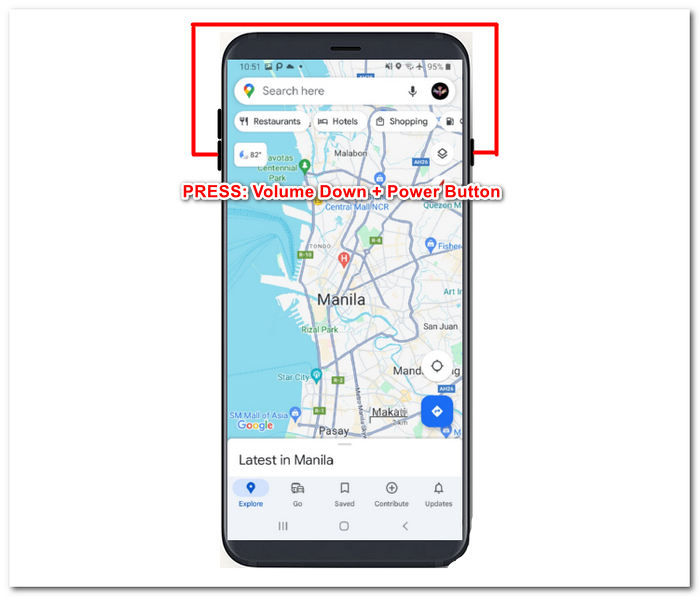
Step 4. Your Google Map screenshot will be automatically saved in your device's gallery for you to view and share as needed.
אייפון
Step 1. On your iPhone, launch the Google Map app.
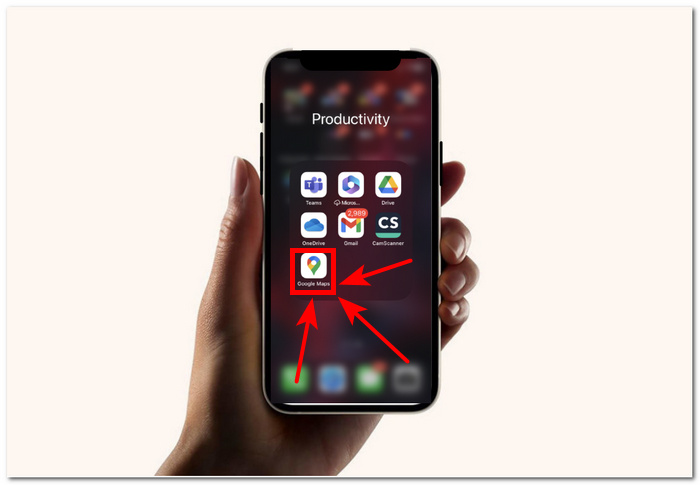
Step 2. Navigate to the location that you want to capture.
Step 3. Press the Volume Up + Power Button simultaneously to take a screenshot.
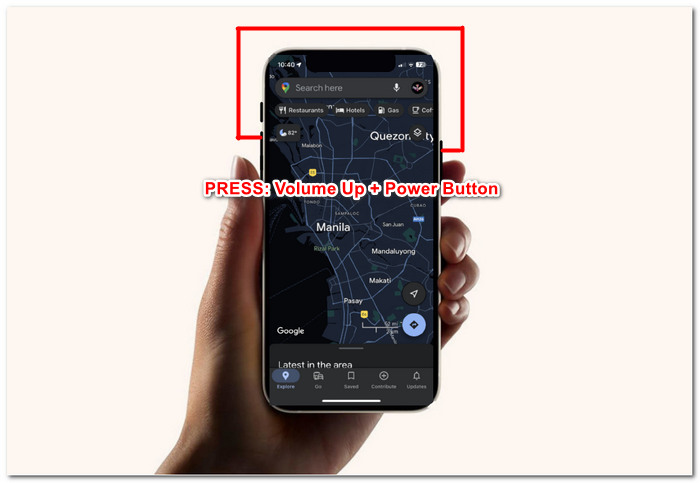
Step 4. The screenshot is automatically saved as JPG on your Photos or Gallery app.
כדי לצלם צילום מסך של מפות Google, השיטה המהירה והפשוטה ביותר היא להשתמש במכשיר הנייד שלך. גישה זו מאפשרת לך לצלם צילום מסך באופן מיידי, וזה מועיל, במיוחד עבור משתמשים שנמצאים תמיד במכשירים הניידים שלהם ומעדיפים שיטה זו על פני שימוש במחשב.
חלק 4. שאלות נפוצות אודות איך לצלם מסך של מפות Google
האם אוכל לצלם מסך של מפות Google במחשב שלי?
כן, ישנן מספר דרכים לצלם צילומי מסך של מפות Google במחשב שלך. אתה יכול להשתמש בכלי ברירת המחדל של צילום מסך הזמינים במכשיר שלך או לבחור בתוכנת צד שלישי. שיטות אלו קלות לשימוש וניתן לסמוך עליהן כדי ללכוד את תמונת המפה הרצויה במחשב במהירות.
האם זה חוקי לצלם מסך של מפות גוגל?
כשמצלמים צילומי מסך של מפות גוגל לשימוש אישי, זה בדרך כלל חוקי. עם זאת, חשוב לציין ששימוש בצילומי מסך אלו למטרות מסחריות או הפצתם ללא רשות עלולים להפר את תנאי השירות או חוקי זכויות היוצרים של גוגל.
האם אוכל ללכוד אזור מסוים במפות Google?
כן, כלים רבים לצילום מסך מספקים אפשרות ללכוד אזור מסוים במסך, מה שיכול לעזור מאוד כאשר אתה צריך ללכוד אזור מסוים, כמו מפות גוגל. תכונה זו מאפשרת לך לצלם צילום מסך רק של חלק המסך שברצונך לצלם ולא של המסך כולו, מה שמקל על ההתמקדות בפרטים החשובים.
האם יש מגבלות או הגבלות בעת צילום מסך של מפות Google?
למרות שבדרך כלל אתה יכול לצלם את מפות Google לשימוש אישי, שים לב לתנאי השירות של Google. הימנע משימוש בצילומי מסך למטרות מסחריות ללא אישור מתאים, וכבד את כל הגבלות זכויות היוצרים או השימוש.
האם אוכל לצלם תמונות של תצוגת רחוב ממפות Google?
למפות גוגל אין אפשרות ישירה ללכוד תמונות תצוגת רחוב. אבל כדי לקבל את צילום המסך הזה באיכות גבוהה של מפות Google, אתה יכול להשתמש בתוכנת הקלטת מסך כדי להקליט את תצוגת הרחוב בזמן שאתה מנווט בה.
סיכום
Screenshotting Google Maps is a great way for travelers, adventurers, and regular users to explore the world without the need to have internet access. It has become a basic knowledge when handling navigation and exploration, providing detailed maps, directions, and real-time traffic updates. There are various methods available for capturing Google Maps HD screenshots, whether you're using a computer or a mobile device. You can use specialized software like FVC picked Screen Recorder or built-in tools and shortcuts on Windows, Mac, Android, and iPhone devices. This makes capturing the perfect map view easier than ever before.
-
 כיצד לצלם צילומי מסך גלילה בפיירפוקס ללא מאמץ
 למד לגלול צילומי מסך בפיירפוקס כדי ללכוד דפי אינטרנט שלמים באופן מיידי. עקוב אחר המדריך הקל שלנו שלב אחר שלב כדי ללמוד כיצד להשתמש בתכונה זו.
-
 מדריך שלב אחר שלב לצילומי מסך ב-VLC Media Player
 למד את השלבים הפשוטים לצילום מסך של VLC ללא מאמץ. עקוב אחר המדריך שלנו לצילום מהיר וקל באמצעות מקשי קיצור והגדרות תפריט.
-
 כיצד לצלם מסך ב-Windows Media Player ביעילות
 גלה את השיטות הפשוטות ביותר לצלם צילומי מסך ב-Windows Media Player ללא מאמץ. שפר את חווית צילום המסך שלך עם המדריך המקיף שלנו.
