


 ממיר וידאו אולטימטיבי
 מקליט מסך
 תיקון וידאו
 הורדה מאובטחת
4 דרכים לצילום מסך ב-Windows Media Player
Windows Media Player הוא נגן פופולרי המאפשר לך להציג כל סוגי המדיה. הנגן מגיע עם יכולות כגון צפייה בתמונות, נגן מוזיקה, צפייה בסרטונים ומארגן אוספי מוזיקה. השימוש ב‑Windows Media Player מסייע למשתמשים לבצע משימות הקשורות למדיה, ובמאמר זה נבהיר כיצד לבצע צילום מסך ב‑Windows Media Player. ניגון סצנה בלתי נשכחת מסרט, קטע קצר מסרטון הדרכה או רגע מצחיק באמצעות הנגן נותן לך חופש לצלם ולשמור את הרגעים הללו בזמן שנוח לך. עם זאת, משתמשים רבים אולי אינם מודעים לכלים המובנים והטכניקות הזמינות לצילום צילומי מסך בתוך נגן רב־תכליתי זה. עיין במאמר עד סופו כדי ללמוד ארבע שיטות קלות ויעילות לצילום מסך ב‑Windows Media Player, הכוללות שימוש בתוכנה, מקשי קיצור, כלי החיתוך (Snipping Tool) והכלי המובנה שלו, המאפשרים לך ללכוד את הרגעים האלה בקלות.
חלק 1. כיצד לצלם צילום מסך ב-Windows Media Player
לקחת צילום מסך ב‑Windows Media Player זה פשוט ולא אמור לגזול מזמנך בביצוע הפעולה או בלמידה שלה. יש אינספור דרכים לעשות זאת, והדרך המומלצת לצלם מסך של נגני מדיה ב‑Windows 11 או גרסאות קודמות היא שימוש בכלי תוכנה כמו Screen Recorder שנבחר על ידי FVC. תוכנה זו היא כלי רב־תכליתי שנועד לענות על הצורך בלכידת מסך של כל סוגי המדיה, במיוחד ב‑Windows Media Player. באמצעות תוכנה זו, משתמשים יכולים לבצע משימות על המסך ולהקליט סרטונים, שמע ומשחקים במקום אחד, בשונה מכלים אחרים המתמקדים רק בפונקציה אחת מסוימת. בנוסף, התוכנה מציעה מאפיינים ידידותיים וחוסכי זמן. כלי העריכה שלה מקלים על המשתמשים לערוך את צילומי המסך ברגע שהם נלקחים.
שלב 1. התחל בהורדה ובהתקנה של כלי צילום המסך הזה במחשב שלך. לאחר השלמת תהליך ההתקנה, פתח את התוכנה.
הורדה חינמיתעבור Windows 7 או גרסה מאוחרת יותרהורדה מאובטחת
הורדה חינמיתעבור MacOS 10.7 או גרסה מאוחרת יותרהורדה מאובטחת
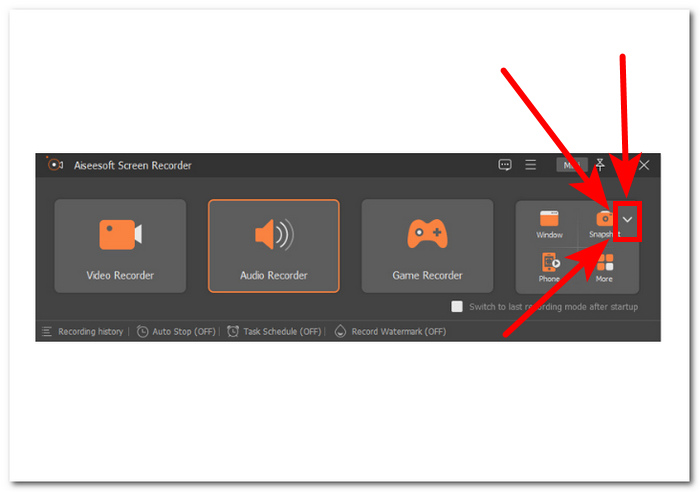
שלב 2. לאחר פתיחת התוכנה, תראה סמל עם כפתור חץ‑מטה של Snapshot הממוקם בצד ימין. לחץ על כפתור זה כדי להמשיך.
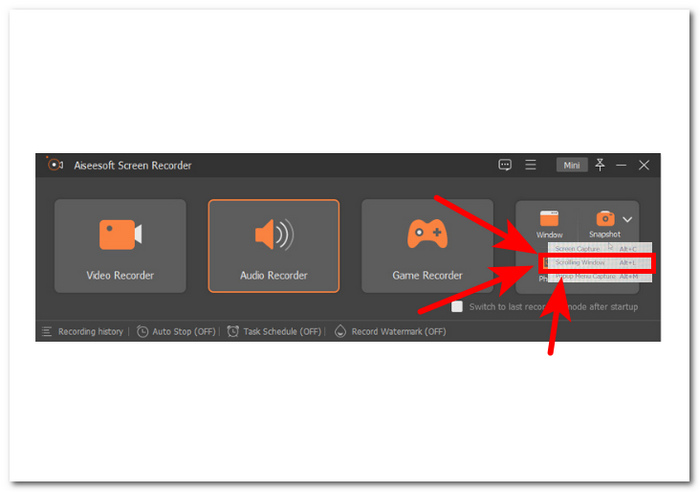
שלב 3. בחר את האפשרות Scrolling Window מתפריט הבחירה. לחלופין, ניתן להשתמש בקיצור Alt+L במקלדת.
שלב 4. כאשר האפשרות Scrolling Window נבחרה, התוכנה תבצע צילום מסך באופן אוטומטי. כעת תוכל לגלול מטה כדי ללכוד את כל המידע שאתה צריך. התוכנה תצלם את מלוא אורך הדף או המסמך, ותאפשר לך לשמור או לשתף אותו לפי הצורך.
FVC מומלץ להקליט מסך הוא כלי אמין שניתן להשתמש בו כדי לצלם צילום מסך של סרטון ב-Windows Media Player. תוכנה זו זמינה בחינם במכשירי Mac ו-Windows, מה שמבטיח בסיס משתמשים רחב. עם מגוון תכונות הקלטת ולכידת המסך שלו, כלי צילום מסך זה מושלם לכל מי שזקוק לכלי אמין ורב תכליתי ללכידת מסך המחשב שלו.
חלק 2. צילום מסך ב-Windows Media Player עם קיצורי דרך של Windows
אם אתה משתמש ב-Windows Media Player ואתה צריך לצלם צילום מסך, אין צורך להוריד כלים של צד שלישי. כדי לצלם תמונות מווידאו של Windows Media Player, אתה יכול להשתמש במקשי קיצור כדי לצלם במהירות ובקלות צילום מסך של הסרטון שבו אתה צופה. זו יכולה להיות דרך מצוינת לתפוס תמונת סטילס מסרטון לעיון או לשיתוף עם אחרים. פשוט השתמש במקשי הקיצור המתאימים וצילום המסך שלך יישמר להעברה קלה לתוכנת עריכת מסמכים או תמונות.
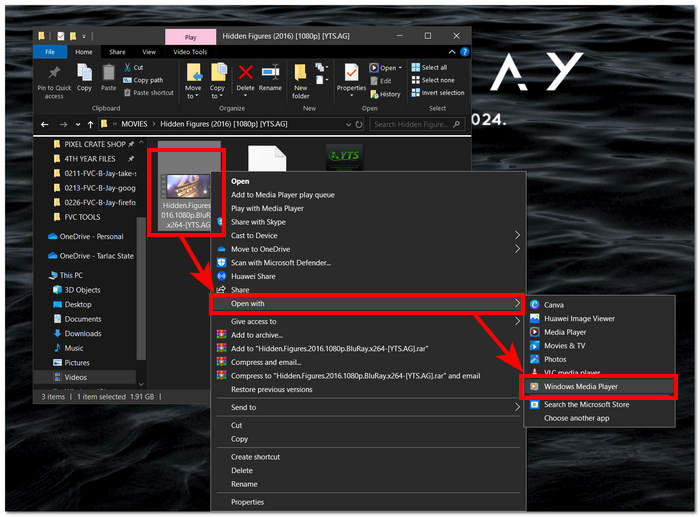
שלב 1. כדי להתחיל, הפעל את Windows Media Player במחשב שלך. בחר את הסרטון שממנו ברצונך לקחת צילום מסך.
שלב 2. כאשר תגיע לפריים המדויק בסרטון שברצונך ללכוד כצילום מסך, עצור את הסרטון על ידי לחיצה על כפתור Pause.
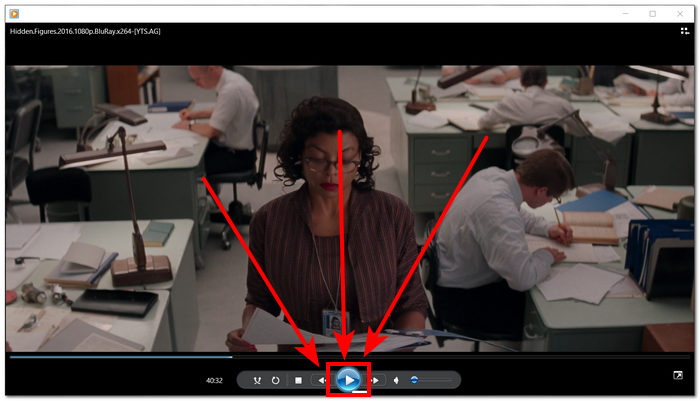
שלב 3. איתר את כפתור PrtScn במקלדת ולחץ עליו. פעולה זו תצלם את המסך ותשמור אותו כקובץ תמונה. (כיצד לבצע צילום מסך בלי PrtSc?)
שלב 4. צילום המסך נשמר אוטומטית במיקום ברירת המחדל לאחסון במחשב שלך. כדי למצוא אותו, חפש חלון קופץ שבו כתוב screenshot saved.
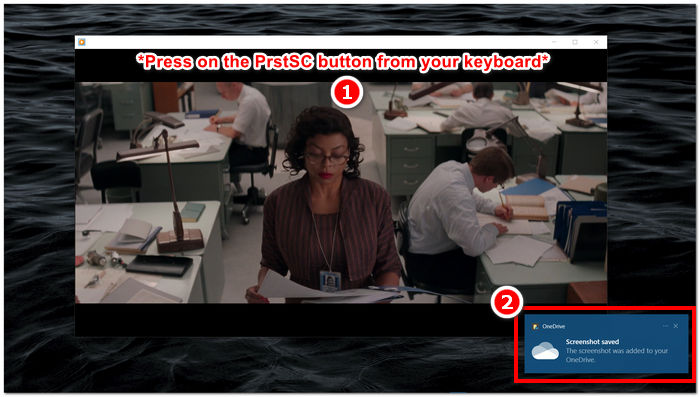
בעת צילום מסך ב-Windows Media Player, שימוש במקשי קיצור יכול לחסוך למשתמשים זמן ולבטל את הצורך להשתמש בכלי. אמנם השיטה הזו יעילה ומועילה למי שממהר, אבל חשוב לציין שהיא לא מאפשרת כל עריכה של צילום המסך.
חלק 3. כיצד לצלם צילום מסך ב-Windows Media Player עם כלי חיתוך
אם ברצונך לצלם צילום מסך בזמן הפעלת סרטון ב-Windows Media Player, תוכל לעשות זאת בקלות מבלי להתקין תוכנה נוספת. כלי החיתוך של Windows, שכבר מובנה בכל מכשירי Windows, יכול לשמש כדי לצלם צילומי מסך של כל חלק במסך שלך, כולל חלון הפעלת הווידאו בנגן המדיה. תכונה זו יכולה להיות שימושית אם אתה צריך לצלם במהירות תמונת סטילס מסרטון למטרות עיון או שיתוף.
שלב 1. פתח את הסרטון שממנו רצית לקחת צילום מסך באמצעות Windows Media Player.
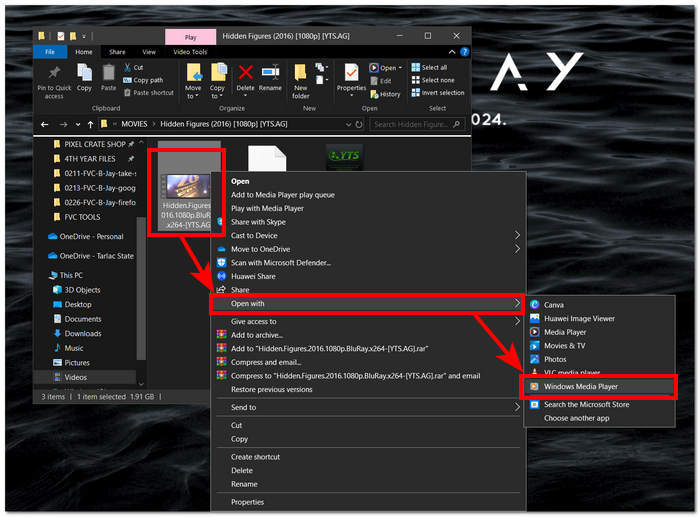
שלב 2. מצא את Snipping Tool במכשיר ה‑Windows שלך באמצעות חיפוש בתפריט ההתחלה ולאחר מכן פתח אותו.
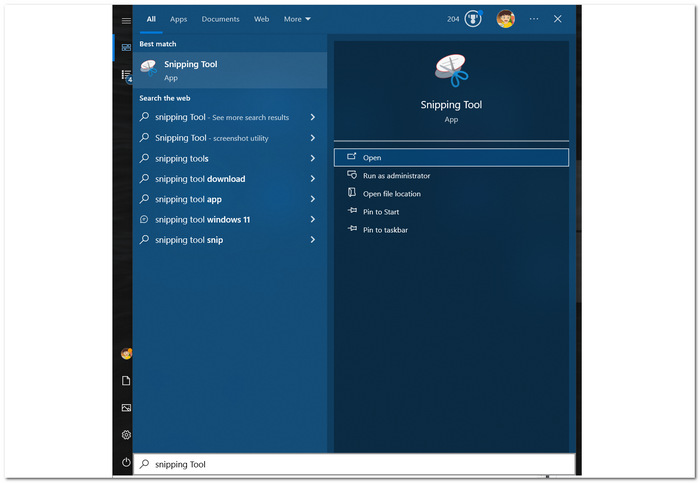
שלב 3. בממשק הכלי, לחץ על Window Snip תחת הקטע Mode, ואז בחר ידנית את האזור שברצונך לצלם.
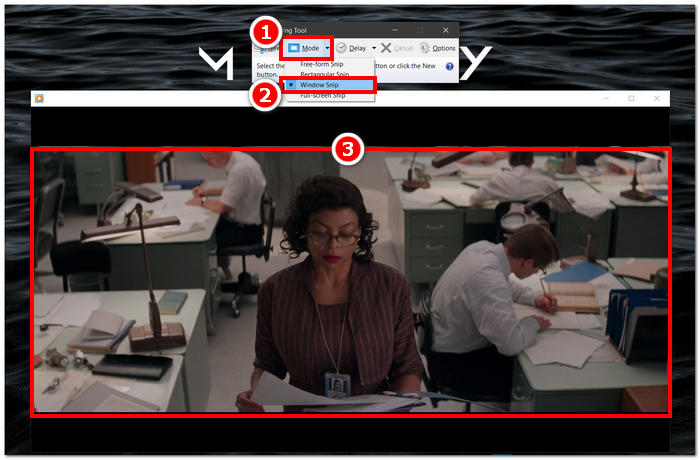
שלב 4. לאחר הלחיצה על האזור, ייפתח חלון חדש שיאפשר לך להוסיף הערות ולשמור במחשב שלך.
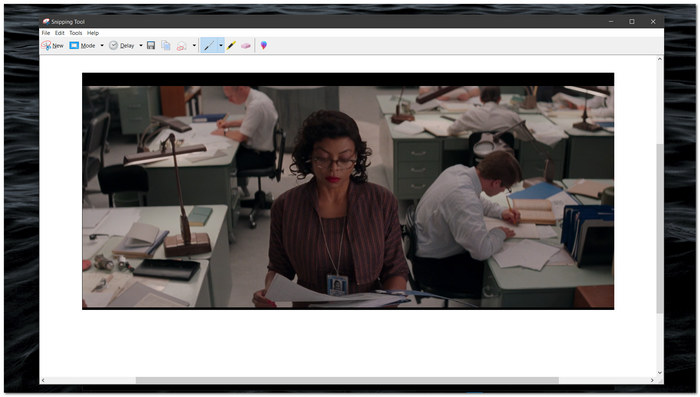
לכידת צילומי מסך בזמן צפייה בסרטונים ב-Windows Media Player נעשה קל, הודות ליכולות המקוריות של כלי החיתוך של Windows. על ידי מינוף כלי החיתוך של Windows, המשתמשים יכולים לשפר את חוויית המדיה שלהם ולייעל את תהליך הלכידה והשיתוף של תוכן בצורה חלקה.
חלק 4. כיצד לצלם צילום מסך ב-Windows Media Player עם הכלי המובנה שלו
Windows Media Player אינו מגיע עם תכונה מובנית, וכתוצאה מכך הוא אינו מאפשר למשתמשים לצלם צילומי מסך בתוך הנגן. עם זאת, עדיין יש מקש קיצור אחד שניתן להשתמש בו, בנוסף לאלו שהוזכרו לעיל, כדי לצלם צילומי מסך ב-Windows Media Player.
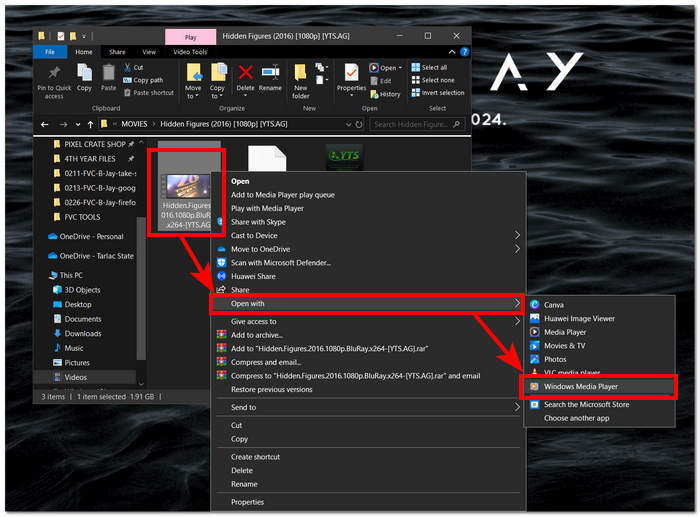
שלב 1. כדי לקחת צילום מסך של סרטון המתנגן ב‑Windows Media Player, ראשית פתח את הסרטון בנגן.
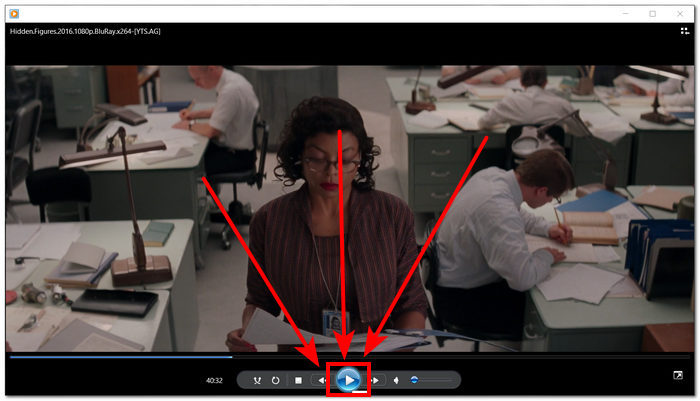
שלב 2. יהיה עליך תחילה ללחוץ על Pause בנגן ברגע המדויק שברצונך ללכוד.
שלב 3. כדי לבצע צילום מסך של סרטון מושהה במחשב שלך, באפשרותך להשתמש בשילוב המקשים Windows Logo + Shift + S במקלדת.
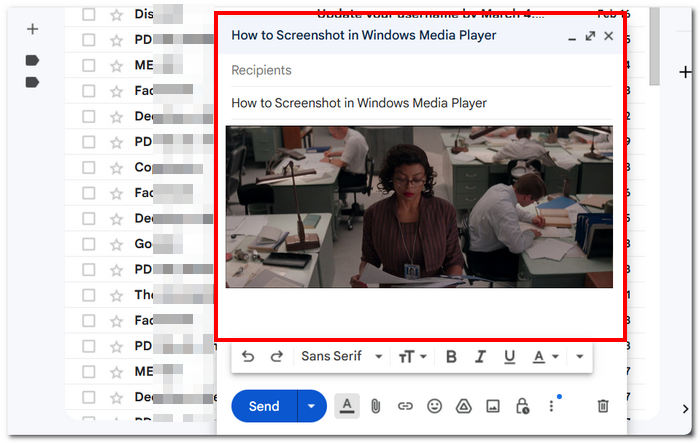
שלב 4. לאחר בחירה ידנית של החלק שברצונך לצלם, הוא יישמר אוטומטית ללוח (clipboard). תוכל להשתמש בו בקלות על ידי הדבקה בדוא"ל הרצוי, בפלטפורמת מסרים או באפליקציית רישום הערות לבחירתך.
ייתכן של-Windows Media Player אין תכונה מובנית לצילום מסך. עם זאת, בניגוד לצילום המסך של VLC, זה עדיין נגן מדיה אמין וחזק, בהתחשב בכך שהוא חינמי ומותקן מראש במכשיר שלך.
חלק 5. שאלות נפוצות אודות איך לצלם מסך ב-Windows Media Player
האם אוכל לצלם צילומי מסך ב-Windows Media Player מבלי להשתמש בתוכנה נוספת?
אפשר לצלם צילומי מסך ב-Windows Media Player ללא כל תוכנה נוספת. ל-Windows יש כלי מובנה בשם Snipping Tool המאפשר לך לצלם צילומי מסך של כל חלק במסך שלך, כולל חלון הפעלת הווידאו ב-Windows Media Player.
האם אוכל להתאים אישית את ההגדרות של כלי החיתוך לצילום מסך טוב יותר?
כלי החיתוך מציע הגדרות הניתנות להתאמה אישית כגון מצב ברירת המחדל (למשל, חיתוך מלבני, חיתוך בצורה חופשית), השהיה לפני הלכידה ופורמט שבו נשמרות צילומי מסך (למשל, PNG, JPEG).
האם יש דרך מהירה יותר לצלם צילומי מסך ב-Windows Media Player?
ישנם כלי צילום מסך של צד שלישי זמינים המציעים תכונות מתקדמות יותר ושיטות מהירות יותר לצילום מסך. אם אתה צריך לעתים קרובות לצלם צילומי מסך בזמן השימוש ב-Windows Media Player, תוכל לחקור את האפשרויות האלה.
האם אני יכול לצלם צילומי מסך של סרטונים שמתנגנים במצב מסך מלא?
כן, אפשר להשתמש בכלי החיתוך כדי לצלם צילומי מסך גם בזמן שסרטונים מתנגנים במצב מסך מלא. כל שעליך לעשות הוא לעבור ל-Snipping Tool וללכוד את האזור הרצוי במסך המכיל את הסרטון.
מהי השיטה המומלצת לצילום מסך באיכות גבוהה ב-Windows Media Player?
השיטה המומלצת לצילום מסך באיכות גבוהה ב-Windows Media Player היא באמצעות שיטת התוכנה. כלי זה מאפשר למשתמשים לבחור וללכוד אזורים ספציפיים במסך, כולל חלון הפעלת הווידאו, מה שמבטיח בהירות ודיוק בצילום המסך. על ידי מינוף התכונות של כלי התוכנה, משתמשים יכולים לצלם ללא מאמץ צילומי מסך חדים ומפורטים ללא צורך בתוכנת צד שלישי.
סיכום
סקרנו את השיטות השונות לצילום מסך ב‑Windows Media Player, החל מפתרונות מבוססי תוכנה ועד כלים מובנים כמו Snipping Tool ומקשי קיצור. טכניקות אלה נגישות ויכולות לאפשר למשתמשים לשמר ולשתף בקלות רגעים משמעותיים מחוויות המדיה שלהם. עם היכולות שהוצגו כאן, משתמשים יכולים לשלב בצורה חלקה את פעולת צילום המסך בשימוש שלהם ב‑Windows Media Player ולשדרג את האינטראקציה שלהם עם המדיה.
-
 כיצד לצלם צילומי מסך גלילה בפיירפוקס ללא מאמץ
 למד לגלול צילומי מסך בפיירפוקס כדי ללכוד דפי אינטרנט שלמים באופן מיידי. עקוב אחר המדריך הקל שלנו שלב אחר שלב כדי ללמוד כיצד להשתמש בתכונה זו.
-
 כיצד לצלם צילומי מסך ב-Samsung S23 על כף היד
 כל הדברים שאתה צריך לדעת כיצד לצלם צילומי מסך ב-Samsung S23, תוך מיקסום תכונות הדגל של מכשירי הדגל לחוויית צילום מסך חלקה.
-
 כיצד לצלם מסך ב-Windows Media Player ביעילות
 גלה את השיטות הפשוטות ביותר לצלם צילומי מסך ב-Windows Media Player ללא מאמץ. שפר את חווית צילום המסך שלך עם המדריך המקיף שלנו.
