


 ממיר וידאו אולטימטיבי
 מקליט מסך
 תיקון וידאו
 הורדה מאובטחת
נהלים מפורטים להמרת קבצי AVI לפורמט M4V
תבנית מכולת המולטימדיה AVI, שקיצור שמה הוא Audio Video Interleaved, היא תכונה של תוכנת הווידאו של Windows. היא מאפשרת ניגון סימולטני של נתוני אודיו ווידאו המשולבים בקובץ יחיד. בזכות היכולות הייחודיות שלה, כולל שליטה מסונכרנת ותצוגה בזמן אמת, AVI הפכה במהירות לאחת מתבניות הווידאו הנפוצות ביותר. אך אם ברצונך לנגן את הווידאו שלך ב‑Mac, עליך להמיר AVI ל‑M4V, משום ש‑M4V היא תבנית של Apple שניתן לנגן ב‑iTunes, Apple QuickTime Player ובמכשירי iOS. לעיתים ייתכן שתרצה להמיר קבצי .avi ב‑Mac לפורמט אוניברסלי כמו M4V. במצב כזה מומלץ להמיר AVI ל‑M4V כדי שיפעל כראוי במערכת ההפעלה Mac OS. במדריך זה נציג את הדרכים הטובות ביותר להמיר AVI ל‑M4V באמצעות יישומים מקוונים ולא מקוונים.

חלק 1: מבוא ל-AVI ו-M4V
| אבי | M4V | |
| שם קובץ | שידור וידאו אודיו | MPEG-4 וידאו |
| סיומת קובץ | .avi | .m4v |
| תיאור | פורמט הקובץ AVI הוא אחד ממיכלי המולטימדיה הפופולריים ביותר שנוצרו אי פעם. ראשי התיבות AVI, המייצגים אודיו וידאו interleaved, הופעלה לראשונה לציבור על ידי מיקרוסופט בשנת 1992 כמרכיב של מסגרת המולטימדיה שלהם, "וידאו עבור Windows". לקובץ AVI עם סיומת שם הקובץ.avi יכול להיות גם תוכן וידאו וגם שמע מסונכרנים מכיוון שהוא פורמט מכיל. לפיכך, מחברים יכולים לערוך ולקודד רצפי אודיו-וידאו או רצפי וידאו באמצעות התקן. | אפל יצרה את סיומת הקובץ M4V, הדומה להפליא לסיומת הקובץ MP4, עבור התוכן של חנות iTunes. מכשירי אפל הם היחידים שיכולים לנגן קבצי M4V. כדי לשחק במכשירי אפל, פורמטי וידאו אחרים כמו MP4 ו-MOV יכולים להמיר ל-M4V. ההבחנה העיקרית בין פורמטים של קבצי M4V ו-MP4 היא שהראשון תומך ב-DRM-Copyright Protection, האוסרת על הפרת זכויות יוצרים של תוכן מדיה. המחשב חייב להעניק הרשאה על ידי כניסה לחשבון iTunes כדי לרכוש את קובץ המדיה להפעלת קובץ M4V מוגן DRM. עם זאת, אם הקבצים אינם מוגנים DRM, המשתמש יכול פשוט לשנות את שם סיומת הקובץ M4V ל-MP4 כדי להפוך אותו לתואם למכשירים שאינם של אפל. |
| פותח על ידי | מיקרוסופט | אפל בע"מ. |
| תוכניות משויכות | נגן מדיה VLC Apple QuickTime Player Adobe Premiere Pro 2020 נגן המדיה של Windows | KMPlayer נגן מדיה קלאסי נגן זום נגן מדיה \VLC |
| קטגוריית קבצים | וִידֵאוֹ | וִידֵאוֹ |
| סוג MIME | וידאו/x-video | וידאו/x-m4v |
חלק 2: הדרך הטובה ביותר להמיר AVI ל-M4V
רוצה להמיר AVI ל‑M4V בחינם? באפשרותך להשתמש ב־FVC Free Video Converter Online. הכלי הזה יכול להמיר בקלות את קובץ ה‑AVI שלך לפורמט M4V. בנוסף, הוא תומך בעוד פורמטי וידאו, כגון FLV, MP4, MOV, WMA ועוד. אם אתה מתכנן להמיר מספר קובצי AVI לפורמטים שונים, באפשרותך להשתמש ביישום זה, משום שהוא מציע תהליך המרה באצווה. ניתן גם לערוך את הסרטונים לפני ההמרה, למשל לשנות את קצב הפריימים, הרזולוציה ושיעור הסיביות. נוסף על כך, FVC Free Video Converter Online יכול להמיר קבצי אודיו כמו MP3, AAC, AC3, FLAC ועוד.
תכונות
◆ המר פורמטים רבים של קבצי וידאו, כגון M4V, AVI, MP4, MOV, VOB, FLV, WMV וכו'.
◆ יכול לשנות את רזולוציית הווידאו, קצב הסיביות וקצב הפריימים.
◆ המר קבצי שמע כמו MP3, AAC, AC3, FLAC וכו'.
עקוב אחר המדריכים הפשוטים להלן כדי להמיר AVI ל-M4V בקלות.
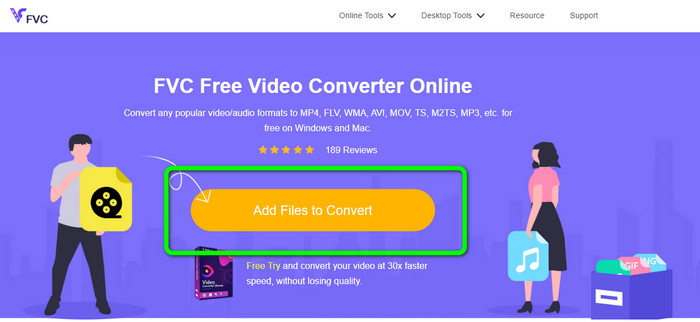
שלב 1: תחילה, פתח את הדפדפן ובקר באתר FVC Free Video Converter Online. לחץ על הכפתור Add Files to Convert כדי להעלות את קובץ ה‑AVI שלך.
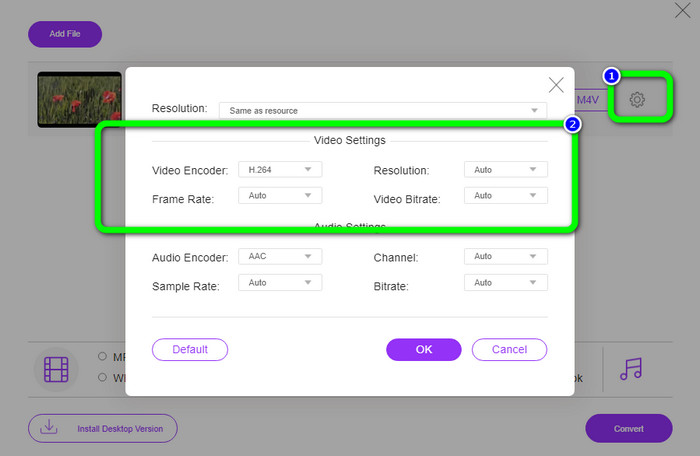
שלב 2: אם ברצונך לשנות את הרזולוציה, קצב הפריימים ושיעור הסיביות של הווידאו, לחץ על סמל ההגדרות בצד השמאלי של הממשק. כשתסיים את השינויים, לחץ על OK.
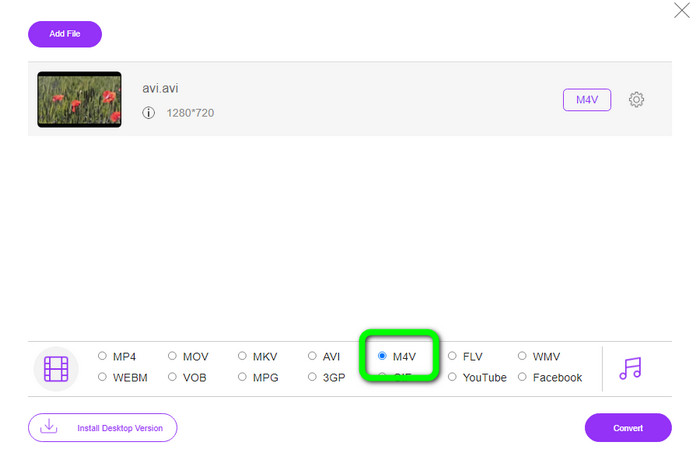
שלב 3: לאחר מכן, בחלק התחתון של הממשק, בחר בקובץ M4V כתבנית הפלט שלך.
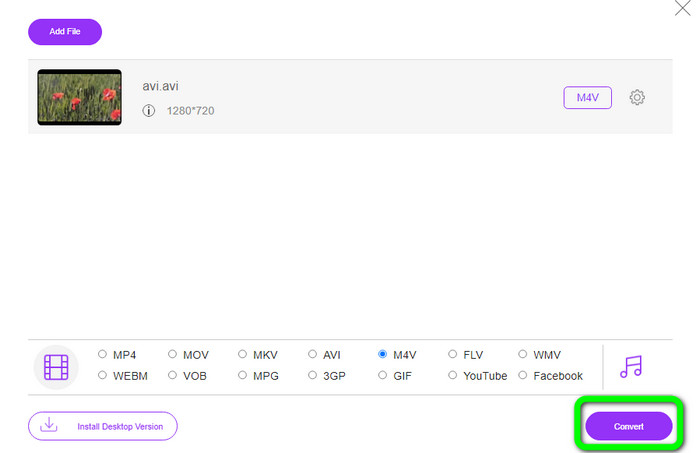
שלב 4: לבסוף, כדי לשמור את קובץ הווידאו, לחץ על כפתור Convert. המתן לסיום תהליך ההמרה והורד את הקובץ המוגמר.
חלק 3: שיטה קלה להמרת AVI ל-M4V ב-Windows וב-Mac
ממיר מצוין נוסף שבו ניתן להשתמש הוא FVC Video Converter Ultimate. כלי זה יכול להמיר AVI ל‑M4V ב‑Windows. הוא מסוגל להמיר את הקבצים שלך מיידית, משום שיש לו תהליך המרה במהירות‑על, מהיר יותר פי 30. כמו כן, ניתן להמיר מספר קבצים בבת אחת, מאחר שהוא מאפשר המרה באצווה. בנוסף, הוא מציע שיטת עבודה בסיסית עם ממשק אינטואיטיבי המתאים למתחילים. יתר על כן, כלי לא מקוון זה אינו זמין רק ב‑Windows, אלא גם ב‑Mac. בנוסף, ניתן לבצע שינויים בסרטונים במהלך ההמרה. אפשר לערוך את הסרטונים באמצעות שיפור, חיתוך, הוספת פילטרים ועוד.
תכונות
◆ ממיר 100+ קבצי וידאו, כולל M4V, MP4, AVI, FLV, MKV, MOV, VOB, WMV ועוד.
◆ יצירת קולאז' עם תבניות ומסננים בחינם זמינה.
◆ מציע יוצר וידאו מוזיקה.
◆ עריכת וידאו באמצעות משפר וידאו, חותך (trimmer), מסיר סימן מים, מכווץ (compressor) ועוד.
◆ המר פורמטים של קבצי תמונה, כגון BMP, JPG, PNG וכו'.
◆ האץ והאט סרטון.
השתמש במדריכים המפורטים להלן כדי לדעת כיצד להמיר AVI ל-M4V ב-Windows וב-Mac באמצעות FVC Video Converter Ultimate. נשתמש בגרסת Windows.
שלב 1: הורד את FVC Video Converter Ultimate למחשב ה‑Windows או ה‑Mac שלך על‑ידי לחיצה על כפתור ההורדה.
הורדה חינמיתל-Windows 7 ומעלההורדה מאובטחת
הורדה חינמיתל-MacOS 10.7 ומעלההורדה מאובטחת
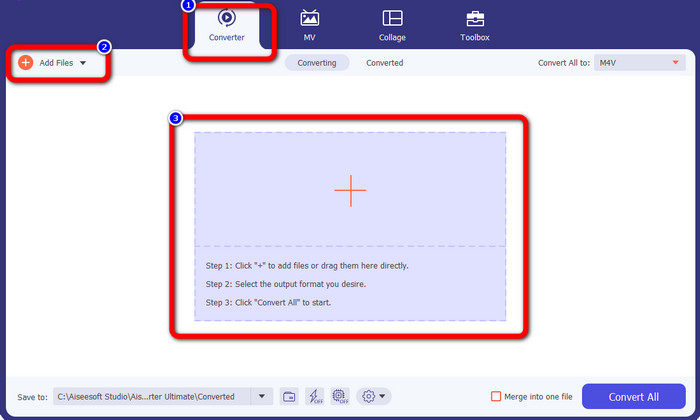
שלב 2: עבור ללשונית Converter לאחר פתיחת היישום. לאחר מכן, עומדות לפניך שלוש אפשרויות להוספת קובץ ה‑AVI שלך. ראשית, ניתן ללחוץ על כפתור Add File בתיבה השנייה. האפשרות השנייה היא ללחוץ על סימן ה‑Plus בתיבה השלישית. ולבסוף, ניתן לגרור ולשחרר את הקובץ ישירות למרכז.
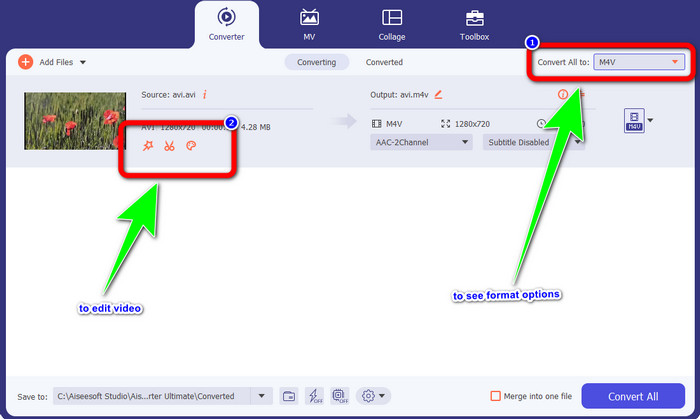
שלב 3: לאחר הוספת קובץ ה‑AVI, לחץ על הכפתור Convert All to כדי להציג את אפשרויות הפורמט, ובחר בפורמט הקובץ M4V. לאחר מכן, אם ברצונך לערוך את הווידאו, ניתן לעבור לתיבה השנייה. שם תוכל להשתמש בכלים לעריכת הווידאו, כמו הוספת פילטרים, סיבוב וחתיכת קטעים מהווידאו, חיתוך (cutting) ועוד.
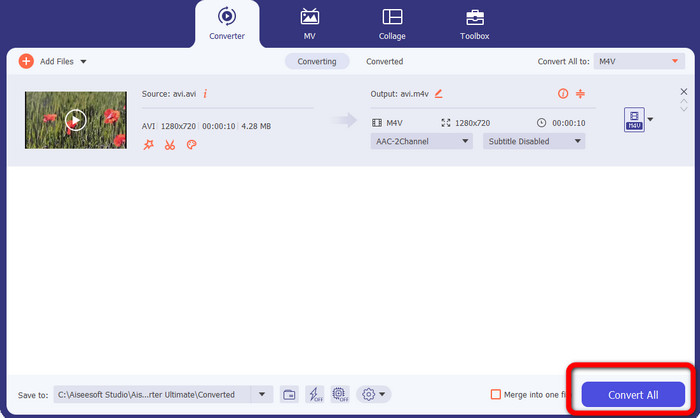
שלב 4: בשלב הסופי, לחץ על כפתור Convert. המתן לתהליך ההמרה המהיר ושמור את הווידאו שהומר.
חלק 4: כיצד להמיר AVI ל-M4V באמצעות בלם יד
Handbrake הוא ממיר נוסף להמרת AVI ל‑M4V בחינם. הוא יכול להמיר מספר פורמטים כמו WEBM, M4V, MP4, MKV ועוד. בעזרת הכלי הזה, ניתן להמיר בקלות קבצים רבים. עם זאת, Handbrake מורכב לשימוש. עליך להיות בעל ידע מספק לגבי הממיר הזה. בנוסף, תהליך ההתקנה שלו מבלבל. יש לבצע שלבים רבים לפני השימוש בו, מה שלוקח זמן רב למשתמשים.
שלב 1: הורד את Handbrake למחשב שלך.
שלב 2: בחר את קובץ ה‑AVI שברצונך להמיר.
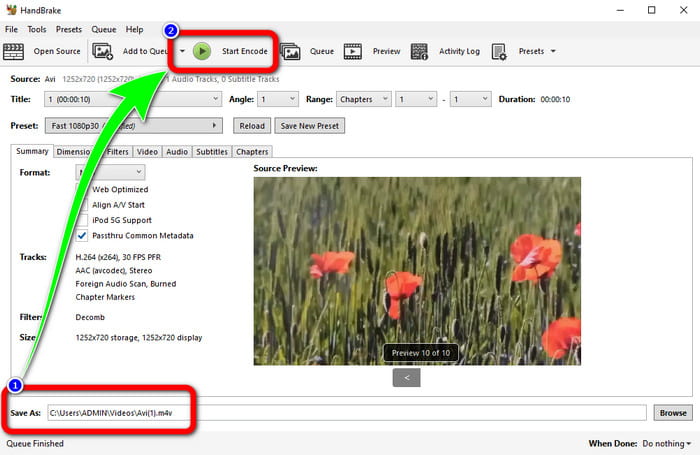
שלב 3: עבור ל‑Format ובחר M4V. לאחר מכן התחל את תהליך ההמרה בלחיצה על כפתור Start.
חלק 5: שאלות נפוצות על המרת AVI ל-M4V
1. כיצד להמיר AVI ל-M4V ב-Mac?
אתה יכול להשתמש ב-FVC Video Converter Ultimate. ממיר זה יכול להמיר בקלות את ה-AVI שלך ל-M4V באמצעות ה-Mac שלך.
2. כמה גדול קובץ AVI?
מכיוון שסרטוני AVI אינם דחוסים, הם תופסים יותר מקום בדיסק הקשיח. לדוגמה, שעה בודדת של צילומי וידאו בגודל 352x288 AVI יכולה להשתמש בנפח של עד 33GB (3300MB) של שטח דיסק קשיח.
3. האם קובץ ה-AVI הוא אוניברסלי?
כן. אף על פי שתבניות מודרניות יותר כמו MP4, MOV או WMV החליפו במידה רבה את פורמט AVI, אנשים עדיין משתמשים ב‑AVI משום שהוא נייד מאוד. כמעט כל מחשב או מכשיר יכולים לנגן קבצי AVI.
סיכום
מדריך זה מציג את השיטות המצוינות להמרת קובצי AVI ל‑M4V באמצעות שלושת הממירים. אך אם ברצונך בתהליך המרה מהיר במיוחד, השתמש ב‑FVC Video Converter Ultimate. ואם אתה רוצה שיטה פשוטה יותר, השתמש ב‑FVC Free Video Converter Online.
-
 עליכם להכיר את חמשת נגני ה- M4V המובילים עבור Windows / Mac / Android / iOS
 כאשר אינך יכול להפעיל את סרטוני ה-M4V שלך ב-QuickTime Player, עליך ללמוד עוד מחמשת נגני M4V המעולים עבור Windows, Mac, Android ו- iOS ממאמר זה
-
 AVI VS MP4 - הבדלים ודמיון בין פורמטים AVI ו- MP4
 איזה פורמט וידאו טוב יותר, AVI או MP4? אם אתה רוצה לקבל את ההשוואה המפורטת, אתה יכול לבדוק את המאמר הזה של AVI VS MP4. אתה יכול לדעת את ההבדלים והדמיון בין AVI ו-MP4 בהיבטים רבים
-
 3 תוכנית ממיר וידאו משמשת להמרת iTunes M4V ל-AVI ב-Mac
 אין לך מושג איך להמיר MKV לפורמט AVI? ככל שנמשיך לקרוא את המאמר הזה, נכיר את 3 הכלים שיכולים לעזור לך להמיר פורמט קובץ זה
