


 ממיר וידאו אולטימטיבי
 מקליט מסך
 תיקון וידאו
 הורדה מאובטחת
שלב אחר שלב כיצד להוסיף תמונות אלבום ל-MP3 באמצעות התוכנה הטובה ביותר על שולחן העבודה
Prefixing album art can become handy, especially if you want to help the listener feel more attached to the music they are listening to. With this album art, users can glimpse an idea of what the music is all about, chiefly the digital ones. In some scenarios, MP3 doesn’t have a proper album art or isn’t attached to the file. If you experience the same thing, it is essential to learn how to add album art to MP3 music on your desktop. To know more about this topic, keep reading this article as we provide compact knowledge about the problem.

חלק 1. כיצד להוסיף תמונות אלבום ל-MP3 עם Video Converter Ultimate [עורך תגים מומלץ]
Are you looking to use ultimate software to add album art to MP3? FVC Video Converter Ultimate is the recommended tag editor in this task. This software isn’t recommended for no reason. Unlike other software, there are limited album art formats you can upload and use as a cover for your MP3 music, but not with this tool. With this ultimate software, you can add the album art on your MP3, WAV, WMA, AAC, FLAC, and 1000+ video and audio formats. Amazing right? This tool is the first choice for adding an image cover to your album. Do you want to know how to use the ultimate software? In that case, you can read and follow the demonstration thoroughly we include below.
Step 1. Click the download button below, choose which operating system you currently use. After downloading the software, proceed to install the tool. If all is done, click Start Now to launch the software on your desktop.
הורדה חינמיתל-Windows 7 ומעלההורדה מאובטחת
הורדה חינמיתל-MacOS 10.7 ומעלההורדה מאובטחת
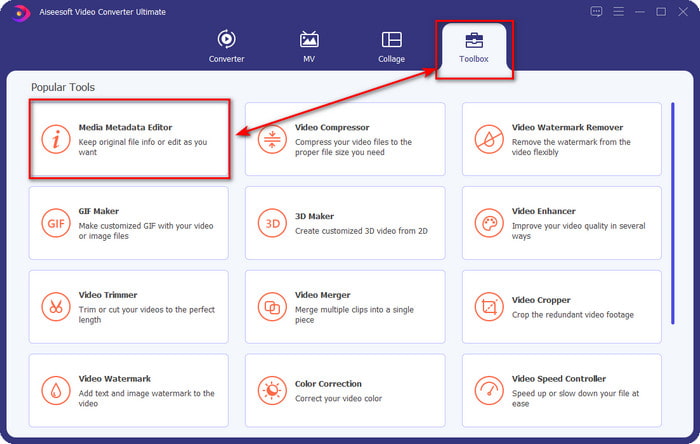
Step 2. Proceed onto the Toolbox section click Media Metadata Editor under it.
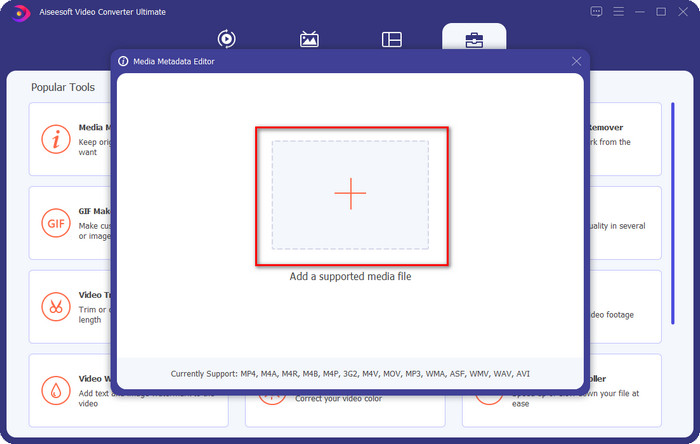
Step 3. Select the music file you want to add album art to by clicking the + button. To insert the music file you’ve selected, click Open.
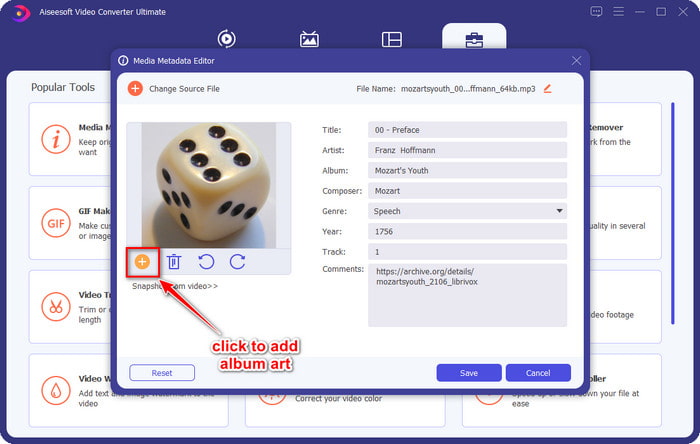
Step 4. Next, click the + button on the left lower left side of the interface, find the album cover you want to use, and click Open. Add the other metadata you want on the textbox if you need it.
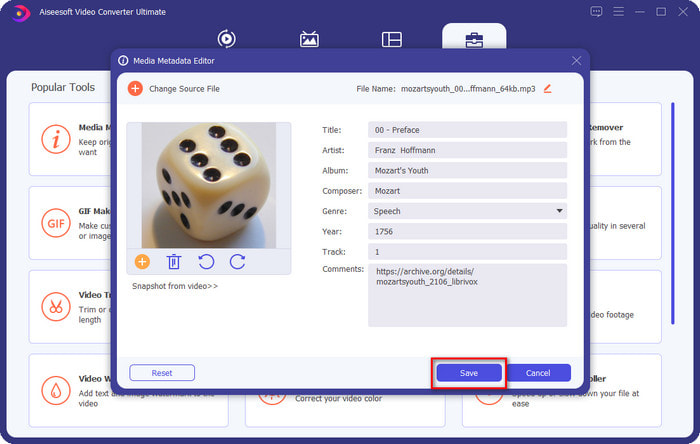
Step 5. If you are finished adding the album art and the metadata on the MP3 file you have, you can now click Save to attach the album art to the MP3 file you’ve uploaded. Easy isn’t it? Everything becomes possible and easy if you use the ultimate tool to fix the problem.
חלק 2. כיצד להוסיף תמונות אלבום ל-MP3 באמצעות VLC Media Player עורך מטא נתונים בחינם]
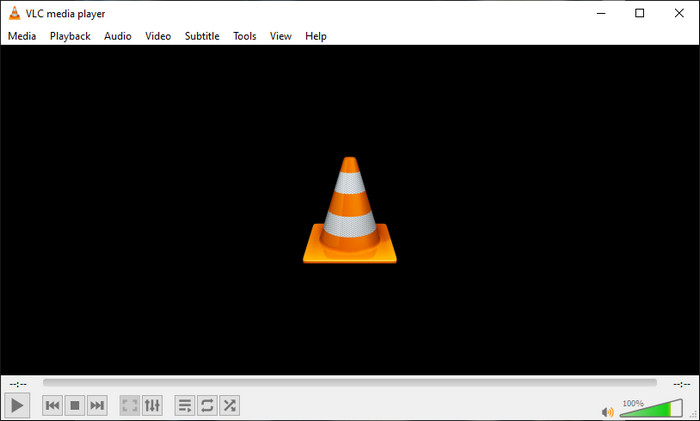
VLC Media Player is the best media player that most of us have. This tool can play any video file, and it is capable of editing metadata as well, like adding album art to the music file. With this media player, you can freely adjust or add metadata. If you want a tutorial on adding album art to MP3 on Windows 10/11 or Mac with this tool, the steps below are for you.
Step 1. Download the media player on your desktop and open it.
Step 2. On the main interface, click Tools, and under it, click Information.
Step 3. Right-click the VLC icon on the bottom right corner, add the album art, and click Save.
חלק 3. כיצד להוסיף תמונות אלבום ל-MP3 ב-iTunes [עורך מטא נתונים מובנה ב-Mac]
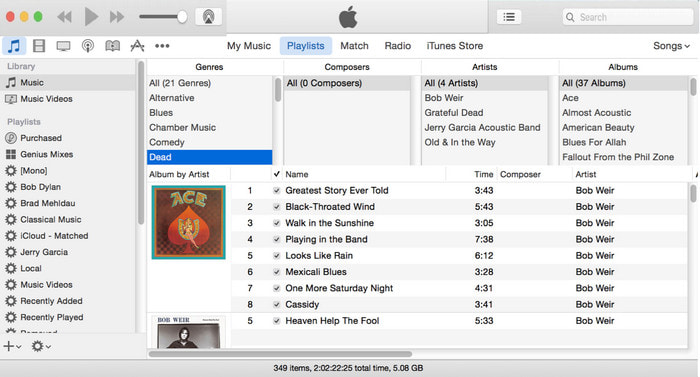
For Mac users, iTunes is our go-to metadata editor to add the image cover on our MP3 file. This built-in app can help us edit the metadata on the file that we have on Mac. However, the software is currently unavailable on some Mac versions because it is now changed into three separate apps that perform the same as iTunes. But on some Mac with the older version. If you are one of the Mac users that wants to know how to add album art to MP3 on iTunes, you can follow the steps below.
Step 1. Open the iTunes application on your Mac.
Step 2. Click the Music then Library and right-click the music file that doesn’t have album art.
Step 3. On the options above, click Artwork, then Add Artwork, select the image you’ve want to upload, and click OK to apply it.
חלק 4. שאלות נפוצות על איך להוסיף תמונות אלבום ב-MP3
האם אני יכול להוסיף תמונות אלבום ל-MP3 ב-Audacity?
למרבה הצער, אינך יכול להוסיף את אמנות התמונה בקובץ ה-MP3 שברשותך באמצעות Audacity. כלי זה אינו תומך בשום פורמט תמונה או וידאו מכיוון שהוא מיועד לשימוש כעורך מוזיקה. אבל אתה עדיין יכול להשתמש ב-Audacity כעורך מטא נתונים אם ברצונך לערוך את המטא נתונים של MP3.
מדוע תמונת האלבום שלי חסרה בקובץ האודיו שלי?
ישנן שלוש סיבות מדוע תמונת האלבום שלך חסרה בקובץ האודיו שלך. הסיבה הראשונה היא שהקובץ שאתה צריך להוריד אינו כולל תמונות אלבום, במיוחד אם מדובר בפיראטיות. רוב קובץ המוזיקה שהורדנו באינטרנט לא מגיע עם אמנות אלבום כדי למנוע בעיות קופירייטינג. לאחר מכן, הקובץ נעלם מכיוון שהתמונה לא צורפה כראוי. חלק מהמשתמשים נתקלים בבעיה זו, וקשה לטפל בה, ולכן שימוש באסף אמנות אלבום מקצועי הוא חיוני. לבסוף, התמונה פגומה; אם הקובץ שהעלית אינו זמין כתמונות אלבום או שקובץ המוזיקה שהעלית פגום, ייתכן שזו הסיבה מאחוריו.
מהם המטא נתונים הטובים ביותר שאני יכול להשתמש בו?
If the metadata editor we provided above is limited, you can click on this link to go to a new article to gather all of the best metadata editors you can use.
סיכום
עכשיו, כשיש לנו את הרעיון להוסיף אמנות אלבומים ב-MP3, הגיע הזמן לבחור איזה כלי לדעתנו מתאים לנו ביותר. אם אתה משתמש Mac ואינך רוצה להוריד תוכנה כלשהי על שולחן העבודה שלך, עליך לבחור ב-iTunes. אבל iTunes מבוטלת בהדרגה בגרסה המעודכנת של Mac. אם אתה רוצה להוריד כלי חינמי שיכול לעזור לך להוסיף את העטיפה למוזיקה שלך, אז VLC היא בחירה מצוינת. עם זאת, הכלי אינו כלי מקצועי. לכן, אם אתה רוצה תוכנה מומחים שיכולה להכיל אותך במשימה זו הזמינה בשתי מערכות ההפעלה, Windows ו-Mac, אז השתמש בתוכנה האולטימטיבית. הורד את התוכנה על שולחן העבודה שלך כדי לקבל את הכלי המקצועי בהישג ידך על ידי לחיצה על כפתור ההורדה המוצג למעלה.
-
 כיצד להציג בקלות מטא נתונים של תמונות וסרטונים ב- iOS
 האם אתה רוצה לדעת איך לראות מטא נתונים באייפון ובאייפד? לאחר מכן, קריאת מאמר זה עשויה לעזור לך לפתור בעיה זו ללא מאמץ.
-
 הטכניקות הטובות ביותר לעריכת תגי iD3 ב-iTunes [טיפים יעילים]
 צריך לדעת איך לערוך תגיות ב-iTunes? אז אתה במקום הנכון. כפי שדנו בשיטות, אתה יכול לעקוב אחר כדי לערוך את התגים באמצעות iTunes.
-
 כיצד לערוך מאפיינים של קבצי WAV ב-Windows 10/11 ו-Mac [נפתר]
 האם אתה מחפש דרך לערוך את המאפיינים של קבצי ה-WAV שלך ב-Windows 10/11? לשאלה זו תהיה תשובה אם תמשיך לקרוא את המאמר הזה.
