


 ממיר וידאו אולטימטיבי
 מקליט מסך
 תיקון וידאו
כיצד לשנות את פרטי הקובץ ב-Windows 10/11 בצורה ללא מאמץ
בכל פעם שאנחנו מצלמים או מורידים וידאו, תמונה או אודיו, מצורף קובץ של נתונים שעוזרים לנו לזהות מה יש בקובץ, והוא נקרא מטא־דאטה (Metadata). בעזרת יישומי מערכת מובנים שונים נוכל לראות בקלות את התגים של קובצי המדיה שלנו, גם בלי תוכנות מקצועיות. עם זאת, תיקון הנתונים הוא כבר עניין אחר, שלא כל מציגי המטא־דאטה ב‑Windows יודעים לבצע. אם ברצונך לדעת כיצד לשנות פרטי קבצים ב‑Windows 10 או 11, עליך לקרוא את המאמר הזה כדי לקבל את כל המידע החיוני שתצטרך.

חלק 1. כיצד לשנות את פרטי קובץ הווידאו ב-Windows 10 ו-11 בקלות
שימוש במאפיינים ב-Windows
כולם יודעים שהמאפיינים (Properties) ב‑Windows מאפשרים לנו להציג את המטא־דאטה של כל קובץ, בלי לדאוג אם הוא נתמך או לא. מציג ו עורך התגים המובנה הזה יכול לעזור לך להשלים את המשימה לפי הצורך, והוא עובד בצורה מושלמת גם בלי חיבור לאינטרנט. בנוסף, אינך צריך שום תוכנה נוספת; כפי שאמרנו, זו תכונה מובנית שזמינה רק במחשבי Windows.
להיפך, ישנם מקרים שמטא נתונים שהוספת לא נשמרים כלל במובנה החינמי הזה. צפו לזה מכיוון שזה לא כלי מקצועי. עם זאת, משתמשים עדיין משתמשים בתכונות אלה, במיוחד אם הם לא עורכים את המטא נתונים לעתים קרובות יותר מהרגיל. במקום להוריד ולשמור קצת מקום לכונן שלך, זו הטכניקה האידיאלית שאתה צריך ללמוד להשתמש בו ב-Windows. אם אתה רוצה לדעת איך לשנות את פרטי הקובץ ב-Windows 10 או 11, אתה יכול לבצע את השלבים שלהלן.
שלב 1. במסך ה‑Windows 10 או 11 שלך, אתר את קובץ המדיה דרך סייר הקבצים (File Explorer).
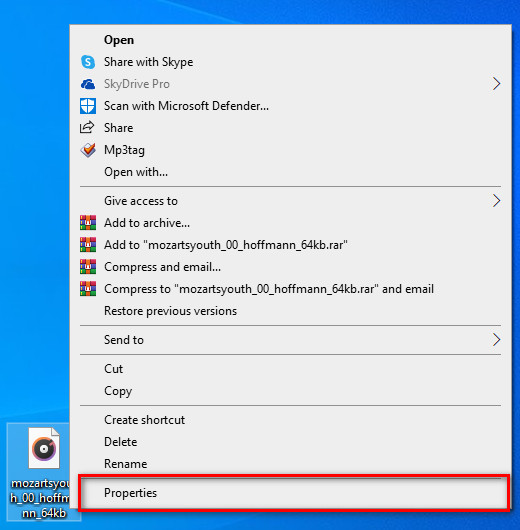
שלב 2. לאחר שמצאת את הקובץ, לחץ עליו באמצעות לחצן ימני ובחר במאפיינים (Properties).
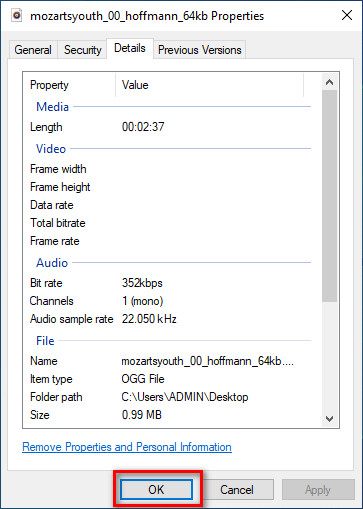
שלב 3. בחלון שנפתח, עבור ללשונית פרטים (Details); בכל שדה ניתן להוסיף או לשנות את פרטי המטא־דאטה ב‑Windows באמצעות המאפיינים. לחץ על OK כדי לשמור את התגים.
שימוש ב-Video Converter Ultimate - הבחירה הטובה ביותר בעריכת מטא נתונים ב-Windows 10/11
הוספת עטיפת אלבום ומידע חשוב נוסף אינה אפשרית דרך מאפיינים (Properties) בלבד, אז מה עליך לעשות אם ברצונך להוסיף אותם? למרבה המזל גילינו ש־Video Converter Ultimate תומכת בהוספת פרטים חשובים לקבצים שלך ולעטיפות אלבומים, כדי להפוך אותם לייחודיים. בנוסף, הוספת מטא־דאטה לקובץ אינה משימה שניתן לבצע רק דרך Properties, אלא גם בצורה מקצועית הרבה יותר בעזרת ה‑Ultimate.
מה עוד? למרות שזו התוכנה הטובה ביותר לעריכה ולצפייה במטא נתונים, היכולת שלה הרבה יותר, מה שאומר שיש לה יותר תכונות. אחד הדברים הטובים ביותר שאתה יכול לעשות עם הכלי הוא להמיר כל קובץ וידאו לפורמט Windows שניתן לשחק, כגון WMV, AVI, MP4, ועוד רבים אחרים. בנוסף, זה יכול גם להמיר קבצים מרובים בו זמנית תוך כדי תהליך ההמרה המהיר ביותר שתחווה אי פעם שהכלי האחר לא יכול להציע לך, אפילו מאפיינים. נכון שזה נהדר? יש עוד מה לספר, אבל היום נלמד כיצד לשנות את הפרטים של קבצי mp3 או כל פורמט אודיו ווידאו בקלות עם הדרכה מושלמת של התוכנה האולטימטיבית ב-Windows וב-Mac.
שלב 1. לחץ על כפתור ההורדה עבור Windows; אם אתה משתמש Mac, לחץ במקום זאת על הכפתור השני, התקן במהירות ופתח את התוכנה כדי להוסיף מטא־דאטה.
הורדה חינמיתל-Windows 7 ומעלההורדה מאובטחת
הורדה חינמיתל-MacOS 10.7 ומעלההורדה מאובטחת
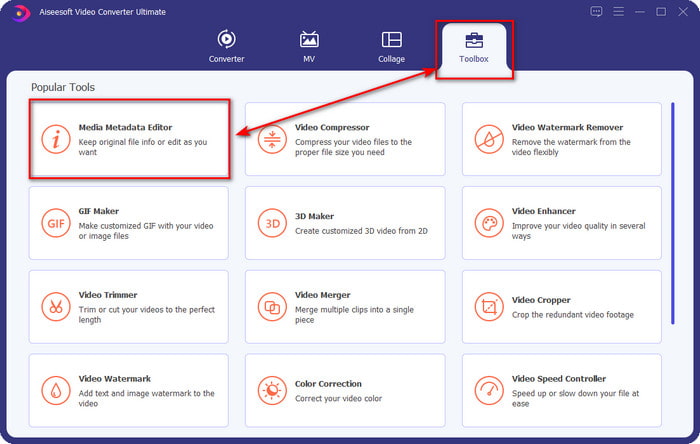
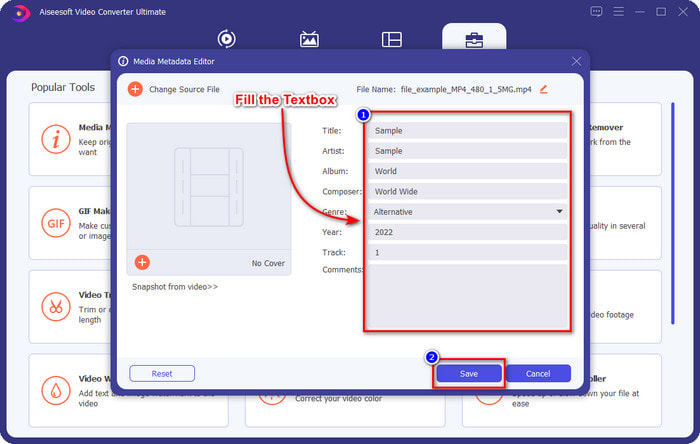
שלב 2. לאחר שהפעלת את הכלי, לחץ על Toolbox, ולאחר מכן עבור אל Media Metadata Editor.
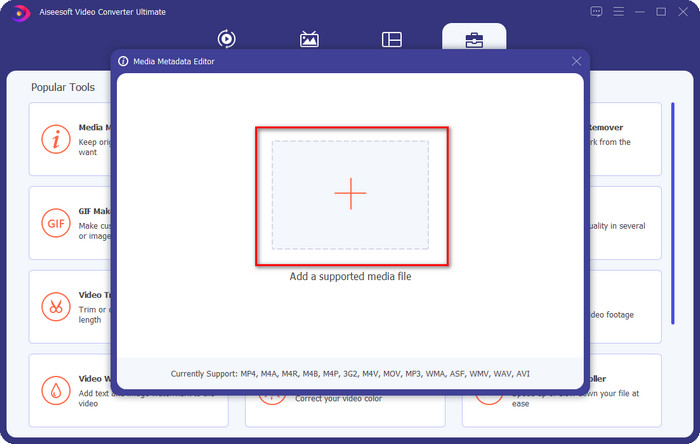
שלב 3. העלה לכאן כל קובץ מדיה, לחץ על כפתור הוספה (add), בחר את הקובץ בתיקייה ולחץ על Open.
שלב 4. הוסף את הפרטים החשובים בכל תיבת טקסט (textbox) על‑ידי הזנת המידע. לאחר שסיימת הכול, לחץ על כפתור Save כדי לשמור את כל השינויים שביצעת באמצעות הכלי. כל הפרטים החיוניים שאינך יכול להוסיף דרך Properties ניתנים להוספה בקלות בעזרת תוכנת ה‑Ultimate בכמה לחיצות בודדות!
קשור:
כיצד לתקן או לערוך מטא־דאטה של MP4
חלק 2: מהי בחירה טובה יותר בעריכת קבצי פרטים ב-Windows 10 ו-11
האם עדיין יש לך בלבול באיזה צד עליך לבחור? במקרה כזה, תרשים השוואה זה למטה יעזור לך להבין את ההבדל בין שני הכלים מבחינת עריכת מטא נתונים ופונקציונליות אחרת שהם יכולים להציע. המשיכו לקרוא כדי לקבוע באיזה צד עליכם לבחור.
| Video Converter Ultimate - הבחירה הטובה ביותר בעריכת מטא נתונים ב-Windows 10/11 | לעומת | מאפיינים בווינדוס |
 | הבחירה הטובה ביותר לעריכת מטא נתונים | |
| הוסף פרטים חשובים על מטא נתונים |  |
| העלה את עטיפת האלבום בקלות | |
| פונקציות אחרות מאשר Tag Editor כוללות ממיר, עורך וידאו ועוד. | |
| חינם לשימוש | |
חלק 3. שאלות נפוצות לגבי איך לשנות את פרטי הקובץ ב-Windows 10/11
האם מאפיינים ב-Windows פועלים בגרסת Windows הנמוכה יותר?
למרבה המזל, כולם פועלים כמו השלבים שהוצגו לעיל; עם זאת, המראה שלהם השתנה בגלל העדכונים לאורך השנים. למרות שהמראה שלהם שונה, הפונקציונליות הכוללת שלהם עדיין זהה לשלבים שהוזכרו לעיל. בדוק את המאפיינים ב-Windows שלך והעתק את השלבים שלמעלה אם ברצונך לערוך את המטא נתונים של הקובץ שלך.
האם יש דרך לשנות מטא נתונים של מוזיקה?
כן, אתה יכול להשתמש ב- Groove Music, אפליקציה מובנית נוספת ב-Windows; אך לפני שתוכל להשתמש בכלי, תצטרך להוריד אותו מכיוון שהוא אינו מותקן מראש ב-Windows, חפש אותו בסרגל החיפוש שלך, והוא יתחיל להוריד אותו באופן אוטומטי. פתח את הכלי, לחץ לחיצה ימנית על הקובץ פעם אחת ועבור אל קבל מידע; באזור זה, אתה מוסיף את המטא נתונים או מסיר אותם, ואז לחץ על שמור אם סיימת.
האם השימוש במאפיינים מספיק להוספת מטא נתונים?
מאפיינים מספיקים להתאמה בסיסית של מטא נתונים מכיוון שהם תומכים במידע הבסיסי שתזדקק לו בקובץ המדיה שלך. אבל כדי להוסיף פרטים מעמיקים, תצטרך להתקין תוכנה אמינה המסוגלת להתמודד עם המשימה האמורה בקלות בכל אמצעי. עם זאת, Properties הוא עורך תגים טוב, אבל הוא לא הטוב ביותר לעריכת מטא נתונים מקצועית.
סיכום
הגעת כעת לסוף, בזכות ההתמדה שלך בקריאת המאמר הזה, וכעת אנחנו יודעים כיצד לשנות פרטי קבצים ב‑Windows 10/11. בעזרת המידע הזה התבהר שניתן להשתמש ב‑Properties אם ברצונך לחסוך מקום בכונן של Windows. למרות שהתכונה המובנית הזו אינה מושלמת, היא בהחלט אינה נופלת בהרבה. אך עבור משתמשים מתקדמים או מתחילים שרוצים להוסיף עוד פרטים למטא־דאטה שלהם, עליך לבחור דווקא בכלי ה‑Ultimate. ל‑Video Converter Ultimate יש יתרון ברור במאבק על תואר עורך המטא־דאטה הטוב ביותר ב‑Windows. מטיל ספק בתוכנת ה‑Ultimate? הדרך היחידה להוכיח שאין סיבה לפקפק בכלי היא להוריד אותו לכונן שלך וליהנות מהשימוש בו!
-
 כיצד להציג בקלות מטא נתונים של תמונות וסרטונים ב- iOS
 האם אתה רוצה לדעת איך לראות מטא נתונים באייפון ובאייפד? לאחר מכן, קריאת מאמר זה עשויה לעזור לך לפתור בעיה זו ללא מאמץ.
-
 הטכניקות הטובות ביותר לעריכת תגי iD3 ב-iTunes [טיפים יעילים]
 צריך לדעת איך לערוך תגיות ב-iTunes? אז אתה במקום הנכון. כפי שדנו בשיטות, אתה יכול לעקוב אחר כדי לערוך את התגים באמצעות iTunes.
-
 כיצד לערוך מאפיינים של קבצי WAV ב-Windows 10/11 ו-Mac [נפתר]
 האם אתה מחפש דרך לערוך את המאפיינים של קבצי ה-WAV שלך ב-Windows 10/11? לשאלה זו תהיה תשובה אם תמשיך לקרוא את המאמר הזה.
