


 ממיר וידאו אולטימטיבי
 מקליט מסך
 תיקון וידאו
 הורדה מאובטחת
כיצד למזג קבצי M4V? להלן 2 הפתרונות המהירים ביותר
קובצי M4V, הידועים גם כקובצי וידאו MPEG-4, בדרך‑כלל יורדים מ‑iTunes. הם דומים מאוד לקובצי MP4 משום ששניהם משתמשים במכולת MPEG-4. ייתכן מאוד שמצאת את עצמך לאחרונה מוריד כמה קטעי וידאו חלקיים בפורמט M4V מ‑iTunes ורוצה לאחר מכן לאחד את קובצי ה‑M4V לקובץ אחד רציף שיוצר סיפור מלא. איך משלבים קובצי M4V? מאמר זה מציג שתי שיטות לעשות זאת ביעילות וללא איבוד איכות התמונה.

חלק 1: הפתרון המהיר ביותר - השתמש במיזוג M4V בחינם באופן מקוון
לפתרון המהיר ביותר, ניתן להשתמש ב‑FVC Free Online Video Merger, שאינו דורש זמן רב ללימוד השלבים וההגדרות. פשוט טען את הכלי בדפדפן, הוסף את קובצי ה‑M4V שלך, ולאחר מכן לחץ פעם אחת כדי למזג את קובצי ה‑M4V.
תכונות עיקריות
- • למזג קבצי M4V בכל סכום ובכל גודל לקובץ אחד בחינם.
- • ממשק קל לשימוש ותהליכים טרום מיזוג אינטואיטיביים.
- • באפשרותך לשמור את קבצי M4V הממוזגים כ -9 פורמטים עיקריים אחרים.
- • אל תשאיר סימן מים בסרטוני M4V המשולבים.
- • העלה את הקבצים שלך בכל הגדלים בשנייה אחת בלבד.
שלבים לחיבור קובצי M4V אונליין בחינם
שלב 1. לחץ כאן כדי לטעון את FVC Free Online Video Merger. בעמוד כלי האונליין, לחץ על הכפתור Upload Videos to Merge שבמרכז המסך.
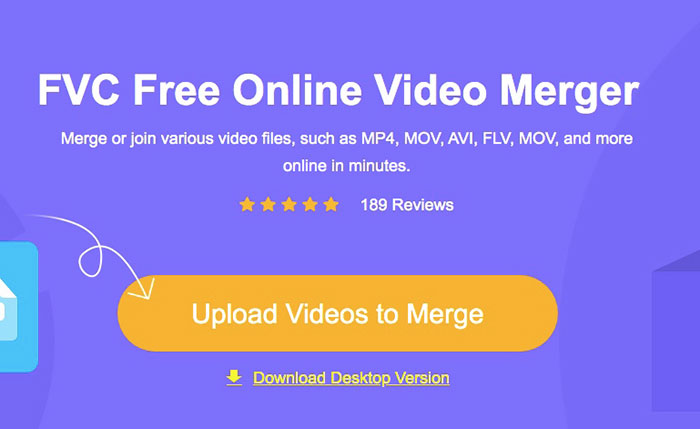
הערה: אם זו הפעם הראשונה שאתה משתמש בכלי, תופיע הנחיה להוריד ולהתקין משגר (launcher). לאחר התקנת המשגר, לחץ שוב על הכפתור Upload Videos to Merge.
שלב 2. כעת חלון Open אמור להיפתח. כאן עליך לבחור את קובצי ה‑M4V ולאחר מכן ללחוץ על כפתור Open בתחתית החלון.
שלב 3. לאחר העלאת קובצי ה‑M4V, באפשרותך להתאים את הסדר שלהם על‑ידי מחיקת קבצים קיימים והוספת קבצים חדשים במיקומים הרצויים.
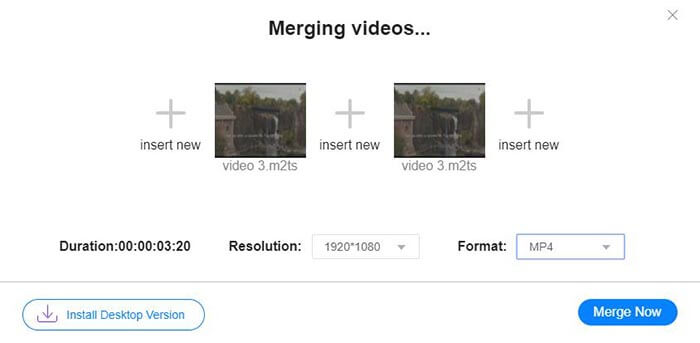
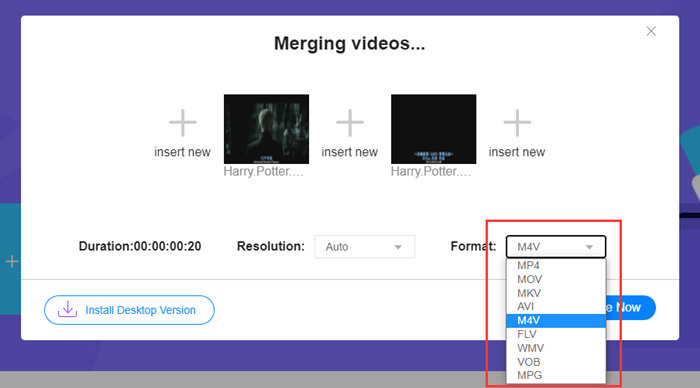
שלב 4. כדי לשמור את הקובץ המאוחד בפורמט M4V, עליך לבחור M4V ברשימת Format. ניתן גם לבחור כל אחד מהפורמטים הרשומים כדי להמיר את הווידאו המאוחד מפורמט M4V לפורמט אחר.
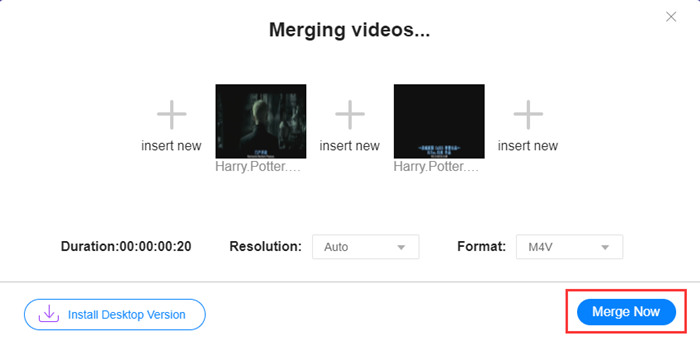
שלב 5. לחץ על הכפתור Merge Now כדי להתחיל לשלב את קובצי ה‑M4V. הכלי יבקש ממך לבחור את תיקיית היעד עבור קובץ הפלט.
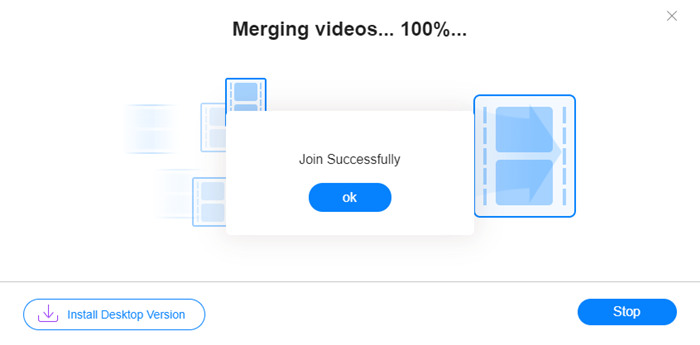
כשתראה את הודעת ההצלחה למטה, הסרטון הממוזג נשמר במחשב שלך.
כבר למדת את הדרך המהירה ביותר לשילוב קובצי M4V. עם זאת, שיטה זו מאפשרת רק לחבר את הסרטונים זה אחרי זה, ואינה מאפשרת לחתוך את הקצוות הלא רצויים, מה שעלול ליצור קטעי מסך שחור בווידאו. ייתכן שתזדקק גם לשיטה הבאה, שלא רק מחברת קובצי M4V אלא גם גוזרת אותם באופן חלק. תוכל גם לדחוס קובצי M4V כאן.
חלק 2: שיטה למיזוג קבצי M4V בצורה חלקה
כדי לקבל וידאו שלם וחלק, חיבור פשוט של קובצי M4V בזה אחר זה אינו מספיק. עליך גם לגזור את הקטעים הלא רצויים בתחילת הסרטונים ובסופם. לכן יש צורך בכלי עריכת וידאו. יש לך אפשרויות רבות, אך כאן נמליץ על Video Converter Ultimate. הסיבה פשוטה: הוא קל לשימוש והתכונות שלו חזקות מספיק.
תכונות עיקריות
- • למזג, לקצץ, לסובב, לחתוך ולהוסיף אפקטים לסרטוני M4V.
- • טכנולוגיית האצת חומרה מסייעת לסיים את הצטרפות קבצי M4V במהירות גבוהה פי 70.
- • שפע של פילטרים ואוסף אפקטים כדי לייפות את הסרטונים שלך
- • השתמש במשפר הווידיאו המובנה לשיפור איכות הווידאו שלך
- • הפכו את הסרטונים שלכם לתלת ממד ותיהנו מהם עם משקפי התלת מימד
הורדה חינמיתל-Windows 7 ומעלההורדה מאובטחת
הורדה חינמיתל-MacOS 10.7 ומעלההורדה מאובטחת
שלבים למיזוג קובצי M4V באופן חלק
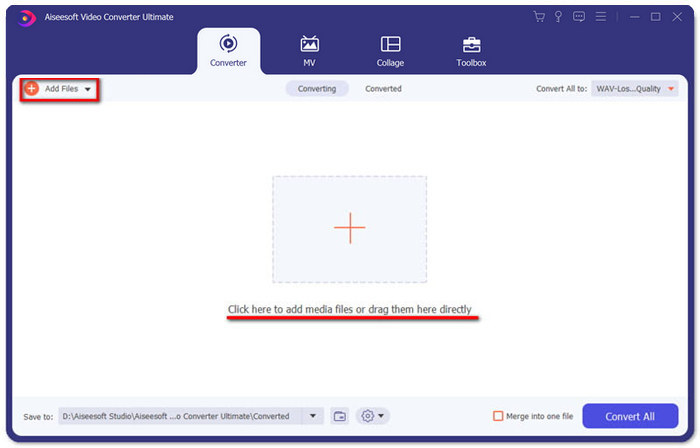
שלב 1. התקן והפעל את Video Converter Ultimate. לחץ על הכפתור Add Files או גרור קבצים אל הממשק כדי להוסיף סרטונים.
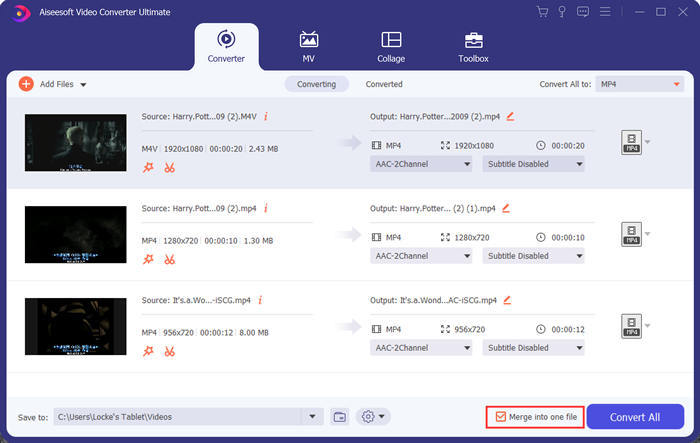
לאחר הוספתם, ניתן לגרור את הקבצים למעלה ולמטה כדי לסדר את סדרם. בנוסף, עליך לסמן את התיבה Merge into one file כדי שהתוכנית לא תמיר את הסרטונים שנוספו כקבצים נפרדים.
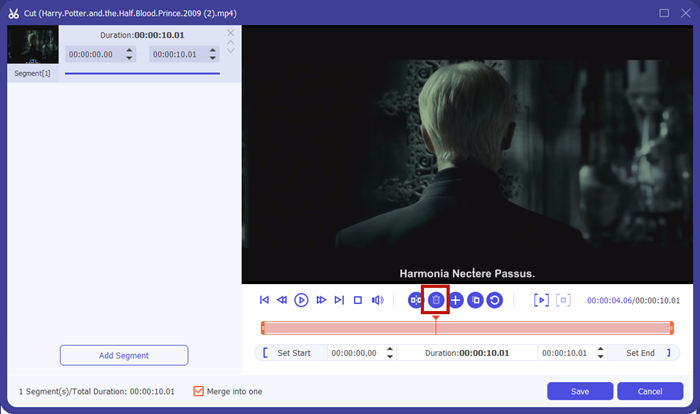
שלב 2. כדי להשתמש בפונקציית הגזירה, לחץ על סמל Cut ליד וידאו שנוסף.
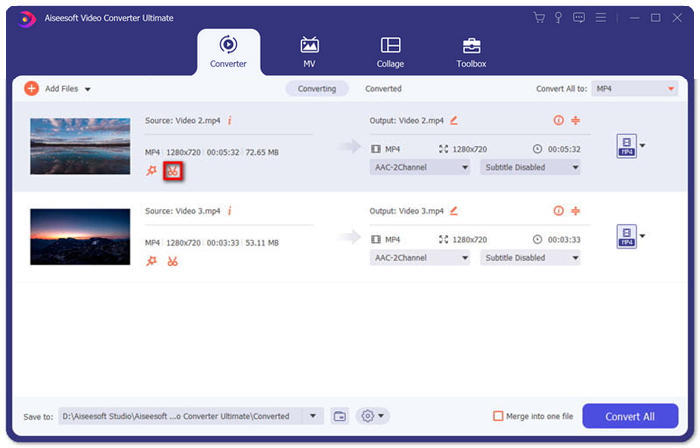
בממשק Cut ניתן לגזור בקלות את החלקים הלא רצויים מהווידאו. פשוט בחר מקטע על‑ידי קביעת נקודות ההתחלה והסיום שלו, ולאחר מכן לחץ על סמל פח האשפה כדי להסיר אותו.
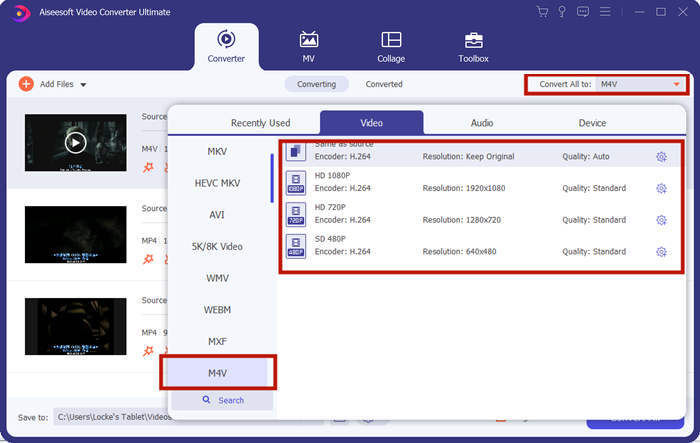
שלב 3. חזור אל הממשק הראשי, שם תוכל לבחור את קובץ הפלט. לחץ על החץ מטה לצד Convert All to. לאחר מכן באפשרותך לבחור M4V או פורמטים אחרים כפורמט הפלט.
שלב 4. לחץ על הכפתור Convert All בפינה הימנית‑תחתונה של התוכנית והמתן עד שהתוכנית תחבר את קובצי ה‑M4V.

לאחר סיום המיזוג, תראה הודעת הצלחה. אז אתה יכול למצוא את קובץ M4V הממוזג בתיקיית היעד. להלן שתי שיטות להצטרף לקבצי וידיאו M4V. סיכמנו גם להלן כמה שאלות נפוצות.
חלק 3: שאלות נפוצות על הצטרפות לקבצי M4V
מהו קובץ M4V?
M4V, שתוכנן על ידי אפל, מכונה לפעמים גם iTunes Video File. זה דומה ל- MP4 מכיוון ששניהם מבוססים על MPEG-4. התכונה המיוחדת ביותר של M4V היא כי iTunes יכולה להוסיף בה הגנה על DRM כדי למנוע הפצה לא מורשית של קטעי וידאו של iTunes.
כיצד לפתוח קובץ M4V?
אם קובץ M4V אינו מוגן ב‑DRM, ניתן לנגן אותו ב‑VLC, QuickTime, Windows Media Player ועוד נגני מדיה רבים אחרים. לעיתים גם מספיק לשנות את הסיומת .M4V ל‑.MP4 כדי לפתוח אותו. עם זאת, קובץ M4V המוגן ב‑DRM ניתן לניגון רק במכשירים מורשים.
האם אוכל להסיר את הגנת ה- DRM מקובץ M4V?
כן אתה יכול. אתה יכול למצוא אינספור תוכניות להסרת DRM בשוק. להלן כמה מהם: ממיר TunesKit DRM M4V, ממיר מדיה DRM של Aimersoft, מסיר DRM של Requiem, ממיר iTunes של Ondesoft, ממיר Apple Music.
סיכום
קטע זה הציג שתי דרכים יעילות ל‑חיבור מספר קובצי וידאו M4V לקובץ אחד. לפתרון המהיר ביותר, FVC Free Online Video Merger הוא הבחירה הטובה ביותר. ניתן להשתמש בו ללא הורדת שום תוכנה, ותהליך ההעלאה יכול להסתיים מיידית. אבל אם אתה רוצה איכות גבוהה יותר, או לא רק לשלב קובצי M4V אלא גם לגזור אותם, כדאי לפנות אל Video Converter Ultimate. הוא מציע לך יכולות עריכה חזקות, והממשק שלו ידידותי למתחילים. אם מצאת פתרונות טובים יותר, נשמח לדעת. פשוט השאר לנו תגובה למטה.
-
 כיצד להמיר M4V ל MP4 עם / בלי DRM
 6 דרכים להמיר חינם M4V ל MP4 (הסרת DRM כלולה)
-
 5 נגני M4V הטובים ביותר להשמעת קבצי M4V בקלות במחשבים / מוביילים
 עליכם להכיר את חמשת נגני ה- M4V המובילים עבור Windows / Mac / Android / iOS
-
 כיצד לחלץ MP3 מ- M4V עם 4 שיטות מעולות שכדאי להכיר
 ממיר M4V ל- MP3 - 4 השיטות הטובות ביותר לחילוץ MP3 מקבצי M4V
