


 ממיר וידאו אולטימטיבי
 מקליט מסך
 תיקון וידאו
איך ליצור סרטון בהילוך איטי עם הקונספט הטוב ביותר שסופק
We all wanted to make slow motion videos because of slow-motion videos we learn how to appreciate details after details that can be caught by our devices in a short manner of time. We conceptualize slow motion as one of the many ways of recording memories other than capturing videos in a normal speed. However, in other devices there are no instant slow motion video recordings available. And it's so hard to find the best solution that concerns most of the people who don't have this kind of feature on their devices. Read this article to learn how to make slow motion videos.

חלק 1. כיצד ליצור וידאו בהילוך איטי ב-Windows
A software like Video Converter Ultimate is able to do anything an editor can wish for a free-to-use software like this. It is available in Windows and Mac, but it always stands out in every software available in Windows. It can edit your video to the next level and has a feature called Video Speed Controller that can adjust the playback speed of your video or convert video to slow motion. This software is accessible and compatible with a large number of formats. Here are the steps provided to use the software properly:
Step 1. To save the software to your PC, click Free Download. After you download it to your desktop, install the software and prepare for launching the software.
הורדה חינמיתל-Windows 7 ומעלההורדה מאובטחת
הורדה חינמיתל-MacOS 10.7 ומעלההורדה מאובטחת
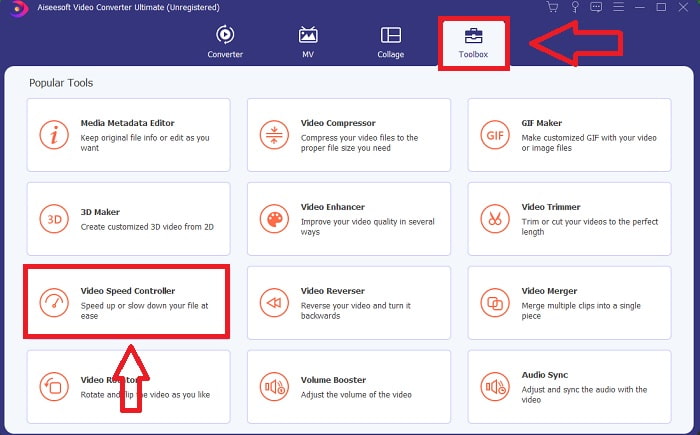
Step 2. After installing the software, launch the software and select the Toolbox option and then proceed with clicking the Video Speed Controller to begin editing the playback speed of the video.
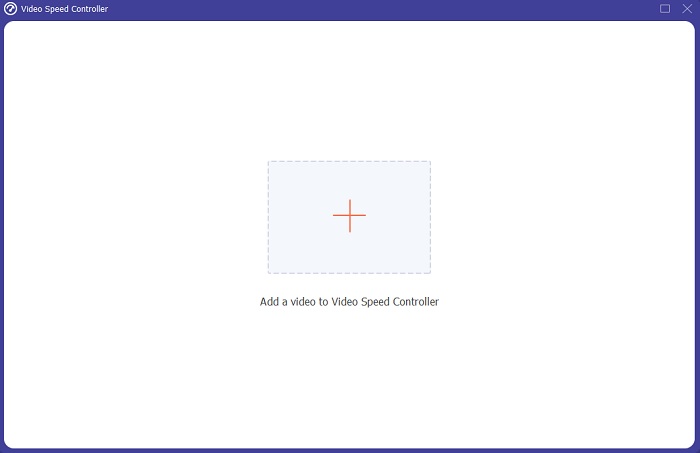
Step 3. Add any file by clicking the + icon in your preferred location, and then modify the video clip.
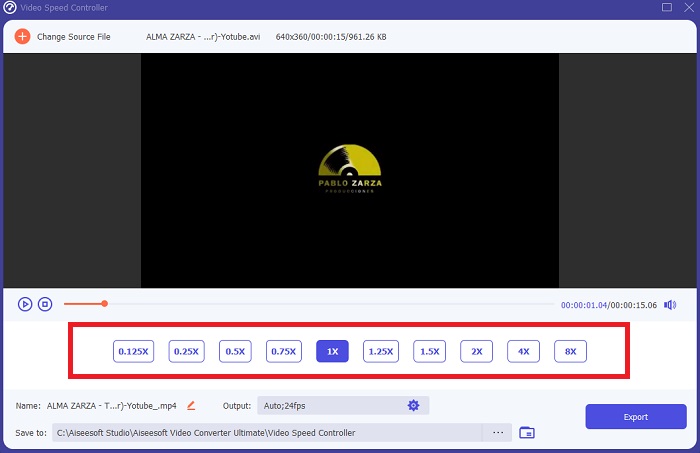
Step 4. Change the playback speed by specifying how many times the video's frame rate will increase or decrease.
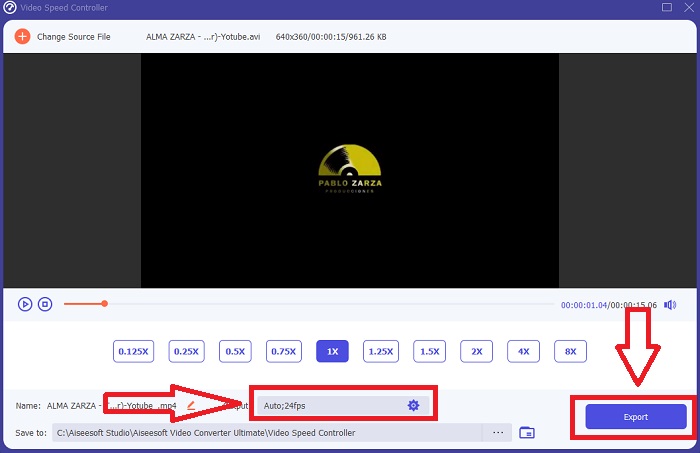
Step 5. After you've finished adjusting the playback speed of your video clip, you can select your desired output by changing the format, resolution, and quality, among other things. When you're ready, click Export and select a location to save your work.
יתרונות
- זוהי תוכנה להורדה בחינם הזמינה ב-Windows וב-Mac.
- יש לו הרבה כלים שעוזרים לערוך סרטון, וניתן להשתמש בהם בקלות.
חסרונות
- ניתן לרכוש אותו כדי לפתוח את התכונות הבלעדיות, אבל זה לא כל כך יקר.
Related:
חלק 2. כיצד ליצור וידאו בהילוך איטי ב-Mac
Create Hollywood-style trailers with iMovie on your Mac in 4K resolution. After editing your videos, give them the finishing touches with animated titles, music, filters, and effects. Make a polished, professional video with Apple's iMovie software and share it with your family and friends. It's not difficult at all. If you use iMovie's various templates and finishing tools, your video will look better. With this new feature, you can alter the speed at which your Mac plays back video or even create slow-motion video since most editors have to prioritize the issues presented, the steps to take with this tool on a Mac to reach your desired speed.
Step 1. Open the iMovie app on your Mac and select a video clip to work with from the Timeline panel.
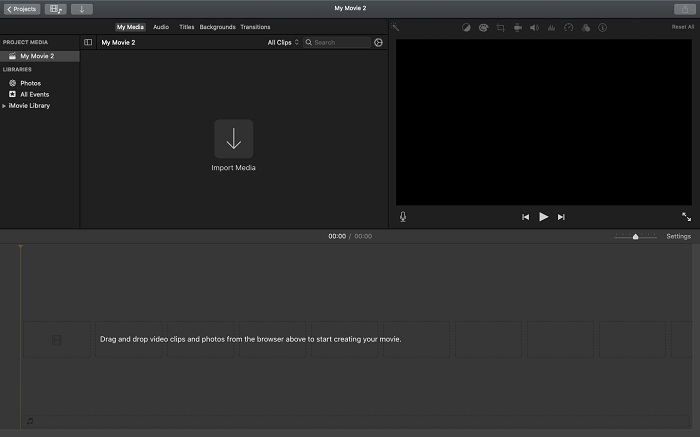
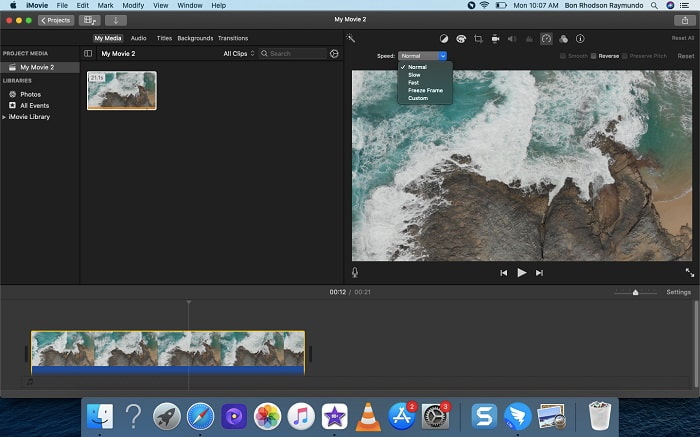
Step 2. By clicking the Speed button in the interface's upper left corner, you can see the speed settings. You can choose between Slow and Fast download speeds from a speed button to fine-tune the download.
Step 3. Click the Upload icon in the interface's upper-right corner to save the file to your computer's hard drive.
יתרונות
- זו תוכנה להורדה בחינם ב-Mac.
- זה יכול להראות את המסלול של הווידאו קליפ שיכול לעזור לערוך בקלות.
חסרונות
- חלק מהתכונות מבוססות מקצועית; חסרים לו כלים שעוזרים לסרטון לשפר את מלוא הפוטנציאל שלו.
- אינך יכול להתאים אישית את מהירות ההשמעה של הסרטון שלך באמצעות תוכנה זו מכיוון שתבחר רק את האפשרויות הנתונות.
חלק 3. איך לעשות וידאו בהילוך איטי באינטרנט
שיטה 1. השתמש ב-VEED
If you're looking for the simplest online tool you can use to make a slow motion video, VEED is the right choice to use. But in order for it to work, you'll need a strong internet connection since it is a webtool and it's only available online. With its accessible interface and user-friendly tools you can make slow motion videos at ease. One of the main features can slow down the speed of a video, for you to make a slow motion video you need to decrease the normal speed of your video, and with the help of VEED, you don't have to worry about the procedure in executing it. To help you in your journey with this web tool, here are the steps provided for you:
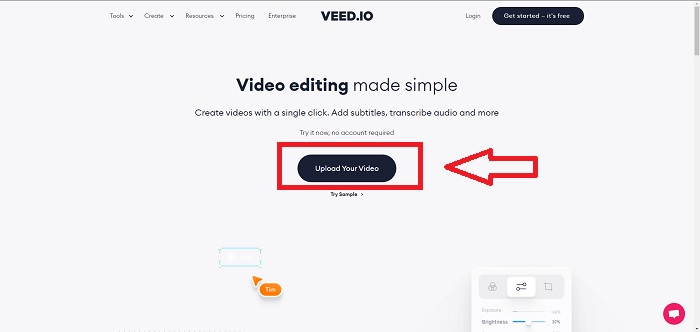
Step 1. By clicking the Upload Your Video button, you can send a video file from your computer to the server's storage area network.
Step 2. A video track appears when you hover your mouse over the webtool's editing interface. Look for and click on the Speed option to change the playback speed. Selecting Custom lets you play your video clip at a custom speed regardless of whether or not the speed you prefer is an option.
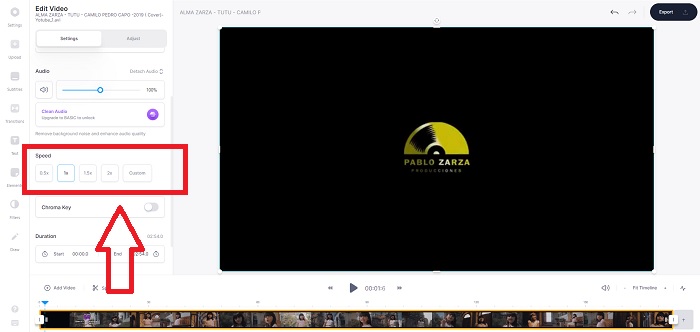
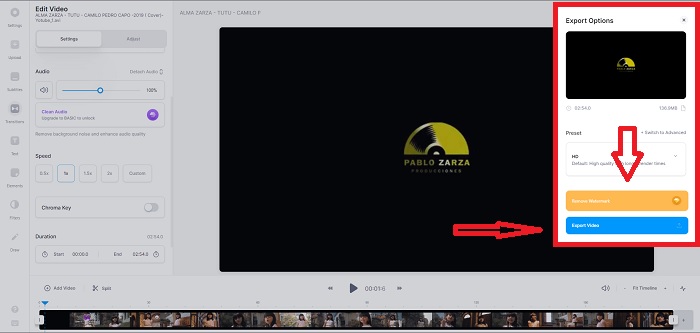
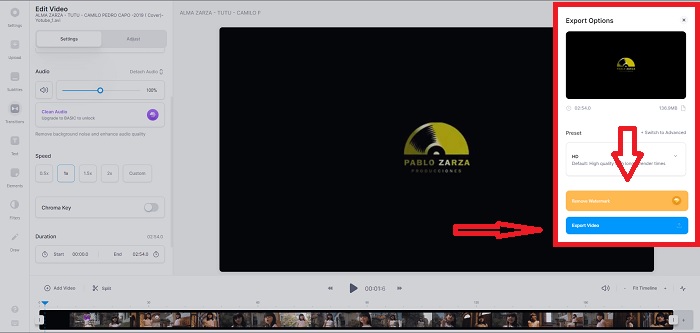
Step 3. After you've edited the video to the speed you want. Click Export to continue in the export tab. Meanwhile, you can upgrade the webtool's premium version and select the video quality you want, as well as get rid of the watermark. You can now export the video to your computer once everything has been settled.
יתרונות
- יש לו מדריכים שיעזרו בשימוש בכלי האינטרנט.
- זהו כלי אינטרנט טוב המכיל מידע על כלים, תמחור, משאבים וארגונים.
חסרונות
- יש לו רק מספר קטן של כלים לשימוש.
שיטה 2. השתמש ב-InVideo
InVideo is an online tool that makes a better video performance than any other online tools with the help of its creative templates and various tools if offered. This online web service is considered an MP4 slow-motion converter with one of its key features in editing a video and its compatibility to convert anything that is MP4 format video clip. InVideo serves as the backrest of every editor when they are having trouble choosing the right web tool to use in order to make slow-motion videos. To help you furtherly with the issue, here are the steps to follow:
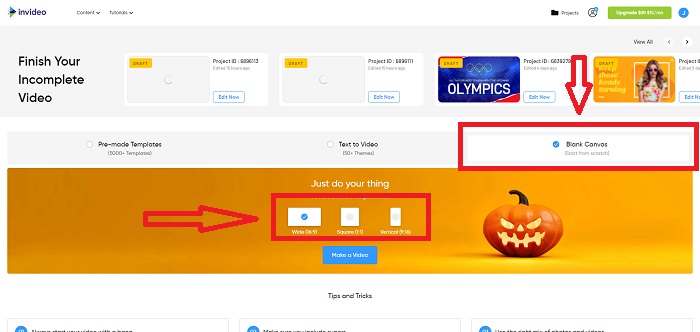
Step 1. To use the web tool, you'll need to sign up for an account. Choosing a template to work with is the next step in the process. To begin uploading, click the Upload button in the upper-left corner of the interface. The upload will start.
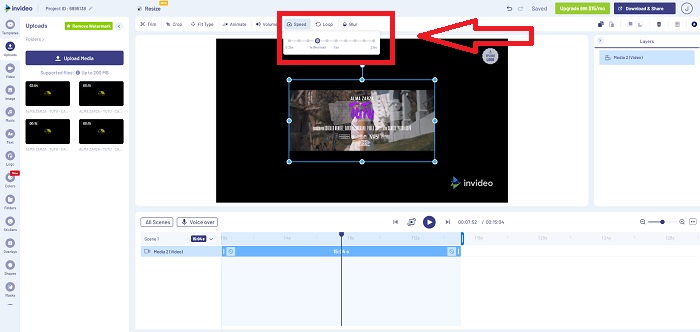
Step 2. Click the Speed tab in the interface's upper-right corner and drag it to the track to edit the playback speed of your video clip. Simply click and drag Slider to change the playback speed.
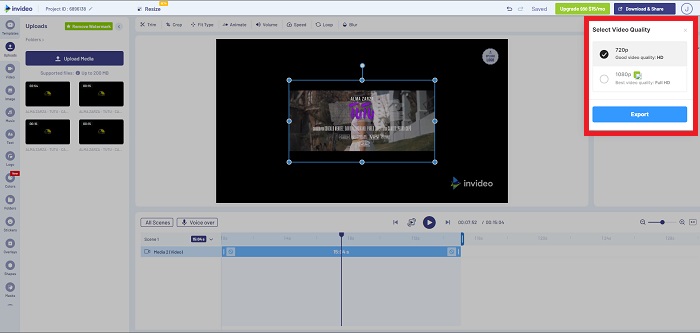
Step 3. Download and share your work when you're done editing, then upgrade to Premium to get even better results.
יתרונות
- יש לו תבניות מותאמות זמינות לשימוש בחינם.
- הוא מכיל תכונות מקצועיות.
חסרונות
- יש לרכוש אותו כדי לפתוח את כל התכונות.
שיטה 3. השתמש ב-Typito
If you're wondering what online editor can resolve the issue of putting a video in slow motion, try to use Typito. Typito makes it easy to create eye-catching videos that will help your video stand out from the other video and the crowd. Canva is exactly what it sounds like but in a video-editing manner. This web application isn't just for professionals. Use it for school projects or semi-professional multimedia projects. You'll also need an email address to use and convert your video clip in the desired adjustments.
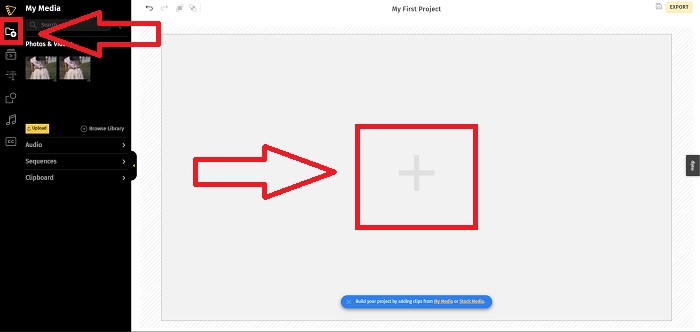
Step 1. Drag and drop media files from your computer's desktop or click on the folder icon to add them.
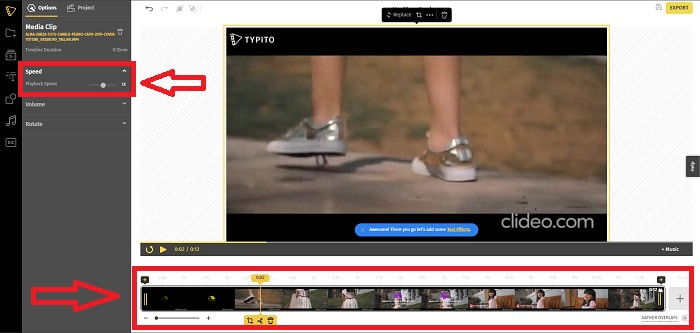
Step 2. To begin editing your video, go to the video track and select the video file. Then click Add Projects. To change the playback speed of a video, locate the Speed feature in the interface's left corner and use the Slider to change the speed of the video.
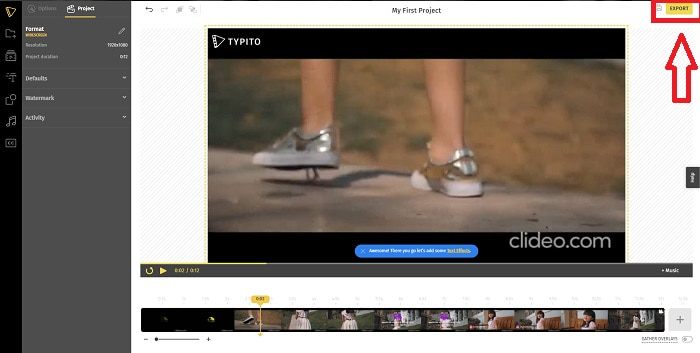
Step 3. By clicking Export in the top right corner of the interface, you can download the converted file to your desktop. Download it when you're done if it's ready.
יתרונות
- זהו כלי אינטרנט מקוון וקל לשימוש.
- הוא מכיל פורמטים ותבניות לשימוש בעריכת הסרטון שלך.
חסרונות
- הממשק של כלי האינטרנט פשוט מדי.
- יש לו כמה כלים זמינים.
חלק 4. שאלות נפוצות לגבי איך ליצור וידאו בהילוך איטי
האם אני מאבד את איכות הסרטון אם אני מאט?
לא, אותו הדבר לגבי הגדלת מהירות ההפעלה של הסרטון שלך; האטת הסרטון שלך לא מאבדת את איכות הסרטון שלך. מסיבה כלשהי, מדוע חלק מהסרטונים הופכים מעט תקולים לאחר הפחתת מהירות ההשמעה של הסרטון, היא איכות הווידאו שלהם כבר משעממת ונמוכה. בנוסף, אם תעצימו כדי להפחית את מהירות ההשמעה של הווידאו קליפ שלכם, קצב הפריימים יחולק לשניים, מה שיגרום לעיכוב ולהורדת האיכות.
איזו אפליקציה היא הטובה ביותר עבור וידאו בהילוך איטי?
Video Converter Ultimate is the best free-to-download converter or editor available in Windows and Mac. It also has features that can enhance and improve your video, and it is accessible to every user who will use the converter.
האם Google Photos היא האפליקציה הטובה ביותר להמרת סרטונים בהילוך איטי למהירות רגילה?
כפי שניתן היה לדמיין, יש כמה חסרונות בשימוש באפליקציה החינמית הזו. בראש ובראשונה, מהירות עיבוד הווידאו איטית יחסית, במיוחד בעת עריכת וידאו קליפ ארוך. בנוסף, אם תחלק את הסרטון לפני שינוי מהירות ההפעלה, האודיו ברקע או הקריינות הקולית יושתקו. בלי קשר, זו אפליקציית אנדרואיד חינמית נהדרת. אתה עדיין יכול להשתמש באפליקציות של צד שלישי, אבל רוב האפליקציות הנוחות לשימוש אינן חינמיות.
סיכום
Therefore, to end this article with a blast, making a slow-motion video will just be like a piece of cake using the solutions mentioned above. The Video Converter Ultimate can be considered a slow-motion video editor that still makes the slow-motion task more effortless and manageable than ever. The number of features available in this software manages to be called a professional-wise editor you will use.
-
 [נפתר] כיצד לתקן סרטונים שאינם פועלים באייפון עם שלבים מפורטים
 לא ניתן להפעיל סרטונים מקומיים בגלריה באייפון שלך באמצעות נגן הווידאו המוגדר כברירת מחדל? סרטוני YouTube מקוונים שאינם מופעלים באייפון תמיד קורה? להלן 5 פתרונות שיעזרו לך במאמר זה.
-
 5 שיטות מעשיות לתיקון QuickTime לא יכול לפתוח קבצי MOV
 פורמט MOV נוצר בעיקר עבור השמעה ב-QuickTime Player. עם זאת, לפעמים אתה עלול לגלות שהם לא משחקים בו. למד כיצד לתקן את QuickTime לא ישחק קבצי MOV מהפוסט הזה.
-
 כיצד להמיר קבצי MKV לנגן ב-PS3 בצורה חלקה [נפתר]
 רוצה לנגן סרטוני MKV ב-PS3 שלך? עם זאת, PS3 לא יכול לנגן קבצי MKV ישירות. מאמר זה יראה לך דרכים להמיר סרטוני MKV לפורמטי וידאו נתמכים ב-PS3 להפעלה ב-PS3 ללא כל טרחה.
