


 ממיר וידאו אולטימטיבי
 מקליט מסך
 תיקון וידאו
4 כלים יעילים של מציג מטא נתונים להצגת מטא נתונים מקבצים
As part of a video element, the metadata contains the data you'll need to know about the file. But the question is, how can you view the file's metadata? So, if you want to see the meta information inside your video, this is the perfect post for you. Keep on reading this article because we will review for you the best metadata viewer you can use to see the metadata, and if possible, you can edit it as well.

חלק 1. 2 של מציגי המטא-נתונים הטובים ביותר עבור Windows ו-Mac של 2022
Video Converter Ultimate [מציג ועורך מטא נתונים של וידאו ואודיו הטובים ביותר]
Video Converter Ultimate offers you the best video metadata viewer on Mac and Windows. With this tool, you can easily add and view the metadata in all video and audio formats with just a few clicks. Even though you didn't have experience dealing with this particular task, you can depend on the best viewer to help you. Unlike the other tools that offer to view metadata, this software provides a great function to help you do more in different tasks, such as editing the metadata. Want to know what these are? If so, read the key features you can have once you attain this software.

ממיר וידיאו אולטימטיבי
5,689,200+ הורדות- זהו הכלי הטוב ביותר להציג ולערוך את המטא נתונים בכל סרטון או סרטון.
- תומך בפורמטי מדיה שונים, כולל MP4, AVI, MOV, MKV, FLV ועוד.
- אתה יכול להכניס כאן קבצי וידאו ושמע גדולים כדי לבדוק את המטא נתונים שלהם.
- בתור התחלה, זהו מציג המטא נתונים הטוב ביותר עם ממשק ידידותי למשתמש.
- זמין בכל הסוגים השונים של פלטפורמות שולחניות כמו Windows ו-Mac.
הורדה חינמיתל-Windows 7 ומעלההורדה מאובטחת
הורדה חינמיתל-MacOS 10.7 ומעלההורדה מאובטחת
אז עכשיו, אם אתה רוצה ללמוד כיצד להציג מטא נתונים, עליך להוריד את הכלי תחילה על ידי לחיצה על כפתור ההורדה המתאים המוצג להלן, התקן אותו לאחר מכן, ואז פתח אותו.
הורדה חינמיתל-Windows 7 ומעלההורדה מאובטחת
הורדה חינמיתל-MacOS 10.7 ומעלההורדה מאובטחת
כיצד להציג מטא נתונים ב- Video Converter Ultimate
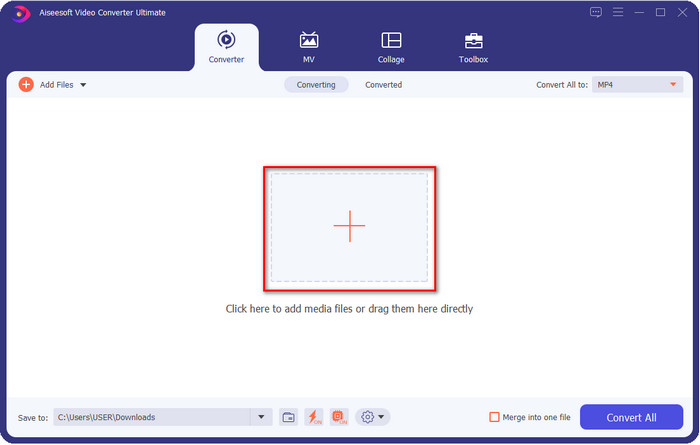
Step 1. By clicking the + button, a file folder will show on your screen where you can locate the video or audio file you want to check the metadata. Once you've chosen the file, click Open and proceed to the next step.
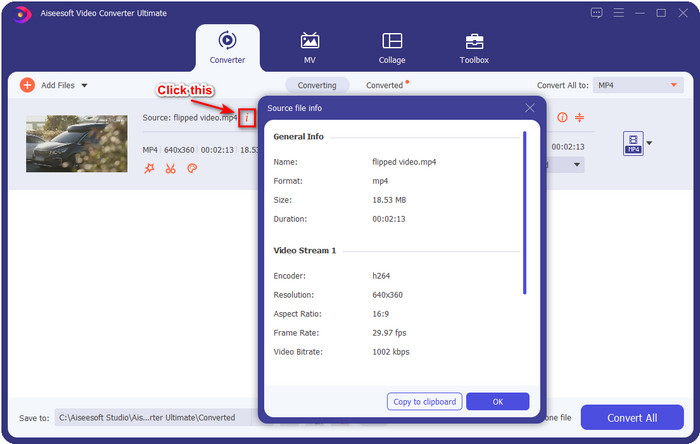
Step 2. While the file is on queue, click the i icon; voila, you have now viewed the metadata of your video file saved on your computer.
כיצד להוסיף או לערוך מטא נתונים של קובץ הווידאו או האודיו עם עורך המטא נתונים הטוב ביותר
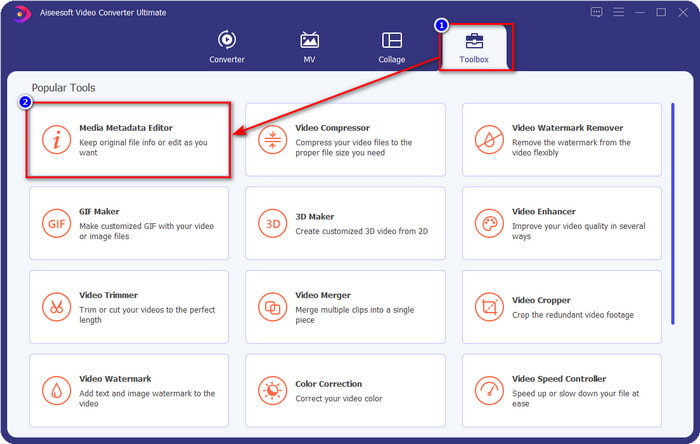
Step 1. After you've opened the software, you must go to the Toolbox section, and in that section, you will see a feature Media Metadata Editor, then click it.
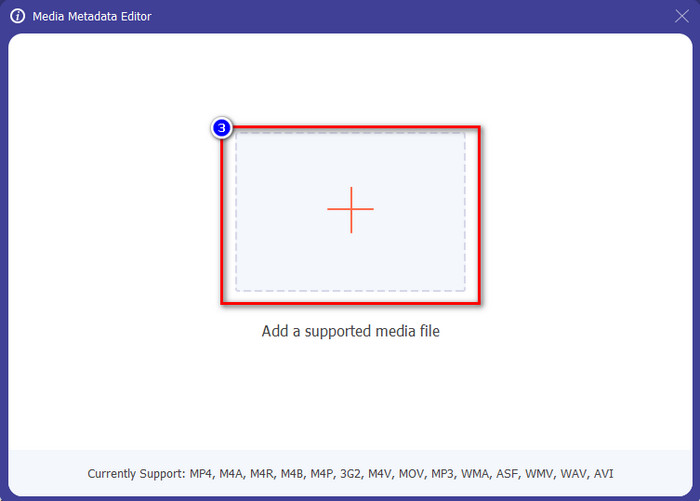
Step 2. New windows will show, click the + button, find the video or audio file on the computers folder, and click Open.
Step 3. Add or edit the data about the file according to your needs; after that, click Save to apply the changes you add.

Photoshop [מציג המטא נתונים הטוב ביותר למקצוענים]
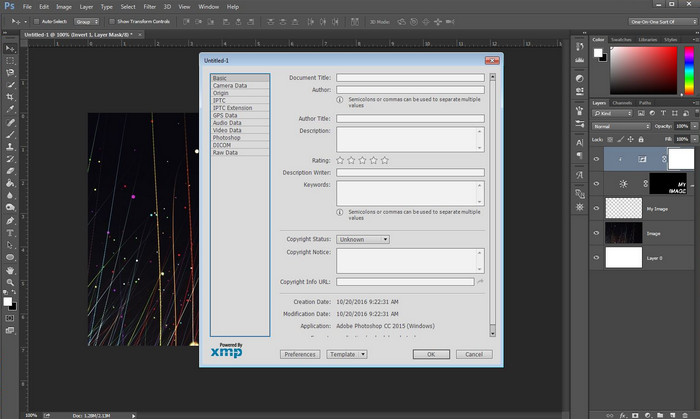
Photoshop became known as the top photo editor you can use as a professional. This tool offers users the high-end editing you will need to make your photo look better than before. Although the tool offers advanced editing, viewing the file's metadata, this tool is too expensive for some users. Maybe you are asking why we add this editor to the list, well it is popular, and many users already use this, so why not? Although it can add metadata on every PSD file, the metadata it supports is minimal, which means it is mostly about basics. So, if you want to view metadata in Photoshop, you must purchase the tool.
יתרונות
- זה העורך הטוב ביותר שתוכל למצוא באינטרנט.
- הוא תומך במגוון רחב של פורמטים של קבצי תמונה שאתה יכול להוסיף ולבדוק מאוחר יותר את המטא נתונים שלו.
- בחירת העורך להיות תוכנת עורך מהשורה הראשונה בשולחן העבודה.
חסרונות
- אם אתה רוכש את הכלי, צפה שהוא יקר.
- הוא זקוק לשולחן עבודה מתקדם כדי לקבל חוויה טובה יותר של השימוש בו.
- לא הבחירה הטובה ביותר למתחילים להתחיל איתה.
קשור:
How to Add Watermark in Photoshop
חלק 2. 2 מציגי מטא נתונים בחינם זמינים באינטרנט
עורך המטא נתונים של תמונה של ג'פרי
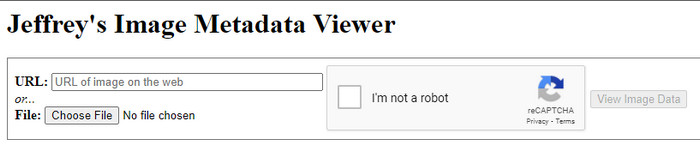
If you want a simple free metadata viewer on the web, try to use Jeffrey's Image Metadata Editor. This web tool is an effective tool to view the metadata of every media file you have for free. However, the users' interface of the web tool isn't as impressive as the others; it still serves its purpose as a metadata editor and viewer. Moreover, if you want to try and access this tool, you must beware because the website isn't protected on different web browsers, which means signing in to the website can lead to hacking or losing some files. Remember that you'll need to beware if you try to access the tool to view your metadata or edit it. So far, there aren't any reports of some who have been hacked while using the website.
יתרונות
- גישה חופשית בכל דפדפני האינטרנט.
- הוא תומך בפורמטים שונים; אתה יכול להעלות ולהציג את המטא נתונים.
- אתה יכול להכניס את כתובת האתר במקום את הקובץ כדי לחסוך מקום.
חסרונות
- הקפצ'ה קצת מעצבן אם אתה רוצה לראות את המטא נתונים.
- האתר אינו מאובטח.
Metadata2go
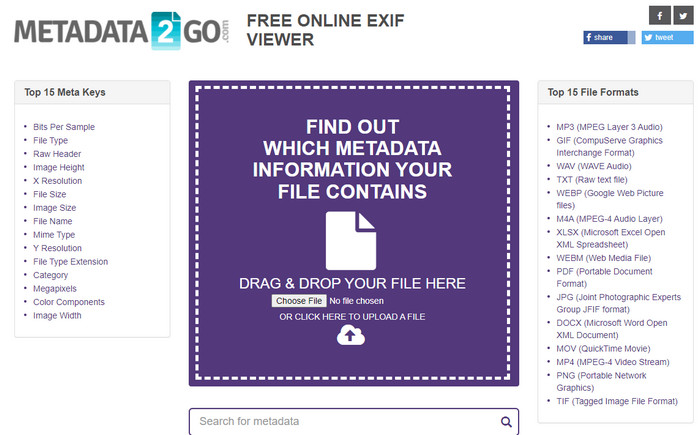
Metadat2go offers a wide range of image formats to insert and later view the metadata. Even though the GUI is much heavier than the first web tool we introduced, it is still easy to use for anyone who would like to access the tool. Although the tool is safer to use than the first one, there are some limitations on the functions, and most of the time the drag and drop function of it doesn't do well. But if you want to learn how to open and read metadata from video, this tool will suffice your needs.
יתרונות
- זה בחינם ובטוח לגישה במנועי חיפוש שונים.
- זה עושה את המשימה בצורה חלקה.
- הוא תומך בפורמטים רבים של תמונה.
חסרונות
- במקרים מסוימים, אפשרויות לא עובדות טוב, כמו גרירה ושחרור.
- זה תומך בפורמטים אחרים, אבל יש מעט נבחרים.
חלק 3. תרשים השוואה לגבי מציג המטא נתונים 4 [מקוון ולא מקוון]
| תכונות | ממיר וידיאו אולטימטיבי | פוטושופ | עורך המטא נתונים של תמונה של ג'פרי | Metadata2go |
| הצג וערוך מטא נתונים בקלות |  | | | |
| בטוח לשימוש | | |  | |
| ידידותי לתקציב | | | | |
| ידידותי למשתמש | | | | |
| תכונות מתקדמות זמינות | | | | |
| מבוסס תוכנית | תוכנית מבוססת שולחן עבודה | תוכנית מבוססת שולחן עבודה | תוכנית מבוססת אינטרנט | תוכנית מבוססת אינטרנט |
חלק 4. שאלות נפוצות על מציג מטא נתונים
מה יש בתוך מטא נתונים?
בתוך המטא נתונים, תראה קבוצה שונה של מידע על הקובץ, למשל, שם המחברים, ז'אנר (אם זה מוזיקה), כותרת הקובץ, גודל הקובץ ועוד רבים.
למה אני צריך לראות את המטא נתונים?
ובכן, מטא נתונים יעזרו לך לדעת מידע קצר על הקובץ שאינך יכול לראות בקובץ. על ידי צפייה במטא נתונים, יהיה לך מושג לגבי הנתונים בקובץ מסוים, בין אם זה תמונה, וידאו, אודיו, PDF או יותר.
האם אני יכול להשתמש במטא נתונים כדי להגן על הקובץ?
כן, אתה יכול להוסיף מטא נתונים כדי להגן על הקובץ שלך מפני האנשים שרוצים לנסות לגנוב את זה ממך. בדרך זו, תוכל לקבל את האישורים שיצרת שיעבדו אם מישהו ינסה לגנוב את זה ממך. עם זאת, יש כמה טכניקות להסרת המטא נתונים של הקובץ; למרות שמישהו יכול להסיר את הנתונים, עדיף להוסיף מטא נתונים לקובץ להגנה נוספת וישירה.
סיכום
Now that we have the metadata viewer presented, it is time to choose one and use it to see your file's inside. Moreover, the first two tools we presented are undoubtedly the best on viewing metadata; but we can see that Photoshop is too expensive to use compared to the ultimate tool. So, therefore, if you want a cheap and safe way to view your metadata or edit it, you must use the FVC Video Converter Ultimate because it is the perfect tool for this task. Still, are you not convinced with the review we did on the tool? Well, you can download the tool on your software and try it for yourself!
-
 3 הפתרונות הטובים ביותר כיצד להסיר סימן מים מסרטונים בקלות
 רוצה להסיר את סימן המים המעצבן בסרטון? עם הבלוג הזה, אתה יכול ללמוד את הרעיונות השונים להסרת סימן המים בסרטון.
-
 4 הדרכים הטובות ביותר כיצד להוסיף סימן מים לסרטוני וידאו במהירות
 בואו ללמוד כיצד להוסיף סימן מים לכל סרטוני וידאו ב-Windows, Mac, Online, iOS ו-Android עם שלבים מפורטים אם תקרא מאמר זה.
-
 4 דרכים יעילות להסיר סימני מים של Tiktok מסרטוני Tiktok
 האם עליך להסיר את סימן המים של Tiktok מסרטוני ה-Tiktok המיוצאים שלך? תוכלו לעשות זאת כאן בעזרת הכלים שאנו מציגים; אתה יכול לעשות את זה בקלות.
