


 ממיר וידאו אולטימטיבי
 מקליט מסך
 תיקון וידאו
 הורדה מאובטחת
הסר את סימן המים של אנימוטיקה בסרטונים בצורה ללא מאמץ
אנימוטיקה היא עורך וידאו פופולרי ל-Windows שכולם אוהבים להשתמש בו, משום שהוא מפיק תוצאה מרהיבה לאחר השימוש. עם הממשק והפונקציות הידידותיים למשתמש, אפילו אם אתה חובבן בעריכת וידאו, תוכל ליצור תוצאות פנטסטיות כמו מה שמקצוענים עושים בסרטונים שלהם. אין להתווכח על כך ששמה של התוכנה הזו נמצא בין עורכי הווידאו המובילים לשימוש ב-Windows. למרות כמה שהיא טובה, משתמשים רבים עדיין נתקלים בבעיה במהלך השימוש, והבעיה העיקרית היא סימן המים שנשאר על הווידאו, שמטריד רבים. במקום לדאוג, למה שלא תקרא מאמר זה כדי להסיר את סימן המים של Animotica? תפסנו את תשומת הלב שלך? אם כן, קרא את הפרטים למטה כדי ללמוד עוד איך לעשות זאת ביעילות.

חלק 1. כיצד להסיר סימן מים מסרטון אנימוטיקה באמצעות 3 הדרכים שאתה חייב להכיר
FVC Video Converter Ultimate [מסיר סימני מים לווידאו המומלץ ביותר]
FVC Video Converter Ultimate מספק את התוצאה הטובה ביותר להסרת סימן המים מהווידאו שלך. גם אם אינך טוב כמו עורכי וידאו אחרים, עדיין תוכל לקבל תוצאה פנטסטית ברגע שתתרגל אליו – אין צורך לדאוג, כי תוכל להפוך למשתמש מקצועי של הכלי הזה תוך זמן קצר. הביצועים שלו אינם ניתנים להשוואה לעומת מסירי סימני מים אחרים שניתן להוריד או להשתמש בהם באינטרנט. אז אם תרצה לראות איך להסיר את סימן המים מווידאו של Animotica באמצעות הכלי הזה, תוכל לעקוב אחרי המדריך שהוספנו למטה עבורך.
שלב 1. ראשית, הורד את התוכנה לשולחן העבודה שלך, ובחר את הגרסה המתאימה למערכת ההפעלה שלך. לאחר מכן, עקוב אחרי תהליך ההתקנה ופתח את הכלי כדי להמשיך.
הורדה חינמיתל-Windows 7 ומעלההורדה מאובטחת
הורדה חינמיתל-MacOS 10.7 ומעלההורדה מאובטחת
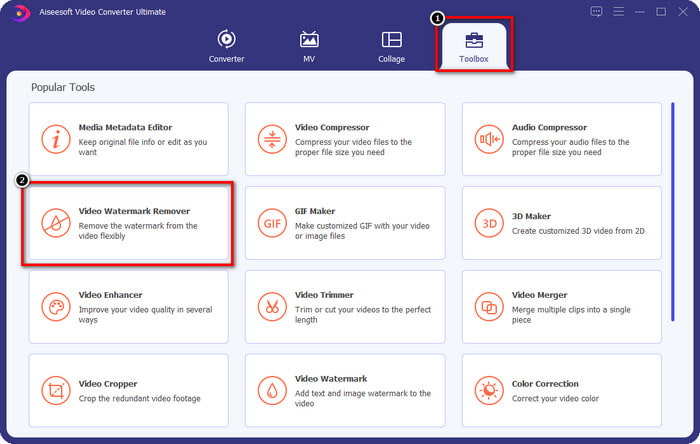
שלב 2. לאחר שפתחת את האפליקציה, עבור אל Toolbox ופתח את Video Watermark Remover. ישנן עוד פונקציות ותכונות שתוכל להשתמש בהן תחת Toolbox; תוכל לבדוק אותן מאוחר יותר אם תרצה.
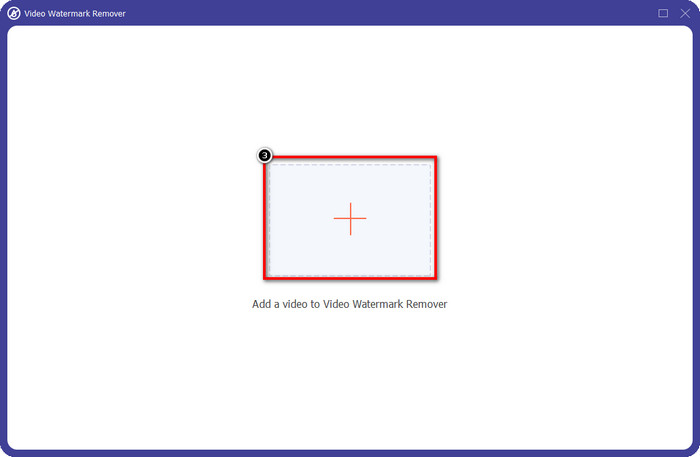
שלב 3. לחץ על סמל ה-+ כדי להעלות את הווידאו שערכת באנימוטיקה. אתר את קובץ הווידאו שייצאת עם סימן המים בתיקייה שתופיע על המסך שלך, ולאחר מכן לחץ על Open כדי להעלות אותו.
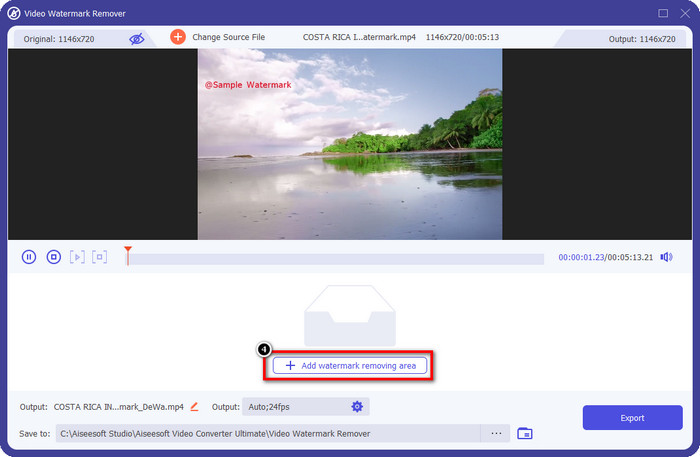
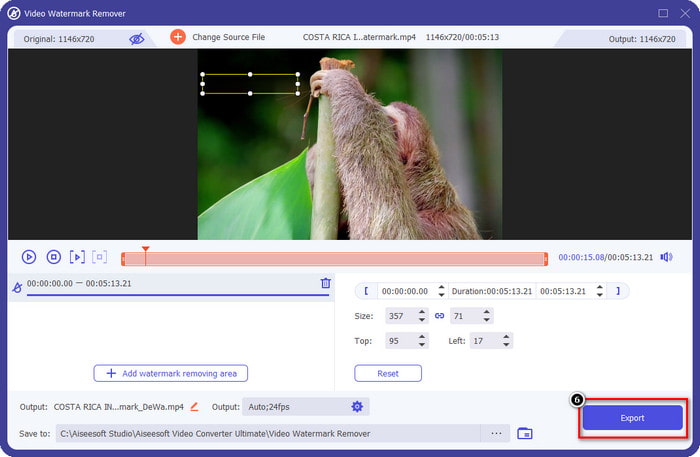
שלב 4. בחלון שיופיע, לחץ על Add Watermark Removing Area כדי להפעיל חלון נוסף שבו תשרטט את אזור סימן המים.
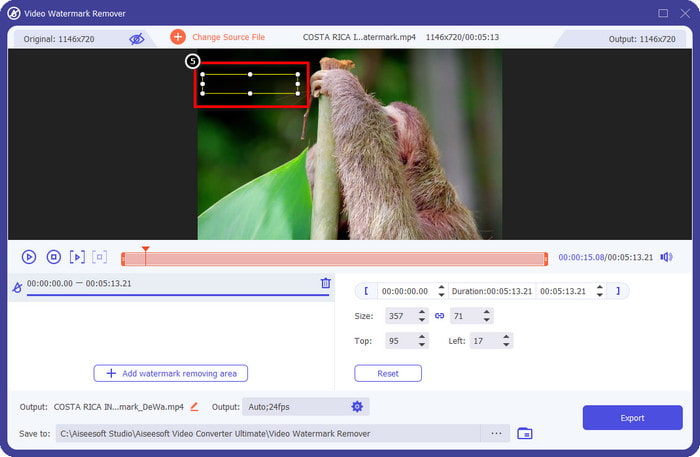
שלב 5. כאן, מקם את המלבן על סימן המים כדי לכסות אותו, וודא שסימן המים מכוסה במלואו. תוכל פשוט לשנות את גודל תיבת הבחירה אם היא קטנה או גדולה מדי ביחס לסימן המים.
שלב 6. כעת באפשרותך לשמור את הווידאו של Animotica ללא סימן מים על ידי לחיצה על כפתור Export ליד הצד הימני התחתון של הממשק.
קשור:
UkeySoft Video Remover סימני מים
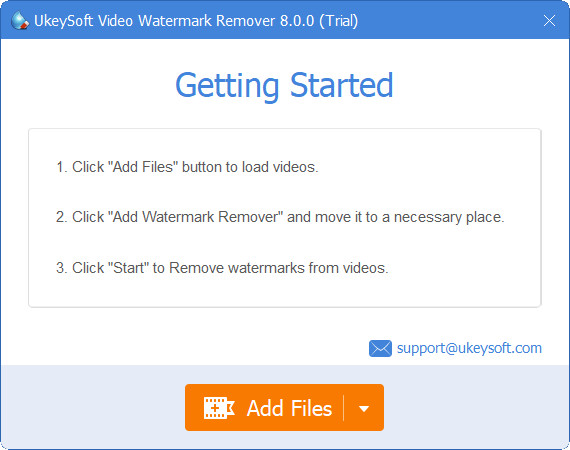
תוכל להוריד בחינם את UkeySoft Video Watermark Remover כדי להסיר את סימן המים מהווידאו שלך. הכלי זמין ב-Windows, כלומר אם אתה משתמש Windows, תוכל להוריד וליהנות בחופשיות מיתרונות הכלי הזה להסרת סימן המים. כמו מסירי סימני מים אחרים, הכלי מספק תוצאה באיכות גבוהה ואינו מוריד את איכות הווידאו המיובא לאחר הייצוא.
עם זאת, אם אתה משתמש בגרסה הנגישה של כלי זה, מגבלות מסוימות עלולות לעכב אותך, כגון שאינך יכול להעלות לכאן סרטון למשך יותר מדקה בחינם. להלן מדריך מלא להסרת סימן המים של אנימוטיקה בחינם.
שלב 1. כדי להוריד את התוכנה למחשב שלך, עבור לאתר הרשמי שלה ולחץ על כפתור ההורדה כדי להתקין אותה ב-Windows.
שלב 2. פתח את מסיר סימני המים, ואז לחץ על Add Files כדי להעלות את הווידאו שיש עליו סימן מים.
שלב 3. לחץ על Add Watermark Remover והנח את תיבת הבחירה על סימן המים. לאחר מכן לחץ על סמל ה-check כדי להתחיל להסיר את סימן המים מהווידאו שלך.
שלב 4. כדי לשמור את השינויים שביצעת ולשמור את הווידאו מאנימוטיקה ללא סימן מים, לחץ על Next.
מסיר סימני מים של Apowesoft באינטרנט
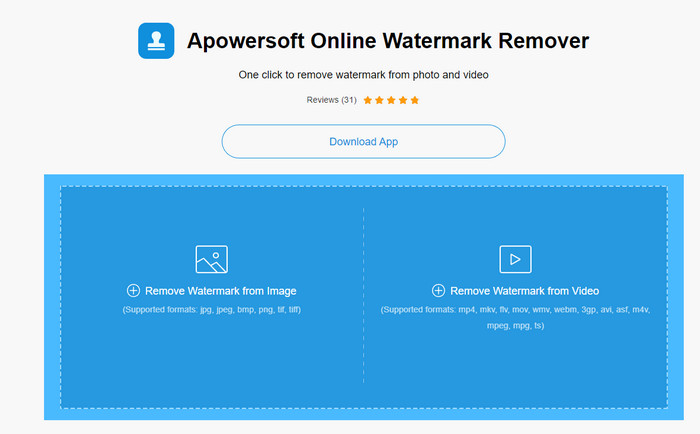
Apowersoft Watermark Remover Online הוא מסיר סימני מים ייעודי שניתן לגשת אליו אונליין אם אינך רוצה להוריד תוכנת הסרת סימני מים למכשיר שלך. מכיוון שניתן לגשת אליו דרך האינטרנט, התאימות של הכלי היא מהטובות ביותר למערכות הפעלה שונות. למרות שהכלי נגיש אונליין, הביצועים שלו עדיין טובים כמו מסירי סימני מים אחרים שניתן להשתמש בהם או להוריד למחשב שלך. כמו כלים מעולים אחרים, גם לכלי הזה יש חסרונות, כמו תמיכה מוגבלת בפורמטי וידאו, תלות בחיבור אינטרנט ועוד.
אבל אם הכלי הזה משך את תשומת הלב שלך, להלן מדריך להסרה מהירה של סימן המים של Animotica בסרטון שלך עם הכלי המקוון.
שלב 1. כדי לגשת למסיר סימני המים אונליין, תוכל לחפש את הכלי בדפדפן האינטרנט שלך, ואז לפתוח אותו.
שלב 2. לחץ על Remove Watermark From Video, ואז בחר את קובץ הווידאו שיש עליו סימן מים. המתן לתהליך ההעלאה, שכן הוא עלול לקחת זמן רב, במיוחד אם חיבור האינטרנט שלך איטי.
שלב 3. לאחר העלאת קובץ הווידאו, מקם את הצורה המלבנית על סימן המים כדי לכסות אותו בסרטון.
שלב 4. כעת, כשאזור סימן המים הרצוי נבחר, לחץ על Erase כדי להסיר את סימן המים שבתוך האזור המלבני.
חלק 2. שאלות נפוצות על איך להסיר סימן מים של Animotica
כמה עולה אנימוטיקה לייט?
המחיר של Animotica Light הוא $6.99. המחיר של זה עדיין יהיה תלוי באזור החנות של Microsoft. הוא כולל כמה תכונות קטנות שבהן אתה יכול להשתמש שאינן כלולות בגרסה החינמית, כגון פלט HD הכולל, ללא סימן מים, כל המעברים, קצב פריימים בלתי מוגבל ואחרים.
האם זו בחירה מצוינת להיעזר ב-Animotica Pro?
עבור $15.99, כלי זה הוא בחירה טובה למתחילים שרוצים לבצע עריכה בסיסית המספקת תכונות ופונקציות יוצאות דופן שתוכלו ליהנות מהם. עם גרסת המקצוענית, אתה יכול לייצא סרטונים באיכות של עד 2160 (4k) עם 60 FPS, תכונות עריכה מלאות ועוד.
מדוע סימן המים של אנימוטיקה הופך מטושטש?
רוב הכלים מטשטשים את סימן המים בסרטון שלך כדי להפוך אותם לבלתי נראים. עם זאת, אם תסתכלו על זה יותר זמן, תבחינו שהוא משאיר שאריות שעלולות להחמיר את הראייה. לכן, השתמש במסיר סימן מים שאינו מטשטש את סימן המים ברגע שאתה מייצא, כפי שמייצר FVC Video Converter Ultimate.
סיכום
ואכן לכל הכלים שאנו מזכירים במאמר זה יש חוזקות וחולשות שונות בהסרת סימן המים של אנימוטיקה. לפני שנסיים מאמר זה, באיזה כלי תשתמשו כמסיר סימני מים? נניח שעדיין לא החלטת במה להשתמש. במקרה זה, אנו מציעים לך לבחור את מסיר סימן המים האולטימטיבי מכיוון שהוא הכלי החזק ביותר להסרת סימן המים בכל סרטון ולבצע מספר משימות בהורדה אחת. אנו מקווים שנענה על השאלות שלך עם מאמר זה. המדריך שלמעלה יעזור לך להסיר את סימן המים בסרטון שלך כדי שתוכל ליהנות מצפייה בסרטון באיכות גבוהה ללא סימן מים.
-
 למד כיצד להסיר סימן מים של Movavi בחינם [חובה!]
 ייצוא סרטון או תמונה ב-Movavi ישאיר סימן מים, אך האם ניתן להסיר אותו? כדי ללמד כיצד להסיר את סימן המים בחינם קרא את זה.
-
 3 דרכים קלות להסיר סימן מים Fiverr ב-Windows וב-Mac
 אתה נמצא בדף הנכון אם אתה מחפש אפליקציה שיכולה להסיר סימן מים של Fiverr. קרא את הפוסט הזה כדי לדעת איך אתה יכול להסיר בקלות את סימן המים Fiverr.
-
 כיצד להסיר סימן מים של Lomotif באמצעות הכלים המדהימים האלה
 האם אתה רוצה ללמוד כיצד להסיר סימן מים של Lomotif מהסרטון שלך? קרא מאמר זה כדי לדעת מהן השיטות הבולטות ביותר להסרתו באופן מקוון ולא מקוון.
