


 ממיר וידאו אולטימטיבי
 מקליט מסך
 תיקון וידאו
 הורדה מאובטחת
דרכים מלאות להסיר את סימן המים של מסנן Picsart מהסרטונים שלך ביעילות
בימינו, תוכנת עריכת מדיה חזותית שניתן לסמוך עליה על שולחן העבודה, כמו Picsart, היא כלי חיוני. בעזרתה תוכלו לכוונן כמה אפשרויות ולהפוך תמונה רגילה לצילום מרהיב, כפי שאיש עוד לא ראה! כך תוכלו למשוך יותר לקוחות או קהל בעזרת תמונה בולטת לעין שאתם יוצרים. אבל יש בעיה בשימוש ב‑Picsart: הווטורמרק (Watermark) שהיא מוסיפה לאחר הייצוא. סימן המים הזה מאוד מציק ועלול להסיח את הדעת מהתמונה אם לא מסירים אותו. לכן, אם אתם רוצים גם את התוכנה וגם מדריך על הסרת סימן המים של פילטר Picsart, המשיכו לקרוא את המאמר ותלמדו על כך עוד!

חלק 1. כיצד להסיר סימן מים מסנן Picsart באמצעות התוכנה החופשית בשולחן העבודה
FVC Video Converter Ultimate - מסיר סימני מים מספר אחת ב-Windows ו-Mac
נפתח בהצגת התוכנה שהיא הבחירה מספר אחת שלנו, שיכולה לסייע וללמד אתכם איך להסיר את סימן המים של Picsart. FVC Video Converter Ultimate הוא כלי חיוני בארסנל שלכם; בעזרתו תוכלו להסיר בקלות סימני מים מסרטונים ולקבל תוצאה מקצועית. בזכות הביצועים והפיצ’רים הייחודיים שלו, משתמשים רבים כבר ניסו אותו והכלי לא אכזב אותם. אם אתם צריכים עזרה בהסרת סימן המים מהווידאו שלכם, תוכלו להעתיק את השלבים שהוספנו למטה ולבצע אותם לפי ההוראות.
שלב 1. תוכלו להוריד את התוכנה האולטימטיבית למכשיר שלכם על‑ידי לחיצה על כפתור ההורדה המתאים למטה. לאחר מכן עליכם להתקין את התוכנה במחשב וללחוץ על Start Now כדי לפתוח אותה.
הורדה חינמיתל-Windows 7 ומעלההורדה מאובטחת
הורדה חינמיתל-MacOS 10.7 ומעלההורדה מאובטחת
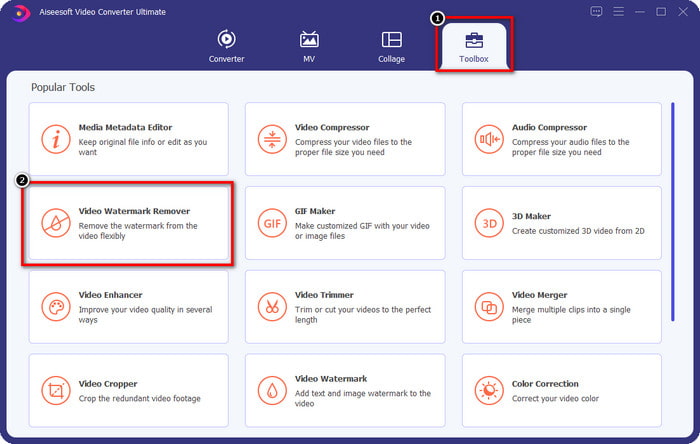
שלב 2. בחלק של Toolbox תראו פיצ’רים נוספים שתוכלו להשתמש בהם כדי לתת נגיעה מקצועית יותר לסרטון שלכם. אבל היום, לחצו על Video Watermark Remover.
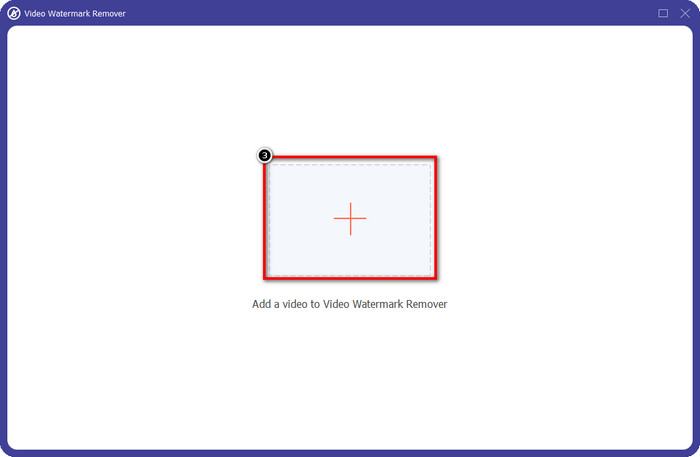
שלב 3. העלו את הסרטון שערכתם ב‑Picsart על‑ידי לחיצה על סמל ה+. חפשו את הקובץ בתיקייה שתופיע על המסך, ואז לחצו על Open.
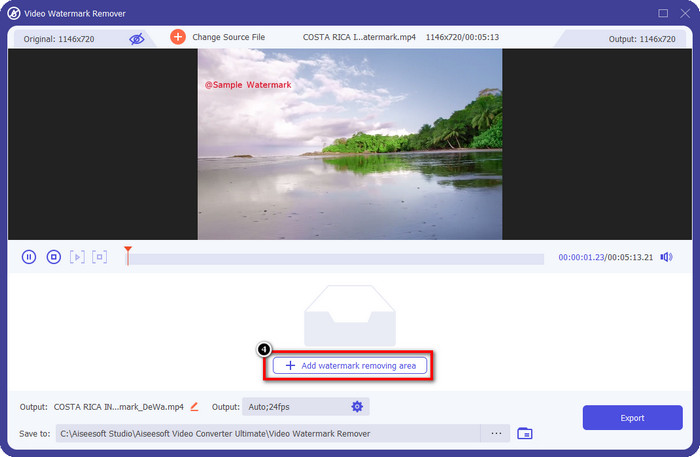
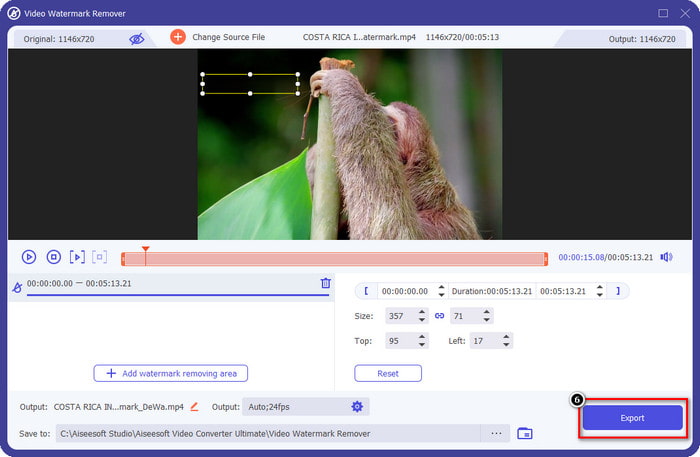
שלב 4. לחצו על Add Watermark Removing Area כדי להוסיף אזור להסרת סימן המים המוטמע בסרטון שהעליתם.
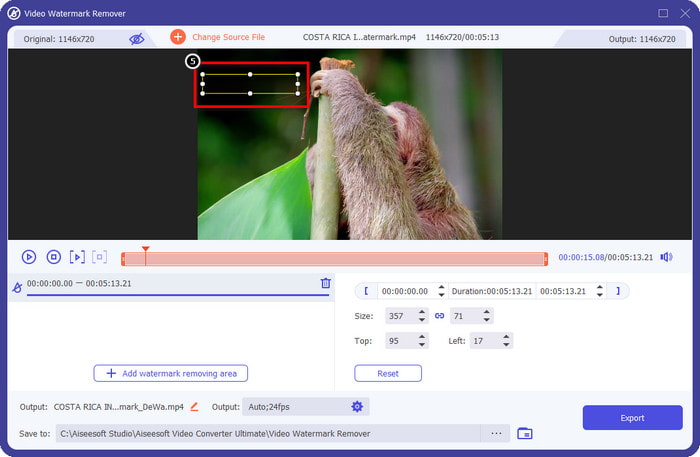
שלב 5. גררו והניחו את תיבת הבחירה על סימן המים וכסו אותו. תוכלו להגדיל או להקטין את התיבה לפי הצורך.
שלב 6. לאחר שסיימתם לכסות את סימן המים בעזרת תיבת הבחירה, לחצו על Export כדי לשמור את התוצאה הסופית בכונן המקומי שלכם.
תמונות ב-Windows- כיסוי סימן מים עם עיצוב תלת מימדי
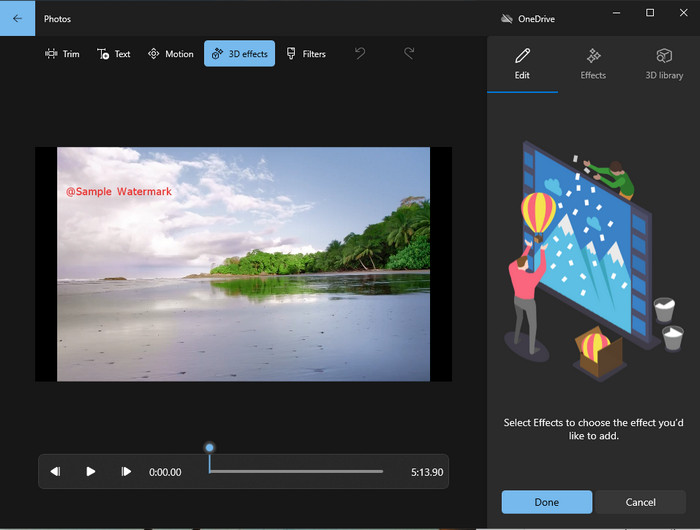
אם הורדת תוכנה אינה הצד החזק שלכם ואתם משתמשי Windows, כדאי שתנסו להשתמש באפליקציית Photos כדי לערוך את סימן המים בסרטון. ללמוד איך להסיר את סימן המים של Picsart בעזרת הכלי הזה יהיה אפילו מהיר יותר, משום שלא תצטרכו לעבור את שלב הורדת האפליקציה. הכלי אינו מסיר בפועל את סימן המים מהווידאו, אבל ניתן לכסות אותו בעזרת עיצובים תלת‑ממדיים (3D). למרות זאת, הביצועים של מציג ויוצר המדיה החזותית המובנה הזה טובים למדי. לא בטוחים? תוכלו לקרוא את השלבים הבאים ולעקוב אחריהם אם תרצו.
שלב 1. לחצו על כפתור Windows בשורת המשימות וחפשו את Photos כדי לפתוח את האפליקציה.
שלב 2. לאחר פתיחת העורך המובנה, לחצו על סמל ה+ כדי להעלות את הסרטון שברצונכם לערוך כאן.
שלב 3. עברו אל 3D Effects, לחצו על 3D Library וחפשו את העיצוב שבו תרצו להשתמש כדי לכסות את סימן המים. מקמו את העיצוב שבחרתם באזור שבו מופיע סימן המים.
שלב 4. לחצו על Finish Video כדי לשמור את התוצאה הסופית בכונן המקומי במערכת ה‑Windows שלכם.
PickFrom Blur Video Online

PickFrom Blur Video Online יכול לסייע לכם להסיר את סימן המים של PicsArt מהסרטונים שיש לכם אונליין. הכלי אינו מוכר לרבים, אבל היום נכיר לכם אותו. כללנו את התוכנה הזו בזכות היעילות שלה בהסרת סימני מים מהסרטונים שאתם מעלים. ממשק המשתמש (GUI) שלה פשוט ונקי, ולא תלכו לאיבוד כשתתחילו להשתמש בה. אם ברצונכם להסיר את סימן המים, נעבור כעת לתהליך שלמטה.
שלב 1. פתחו את דפדפן האינטרנט, חפשו את שם הכלי ולחצו על התוצאה הראשונה כדי לפתוח את מסיר סימני המים המקוון.
שלב 2. לחצו על Click to Add File כדי שתוכלו להעלות את הסרטון לכאן.
שלב 3. סמנו את האפשרות Blur Part of the Video, ואז מקמו את תיבת הבחירה על סימן המים.
שלב 4. לחצו על Start כדי להוריד את הסרטון ללא סימן המים.
חלק 2. כיצד להסיר סימן מים של Picsart על ידי רכישת גרסת הפרימיום
עליך לרכוש את התוכנה אם אינך רוצה להסתבך עם הסרת סימן המים הזהב של Picsart. זה יעלה לך סכום מסוים כי תצטרך לשלם עבורו לפני שתוכל להשתמש בו ואז לייצא את הסרטון ללא שום סימן מים מוטבע. לכן, אם אתה רוצה מדריך שלב אחר שלב על רכישת ה-Picsart, עליך לעקוב אחר המדריך הבא שאנו מוסיפים.
שלב 1. פתחו את האתר הרשמי של Picsart והיכנסו לחשבון שלכם. אם אין לכם חשבון, עליכם ליצור אחד חדש על‑ידי הרשמה (Signing up) כאן.
שלב 2. באתר הראשי, לחצו על Pricing וצפו במחירים של כל אחד מהמוצרים הזמינים.
שלב 3. בחרו את התוכנית הרצויה, חודשית או שנתית, ואז לחצו על Go to Payment.
שלב 4. הוסיפו את פרטי החיוב על‑ידי מילוי הנתונים הנדרשים, ואז לחצו על Purchase Now.
קשור:
חלק 3. שאלות נפוצות על איך להסיר סימן מים של Picsart
האם אוכל לרכוש לצמיתות את Picsart Gold?
זה לא תומך בבסיס תשלום חד פעמי או בתוכנית, כך שאם אתה רוצה להשתמש ב-Picsart Gold, תצטרך להיעזר בתוכנית החודשית או השנתית. בדוק את המחיר עבור כל תוכנית על ידי מעבר לאתר הרשמי שלה.
האם אוכל ליצור מנוי מותאם אישית ב-Picsart?
כן, אתה יכול ליצור מנוי לצוות ב-Picsart. אתה יכול להגדיר את מספר האנשים שישתמשו באפליקציה.
היכן אוכל לגשת ל-Picsart?
אתה יכול להוריד את Picsart ב-Windows, אנדרואיד ו-iOS. למרבה הצער, לאפליקציה אין גרסת Mac כרגע, אבל אל תהיה עצוב כי אתה יכול להשתמש בתוכנות אחרות לעריכת מדיה הזמינות במערכת שלך.
סיכום
המדריך שלימדנו קודם נותן לך מושג על הסרת סימני מים באמצעות PicsArt ועל מסירי סימני המים הטובים ביותר שתוכל להשתמש בהם. כעת תוכל ליהנות מהסרטון שאתה עורך ב-Picsart מבלי להתעסק בסימן המים של המוצר שהוא מוסיף לפלט הסופי. לכן, אם אתה עדיין לא משוכנע עם הכלים שאנו מציגים, חובה לנסות אותם תחילה, במיוחד FVC Video Converter Ultimate. לחץ על לחצן ההורדה ושמור אותו בחינם ב-Windows וב-Mac שלך, ולאחר מכן תהנה מהתכונות והפונקציות שהוא מספק שתוכל לנצל.
-
 כיצד להסיר סימן מים של Pond5 באמצעות הכלים האולטימטיביים
 למד כיצד להסיר סימן מים Pond5 על ידי ביצוע השלבים הפשוטים שלהלן. אתה יכול להסיר בקלות את סימן המים Pond5 על התמונה שלך באמצעות הכלים המרשימים האלה.
-
 2 דרכים חזקות כיצד להסיר סימן מים Dxtory
 למד כיצד להסיר סימן מים Dxtory על ידי ביצוע שתי השיטות הטובות ביותר. אם אתה מחפש את הכלי המתאים ביותר להסרת סימן המים של Dxtory, קרא כאן.
-
 מסירי סימני מים מצטיינים של ארנולד מאיה שאסור לפספס
 מסירי סימני מים רבים יכולים להסיר את סימן המים של ארנולד מאיה. אבל אם אתה רוצה לדעת מהם מסירי סימני המים הטובים ביותר של ארנולד מאיה, קרא את הדף הזה.
