


 ממיר וידאו אולטימטיבי
 מקליט מסך
 תיקון וידאו
 הורדה מאובטחת
3 מסירי סימני מים של Shutterstock לשימוש והסרת סימן המים בסרטונים
האם אתה צריך סרטוני Shutterstock ברישיון ובאיכות גבוהה לפרויקט שלך, אבל מופיע עליהם סימן מים של Shutterstock? בעזרת Shutterstock watermark remover תוכל להסיר בקלות את סימן המים מהווידאו שהורדת. ברמה המקצועית והאישית, איננו אוהבים שלסרטונים שלנו יש סימן מים כי זה הורס את כל הרעיון של הווידאו. לכן, אם ברצונך להיפטר מסימן המים של Shutterstock, תוכל להמשיך לקרוא את המידע וההדרכה הקצרה שהצגנו במאמר זה.

חלק 1. כיצד להסיר סימן מים של Shutterstock עם מסיר סימני המים האולטימטיבי בשוק [בחירת העורך]
FVC Video Converter Ultimate יכול לעזור ולהנחות אותך במדויק כיצד להסיר את סימן המים של Shutterstock מהווידאו ששמרת. זהו פתרון כולל שניתן להוריד ב‑Windows וב‑Mac כדי להתאים את הווידאו שלך, כולל הסרת סימני מים. אף על פי שמדובר בתוכנה רב‑תכליתית, המפתח של תוכנית זו שומר על רמת שימושיות פשוטה, כך שכל מי שרוצה להשתמש בה יוכל לעשות זאת בלי צורך בידע נרחב.
אפילו עם מיומנויות ברמה נמוכה, אתה יכול לקבל פלט מהשורה הראשונה בסוף ברגע שאתה משתמש בעורך זה. עדיין לא השתכנעת עם המידע שהוספנו? כדי להוכיח זאת, נלמד אותך כיצד להסיר את סימן המים של Shutterstock בחינם עם עורך וידאו זה.
שלב 1. כדי להסיר את סימן המים מהווידאו שהורדת, עליך קודם להוריד את העורך הזה על‑ידי לחיצה על כפתור ההורדה המתאים למערכת ההפעלה שלך. תהיה התקנה קצרה שתצטרך לעבור, ולאחר מכן תוכל להתחיל להשתמש בתוכנה.
הורדה חינמיתל-Windows 7 ומעלההורדה מאובטחת
הורדה חינמיתל-MacOS 10.7 ומעלההורדה מאובטחת
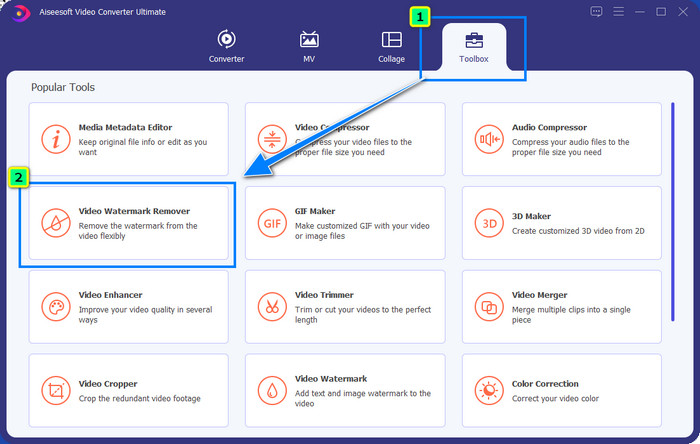
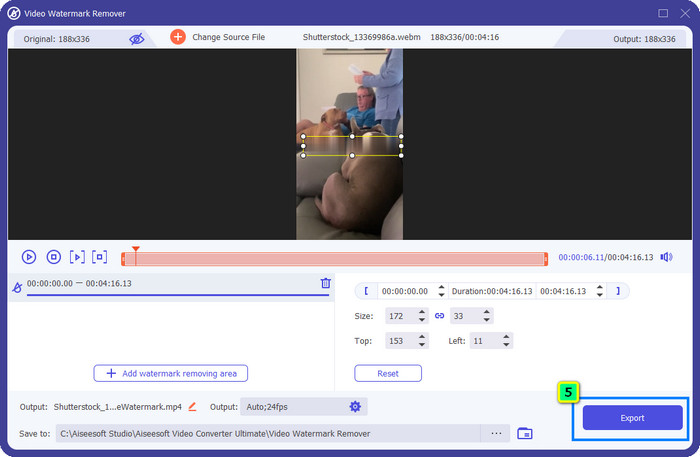
שלב 2. לאחר מכן השתמש בVideo Watermark Remover; תוכל למצוא פונקציה זו תחת Toolbox. כפי שאתה רואה, תוכל להשתמש בתכונות ובפונקציות עריכה מרובות כדי להתאים את התמונה כך שתתאים לדימוי המועדף עליך.
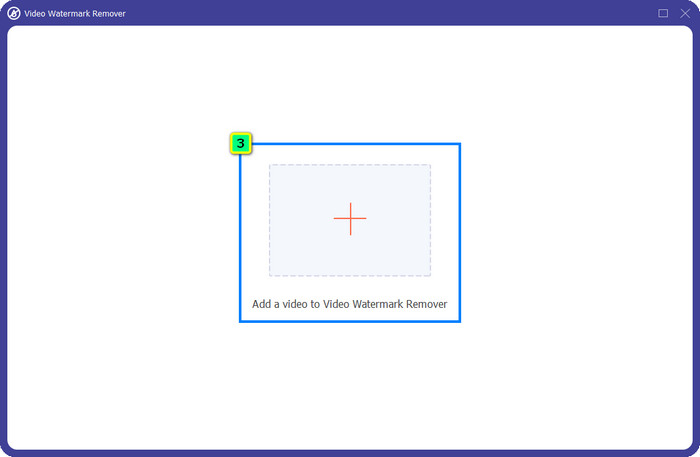
שלב 3. לחץ על סמל הפלוס, ומנהל קבצים יופיע על המסך. בחר את קובץ הווידאו עם סימן המים ואז לחץ על Open כדי להעלות אותו.
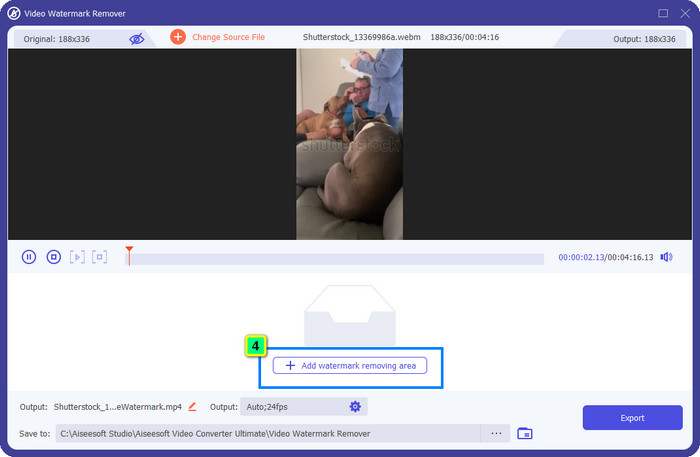
שלב 4. כדי למחוק את סימן המים מהווידאו שהעלית, לחץ על Add Watermark Removing Area, וחלון חדש יופיע.
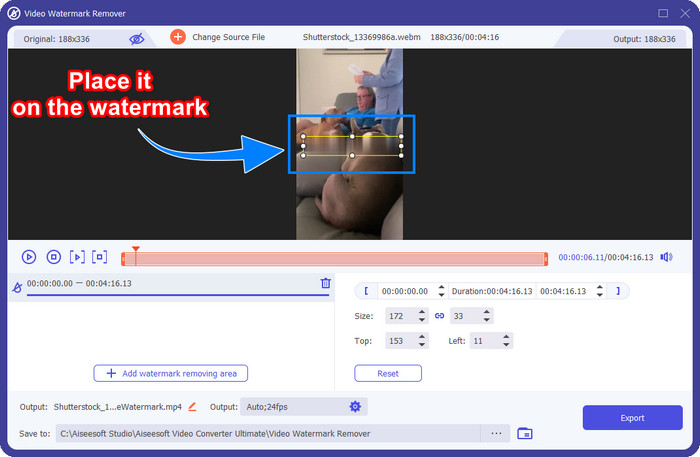
שלב 5. בשלב זה יופיע ריבוע על גבי הווידאו שלך; מקם אותו על סימן המים. תוכל לשנות את הגודל, לגרור, להקטין או להגדיל אותו כך שיתאים בדיוק לסימן המים שברצונך למחוק.
שלב 6. לבסוף, לחץ על כפתור הExport כדי להוריד את הפלט הסופי של סרטון ה‑Shutterstock שהורדת למכשיר שלך. כעת תוכל ליהנות ממנו בלי לדאוג לסימן המים, משום שהוא נמחק.
חלק 2. כיצד להסיר סימן מים של Shutterstock באינטרנט בחינם
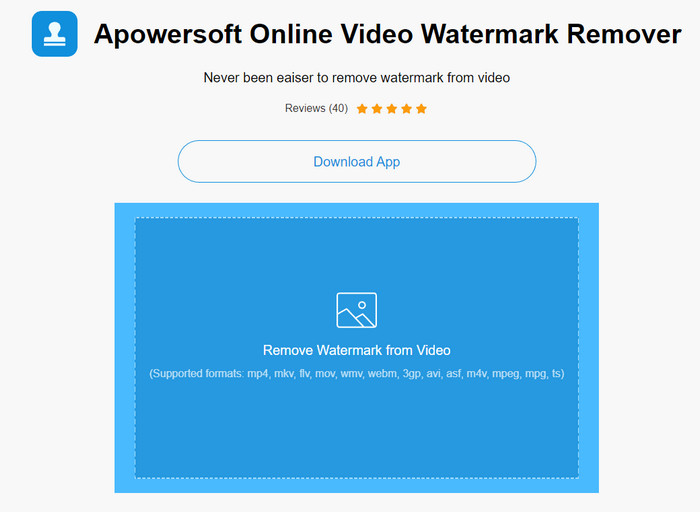
לא אוהב את הרעיון של הורדת מסיר סימני מים למחשב השולחני? אם כך, תוכל להשתמש בApowersoft Online Watermark Remover, ואנחנו כאן כדי ללמד אותך כיצד להסיר את סימן המים של Shutterstock באופן מקוון. זהו פתרון מצוין לכל מי שצריך להסיר סימן מים מהווידאו שיש לו או מהתמונה. הסיבה שהוספנו את הכלי הזה היא שהוא נגיש ותואם למערכות ההפעלה השונות שבידך.
בניגוד לכלים לא מקוונים, תזדקק לחיבור אינטרנט יציב וחזק כדי להשתמש בהם. כפי שאנו מבטיחים, להלן המדריך לשימוש במסיר סימן מים זה כדי להסיר את סימן המים ש- Shutterstock משאיר עליו.
שלב 1. פתח את האתר הרשמי של Apowersoft Online Watermark Remover באמצעות מנוע החיפוש המועדף עליך, ולאחר מכן לחץ על כפתור ה+ בצד ימין כדי להעלות את קובץ הווידאו.
שלב 2. מקם את תיבת הבחירה על סימן המים של Shutterstock בווידאו.
שלב 3. לאחר מכן לחץ על Erase כדי להסיר את סימן המים ולראות את התוצאה.
שלב 4. לחץ על Download File כדי לקבל את סרטון ה‑Shutterstock בלי סימן המים.
חלק 3. כיצד להסיר סימן מים של Shutterstock באמצעות Photoshop [בתשלום]
משתמשים רבים שואלים כיצד להסיר את סימן המים של Shutterstock בעזרת פוטושופ, ואנחנו כאן כדי לעזור לך! Adobe Photoshop תומכת בפונקציה מקצועית להסרת סימני מים שתיהנה להשתמש בה. בדומה לתוכנות שהוצגו במאמר זה, היא מבצעת את העבודה, אך הגישה שלה להסרת סימן המים היא פריים אחר פריים. משמעות הדבר היא שתצטרך להשקיע זמן בהסרת סימן המים בכל פריים של הווידאו; ככל שהווידאו ארוך יותר, כך יהיו יותר פריימים. אם ברצונך לדעת כיצד הכלי עובד, קרא את השלבים המידעיים שלהלן.
שלב 1. הורד את היישום למחשב שלך, ואז לחץ על File. תחתיו, לחץ על Open כדי להעלות את הווידאו השמור במחשב.
שלב 2. בצד שמאל בחר את Magic Wand Tool, ואז לחץ על סימן המים שברצונך להסיר. פונקציה זו תאתר באופן אוטומטי את סימן המים בפריים.
שלב 3. עבור אל Edit ולחץ על Content-Aware Fill לאחר שסימנת את סימן המים.
שלב 4. לאחר פתיחת Content-Aware Fill, סימן המים שבחרת קודם יוסר אוטומטית, ואז לחץ על OK.
לקריאה נוספת:
שיטות קלות להסרת סימן המים של Shootproof
כיצד להסיר את סימן המים של Bandicam בלי מאמץ [3 דרכים יעילות]
חלק 4. שאלות נפוצות כיצד להסיר סימן מים של Shutterstock
כיצד להסיר את סימן המים של Shutterstock ללא פוטושופ?
אתה יכול להשתמש ב-FVC Video Converter Ultimate כדי להסיר את Shutterphoto המחובר לסרטון שלך. יש לו מחק סימן מים חזק שתשמחו לנסות. בצע את השלבים שאנו מוסיפים במאמר זה כדי לעשות זאת ביעילות כמו פוטושופ.
האם חיתוך סימן המים של Shutterstock יעבוד בווידאו?
אם אתה רוצה לשנות את גודל הסרטון על ידי שינוי הממד, אתה יכול לחתוך את הסרטון בעזרת עורכי וידאו מרובים באופן מקוון ולא מקוון. מכיוון שסימן המים של Shutterstock נמצא באמצע, עדיף לא להשתמש בתכונות החיתוך. מסירי סימני מים רבים נמצאים כאן כדי לעזור; אתה יכול לקרוא ולהעתיק את המדריך שאנו מוסיפים כדי שתוכל למחוק אותו ביעילות מבלי להשאיר עליו כתם.
האם זה חוקי להסיר את סימן המים של Shutterstock?
הסרת סימן המים של Shutterstock אינה חוקית, אבל אם אתה רוצה להשתמש בו לא מסחרי, אתה יכול לעשות זאת בעזרת מסיר סימני מים. עדיף לרכוש את התמונה הרצויה ב- Shutterstock אם אתה מתכוון להשתמש בו למטרות מסחריות; למרות שזה יעלה לך, זה לפחות יאפשר לך לקבל זכויות חוקיות להשתמש בו.
סיכום
כעת אתה יודע כיצד להסיר את סימן המים של Shutterstock בעזרת התוכנות הכלולות במאמר זה. אם כך, איזו תוכנה אתה מעדיף – בתשלום, חינמית אונליין או התוכנה האולטימטיבית? לא משנה מה תבחר, תוכל לקבל תמונת Shutterstock בלי לוגו המוצר. אך אם תשאל אותנו מה להשתמש, בלי ספק נבחר בFVC Video Converter Ultimate, משום שהוא מספק את התוצאה המספקת ביותר בביצוע המשימה. למרות שהוא מסיר סימני מים אולטימטיבי, הוא עדיין קל לשימוש. אם תרצה לנסות את התוכנה, תוכל ללחוץ על כפתור ההורדה כדי לקבל את הכלי הזה על שולחן העבודה שלך.
-
 כלים אולטימטיביים להסרת סימן מים מסרטונים מיוצאי Renderforest
 כדי להסיר את סימן המים מ-Renderforest תזדקק למסיר סימני מים במכשיר שלך, כל הכלים שבהם תוכל להשתמש נמצאים כאן.
-
 שלבים פשוטים כיצד להסיר את סימן המים של Slider WOW [נפתר]
 WOW Slider היא אפליקציה ליצירת מצגת פנטסטית. עם זאת, הוא מטמיע סימני מים על הפלט שלו. קרא להלן כדי ללמוד כיצד להסיר את סימן המים של WOW Slider.
-
 כיצד להיפטר מסימן המים של Power Director בחינם [השלם]
 כיצד להיפטר מסימן המים Power Director בחינם? הכלים הטובים ביותר להעלמת סימן המים נמצאים כאן אז למד אותם על ידי קריאה זו.
