


 ממיר וידאו אולטימטיבי
 מקליט מסך
 תיקון וידאו
 הורדה מאובטחת
הנחיה להסרת סימן מים VSDC בסרטונים בקלות וביעילות
אתה לא יכול לטעות כשאתה בוחר ב‑VSDC Video Editor לעריכת וידאו בסיסית ב‑Windows. עורך הווידאו הלא‑ליניארי הזה יכול לספק את הצרכים שאתה מחפש בעורך וידאו, משום שהוא מציע סט שלם של פונקציות עריכה שבעזרתן תוכל להפיק תוצר סופי מצוין. עם העלייה בפופולריות של הכלי הזה, משתמשים רבים שואלים עליו שאלות, ואחת המוכרות שבהן כיום היא: האם ל‑VSDC Free Video Editor יש סימן מים? האם גם לך יש את אותן שאלות כמו לשאר הגולשים ברשת? כדי לענות על השאלות שרבים שואלים, אנחנו נותנים לך כאן את התשובה שאתה צריך; המשך לקרוא כדי להבין את הנושא טוב יותר.

חלק 1. האם לעורך הווידאו החינמי של VSDC יש סימן מים
למרות שאתה משתמש בגרסה החינמית של VSDC כדי לערוך את הסרטונים או הסרטים שברשותך, לא כלולים סימני מים של VSDC ברגע שאתה מייצא אותם. אז אתה יכול ליהנות מהסרטון שאתה עורך כאן ללא סימן המים עליהם בחינם. כדי להשתמש בתכונות עריכת הווידאו האחרות שיש לה, כדאי שתרכוש את הכלי כדי לפתוח אותן. למרות שזהו עורך חינמי, הכלי לא יכול להסיר את סימן המים שהוספת לסרטון. זה מהווה בעיה לחלק, ואחרים משתמשים בתכונת הפיצול והחיתוך שלו כדי להסיר את סימן המים, אם כי זה טוב אם הוא נמצא בצדדים. אבל אם סימן המים נמצא באמצע, האם תרצה להשתמש בחותך וידאו? ברור שלא! הכלים שלהלן יכולים לעזור לך להסיר בקלות את סימן המים של VSDC שנמצא בסרטון שלך.
חלק 2. כיצד להסיר סימן מים מווידאו ב- VSDC עם 2 הדרכים הזמינות
FVC Video Converter Ultimate - מסיר סימני מים אולטימטיבי ב-Windows ו-Mac
FVC Video Converter Ultimate היא התוכנה המתקדמת ביותר ומבוססת הבינה המלאכותית שתוכל להשתמש בה כדי להסיר את סימן המים של VSDC. הכלי הזה מאפשר לך לשלוט ידנית על פונקציית מסיר סימן המים שהוא מספק, דבר שתוכנות רבות אחרות אינן מאפשרות. הוא מסיר את סימן המים מהווידאו בצורה מדויקת, מבלי להשאיר עקבות של האזור שממנו הוסר סימן המים.
יתר על כן, לכלי זה יש גם תכונות ופונקציות חזקות שאינך יכול למצוא בתוכנה האחרת. למרות שהכלי הזה תומך בטכנולוגיית AI, אינך צריך לדאוג לגבי מפרט המחשב שלך מכיוון שהכלי עובד על Windows ו-macOS מתקדמים. מבחינת ביצועים, הוא מעולה, משתמש במפרטים נמוכים במחשבים, עובד גם על Windows וגם על Mac, ויש לו ביצועים גבוהים בייבוא ויצוא. לא נותר מה לחפש מלבד המדריך שלב אחר שלב כיצד להסיר את סימן המים מהסרטון ב- VSDC בעזרת העזרה למטה.
שלב 1. הורד כעת את התוכנה למחשב השולחני שלך על‑ידי לחיצה על כפתור ההורדה למטה. לאחר מכן עקוב אחר תהליך ההתקנה וההגדרה הנדרש, ולחץ על Start Now כדי לפתוח את הכלי על שולחן העבודה שלך.
הורדה חינמיתל-Windows 7 ומעלההורדה מאובטחת
הורדה חינמיתל-MacOS 10.7 ומעלההורדה מאובטחת
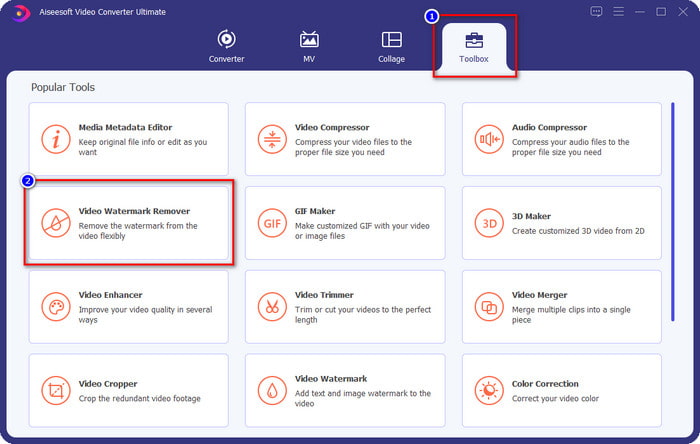
שלב 2. לאחר הפעלת התוכנה, עבור לסעיף Toolbox ובחר ב‑Video Watermark Remover כדי להשתמש במסיר סימן המים האולטימטיבי של התוכנה.
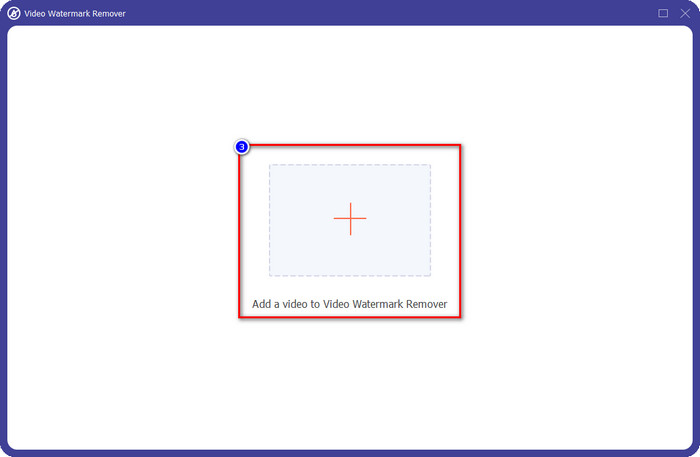
שלב 3. בחלון שיופיע על המסך שלך, לחץ על הסמל + כדי להעלות את הסרטון שיש בו סימן מים.
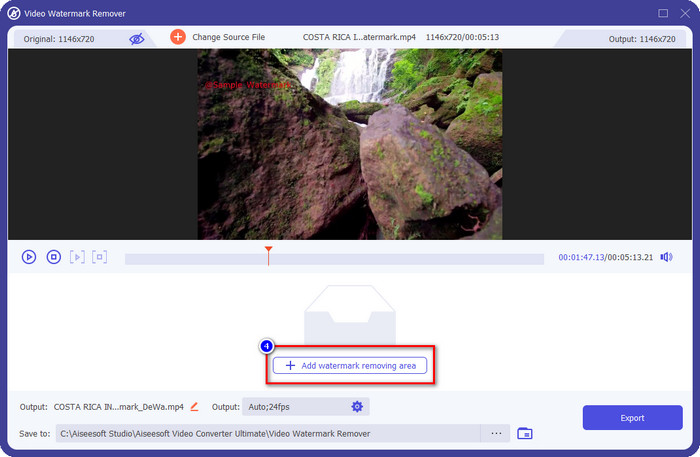
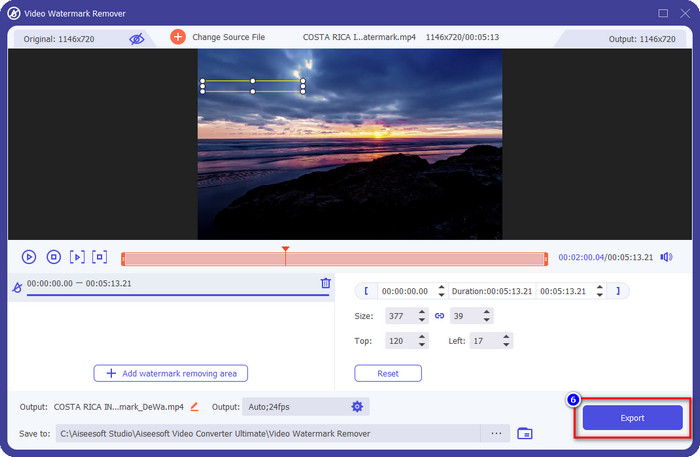
שלב 4. כדי להשתמש במסיר סימן המים, לחץ על Add Watermark Removing Area.
שלב 5. מקם את תיבת הבחירה באזור שבו נמצא סימן המים, ודא שאתה מכסה אותו לחלוטין, כך שכאשר תייצא את הסרטון, לא תראה את סימן המים בסרטון ותוכל ליהנות מצפייה נקייה.
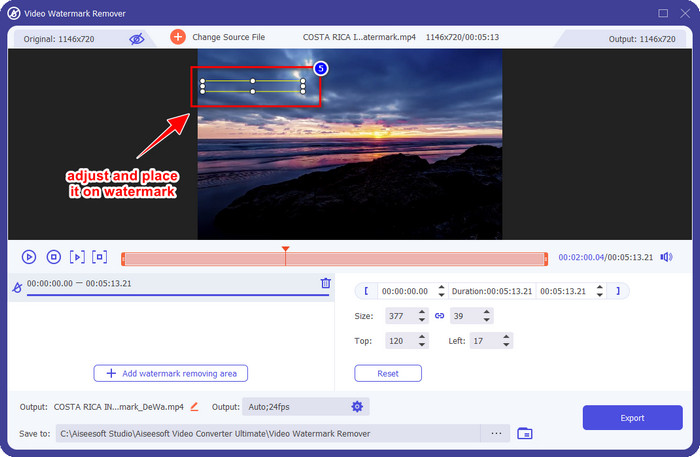
שלב 6. כעת, כשהאזור עם סימן המים מכוסה, לחץ על כפתור Export כדי לשמור את הסרטון ללא סימן המים.
קאפווינג

אחת הדרכים הטובות ביותר להסיר את סימן המים של VSDC Free Video Editor היא באמצעות Kapwing.com. עורך סימן המים הזה מאפשר לך להסיר במהירות את סימן המים הקיים מראש על הסרטון, כדי לגרום לו להיראות נהדר. גם אם אינך מקצוען בביצוע המשימה הזאת, אין צורך לדאוג אם תבחר בכלי הזה, בזכות הממשק האינטואיטיבי והמקיף שלו. תהליך הלמידה כיצד להשתמש בו נעשה מהיר יותר. הכלי הוא בחירה מצוינת, אך יש גם חסרונות בשימוש בו; לדוגמה, הגרסה החינמית אינה יכולה לייצא וידאו שאורכו מעל 60 דקות, יש בה מגבלות, וחייבים להיכנס לחשבון (sign in) כדי להסיר את סימן המים של Kapwing בעת הייצוא.
שלב 1. פתח את הכלי המקוון, והעלה את הקובץ על‑ידי גרירה ושחרור שלו לכאן.
שלב 2. לאחר העלאת הקובץ, עבור ל‑elements ולחץ על הצורה הרצויה מתוך הצורות הזמינות כאן.
שלב 3. החזק ומקם את הצורה מעל סימן המים. זכור, השיטה הזו אינה עובדת היטב אם הווידאו מורכב מריבוי צבעים; היא עובדת רק אם האזור שבו ממוקם סימן המים משתמש בפלטת צבעים אחידה.
שלב 4. לחץ על Export Video, ואז לחץ על Export MP4 כדי לשמור את הקובץ הסופי.
קשור:
כיצד להסיר סימני מים של Photobucket
חלק 3. שאלות נפוצות לגבי האם לעורך הווידאו החינמי של VSDC יש סימן מים
האם אפשר לייצא וידאו 4K ב‑VSDC?
כן, כלי זה יכול לייצא סרטונים ברזולוציית 4k אם תרצה בכך. עם זאת, התהליך לוקח יותר זמן מאשר רזולוציות הווידאו האחרות, כמו 1080 ו-720. למרות שהעיבוד ייקח זמן רב, הכלי עדיין יכול לייצר איכות וידאו בחדות גבוהה במיוחד כמו 4k במידת הצורך.
כיצד להסיר את סימן המים ב‑VSDC?
הורד את הכלי ואז הפעל אותו כדי להמשיך, לחץ על הוסף אובייקט ומתחתיו לחץ על וידאו. פתח את מסנן הווידאו; אז יופיעו אפשרויות; לחץ על מסננים; לחץ על DeLogo. עם DeLogo, אתה יכול כעת לכסות את סימן המים של הסרטון ב- VSDC. זה עובד רק עם גרסה מעודכנת חדשה של הכלי; אם אינך מוצא אותו, עליך לעדכן את מה שאתה משתמש בו על ידי הורדת הגרסה המאוחרת יותר.
האם VSDC הוא עורך הווידאו הטוב ביותר לשימוש?
לא הכי טוב, אבל אנחנו יכולים לראות בזה כלי שחובה לנסות מכיוון שהוא מספק תכונות עריכה בסיסיות שאולי תצטרכו כדי ליצור סרטון מרשים. למרות שלימוד השימוש בה הוא תלול, משתמשים אחרים נוטים להשקיע זמן בלימוד תוכנה זו במקום בעריכה. גם אם הוא לא נמצא ב-10 עורכי הווידאו הטובים ביותר, הוא עדיין נחשב לכלי מצוין למטרת העריכה שלו.
סיכום
כדי להסיר את סימן המים של VSDC, תצטרך מסיר סימן מים שניתן לסמוך עליו, כמו שתי התוכנות שהוזכרו במאמר זה. בעזרת השלבים שסופקו לכל אחת מהן, תוכל לבחור מה לדעתך יתאים לצרכים שלך ויהיה שימושי להסרת סימן המים מהווידאו שברשותך. אבל אם אתה רוצה תוכנה רב‑תכליתית שתוכל גם להסיר ולהוסיף סימן מים, לערוך וידאו, להמיר ועוד, עליך לבחור ב‑FVC Video Converter Ultimate. למה? משום שזוהי בפשטות תוכנת הכול‑באחד הטובה ביותר שתצטרך על המחשב שלך. האם מצאת שהקריאה במאמר הזה הועילה לך? אם כן, תוכל לתת לנו חמישה כוכבים למטה אם אתה מרוצה מהמאמר.
-
 מדריך על מהו סימן מים על תמונה [עדכון 2022]
 מהו סימן מים בתמונה? האם אנחנו צריכים להוסיף אחד? איך נוכל להסיר אותו? כל הדברים שתצטרכו נמצאים כאן אז המשיכו לקרוא את הבלוג הזה.
-
 כיצד להסיר סימן מים מ-Wondershare DVD Creator בקלות
 מאמר זה מכסה מידע כיצד להסיר את סימן המים מ- Wondershare DVD Creator. כדי לקבל את כל המידע שאתה צריך, חובה לקרוא את זה.
-
 הסר בקלות סימן מים מ-PDF בעזרת שלבים פשוטים
 הסר סימן מים מ-PDF על ידי ביצוע שלבים פשוטים אלה. למד כיצד להסיר בקלות סימני מים מקובץ ה-PDF שלך באמצעות הכלים המדהימים האלה.
