


 ממיר וידאו אולטימטיבי
 מקליט מסך
 תיקון וידאו
התוכנה המקוונת והלא מקוונת החדשה ביותר שבה תוכל להשתמש כדי להפוך סרטוני MP4 בקלות
Most of the times when we try to reverse our video, we create some funny reactions that make us think that it is us. Because it is played backwards the effect of it creates something new to our eyes. So, if you want to know effective ways to reverse MP4 videos then it is a must to read this article. As it showcases different software online and offline you can use it to make a lot of reverse videos in a simple way. So, without any more delays let us introduce them to you one-by-one.

חלק 1. כיצד להפוך סרטון MP4 (לא מקוון)
The phenomenal tool in the whole web is the Video Converter Ultimate. This tool has already helped millions of users who are having a hard time to reverse MP4. Unlike any tool in this list, you can access this software even if you don't have internet connectivity. Moreover, this tool can import and export immediately, it is like before you blink you didn't know it is already in reverse. Also, an amazing feature this tool can do like anybody is that it has all the advanced features you might like to use. So now, let's proceed to the steps on how to reverse the video effectively.
שלבים כיצד להפוך סרטונים ב-Video Converter Ultimate
Step 1. Firstly, you will need to download the tool first on your drive. Then install it and follow the set-up of it.
הורדה חינמיתל-Windows 7 ומעלההורדה מאובטחת
הורדה חינמיתל-MacOS 10.7 ומעלההורדה מאובטחת
Step 2. Launch the software, click the Toolbox and select Video Reverser.
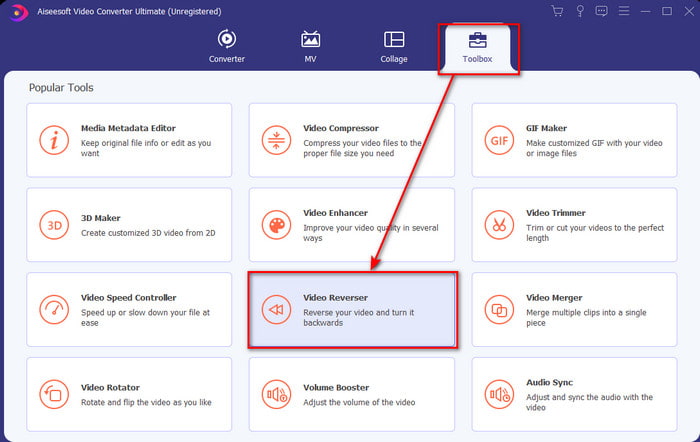
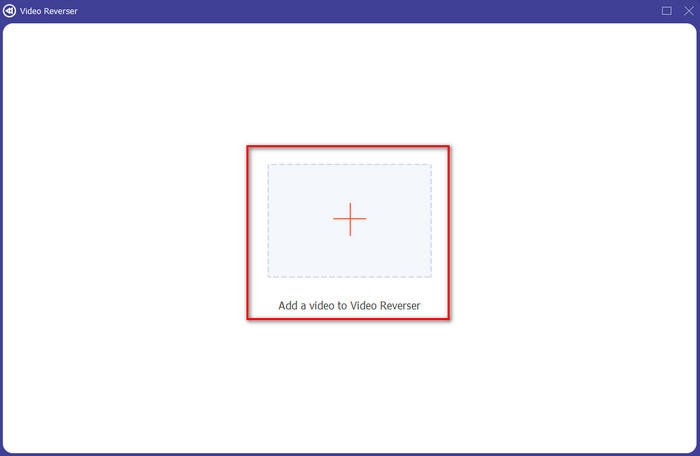
Step 3. Then add the MP4 file by clicking the + sign and choose from the computers folder. Then click Open to insert the .mp4 on the interface.
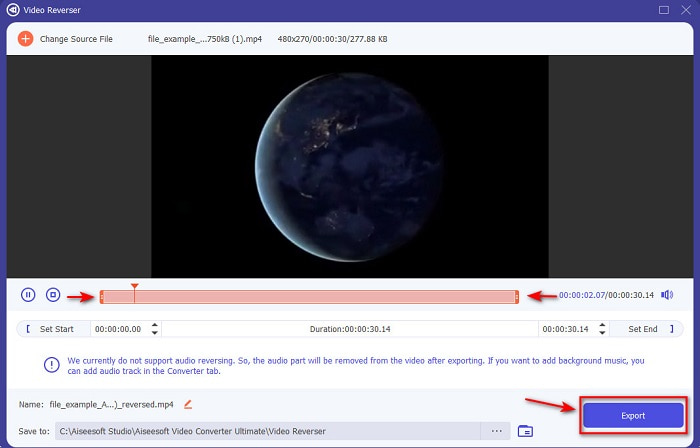
Step 4. And now adjust the playback in and out to change the duration of the video. Click Export to proceed.
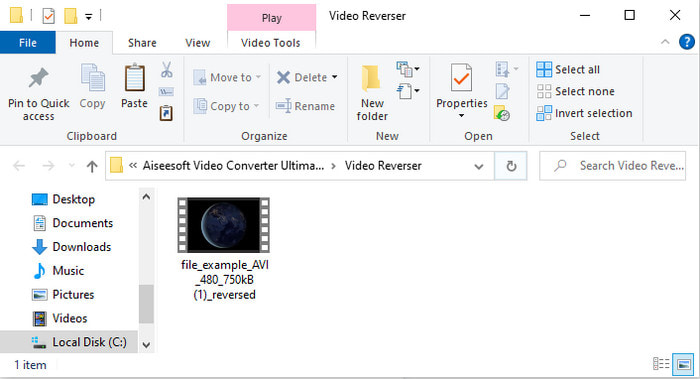
Step 5. After exporting is done, click the file on the folder to play the reverse file and to know where it is located.
חלק 2. כיצד להפוך סרטון MP4 (מקוון)
1. FileConverto
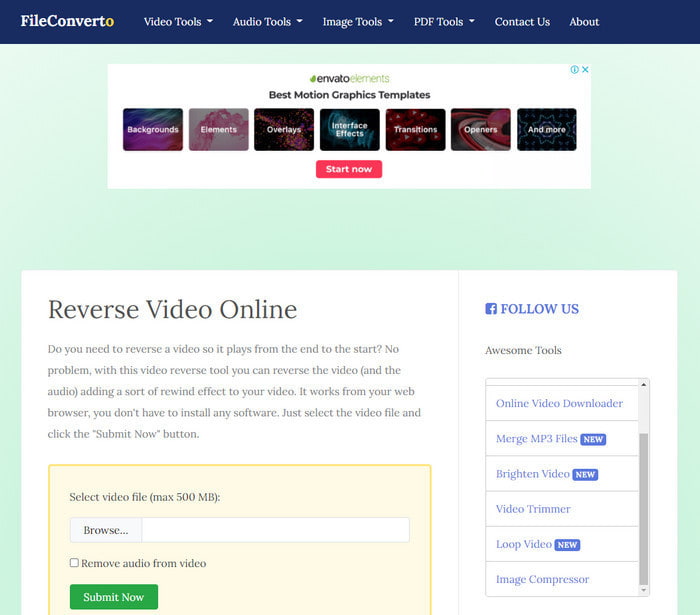
The reverse MP4 video online FileConverto has a lot of web tool features you can use to make your video extraordinary. The performance of this web tool is great for those who don't want to download any software. However, the web interface is a bit dull to look at, the uploading process will take a lot of your time, and it doesn't support all video formats. Also, you will encounter some bugs and pop-up web pages if you try to reverse. Although it has a lot of known problems still it is a great to use and.
יתרונות
- קל לגשת לתוכנה ויש לה הרבה תכונות עריכה בסיסיות שתצטרכו.
- מאוד ידידותי למשתמש שאפילו משתמש שלא חווה היפוך יכול לעשות זאת כאן.
- זה מגביל את ההמרה שלך ל-500MB וזה נהדר.
חסרונות
- ייבוא קבצים לכאן וייצוא הוא איטי במיוחד מהצפוי.
- יש לו הרבה מודעות בכלי האינטרנט בלבד שיכולות לעצבן אותך. ולאחר שתלחץ על תכונה של כלי אינטרנט, מודעה תראה שתצטרך ללחוץ עליה שוב.
- זה לא תומך בכל פורמטי הווידאו.
2. PickFrom
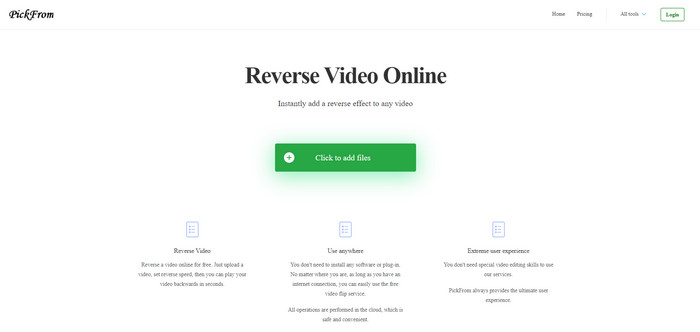
PickFrom has a better interface than FileConverto if we were about to compare. Because it showcases minimalist design and the color combination of white and cyan make it perfect. But the texts are a bit slim to read. Basically, if you don't have a 20-20 vision you might find the tool hard to read. Also, when you are about to do the reverse MP4 videos here the options are written in a simplified Chinese form. So, it is a bit hard to understand but the importing files here is faster than the FileConverto.
יתרונות
- יש לו ממשק אינטרנט הרבה יותר טוב בהשוואה ל-FileConverto.
- אין פרסומות בחלק העליון של האתר, אבל אם תגללו למטה יש חבורה של פרסומות מטרידות.
- תומך בהרבה תכונות עריכה בסיסיות.
חסרונות
- הגדרות הכלים כתובות בסינית שקשה להבין אם אינך יודע לדבר סינית.
- לאחר לחיצה על כפתור התחל הכלי לא מגיב ותהליך הייצוא לוקח הרבה זמן.
- זה מפחית את איכות הסרטון המיוצא.
3. Media.io
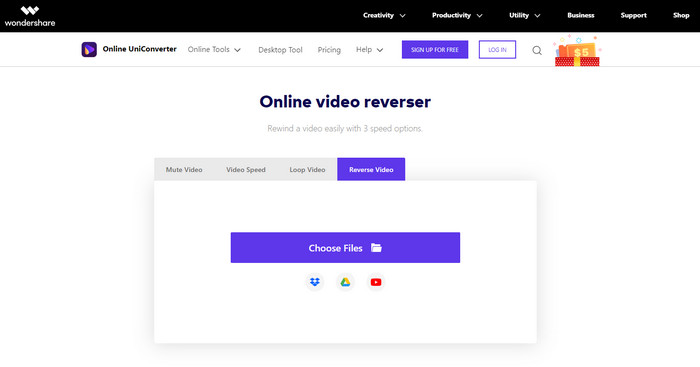
Media.io has 3 different types of reverse speed options: the x 0.5, x 1, x 2. You can basically reverse the video and play MP4 backwards with the help of its reverse feature. Although the tool looks great there are still some problems you will encounter while using Media.io. Like when you're about to export the file it will ask you to sign-in first before you can export the file. Also, you can only do 10 reverse videos here with limited file size.
יתרונות
- ממשק הכלים נהדר ואטרקטיבי.
- אתה יכול לשנות את פורמט הפלט הסופי של הסרטון ההפוך אם אתה רוצה או לשמור על הפורמט המקורי.
- אתה יכול להשתיק או לבטל את ההשתקה של הסרטון.
חסרונות
- האתר יבקש ממך להירשם לפני שתוכל לייצא, מה שאומר שתאפשר להם לשלוח הודעות בדוא"ל.
- ההיפך של ה-x 2 פחות איטי מה-x 2 של הכלים האחרים.
- הכלי מגביל את הזמינות של כלי האינטרנט. לדוגמה, אתה לא יכול להפוך יותר מ-10 קבצים ביום ויש לו מגבלה מקסימלית לגודל הקובץ.
חלק 3. שאלות נפוצות לגבי היפוך MP4
האם לאחר הפיכת הסרטון זה מוריד את האיכות?
הפיכת סרטון על הכלי לא אמורה להוריד את איכות הסרטון שברצונך להפוך. עם זאת, יש הרבה תוכנות שמפחיתות את איכות הווידאו. אבל יש כמה מקרים שבהם אתה מגדיר את האיכות שלו נמוך ולא גבוה.
כיצד להוסיף אודיו לקובץ ההפוך שלי?
Most of the software listed in here doesn't support audio reversing as well but you can go to this link and learn how to add audio.
כיצד אוכל למזג את הסרטון ההפוך שלי באייפון?
There are a lot of different ways you can merge videos on the iPhone effectively. Just by reading this article you will learn 4 different ways how to merge videos on iPhone.
סיכום
To conclude, now that we know how to reverse an MP4 file with the help of these several tools you can choose one. Moreover, not all of the mentioned in this article produce an astonishing video final output like the Video Converter Ultimate. So, if you want to be amazed by this tool then it is a must to download it first. Because you won't need to read a big book to know how this tool functions as a whole.
הורדה חינמיתל-Windows 7 ומעלההורדה מאובטחת
הורדה חינמיתל-MacOS 10.7 ומעלההורדה מאובטחת
-
 [2021 עודכן] 9 עורכי ה-GIF הטובים ביותר עבור PC, Mac, iOS ואנדרואיד
 צריך להוסיף מגע אישי ל-GIF שלך כדי שיוכל להיות אקספרסיבי יותר? המשך לקרוא מאמר זה כדי לדעת כיצד לערוך והכלי הטוב ביותר לעבודה.
-
 מדריך כיצד לתקן סרטונים שאינם מופעלים בטלפונים של אנדרואיד
 רוצה לדעת מהן הסיבות לכך שלא ניתן להפעיל סרטונים במכשיר האנדרואיד שלך? ואם כן, האם יש דרכים לתקן את הבעיה בעצמך? המשך לקרוא כדי לדעת יותר.
-
 מדריך מפורט כיצד לשחק קבצי MKV ב-PS4 [מעודכן 2021]
 על ידי קריאת מאמר זה תלמדו כמה דרכים כיצד לשחק MKV ב-PS4 וכיצד להמיר את קובץ הווידאו למקרה שהסרטון לא יצליח' לְשַׂחֵק.
