


 ממיר וידאו אולטימטיבי
 מקליט מסך
 תיקון וידאו
כיצד להאיץ וידאו בדרכים רבות אפשריות באמצעות iPhone
אתה עומד ליצור את קליפ המוזיקה הטוב ביותר בפרויקט בית‑הספר שלך, ואתה רוצה להציג סצנה של מחזור חיים. אתה רוצה להריץ קדימה את כל קליפ המוזיקה על‑ידי הגברת מהירות הניגון וביצוע נכון של המעבר מהשלב הצעיר לבוגר, אבל יש לך רק את הטלפון שלך כדי להפוך זאת לאפשרי. יש לך רק iPhone – ליתר דיוק – כדי להגדיל את מהירות הניגון ולערוך את כל קליפ המוזיקה. עם זאת, ה‑iPhone ידוע בגישתו המגבילה להורדת אפליקציות, משום שחלק מהאפליקציות שלו דורשות רכישת גרסת פרימיום כדי לקבל גישה מלאה. המשך לקרוא מאמר זה כדי להבין לעומק כיצד להאיץ וידאו ב‑iPhone.

חלק 1. הדרך הטובה ביותר להאיץ את הווידאו באייפון
בעבר נקרא iPhone OS, iOS הוא מערכת הפעלה ניידת של חברת Apple Inc. שפותחה במיוחד עבור החומרה של החברה. היא ידועה גם בבלעדיות שלה בכל הנוגע להורדת אפליקציות, בניגוד לאנדרואיד. עם זאת, ה‑iPhone מציע אפליקציות אחרות שיכולות לערוך ולהתאים אישית קטעי וידאו והן זמינות במערכת ההפעלה שלו. חלק מהאפליקציות הללו מסוגלות גם לשלוט במהירות הניגון; כשמדברים על בקרת מהירות וידאו ב‑iPhone, אפליקציות אלו נגישות לשימוש וחינמיות להורדה בכל מכשיר iOS. כדי ללמוד עוד על בקרת מהירות וידאו ב‑iPhone, הנה השלבים המפורטים להלן:
שיטה 1. השתמש ב-iMovie כדי להאיץ את הווידאו באייפון
באמצעות iMovie ב‑iPhone שלך תוכל ליצור טריילרים בסגנון הוליוודי ברזולוציית 4K. לאחר שתסיים לערוך את כל הסרטונים שלך, תוכל להוסיף כותרות מונפשות, מוזיקה ונגיעות אחרונות נוספות כמו פילטרים ואפקטים. תוכנת iMovie של אפל מקלה עליך לספר את הסיפור שלך בצורה מלוטשת ומקצועית ולאחר מכן לשתף את היצירה עם חברים ובני משפחה. iMovie מציעה פונקציות שיכולות לשפר את איכות הווידאו שלך באמצעות תבניות שונות וכלי גימור זמינים; היא גם מציגה את היכולת לשלוט במהירות הניגון ב‑iPhone. מאחר שעבור רוב העורכים חשוב לתת דגש לבעיות שמוצגות, הנה השלבים שעליך לבצע כדי להגיע למהירות הרצויה באמצעות כלי זה ב‑iPhone.
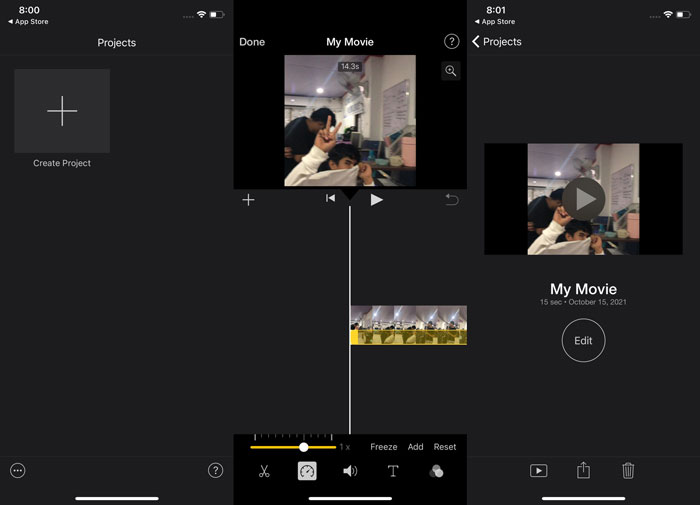
שלב 1: הפעל את אפליקציית iMovie ב‑iPhone או ב‑iPad שלך. אם מופיע מסך המביא סקירת ממשק, בחר המשך (Continue). כדי להתחיל קליפ וידאו חדש, עבור לדף Projects והקש על סמל הפלוס +. עבור לחלון New Projects ובחר Movie כדי להמשיך.
שלב 2: הקש על Create Movie בתחתית המסך לאחר שבחרת וידאו מגלריית המצלמה שלך. כלי המהירות דומה למד מהירות (Speedometer), וניתן למצוא אותו על‑ידי הקשה על קליפ הווידאו בציר הזמן והמתנה להופעת כלי העריכה לפני השימוש בהם. פשוט הזז את מחוון (Slider) הצהוב התחתון כדי להריץ קדימה או אחורה את קטע הווידאו. באפשרותך להאיץ את הסרטון עד פי שניים או להאט אותו עד לשמינית מהמהירות המקורית.
שלב 3: אם הכול מוכן, הקש על Done בפינת המסך השמאלית העליונה. כדי לשמור את הסרטון המוגמר, הקש על כפתור Share בתחתית המסך ובחר היכן ברצונך לשמור אותו.
שיטה 2. השתמש ב-Videoshop כדי להאיץ את הווידאו באייפון
כאשר מדובר בתוכנות עריכת וידאו, יש מעט מאוד אפשרויות טובות יותר מאשר Videoshop. בעזרתה תוכל לערוך במהירות את הסרטון שלך על‑ידי הוספת אפקטים כגון מוזיקה, קריינות, טקסט ותמונות. תוכל גם להחיל במהירות פילטרים מרהיבים על הווידאו שלך, ליצור מצגות תמונות, לערוך, למזג, להעתיק, להדביק, לסובב ולהפוך את הסרטונים שלך. בנוסף, תוכל להתאים במהירות את מהירות הניגון כדי ליצור סרטוני תנועה מהירה (Fast Motion) או תנועה איטית (Slow Motion) באמצעות אפליקציה זו. במספר צעדים פשוטים תוכל כעת לשנות את מהירות הניגון של הסרטון עד שתשיג את המהירות הרצויה. כדי ללמוד עוד על האצת סרטון באמצעות Videoshop ב‑iPhone, הנה הרשימה המפרטת את השלבים שעליך לבצע כדי להשתמש בה בנוחות.
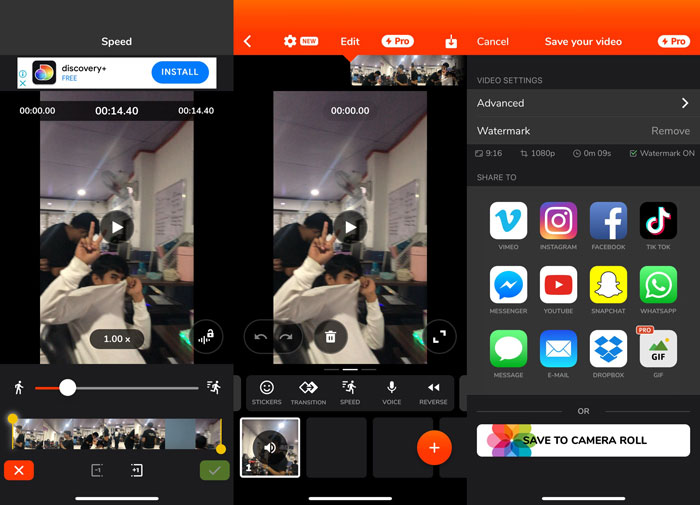
שלב 1: כשתפתח לראשונה את עורך הווידאו ב‑iPhone, יוצע לך להקליט וידאו חדש או לייבא וידאו ששמור כבר במכשיר. השתמש בעורך הווידאו, וממשק חדש יופיע לאחר שתוסיף קובץ וידאו לחלון העריכה. בחלקו התחתון של עורך הווידאו יש סרגל כלים (Toolbar) עם כלים רבים. החלק או הקש על המסך שמאלה וימינה בתוך סרגל הכלים הזה. לאחר שבחרת Speed, יוצג בפניך תפריט בקרת מהירות הווידאו.
שלב 2: באמצעות עורך וידאו זה ב‑iPhone, תוכל לשנות בקלות את מהירות הסרטון שלך. ניתן להאט או להאיץ את ניגון הווידאו על‑ידי גרירת Speed Handle שמאלה או ימינה. כדי לצפות בתצוגה מקדימה של השינוי, לחץ על כפתור Play. לאחר מכן תוכל לכוונן שוב את מהירות הווידאו עד שתהיה מרוצה מהווידאו המותאם.
שלב 3: שמור את עבודתך על‑ידי לחיצה על כפתור Done בפינה הימנית העליונה.
חלק 2. דרך חלופית להאיץ את הווידאו באייפון
אם אתה מתקשה לעכל את כל השלבים מהכלי הקודם, מאמר זה מציג חלופה שעוזרת בשאלה כיצד להאיץ וידאו עד פי 2 ב‑iPhone. אינך כל כך בקיא ומורגל בשימוש ב‑iPhone כעורך הווידאו שלך, במיוחד כשאתה רוצה להגדיל את מהירות הניגון של הסרטון. Video Converter Ultimate יהיה החלופה הטובה ביותר שכדאי לשקול, כיוון שהוא מאפשר לך להאיץ את הווידאו שלך באופן קבוע. הורד והשתמש ב‑Video Converter Ultimate כבקר מהירות עבור הסרטונים שלך. תוכנה זו כוללת תכונות וכלים רבים שיכולים לשפר את כישורי העריכה שלך. היא כוללת גם כלי Video Speed Controller כדי לפתור את הבעיה שכל משתמשי iOS נתקלים בה. באמצעות כלי זה תוכל כעת להתאים את מהירות הווידאו בקלות ולהפיק וידאו באיכות טובה. בנוסף, הוא יכול לשנות את מהירות הווידאו שלך בתוך כמה שניות בלבד, הודות לתהליך ההמרה המהיר. בסך הכול, תוכנה זו מתפקדת בצורה מקצועית יחד עם ממשק המשתמש הידידותי שהיא מציגה. מאחר שהחלופה הזו היא תוכנה שניתן לגשת אליה רק במחשב, עליך ללמוד כיצד להעביר וידאו מה‑iPhone למחשב כדי ליישם שיטה חלופית זו.
1. כדי להתחיל, השתמש בכבל USB כדי לחבר את האייפון שלך למחשב.
2. פתח את אפליקציית התמונות במחשב שלך על ידי לחיצה על כפתור התחל ולאחר מכן על תמונות.
3. בצע את ההוראות שעל המסך לאחר בחירת ייבא מהתקן USB. יש לך שליטה מלאה על מה שאתה מייבא והיכן הוא נשמר. תן לעצמך קצת מרווח נשימה בזמן שתהליכי הזיהוי וההעברה מתרחשים.
עכשיו אתה יכול לבצע את השלבים שלהלן כדי להאיץ את הסרטונים שלך באייפון שלך.
שלב 1: כדי להריץ את התוכנה במחשב, עליך קודם להוריד אותה על‑ידי לחיצה על Free Download בכפתור המצורף למטה. לאחר שהורדת אותה לשולחן העבודה, תוכל כעת להתקין אותה ולהקליק על Start Now כדי לסיים את ההתקנה.
הורדה חינמיתל-Windows 7 ומעלההורדה מאובטחת
הורדה חינמיתל-MacOS 10.7 ומעלההורדה מאובטחת
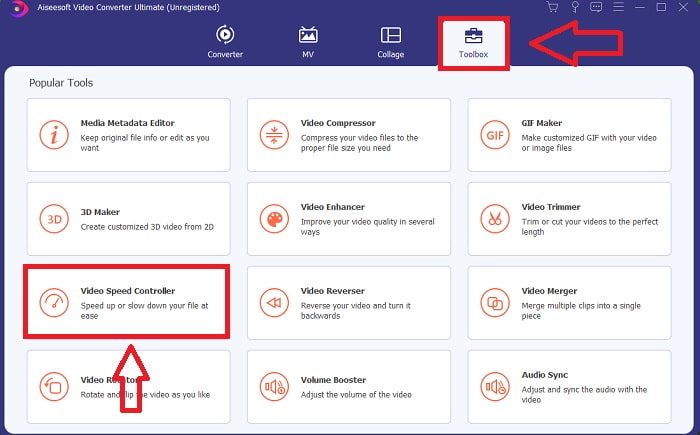
שלב 2: לאחר התקנת התוכנה, נסה להפעיל אותה, ותראה את שלב ההמרה בממשק הראשי של התוכנה. לאחר מכן עבור אל פונקציית Toolbox. משם תראה כלים מובנים שונים שהתוכנה מציעה, וכדי להתאים את מהירות הווידאו, בחר Video Speed Controller.
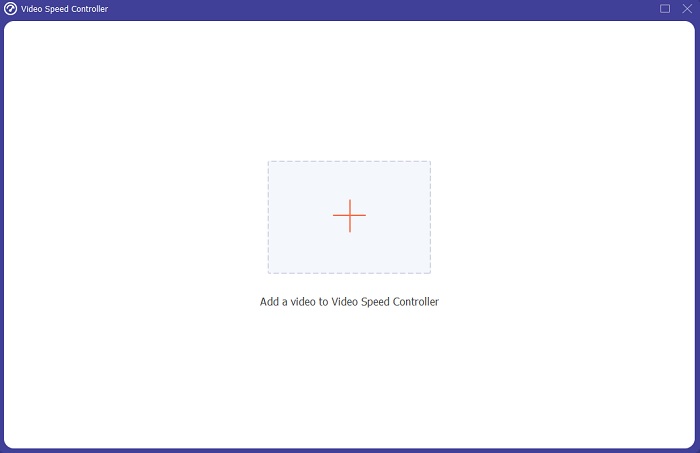
שלב 3: כרטיסייה נוספת תופיע על המסך לאחר שתמשיך. התחל את תהליך העריכה על‑ידי לחיצה על סימן הפלוס +.
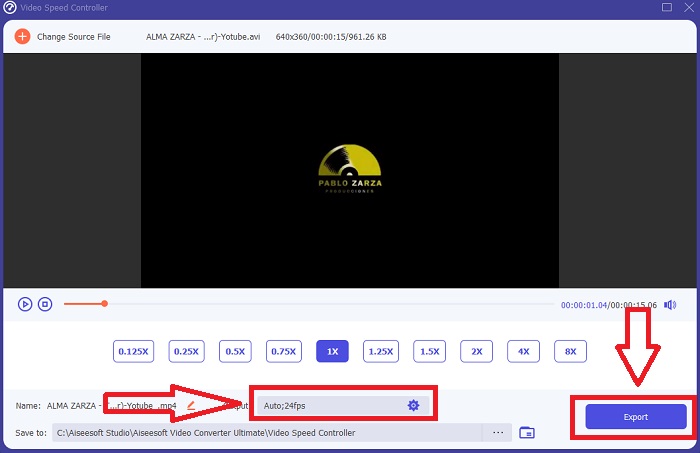
שלב 4: תוכל להתחיל את שלב העריכה על‑ידי בחירה בכמה פעמים קצב הפריימים של הווידאו יוגדל או יופחת כדי לשנות את מהירות הניגון. אם אתה כבר מרוצה מקצב המהירות של הווידאו, תוכל כעת להתאים אישית את איכות וידאו הפלט על‑ידי שינוי הפורמט, הרזולוציה, קצב הפריימים ועוד. בנוסף, תינתן לך האפשרות לשנות את שם קובץ וידאו הפלט.
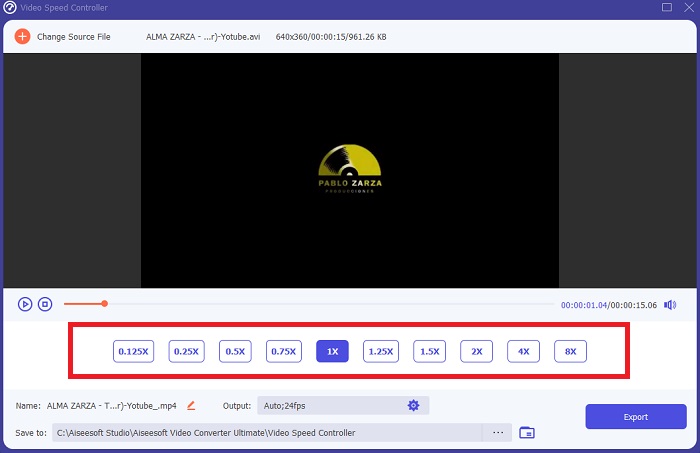
שלב 5: כדי לשמור את עבודתך, לחץ על Export ובחר יעד במערכת הקבצים של המחשב שלך.
קשור:
כיצד לחתוך (Crop) סרטוני MP4
חלק 3. שאלות נפוצות לגבי איך להאיץ וידאו באייפון
איך עובד בקר וידאו?
בקרת המהירות של נגן הווידאו קובעת את מהירות ההפעלה של הסרטון. בעת שימוש בנגן מדיה לצפייה בסרט, הסרטון יתנגן באותה מהירות כמו סרטון רגיל. מטרת בקרת המהירות של נגן הווידאו היא לאפשר למשתמש לשנות את מהירות ההפעלה של הסרטון. יש להאט חלק מהסרטונים כדי שתוכל לעקוב אחר הפעולה.
כיצד אוכל לשנות לצמיתות את מהירות הפעלת הסרטון?
חשבו כמה צעדים נדרשים כדי לשנות את מהירות ההפעלה של הסרטונים שלכם. למרות העובדה שכלי וידאו ועורכי וידאו זמינים באופן מקוון, אתה עדיין מחפש את הכלי הטוב ביותר לתיקון בעיות במהירות ההשמעה עם הווידאו קליפ שלך. כלי אינטרנט רבים זמינים באינטרנט, חלקם בחינם לשימוש אך דורשים תשלום כדי לפתוח את כל התכונות. Video Converter Ultimate, תוכנית חינמית להאצת סרטונים, היא ההימור הטוב ביותר שלך כדי לשנות לצמיתות את מהירות ההשמעה שלך.
כיצד אוכל להאיץ סרטון MP4?
ישנם ממירים רבים זמינים להורדה ולשימוש במצב לא מקוון. אתה יכול להאיץ את הפעלת הווידאו באמצעות Video Converter Ultimate כחלופה לממירי וידאו אחרים. מאיץ מהירות הווידאו הוא רק אחת מהתכונות הרבות הזמינות מכיוון שזו תוכנת קוד פתוח בחינם.
סיכום
כפי שאמרתי, משתמשי אייפון שחולמים לפתור את מהירות ההפעלה של הסרטון שלהם לא צריכים לרכוש כלים שונים. ישנם עורכים רבים זמינים לשימוש חופשי שעליך לחפש; חלקם זקוקים להבנה קריטית כדי להשתמש בו כראוי, אבל רובם נגישים. אם כבר מדברים על הכלים הטובים ביותר הזמינים, אנו ממליצים להשתמש ב-Video Converter Ultimate כדי להאיץ את הווידאו קליפים שלך עד פי 2 מהמהירות הרגילה או אפילו עד פי 8 מהר. בנוסף, ניתן להאט את הסרטון לרבע מהמהירות הרגילה שלו באמצעות תכונה זו. בתוכנה זו יש כל מה שעורך מקצועי רוצה שיהיה לך, ובאמצעות השימוש בה, תהיה לך את היכולת להפוך את עצמך למקצוען.
-
 [2 הפתרונות הטובים ביותר] כיצד לנגן סרטי AVI באייפון/אייפד בקלות
 לא מצליח לנגן סרטי AVI באייפון/אייפד שלך ולא רוצה להוריד נגני וידאו של צד שלישי? אתה יכול ללמוד 2 דרכים יעילות להמיר סרטוני AVI להפעלה באייפון.
-
 [נפתר] כיצד לתקן סרטונים שאינם פועלים באייפון עם שלבים מפורטים
 לא ניתן להפעיל סרטונים מקומיים בגלריה באייפון שלך באמצעות נגן הווידאו המוגדר כברירת מחדל? סרטוני YouTube מקוונים שאינם מופעלים באייפון תמיד קורה? להלן 5 פתרונות שיעזרו לך במאמר זה.
-
 5 נגני הווידאו הטובים ביותר לאייפון שאסור לכם לפספס בשנת 2021
 כדי להפעיל קטעי וידאו בכל הפורמטים ולחווית צפייה טובה יותר באייפון שלך, עליך לקרוא מאמר זה וללמוד על 5 נגני הווידאו הטובים ביותר לאייפון 12/11/X/8/7/6.
