


 ממיר וידאו אולטימטיבי
 מקליט מסך
 תיקון וידאו
 הורדה מאובטחת
כיצד לגזור סרטון באנדרואיד באמצעות אפליקציות גוזם הווידאו הטובות ביותר
קל להקליט סרטונים מרהיבים או פשוט את המסך כשיש לך תמיד סמארטפון בהישג יד. פעם היה קשה לערוך סרטונים כאלה במכשיר האנדרואיד שלך, אבל זה כבר לא המצב. במאמר זה נדבר על דרכים פשוטות לקיצוץ סרטונים באנדרואיד. נשתמש במספר אפליקציות/תוכנות לעריכת וידאו שיכולות להיות יעילות עבורך. בנוסף, אם תרצה לחתוך סרטון בעזרת המחשב, תוכל לעשות זאת. במדריך הזה תלמד את השיטות הפשוטות ביותר לקיצור אורך הסרטון באמצעות מחשב. לכן, אם ברצונך ללמוד את כל השיטות לחיתוך חלק מסרטון במכשיר אנדרואיד ובמחשב, קרא את המאמר כעת.

חלק 1. כיצד לחתוך סרטונים באנדרואיד
בחלק זה, אנו נותנים לך שתי שיטות יעילות לחתוך את הסרטון שלך באמצעות אנדרואיד. האפליקציה הראשונה היא אפליקציה בנויה מראש, והשנייה היא אפליקציה להורדה. אז תיתן אופציה במה להשתמש בעת חיתוך סרטון. בלי להכביר מילים, בואו נתחיל לגלות את השיטות הללו.
שימוש בגלריה
אם אינך רוצה להוריד אפליקציות כלשהן מחנות Play, השתמש באפליקציית הגלריה. האפליקציה הבנויה מראש זו לא רק מסוגלת להציג תמונות וסרטונים. יש לו יותר תכונות להציע ממה שאתה מדמיין. אם אתה מתכנן לחתוך את הסרטון שלך באמצעות האפליקציה הזו, אתה יכול לעשות זאת. לגלריה יש כלי חיתוך המאפשר לך לחתוך/לחתוך וידאו בקלות ובאופן מיידי. יש לו גם ממשק אינטואיטיבי, מה שהופך אותו למתאים יותר לכל משתמשי אנדרואיד. בנוסף, מלבד חיתוך סרטונים, האפליקציה יכולה לעשות יותר. אתה יכול גם לכוונן את מהירות הווידאו באמצעות מכוונון מהירות הווידאו. עם זאת, אפליקציית הגלריה מתאימה רק לעריכה בסיסית. זה לא היישום שאתה צריך אם אתה רוצה לשפר את הסרטון שלך ולשלב את כל הסרטונים הגזומים. עליך לחפש תוכנת עריכת וידאו מתקדמת יותר לתוצאה הרצויה. אם אתה רוצה לדעת איך לגזור קטע וידאו באנדרואיד באמצעות יישום זה, עיין בשלבים שלהלן.
שלב 1. פתח את מכשיר האנדרואיד שלך והפעל את אפליקציית הגלריה. לאחר מכן, אתר את הסרטון שברצונך לחתוך/לקצר.
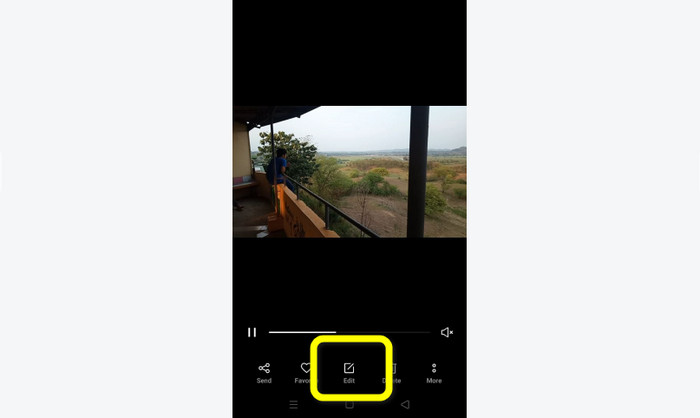
שלב 2. לאחר פתיחת הסרטון שברצונך לקצר/לחתוך, עבור לאפשרויות למטה. לחץ על האפשרות עריכה כדי להמשיך לתהליך הבא.
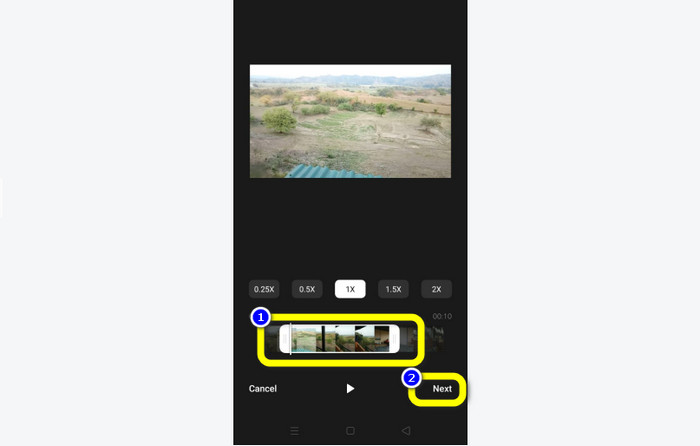
שלב 3. לאחר מכן, תוכל להתחיל לקצר את הסרטון באנדרואיד שלך. גרור את קצה הסרטון או את הסרגל. גרור כל צד כדי לקצר את הסרטון. לאחר הקיצור, לחץ על האפשרות הבא בפינה השמאלית התחתונה של הממשק.
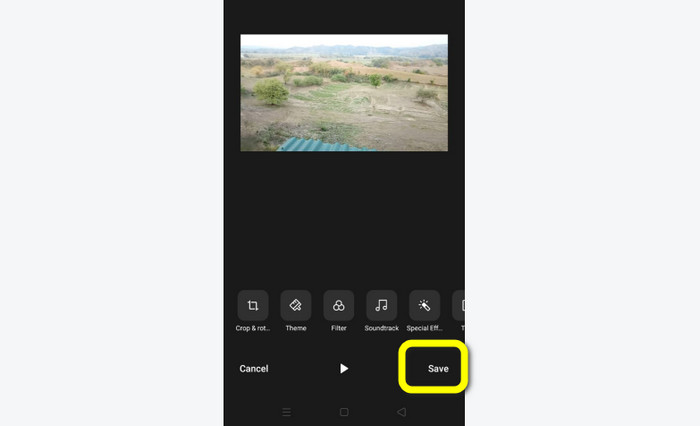
שלב 4. כעת תוכל ללחוץ על כפתור השמירה כדי לשמור את הסרטון הערוך בטלפון. בנוסף, אם תרצה לערוך את הסרטון עוד, תוכל לחתוך את התמונה (crop), לסובב, להוסיף מסננים ועוד.
שימוש ב-Vid.Fun
מלבד אפליקציית הגלריה, ניתן גם להשתמש באפליקציה להורדה כדי לחתוך סרטונים באנדרואיד. אפשר להוריד את האפליקציה Vid.Fun כדי לחתוך סרטונים במכשיר האנדרואיד. VidFun היא אפליקציה חינמית להורדה. בנוסף, יש לה ממשק פשוט ותהליך עריכה בסיסי. כך שגם משתמשים ללא ניסיון מקצועי יכולים להשתמש באפליקציה. יתרה מזאת, ל‑Vid.Fun יש עוד תכונות מעבר לחיתוך סרטונים. ניתן להשתמש באפליקציה הזו גם אם ברצונך להוסיף טקסט לסרטונים שלך. בנוסף, אפשר להשתמש בכלי להגברת עוצמת השמע כדי להתאים את עוצמת הקול של הסרטון. יתר על כן, ניתן להסיר סימן מים, להתאים את מהירות הווידאו, להוסיף סטיקרים, לסובב סרטון ועוד. עם זאת, ל‑Vid.Fun יש גם חסרונות. ל‑VidFun תהליך יצוא איטי, שהוא גוזל זמן עבור המשתמשים. כמו כן, ישנם מקרים שבהם האפליקציה אינה פועלת כראוי. עיין בשיטות למטה כדי לחתוך סרטונים באמצעות אפליקציית Vid.Fun.
שלב 1. היכנס לחנות Google Play וחפש את אפליקציית Vid.Fun. לאחר מכן, התקן את האפליקציה במכשיר האנדרואיד שלך. פתח את האפליקציה לאחר סיום ההתקנה.
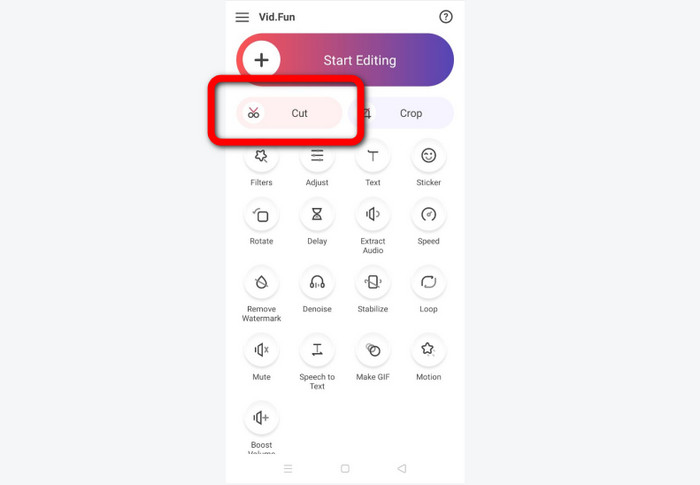
שלב 2. כאשר ממשק האפליקציה מופיע, בחר באפשרות Cut. לאחר מכן הקבצים שלך יוצגו על המסך. לחץ על הסרטון שברצונך לחתוך ולחץ על כפתור Yes.
שלב 3. לאחר מכן תוכל כבר להתחיל בתהליך הקיצור. גרור את קצה הסרטון. באפשרותך גם להשתמש באפשרויות Start ו‑End כדי לקצר.
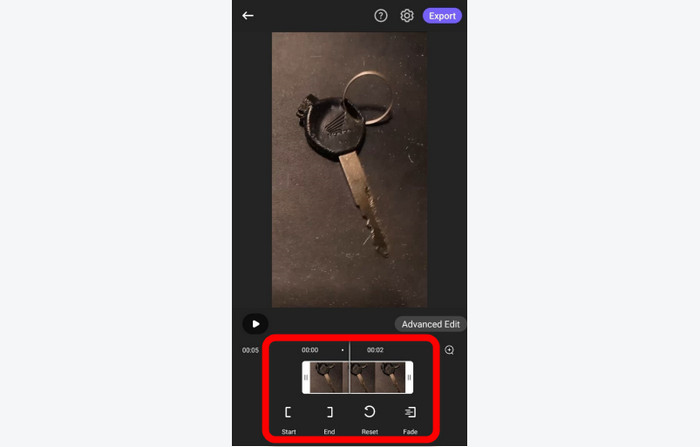
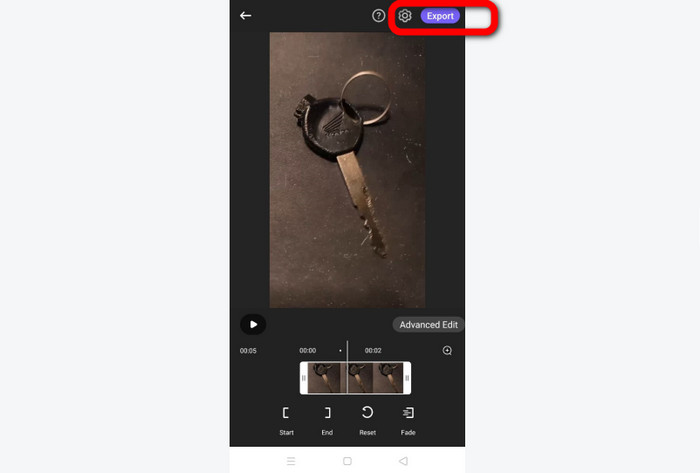
שלב 4. כשתסיים לקצר/לחתוך את הסרטון, תוכל ללחוץ על כפתור הExport. המתן לסיום תהליך היצוא ושמור את הסרטון במכשיר האנדרואיד שלך.
חלק 2. כיצד לגזור סרטוני אנדרואיד במחשב
בחלק הקודם למדת כיצד לחתוך סרטונים באמצעות מכשיר אנדרואיד. בחלק זה תלמד כיצד לחתוך סרטונים באמצעות מחשב. אם ברצונך להשתמש במחשב שולחני לעריכת סרטון, ובעיקר לחיתוך או קיצור שלו, השתמש ב‑Video Converter Ultimate. לתוכנית אופליין זו ממשק אינטואיטיבי, המאפשר לך להבין במהירות את כל האפשרויות. גם הליך הקיצור פשוט. תוכל לחתוך/לקצר את הסרטון בכמה קליקים בלבד. בנוסף, לתוכנית יש תהליך יצוא מהיר, מה שהופך אותה לנוחה לכל המשתמשים. מכיוון שמדובר בתוכנית קלה לשימוש, גם מקצוענים וגם מתחילים יכולים להשתמש בה. כמו כן, תוכל לשמור את התוצר הסופי שלך במגוון פורמטים, כולל AVI, FLV, MOV, MP4 ועוד. מעבר לכך, Video Converter Ultimate זמינה להורדה בחינם וזמינה גם במחשבי Mac וגם ב‑Windows. בנוסף, התוכנית מאפשרת לך לשנות את הרזולוציה, האיכות, קצב הפריימים והמקודד של הסרטון. כמו כן, ניתן לשנות את קצב הדגימה וקצב הסיביות (bitrate) של השמע. כך תוכל לוודא שתקבל את התוצאה הטובה ביותר באמצעות תוכנת אופליין זו. עקוב אחר ההוראות הפשוטות למטה כדי ללמוד כיצד לחתוך סרטון אנדרואיד במחשב.
שלב 1. הורד את Video Converter Ultimate למחשב ה‑Mac או ה‑Windows שלך. לחץ על כפתור ההורדה למטה כדי לגשת לתוכנית. קיימות גרסאות גם ל‑Windows וגם ל‑Mac. לאחר מכן הפעל את התוכנית לאחר סיום ההתקנה.
הורדה חינמיתל-Windows 7 ומעלההורדה מאובטחת
הורדה חינמיתל-MacOS 10.7 ומעלההורדה מאובטחת
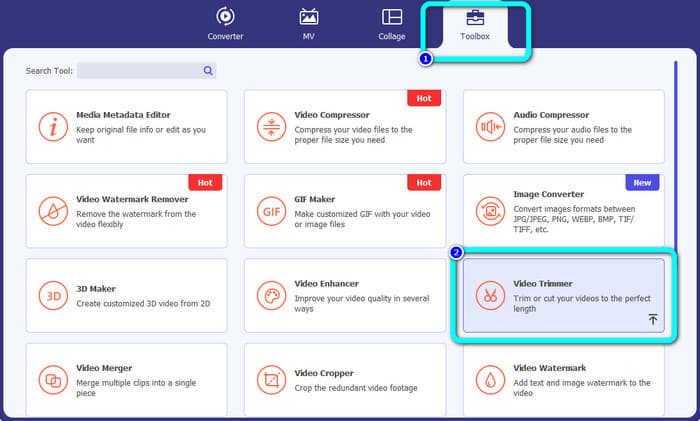
שלב 2. כאשר ממשק התוכנית יופיע, עבור אל הארגז כלים (Toolbox) בחלק העליון של הממשק ובחר את Video Trimmer Tool.
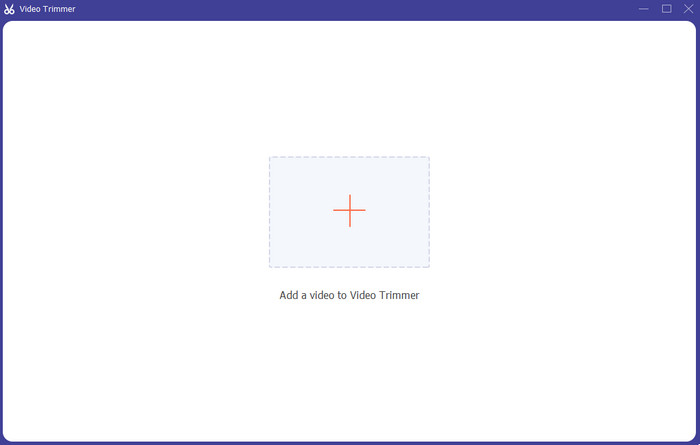
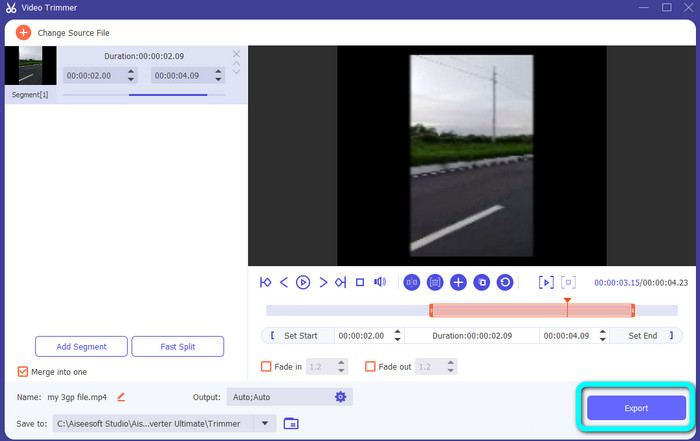
שלב 3. ממשק נוסף יופיע לאחר לחיצה על כלי ה‑Video Trimmer. לחץ על סמל הפלוס כדי להכניס את סרטון האנדרואיד. שים לב שסרטון האנדרואיד כבר הועבר למחשב לפני השימוש בתוכנית.
שלב 4. כעת אתה נמצא בתהליך הקיצור. כדי לקצר את הסרטון, עליך להתאים את הקצוות של הסרטון. תוכל להתאים את קצה ההתחלה ואת קצה הסיום.
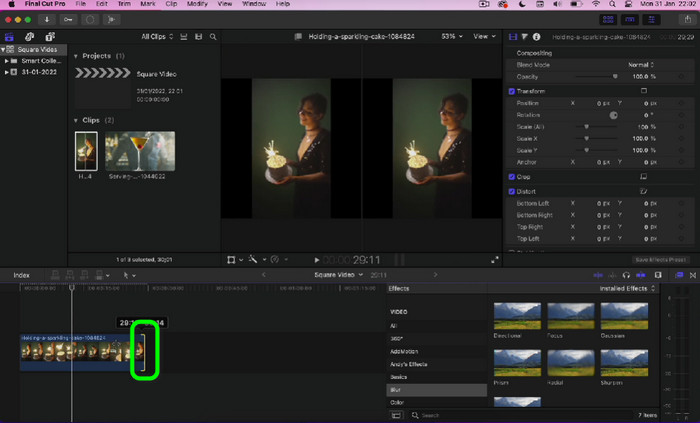
שלב 5. לאחר סיום התהליך תוכל לשמור את הסרטון הערוך על‑ידי לחיצה על כפתור הExport. לאחר סיום תהליך היצוא תוכל כבר להפעיל את הסרטון הערוך.
חלק 3. שאלות נפוצות לגבי איך לחתוך סרטונים באנדרואיד
איך לחתוך את אמצע הסרטון באנדרואיד?
אם אתה רוצה לחתוך את החלק האמצעי של הסרטון שלך באמצעות מכשיר אנדרואיד, אתה עדיין יכול להשתמש ביישומים שהוצגו למעלה. אתה יכול לבצע את אותו הליך ולחתוך את החלק האמצעי של הסרטון.
כיצד לשחזר סרטונים חתוכים באנדרואיד?
עבור לאפליקציית הגלריה שלך. לאחר מכן, לחץ על אפשרויות האלבום. לאחר מכן, לחץ על אפשרות האשפה. תראה את הסרטונים שנמחקו ותלחץ על כפתור השחזור.
האם אני יכול לחתוך וידאו באנדרואיד באמצעות iMovie?
בהחלט לא. iMovie תואם רק למכשירי אפל, כמו מכשירי iPhone, iPad ו-Mac.
סיכום
זהו, סיימנו! כעת למדת כיצד לקצר סרטונים באנדרואיד ובמחשב. אם אתה משתמש אנדרואיד, תוכל לעקוב אחר השלבים שצוינו למעלה. בנוסף, אם ברצונך להשתמש במחשב כדי לחתוך או לקצר סרטון אנדרואיד, השתמש ב‑Video Converter Ultimate. תוכנת אופליין זו מאפשרת לך לחתוך ולקצר את סרטון האנדרואיד שלך בקלות ובמהירות.
-
 דרכים מצוינות כיצד לגזור וידאו מקוון בצורה נוחה
 גזירת סרטון היא הדרך הטובה ביותר ליצור דגשים בסרטון. אז, פוסט זה ייתן לך את השיטות לקצץ סרטונים מקוונים בקלות. קרא כדי ללמוד עוד.
-
 כיצד לקצר סרטון באייפון [הדרכות מפורטות]
 האם אתה משתמש באייפון וברצונך לחתוך את הסרטונים שלך? אל תדאג יותר. פוסט מדריך זה יספק פרטים מלאים על איך לחתוך סרטון באייפון ובאייפד.
-
 הדרכים הקלות ביותר כיצד להאיץ סרטון במכשירי האנדרואיד שלך [2023]
 האם ידעת שאתה יכול להאיץ סרטון באנדרואיד שלך? אז אם אתה רוצה לדעת איך להאיץ סרטון בטלפון אנדרואיד שלך, קרא את הכתבה הזו.
