


 वीडियो कनवर्टर अंतिम
 स्क्रीन अभिलेखी
 वीडियो मरम्मत


M4V को WMV में आसानी से और दोषरहित रूप से बदलने के 2 आसान तरीके
कुछ कंपनियों में वीडियो संपीड़न प्रारूप होते हैं। Apple और Microsoft ने अपने मीडिया प्लेयर के लिए विशेष रूप से वीडियो फ़ाइलें विकसित की हैं। इसलिए, जब कोई Apple iTunes Store से M4V फ़ाइलें डाउनलोड या ख़रीदता है और उन्हें पीसी के साथ दोस्तों या परिवार के साथ साझा करना चाहता है, तो ऐसा करने से पहले M4V को WMV में कनवर्ट करना सबसे अच्छा हो सकता है। इसलिए, हम आपको एक अनूठा कनवर्टर प्रदान करते हैं जो इस काम को जल्दी, कुशलता से और असाधारण रूप से परेशानी मुक्त कर देता है।

भाग 1. मैक और विंडो पर आसानी से M4V को WMV में कैसे बदलें
Free Video Converter Ultimate FVC Studio का एक सरल लेकिन प्रभावी वीडियो कन्वर्टर है। आपके Windows या Mac कंप्यूटर पर आप वीडियो और ऑडियो फ़ाइलों को कन्वर्ट कर सकते हैं। इसके अलावा, इस वीडियो कन्वर्टर द्वारा समर्थित वीडियो फ़ॉर्मैट विविध हैं और सबसे ज़्यादा उपयोग किए जाने वाले फ़ॉर्मैट भी शामिल हैं – यह लोकप्रिय MP4, FLV, M4V, WMV, TS, M2TS, iPhone/Android फ़ाइलों को सपोर्ट करता है। यह सॉफ़्टवेयर HEVC तकनीक का उपयोग करता है, इसलिए हाई-क्वालिटी कन्वर्ज़न के लिए आपको गुणवत्ता को लेकर चिंता करने की ज़रूरत नहीं है। गुणवत्ता की बात करें तो, यह 4K UHD को भी सपोर्ट करता है। इसे इस्तेमाल करने के लिए, आपको बस ये सरल चरणों का पालन करना होगा:
Step 1: नीचे दिए गए Free Download बटन पर क्लिक करके अपने ऑपरेटिंग सिस्टम (Windows या Mac) के अनुसार .exe फ़ाइल डाउनलोड करें। डाउनलोड पूरा होने पर, फ़ाइल खोलें और सॉफ़्टवेयर इंस्टॉल करना शुरू करें। उसके बाद, सॉफ़्टवेयर को चलाएँ।.
फ्री डाउनलोडWindows 7 या बाद के संस्करण के लिएसुरक्षित डाउनलोड
फ्री डाउनलोडMacOS 10.7 या बाद के संस्करण के लिएसुरक्षित डाउनलोड
Step 2: एक विंडो खुलेगी, जिसमें बीच में + बटन वाला इंटरफ़ेस होगा। जिस वीडियो फ़ाइल को आप कन्वर्ट करना चाहते हैं उसे इम्पोर्ट करने के लिए आपको इस बटन पर क्लिक करना होगा। या फिर आप फ़ाइल को खींचकर (drag and drop) आसानी से छोड़ भी सकते हैं।.
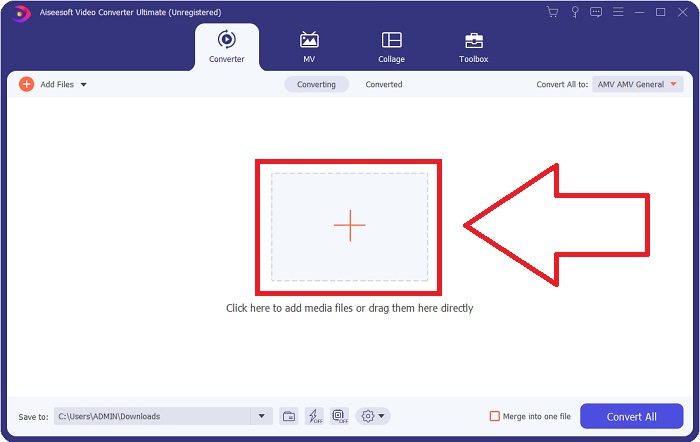
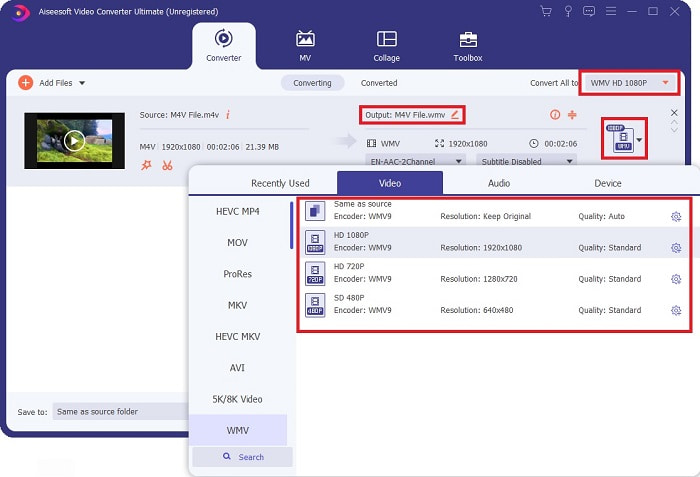
Step 3: इंटरफ़ेस पर आपको इम्पोर्ट की गई फ़ाइल दिखाई देगी। दाईं ओर उस वीडियो का मौजूदा फ़ॉर्मैट दिखेगा। उस पर क्लिक करें, और आपके सामने उपलब्ध सभी फ़ॉर्मैट की सूची आ जाएगी। इस स्थिति में, नीचे स्क्रॉल करके WMV ढूँढें या तेज़ी के लिए सर्च बार में इसे टाइप कर दें। इसके अलावा, टैब के दाएँ हिस्से में सभी वीडियो क्वालिटी विकल्प भी उपलब्ध होंगे। आप अपनी पसंद के अनुसार कोई भी चुन सकते हैं।.
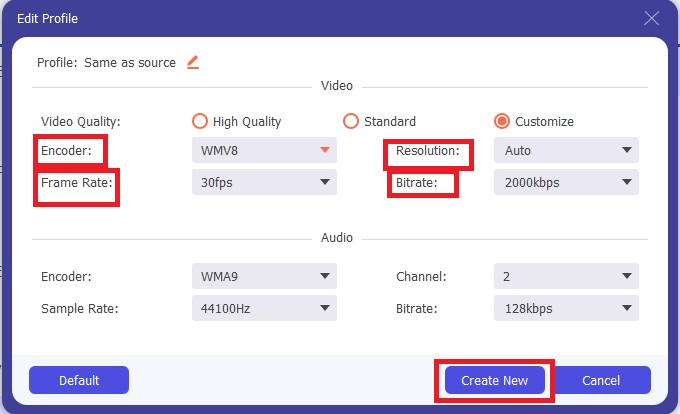
Step 4: बताई गई क्वालिटी चयन के अलावा, आप चुनी हुई वीडियो क्वालिटी के दाहिने ओर दिए गए गियर आइकन पर क्लिक करके अपने वीडियो के परिणाम को और भी एडिट कर सकते हैं। इसमें आपको सभी संभावित समायोजन (adjustments) दिखेंगे, जिनमें फ़्रेम रेट, रेज़ोल्यूशन, बिटरेट, सैंपल रेट, एन्कोडर, और बहुत कुछ शामिल हैं। बदलाव सहेजने के लिए बस Create New बटन पर क्लिक करें।.
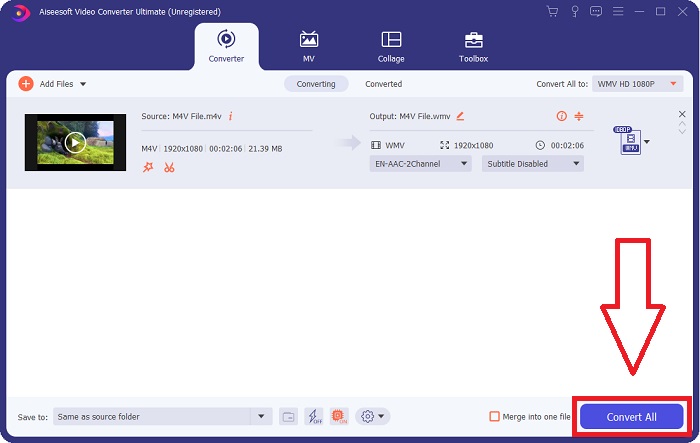
Step 5: कन्वर्ज़न प्रक्रिया पूरी करने के लिए, टैब के दाहिने निचले कोने में मौजूद Convert All बटन पर क्लिक करें, इसके पूरा होने का इंतज़ार करें, और फिर आपको आपकी कन्वर्ट की हुई फ़ाइल मिल जाएगी।.
भाग 2. हैंडब्रेक का उपयोग करके M4V को WMV में कैसे बदलें
हैंडब्रेक एक लोकप्रिय मुफ्त कनवर्टिंग प्रोग्राम है जो विंडोज, मैक और लिनक्स प्लेटफॉर्म पर चलता है। उपयोगकर्ता WMV में रूपांतरण के लिए इस ओपन-सोर्स ट्रांसकोडर पर DVD और ब्लू-रे स्रोतों से किसी भी प्रारूप में वीडियो अपलोड कर सकते हैं। उपयोगकर्ता के अनुकूल इंटरफेस के लिए धन्यवाद, रूपांतरण प्रक्रिया तेज और आसान है। हैंडब्रेक का उपयोग करके M4V को WMV में बदलने के लिए इन आसान निर्देशों का पालन करें।
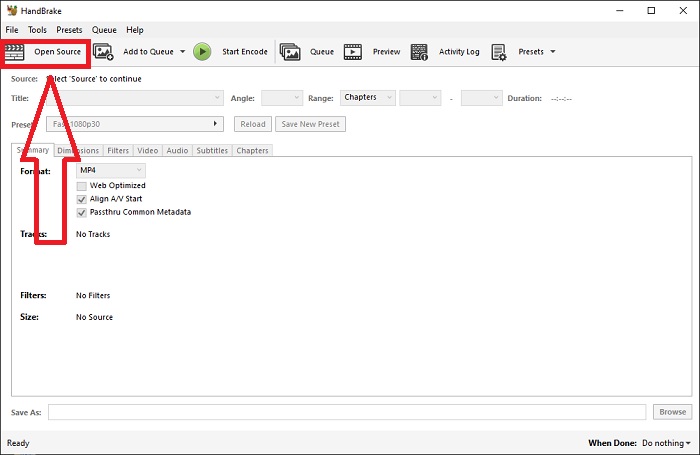
Step 1: अपने कंप्यूटर पर Handbrake एप्लिकेशन शुरू करें। मुख्य स्क्रीन पर Open Source बटन पर क्लिक करके ब्राउज़ करें और कन्वर्ट की गई WMV फ़ाइलें जोड़ें। आप चाहे तो वीडियो को सीधे इंटरफ़ेस पर खींचकर (drag and drop) भी छोड़ सकते हैं।.
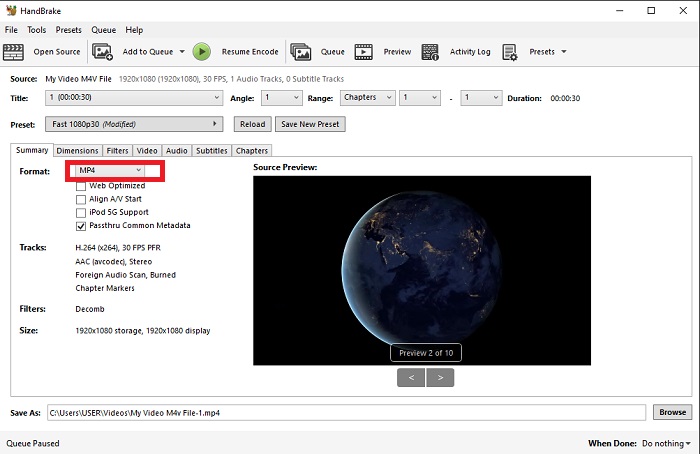
Step 2: नया डाला गया फ़ाइल Source क्षेत्र में दिखाई देगा। फिर Summary टैब के Format ड्रॉपडाउन विकल्प से WMV को इच्छित आउटपुट फ़ॉर्मैट के रूप में चुनें। ज़रूरत पड़ने पर फ़िल्टर, वीडियो कोडेक और अन्य फ़ाइल गुण (properties) भी समायोजित किए जा सकते हैं।.
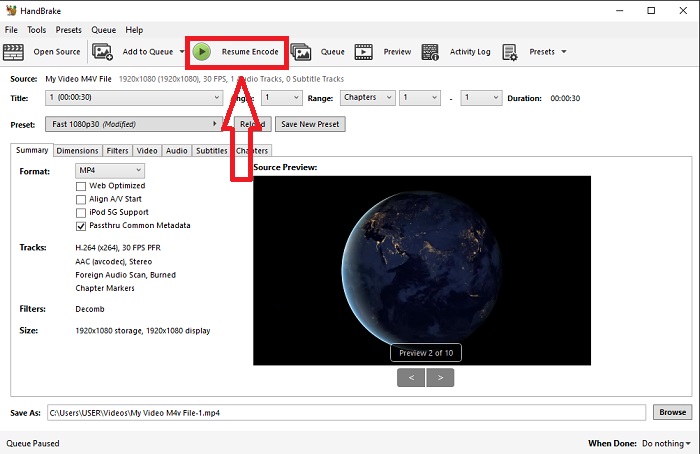
Step 3: Destination सेक्शन के तहत अपने पीसी पर आउटपुट फ़ाइल का नाम और लोकेशन चुनें। अंत में, Start Encode बटन पर क्लिक करें ताकि M4V फ़ाइल को WMV में कन्वर्ट किया जा सके।.
भाग 3. M4V को WMV ऑनलाइन में बदलने के लिए एक और सहायक उपकरण
एक मुफ्त इंटरनेट टूल के रूप में, FVC फ्री वीडियो कन्वर्टर काम में आता है। MP4, MOV, MKV, AVI, M4V, FLV, WMV, WEBM, VOB, MPG, 3GP, GIF, और YouTube और Facebook द्वारा स्वीकृत वीडियो प्रारूप इसके समर्थन के प्रकारों में से हैं। इसके अलावा, यह मुफ्त ऑनलाइन वीडियो कनवर्टर ऑडियो फाइलों को भी परिवर्तित कर सकता है, जिससे आप अपने वीडियो या संगीत को एमपी3, एएसी, एसी3, डब्लूएमए, डब्ल्यूएएफ, एफएलएसी, और अन्य प्रारूपों में परिवर्तित कर सकते हैं। FVC फ्री वीडियो कन्वर्टर आपको कनवर्ट करना शुरू करने से पहले फाइलों को निर्दिष्ट करने की अनुमति देता है। आप वीडियो का रिज़ॉल्यूशन, फ़्रेम दर और वीडियो बिटरेट, साथ ही ऑडियो का चैनल, नमूना दर और बिटरेट बदल सकते हैं।
Step 1: इस लिंक पर क्लिक करके सीधे ऑनलाइन टूल पर जाएँ। सबसे पहले, आपको एक लॉन्चर जल्दी से डाउनलोड करना होगा। ऐसा करने के लिए, पेज के बीच में स्थित Add Files to Convert बटन पर क्लिक करें। इस चरण से आप अपनी फ़ाइलें इम्पोर्ट कर पाएँगे।.
Step 2: वीडियो को आखिरकार अपलोड करने के लिए उसी बटन पर दोबारा क्लिक करें। जब सभी समर्थित फ़ॉर्मैट इंटरफ़ेस पर दिखने लगें तो समझिए अपलोड सफल हो गया है। वहाँ से, अन्य फ़ॉर्मैट में से WMV को चुनें।.
Step 3: अतिरिक्त विकल्पों के लिए आप दाईं ओर गियर आइकन पा सकते हैं। इस पर क्लिक करें, और यह आपको रेज़ोल्यूशन, फ़्रेम रेट और इसी तरह की अन्य सेटिंग्स के संदर्भ में वीडियो और ऑडियो सेटिंग्स में बदलाव करने देगा। काम पूरा होने पर OK पर क्लिक करें और फिर कन्वर्ज़न प्रक्रिया समाप्त करने के लिए Convert बटन पर क्लिक करें।.
संबंधित:
भाग 4. M4V और WMV के बारे में विस्तृत ज्ञान
अतिरिक्त जानकारी के लिए जो आप दो प्रारूपों के बारे में चाहते हैं, आप पढ़ सकते हैं कि हमने नीचे क्या प्रदान किया है:
M4V एक Apple-निर्मित फ़ाइल स्वरूप है। यह MP4 फ़ाइल स्वरूप के समान ही है, सिवाय इसके कि M4V फ़ाइलों में Apple की फेयरप्ले DRM सुरक्षा हो सकती है। M4V प्रारूप iTunes स्टोर से प्राप्त वीडियो सामग्री में पाया जा सकता है। यदि M4V फ़ाइल में DRM सक्षम है, तो फ़ाइल ख़रीदने के लिए उपयोग किए गए iTunes खाते को इसे चलाने वाली मशीन पर अधिकृत होना चाहिए।
दूसरी ओर, WMV फ़ाइलें Microsoft द्वारा बनाई गई वीडियो फ़ाइल होती हैं जिसमें आम तौर पर ऑडियो शामिल होता है। मैक और पीसी दोनों प्लेटफॉर्म पर, उपयोगकर्ता इन फ़ाइलों को कई वीडियो प्लेयर के साथ चला सकते हैं। डिजिटल अधिकार प्रबंधन (DRM) सुरक्षा को कुछ WMV फ़ाइलों में शामिल किया जा सकता है, जिससे उपयोगकर्ताओं को ऑनलाइन खुदरा विक्रेताओं से खरीदी गई फ़ाइलों की अवैध प्रतियां बनाने से रोका जा सकता है।
| M4V | WMV | |
| दस्तावेज़ विस्तारण | .m4v | .wmv |
| डेवलपर | एप्पल इंक. | माइक्रोसॉफ्ट |
| सहायक कार्यक्रम | ◆मीडिया प्लेयर क्लासिक ◆वीएलसी मीडिया प्लेयर ◆ केएमपी प्लेयर ज़ूम प्लेयर | ◆वीएलसी मीडिया प्लेयर एमपीलेयर ◆मीडिया प्लेयर क्लासिक विंडोज मीडिया प्लेयर |
भाग 5. M4V और WMV कनवर्ट करने के बारे में अक्सर पूछे जाने वाले प्रश्न
क्या M4V MP4 की तुलना में उच्च गुणवत्ता वाला है?
अब हम जानते हैं कि M4V MP4 की साथ-साथ तुलना करने के बाद MP4 और M4V में कोई मूलभूत अंतर नहीं है। M4V वीडियो फ़ाइल से DRM सुरक्षा को हटाने के बाद, MP4 और M4V वीडियो फ़ाइलें समान हैं।
क्या हैंडब्रेक DRM को हटाता है?
यह कंटेंट स्क्रैम्बल सिस्टम (सीएसएस) के साथ एन्क्रिप्टेड डीवीडी देखने के लिए एक लाइब्रेरी है, जो कि संरक्षित डिस्क को डिक्रिप्ट करने के लिए फ्री प्लेयर सॉफ्टवेयर द्वारा व्यापक रूप से उपयोग की जाने वाली विधि है। यह विंडोज, मैकओएस, लिनक्स और विभिन्न ऑपरेटिंग सिस्टम के साथ संगत है। हैंडब्रेक डीवीडी से डीआरएम को प्रभावी ढंग से हटाने और उन्हें रिप करने में सक्षम है।
WMV का सबसे अच्छा उपयोग क्या है?
माइक्रोसॉफ्ट ने विंडोज मीडिया प्लेयर्स में व्यापक रूप से उपयोग किए जाने वाले डब्लूएमवी वीडियो प्रारूप का निर्माण किया। WMV फ़ाइलें MP4 फ़ाइलों की तुलना में छोटी और अधिक संकुचित होती हैं। यही कारण है कि यह इंटरनेट वीडियो स्ट्रीमिंग के लिए लोकप्रिय है।
निष्कर्ष
निश्चित रूप से M4V को WMV में बदलने के कई तरीके हैं, लेकिन कुछ विशिष्टताओं पर समायोजन करते समय केवल कुछ ही ऐसा कर सकते हैं। यही कारण है कि हम वीडियो कन्वर्टर अल्टीमेट की सलाह देते हैं क्योंकि जब भी आपको कनवर्टर की आवश्यकता होती है तो यह आपकी तरफ से होगा। यदि समय सॉफ़्टवेयर को स्थापित करने की अनुमति नहीं देता है, तो इसका ऑनलाइन समकक्ष हमेशा उपयोग के लिए उपलब्ध है। तो, FVC वीडियो कन्वर्टर अल्टीमेट का उपयोग करके सर्वश्रेष्ठ वीडियो संपादन अनुभव देने में आपकी सहायता करने में हमारी सहायता करें।
-
 नि: शुल्क | गुणवत्ता खोने के बिना WMV को MP4 कन्वर्ट करने के लिए 3 सर्वश्रेष्ठ तरीके
 यह पोस्ट मैक या विंडोज पर MP4 वीडियो को WMV प्रारूप में बदलने का तरीका साझा करता है। हम आपको कई विकल्प भी प्रदान करेंगे, जिसमें डेस्कटॉप सॉफ्टवेयर और वेब-आधारित ऑनलाइन कन्वर्टर्स दोनों शामिल हैं। WMV कन्वर्ट करने वाले टूल के लिए सबसे अच्छा MP4 जानने के लिए तैयार हैं?
-
 विंडोज़ और मैक पर FLV को WMV में बदलने के शीर्ष 3 तरीके
 पीसी या मैक पर गुणवत्ता खोए बिना FLV को WMV में बदलने का सबसे अच्छा तरीका खोज रहे हैं? आप भाग्यशाली हैं क्योंकि यहां हम काम को आसानी से करने के लिए तीन तरीके साझा करते हैं।
-
 विंडोज़/मैक पर अपने जीआईएफ को डब्ल्यूएमवी में कैसे बदलें, इस पर एक सरल गाइड
 क्या आप जानना चाहते हैं कि GIF को WMV फॉर्मेट में कैसे बदलें? फिर इस लेख का अनुसरण करें क्योंकि यह आपके द्वारा चुने जा सकने वाले विभिन्न समाधानों को प्रदर्शित करता है।

