


 वीडियो कनवर्टर अंतिम
 स्क्रीन अभिलेखी
 वीडियो मरम्मत
 सुरक्षित डाउनलोड
एक मिनट में उच्च-गुणवत्ता वाली छवि आउटपुट के साथ HEIC फ़ोटो कैसे प्रिंट करें
अन्य डिवाइसों के लिए कम सपोर्ट होने के बावजूद, Apple अब भी यह घोषणा करता है कि वह HEIC फ़ॉर्मेट का उपयोग करके तेज़ी से स्नैप लेगा और इमेज को हाइपरस्पेक्ट्रल इमेज के साथ उसी में स्टोर करेगा, जो आपको कोई अतिरिक्त लागत नहीं देगा लेकिन आपकी स्टोरेज बचाएगा। फिर भी, अगर आप किसी ऐसी इमेज को प्रिंट, देखना, या किसी दूसरे गैर‑Apple डिवाइस पर ट्रांसफर करना चाहते हैं, तो आपको केवल ‘असमर्थित’ (unsupported) का नोटिफिकेशन ही मिलेगा। लेकिन अगर आप Mac यूज़र हैं, तो आप आसानी से सीख सकते हैं कि HEIC फ़ोटो कैसे प्रिंट करें और वही गुणवत्ता पा सकते हैं जो आपको रॉ फ़ाइल में मिलती है। तो अगर आप यह जानना चाहते हैं कि इसे प्रिंट कैसे करना है, तो नीचे दिए गए चरणों को पढ़ना जारी रखें।.

भाग 1. 2 मैक पर HEIC तस्वीरें कैसे प्रिंट करें पर प्रभावी तरीके
जब हम मैक पर एचईआईसी फोटो प्रिंट करने का तरीका तलाशते हैं और कोशिश करते हैं, तो हम देखते हैं कि प्रारूप को परिवर्तित किए बिना एचईआईसी फाइल की हार्ड कॉपी बनाने के दो तरीके हैं। इसलिए, यदि आप जानना चाहते हैं कि आपके पास मौजूद HEIC छवि की हार्ड कॉपी कैसे बनाई जाए, तो आपको नीचे दी गई दो विधियों को पढ़ना जारी रखना चाहिए।
कृपया जांचें कि क्या प्रिंटर मैक पर सही तरीके से स्थापित है और चरणों पर आगे बढ़ने से पहले इसका समस्या निवारण करें। अगर सब कुछ तैयार और तैयार है, तो अब आपको आगे बढ़ना चाहिए।
पहली विधि: शॉर्टकट कुंजी का उपयोग करना
यदि आप कम क्लिक चाहते हैं, तो आपको मैक पर एक छवि प्रिंट करने के लिए शॉर्टकट कुंजी का उपयोग करना होगा। आपके Mac पर HEIC फ़ाइल को सहजता से प्रिंट करने के लिए हमारे द्वारा क्लिक किए गए चरणों और कुंजियों का पालन करें।
चरण 1. अपने Mac पर सेव HEIC फ़ाइल पर क्लिक करें और उसे खोलें।.
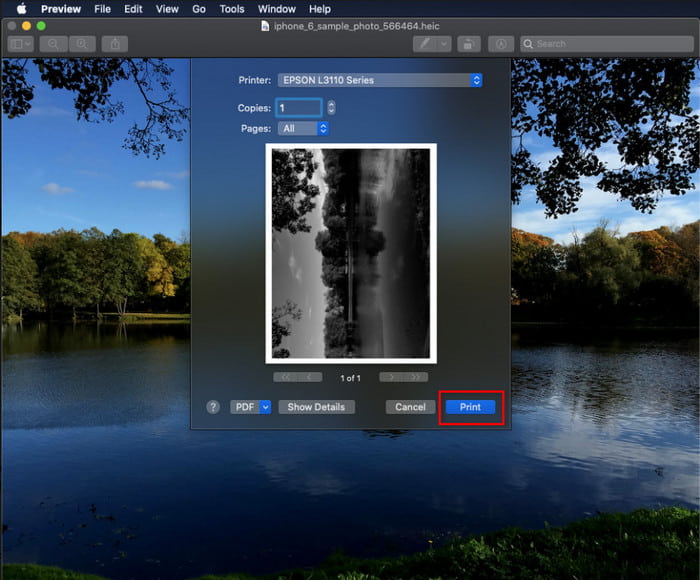
चरण 2. फ़ाइल खुलने के बाद, अपने कीबोर्ड पर Command + P कुंजियाँ दबाएँ।.
चरण 3. प्रिंटिंग डायलॉग बॉक्स में आप इमेज का प्रीव्यू देख सकते हैं और प्रिंटिंग की सेटिंग्स समायोजित कर सकते हैं; HEIC इमेज की उच्च गुणवत्ता वाली हार्ड कॉपी निकालने के लिए Print पर क्लिक करें।.
दूसरी विधि: फ़ाइल मेनू का उपयोग करना
यदि आपको लगता है कि शॉर्टकट कुंजी दस्तावेज़ का प्रिंट आउट लेने में आपकी सहायता नहीं कर सकती है, तो आपको फ़ाइल मेनू का उपयोग करने का प्रयास करना चाहिए। इस मेनू के साथ, आप आसानी से प्रिंट बटन पर क्लिक कर सकते हैं और HEIC छवि की हार्ड कॉपी रखने से पहले कुछ बदलाव कर सकते हैं। आइए बिना किसी और हलचल के शॉर्टकट कुंजियों का उपयोग किए बिना आपके macOS पर मौजूद HEIC को प्रिंट करना शुरू करें।
चरण 1. कुछ भी करने से पहले अपने Mac पर HEIC फ़ाइल खोलें।.
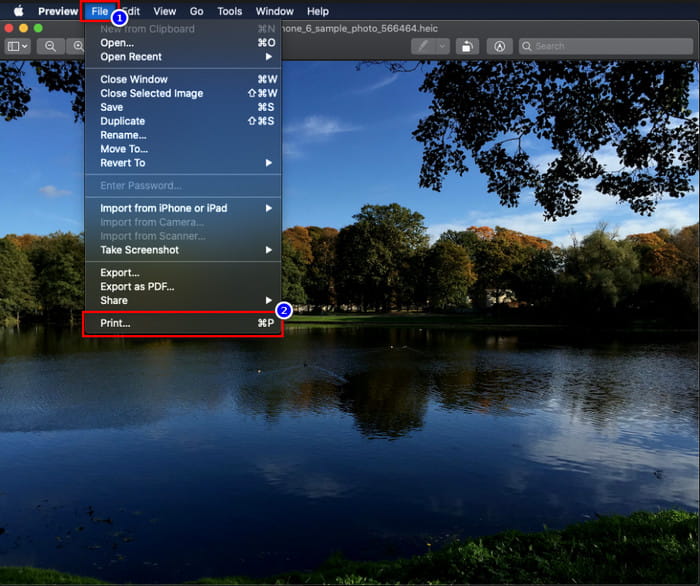
चरण 2. ऊपर वाले हिस्से में File मेनू पर क्लिक करें, और आपकी स्क्रीन पर विकल्पों की एक सूची दिखाई देगी। अब उस सूची में सबसे आखिरी विकल्प Print चुनें।.
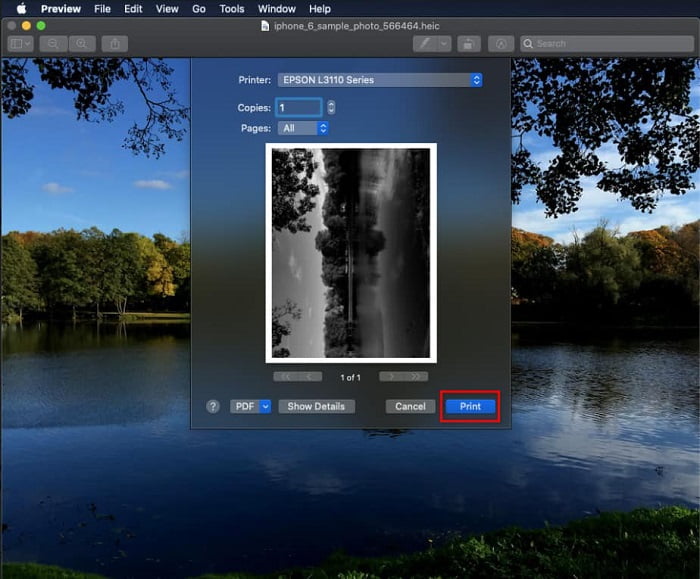
चरण 3. अब आपकी स्क्रीन पर प्रिंटिंग डायलॉग खुल जाएगा। इसके बीच वाले हिस्से में आप देखेंगे कि आपका HEIC फ़ाइल अगर हार्ड कॉपी बने तो कैसी दिखेगी, और दूसरी तरफ आप प्रिंट करने से पहले कुछ सेटिंग्स में बदलाव कर सकते हैं। सब कुछ सेट हो जाने के बाद, डॉक्युमेंट की प्रिंटिंग शुरू करने के लिए Print पर क्लिक करें।.
भाग 2. मैं मुद्रण के लिए अपनी HEIC तस्वीरें अपलोड क्यों नहीं कर सकता?
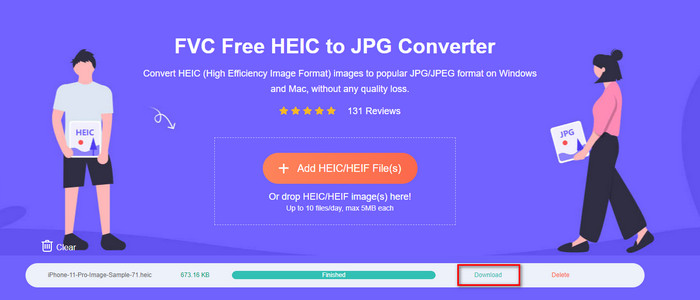
क्या आप भी उन यूज़र्स में से एक हैं जिन्हें HEIC फ़ाइल को संभालने में दिक्कत हो रही है, क्योंकि आप उसकी हार्ड कॉपी नहीं निकाल पा रहे? ऐसे में हम आपको एक खास वेब टूल से परिचित कराते हैं जो इस समस्या को हल करने में मदद कर सकता है: FVC Free HEIC to JPG Converter। यह वेब टूल आपकी HEIC फ़ाइल को आसानी से JPG में बदल सकता है। फ़ॉर्मेट को JPEG में बदल कर आप अब फ़ाइल को प्रिंटिंग के लिए बहुत आसानी से अपलोड कर सकते हैं, क्योंकि यह फ़ॉर्मेट HEIC की तुलना में अधिक पहचाना और समर्थित है। यद्यपि आप प्रतिदिन अधिकतम दस बार, और हर बार 5MB या उससे कम साइज की फ़ाइल ही कनवर्ट कर सकते हैं, फिर भी इन सीमाओं के बावजूद यह एक भरोसेमंद वेब कन्वर्टर है। तो, अब और समय बर्बाद न करते हुए, चलिए देखते हैं कि आपके पास उपलब्ध इस बेहतरीन ओपन‑सोर्स वेब कन्वर्टर का इस्तेमाल कैसे किया जाए।.
चरण 1. इस वेब कन्वर्टर तक पहुँचने के लिए आप इस लिंक पर क्लिक कर सकते हैं, और तुरंत एक नया टैब खुलेगा।.
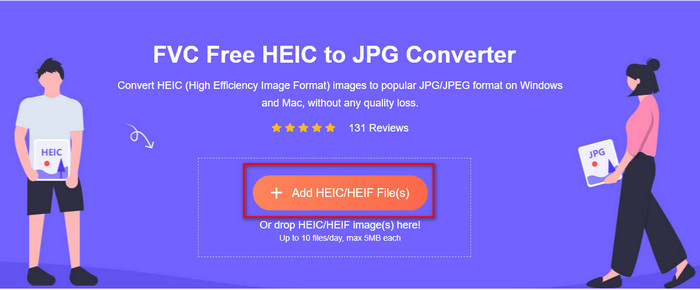
चरण 2. HEIC फ़ाइल जोड़ने के लिए इस बटन पर क्लिक करें, अपने फ़ोल्डर में HEIC फ़ाइल ढूँढें और उसे पूरी तरह अपलोड करने के लिए Open पर क्लिक करें।.
चरण 3. कन्वर्ज़न की प्रक्रिया शीघ्र ही शुरू हो जाएगी और पूरा होने के बाद, फ़ाइल को अपने डेस्कटॉप पर सेव करने के लिए Download पर क्लिक करें। अब यह प्रिंट के लिए तैयार है, और आप आसानी से HEIC इमेज की उतनी ही उच्च गुणवत्ता वाली कॉपियाँ अपने प्रिंटर से निकाल सकते हैं, बस फ़ॉर्मेट अलग होगा लेकिन गुणवत्ता रॉ इमेज फ़ाइल जैसी ही रहेगी।.
भाग 3. HEIC तस्वीरें प्रिंट करने के बारे में अक्सर पूछे जाने वाले प्रश्न
क्या मैं विंडोज़ पर एचईआईसी तस्वीरें प्रिंट कर सकता हूं?
अफसोस की बात है कि विंडोज एचईआईसी का समर्थन नहीं करता है, इसलिए इसका मतलब है कि यह उच्च गुणवत्ता वाले एचईआईसी की हार्ड कॉपी नहीं बना सकता है। लेकिन आशा न खोएं क्योंकि हम भाग दो में HEIC को पहचानने योग्य JPEG प्रारूप में बदलने का एक तरीका शामिल करते हैं। इसे कैसे करना है, यह जानने के लिए आप इसे स्वतंत्र रूप से पढ़ सकते हैं, फिर विंडोज़ पर आपके पास मौजूद HEIC फ़ाइल प्रिंट करें, लेकिन फ़ाइल एक्सटेंशन अलग है।
प्रिंटर HEIC को क्यों नहीं पहचानता?
कम्प्रेशन और फ़ॉर्मेट की संरचना के कारण, HEIC छोटे साइज में उच्च गुणवत्ता वाली इमेज रख सकता है, जो JPEG से भी छोटे हो सकते हैं, फिर भी यह पहचाना जाना अभी भी मुश्किल है क्योंकि इसे हाल ही में मार्केट में पेश किया गया है। लेकिन आप अब भी इस फ़ॉर्मेट को ऐसे सबसे संगत इमेज फ़ॉर्मेट में बदल सकते हैं जिसे हर प्रिंटर आसानी से पढ़ सके, और वह निस्संदेह आज तक उपयोग में आ रहा बेहतरीन हाई‑रेज़ इमेज फ़ॉर्मेट JPEG है। अगर आपको कन्वर्टर की ज़रूरत है, तो हमने ऊपर एक जोड़ा है, लेकिन आप यह लिंक भी क्लिक कर सकते हैं ताकि आप अन्य टूल्स के बारे में जान सकें जिनकी मदद से आप HEIC को JPEG में कन्वर्ट कर सकते हैं; हमने उन सभी की आपके लिए समीक्षा की है।.
एचईआईसी फाइल क्या है?
Moving Picture Expert Group ने HEIC को विकसित किया, जिसे JPEG या JPG के वैकल्पिक मानक इमेज फ़ॉर्मेट के रूप में इस्तेमाल किया जा सकता है। यद्यपि दोनों फ़ॉर्मेट इन्हीं के द्वारा बनाए गए हैं, फिर भी वे अलग‑अलग हैं; अगर आप यह और अधिक जानना चाहते हैं कि HEIC क्या है, तो इस लिंक पर क्लिक करें और वे विवरण पढ़ें जो हमने आपके लिए रिसर्च करके तैयार किए हैं।.
निष्कर्ष
तो अब जब हमें यह पता चल गया है कि उपरोक्त चरणों के साथ HEIC फ़ोटो कैसे प्रिंट करें, तो प्रत्येक मैक उपयोगकर्ता के लिए इसकी हार्ड कॉपी बनाना संभव हो जाता है। हालाँकि, यदि आप एक Windows उपयोगकर्ता हैं, तो आप अपने प्रिंटर पर एक HEIC छवि मुद्रित करने का प्रबंधन नहीं कर सकते क्योंकि प्रारूप Windows पर समर्थित नहीं है। लेकिन इसका मतलब यह नहीं है कि आप HEIC इमेज को प्रिंट करने की उम्मीद खो देंगे। हालाँकि हम मूल HEIC फ़ाइल को प्रिंट करने में आपकी मदद नहीं कर सकते, फिर भी यह तब भी संभव है जब आप इसे प्रकाशित करने से पहले प्रारूप को JPEG/JPG में बदल दें।
भाग दो में, हम सबसे अच्छा ऑनलाइन एचईआईसी से जेपीजी कनवर्टर शामिल करते हैं जिसे आप वेब पर एक्सेस कर सकते हैं, और यह वायरस से भी मुक्त है। अभी भी सुनिश्चित नहीं है कि क्या यह सही ढंग से परिवर्तित करने का कार्य कर सकता है? तो फिर आप इस लिंक पर क्लिक करके इसे क्यों नहीं आजमाते? निश्चित रूप से आप प्रभावित होंगे क्योंकि उपकरण आपके पास मौजूद HEIC फ़ाइलों को आसानी से परिवर्तित कर सकता है।
-
 2022 पर शीर्ष 4 बेहतर तरीकों का उपयोग करके HEIC को PDF में बदलें
 सर्वश्रेष्ठ एचईआईसी से पीडीएफ कनवर्टर के बारे में अधिक जानकारी जानने के लिए आप इस 2022 को डाउनलोड कर सकते हैं। आप इस लेख को पढ़ सकते हैं क्योंकि हमने उन पर एक समीक्षा प्रदान की है।
-
 सर्वश्रेष्ठ HEIC से JPG कन्वर्टर्स में से 5 इस 2022 को चुनता है
 HEIC से JPC कनवर्टर के साथ आप आसानी से छवि प्रारूप को पोर्टेबल JPG में बदल सकते हैं। जानना चाहते हैं कि ये 5 उपकरण क्या हैं? इस लेख को पढ़ें।
-
 बेस्ट फ्री और पेड HEIC कन्वर्टर आपको जरूर पता होना चाहिए [अपडेट किया गया 2022]
 क्या आप जानना चाहते हैं कि HEIC कनवर्टर क्या है? यदि ऐसा है, तो हम शीर्ष 5 निःशुल्क और सशुल्क HEIC कन्वर्टर्स शामिल करते हैं जिनका उपयोग आप HEIC प्रारूप को बदलने के लिए कर सकते हैं।
