


 वीडियो कनवर्टर अंतिम
 स्क्रीन अभिलेखी
 वीडियो मरम्मत
 सुरक्षित डाउनलोड
जॉयशेयर एचईआईसी कन्वर्टर क्या है: सॉफ्टवेयर की सर्व-समावेशी समीक्षा
मूल रूप से, आपके iOS डिवाइस से कैप्चर की गई तस्वीरें HEIC या HEIF फॉर्मेट में एन्कोड होती हैं, जो आपके स्टोरेज में काफी जगह बचाती हैं। इस फॉर्मेट के हालिया लॉन्च के साथ, हर कोई इस बात पर ध्यान दे रहा है कि यह फॉर्मेट आपकी इमेज पर क्या‑क्या कर सकता है, जबकि आउटपुट की हाई‑क्वालिटी भी बनी रहती है। अन्य ऑपरेटिंग सिस्टम, इस नए लॉसी कम्प्रेशन के बावजूद, HEIC फाइलों को सपोर्ट नहीं करते। मान लीजिए आप इस प्रकार के फॉर्मेट वाली इमेज फाइल को अपने Windows या Android पर ट्रांसफर करते हैं और उसे देखने के लिए क्लिक करते हैं; तो आपको एक पॉप‑अप डायलॉग बॉक्स मिलेगा जो बताएगा कि यह फाइल असमर्थित है या करप्ट है। लेकिन उदास होने की जरूरत नहीं है, क्योंकि इसे JPEG फॉर्मेट में कनवर्ट करके इस समस्या का समाधान किया जा सकता है। Windows और Mac पर आप जिन बेहतरीन कन्वर्टर्स का इस्तेमाल कर सकते हैं, उनमें से एक है Joyoshare HEIC Converter.
इसलिए, आज हम सॉफ्टवेयर की समीक्षा करेंगे और देखेंगे कि क्या यह HEIC को JPEG में बदलने के लिए सबसे अच्छा विकल्प है। हम नीचे जो जानकारी जोड़ते हैं वह आगे से पीछे होती है ताकि हम इसे समझ सकें और कनवर्टर के बारे में सच्चाई का खुलासा कर सकें।

भाग 1. व्यापक जॉयशेयर एचईआईसी कन्वर्टर समीक्षा
Joyoshare HEIC to JPG Converter एक हल्का‑फुल्का कन्वर्टर है जिसे आप अपने Windows और Mac पर इस्तेमाल कर सकते हैं। यह आपके HEIC फॉर्मेट को स्टैंडर्ड JPEG या आपकी पसंद के किसी अन्य इमेज फॉर्मेट में बदल सकता है। आप इस सॉफ़्टवेयर की मदद से एक साथ कई HEIC फाइलें अपलोड और कनवर्ट भी कर सकते हैं। इसके अलावा, इस टूल में और भी कई फीचर मौजूद हैं, जैसे कि:
◆ इसका उपयोग करना सीखना आसान है, और यह HEIC फ़ाइल को आसानी से अपलोड करने के लिए ड्रैग एंड ड्रॉप सुविधाओं का भी समर्थन करता है।
◆ आसानी से वीडियो रिज़ॉल्यूशन और गुणवत्ता यहां बदलें।
◆ यह छवि के पहलू अनुपात और मूल HEIC फ़ाइल के मेटाडेटा को रख सकता है।
◆ यह जेपीजी, बीएमपी, पीएनजी, बीएमपी, टीआईएफएफ, जीआईएफ और वेबपी जैसे अन्य छवि प्रारूपों का समर्थन करता है।
पेशेवरों
- कनवर्टर का उपयोग करने के लिए आपको तकनीकी कौशल की आवश्यकता नहीं होगी।
- यह एक साथ कई HEIC फ़ाइलों को परिवर्तित करने के लिए एक आदर्श कनवर्टर है।
- यह परिवर्तित HEIC फ़ाइल को आपके ड्राइव पर निर्यात करता है न कि क्लाउड पर।
विपक्ष
- कनवर्ट करने के बाद, यह मुफ़्त संस्करण पर वॉटरमार्क छोड़ देता है।
- इसकी पूरी क्षमता का उपयोग करने से पहले आपको सॉफ्टवेयर खरीदने की आवश्यकता होगी।
Joyoshare HEIC कन्वर्टर का उपयोग करके HEIC को JPG में कैसे बदलें:
स्टेप 1. सॉफ़्टवेयर को इस्तेमाल करने से पहले अपने Windows या Mac पर डाउनलोड करें।.
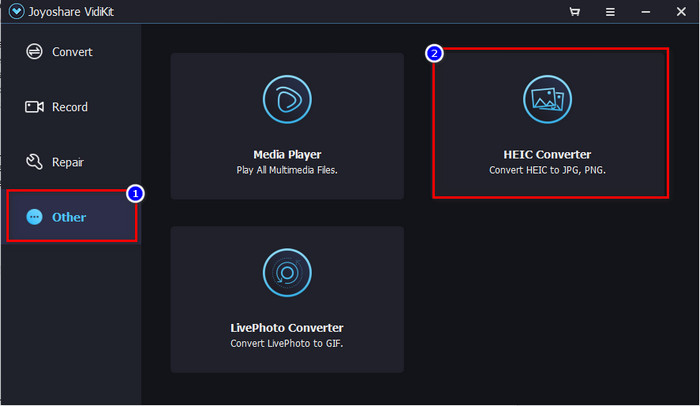
स्टेप 2. सॉफ़्टवेयर खोलें और उसके अंदर Others सेक्शन में जाएँ; वहाँ HEIC Converter पर क्लिक करें।.
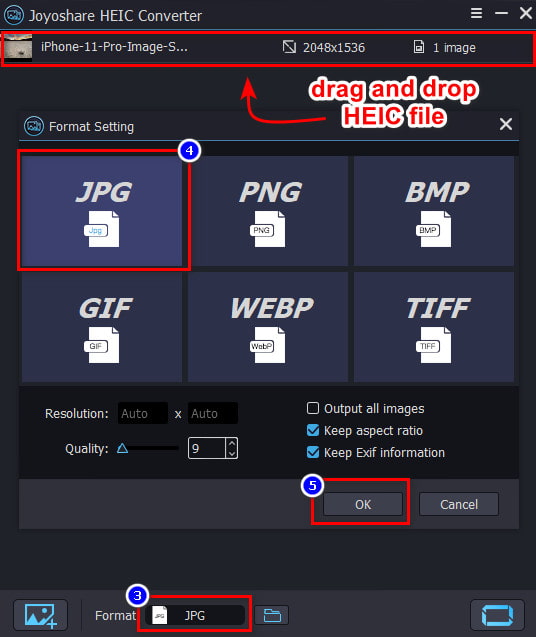
स्टेप 3. HEIC फाइल अपलोड करने के लिए फाइल को यहाँ पर ड्रैग एंड ड्रॉप करें। Format के अंतर्गत वह एक्सटेंशन चुनें जो आप चाहते हैं और OK पर क्लिक करें।.
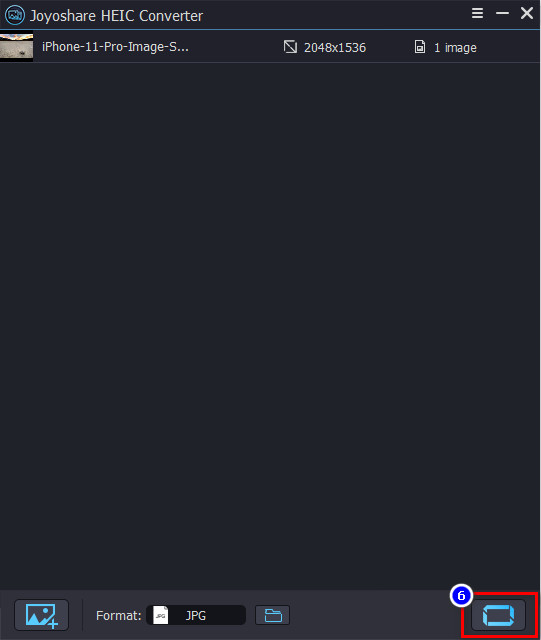
स्टेप 4. प्रक्रिया शुरू करने के लिए convert बटन पर क्लिक करें। कन्वर्शन पूरा होने के बाद आपकी स्क्रीन पर एक फ़ोल्डर दिखाई देगा, जिसमें कन्वर्ट की गई HEIC फाइल होगी।.
वेब पर Joyoshare HEIC कन्वर्टर के लिए सर्वश्रेष्ठ विकल्पों में से भाग 2. 3
हालाँकि हमने ऊपर जिस सॉफ़्टवेयर का उल्लेख किया है, वह बहुत अच्छा है, लेकिन इसके बारे में बुरी बात यह है कि यह आपके द्वारा यहाँ अपलोड की गई परिवर्तित HEIC फ़ाइल पर वॉटरमार्क रखता है। लेकिन कुल मिलाकर, सॉफ्टवेयर आपके विंडोज और मैक पर मौजूद अन्य एचईआईसी कनवर्टर की तुलना में कहीं बेहतर है। यह भाग उस वेब टूल का परिचय देगा जिसका उपयोग आप छवि के अंत में वॉटरमार्क छोड़े बिना HEIC को JPG में बदलने के लिए कर सकते हैं। ये वेब पर Joyoshare HEIC कन्वर्टर के लिए सबसे अच्छे विकल्प हैं।
JVC कनवर्टर करने के लिए FVC मुक्त HEIC
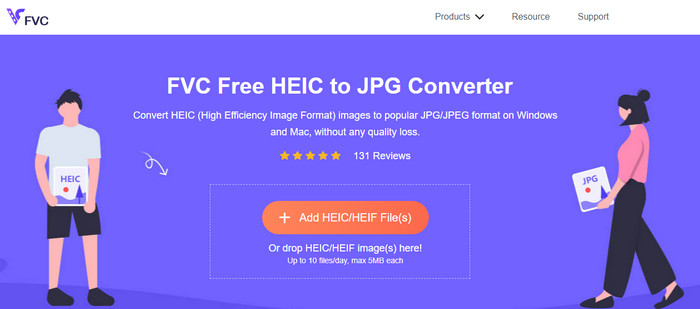
FVC Free HEIC to JPG Converter आपका ऑल‑इन‑वन HEIC to JPG कन्वर्टर है, जिसे आप वेब पर आसानी से एक्सेस कर सकते हैं। ऊपर रिव्यू किए गए HEIC कन्वर्टर के विपरीत, यह वेब टूल आपके एक्सपोर्ट किए गए फाइल पर वॉटरमार्क नहीं जोड़ता और न ही आपसे कोई भुगतान मांगता है, क्योंकि यह बिल्कुल मुफ्त है। चाहे आप Windows यूजर हों या Mac यूजर, आप एक ही क्लिक में अपने ड्राइव पर मौजूद HEIC फाइल को JPG में कन्वर्ट कर सकते हैं। साथ ही, आप यहाँ पर कई HEIC फाइलें भी जोड़ सकते हैं, क्योंकि यह एक साथ कई इमेजेस को कन्वर्ट करने में सक्षम है, और आपकी फाइल से जुड़ा EXIF डेटा भी बरकरार रखता है। इसलिए, अगर आप वेब पर Joyoshare का सबसे अच्छा विकल्प ढूँढ रहे हैं, तो यह टूल उपयुक्त है।.
उस स्थिति में, दो बार सोचने की आवश्यकता नहीं है क्योंकि यह कनवर्टर है जिसे आपको अपने एचईआईसी की अनुकूलता की समस्या को हल करने के लिए उपयोग करना चाहिए।
एचईआईसी ऑनलाइन
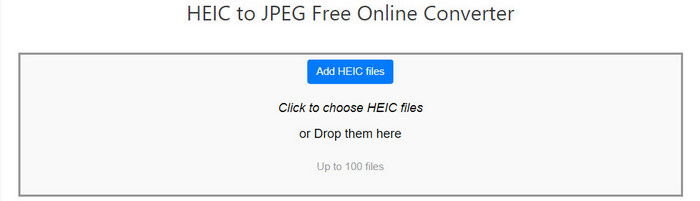
पहले वेब टूल के रूप में, HEIC ऑनलाइन आपको HEIC को JPEG में बदलने में मदद करता है जैसे कि Joyoshare HEIC से JPG कन्वर्टर क्या कर सकता है। यह वेब टूल निःशुल्क है और अंतिम उत्पाद पर वॉटरमार्क नहीं जोड़ेगा। अपने डेस्कटॉप पर कन्वर्टर डाउनलोड करने के बजाय, आप वेब टूल का उपयोग करके कुछ जगह बचा सकते हैं। इसकी रूपांतरण क्षमताओं के अलावा, आप इस ऑनलाइन कनवर्टर का उपयोग अंतिम आउटपुट की गुणवत्ता में हेरफेर करने के लिए भी कर सकते हैं। आपके पास अपनी HEIC फाइल में से EXIF फाइल को हटाने या न हटाने का मौका है। भले ही टूल के पास देने के लिए बहुत कुछ है, यदि आप इसे एक्सेस करने और इसका उपयोग करने का प्रयास करते हैं तो वेबसाइट पर कई विज्ञापन हैं।
हालाँकि विज्ञापन ज्यादातर समय कष्टप्रद हो सकते हैं, फिर भी इसका उपयोग करना आसान है। इसलिए, अगर आपको लगता है कि विज्ञापन आपको परेशान नहीं करते हैं, तो आप प्रारूप को जेपीजी में बदलने के लिए इस एचईआईसी कनवर्टर का उपयोग करने की कोशिश कर सकते हैं।
Fileproinfo - HEIC से JPG कन्वर्टर

इसमें कोई संदेह नहीं कि Fileproinfo – HEIC to JPG Converter आपके HEIC फाइलों को JPG या आपकी पसंद के किसी अन्य इमेज फॉर्मेट में बदलने के लिए बहुत काम आ सकता है। इस कन्वर्टर को इस्तेमाल करने के लिए आपको लॉग‑इन करने, भुगतान करने या कन्वर्टर से संबंधित कोई फाइल इंस्टॉल करने की जरूरत नहीं है। कई यूजर्स पहले से ही इस वेब कन्वर्टर को जानते हैं। यह उनके लिए पसंदीदा विकल्पों में से एक है, जब भी उन्हें किसी फॉर्मेट को अपनी पसंद के दूसरे फॉर्मेट में कन्वर्ट करना होता है। हालांकि यह एक फ्री ऑनलाइन कन्वर्टर है, लेकिन इसमें मौजूद विज्ञापन इस टूल के अनुभव को खराब करते हैं।.
इसका उपयोग करते समय, उम्मीद करें कि आपके द्वारा यहां की जाने वाली प्रत्येक क्रिया पर कई पॉप-अप विज्ञापन दिखाई देंगे। और यह अप्रिय है कि कनवर्ट करते समय आश्चर्यजनक रूप से विज्ञापन होते हैं। यहां तक कि अगर आप रूपांतरित नहीं होते हैं और उस पर जाते हैं, तो किनारों पर ऐसे विज्ञापन होते हैं जिन्हें आप गलती से क्लिक कर सकते हैं। फिर भी, कन्वर्टर वही करता है जो उसे करना चाहिए: HEIC को JPEG में बदलना।
भाग 3. जॉयशेयर एचईआईसी कन्वर्टर के बारे में अक्सर पूछे जाने वाले प्रश्न
Joyoshare HEIC कन्वर्टर पर कनवर्ट करने के बाद छवि गुणवत्ता कम क्यों हो जाती है?
एचईआईसी को जेपीजी में बदलने से पहले, आपको यह उम्मीद करने के लिए गुणवत्ता को अधिकतम तक बढ़ाना चाहिए कि गुणवत्ता में थोड़ी भी कमी नहीं आएगी। प्रारूप पर क्लिक करने के बाद, आप इसे ढूंढ सकते हैं, स्लाइडर को दाईं ओर खींचें और इसे नीचे करने के लिए बाईं ओर खींचें, फिर इसे सहेजने के लिए ठीक क्लिक करें।
Joyoshare HEIC कन्वर्टर पर एक्सपोर्ट करने के बाद वॉटरमार्क क्यों होता है?
क्योंकि नि: शुल्क परीक्षण सक्रिय है, यह आपके द्वारा निर्यात की जाने वाली छवि पर वॉटरमार्क छोड़ देगा और यहां परिवर्तित हो जाएगा। इसलिए, वॉटरमार्क हटाने के लिए, आपको सॉफ़्टवेयर खरीदना होगा, और हर बार जब आप चित्र निर्यात करते हैं, तो अंत में कोई वॉटरमार्क नहीं जोड़ा जाएगा।
Joyoshare HEIC कन्वर्टर का फ्री ट्रायल कब तक है?
Joyoshare HEIC कन्वर्टर के मुफ़्त परीक्षण की कोई सीमा नहीं है, इसलिए आप मुफ़्त संस्करण पर सॉफ़्टवेयर का उपयोग करके अधिकतम कर सकते हैं। लेकिन आप मुफ्त संस्करण के विपरीत, बिना किसी सीमा के इसका उपयोग करने के लिए इसकी आधिकारिक वेबसाइट पर कनवर्टर खरीद सकते हैं।
निष्कर्ष
यह लेख पढ़ने के बाद, अब आपको Joyoshare HEIC Converter के बारे में, उसके फीचर्स, फायदे‑नुकसान और उसे इस्तेमाल करने के तरीके पर समग्र जानकारी मिल गई है। इससे हर पाठक के लिए यह समझना आसान हो गया है कि HEIC को JPG या आपकी मनचाही अन्य फॉर्मेट में बदलने के लिए यह सबसे अच्छा विकल्प है या नहीं। भले ही यह सॉफ़्टवेयर कुल मिलाकर काफी अच्छा है, फिर भी इसमें कुछ कमियाँ मौजूद हैं। इसलिए, यह आपके हाथ में है कि आप तय करें कि यह टूल आपके लिए सही है या नहीं; और अगर आप तय करते हैं कि यह आपके लिए उपयुक्त नहीं है, तो आप ऊपर दी गई वैकल्पिक टूल्स की सूची में से कोई भी चुन सकते हैं।.
-
 आपके पास मौजूद प्रिंटर का उपयोग करके HEIC फ़ोटो को प्रिंट करने का अंतिम तरीका
 क्या आप जानना चाहते हैं कि HEIC फ़ोटो को उच्च-गुणवत्ता में कैसे प्रिंट किया जाए? सौभाग्य से यह आलेख आपके पास मौजूद HEIC छवि को प्रिंट करने के लिए चरण प्रदान करता है।
-
 एपॉवरसॉफ्ट फ्री एचईआईसी कन्वर्टर के लिए उचित समीक्षा आपको अवश्य पता होनी चाहिए [2022]
 Apowesoft HEIC कन्वर्टर क्या है? सॉफ्टवेयर क्या है, यह जानने के लिए नीचे हम सॉफ्टवेयर के बारे में पूरी जानकारी शामिल करते हैं।
-
 Android पर HEIC को JPG में मुफ्त में बदलने के 3 तरीके
 Android पर HEIC को JPG में बदलने की आवश्यकता है? यदि हां, तो हम आपको शीर्ष 3 ऐप्स देंगे जिनका उपयोग आप अपने Android उपकरणों पर कार्य को पूरा करने के लिए कर सकते हैं।
