


 वीडियो कनवर्टर अंतिम
 स्क्रीन अभिलेखी
 वीडियो मरम्मत
 सुरक्षित डाउनलोड
अपने वीडियो पर Picsart फ़िल्टर वॉटरमार्क को प्रभावी ढंग से हटाने के पूर्ण तरीके
आजकल डेस्कटॉप पर भरोसेमंद विज़ुअल मीडिया एडिटिंग सॉफ़्टवेयर रखना एक ज़रूरी हथियार बन गया है, जैसे Picsart। इसकी मदद से आप कुछ विकल्प बदलकर एक साधारण‑सी तस्वीर को ऐसी फोटोग्राफी में बदल सकते हैं, जैसी किसी ने पहले न देखी हो! आपके द्वारा बनाई गई आकर्षक तस्वीर से आप ज़्यादा ग्राहक या दर्शक आकर्षित कर सकते हैं। लेकिन Picsart इस्तेमाल करने में एक समस्या है, और वह है एक्सपोर्ट करने के बाद लगने वाला वॉटरमार्क। यह वॉटरमार्क काफी परेशान करने वाला होता है और अगर हटाया न जाए तो विज़ुअल पर ध्यान भंग कर सकता है। तो, अगर आप इस सॉफ़्टवेयर के साथ‑साथ Picsart फ़िल्टर वॉटरमार्क हटाने की ट्यूटोरियल भी चाहते हैं, तो इस लेख को आगे पढ़ते रहें और इसके बारे में विस्तार से जानें!

भाग 1. डेस्कटॉप पर मुफ्त सॉफ्टवेयर का उपयोग करके Picsart फ़िल्टर वॉटरमार्क कैसे निकालें
FVC वीडियो कन्वर्टर अल्टीमेट - विंडोज और मैक पर नंबर वन वॉटरमार्क रिमूवर
अब सॉफ़्टवेयर का परिचय शुरू करते हैं, हमारी पहली पसंद से, जो आपको यह सिखाने और मदद करने में सक्षम है कि Picsart का वॉटरमार्क कैसे हटाएँ। FVC Video Converter Ultimate आपके हथियारखाने का वह ज़रूरी औज़ार है, जिसकी मदद से आप वीडियो से वॉटरमार्क आसानी से हटा सकते हैं और आउटपुट भी प्रोफेशनल मिलता है। इसकी परफॉर्मेंस और बेमिसाल फीचर्स के कारण कई यूज़र इसे आज़मा चुके हैं और यह टूल उन्हें निराश नहीं करता। अगर आपको अपने वीडियो से वॉटरमार्क हटाने में मदद चाहिए, तो नीचे दिए गए चरणों को कॉपी कर के फ़ॉलो कर सकते हैं।.
चरण 1. नीचे दिए गए उचित डाउनलोड बटन पर क्लिक करके आप अपने डिवाइस पर यह अल्टीमेट सॉफ़्टवेयर प्राप्त कर सकते हैं। इसके बाद, सॉफ़्टवेयर को अपने कंप्यूटर पर इंस्टॉल करें और Start Now पर क्लिक कर के इसे खोलें।.
फ्री डाउनलोडWindows 7 या बाद के संस्करण के लिएसुरक्षित डाउनलोड
फ्री डाउनलोडMacOS 10.7 या बाद के संस्करण के लिएसुरक्षित डाउनलोड
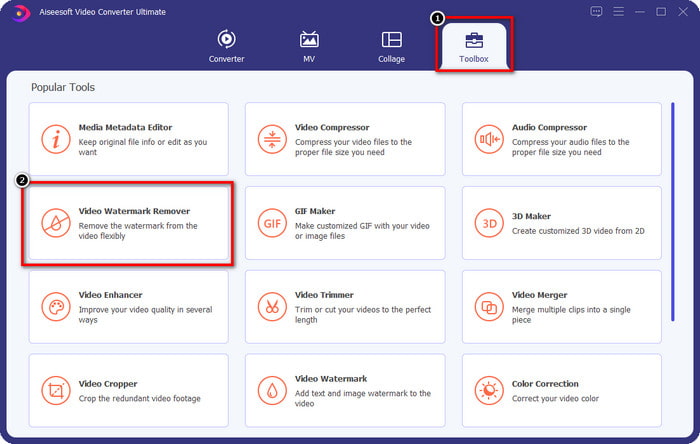
चरण 2. Toolbox सेक्शन में आपको और भी फ़ीचर्स नज़र आएँगे, जिनसे आप अपने वीडियो पर बेहतरीन अंतिम टच दे सकते हैं। लेकिन आज के लिए, Video Watermark Remover पर क्लिक करें।.
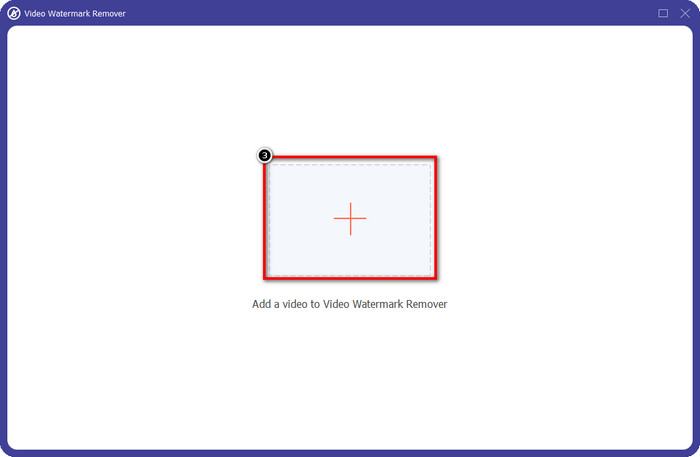
चरण 3. Picsart में एडिट किया हुआ वीडियो अपलोड करने के लिए + आइकन पर क्लिक करें। स्क्रीन पर खुलने वाले फ़ोल्डर में अपनी फ़ाइल ढूँढें और फिर Open पर क्लिक करें।.
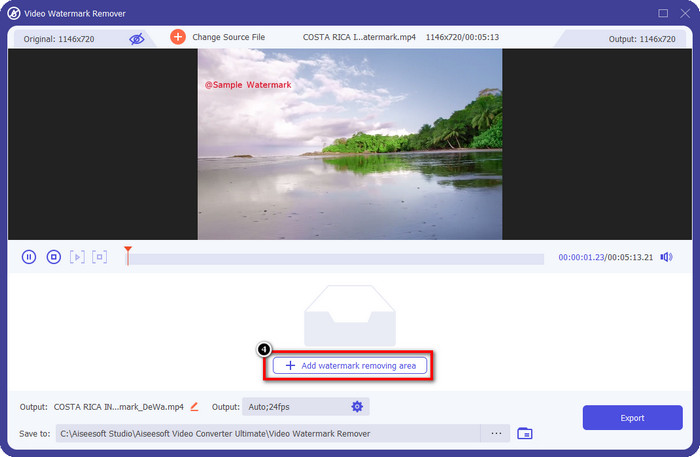
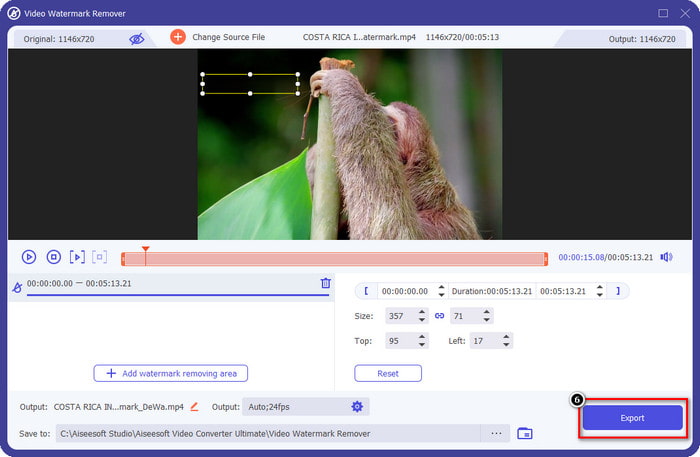
चरण 4. आपने जो वीडियो अपलोड किया है, उस पर लगा वॉटरमार्क हटाने के लिए Add Watermark Removing Area दबाएँ।.
चरण 5. सिलेक्शन बॉक्स को पकड़कर वॉटरमार्क के ऊपर ले जाएँ और उसे ढक दें। अपनी ज़रूरत के अनुसार आप बॉक्स को बड़ा या छोटा कर सकते हैं।.
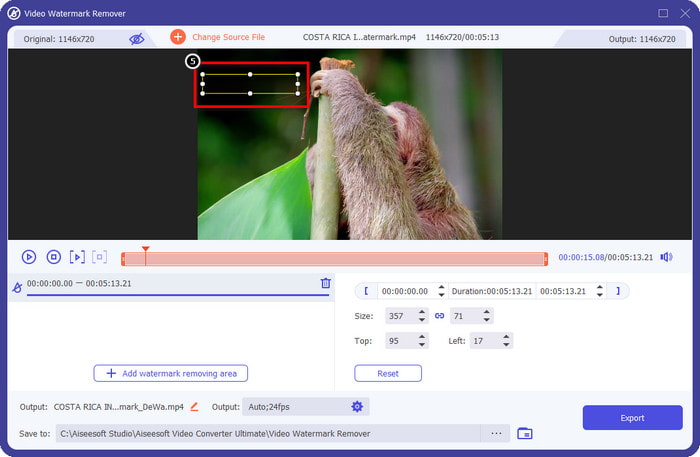
चरण 6. अब जब आप सिलेक्शन बॉक्स से वॉटरमार्क को पूरी तरह ढक चुके हैं, तो Export पर क्लिक करें, ताकि अंतिम आउटपुट आपके लोकल ड्राइव में सेव हो जाए।.
विंडोज़ पर तस्वीरें- 3D डिज़ाइन के साथ वॉटरमार्क कवर करें
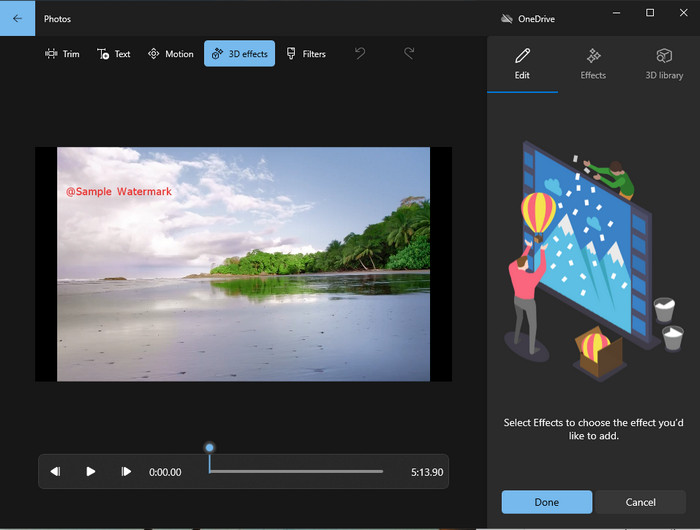
अगर आप सॉफ़्टवेयर डाउनलोड करना पसंद नहीं करते और Windows यूज़र हैं, तो आप अपने वीडियो का वॉटरमार्क एडिट करने के लिए Photos का इस्तेमाल ज़रूर आज़माएँ। इस टूल से Picsart वॉटरमार्क हटाने का तरीका सीखना और भी तेज़ हो जाएगा, क्योंकि आपको कोई ऐप डाउनलोड करने के झंझट से नहीं गुजरना पड़ेगा। यह टूल सीधे वीडियो से वॉटरमार्क नहीं हटाता, लेकिन आप 3D डिज़ाइन्स की मदद से वॉटरमार्क को ढक सकते हैं। फिर भी, यह डिफ़ॉल्ट विज़ुअल मीडिया व्यूअर और एडिटर प्रदर्शन के लिहाज़ से काफ़ी अच्छा है। यक़ीन नहीं आ रहा? तो नीचे दिए गए स्टेप्स पढ़ें और अगर चाहें तो उन्हें फ़ॉलो करें।.
चरण 1. टास्कबार पर Windows बटन पर क्लिक करें और Photos नाम सर्च कर के इसे खोलें।.
चरण 2. बिल्ट‑इन एडिटर खुलने के बाद, यहाँ वह वीडियो अपलोड करने के लिए + साइन पर क्लिक करें, जिसे आप एडिट करना चाहते हैं।
चरण 3. 3D Effects पर जाएँ, 3D Library पर क्लिक करें और ऐसा डिज़ाइन सर्च करें, जिससे आप वॉटरमार्क को ढकना चाहते हैं। चुना हुआ डिज़ाइन उस हिस्से पर रखें जहाँ वॉटरमार्क है।.
चरण 4. अंतिम आउटपुट को अपने Windows लोकल ड्राइव पर सेव करने के लिए Finish Video दबाएँ।.
पिकफ्रॉम ब्लर वीडियो ऑनलाइन

PickFrom Blur Video Online आपकी वेब पर मौजूद वीडियोज़ से PicsArt वॉटरमार्क हटाने में मदद कर सकता है। यह टूल ज़्यादा लोगों को पता नहीं है, लेकिन आज हम इसे पेश कर रहे हैं। हमने इस सॉफ़्टवेयर को इसलिए शामिल किया है क्योंकि यह आपके द्वारा अपलोड किए गए वीडियो से वॉटरमार्क हटाने में काफ़ी कारगर है। इसका GUI साधारण और साफ‑सुथरा है, इसलिए इसे इस्तेमाल करते समय आप उलझेंगे नहीं। तो, अगर आप वॉटरमार्क हटाना चाहते हैं, तो नीचे दिए गए प्रोसेस में चलते हैं।.
चरण 1. अपना वेब ब्राउज़र खोलें, इसका नाम सर्च करें और पहले नतीजे पर क्लिक कर के ऑनलाइन वॉटरमार्क रिमूवर खोलें।.
चरण 2. यहाँ वीडियो अपलोड करने के लिए Click to Add File पर क्लिक करें।.
चरण 3. Blur Part of the Video पर टिक करें, फिर सिलेक्शन बॉक्स को वॉटरमार्क की जगह पर ले जाकर रखें।.
चरण 4. बिना वॉटरमार्क वाला वीडियो डाउनलोड करने के लिए Start दबाएँ।.
भाग 2. प्रीमियम संस्करण खरीदकर Picsart वॉटरमार्क कैसे निकालें
यदि आप Picsart गोल्ड वॉटरमार्क को हटाने में परेशानी में नहीं पड़ना चाहते हैं, तो आपको सॉफ़्टवेयर खरीदना होगा। इसके लिए आपको एक निश्चित राशि खर्च करनी होगी क्योंकि इसका उपयोग करने से पहले आपको इसके लिए भुगतान करना होगा और फिर बिना किसी एम्बेडेड वॉटरमार्क के वीडियो को निर्यात करना होगा। इसलिए, यदि आप Picsart को खरीदने के लिए चरण-दर-चरण ट्यूटोरियल चाहते हैं, तो आपको हमारे द्वारा जोड़े गए अगले ट्यूटोरियल का अनुसरण करना चाहिए।
चरण 1. Picsart की आधिकारिक वेबसाइट खोलें और यहाँ अपने अकाउंट में लॉग इन करें। अगर आपका अकाउंट नहीं है, तो यहाँ Sign up कर के एक नया अकाउंट बनाएँ।.
चरण 2. मुख्य वेबसाइट पर Pricing पर क्लिक करें और हर उपलब्ध प्रोडक्ट की कीमतें देखें।.
चरण 3. अपनी पसंद का प्लान चुनें, मासिक या वार्षिक, फिर Go to Payment पर क्लिक करें।.
चरण 4. ज़रूरी जानकारी भरकर बिलिंग डिटेल जोड़ें और फिर Purchase Now पर क्लिक करें।
संबंधित:
ग्रेजुएशन तस्वीरों से वॉटरमार्क हटाएँ
भाग 3. Picsart वॉटरमार्क कैसे निकालें पर अक्सर पूछे जाने वाले प्रश्न
क्या मैं Picsart Gold को स्थायी रूप से खरीद सकता हूँ?
यह एकमुश्त भुगतान आधार या योजना का समर्थन नहीं करता है, इसलिए यदि आप Picsart Gold का उपयोग करना चाहते हैं, तो आपको मासिक या वार्षिक योजना का लाभ उठाने की आवश्यकता होगी। इसकी आधिकारिक वेबसाइट पर जाकर प्रत्येक योजना की कीमत देखें।
क्या मैं Picsart पर एक अनुकूलित सदस्यता बना सकता हूँ?
हाँ, आप Picsart पर टीम के लिए सदस्यता बना सकते हैं। आप उन लोगों की संख्या निर्धारित कर सकते हैं जो ऐप का उपयोग करेंगे।
मैं Picsart को कहाँ एक्सेस कर सकता हूँ?
आप Picsart को Windows, Android और iOS पर डाउनलोड कर सकते हैं। दुर्भाग्य से, ऐप में अभी मैक संस्करण नहीं है, लेकिन दुखी न हों क्योंकि आप अपने सिस्टम पर उपलब्ध अन्य मीडिया संपादन सॉफ़्टवेयर का उपयोग कर सकते हैं।
निष्कर्ष
हमने पहले जो ट्यूटोरियल पढ़ाया था, वह आपको PicsArt का उपयोग करके वॉटरमार्क हटाने और आपके द्वारा उपयोग किए जा सकने वाले सर्वोत्तम वॉटरमार्क रिमूवर का एक विचार देता है। अब आप उस वीडियो का आनंद ले सकते हैं जिसे आप Picsart पर संपादित करते हैं, उत्पाद वॉटरमार्क से परेशान हुए बिना यह अंतिम आउटपुट में जोड़ता है। इसलिए, यदि आप अभी भी हमारे द्वारा पेश किए गए टूल से असंबद्ध हैं, तो पहले उन्हें आज़माना आवश्यक है, विशेष रूप से FVC वीडियो कन्वर्टर अल्टीमेट। डाउनलोड बटन पर क्लिक करें और इसे अपने विंडोज और मैक पर मुफ्त में रखें, फिर इसके द्वारा प्रदान की जाने वाली सुविधाओं और कार्यों का आनंद लें, जिनका आप लाभ उठा सकते हैं।
-
 अंतिम टूल का उपयोग करके Pond5 वॉटरमार्क कैसे निकालें
 नीचे दिए गए सरल चरणों का पालन करके पॉन्ड5 वॉटरमार्क हटाने का तरीका जानें। आप इन प्रभावशाली उपकरणों का उपयोग करके अपनी छवि पर पॉन्ड5 वॉटरमार्क को आसानी से हटा सकते हैं।
-
 Dxtory वॉटरमार्क हटाने के 2 शक्तिशाली तरीके
 दो सर्वोत्तम तरीकों का पालन करके Dxtory वॉटरमार्क हटाने का तरीका जानें। यदि आप Dxtory वॉटरमार्क हटाने के लिए सबसे उपयुक्त टूल खोज रहे हैं, तो यहां पढ़ें।
-
 बकाया अर्नोल्ड माया वॉटरमार्क रिमूवर आपको याद नहीं करना चाहिए
 कई वॉटरमार्क रिमूवर अर्नोल्ड माया वॉटरमार्क को हटा सकते हैं। लेकिन अगर आप जानना चाहते हैं कि अर्नोल्ड माया वॉटरमार्क रिमूवर कौन से हैं, तो इस पेज को पढ़ें।
