


 वीडियो कनवर्टर अंतिम
 स्क्रीन अभिलेखी
 वीडियो मरम्मत
 सुरक्षित डाउनलोड
Adobe Resize Images - ऑनलाइन और ऑफलाइन इमेज का आकार बदलने का सबसे आसान तरीका
यदि आप Adobe पर इमेज को रिसाइज़ करना चाहते हैं, तो हमारे पास वह समाधान है जिसकी आप तलाश कर रहे हैं। इमेज और वीडियो एडिटिंग ऐप्लिकेशन्स के लिए Adobe एक मशहूर नाम है। Adobe के पास कई ऐप्लिकेशन हैं, जिनसे आप इमेज को एनहांस, ट्रिम, एडिट आदि बहुत कुछ कर सकते हैं – जो चाहें, वह करें! वीडियो और फोटो एडिटिंग के लिए Adobe के पास लगभग हर तरह के ऐप हैं। लेकिन क्या आप जानते हैं कि Adobe के पास ऐसा ऐप्लिकेशन भी है जिससे आप इमेज का साइज बदल सकते हैं? आपने बिलकुल ठीक पढ़ा! Adobe Express एक ऑनलाइन टूल है इमेज रिसाइज़ करने के लिए। और अगर आप ऑफ़लाइन रिसाइज़ करना चाहते हैं, तो आप Adobe Photoshop का इस्तेमाल कर सकते हैं। नीचे हम इन टूल्स के बारे में चर्चा करेंगे और आपको सिखाएँगे कि Adobe Express और Adobe Photoshop का उपयोग करके इमेज कैसे रिसाइज़ करें।.
भाग 1. एडोब एक्सप्रेस ऑनलाइन में छवि का आकार कैसे बदलें
यदि आप एक ऑनलाइन छवि आकार बदलने का उपयोग करना पसंद करते हैं, तो ऐसे बहुत से उपकरण हैं जिन्हें आप इंटरनेट पर खोज सकते हैं। हालांकि, इंटरनेट पर खोज करना कभी-कभी सबसे अच्छा विकल्प नहीं होगा क्योंकि ऐसे उपकरण हैं जो बेहतरीन गुणवत्ता वाले आउटपुट प्रदान नहीं करते हैं। साथ ही, बहुत से लोग Adobe Photoshop ऑनलाइन आकार बदलने वाली छवियों पर खोज कर रहे हैं। समस्या यह है कि Adobe Photoshop का कोई ऑनलाइन संस्करण नहीं है। इसलिए, हम एक छवि का आकार बदलने के लिए एक और एडोब टूल पेश करेंगे।
Adobe Express शायद इंटरनेट पर मिलने वाला सबसे अच्छा ऑनलाइन इमेज रिसाइज़र है। यह ऑनलाइन ऐप्लिकेशन आपको दिए गए स्केलिंग प्रीसेट्स में से चुनकर इमेज का साइज बदलने की सुविधा देता है। आप 9:16 (स्टोरी), 1:1 (स्क्वायर), 4:5 (पोर्ट्रेट) और 1.91:1 (लैंडस्केप) के बीच चुन सकते हैं। इसके अलावा, इसका इंटरफ़ेस बहुत साधारण है, जो इसे एक यूज़र‑फ़्रेंडली ऐप्लिकेशन बनाता है। आप स्लाइडर को पकड़कर और खींचकर अपनी इमेज को मैन्युअली भी स्केल कर सकते हैं। साथ ही, अगर आप Instagram, Facebook, Twitter या Pinterest के लिए इमेज का साइज बदलना चाहते हैं, तो Adobe Express इसमें आपकी मदद करेगा। हालांकि, अन्य Adobe एडिटिंग ऐप्स के विपरीत, इस टूल में एडिटिंग की अन्य सुविधाएँ उपलब्ध नहीं हैं।.
Adobe Express का उपयोग करके किसी छवि का आकार कैसे बदलें:
स्टेप 1. अपना ब्राउज़र खोलें और सर्च बॉक्स में Adobe Express इमेज रिसाइज़र सर्च करें। फिर, मुख्य यूज़र इंटरफ़ेस पर Upload your Photo बटन पर क्लिक करें और वह इमेज अपलोड करें जिसका साइज आप बदलना चाहते हैं।.
स्टेप 2. फिर, अपने कंप्यूटर के फ़ोल्डर्स से इमेज को ड्रैग और ड्रॉप करें। आप Browse on your device बटन पर क्लिक करके भी इमेज अपलोड कर सकते हैं।.
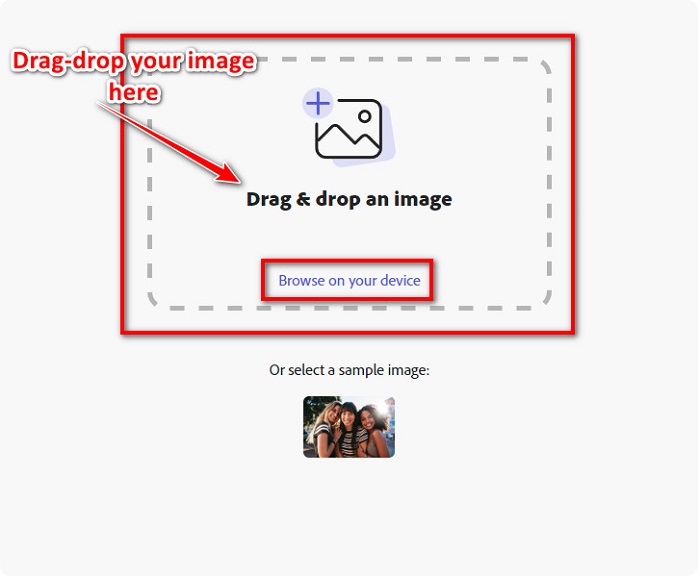
स्टेप 3. आखिर में, Resize for के बगल में दिए गए ड्रॉप‑डाउन एरो पर क्लिक करके यह चुनें कि आप किस प्लेटफ़ॉर्म/उद्देश्य के लिए रिसाइज़ करना चाहते हैं। फिर, इंटरफ़ेस के बाएँ हिस्से पर दिख रहे विकल्पों में से अपने पसंदीदा साइज का चयन करें। आप साइज प्रीसेट्स के नीचे दिए गए स्लाइडर को पकड़कर और खींचकर अपनी इमेज को मैन्युअली भी रिसाइज़ कर सकते हैं।.
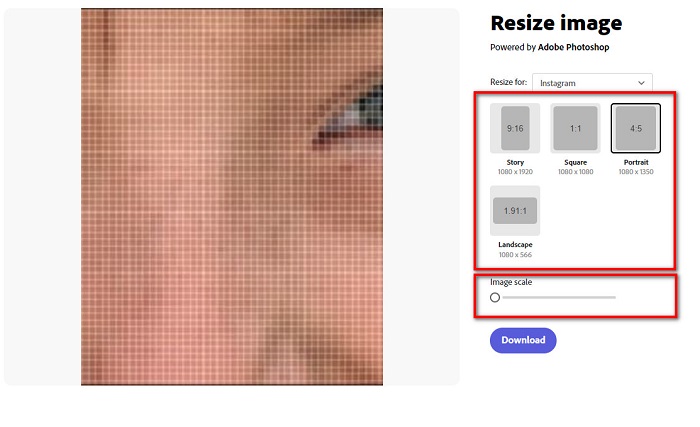
स्टेप 4. अपनी रिसाइज़ की हुई इमेज को डाउनलोड करने के लिए Download बटन पर क्लिक करें।.
भाग 2. Adobe Photoshop ऑफ़लाइन का उपयोग करके छवि का आकार कैसे बदलें
इसके बावजूद, ऑनलाइन टूल का उपयोग करना अच्छा है क्योंकि यह आपको अपने डिवाइस पर स्थान बचाने की अनुमति देता है, लेकिन ऑफ़लाइन टूल का उपयोग करने के लिए यह अभी भी सबसे अच्छा विकल्प है। अधिकांश ऑफ़लाइन छवि रिसाइज़र में कई संपादन सुविधाएँ होती हैं। साथ ही, ऑफ़लाइन टूल का उपयोग करने का लाभ यह है कि आपको अपनी छवि का आकार बदलने के लिए इंटरनेट का उपयोग करने की आवश्यकता नहीं है। इस भाग में, हम सबसे उत्कृष्ट ऑफ़लाइन वीडियो रिसाइज़र प्रस्तुत करेंगे।
Adobe Photoshop आपके पीसी पर इस्तेमाल किए जाने वाले सबसे बेहतरीन फोटो एडिटिंग ऐप्लिकेशन्स में से एक है। इस फोटो एडिटिंग ऐप में ढेरों टूल्स और फ़ंक्शन्स हैं, जिनका उपयोग आप अपनी इमेज एडिट करने के लिए कर सकते हैं। इसके अलावा, आप किसी भी इमेज को रिसाइज़ करने के लिए भी इस टूल का इस्तेमाल कर सकते हैं। यह ऐप आपको डिजिटल इमेज, ड्रॉइंग्स, पेंटिंग्स और ऐनिमेशन को बेहतर बनाने की सुविधा देता है, जिन्हें आप बिज़नेस उद्देश्यों के लिए भी उपयोग कर सकते हैं। साथ ही, इसकी क्षमताओं और उच्च गुणवत्ता के कारण कई प्रोफेशनल्स इस इमेज एडिटिंग ऐप्लिकेशन का उपयोग करते हैं।.
क्या अधिक है कि आप इस ऐप का उपयोग टेक्स्ट जोड़ने, 3D बनाने और अपनी छवि में तीक्ष्णता जोड़ने के लिए कर सकते हैं। लेकिन एडोब फोटोशॉप का नकारात्मक पक्ष यह है कि आपको ऐप का इस्तेमाल करने से पहले उसे खरीदना होगा। और इसका उपयोग करना भी कठिन है, खासकर शुरुआती लोगों के लिए। बहरहाल, यह ऐप इसकी कीमत के लायक है, और आप निश्चित रूप से इस ऐप का उपयोग करने का आनंद लेंगे।
Adobe Photoshop ऑफ़लाइन का उपयोग करके छवियों का आकार कैसे बदलें:
स्टेप 1. अपने डिवाइस पर Adobe Photoshop डाउनलोड करें। फिर ऐप की इंस्टॉलेशन प्रक्रिया का पालन करें और इसे अपने डिवाइस पर रन करें।.
स्टेप 2. अपनी इमेज को Photoshop में खोलें, फिर इंटरफ़ेस के बाएँ ऊपर मौजूद Image मेनू पर जाएँ। इसके बाद Image Size चुनें।.
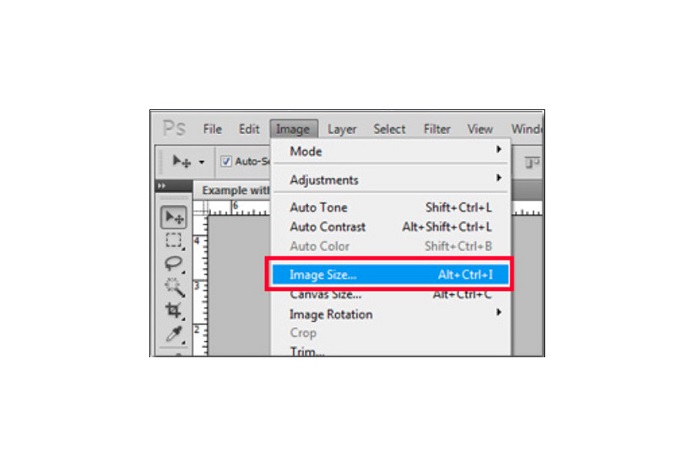
स्टेप 3. इसके बाद एक नई विंडो खुलेगी, जहाँ आप Constrain Proportions के बगल वाले बॉक्स पर क्लिक करेंगे।.
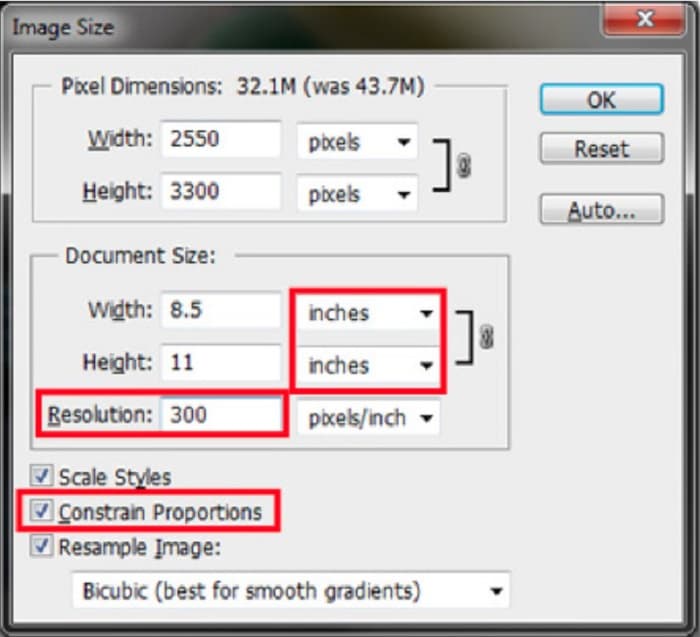
स्टेप 4. और Document Size सेक्शन के अंतर्गत, अपने माप की इकाई के रूप में इंच (inches) चुनें। सुनिश्चित करें कि रेज़ोल्यूशन 200 पिक्सल प्रति इंच से कम न हो।.
स्टेप 5. अपनी इमेज के लिए मनचाहा width (चौड़ाई) और height (ऊँचाई) टाइप करें। फिर बदलावों को सहेजने के लिए OK बटन पर क्लिक करें।.
स्टेप 6. अंत में, अपनी फ़ाइल को अपने कंप्यूटर पर सेव करें।.
अब जब कि आपने बेहतरीन Adobe photo resizer का उपयोग करके इमेज का साइज बदलना सीख लिया है, हम आपको एक वैकल्पिक इमेज रिसाइज़र भी दिखाएँगे।.
भाग 3. छवियों का आकार बदलने पर एडोब फोटोशॉप का विकल्प
चूंकि एडोब फोटोशॉप एक उपयोगकर्ता के अनुकूल उपकरण नहीं है, इसलिए हमने एक विकल्प की खोज की जिसका उपयोग आप अपनी छवि का आकार बदलने के लिए कर सकते हैं। इसलिए, हम एक सॉफ्टवेयर एप्लिकेशन पेश करेंगे जिसे आप अपने विंडोज या मैक डिवाइस पर डाउनलोड कर सकते हैं। हम आपको यह भी सिखाएंगे कि इस अंतिम ऐप का उपयोग करके किसी छवि का आकार कैसे बदला जाए।
FVC Free Image Resizer एक और शक्तिशाली ऑनलाइन image resizer है, जिसका उपयोग आप अपनी इमेज का साइज बदलने के लिए कर सकते हैं। आप इमेज रिसाइज़र ऐप्लिकेशन्स का उपयोग अपनी फोटो की क्वालिटी सुधारने के लिए भी कर सकते हैं, और यही काम FVC Free Image Resizer करता है। यह ऑनलाइन टूल आपकी इमेज को 2x, 4x, 6x और 8x तक अपस्केल कर सकता है। इसके अलावा, यह JPG, JPEG, PNG और BMP जैसे सभी इमेज फॉर्मैट्स को सपोर्ट करता है। इस ऐप्लिकेशन की एक और अच्छी बात इसका आसान‑से‑समझ आने वाला सॉफ़्टवेयर इंटरफ़ेस है। साथ ही, यह AI टेक्नोलॉजी का इस्तेमाल करता है, जो इमेज के धुंधले हिस्सों को अपने आप पहचानकर उन्हें बेहतर बनाती है।.
FVC फ्री इमेज अपस्केलर का उपयोग करके किसी छवि का आकार कैसे बदलें:
स्टेप 1. अपने ब्राउज़र पर FVC Free Image Upscaler सर्च करें, फिर ऐप के मुख्य पेज पर जाएँ। मुख्य यूज़र इंटरफ़ेस पर Upload Photo बटन दबाकर वह इमेज अपलोड करें जिसका साइज आप बदलना चाहते हैं।.

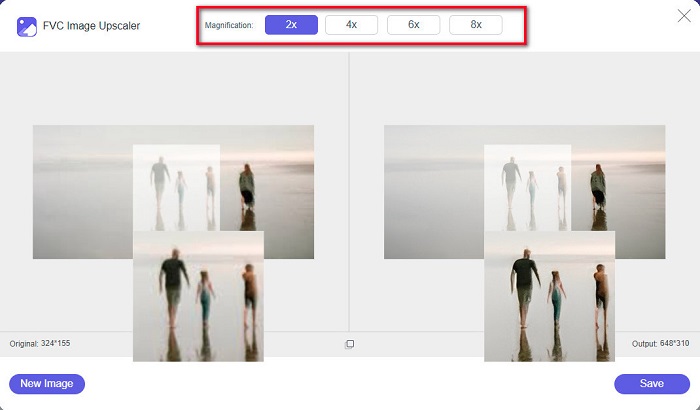
स्टेप 2. इमेज अपलोड करने के बाद, अपनी फोटो के लिए मनचाहा मैग्निफिकेशन चुनें। आप 2x, 4x, 6x, और 8x में से चुन सकते हैं। संख्या जितनी अधिक होगी, क्वालिटी उतनी बेहतर होगी।.
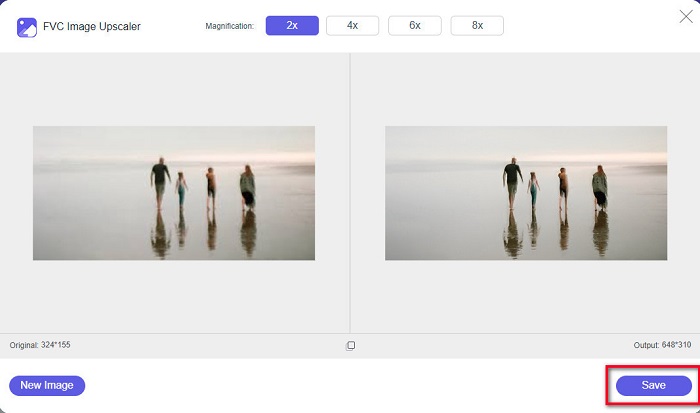
स्टेप 3. इसके बाद, अपने आउटपुट को डिवाइस पर सेव करने के लिए Save बटन पर क्लिक करें।.
भाग 4. Adobe Photoshop में छवि का आकार बदलने के बारे में अक्सर पूछे जाने वाले प्रश्न
क्या Adobe दोषरहित रूप से छवियों का आकार बदलता है?
Adobe Photoshop का उपयोग करके, आप गुणवत्ता खोए बिना अपनी छवियों का आकार बदल सकते हैं। इसके अलावा, यह उच्च गुणवत्ता वाले आउटपुट का उत्पादन करता है।
Adobe Photoshop किन फ़ाइल स्वरूपों का समर्थन करता है?
Adobe Photoshop लगभग सभी ज्ञात छवि प्रारूपों को स्वीकार करता है, जैसे JPG, JPEG, PNG, BMP, TIFF, EPS, PDF, और बहुत कुछ।
एडोब फोटोशॉप की कीमत क्या है?
आप Adobe Photoshop को $19.99 प्रति माह में खरीद सकते हैं। आप पहले आवेदन का परीक्षण करने के लिए इसके 30-दिवसीय नि: शुल्क परीक्षण का उपयोग कर सकते हैं।
निष्कर्ष
अब जब आपका Adobe resize images से जुड़ा सवाल हल हो गया है, तो आप Adobe Express या Adobe Photoshop का उपयोग करके इमेज का साइज बदल सकते हैं। ऊपर बताए गए टूल्स में से आप जिस भी ऐप्लिकेशन को चुनेंगे, उससे आप सफलतापूर्वक अपनी इमेज को रिसाइज़ कर पाएँगे। लेकिन अगर आप इमेज को रिसाइज़ और एनहांस करने का एक और भी आसान और अधिक प्रभावी तरीका चाहते हैं, तो FVC Free Image Upscaler का उपयोग करें।.
-
 4 आसान तरीकों से ऑनलाइन और ऑफलाइन छवि को कैसे तेज करें
 अगर आप किसी इमेज को शार्प करना चाहते हैं तो आप कई तरीके अपना सकते हैं। हम ऑनलाइन और ऑफलाइन छवियों को तेज करने के सर्वोत्तम और आसान तरीकों के बारे में नीचे चर्चा करेंगे।
-
 पुरानी फोटो बहाली ऑनलाइन और ऑफलाइन [आसान कदम]
 एक पुरानी तस्वीर को पुनर्स्थापित करना चाहते हैं? इन टूल्स से आप पुरानी फोटो बहाली प्रक्रिया को जानेंगे। सबसे सरल तरीके जानने के लिए इस पोस्ट को पढ़ें।
-
 फेसबुक के लिए फोटो का आकार कैसे बदलें [त्वरित और आसान चरण]
 अगर आपको फेसबुक पर बड़े आकार की इमेज अपलोड करने में परेशानी हो रही है, तो हमारे पास आपके लिए एक समाधान है। Facebook के लिए फ़ोटो का आकार बदलने का तरीका जानने के लिए इस लेख को समाप्त करें।
