


 वीडियो कनवर्टर अंतिम
 स्क्रीन अभिलेखी
 वीडियो मरम्मत
 सुरक्षित डाउनलोड
अपने डिवाइस पर मैनीकैम लोगो को हटाने के सबसे आसान तरीके
क्या आप सीखना चाहते हैं कि अपने Windows और Mac पर ManyCam का लोगो कैसे हटाएँ? ऐसे में यह पोस्ट आपको अपने वीडियो से लोगो हटाने के कई तरीकों से परिचित कराएगी, जिन्हें आपको अवश्य आज़माना चाहिए। अपने पसंदीदा वीडियो को वॉटरमार्क या लोगो के साथ चलाना थोड़ा परेशान करने वाला होता है। आप अपने वीडियो का पूरा आनंद नहीं ले पाते और यह ध्यान भंग करता है। कभी‑कभी वॉटरमार्क, तस्वीरों, टेक्स्ट या लोगो की वजह से वीडियो के कुछ हिस्से ठीक से दिख ही नहीं पाते। सौभाग्य से, आप वॉटरमार्क रिमूवर वाली बेहतरीन सॉफ्टवेयर एप्लिकेशन का उपयोग करके अपने वीडियो से ऐसे अनावश्यक ऑब्जेक्ट्स हटा सकते हैं।.
इन एप्लिकेशन की मदद से आप फिर कभी निराश नहीं होंगे। यदि आप मैनीकैम लोगो को हटाने के सर्वोत्तम तरीकों को जानने में रुचि रखते हैं, तो इस लेख को पढ़ना आपके लिए सबसे अच्छा विकल्प है।

भाग 1: सब्सक्रिप्शन को सक्रिय करके मैनीकैम लोगो को कैसे हटाएं
मान लीजिए आप ManyCam से वॉटरमार्क हटाना सीखना चाहते हैं; तो आप सही जगह पर हैं। ManyCam एक लाइव स्ट्रीमिंग सॉफ्टवेयर है, जो Windows और Mac दोनों पर उपलब्ध है। यह एप्लिकेशन आपको अपने प्लेटफ़ॉर्म पर यूनिक ब्रॉडकास्ट बनाने, ट्यूटोरियल बनाने, बिज़नेस प्रेज़ेंटेशन देने, गेम स्ट्रीमिंग आदि करने देता है। इसके अलावा, इसमें और भी कई बेहतरीन फीचर हैं जिनका आप लाभ उठा सकते हैं, जैसे म्यूजिक जोड़ना, स्क्रीन रिकॉर्ड करना, ग्रीन स्क्रीन जोड़ना, गेम स्ट्रीम करना इत्यादि। कंटेंट क्रिएटर्स के लिए ManyCam काफ़ी मूल्यवान और सहायक है। इसमें स्क्रीनकास्टिंग और स्क्रीन रिकॉर्डिंग जैसे ज़रूरी टूल मौजूद हैं, जो उनके काम को सुविधाजनक बना देते हैं।.
हालांकि, हर बार जब आप अपना वीडियो बनाते या संपादित करते हैं, तो वीडियो के निचले हिस्से पर कई कैमरे का लोगो होता है, जो परेशान करने वाला होता है। सौभाग्य से, आप ManyCam की सदस्यता को सक्रिय करके इस लोगो को हटा सकते हैं। सब्सक्रिप्शन को सक्रिय करके मैनीकैम लोगो को हटाने का तरीका जानने के लिए नीचे दिए गए चरणों का पालन करें।
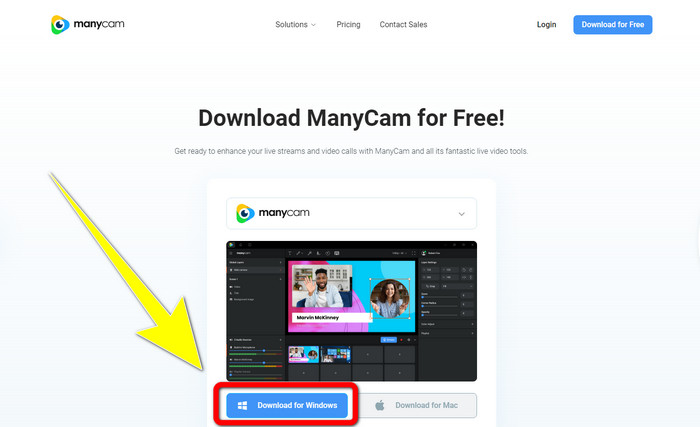
स्टेप 1: ManyCam डाउनलोड करने के लिए Download for Windows बटन पर क्लिक करें। इसके बाद इंस्टॉलेशन प्रक्रिया जारी रखें।.
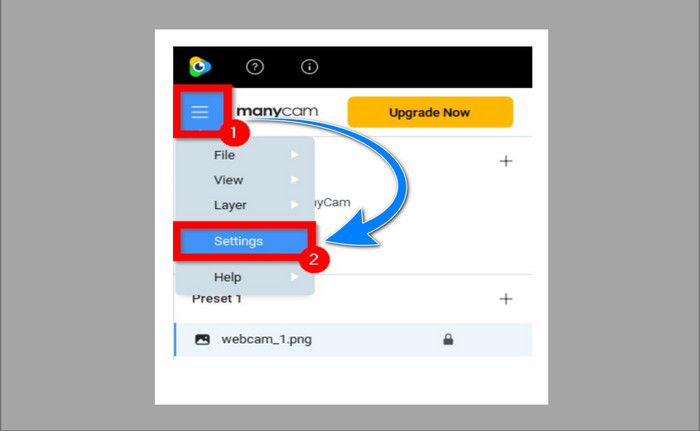
स्टेप 2: अपने कंप्यूटर पर एप्लिकेशन लॉन्च करें और ManyCam के सैंडविच आइकन पर क्लिक करें, फिर Settings > Account पर जाएँ और सब्सक्रिप्शन ख़रीदने के बाद बनाए गए अकाउंट से लॉग इन करें।.
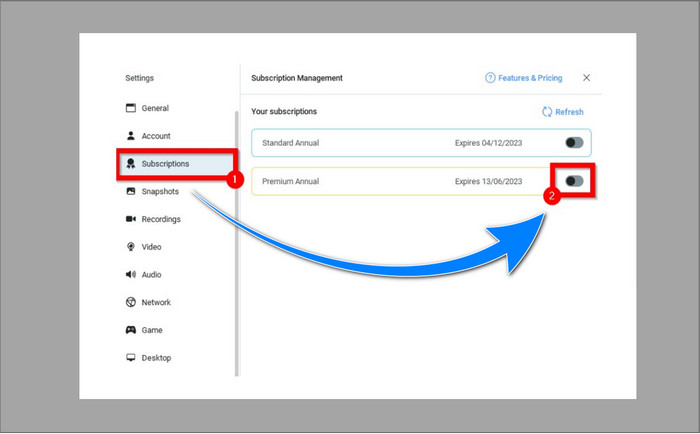
स्टेप 3: यह सुनिश्चित करने के लिए Subscription टैब पर जाएँ कि सब्सक्रिप्शन सक्षम (इनेबल) है।.
स्टेप 4: यदि सब्सक्रिप्शन पहले से ही सक्षम है, तो एक Pop-up संदेश दिखाई देगा, और आपका काम पूरा हो जाएगा।.
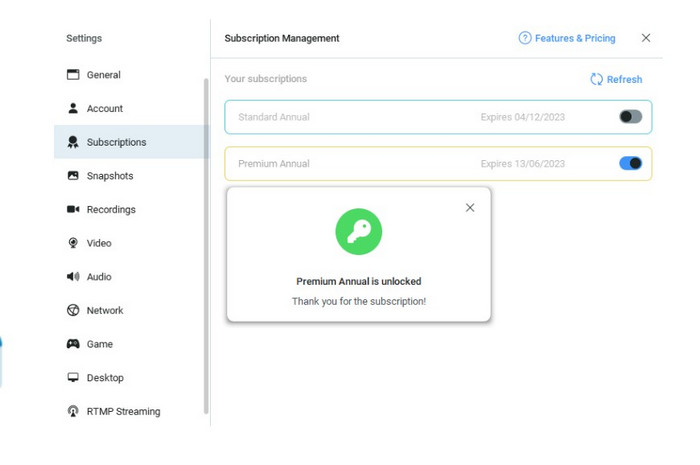
यदि आपका AnyCam एप्लिकेशन पहले से ही सक्रिय है, तो आपके वीडियो पर वॉटरमार्क या लोगो अपने आप हट जाएंगे। आप वॉटरमार्क का सामना किए बिना अपने पसंदीदा वीडियो देखने का आनंद ले सकते हैं।
भाग 2: मैनीकैम लोगो को बिना सब्सक्रिप्शन के कैसे हटाएं
क्या आप ManyCam से वॉटरमार्क मुफ़्त में हटाना चाहते हैं? ManyCam एप्लिकेशन के अलावा, आप ManyCam के लोगो को हटाने के लिए दूसरे एप्लिकेशन का भी उपयोग कर सकते हैं। आपके लिए सबसे अच्छा एप्लिकेशन है Video Converter Ultimate। यह एप्लिकेशन आपके वीडियो से टेक्स्ट, वॉटरमार्क, लोगो आदि जैसे अनावश्यक ऑब्जेक्ट्स हटा सकता है। इसके अलावा, Video Converter Ultimate में कई एडिटिंग टूल हैं जिनका आप आनंद ले सकते हैं, जैसे वीडियो स्पीड कंट्रोलर, वीडियो एन्हांसर, वॉटरमार्क जोड़ना और हटाना, कलर करेक्शन, वॉल्यूम बूस्टर, आदि। Video Converter Ultimate से वॉटरमार्क हटाने के लिए आप जो सबसे अच्छा टूल इस्तेमाल कर सकते हैं, वह है Video Watermark Remover।.
यह टूल वॉटरमार्क को आसानी से खत्म करने में आपकी मदद करेगा। इसके अलावा, यह एप्लिकेशन विंडोज और मैक दोनों पर उपलब्ध है। साथ ही, आपको इस एप्लिकेशन का उपयोग करने में कठिनाई नहीं होगी। यह MP4, FLV, MOV, MKV, MP3, AAC और अन्य जैसे कई ऑडियो और वीडियो फ़ाइल स्वरूपों का भी समर्थन करता है। यदि आप वीडियो कन्वर्टर अल्टीमेट का उपयोग करके कईकैम लोगो को हटाना चाहते हैं, तो यह लेख आपको दो तरीके दिखाएगा। ये तरीके वीडियो क्रॉपर और वीडियो वॉटरमार्क रिमूवर का उपयोग कर रहे हैं।
1. वीडियो क्रॉपर का उपयोग करना
स्टेप 1. FVC Video Converter Ultimate डाउनलोड करें और इंस्टॉलेशन प्रक्रिया पूरी करें।.
फ्री डाउनलोडWindows 7 या बाद के संस्करण के लिएसुरक्षित डाउनलोड
फ्री डाउनलोडMacOS 10.7 या बाद के संस्करण के लिएसुरक्षित डाउनलोड
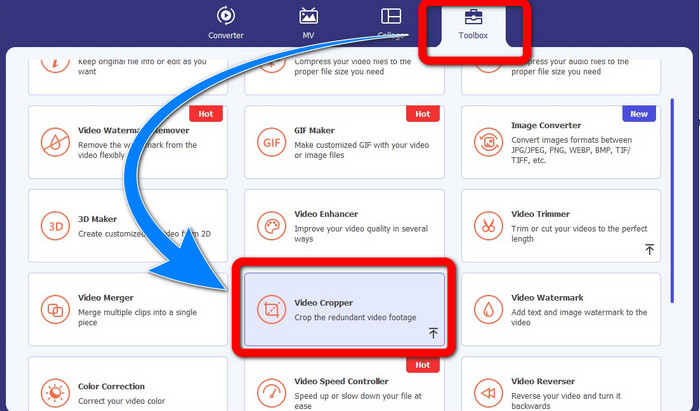
स्टेप 2: इंस्टॉलेशन के बाद एप्लिकेशन लॉन्च करें। Toolbox > Video Cropper पर क्लिक करें।.
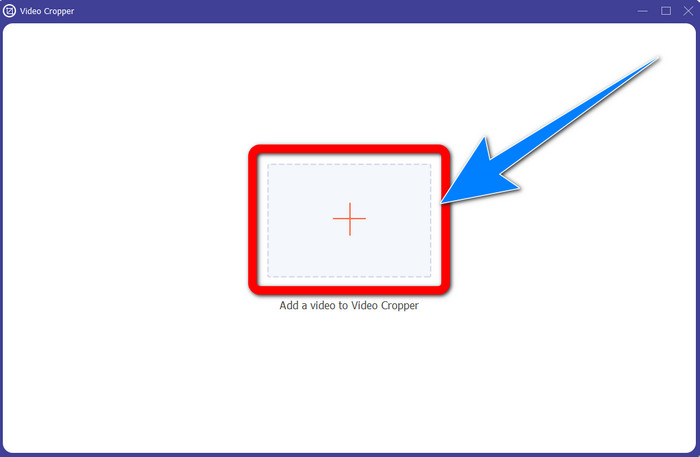
स्टेप 3: Video Cropper पर क्लिक करने के बाद एक नया इंटरफ़ेस खुलेगा। Plus साइन बटन पर क्लिक करें और ManyCam वाले वॉटरमार्क सहित अपने वीडियो जोड़ें।.
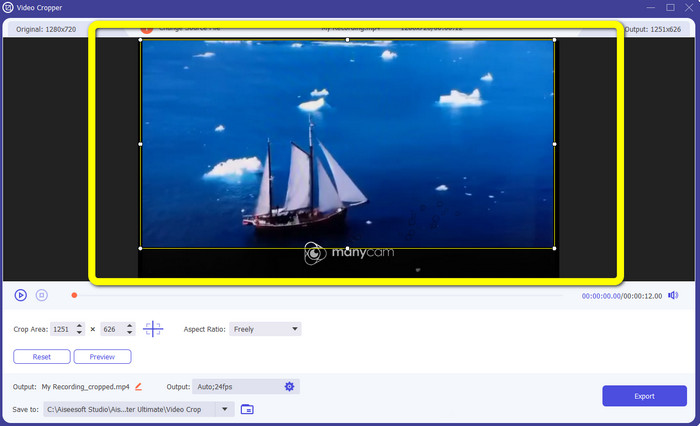
स्टेप 4: फ़ाइल जोड़ने के बाद आप अपने वीडियो को क्रॉप कर सकते हैं और वॉटरमार्क हटा सकते हैं।.
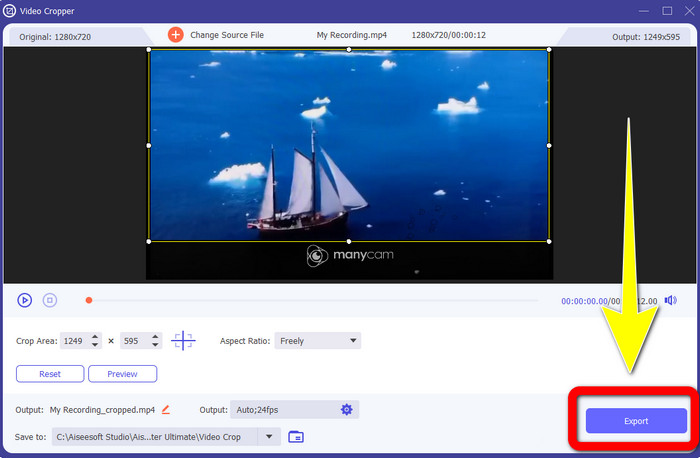
स्टेप 5: जब वॉटरमार्क हट जाए, तो अंतिम आउटपुट को सेव करने के लिए Export बटन पर क्लिक करें। अब आप अपना पसंदीदा वीडियो बिना वॉटरमार्क के चला सकते हैं।.
2. वीडियो वॉटरमार्क रिमूवर का उपयोग करना
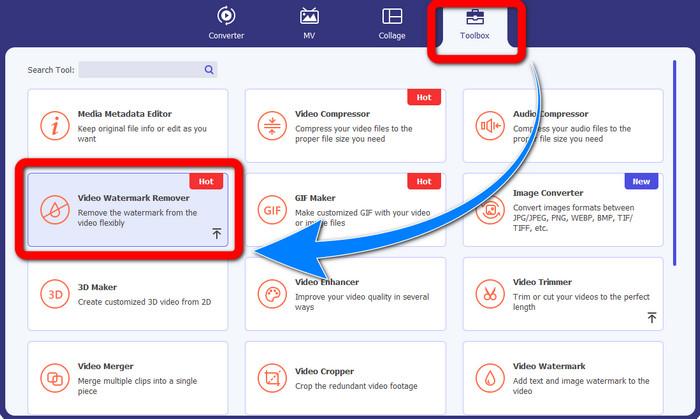
स्टेप 1: एप्लिकेशन खोलें। Toolbox > Video Watermark Remover पर जाएँ।.
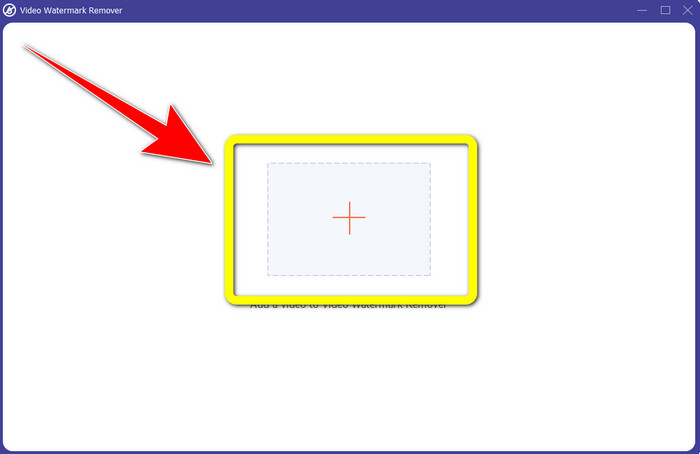
स्टेप 2: Video Watermark Remover पर क्लिक करने के बाद एक और इंटरफ़ेस दिखाई देगा। ManyCam वाले वॉटरमार्क सहित अपना वीडियो जोड़ने के लिए Plus साइन बटन पर क्लिक करें।.
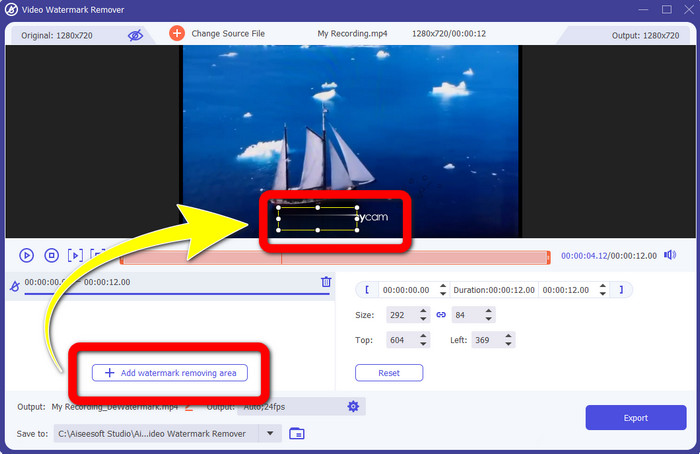
स्टेप 3: यदि आपने अपना वीडियो जोड़ लिया है, तो Add Watermark Removing Area पर क्लिक करें, इसके बाद आपके वीडियो पर एक box दिखाई देगा। इस बॉक्स को वॉटरमार्क पर खींचकर लाएँ ताकि वह उसे कवर कर ले।.
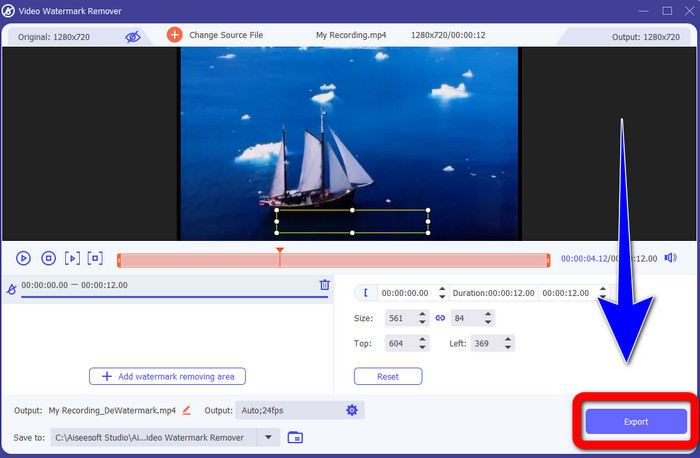
स्टेप 4: जब आप अपने वीडियो से वॉटरमार्क हटाने का काम पूरा कर लें, तो आउटपुट सेव करने के लिए Export पर क्लिक करें। ManyCam का लोगो मुफ़्त में हटाने का यह सबसे अच्छा तरीका है।.
भाग 3: मैनीकैम लोगो को हटाने के बारे में अक्सर पूछे जाने वाले प्रश्न
लोगो को हटाने में कितना समय लगेगा?
आपको अधिक समय तक प्रतीक्षा करने की आवश्यकता नहीं है क्योंकि लोगो या किसी भी अनावश्यक वस्तु को हटाने की प्रक्रिया में केवल कुछ सेकंड लगेंगे।
क्या मैं अपने फोन पर मैनीकैम लोगो को हटा सकता हूँ?
हाँ! आप वॉटरमार्क रिमूवर के साथ विभिन्न सॉफ़्टवेयर एप्लिकेशन का उपयोग करके अपने Android या iPhone पर ManyCam लोगो को हटा सकते हैं। अपने प्ले स्टोर या ऐप स्टोर पर एप्लिकेशन देखें, और उन एप्लिकेशन का उपयोग करने का प्रयास करें जिन्हें आप शीर्ष परिणामों में देख सकते हैं।
क्या मेरे मैक पर वॉटरमार्क हटाने का कोई सबसे अच्छा तरीका है?
बिलकुल, हाँ! आप Mac पर वॉटरमार्क हटाने के लिए वॉटरमार्क रिमूवर वाली एक बेहतरीन एप्लिकेशन का उपयोग कर सकते हैं। यह एप्लिकेशन है Video Converter Ultimate। यह Windows और Mac दोनों पर बेहतरीन काम करता है। यह सॉफ्टवेयर आपके वीडियो से लोगो, वॉटरमार्क, तस्वीरें और टेक्स्ट जैसे अनावश्यक ऑब्जेक्ट्स हटाने में मदद कर सकता है।.
क्या मैं मैनीकैम एप्लिकेशन से मैनीकैम लोगो को हटाने के लिए क्रॉपिंग टूल का उपयोग कर सकता हूं?
दुर्भाग्य से, नहीं! ManyCam से लोगो हटाने के लिए क्रॉपिंग टूल का उपयोग प्रभावी नहीं है। भले ही आप लोगो हटाने के लिए वीडियो को क्रॉप करने की कोशिश करें, फिर भी वह दिखता रहेगा। लोगो हटाने का एकमात्र समाधान ManyCam पर सब्सक्रिप्शन को सक्रिय करना है।.
ManyCam के अलावा, क्या मेरे वीडियो पर वॉटरमार्क हटाने का कोई वैकल्पिक तरीका है?
हाँ वहाँ है! ManyCam के अलावा, वॉटरमार्क रिमूवर के साथ और भी एप्लिकेशन हैं जिनका उपयोग आप बिना खरीदे कर सकते हैं। अपने वीडियो पर वॉटरमार्क हटाने के लिए आप जिन सर्वोत्तम एप्लिकेशन का उपयोग कर सकते हैं, उनमें से एक वीडियो कन्वर्टर अल्टीमेट है। यह सरल और उपयोग में आसान है, जो शुरुआती लोगों के लिए उपयुक्त है।
निष्कर्ष
ऊपर दी गई जानकारी के आधार पर, आप सीख सकते हैं कि अपने Windows और Mac पर ManyCam का लोगो कैसे हटाएँ। आप ManyCam एप्लिकेशन का उपयोग करके सब्सक्रिप्शन सक्रिय करने के बाद बहुत आसानी से लोगो हटा सकते हैं। इसके अलावा, यदि आप मुफ़्त में वॉटरमार्क रिमूवर वाला एप्लिकेशन उपयोग करना चाहते हैं, तो आपको Video Converter Ultimate का इस्तेमाल करना चाहिए। आपके वीडियो से अनावश्यक ऑब्जेक्ट्स मिटाने के मामले में यह एप्लिकेशन आपके लिए बहुत मददगार साबित होगा।.
-
 तस्वीरों से वॉटरमार्क कैसे निकालें के बारे में सबसे आसान तरीके
 क्या आप अपनी तस्वीरों पर वॉटरमार्क से परेशान हैं? परवाह नहीं! यह लेख आपकी तस्वीरों से वॉटरमार्क हटाने के लिए सरल और आसान तरीके प्रदान करेगा।
-
 4 प्रभावी तरीकों का उपयोग करके पॉवटून वॉटरमार्क कैसे निकालें
 हमारे द्वारा यहां शामिल किए गए सर्वोत्तम टूल और एक ट्यूटोरियल का उपयोग करके पॉवटून वॉटरमार्क को हटाने का तरीका जानने के लिए इस लेख को पढ़ें।
-
 Apowersoft वॉटरमार्क रिमूवर रिव्यू - विशेषताएं, फायदे और नुकसान, और कीमतें
 Apowersoft वॉटरमार्क रिमूवर सबसे अच्छे वॉटरमार्क हटाने में से एक है जो ऑनलाइन और ऑफलाइन का समर्थन करता है, अधिक जानने के लिए इसे क्लिक करें!
