


 वीडियो कनवर्टर अंतिम
 स्क्रीन अभिलेखी
 वीडियो मरम्मत
 सुरक्षित डाउनलोड
कैमस्टूडियो स्क्रीन रिकॉर्डर की समीक्षा: आपके लिए सभी उत्तर
Nowadays, a lot of screen recording software is good, but their subscription price is not low, and the interface may also become more and more complicated with the increase of functions. So, is there a product in the industry that is affordable and relatively complete in terms of features? The answer is CamStudio, a program that can help you capture your computer screen for free and is very easy to use. We highly recommend trying it out and will show why in this CamStudio Screen Recorder review. You'll learn how it works for users, what it can do for us, and who it's best suited for. Considering that no software is perfect, we will also show realistically the problems that CamStudio has.
भाग 1. कैमस्टूडियो सॉफ्टवेयर समीक्षा
कैमस्टूडियो एक स्क्रीन रिकॉर्डिंग सॉफ्टवेयर है जिसका इतिहास बहुत पुराना है, जिसे पहली बार 2001 में रिलीज़ किया गया था। आज तक, इसके डेवलपर्स ने इसे बनाए रखना और अपडेट करना कभी बंद नहीं किया है। यह प्रोग्राम पूरी तरह से ओपन सोर्स है और उपयोगकर्ताओं को स्क्रीन पर स्थिर चित्र, मोशन पिक्चर या माइक्रोफ़ोन और स्पीकर से ऑडियो कैप्चर करने में मदद करता है। कैमस्टूडियो का इस्तेमाल आमतौर पर वीडियो ट्यूटोरियल, एक्शन में गेम के वीडियो और ऑनलाइन प्रेजेंटेशन बनाने के लिए किया जाता है। हम इस खंड में कुछ बिंदुओं में इसकी मुख्य विशेषताओं को कवर करेंगे।

कैमस्टूडियो विशेषताएं
• Easily record what you want
कैमस्टूडियो सॉफ्टवेयर आपको उस क्षेत्र को नियंत्रित करने की सुविधा देता है जिसे आप रिकॉर्ड करना चाहते हैं, जैसे कि पूर्ण-स्क्रीन रिकॉर्डिंग, एकल विंडो रिकॉर्डिंग, या विशिष्ट क्षेत्र रिकॉर्डिंग।
• Control via shortcut keys
कीबोर्ड शॉर्टकट कैमस्टूडियो को सक्षम कर सकते हैं, इसलिए आपको मेनू और बटन खोजने की आवश्यकता नहीं है; बस संबंधित कुंजी संयोजन दबाएं।
• माउस और कीबोर्ड की गतिविधि को हाईलाइट करें
ट्यूटोरियल वीडियो बनाने के लिए किसी भी वीडियो रिकॉर्डर का इस्तेमाल किया जा सकता है। आप ऑपरेटिंग स्क्रीन, क्लिकिंग क्रियाएँ, पॉप-अप विंडो गतिविधियाँ और बहुत कुछ रिकॉर्ड कर सकते हैं। यह बिना किसी देरी के वीडियो रिकॉर्ड करता है।
• Output high quality video
कैमस्टूडियो का मुफ्त स्क्रीन रिकॉर्डर H.264, H.265, HEVC, AVI, AAC, FLAC आदि कोडेक्स का उपयोग करता है, ताकि यह सुनिश्चित किया जा सके कि आपका रिकॉर्ड किया गया वीडियो यथासंभव मूल के करीब हो और उसमें स्थिर ध्वनि हो।
• Considerate enough to personalize the settings
आप अपनी रिकॉर्डिंग प्रक्रिया को सटीक रूप से नियंत्रित कर सकते हैं, माउस पॉइंटर को छिपा सकते हैं, बॉर्डर रिकॉर्ड कर सकते हैं, और भी बहुत कुछ कर सकते हैं। कैमस्टूडियो आपको अपने वीडियो के रिज़ॉल्यूशन और फ़्रेम दर को समायोजित करने की भी अनुमति देता है।
• Add annotations
कैमस्टूडियो फ्री कई एनोटेशन और मार्किंग टूल प्रदान करता है। रिकॉर्डिंग करते समय, आप एक निश्चित स्क्रीन क्षेत्र पर जोर दे सकते हैं और अपनी बौद्धिक संपदा की सुरक्षा के लिए फुटेज में वॉटरमार्क जोड़ सकते हैं।
पेशेवरों
- मुक्त एवं खुला स्रोत
कैमस्टूडियो कोई शुल्क नहीं लेता है, और रिकॉर्डिंग घंटों की संख्या की कोई सीमा नहीं है। यह बजट पर उन लोगों के लिए एक बढ़िया उपकरण है जिन्हें बुनियादी स्क्रीन रिकॉर्डिंग क्षमताओं की आवश्यकता है। - हल्का चलता है
इस प्रोग्राम में विभिन्न अंतर्निहित कोडेक्स हैं, जो उपयोगकर्ताओं को वीडियो फ़ाइलों को वांछित आकार में संपीड़ित करने की अनुमति देते हैं।
विपक्ष
- कई सामान्य प्रारूप समर्थित नहीं हैं
कैमस्टूडियो MOV और MKV का समर्थन नहीं करता है, जो उद्योग में काफी लोकप्रिय हैं। यदि आपको उनकी आवश्यकता है, तो आपको अतिरिक्त प्रारूप कनवर्टर की आवश्यकता हो सकती है। - सुविधाएँ बहुत बुनियादी हैं
कैमस्टूडियो में केवल कुछ अपेक्षाकृत बुनियादी रिकॉर्डिंग और निजीकरण सेटिंग्स हैं और कुछ वीडियो संपादन सुविधाओं का अभाव है। - मैक का समर्थन नहीं करता
यह सॉफ्टवेयर फिलहाल केवल विंडोज ऑपरेटिंग सिस्टम के लिए अनुकूलित है और मैक उपयोगकर्ताओं को समर्थन नहीं करता है।
यह किसके लिए सबसे उपयुक्त है, इस पर निर्णय
The best thing about CamStudio is that it's free and has many annotation tools, so it's perfect for creating tutorials, training videos or demo videos.
There are no industry restrictions, so students, content creators who want to create tutorials on how to use games or software, and developers who want to demonstrate software features are welcome to use CamStudio. There are no technical barriers to using it.
भाग 2. क्या कैमस्टूडियो मुफ़्त है
हां, कैमस्टूडियो का उपयोग करना पूरी तरह से मुफ़्त है। यह अतिरिक्त शुल्क नहीं लेता है, और फ़ाइल आकार या वीडियो अवधि की रिकॉर्डिंग के लिए कोई सीमा नहीं है। हालाँकि, इसमें कुछ सुविधाएँ हैं और यह वर्तमान में केवल विंडोज़ के साथ संगत है। मैक उपयोगकर्ता विकल्प के रूप में अन्य सॉफ़्टवेयर की तलाश कर सकते हैं।
भाग 3. मेरा कैमस्टूडियो ऑडियो रिकॉर्ड क्यों नहीं कर रहा है?
कैमस्टूडियो उपयोगकर्ताओं द्वारा सबसे अधिक बार बताई गई समस्या ऑडियो रिकॉर्ड करने में असमर्थता है। अब यह व्यापक रूप से माना जाता है कि साउंड कार्ड का असमर्थित या अद्यतित संस्करण इस समस्या को ट्रिगर करता है। यहाँ कुछ समाधान दिए गए हैं जिन्हें आज़माया जा सकता है।
• रिकॉर्डिंग करते समय एक निश्चित फ्रेम दर का उपयोग करें, जैसे 30FPS.
• अपने साउंड कार्ड ड्राइवर को नवीनतम संस्करण में अपडेट करें।
• अन्य एप्लिकेशन बंद करें जो आपकी रिकॉर्डिंग में बाधा डाल सकते हैं।
• रिकॉर्डिंग फ़ाइल का आकार सीमित रखें और कम रिकॉर्डिंग गुणवत्ता के साथ प्रयास करें।
• एक बार में बहुत लंबा वीडियो रिकॉर्ड न करें। इसे छोटे-छोटे क्लिप में बांटने की कोशिश करें।
भाग 4. कैमस्टूडियो रिकॉर्डर ट्यूटोरियल
यहां कैमस्टूडियो के साथ रिकॉर्डिंग करने के बारे में एक गाइड दी गई है।
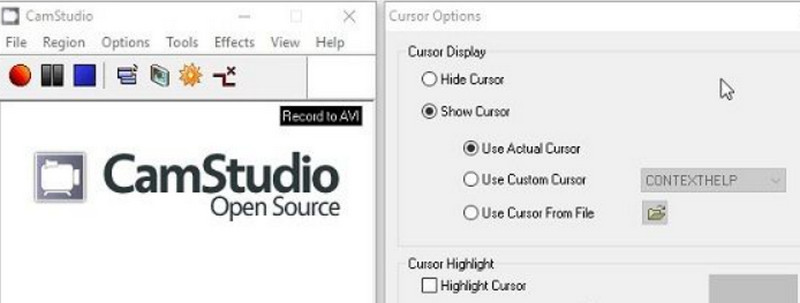
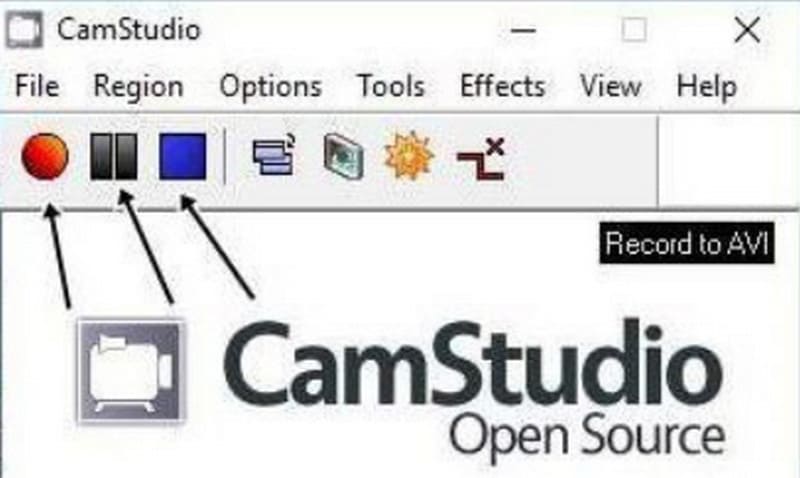
Step 1. Download and install CamStudio Recorder on your computer. Open it and choose Options. Here, you can finish setting the video, audio, and cursor settings. Then, choose Program Options > Output directory to set the save path of your recorded video.
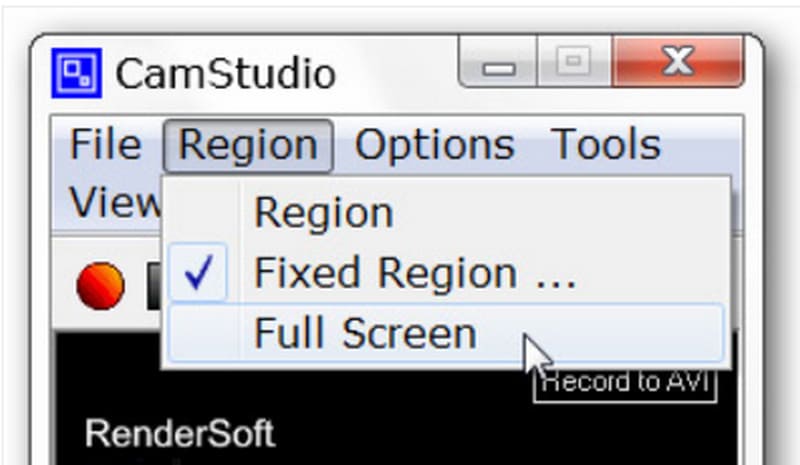
Step 2. Go to the Region tab and select the region you want to record, such as a window, full screen, or selected region.
Step 3. Finally, click the red Record button to start recording. You can stop or end the recording by clicking the corresponding icons next to Record.
भाग 5. सर्वश्रेष्ठ कैमस्टूडियो विकल्प - FVC स्क्रीन रिकॉर्डर
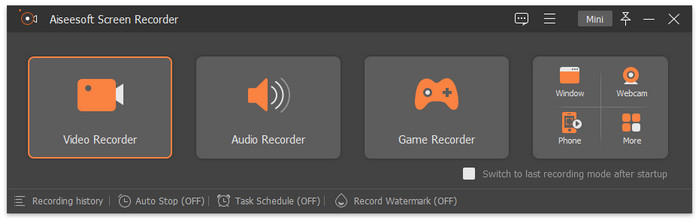
If you're looking for a CamStudio alternative, we recommend the FVC Screen Recorder, which has more recording options and comprehensive video editing features. You can capture anything from the screen, and no details will be left out. The FVC Screen Recorder supports several output formats, including MP4, MKV, MOV, AVI, and more. While recording, you can always take screenshots and draw markers on the screen to add highlights. You can even let this assistant help you record the screen on your phone as long as you can connect it to your computer.
मुफ़्त डाउनलोडWindows 7 या उसके बाद के वर्ज़न के लिएसुरक्षित डाउनलोड
मुफ़्त डाउनलोडMacOS 10.7 या उसके बाद के वर्ज़न के लिएसुरक्षित डाउनलोड
भाग 6. कैमस्टूडियो समीक्षा के अक्सर पूछे जाने वाले प्रश्न
क्या कैमस्टूडियो का उपयोग करना सुरक्षित है?
हां, कैमस्टूडियो सुरक्षित है और इसमें वायरस जैसे हानिकारक घटक नहीं हैं। हालांकि, कुछ उपयोगकर्ताओं ने जवाब दिया है कि इसे इंस्टॉल करने से अवांछित सॉफ़्टवेयर डाउनलोड हो सकता है।
कैमस्टूडियो से बेहतर क्या है?
If you need a game recorder more than anything else, we recommend OBS Studio, but its interface is a bit more complicated. If you want all-around yet simple-to-use software, don't miss FVC Screen Recorder.
क्या CamStudio में वॉटरमार्क है?
CamStudio is completely open source and free. There are no subscription fees or recording hour limitations, and videos do not have watermarks. However, you can add a watermark to your videos through CamStudio if you want to mark your work.
निष्कर्ष
With this CamStudio Screen Recorder review, we will find that this software is a perfect fit for Windows users who don't want to spend extra but have simple screen recording tasks on a daily basis. It is simple to use; however, the features are also limited. If you are a Mac user looking for a program similar to it but with more comprehensive editing features, consider FVC Screen Recorder.
-
 स्नैगिट बनाम कैमटासिया: आपके लिए कौन सा बेहतर विकल्प है?
 अगर आपको नहीं पता कि कौन सा स्क्रीन रिकॉर्डर चुनना है, तो यह स्नैगिट बनाम कैमटासिया पोस्ट पढ़ें। हम सभी कोणों से उनके अंतरों का विश्लेषण करेंगे और आपको निर्णय लेने में मदद करेंगे।
-
 Android और iOS पर 5 सबसे ज़्यादा पसंद किए जाने वाले ऑडियो रिकॉर्डर ऐप [2025 अपडेट]
 आपको नहीं पता कि आपको किस ऑडियो रिकॉर्डर ऐप का उपयोग करना चाहिए? यदि हां, तो यह लेख आपको यह चुनने में मदद करेगा कि कौन सा ऐप आपके ऑडियो रिकॉर्डिंग कार्य में आपकी सहायता करेगा।
-
 शानदार वॉयस रिकॉर्डर में से 7 सभी प्लेटफार्मों में सुलभ
 क्या आप सीखना चाहते हैं कि ऑडियो रिकॉर्डिंग कैसे करें? फिर इस लेख पर जाएं क्योंकि हम सबसे अच्छे ऑडियो रिकॉर्डर के बारे में बात करते हैं जो आपकी आवश्यकताओं के अनुरूप हो सकता है।
