


 वीडियो कनवर्टर अंतिम
 स्क्रीन अभिलेखी
 वीडियो मरम्मत
वीडियो कोडेक समर्थित नहीं त्रुटि के कारण और समाधान
क्या आप कभी ऐसी स्थिति में फँसे हैं, जब आपने अपने मीडिया प्लेयर या टीवी पर कोई वीडियो चलाने की कोशिश की हो और आपको “वीडियो कोडेक सपोर्टेड नहीं है” जैसा त्रुटि संदेश मिला हो? अगर यह त्रुटि आपके दूसरे वीडियो, जैसे रिकॉर्ड किए गए वीडियो पर भी आए तो हैरान मत हों। सच यह है कि भले ही आप अपना डिवाइस रीस्टार्ट कर लें या वीडियो दोबारा चलाएँ, तब भी वह नहीं चलेगा। तो, यह वीडियो त्रुटि असल में है क्या, यह क्यों आती है, और क्या इसके वाजिब समाधान मौजूद हैं? सामान्य रूप से कहें तो वीडियो पर असपोर्टेड कोडेक की समस्या आजकल बहुत आम हो गई है। सौभाग्य से, यह लेख इस त्रुटि के पीछे के कारणों और उनके समाधान पेश करने के लिए लिखा गया है। इस प्रकार, दिए गए समाधानों को लागू करके आप ‘कोडेक नॉट सपोर्टेड’ समस्या को सफलतापूर्वक हल कर सकते हैं और बिना रुकावट, आनंददायक वीडियो प्लेबैक का अनुभव सुनिश्चित कर सकते हैं।.

भाग 1. असमर्थित वीडियो कोडेक त्रुटि क्या और क्यों होती है
वीडियो कोडेक समर्थित नहीं त्रुटि क्या है?
वीडियो कोडेक के बारे में त्रुटि बताने वाली त्रुटि वीडियो के कंप्रेसर-डीकंप्रेसर के साथ एक समस्या है। कोडेक्स, जो कंप्रेसर-डीकंप्रेसर के लिए खड़ा है, ऑडियो और वीडियो डेटा को एन्कोडिंग और डिकोड करने के लिए जिम्मेदार प्रौद्योगिकियां हैं। इसलिए, जब आप समर्थित नहीं होने वाले वीडियो कोडेक को नहीं चला पाते हैं तो समस्या आमतौर पर तब प्रकट होती है जब किसी डिवाइस या मीडिया प्लेयर को प्लेयर या डिवाइस के साथ असंगत कोडेक वाली वीडियो फ़ाइल का सामना करना पड़ता है।
वीडियो कोडेक समर्थित नहीं होने पर त्रुटि क्यों होती है?
आगे कुछ और कहें तो, अगर आप यह समझना चाहते हैं कि यह त्रुटि क्यों आती है, तो इस भाग को पढ़ें। जैसा पहले बताया गया है, इस तरह की त्रुटि तब आती है जब वीडियो प्लेयर या प्लेटफ़ॉर्म ऐसे वीडियो फ़ाइल से टकराता है जो ऐसे कोडेक से एन्कोड हो, जिसे डिवाइस समझ ही नहीं पाता। दूसरे शब्दों में, अगर आपके डिवाइस या मीडिया प्लेयर में वीडियो फ़ाइल को डिकोड करने के लिए आवश्यक कॉम्पोनेंट्स नहीं हैं, तो यह समस्या होगी। इसके अलावा, कोडेक सपोर्ट में अंतर आमतौर पर सॉफ़्टवेयर के फर्क, लाइसेंस संबंधी सीमाओं या फ़र्मवेयर के कारण पैदा होता है। उदाहरण के लिए, मान लीजिए कोई वीडियो फ़ाइल H.265 या HEVC कोडेक से एन्कोड की गई है। ऐसे में, वह उस मीडिया प्लेयर डिवाइस या ऐप्लिकेशन के साथ संगत नहीं होगी, जिसे केवल H.264 या पुराने कोडेक संभालने के लिए डिज़ाइन किया गया है।.
कोडेक वीडियो के प्लेयर द्वारा समर्थित न होने के अलावा, ऑडियो कोडेक का गायब होना भी त्रुटि के कारणों में से एक हो सकता है।
भाग 2. असमर्थित वीडियो कोडेक को कैसे ठीक करें
समाधान 1. वैकल्पिक मीडिया प्लेयर का उपयोग करें
अगर आप अपने किसी खास वीडियो प्लेयर पर वीडियो फ़ाइलें चलाने में दिक्कत का सामना कर रहे हैं, तो सबसे अच्छा और तेज़ समाधान यह है कि वीडियो को किसी वैकल्पिक मीडिया प्लेयर में चलाकर देखें। आपको कई बेहतरीन वीडियो प्लेयर मिलेंगे, जैसे VLC, Windows Media Player, QuickTime वगैरह। हर मीडिया प्लेयर प्रमुख वीडियो फ़ॉर्मैट और कोडेक की एक विस्तृत रेंज को आसानी से संभालने में सक्षम होता है। हालांकि, आपको यह बात ध्यान में रखनी चाहिए कि नए वीडियो प्लेयर के साथ भी कभी‑कभी असपोर्टेड वीडियो फ़ॉर्मैट की त्रुटि आ सकती है। लेकिन कुल मिलाकर, अलग‑अलग मीडिया प्लेयर को बारी‑बारी से आज़माने से आप ‘वीडियो कोडेक सपोर्टेड नहीं’ वाली समस्या को काफी हद तक ठीक कर सकते हैं।.
समाधान 2. अपने वर्तमान मीडिया प्लेयर को अपडेट करें
यदि आप अपने वर्तमान मीडिया प्लेयर के प्रति वफादार हैं और इसे बदलना नहीं चाहते हैं, तो कम से कम इसे इसके नवीनतम संस्करण में अपडेट करें। मीडिया प्लेयर्स के अपडेट में अक्सर वीडियो कोडेक्स की एक श्रृंखला के साथ बेहतर संगतता शामिल होती है। आपके कंप्यूटर पर कुछ मीडिया प्लेयर्स को अपडेट करने के तरीके के बारे में यहां कुछ निर्देशात्मक मार्गदर्शिकाएं दी गई हैं।
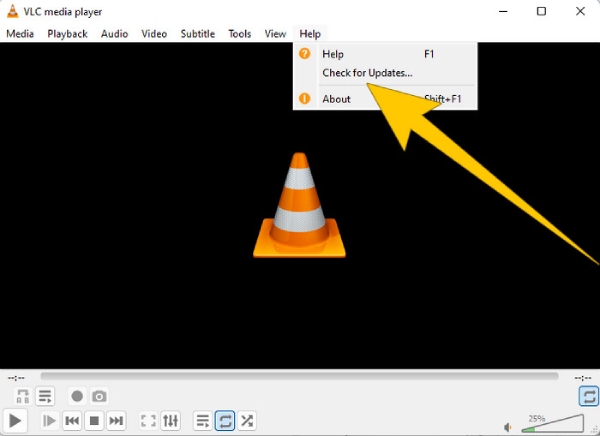
VLC मीडिया प्लेयर के लिए
चरण 1. अपना मीडिया प्लेयर खोलें।.
चरण 2. Help मेनू टैब पर जाएँ।.
चरण 3. Check for Updates विकल्प चुनें।
Windows Media Player के लिए
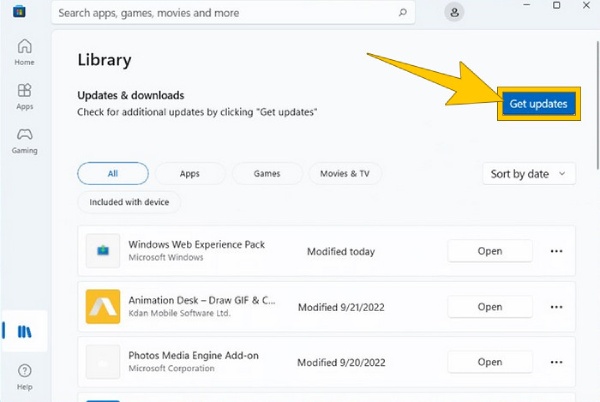
चरण 1. Microsoft Store पर जाएँ।.
चरण 2. अपनी ऐप्स की सूची देखने के लिए Library तक पहुँचें।.
चरण 3. फिर Get Updates बटन पर क्लिक करें, ताकि आपकी ऐप्स के अपडेट, जिनमें Windows Media Player भी शामिल है, इंस्टॉल होना शुरू हो जाएँ।.
समाधान 3. वीडियो को दूसरे प्रारूप में बदलें
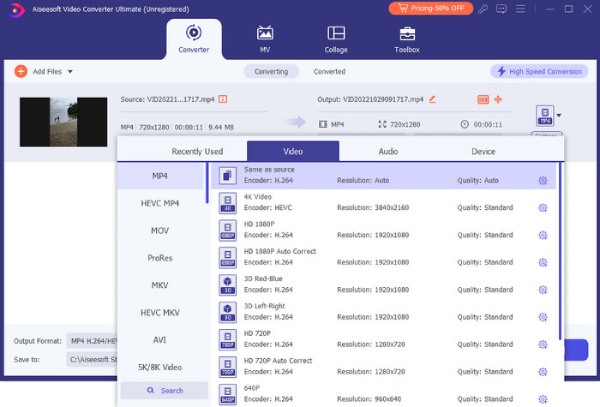
अगर आपका वीडियो कोडेक, उदाहरण के लिए, Samsung पर सपोर्टेड नहीं है, तो समस्या किसी असंगत वीडियो फ़ाइल फ़ॉर्मैट से उत्पन्न हो सकती है। ऐसे मामलों में, वीडियो फ़ॉर्मैट को उन अन्य फ़ॉर्मैट में बदलना, जिन्हें Samsung या आपका विशेष डिवाइस सपोर्ट करता हो, एक व्यावहारिक समाधान हो सकता है। इसलिए, अगर आप इस काम के लिए सबसे अच्छा वीडियो कन्वर्टर ढूँढ रहे हैं, तो हम FVC Video Converter Ultimate की जोरदार सिफारिश करते हैं। इसका कारण हैं इसके बेहतरीन फ़ीचर—अत्यधिक तेज़ कन्वर्ज़न, वह भी बैच वीडियो के लिए, और एडिटिंग टूल्स व फ़ॉर्मैट के ढेरों विकल्प।.
Free DownloadWindows 7 या बाद के वर्ज़न के लिएसिक्योर डाउनलोड
फ्री डाउनलोडMacOS 10.7 या उसके बाद के वर्ज़न के लिएसुरक्षित डाउनलोड
समाधान 4. असमर्थित वीडियो फ़ाइल को ठीक करें
अगर फ़ाइल को कन्वर्ट करना आपको पसंद नहीं, तो वीडियो को ही ठीक करने पर विचार करें। क्योंकि इस तथ्य को नज़रअंदाज़ नहीं किया जा सकता कि अगर वीडियो फ़ाइल चल ही नहीं रही, तो हो सकता है वह करप्ट हो। ऐसे मामलों में, समस्या हल करने के लिए FVC Video Repair जैसे वीडियो फ़िक्सिंग टूल का उपयोग करने पर विचार करें। यह रिपेयर टूल प्रक्रिया शुरू करने के कुछ ही सेकंडों में आपकी वीडियो फ़ाइलों को ठीक करने में मदद कर सकता है। यह आपको बिना किसी झंझट के फ़ाइल अपलोड कर उसे रिपेयर करने देता है। इस वीडियो रिपेयर टूल की कार्य‑प्रक्रिया इसे इस्तेमाल करने के लिए और भी खास बनाती है। साथ ही, यह एक प्रीव्यू विकल्प देता है, जहाँ आप फाइनल रूप से सेव करने से पहले ठीक की गई वीडियो फ़ाइल की जाँच कर सकते हैं। FVC Video Repair की मदद से आप कोडेक की समस्या कैसे ठीक करेंगे? नीचे दिए गए चरणों का पालन करें।.
चरण 1. नीचे दिए गए Download बटन पर क्लिक करके टूल को निःशुल्क इंस्टॉल करें।.
फ्री डाउनलोडWindows 7 या उससे बाद के लिएसुरक्षित डाउनलोड
फ्री डाउनलोडMacOS 10.7 या उससे बाद के लिएसुरक्षित डाउनलोड
चरण 2. इसे लॉन्च करें और इंटरफ़ेस पर मौजूद Add बटनों पर क्लिक करके प्रक्रिया शुरू करें। करप्ट वीडियो अपलोड करने के लिए लाल बटन पर क्लिक करें। फिर सैंपल वीडियो अपलोड करने के लिए बैंगनी बटन पर क्लिक करें।.
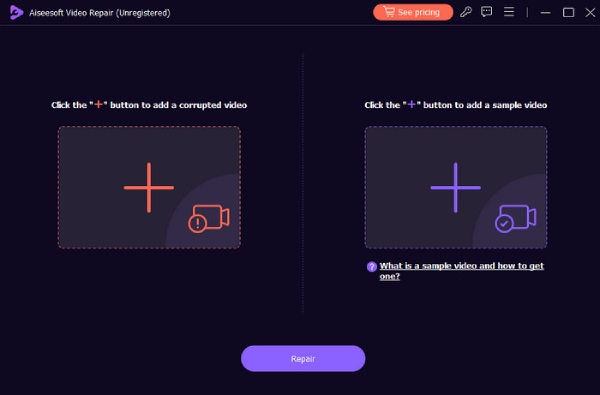
चरण 3. जब वीडियो लोड हो जाएँ, तो Repair बटन दबाएँ।.
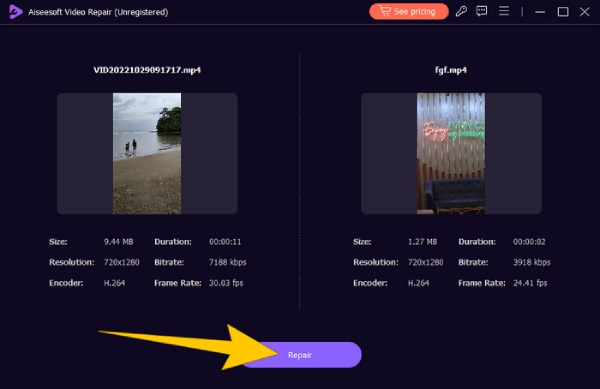
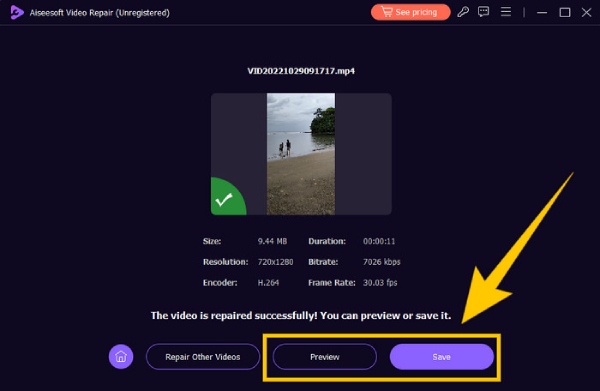
चरण 4. इसके बाद, अगर आप ठीक की गई वीडियो को जाँचना चाहते हैं तो Preview बटन पर क्लिक कर सकते हैं। नहीं तो आउटपुट को एक्सपोर्ट करने के लिए Save बटन दबाएँ।.
भाग 3. वीडियो कोडेक त्रुटि के बारे में अक्सर पूछे जाने वाले प्रश्न
मैं एक असमर्थित वीडियो फ़ाइल को कैसे ठीक करूँ?
वीडियो फ़ाइल को निश्चित रूप से ठीक करने के लिए, असमर्थित प्रारूप को संगत प्रारूप में बदलने के लिए वीडियो कनवर्टर टूल का उपयोग करें। या, इसके बजाय वीडियो फिक्सिंग टूल का उपयोग करें।
मैं वीडियो कोडेक्स कैसे परिवर्तित करूं?
वीडियो कोडेक को परिवर्तित करने के लिए, आप कनवर्टर टूल की सहायता से वीडियो को एक ऐसे प्रारूप में परिवर्तित कर सकते हैं जो एक अलग कोडेक का उपयोग करता है।
मैं किसी वीडियो का कोडेक कैसे ढूंढूं?
वीडियो फ़ाइल की प्रॉपर्टीज़ जाँचें, यह देखने के लिए कि वह कौन‑सा कोडेक इस्तेमाल कर रही है। आप अपने Windows प्लेयर के लिए कई मुफ़्त कोडेक पा सकते हैं, जैसे Windows Media Player के लिए MKV कोडेक।.
निष्कर्ष
“Video codec not supported” जैसी वीडियो त्रुटियों से निपटना काफ़ी झुंझलाहट भरा हो सकता है। लेकिन ऊपर दिए गए समाधानों की बदौलत, आप इस समस्या का डटकर सामना कर सकते हैं। हमने चार आम समाधान बताए हैं, खास तौर पर न चलने वाली वीडियो को ठीक करने वाला समाधान, जो FVC Video Repair की मदद से किया जाता है।.
-
 वीडियो में 0xc10100bf त्रुटि क्या है और इसे कैसे ठीक करें
 क्या आपका वीडियो त्रुटि 0xc10100bf के कारण नहीं चल रहा है, और आप इसे ठीक करने के तरीके ढूंढ रहे हैं? इस लेख में, आप सीखेंगे कि यह क्या है और इसे कैसे ठीक किया जाए।
-
 EaseUS वीडियो रिपेयर – 2025 में एक गहन समीक्षा
 EaseUS वीडियो रिपेयर की व्यापक समीक्षा देखें। जानें कि कैसे यह बहुमुखी सॉफ़्टवेयर दूषित या क्षतिग्रस्त वीडियो को शीघ्रता और आसानी से सुधारने में आपकी सहायता कर सकता है।
-
 रिपेयर वीडियो मास्टर समीक्षा: यहां वह सब कुछ है जो आपको जानना आवश्यक है
 रिपेयर वीडियो मास्टर के साथ अब अपने वीडियो ठीक करें! साथ ही, इस व्यापक समीक्षा में इसकी विशेषताओं, लाभों और उनका उपयोग करने के तरीके के बारे में त्वरित मार्गदर्शिका के बारे में जानें।
