


 वीडियो कनवर्टर अंतिम
 स्क्रीन अभिलेखी
 वीडियो मरम्मत
 सुरक्षित डाउनलोड
विंडोज मीडिया प्लेयर पर वीडियो न चलने का समाधान
मैंने सब कुछ डीबग कर लिया है और मैं विंडोज मीडिया प्लेयर का उपयोग करके डाउनलोड किया गया वीडियो देखने वाला हूँ, लेकिन यह प्ले नहीं हो रहा है। यह बहुत ही परेशान करने वाली स्थिति है। हमें तुरंत इसका समाधान खोजना पड़ा।
अपने शोध के दौरान, हमने पाया कि कई उपयोगकर्ताओं को Windows Media Player पर वीडियो नहीं चलने की समस्या का सामना करना पड़ा है। कई सामान्य कारणों और उनके संबंधित समाधान को संक्षेप में प्रस्तुत करने के बाद, हमने यह लेख तैयार किया है।.
इस लेख में, हम इन कारणों को एक-एक करके बताएंगे और प्रत्येक विधि को विस्तृत चरणों के साथ बताएंगे। हमें उम्मीद है कि विस्तृत गाइड और यहाँ दिए गए बेहतरीन टूल आपकी मदद करेंगे।

भाग 1. विंडोज मीडिया प्लेयर पर असमर्थित वीडियो प्रारूप को ठीक करें
सबसे पहले, हम अनुशंसा करते हैं कि आप जाँच लें कि वीडियो का प्रारूप विंडोज मीडिया प्लेयर के साथ संगत है या नहीं। प्लेयर वर्तमान में AVI, MPG, MPEG, MOV, MP4, M4V, 3G2, 3GP, 3GPP, M2TS, ASF, WMA, WMV, और WM सहित वीडियो प्रारूपों का समर्थन करता है। यदि आपका वीडियो उपरोक्त प्रारूपों में से किसी एक में नहीं है, तो विंडोज मीडिया प्लेयर इसे चलाने में असमर्थ है।
मेरी फ़ाइल MP4 प्रारूप में है, लेकिन वीडियो विंडोज मीडिया प्लेयर पर क्यों नहीं चल रहा है?
यह ध्यान रखना महत्वपूर्ण है कि MP4 आपकी फ़ाइल के बाहरी हिस्से के चारों ओर एक आवरण हो सकता है। वीडियो के अंदर के कोडेक्स ऐसे प्रारूप में हो सकते हैं जो Windows Media Player द्वारा समर्थित नहीं है। इस मामले में, आप फ़ाइल को सीधे यूनिवर्सल MP4 H.264 प्रारूप में बदल सकते हैं। इस तरह, चाहे आप इसे खोलने के लिए किसी भी डिवाइस या प्लेयर का उपयोग करें, आपको संगतता समस्याओं का सामना नहीं करना पड़ेगा।
हम सुझाव देते हैं कि आप अपने सहायक के रूप में FVC Video Converter Ultimate चुनें। यह प्रोग्राम 1000 से अधिक मल्टीमीडिया फ़ॉर्मेट का समर्थन करता है और साथ ही आपको अपने वीडियो को किसी विशेष प्लेटफ़ॉर्म या डिवाइस के अनुकूल रूप में आउटपुट करने की सुविधा भी देता है। इसके अलावा, यह एक ऑल-इन-वन वीडियो एडिटर है। आप अपने वीडियो को क्रॉप, रोटेट, कंप्रेस, एन्हांस, ब्लेंड कर सकते हैं, और यहाँ तक कि स्क्रीन पर विभिन्न इफेक्ट्स या फ़िल्टर भी जोड़ सकते हैं।.
Free DownloadWindows 7 या बाद के वर्ज़न के लिएसिक्योर डाउनलोड
Free DownloadMacOS 10.7 या बाद के वर्ज़न के लिएसिक्योर डाउनलोड
यहां बताया गया है कि FVC वीडियो कनवर्टर अल्टीमेट के साथ अपने वीडियो को MP4 में कैसे परिवर्तित करें।
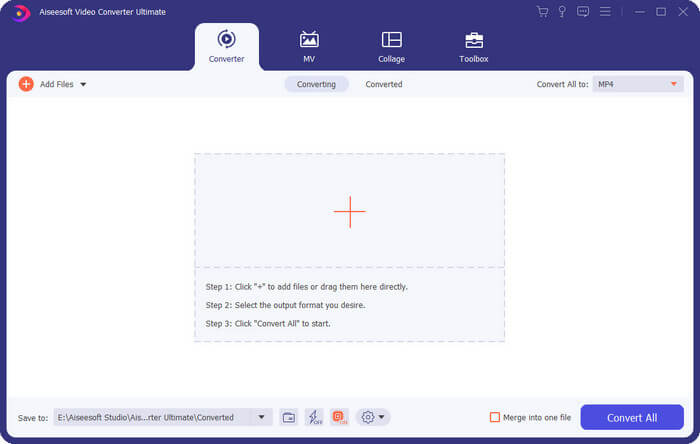
स्टेप 1. अपने कंप्यूटर पर FVC Video Converter Ultimate डाउनलोड और इंस्टॉल करें। इसे डेस्कटॉप पर खोलें और अपना वीडियो अपलोड करने के लिए Add Files पर क्लिक करें।.
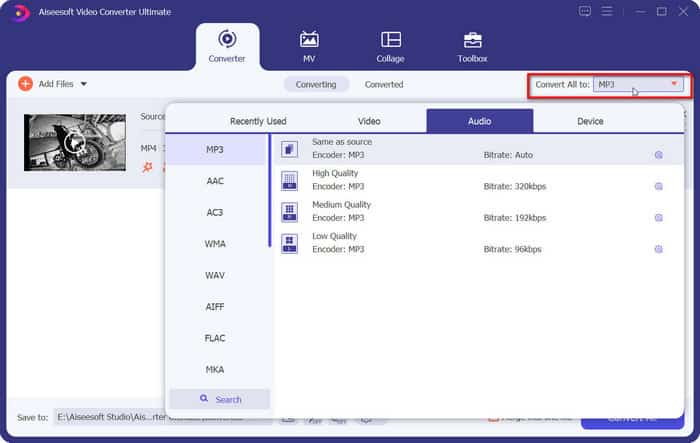
स्टेप 2. Convert All to चुनें। फ़ॉर्मेट सूची को ड्रॉपडाउन करें और Video > MP4 चुनें। फिर, अपना लक्ष्य आउटपुट रेज़ोलूशन चुनें। ध्यान रखें कि ऐसे फ़ॉर्मेट चुनें जो कोडेक के रूप में H.264 का इस्तेमाल करते हों।.
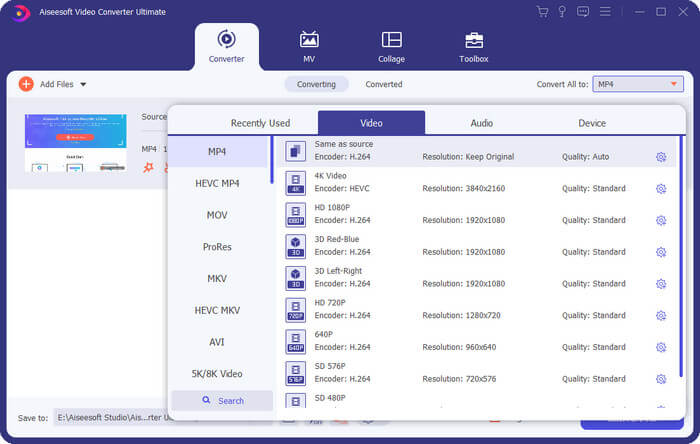
स्टेप 3. अंत में, बदलने की प्रक्रिया शुरू करने के लिए Convert All पर क्लिक करें।.
भाग 2. विंडोज मीडिया पर MP4 वीडियो कोडेक हानि को ठीक करें
खिलाड़ी
जैसा कि हमने पिछले लेख में बताया है, विंडोज मीडिया प्लेयर पर MP4 वीडियो न चलने की समस्या के लिए, यह इस तथ्य के कारण हो सकता है कि विंडोज मीडिया प्लेयर में आपके वीडियो को चलाने के लिए आवश्यक कोडेक्स की कमी है। यदि आप अपने वीडियो के मापदंडों को बदलना नहीं चाहते हैं, तो शायद आप कोडेक के दृष्टिकोण से शुरू करने और अपने डिवाइस पर गायब कोडेक्स को डाउनलोड करने पर विचार कर सकते हैं। संवर्द्धन के बाद, आपका विंडोज मीडिया प्लेयर वीडियो को ठीक से पढ़ने में सक्षम हो सकता है।
अपने विंडोज मीडिया प्लेयर को बेहतर बनाने के लिए नया MP4 वीडियो कोडेक स्थापित करने का तरीका यहां बताया गया है।
यह अनुभाग आपको दिखाएगा कि विंडोज मीडिया प्लेयर का उदाहरण लेकर, लुप्त कोडेक पैकेज को कैसे स्थापित किया जाए।
Step 1. अपने कंप्यूटर पर Windows Media Player खोलें।.
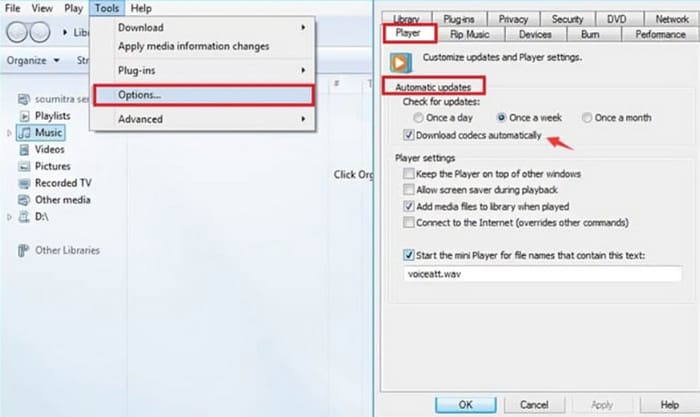
Step 2. Tools > Options चुनें।.
स्टेप 3. जब आपको Options विंडो पॉप-अप दिखाई दे, तो Play टैब पर जाएँ। Automatic Updates > Once a Day चुनें।.
स्टेप 4. सेटिंग को बनाए रखने के लिए OK दबाएँ। इसके बाद, जिस MP4 कोडेक की आपको फ़ाइल चलाने के लिए ज़रूरत है, वह अपने आप आपके Windows Media Player में डाउनलोड हो जाएगा।.
अगर आपको जो कोडेक चाहिए वो अभी भी नहीं मिल रहा है, तो आप K-Lite जैसी किसी थर्ड पार्टी कोडेक साइट पर जाकर उसे डाउनलोड कर सकते हैं। लेकिन इस दौरान, आपको सुरक्षित रहना चाहिए और ऐसी सामग्री डाउनलोड नहीं करनी चाहिए जिसमें मैलवेयर हो सकता है।
भाग 3. विंडोज मीडिया प्लेयर पर दूषित MP4 वीडियो को ठीक करें
हां, मैंने अब फॉर्मेट और कोडेक संबंधी समस्याएं हल कर ली हैं, लेकिन मेरा विंडोज मीडिया प्लेयर वीडियो नहीं चला रहा है।
घबराइए नहीं, पहले यह जाँचें कि कहीं वीडियो फ़ाइल में ही कोई समस्या तो नहीं है। खराब ट्रांसफ़र प्रक्रिया या अस्थिर स्टोरेज पाथ के कारण आपकी फ़ाइलें डैमेज हो सकती हैं या उनका कुछ डेटा खो सकता है। स्पष्ट है कि कोई भी प्लेयर या डिवाइस करप्ट वीडियो को ठीक से नहीं पढ़ सकता। हमें इसे ठीक करने का कोई तरीका ढूँढना होगा। अब FVC Video Repair को इस्तेमाल करने का समय है। यह सॉफ़्टवेयर किसी भी डिवाइस से करप्ट वीडियो की रिपेयरिंग का समर्थन करता है। फ़र्क नहीं पड़ता कि आपकी फ़ाइल बहुत धुंधली हो, प्लेबैक लैगी हो, या ब्लैक स्क्रीन आ रही हो, यह आपको मदद कर सकता है। आपको बस इसके रेफरेंस के लिए मूल वीडियो जैसा एक सैम्पल वीडियो तैयार करना होगा। कृपया ध्यान दें कि सैम्पल वीडियो का फ़ॉर्मेट करप्ट वीडियो जैसा ही होना चाहिए और बेहतर होगा कि दोनों ही एक ही डिवाइस या प्लेटफ़ॉर्म से आए हों।.
Free DownloadWindows 7 या उससे नए वर्ज़न के लिएसुरक्षित डाउनलोड
Free DownloadMacOS 10.7 या उससे नए वर्ज़न के लिएसुरक्षित डाउनलोड
FVC वीडियो रिपेयर के साथ दूषित वीडियो को ठीक करने का तरीका यहां बताया गया है।
स्टेप 1. अपने डिवाइस पर FVC Video Repair लें। टूटी हुई वीडियो अपलोड करने के लिए लाल प्लस बटन पर क्लिक करें। फिर, अपना सैम्पल वीडियो जोड़ने के लिए पर्पल प्लस बटन पर क्लिक करें।.

स्टेप 2. जैसे ही दोनों वीडियो अपलोड हो जाएँ, Repair पर क्लिक करें। यह प्रक्रिया कुछ ही सेकंड में पूरी हो जाएगी।.
स्टेप 3. जब आपको परिणाम दिखाई दे, तो उसे जाँचने के लिए Preview दबाएँ। अगर वीडियो सफलतापूर्वक ठीक हो गया है, तो उसे डाउनलोड करने के लिए Save पर क्लिक करें।.

भाग 4. उच्च रिज़ॉल्यूशन या बिटरेट के कारण विंडोज मीडिया प्लेयर पर वीडियो न चलने की समस्या को ठीक करें
एक और तत्व जिसे नज़रअंदाज़ नहीं किया जा सकता है वह है वीडियो की स्पष्टता। अगर आपकी फ़ाइल की गुणवत्ता 4K या उससे ज़्यादा है, तो आपको Windows Media Player में वीडियो न दिखने की समस्या का सामना करना पड़ेगा। ऐसा इसलिए है क्योंकि प्लेयर हाई-रेज़ोल्यूशन वीडियो के साथ शायद ही संगत हो और अक्सर ऐसा होता है कि प्लेबैक सुचारू नहीं होता या धीमा होता है।
इस बिंदु पर, हम आपको सुझाव देते हैं कि आप वीडियो को 1080p या उससे कम रेज़ोलूशन में कंप्रेस करें और फिर Windows Media Player में चलाकर देखें कि समस्या हल हुई या नहीं।.
भाग 5. विंडोज मीडिया प्लेयर पर वीडियो न चलने के अक्सर पूछे जाने वाले प्रश्न
विंडोज़ मीडिया प्लेयर केवल ध्वनि ही क्यों चलाता है, वीडियो नहीं?
जब ऐसा होता है, तो ट्रिगर स्पष्ट होते हैं। आपके डिवाइस में वीडियो चलाने के लिए आवश्यक कोडेक्स की कमी है, इसलिए परिणाम यह होता है कि चित्र ठीक से लोड नहीं हो पाता है। इस मामले में, आप गायब कोडेक को विंडोज मीडिया प्लेयर के माध्यम से डाउनलोड कर सकते हैं या इसे जांचने के लिए K-Lite वेबसाइट पर जा सकते हैं।
मेरा विंडोज मीडिया प्लेयर MP4 क्यों नहीं चला सकता?
सबसे पहले यह देखें कि कहीं आपकी MP4 फ़ाइल की क्वालिटी बहुत ज़्यादा तो नहीं है। अगर रेज़ोलूशन 4K से ऊपर है, तो Windows Media Player उसे चलाते समय लैग कर सकता है। अगर ऐसा नहीं है, तो यह मानें कि आपके वीडियो का कोडेक उस MP4 प्लेयर के साथ कम्पैटिबल नहीं है। आप वीडियो को MP4 H.264 फ़ॉर्म में कन्वर्ट करने पर विचार कर सकते हैं।.
क्या विकृत या पिक्सेलयुक्त दृश्य वाले वीडियो को ठीक करने का कोई तरीका है?
ज़रूर। आप वीडियो फ़ाइल को रिपेयर करने के लिए FVC वीडियो रिपेयर जैसे पेशेवर टूल का चयन कर सकते हैं और डेटा और चित्र अखंडता को पुनर्प्राप्त करने का प्रयास कर सकते हैं। इसके अलावा, आप वीडियो को अन्य प्रारूपों में बदलने या वीडियो को फिर से डाउनलोड करने का भी प्रयास कर सकते हैं।
निष्कर्ष
Windows Media Player पर वीडियो नहीं चलने की समस्या के कारण यह हो सकते हैं कि वीडियो फ़ॉर्मेट कम्पैटिबल न हों, आपके डिवाइस में आवश्यक कोडेक न हों, वीडियो फ़ाइल करप्ट हो, या वीडियो की डेफ़िनिशन बहुत अधिक हो। इन चारों कारणों में से प्रत्येक के लिए, इस लेख में संबंधित समाधान दिया गया है। इनमें, FVC Video Converter Ultimate और FVC Video Repair निश्चित रूप से वे सहायक हैं जिन्हें आपको आज़माना चाहिए। इन दो टूल्स के साथ, आप किसी भी वीडियो एडिटिंग टास्क को ख़ुद से संभाल पाने में सक्षम होंगे।.
वीडियो प्लेबैक संबंधी समस्याओं को अपने वीडियो देखने के अनुभव को ख़राब न होने दें। उन्हें अभी ठीक करें!
-
 एआई वीडियो: यहां वो बातें हैं जो आपको अबू के बारे में जानना जरूरी है!
 क्या आप उन लोगों में से हैं जो सोचते हैं कि AI वीडियो क्या है? खैर, इस समीक्षा में, हम आपको वह सब कुछ देने जा रहे हैं जिसके बारे में आपको जानना आवश्यक है। पढ़ते रहिये!
-
 AVCHD बनाम MP4: कौन सा चुनना बेहतर है इसकी समीक्षा
 AVCHD बनाम MP4 पोस्ट देखें और जानें कि कौन सा वीडियो फ़ॉर्मेट आपके लिए सबसे उपयुक्त है। उनके विवरण, अंतर आदि जानने के लिए और अधिक जानकारी प्राप्त करें।
-
 खंडित MP4: इसे पारंपरिक MP4 कैसे और कैसे बनाएं?
 क्या आप सोच रहे हैं कि फ़्रेग्मेंटेड MP4 क्या है? इस पोस्ट में इस सवाल का जवाब दिया गया है, जिसमें ऐसे MP4 को पारंपरिक MP4 में बदलने के आसान और विशेषज्ञ तरीके बताए गए हैं।
