


 वीडियो कनवर्टर अंतिम
 स्क्रीन अभिलेखी
 वीडियो मरम्मत
 सुरक्षित डाउनलोड
विंडोज मीडिया प्लेयर में एमकेवी फाइल चलाने के 3 तरीके
Windows Media Player में MKV फ़ाइल खोल नहीं पा रहे हैं?
MKV एक लोकप्रिय वीडियो फ़ॉर्मैट है। आपको बहुत‑सी हाई‑क्वालिटी फ़िल्में, टीवी शो या अन्य वीडियो मिल सकते हैं जो MKV में सेव होते हैं। लेकिन Windows उपयोगकर्ताओं के लिए डिफ़ॉल्ट वीडियो प्लेयर Windows Media Player मूल रूप से MKV कंटेनर को स्प्लिट (ओपन) करने का समर्थन नहीं करता। अब वापस प्रश्न पर आते हैं, Windows Media Center में MKV फ़ाइलें कैसे चलाएँ?

आपके द्वारा Windows Media Player को नवीनतम संस्करण में अपग्रेड करने के बाद भी, इस बात की कोई गारंटी नहीं है कि आपको MKV चलाने में कोई समस्या नहीं आएगी। इसे ध्यान में रखते हुए, यह पोस्ट आपके विंडोज पीसी पर एमकेवी फाइलों को चलाने में आपकी मदद करने के लिए 3 प्रभावी तरीके साझा करना पसंद करती है।
भाग 1. विंडोज मीडिया प्लेयर में एमकेवी फाइल कैसे खोलें
Windows Media Player MKV फ़ाइलें मुख्य रूप से कोडेक के मेल न खाने की वजह से नहीं चला पाता। आपको यह जानना चाहिए कि MKV दरअसल वीडियो स्ट्रीम, ऑडियो स्ट्रीम, सबटाइटल्स और अन्य चीज़ों के लिए एक मीडिया कंटेनर है। आपको WMP को MKV के लिए सही स्प्लिटर, और वीडियो व ऑडियो फ़ाइल के लिए सही कोडेक्स और फ़िल्टर्स देने होंगे। यह हिस्सा आपको Windows Media Player में MKV फ़ाइल चलाने के तरीके बताएगा।.
स्टेप 1. Windows Media Player खोलें और उसमें MKV फ़ाइल ओपन करें। आप MKV फ़ाइल पर राइट‑क्लिक करके WMP से ओपन करने का विकल्प भी चुन सकते हैं।.
स्टेप 2. अब आपको एक एरर मैसेज दिखाई देगा जिसमें लिखा होगा कि Windows Media Player इस फ़ाइल को चला नहीं सकता। डायलॉग बॉक्स में Web Help विकल्प पर क्लिक करें।.
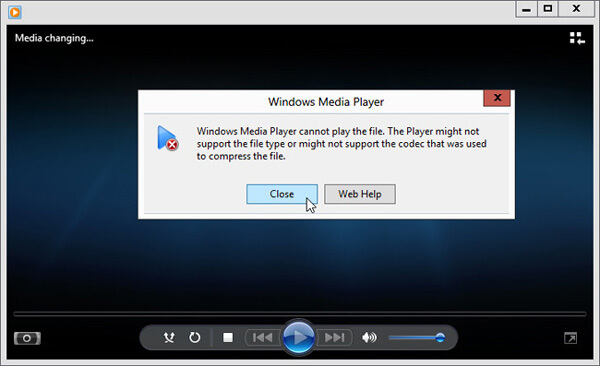
स्टेप 3. Codec is Missing के नीचे दिए गए कोडेक लिंक पर क्लिक करें। लिंक को कॉपी करके अपने ब्राउज़र में पेस्ट करें। इससे आपको सही Windows Media Player MKV कोडेक प्राप्त करने में मदद मिलेगी। डाउनलोड होने के बाद, आपको दिए गए निर्देशों के अनुसार Windows Media Player MKV सेटअप प्रक्रिया पूरी करनी होगी।.
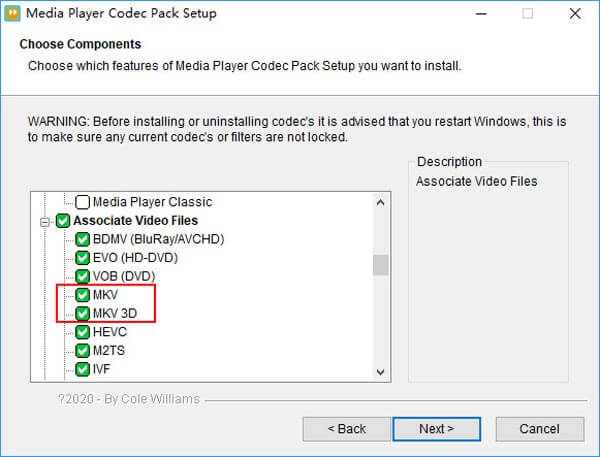
स्टेप 4. Windows Media Player को रीस्टार्ट करें और फिर अपनी MKV फ़ाइल चलाने की कोशिश करें।.

भाग 2. विंडोज मीडिया प्लेयर वैकल्पिक में एमकेवी फाइलों को चलाने का बेहतर तरीका
सही MKV कोडेक के साथ, आप Windows Media Player में MKV फ़ाइल को आसानी से खोल सकते हैं। हालाँकि, कई उपयोगकर्ताओं ने बताया कि WMP के साथ MKV खेलते समय अभी भी कुछ अन्य प्लेबैक समस्याएँ हैं। उस स्थिति में, आप MKV फ़ाइलें चलाने में मदद करने के लिए Windows Media Player विकल्प चुन सकते हैं।
FVC Free MKV Player Windows Media Player का एक बेहतरीन विकल्प है। यह मूल रूप से किसी भी प्रचलित वीडियो और ऑडियो फ़ॉर्मैट जैसे MKV, MOV, MP4, FLV, AVI, RMVB, MPEG, AAC, MP3, M4A, WMA आदि का समर्थन करता है। आप इस पर भरोसा करके उच्च गुणवत्ता के साथ MKV फ़िल्में देख सकते हैं।.

स्टेप 1. अपना ब्राउज़र खोलें और इस मुफ़्त MKV प्लेयर साइट पर जाएँ। MKV प्लेबैक के लिए एक छोटे आकार की लॉन्चर फ़ाइल इंस्टॉल करने के लिए Play Now बटन पर क्लिक करें। इसके बाद मुख्य MKV प्लेयर विंडो स्क्रीन पर दिखाई देगी।.

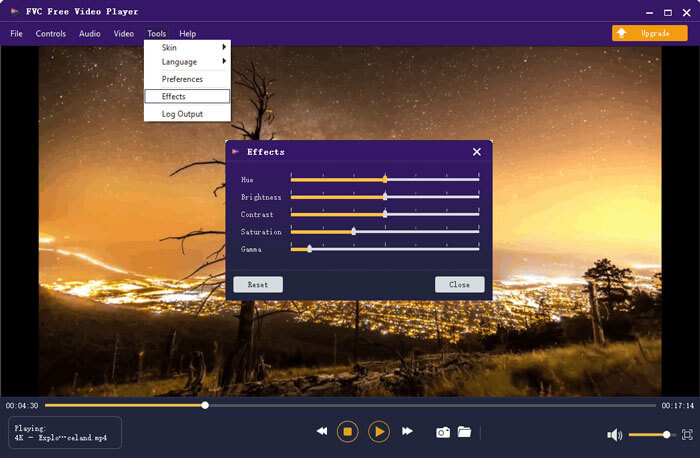
स्टेप 2. Open File बटन पर क्लिक करके अपनी MKV फ़ाइल को ब्राउज़ कर के इम्पोर्ट करें। इसके बाद वीडियो अपने‑आप चलने लगेगा। उन्नत वीडियो एन्कोडिंग तकनीक के उपयोग की बदौलत यह MKV फ़ाइल को उच्च गुणवत्ता के साथ स्मूथली चला सकता है। इसके अलावा, यह DTS-HD और Dolby TrueHD को भी सपोर्ट करता है।.

आपको MKV प्लेबैक के सभी नियंत्रण दिए गए हैं। प्ले, पॉज़, बैकवर्ड, फ़ॉरवर्ड, एडजस्ट वॉल्यूम और बहुत कुछ जैसे बुनियादी कार्यों के अलावा, यह आपको प्रभावों को समायोजित करने, ऑडियो ट्रैक और उपशीर्षक बदलने और कस्टम अन्य सेटिंग्स की भी अनुमति देता है।
भाग 3. विंडोज मीडिया प्लेयर पर प्लेबैक के लिए एमकेवी कन्वर्ट करें Convert
Windows Media Player में MKV फ़ाइल चलाने के लिए, आप MKV को MP4 जैसे किसी समर्थित वीडियो फ़ॉर्मैट में कनवर्ट करना भी चुन सकते हैं। यहाँ हम आपको Free Online Video Converter से परिचित करा रहे हैं, जो आपको गुणवत्ता खोए बिना MKV को MP4 में बदलने में मदद करेगा।.
स्टेप 1. अपने ब्राउज़र पर इस मुफ़्त ऑनलाइन MKV से MP4 कनवर्टर पेज पर जाएँ। यह Chrome, IE, Safari और Firefox सहित किसी भी लोकप्रिय वेब ब्राउज़र के साथ कम्पैटिबल है।.
स्टेप 2. वहाँ पहुँचने पर, Add File to Convert बटन पर क्लिक करें। इस चरण के दौरान आपको MKV कनवर्ज़न के लिए एक छोटा लॉन्चर इंस्टॉल करना होगा। इसके बाद, आपकी स्क्रीन पर एक पॉप‑अप विंडो दिखाई देगी, जहाँ से आप अपनी MKV फ़ाइल चुन सकते हैं।.
स्टेप 3. आपको वहाँ MP4, MOV, AVI, MKV, FLV आदि जैसे कई लोकप्रिय वीडियो फ़ॉर्मैट की सूची दिखाई देगी। सुनिश्चित करें कि आउटपुट फ़ॉर्मैट MP4 चुना हुआ है और फिर Convert बटन पर क्लिक करें।.
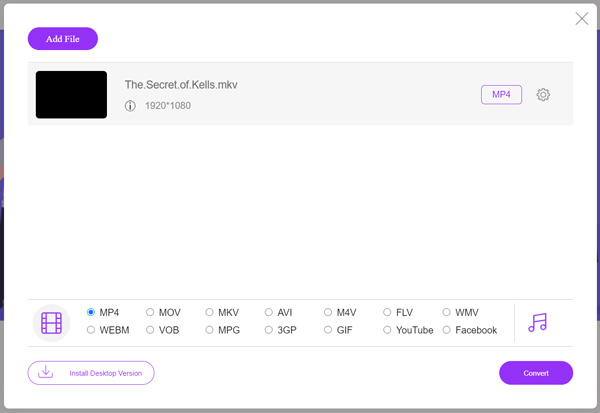
MKV से MP4 में कनवर्ज़न के बाद, आप इसे अपने Windows Media Player में चला सकते हैं। कनवर्ज़न के दौरान न तो वीडियो और न ही ऑडियो की गुणवत्ता में कोई कमी आएगी।.
भाग 4. विंडोज मीडिया प्लेयर में एमकेवी चलाने के अक्सर पूछे जाने वाले प्रश्न
प्रश्न १. मैं विंडोज मीडिया प्लेयर पर वीडियो का प्रारूप कैसे बदलूं?
विंडोज मीडिया प्लेयर खोलें और उस वीडियो फ़ाइल को लोड करें जिसे आप कनवर्ट करना चाहते हैं। शीर्ष मेनू पर रिप टैब के नीचे छोटे तीर पर क्लिक करें। अधिक विकल्प चुनें और फिर प्रारूप लेबल वाले ड्रॉप-डाउन मेनू पर क्लिक करें। यहां आप एक उपयुक्त आउटपुट स्वरूप चुन सकते हैं और रूपांतरण शुरू कर सकते हैं।
प्रश्न 2. विंडोज मीडिया प्लेयर कौन सा वीडियो फॉर्मेट है?
विंडोज मीडिया प्लेयर का डिफॉल्ट फाइल फॉर्मेट WMV, विंडोज मीडिया वीडियो और WMA, विंडोज मीडिया ऑडियो है। इसके अलावा, यह उन्नत सिस्टम प्रारूप और अपने स्वयं के एक्सएमएल आधारित प्लेलिस्ट प्रारूप, विंडोज प्लेलिस्ट का समर्थन करता है।
प्रश्न 3. क्या Windows 10 MKV फ़ाइलें चला सकता है?
नहीं। Windows 10 में अंतर्निहित Windows Media Player 12 MKV फ़ाइलें नहीं चला सकता है। प्लेबैक प्राप्त करने के लिए आपको MKV कोडेक स्थापित करने की आवश्यकता है।
निष्कर्ष
जब Windows Media Player MKV कोडेक को समझ नहीं पाता, तो वह एक एरर दिखा देता है। Windows Media Player में MKV फ़ाइल चलाने के लिए आपको सही कोडेक इंस्टॉल करना होगा। इसके अलावा, आप किसी थर्ड‑पार्टी प्लेयर का इस्तेमाल कर सकते हैं या प्लेबैक के लिए MKV फ़ॉर्मैट को कनवर्ट कर सकते हैं। यदि आपके पास अब भी यह जानने को लेकर कोई सवाल हो कि Windows Media Player में MKV फ़ाइल कैसे खोलें, तो बेझिझक हमें मैसेज छोड़ें।.
-
 वांछित उपशीर्षक के साथ MKV फ़ाइलें खेलने के लिए शीर्ष 8 MKV खिलाड़ी
 जब आप वांछित उपशीर्षक के साथ MKV वीडियो चलाना चाहते हैं, तो आप पीसी / मैक के लिए शीर्ष 8 MKV फ़ाइल खिलाड़ियों के बारे में अधिक जान सकते हैं और अपनी आवश्यकता के अनुसार वांछित चुन सकते हैं।
-
 MKV को MOV - MKV को MOV में कैसे परिवर्तित करें
 मैं मैक पर एमकेवी को एमओवी में कैसे बदल सकता हूं? क्या iMovie MKV पढ़ सकता है? MOV प्रारूप का क्या अर्थ है? यह पोस्ट एमकेवी को एमओवी को मुफ्त ऑनलाइन और पेशेवर वीडियो कन्वर्टर्स में बदलने में आपकी मदद करने के लिए 2 सरल तरीके बताती है।
-
 एसी 3 प्लेयर - 2021 के 10 सर्वश्रेष्ठ मुफ्त एसी 3 खिलाड़ियों की समीक्षा
 सबसे अच्छा एसी 3 खिलाड़ी क्या है? क्या MX प्लेयर AC3 को खोल सकता है? यह पोस्ट मैक, विंडोज पीसी, आईओएस और एंड्रॉइड डिवाइस के लिए 10 मुफ्त एसी 3 खिलाड़ियों की सूची बनाती है।
