


 वीडियो कनवर्टर अंतिम
 स्क्रीन अभिलेखी
 वीडियो मरम्मत
 सुरक्षित डाउनलोड
सैमसंग S23 पर प्रो की तरह कुछ ही समय में स्क्रीनशॉट कैसे लें
आज के डिजिटल परिदृश्य में स्मार्टफ़ोन अनिवार्य हो गए हैं। वे बहुमूल्य पलों को कैद करने, ज़रूरी जानकारी सहेजने, सार्थक बातचीत करने और अपने प्रियजनों के साथ मनोरंजक सामग्री साझा करने के उपकरण के रूप में काम करते हैं। इसी कारण, उस ख़ास पल का स्क्रीनशॉट लेना जानना अब लगभग एक सार्वभौमिक अनुभव का हिस्सा बन चुका है। Samsung Galaxy S23 जैसे स्मार्टफ़ोन बेहद शक्तिशाली डिवाइस हैं जो स्क्रीनशॉट लेने से कहीं अधिक काम कर सकते हैं। इस लेख में हम फ्लैगशिप फीचर्स के साथ Samsung S23 पर स्क्रीनशॉट लेने के विभिन्न तरीकों पर नज़र डालेंगे; इससे आप अपने डिवाइस की स्क्रीन कैप्चर क्षमताओं का सटीक और आसानी से अधिकतम उपयोग कर पाएँगे। तो फिर किस बात का इंतज़ार? इस लेख को आगे पढ़ें, अपने स्क्रीनशॉट लेने के तरीके को एक नया स्तर दें और बहुत कम समय में अपने Samsung Galaxy S23 की पूरी क्षमता को अनलॉक करें!

भाग 1. डिफ़ॉल्ट टूल के साथ सैमसंग S23 पर स्क्रीनशॉट कैसे लें
अपने सैमसंग S23 पर स्क्रीनशॉट कैप्चर करना एक सरल प्रक्रिया है। डिवाइस द्वारा प्रदान किया गया डिफ़ॉल्ट टूल स्क्रीनशॉट लेना काफी आसान बनाता है। अन्य स्मार्टफ़ोन की तरह, स्क्रीनशॉट लेने की कार्यक्षमता पावर बटन और वॉल्यूम कुंजियों के उपयोग पर आधारित है। यह सुविधा आपको कुछ ही सेकंड में सीधे अपने फ़ोन से स्क्रीनशॉट लेने की अनुमति देती है।
चरण 1. वह ऐप खोलें या उस पेज पर जाएँ जिसका आप स्क्रीनशॉट लेना चाहते हैं।.
चरण 2. स्क्रीन कैप्चर करने के लिए एक ही समय पर अपने फ़ोन के भौतिक पावर और वॉल्यूम डाउन बटन दबाएँ।.
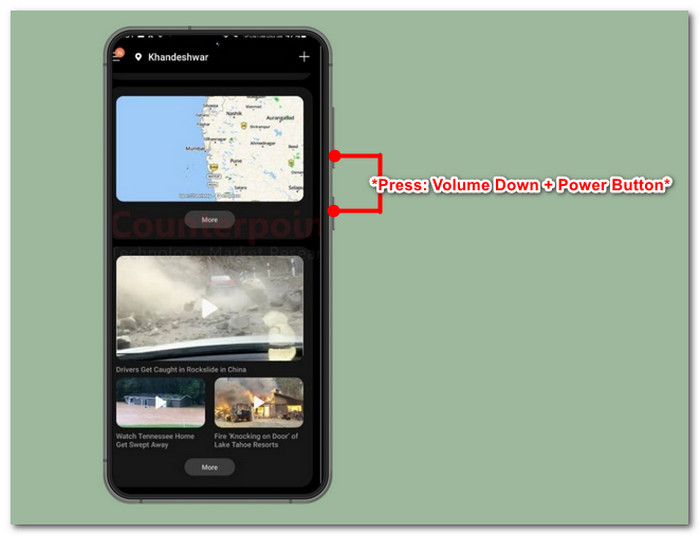
चरण 3. आपने डिफ़ॉल्ट टूल का उपयोग करके सफलतापूर्वक स्क्रीनशॉट ले लिया है। अपना स्क्रीनशॉट देखने के लिए गैलरी में जाएँ।.
स्क्रीनशॉट लेने के लिए यह विधि सभी एंड्रॉयड फोन पर लागू होती है।
क्लासिक बटन संयोजनों से लेकर उन्नत जेस्चर नियंत्रणों तक, डिफ़ॉल्ट टूल का उपयोग करके अपने सैमसंग S23 पर स्क्रीनशॉट लेने की कला में महारत हासिल करना बहुत आसान है। चाहे आप कोई महत्वपूर्ण संदेश सहेजना चाहते हों, कोई यादगार पल कैद करना चाहते हों या दोस्तों के साथ मनोरंजक सामग्री साझा करना चाहते हों, सैमसंग S23 यह सब कर सकता है।
भाग 2. सैमसंग S23 में बिना पावर बटन के स्क्रीनशॉट कैसे लें
आपको जरूरी नहीं कि फिजिकल बटन का ही इस्तेमाल करना पड़े। इसके अलावा भी कई तरीके उपलब्ध हैं, जैसे कि फोन के अंदर से ही स्क्रीनशॉट लेना। यह बिक्सबी या गूगल असिस्टेंट के इस्तेमाल के साथ-साथ पाम स्वाइप जेस्चर के जरिए भी हासिल किया जा सकता है। इस भाग में, हम खास तौर पर इस बात पर ध्यान केंद्रित करेंगे कि अपनी स्क्रीन कैप्चर करने के लिए पाम स्वाइप का इस्तेमाल कैसे करें।
चरण 1. पाम स्वाइप स्क्रीनशॉट का उपयोग करने के लिए, सबसे पहले आपको इसे अपने फ़ोन की सेटिंग्स में जाकर सक्षम करना होगा।.
चरण 2. फ़ोन की सेटिंग्स में जाकर एडवांस फीचर्स > मोशन एंड जेस्चर पर जाएँ।
चरण 3. जैसे ही आप मोशन एंड जेस्चर की सेटिंग में पहुँचें, पाम स्वाइप टू कैप्चर को सक्षम करें।.
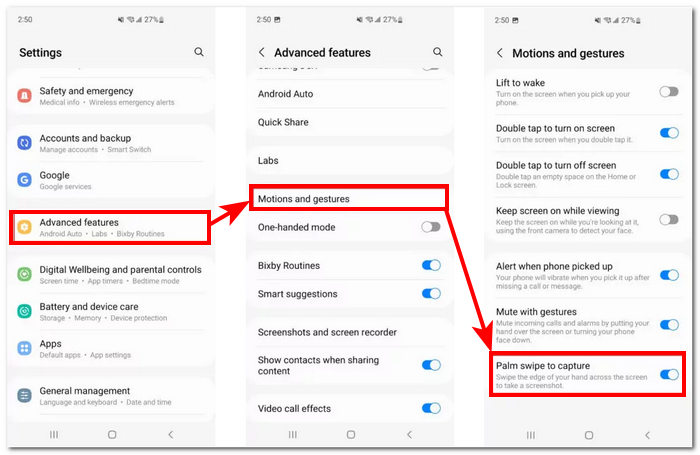
चरण 4. जब आप इस फ़ीचर को सक्षम कर लें, तो इसे जाँचने के लिए अपनी हथेली को स्क्रीन के किनारे के ऊपर से स्वाइप करके देखें।.
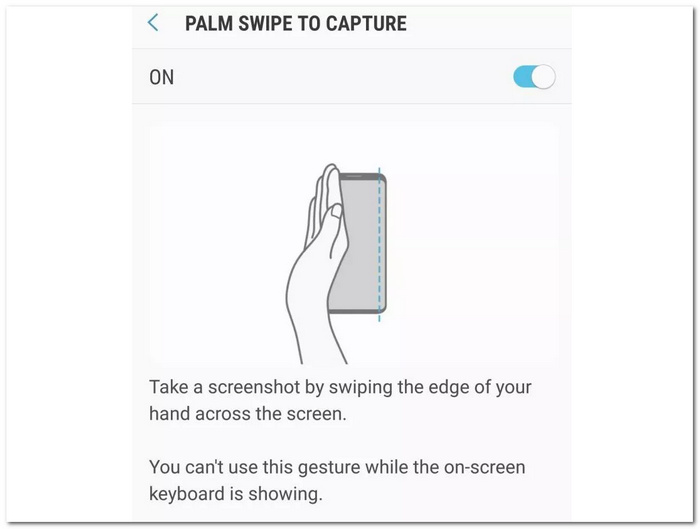
स्क्रीनशॉट लेने के लिए पाम स्वाइप जेस्चर फीचर शायद सभी को पसंद न आए, लेकिन यह सैमसंग द्वारा एक सोची-समझी पहल है। यह फीचर पावर बटन या वॉल्यूम बटन में से किसी एक के काम करना बंद कर देने पर स्क्रीनशॉट न ले पाने की समस्या को हल करता है। इसलिए, यह फीचर सुनिश्चित करता है कि उपयोगकर्ता की स्क्रीनशॉट लेने की क्षमता से समझौता न हो।
भाग 3. डेस्कटॉप सॉफ़्टवेयर के साथ सैमसंग S23 पर स्क्रीनशॉट कैसे लें
डेस्कटॉप सॉफ़्टवेयर का उपयोग करके स्क्रीनशॉट लेना तब एक दिलचस्प तरीका बन जाता है, जब आप अपने स्क्रीनशॉट पर अधिक बारीक नियंत्रण और ज़्यादा डिटेल चाहते हैं। अपने फ़्लैगशिप Samsung S23 का उपयोग करते समय, आपके डिवाइस की क्षमता के अनुरूप स्तर वाले सॉफ़्टवेयर फ़ीचर्स का उपयोग करना भी सही रहता है। ऐसा ही एक सॉफ़्टवेयर है FVC द्वारा चुना गया स्क्रीन रिकॉर्डर। यह सॉफ़्टवेयर आपको अपने स्मार्टफ़ोन की स्क्रीन को कंप्यूटर पर कास्ट करने की सुविधा देता है ताकि आप स्क्रीनशॉट ले सकें या उससे भी बेहतर, स्क्रीन रिकॉर्ड कर सकें, क्योंकि यह सॉफ़्टवेयर स्क्रीनशॉट, स्क्रीन रिकॉर्डिंग, ऑडियो, वीडियो और गेम रिकॉर्ड करने के लिए उपयुक्त है। जब आप इस सॉफ़्टवेयर की मदद से Samsung S23 पर स्क्रीन कैप्चर करते हैं, तो आप स्क्रीनशॉट के रेज़ोल्यूशन को समायोजित करने का अतिरिक्त लाभ पाते हैं, जो S23 जैसे फ़्लैगशिप डिवाइस की क्षमता के साथ बखूबी मेल खाता है।.
चरण 1. अपने कंप्यूटर पर फ़ोन स्क्रीनशॉट सॉफ़्टवेयर इंस्टॉल करें और इंस्टॉलेशन पूरा होने के बाद सॉफ़्टवेयर चालू करें।.
मुफ़्त डाउनलोडWindows 7 या उससे बाद के लिएसुरक्षित डाउनलोड
मुफ़्त डाउनलोडMacOS 10.7 या उससे बाद के लिएसुरक्षित डाउनलोड
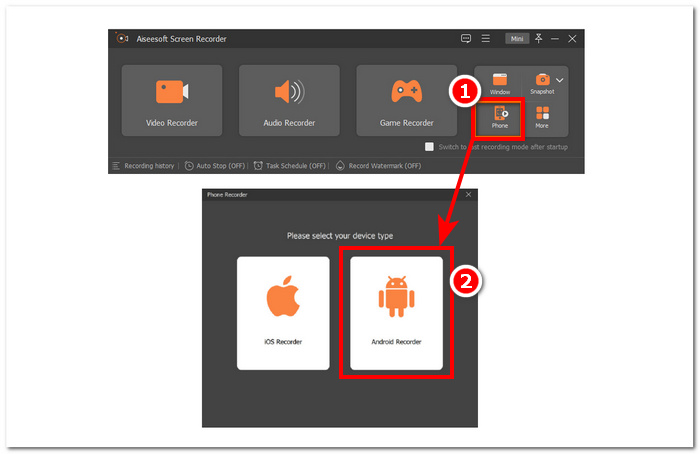
चरण 2. इंटरफ़ेस से फ़ोन बटन पर क्लिक करें, फिर Android Recorder चुनें, क्योंकि आप अपने Samsung S23 डिवाइस का उपयोग कर रहे हैं।.
चरण 3. यह सुनिश्चित करें कि आपने अपने स्मार्टफ़ोन पर FoneLab Mirror डाउनलोड कर लिया है और यह भी कि आपका Samsung S23 और कंप्यूटर दोनों एक ही WLAN से जुड़े हैं, ताकि आप अपने फ़ोन की स्क्रीन को कंप्यूटर पर मिरर कर सकें।.
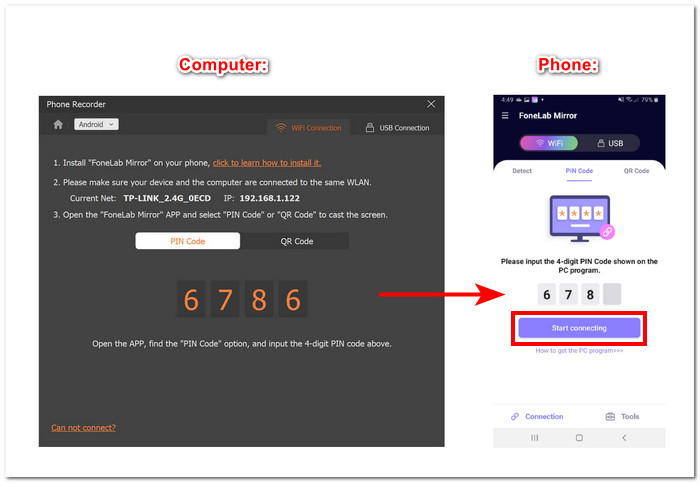
चरण 4. जब आप सफलतापूर्वक स्क्रीन मिरर कर लें, तो आप स्नैपशॉट बटन पर क्लिक करके अपने Samsung S23 की स्क्रीन का स्क्रीनशॉट ले सकते हैं।.
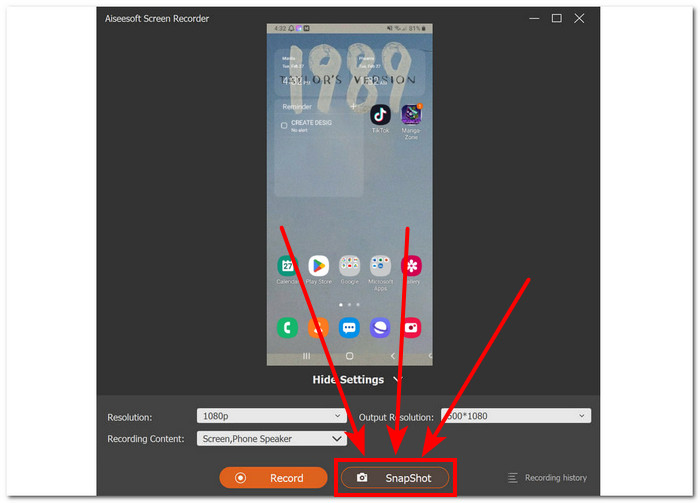
स्क्रीन रिकॉर्डर न केवल साधारण स्क्रीनशॉट लेने के लिए, बल्कि उससे कहीं अधिक के लिए एक भरोसेमंद और प्रोफ़ेशनल टूल साबित होता है। यह टूल अपने हर स्नैपशॉट में उपयोगकर्ताओं को उच्च आउटपुट क्वालिटी प्रदान करता है। सॉफ़्टवेयर का उपयोग करते समय यह रेज़ोल्यूशन बदलने का विकल्प भी देता है, ताकि धुंधले आउटपुट से बचा जा सके, जिसे ठीक करने के लिए बाद में किसी इमेज साइज इन्क्रीज़र टूल की ज़रूरत पड़ सकती है।.
भाग 4. सैमसंग S23 पर स्क्रीनशॉट लेने के बारे में अक्सर पूछे जाने वाले प्रश्न
क्या मैं अपने सैमसंग S23 पर स्क्रीनशॉट सेटिंग्स को कस्टमाइज़ कर सकता हूं?
हां, आप अपने सैमसंग S23 पर स्क्रीनशॉट सेटिंग को कस्टमाइज़ कर सकते हैं। आप विकल्पों को एडजस्ट कर सकते हैं जैसे कि स्क्रीनशॉट कहाँ सेव किए जाएँ, उनमें प्रीव्यू शामिल है या नहीं, और क्या वे स्क्रॉल करने योग्य कंटेंट जैसी अतिरिक्त जानकारी कैप्चर करते हैं।
मैं अपने सैमसंग S23 पर लिए गए स्क्रीनशॉट तक कैसे पहुंच सकता हूं?
स्क्रीनशॉट लेने के बाद, आप इसे तुरंत नोटिफिकेशन पैनल से एक्सेस कर सकते हैं। इसके अतिरिक्त, आप अपने सभी स्क्रीनशॉट गैलरी ऐप के स्क्रीनशॉट फ़ोल्डर में या फ़ाइल मैनेजर का उपयोग कर रहे हैं तो स्क्रीनशॉट एल्बम में पा सकते हैं।
क्या मैं अपने सैमसंग S23 पर स्क्रॉलिंग स्क्रीनशॉट कैप्चर कर सकता हूँ?
कई सैमसंग S23 मॉडल स्क्रॉलिंग स्क्रीनशॉट कैप्चर करने की क्षमता प्रदान करते हैं। ऐसा स्क्रीनशॉट लेने के लिए, आप पहले डिफ़ॉल्ट विधि का उपयोग करके एक नियमित स्क्रीनशॉट ले सकते हैं। फिर, कैप्चर मोर विकल्प या इसी तरह की सुविधा का पता लगाएं जो आपको स्क्रॉल करने और अतिरिक्त सामग्री कैप्चर करने में सक्षम करेगी जो प्रारंभिक स्क्रीनशॉट के समय स्क्रीन पर दिखाई नहीं दे रही होगी। यह सुविधा लंबे वेब पेज, चैट और अन्य सामग्री को कैप्चर करने में काफी उपयोगी हो सकती है।
मेरा सैमसंग S23 स्क्रीनशॉट क्यों नहीं ले रहा है?
अगर आपका सैमसंग S23 स्क्रीनशॉट नहीं ले रहा है, तो सुनिश्चित करें कि आप सही बटन संयोजन या जेस्चर का उपयोग कर रहे हैं और आपके डिवाइस का सॉफ़्टवेयर अप टू डेट है। अगर समस्या अभी भी हल नहीं हुई है, तो अपने डिवाइस को पुनः आरंभ करने का प्रयास करें या आगे की सहायता के लिए सैमसंग सहायता से संपर्क करें।
क्या मैं सैमसंग S23 पर स्क्रीनशॉट लेने के बाद उन्हें सीधे संपादित या साझा कर सकता हूँ?
स्क्रीनशॉट लेने के बाद, आप अपने डिवाइस की गैलरी में नेविगेट किए बिना इसे जल्दी से संपादित या साझा कर सकते हैं। स्क्रीनशॉट लेने के बाद, आपकी स्क्रीन पर एक सूचना दिखाई देगी। बस अधिसूचना पर टैप करें, और यह आपको सीधे स्क्रीनशॉट पर ले जाएगा। वहां से, आप कोई भी आवश्यक संपादन कर सकते हैं या बिना किसी देरी के इसे दूसरों के साथ साझा कर सकते हैं।
निष्कर्ष
Samsung Galaxy S23 पर स्क्रीनशॉट फीचर्स को समझकर और उनका पूरा उपयोग करके, आप यादगार पलों, महत्वपूर्ण जानकारी और मनोरंजक सामग्री को आसानी से कैप्चर और साझा कर सकते हैं। यह गाइड आपको डिफ़ॉल्ट बटन कॉम्बिनेशन का उपयोग करने से लेकर पाम स्वाइप जेस्चर जैसे उन्नत फ़ीचर्स और डेस्कटॉप सॉफ़्टवेयर समाधानों को एक्सप्लोर करने तक की जानकारी देता है। इन जानकारियों के साथ आप अपने स्क्रीनशॉट लेने के तरीकों को नए स्तर पर ले जा सकते हैं और बहुत कम समय में अपने Samsung Galaxy S23 की पूरी क्षमता को अनलॉक कर सकते हैं!
-
 तोशिबा लैपटॉप पर बिना किसी परेशानी के मुफ्त में स्क्रीनशॉट कैसे लें
 तोशिबा लैपटॉप पर स्क्रीनशॉट लेने के तीन सरल तरीकों के बारे में जानें और अपने सभी पसंदीदा कंटेंट को अपने तोशिबा लैपटॉप पर मुफ्त में कैप्चर करें।
-
 मैक पर स्क्रीनशॉट कैसे क्रॉप करें [2025 शुरुआती गाइड]
 आंशिक कैप्चर से संतुष्ट न हों! मैक पर स्क्रॉलिंग स्क्रीनशॉट लेने के सरल चरणों को जानें। कुछ ही समय में आसानी से पूरे वेब पेज या दस्तावेज़ कैप्चर करें।
-
 फ़ायरफ़ॉक्स पर आसानी से स्क्रॉलिंग स्क्रीनशॉट कैसे लें
 क्या आप अपने मैक पर स्क्रीनशॉट क्रॉप करने के तरीके खोज रहे हैं? हमने आपकी मदद की है! इस लेख में, स्क्रीनशॉट को आसानी से आकार देने के लिए 3 तरीके जानें।
