


 वीडियो कनवर्टर अंतिम
 स्क्रीन अभिलेखी
 वीडियो मरम्मत
 सुरक्षित डाउनलोड
[समाधान] एंड्रॉइड पर स्क्रीनशॉट लेने के 4 तरीके
आजकल स्क्रीनशॉट लेना उन सबसे आम कामों में से एक है जो हम अपने फ़ोन से कर सकते हैं। जब हम किसी तस्वीर, टेक्स्ट या पोस्ट को सेव करना चाहते हैं, जिसे हमने स्क्रॉल करते समय अपनी स्क्रीन पर देखा हो, तो हम उसका स्क्रीनशॉट ले लेते हैं। अब, अगर आप Android डिवाइस का इस्तेमाल कर रहे हैं और सोच रहे हैं कि इसके स्क्रीनशॉट फ़ीचर का पूरा फ़ायदा कैसे उठाएँ, तो हम आपकी मदद करेंगे! इस लेख में जानें कि Android पर स्क्रीनशॉट कैसे लें – 4 तरीकों से, और अपने डिवाइस की क्षमता का पूरा उपयोग करें। जो भी कंटेंट आपके लिए महत्वपूर्ण हो, उसे स्क्रीनशॉट लेकर सेव करने के लिए पढ़ते रहें!

भाग 1: एंड्रॉइड फोन पर स्क्रीनशॉट कैसे लें
आपको यह जानकर आश्चर्य हो सकता है, लेकिन Android पर स्क्रीनशॉट लेना वास्तव में डिवाइस निर्माता और ऑपरेटिंग सिस्टम संस्करण के आधार पर भिन्न होता है। इसलिए, यदि आप एक Android उपयोगकर्ता हैं और आपको नहीं पता कि स्क्रीनशॉट लेने के लिए किस विधि का उपयोग करना है, तो नीचे दिए गए चरणों की जाँच करें:
विधि 1: हार्डवेयर बटन का उपयोग करना
एंड्रॉइड डिवाइस पर स्क्रीनशॉट लेने का सबसे आम तरीका इसके हार्डवेयर या फ़िज़िकल बटन का उपयोग करना है। यह अपनी सुलभता और सुविधा के कारण एंड्रॉइड पर स्क्रीनशॉट लेने में इस्तेमाल की जाने वाली सबसे जानी-मानी विधि है।
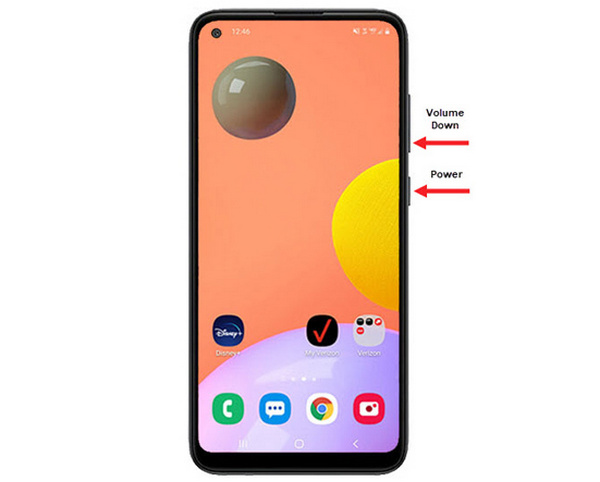
चरण 1. सबसे पहले, अपने Android फ़ोन पर वॉल्यूम डाउन और पावर बटन को एक साथ दबाएँ। इन्हें तब तक दबाए रखें जब तक स्क्रीनशॉट न ले लिया जाए।.
चरण 2. उसके बाद, अपना स्क्रीनशॉट गैलरी ऐप में खोलकर देखें।.
इसलिए, यदि आपके हार्डवेयर बटन ठीक से काम कर रहे हैं, तो आप आसानी से अपने एंड्रॉइड पर स्क्रीनशॉट लेने के लिए इस विधि का पालन कर सकते हैं।
विधि 2: शॉर्टकट का उपयोग करना
आजकल, कुछ एंड्रॉयड डिवाइसों में त्वरित सेटिंग पैनल में एक अंतर्निहित स्क्रीनशॉट सुविधा होती है, जो शीघ्रता से स्क्रीनशॉट लेने के लिए उपयोगी होती है।
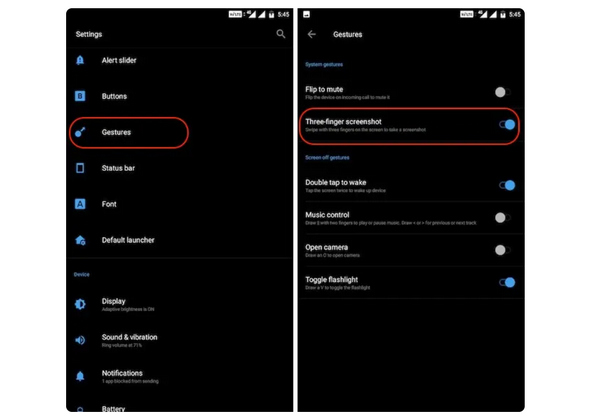
चरण 1. सबसे पहले, अपने Android फ़ोन में सेटिंग्स पर जाएँ। थोड़ा नीचे स्क्रॉल करें और Gestures या Buttons विकल्प चुनें।.
चरण 2. वहाँ से, Screenshot विकल्प ढूँढ़ें और उसे ऑन कर दें।.
चरण 3. अंत में, इस तरीके से स्क्रीनशॉट लेने के लिए, जिस स्क्रीन की तस्वीर लेनी हो उस पर अपनी तीन उँगलियों से ऊपर से नीचे की ओर स्वाइप करें।.
यह तरीका तब सबसे अच्छा होता है जब आप स्क्रीनशॉट लेने के लिए बटन दबाना नहीं चाहते। हालाँकि, आपको इसे पहले अपनी सेटिंग्स में सेट करना होगा। इसलिए, अगर आप इससे परिचित नहीं हैं, तो बस ऊपर दिए गए चरणों का पालन करें।
विधि 3: Google सहायक का उपयोग करना
इस बीच, यदि आपके एंड्रॉयड फोन में गूगल असिस्टेंट है, तो आप इसका उपयोग आसानी से स्क्रीनशॉट लेने के लिए कर सकते हैं।
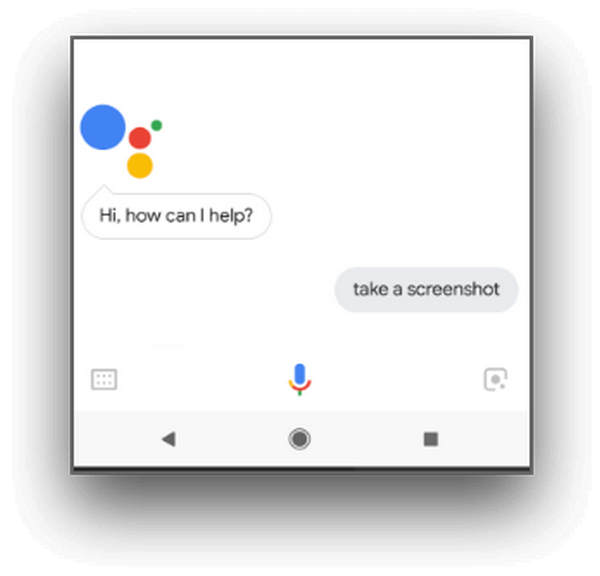
चरण 1. सबसे पहले, आपको Google Assistant को एक्टिवेट करना होगा। इसके लिए होम बटन दबाएँ या फिर वॉइस कमांड से कहें: OK, Hello Google।.
चरण 2. एक्टिवेट होने पर कहें, Take a screenshot या Screenshot।.
नोट: स्क्रीनशॉट लिए जाने पर या तो कोई एनीमेशन दिखेगा या फिर एक आवाज़ सुनाई देगी, जो यह संकेत देती है कि स्क्रीनशॉट ले लिया गया है।.
चरण 3. आप अपना स्क्रीनशॉट फ़ोन के गैलरी ऐप में Screenshots फोल्डर में देख सकते हैं।.
नोट: यह तरीका सभी Android डिवाइस पर काम नहीं करता। यदि आपके फ़ोन में Google Assistant है और वह वॉइस कमांड से स्क्रीनशॉट लेने की सुविधा देता है, तो बस यहाँ दिए गए चरणों का पालन करें।.
भाग 2: एंड्रॉइड टैबलेट पर स्क्रीनशॉट कैसे लें
यदि आपके पास एंड्रॉयड टैबलेट है और आप सोच रहे हैं कि इसका उपयोग करके स्क्रीनशॉट कैसे लें, तो यहां बताया गया है कि कैसे:
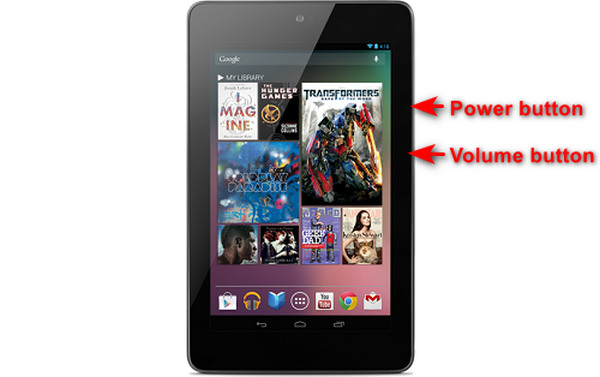
चरण 1. अपने Android टैबलेट पर, पावर और वॉल्यूम डाउन बटन को एक साथ दबाएँ और कुछ सेकंड तक दबाए रखें।.
नोट: स्क्रीनशॉट लिए जाने पर आपको इसका नोटिफिकेशन मिल जाना चाहिए।.
चरण 2. इसके बाद, अपना स्क्रीनशॉट टैबलेट के गैलरी ऐप के Screenshots फोल्डर में खोलें।.
यदि यह विधि आपके एंड्रॉयड टैबलेट पर काम नहीं करती है, तो अगली चीज जो आपको करने की आवश्यकता है वह है स्क्रीनशॉट लेने में सक्षम होने के लिए Google Play Store से तीसरे पक्ष के एप्लिकेशन को नियोजित करना।
भाग 3: कंप्यूटर से एंड्रॉइड पर स्क्रीनशॉट कैसे लें
अब, अगर आप कंप्यूटर का इस्तेमाल करके Android पर स्क्रीनशॉट लेना चाहते हैं, शायद इसलिए कि ऊपर बताए गए तरीके आपके फ़ोन पर काम नहीं कर रहे, तो इसके लिए सबसे अच्छा टूल है FVC Screen Recorder। यह टूल इस तरह बनाया गया है कि जो भी फ़ोन की स्क्रीन कंप्यूटर पर मिरर की गई हो, उसका स्क्रीनशॉट आसानी से लिया जा सके, इसलिए यह Android डिवाइस के साथ पूरी तरह अनुकूल है। इसके Phone Recorder फ़ीचर का उपयोग करके, यूज़र कंप्यूटर से Android की स्क्रीन का स्क्रीनशॉट बिना किसी झंझट के ले सकते हैं। इसके अलावा, आज के ज़्यादातर थर्ड-पार्टी टूल्स की तुलना में, इस टूल का इंटरफ़ेस बहुत सहज और यूज़र‑फ्रेंडली है, जिससे इसे इस्तेमाल करने में आपको कोई दिक्कत नहीं होगी।.
स्टेप 1. सबसे पहले अपने कंप्यूटर पर FVC Screen Recorder डाउनलोड करें और खोलें।.
मुफ़्त डाउनलोडWindows 7 या उससे बाद के लिएसुरक्षित डाउनलोड
मुफ़्त डाउनलोडMacOS 10.7 या उससे बाद के लिएसुरक्षित डाउनलोड
चरण 2. अब, Phone recorder विकल्प पर क्लिक करें। यह आपको टूल की विंडो के दाहिनी ओर, बाकी 3 विकल्पों के साथ मिलेगा।.
चरण 3. अगला, Android Recorder पर क्लिक करें।.
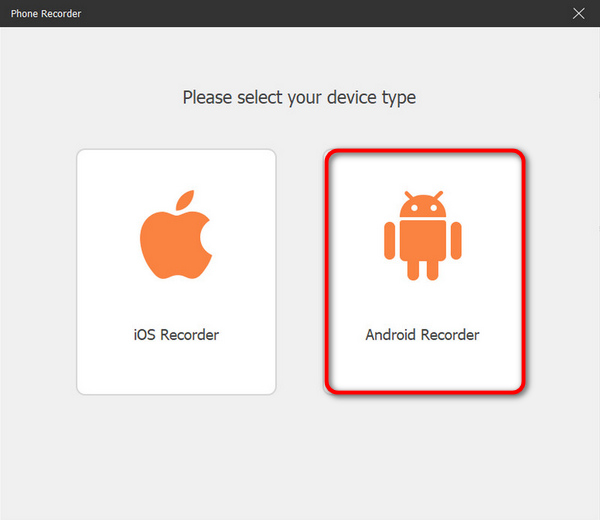
चरण 4. फ़ोन की स्क्रीन कास्ट करने के लिए आप WiFi या USB, दोनों में से किसी का भी उपयोग कर सकते हैं। लेकिन यदि आप WiFi चुनते हैं, तो आप PIN Code या QR Code के ज़रिए आसानी से अपने फ़ोन को कंप्यूटर पर टूल के Phone Recorder फ़ीचर से कास्ट कर सकते हैं।.
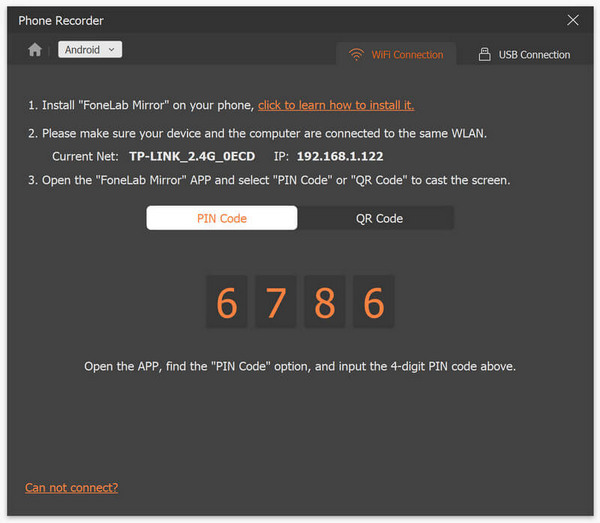
चरण 5. जब mirroring अंत में सक्षम हो जाए, तो अपने Android की स्क्रीन से कंप्यूटर पर स्क्रीनशॉट लेने के लिए बस Snapshot आइकन पर क्लिक करें।.
चरण 6. आख़िर में, अपने Windows कंप्यूटर पर निर्धारित फोल्डर में जाकर अपने स्क्रीनशॉट इमेजेज़ को सीधे एक्सेस करें।.
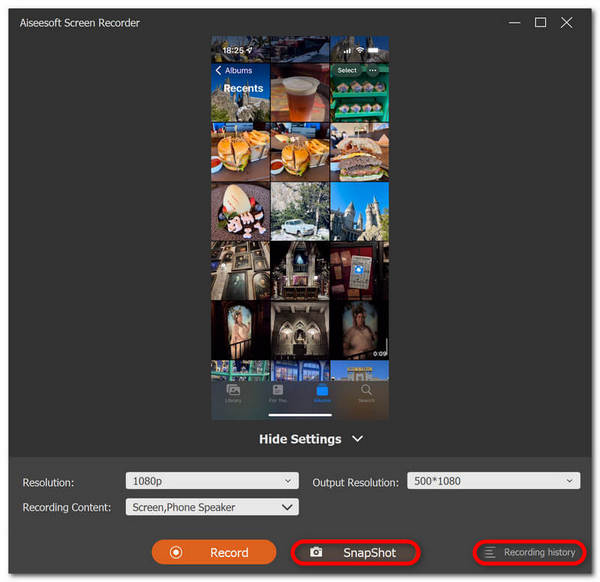
FVC स्क्रीन रिकॉर्डर एक बेहतरीन टूल है जब आप कंप्यूटर से Android पर स्क्रीनशॉट लेना चाहते हैं। इसके फ़ोन रिकॉर्डिंग फ़ीचर का इस्तेमाल करके, आपके लिए दोनों डिवाइस सेट करने से लेकर स्क्रीनशॉट लेने तक सब कुछ आसान हो जाएगा। इस टूल में आपकी ज़रूरत की हर चीज़ मौजूद है।
भाग 4: एंड्रॉइड पर स्क्रॉलिंग स्क्रीनशॉट कैसे लें
यदि आप एंड्रॉयड पर किसी वेब पेज या लंबी बातचीत का एक बार में स्क्रीनशॉट लेना चाहते हैं, तो बहुत सारे स्क्रीनशॉट लेने के बजाय, नीचे दिए गए चरणों का पालन करें:
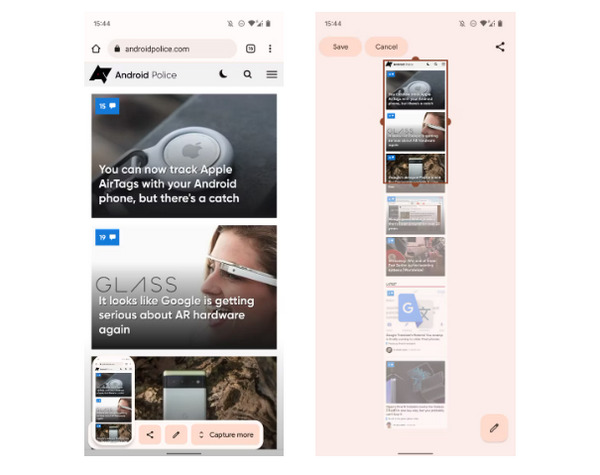
चरण 1. सबसे पहले, अपने Android फ़ोन पर एक सामान्य स्क्रीनशॉट लें।.
चरण 2. इसके बाद, स्क्रीनशॉट का प्रीव्यू दिखाई देने पर उस पर टैप करें और फिर Capture More बटन दबाएँ।.
नोट: जब आप स्क्रीनशॉट को बढ़ाने के लिए विंडो का उपयोग करते हैं, तो अधिक सटीकता के लिए सिस्टम एक मैग्निफ़ायर दिखाता है।.
चरण 3. अंत में, अपना स्क्रीनशॉट सेव करने के लिए Save पर टैप करें।.
अब आप संपूर्ण वेब पेज या संपूर्ण स्क्रीनशॉट वार्तालाप दिखाने के लिए ढेर सारे स्क्रीनशॉट नहीं लेंगे।
भाग 5: एंड्रॉइड पर स्क्रीनशॉट लेने के बारे में अक्सर पूछे जाने वाले प्रश्न
क्या मैं अपने Android डिवाइस पर डिफ़ॉल्ट स्क्रीनशॉट फ़ोल्डर बदल सकता हूँ?
हां। आप चाहें तो डिफ़ॉल्ट स्क्रीनशॉट फ़ोल्डर बदल सकते हैं। आपको बस एक नया फ़ोल्डर बनाना है या अपने Android फ़ोन पर अपने स्क्रीनशॉट के लिए एक अलग फ़ोल्डर चुनना है।
यदि किसी एंड्रॉयड फोन के हार्डवेयर बटन काम नहीं कर रहे हैं तो उसका स्क्रीनशॉट कैसे लें?
सबसे पहले, अगर आप सोच रहे हैं कि अगर आपके एंड्रॉयड फोन के हार्डवेयर बटन काम नहीं कर रहे हैं, तो क्या आप अभी भी स्क्रीनशॉट ले सकते हैं, तो इसका जवाब हां है। इसलिए ऐसे मामलों में, FVC स्क्रीन रिकॉर्डिंग जैसे थर्ड-पार्टी स्क्रीन रिकॉर्डिंग टूल का इस्तेमाल करना सबसे अच्छा है, जो उपयोगकर्ताओं को अपने एंड्रॉयड फोन पर स्क्रीनशॉट लेने की अनुमति देगा, बस इसके फोन रिकॉर्डर फीचर का उपयोग करके।
क्या मैं अपने Android डिवाइस पर स्क्रीनशॉट पर टिप्पणी या संपादन कर सकता हूँ?
हाँ। आप अपने Android डिवाइस पर अपने स्क्रीनशॉट और फ़ोटो को एनोटेट या संपादित कर सकते हैं। यह उनके अंतर्निहित संपादन सुविधाओं का उपयोग करके स्क्रीनशॉट लेने के तुरंत बाद किया जा सकता है। आप अपने स्क्रीनशॉट में टेक्स्ट, ड्रॉइंग, तीर और आकृतियाँ जोड़ सकते हैं, साथ ही क्रॉपिंग, आकार बदलने और फ़िल्टर लगाने का काम भी कर सकते हैं।
निष्कर्ष
तो ये रहा। अपने Android पर स्क्रीनशॉट लेना अब बिलकुल आसान हो गया है। आपको बस यह जानना है कि कौन‑सा तरीका आपके डिवाइस के लिए सबसे बेहतर है, और सब कुछ आपके लिए बिलकुल सही तरह से काम करेगा। तो अपना पसंदीदा तरीका चुनें और आज ही अपने Android पर उन यादगार पलों को कैप्चर करना शुरू करें!
-
 इस बुनियादी गाइड के साथ आसानी से मैक पर स्क्रीनशॉट कैसे लें
 क्या आप अपने मैक पर स्क्रीनशॉट लेना चाहते हैं लेकिन समझ नहीं पा रहे हैं कि कैसे? हम आपकी मदद कर सकते हैं! हम आपको स्क्रीनशॉट लेने और अपनी स्क्रीन की तस्वीरें सेव करने के सबसे आसान और तेज़ तरीके बताएँगे।
-
 इस बुनियादी गाइड के साथ आसानी से मैक पर स्क्रीनशॉट कैसे लें
 क्या आप अपने मैक पर स्क्रीनशॉट लेना चाहते हैं लेकिन समझ नहीं पा रहे हैं कि कैसे? हम आपकी मदद कर सकते हैं! हम आपको स्क्रीनशॉट लेने और अपनी स्क्रीन की तस्वीरें सेव करने के सबसे आसान और तेज़ तरीके बताएँगे।
-
 इस बेसिक गाइड से आसानी से वीडियो का स्क्रीनशॉट लें [2024]
 इन सरल तरीकों से आसानी से वीडियो से स्क्रीनशॉट लेना सीखें। हमारे गाइड का पालन करें और अभी अपने पसंदीदा वीडियो के स्क्रीनशॉट लेना शुरू करें!
