


 वीडियो कनवर्टर अंतिम
 स्क्रीन अभिलेखी
 वीडियो मरम्मत
 सुरक्षित डाउनलोड
PNG को MP4 में बदलने के 3 सर्वोत्तम तरीके [त्वरित समाधान]
आजकल, लोग अपने फ़ोटो को इफेक्ट्स, टेक्स्ट, ट्रांज़िशन और फ़िल्टर के साथ वीडियो में बदलने के शौकीन होते जा रहे हैं। फ़ोटो के लिए PNG एक बेहतरीन इमेज फ़ॉर्मेट है, लेकिन इन्हें MP4 में बदल कर हम और भी रचनात्मक हो सकते हैं। यह कुछ लोगों को थोड़ा अजीब लग सकता है, लेकिन कई लोग इन फ़ाइलों को एक छोटा मूवी या मज़ेदार वीडियो बनाने के लिए कनवर्ट करते हैं। तो अगर आप ऐसा कनवर्टर टूल ढूंढ रहे हैं जो PNG को MP4 में बदले, तो आप बिल्कुल सही जगह पर हैं।.
इसलिए, हमने 3 उपकरण तैयार किए हैं, जिन पर आप आसानी से किसी छवि को वीडियो प्रारूप में परिवर्तित करने के लिए विचार कर सकते हैं। उनमें से प्रत्येक को जानें और अभी उनका उपयोग करना सीखें!

भाग 1: डेस्कटॉप पर सर्वोत्तम गुणवत्ता के साथ PNG को MP4 में बदलें
PNG को MP4 में बदलने के बेहतरीन तरीकों में से एक है FVC Video Converter Ultimate का उपयोग करना। यह कनवर्टर टूल साधारण कनवर्टर जैसा नहीं है, क्योंकि इसमें MV जैसे कई फ़ीचर इंटीग्रेटेड हैं, जिनकी मदद से आप PNG फ़ाइलों को MP4 वीडियो में बदल सकते हैं। इसमें कई प्री‑सेट थीम मिलती हैं जिन्हें आप आसानी से इस्तेमाल कर सकते हैं। आप अपना म्यूज़िक बैकग्राउंड भी जोड़ सकते हैं, फ़िल्टर और इफ़ेक्ट्स लगा सकते हैं, और वीडियो पर वॉटरमार्क लगाकर इसे पर्सनलाइज़ भी कर सकते हैं। इसके अलावा, आप अपनी पसंद और रचनात्मकता के हिसाब से इमेज को आसानी से घुमा (रोटेट), काट (कट) और ट्रिम कर सकते हैं। इसलिए, अगर आप क्रिएटिव कामों में रुचि रखते हैं और अपनी इमेज को डायनेमिक MP4 फ़ाइल में बदलना चाहते हैं, तो यह आपके लिए एक बेहतरीन कनवर्टर टूल साबित होगा।.
स्टेप 1. सबसे पहले, अपने Windows या Mac पर इस सॉफ़्टवेयर टूल को डाउनलोड करें और इंस्टॉल करें।.
फ्री डाउनलोडWindows 7 या बाद के संस्करण के लिएसुरक्षित डाउनलोड
फ्री डाउनलोडMacOS 10.7 या बाद के संस्करण के लिएसुरक्षित डाउनलोड
चरण 2. उसके बाद, टूल खोलें और MV टैब पर क्लिक करें।.

स्टेप 3. अब, Add File बटन पर क्लिक करके वे PNG फ़ाइलें जोड़ें जिन्हें आप MP4 में कनवर्ट करना चाहते हैं।.

स्टेप 4. जब आप PNG फ़ाइलों को MV मेकर में इम्पोर्ट कर लें, तो आप उन्हें एडिट, ऐड और ट्रिम करके एक वीडियो बना सकते हैं। इसके लिए ऊपर की तरफ़ दिए गए Add File बटन के पास वाले बटन पर क्लिक करें। आप ऊपर मौजूद Theme टैब पर क्लिक करके कोई प्री‑सेट थीम भी चुन सकते हैं।.

स्टेप 5. इसी बीच, फ़िल्टर और इफ़ेक्ट्स जोड़ने और इमेज को क्रॉप व रोटेट करने के लिए नीचे दिए गए Edit आइकन पर क्लिक करें। आप वॉटरमार्क जोड़कर अपने MP4 वीडियो को पर्सनलाइज़ भी कर सकते हैं।.

स्टेप 6. जब सब सेट हो जाए, तो MP4 वीडियो को सेव करने के लिए Export बटन पर क्लिक करें। एक्सपोर्ट करने से पहले, यह ज़रूर तय कर लें कि आउटपुट फ़ाइल किस फ़ोल्डर में सेव होगी, और आउटपुट फ़ॉर्मेट MP4 पर सेट है।.

आप वीडियो आउटपुट की फ्रेम दर, रिज़ॉल्यूशन और गुणवत्ता को भी संशोधित कर सकते हैं।
स्टेप 7. आख़िर में, आप चुने हुए फ़ोल्डर में जाकर एक्सपोर्टेड वीडियो तक पहुंच सकते हैं।.
जब आप FVC वीडियो कन्वर्टर अल्टीमेट का उपयोग करके PNG को MP4 में बदलते हैं, तो आप वास्तव में एक गुणवत्तापूर्ण आउटपुट परिणाम की गारंटी दे सकते हैं। इसका सहज ज्ञान युक्त इंटरफ़ेस रूपांतरण को आसान बनाता है, और इसकी संपादन सुविधाएँ आपके वीडियो आउटपुट के दृश्य स्वरूप को बढ़ा सकती हैं। इसके अलावा, आप अपने डिवाइस और विभिन्न मीडिया प्लेयर के साथ संगतता सुनिश्चित करने के लिए 4K तक अपना पसंदीदा वीडियो रिज़ॉल्यूशन चुन सकते हैं।
भाग 2: FFmpeg के साथ PNG को MP4 में बदलें
PNG को MP4 में बदलने का एक और तरीका FFmpeg का इस्तेमाल करना है। यह एक मुफ़्त और ओपन‑सोर्स टूल है, जो विभिन्न मल्टीमीडिया फ़ाइलों और स्ट्रीम्स को मैनेज करने के लिए लाइब्रेरी और प्रोग्राम्स का एक संपूर्ण सेट प्रदान करता है। FFmpeg की मदद से आप इसकी कमांड लाइन फ़ंक्शन के ज़रिए JPG इमेज की एक सीरीज़ को MP4 वीडियो फ़ाइल में आसानी से कनवर्ट कर सकते हैं। आपको बस एक कमांड या कोड टर्मिनल या कमांड प्रॉम्प्ट में पेस्ट करना होता है, और यह कनवर्ज़न प्रोसेस कर के उसी के अनुसार आउटपुट तैयार कर देता है।.
स्टेप 1. अपने कंप्यूटर डिवाइस पर FFmpeg डाउनलोड और इंस्टॉल करें।.
स्टेप 2. अपना Terminal या Command प्रॉम्प्ट खोलें।.
स्टेप 3. उस डायरेक्टरी में जाएं जिसमें आपकी इमेज सीक्वेंस मौजूद है।.
स्टेप 4. वीडियो बनाने के लिए निम्न कमांड का उपयोग करें। मान लें कि इमेज का फ़ाइलनाम happy है: ffmpeg -framerate 1 -i happy%d.png -c:v libx264 -r 30 output.mp4

स्टेप 5. वैकल्पिक रूप से, आप -start_number विकल्प का उपयोग करके अपनी इमेज सीक्वेंस की शुरुआती संख्या भी निर्धारित कर सकते हैं। उदाहरण के लिए, अगर आपकी इमेज सीक्वेंस happy3.png से शुरू होती है, तो आप कमांड में -start_number 3 जोड़ेंगे।.
स्टेप 6. कमांड चलाने के लिए Enter दबाएं। FFmpeg इमेज को प्रोसेस करना शुरू करेगा और वीडियो बनाएगा।.
स्टेप 7. प्रक्रिया पूरी हो जाने पर, आप अपनी बताई हुई डायरेक्टरी में वीडियो पा सकते हैं।.
हालांकि इस उपकरण में एक आशाजनक रूपांतरण प्रक्रिया और परिणाम है, लेकिन इसका नकारात्मक पक्ष इसके इंटरफ़ेस की जटिलता है, जो उपयोगकर्ताओं के लिए PNG को MP4 में परिवर्तित करने की प्रक्रिया को नेविगेट करना कठिन बना देता है।
पेशेवरों
- मुफ़्त और खुला स्रोत.
- शक्तिशाली कमांड-लाइन इंटरफ़ेस.
विपक्ष
- शुरुआती लोगों के लिए कठिन सीखने की अवस्था।
- ग्राफ़िकल यूजर इंटरफ़ेस का अभाव.
भाग 3: PNG को MP4 में ऑनलाइन बदलें
PNG को MP4 में बदलने का एक और तरीका कनवर्टर टूल का उपयोग करना है। ऑनलाइन कनवर्टर्स के साथ, आप विभिन्न डिवाइसों पर कम्पैटिबिलिटी सुनिश्चित कर सकते हैं, क्योंकि इन्हें केवल एक ब्राउज़र और इंटरनेट कनेक्शन की ज़रूरत होती है। जिन ऑनलाइन कनवर्टर टूल्स की हम सिफ़ारिश कर सकते हैं, उनमें से एक है FlexClip। यह एक बहुउद्देशीय ऑनलाइन टूल है जो आपको PNG इमेज को MP4 वीडियो में कनवर्ट करने की सुविधा देता है। आपको बस अपनी PNG फ़ाइलें इम्पोर्ट करनी होती हैं, और फिर एक आसान‑से‑समझ आने वाला इंटरफ़ेस मिलता है, जिसकी मदद से आप एक्सपोर्ट करते समय इन्हें वीडियो फ़ाइल में बदल सकते हैं।.
स्टेप 1. सबसे पहले, Media टैब पर जाएं और अपनी PNG फ़ाइलें इम्पोर्ट करने के लिए Browse पर क्लिक करें।.
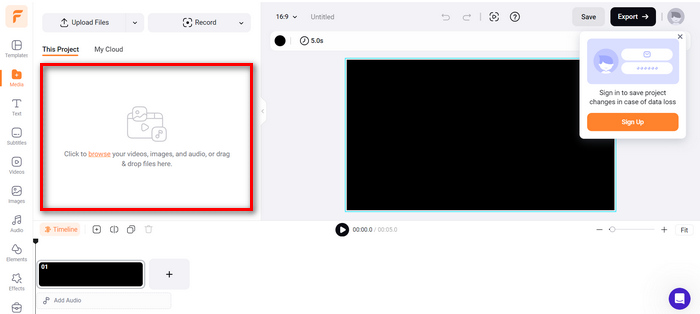
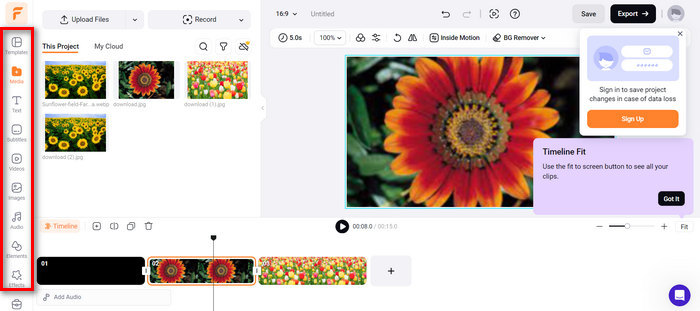
स्टेप 2. उसके बाद, आउटपुट को ट्रिम करने और उसमें ट्रांज़िशन जोड़ने के लिए PNG फ़ाइलों को टाइमलाइन पर ड्रैग करें। साथ ही, सॉफ़्टवेयर के इंटरफ़ेस के बाएँ टैब पर जाकर आप टेक्स्ट, सबटाइटल, ऑडियो, एलिमेंट्स और इफ़ेक्ट्स जोड़कर अपने वीडियो की विज़ुअल क्वालिटी को और बेहतर बना सकते हैं।.
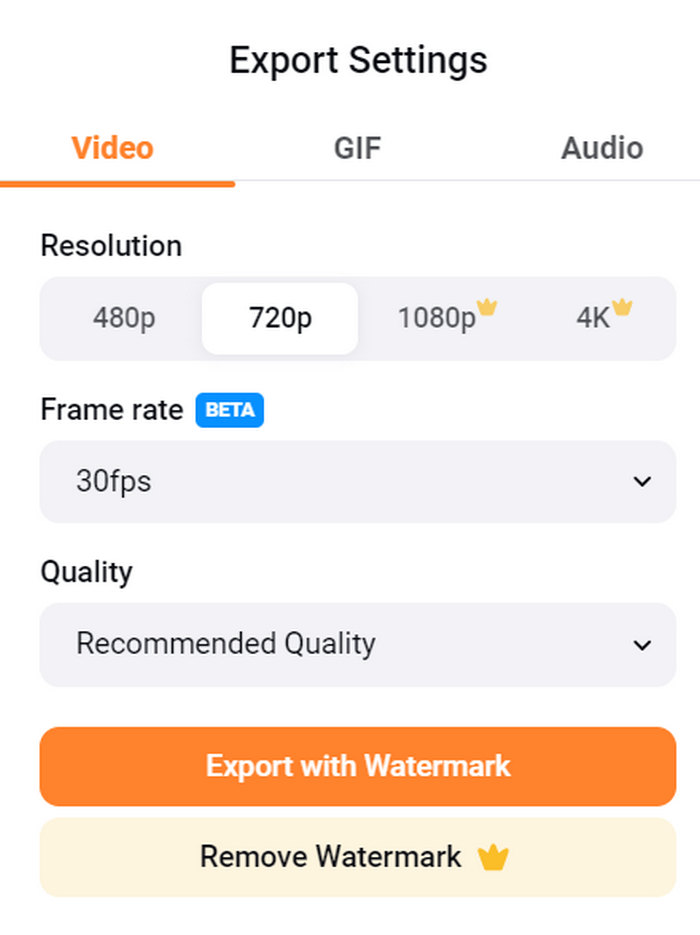
स्टेप 3. अब, Export बटन पर क्लिक करके आप अपना MP4 डाउनलोड कर सकते हैं, लेकिन उससे पहले अपनी पसंद के वीडियो रेज़ोल्यूशन, फ़्रेम रेट और क्वालिटी का चुनाव करना न भूलें।.
FlexClip के साथ, आप अपने डिवाइस पर स्टोरेज खपत के बारे में चिंता किए बिना आसानी से PNG को MP4 में ऑनलाइन बदल सकते हैं। हालाँकि, यदि आप इसका मुफ़्त संस्करण इस्तेमाल कर रहे हैं, तो आप इसकी सभी सुविधाओं का आनंद नहीं ले पाएँगे, जो आपको अपने पसंदीदा आउटपुट को संशोधित करने से रोकेगा।
पेशेवरों
- उपयोग में आसान इंटरफ़ेस।
- बहुमुखी संपादन सुविधाएँ।
- अनुकूलन योग्य आउटपुट विकल्प.
- त्वरित रूपांतरण प्रक्रिया.
विपक्ष
- इंटरनेट कनेक्शन की आवश्यकता है.
- मुक्त संस्करण में सीमित सुविधाएँ।
- निर्यातित वीडियो में वॉटरमार्क होते हैं।
भाग 4: PNG को MP4 में बदलने के बारे में अक्सर पूछे जाने वाले प्रश्न
मैं PNG को MP4 में क्यों बदलना चाहूंगा?
PNG को MP4 में कनवर्ट करने से उपयोगकर्ता स्टैटिक इमेज को डायनेमिक वीडियो में बदल सकते हैं, जो स्लाइडशो, ऐनिमेशन या ऑडियो एलिमेंट जोड़ने जैसे कामों के लिए उपयोगी है। MP4 फ़ॉर्मेट भी काफ़ी व्यापक रूप से समर्थित है और विभिन्न डिवाइसों और प्लेटफ़ॉर्म के साथ कम्पैटिबल है। इसलिए, PNG को MP4 में बदलने से यह शेयरिंग और स्ट्रीमिंग के लिए ज़्यादा उपयुक्त हो जाता है।.
PNG को MP4 में बदलने का सबसे अच्छा तरीका क्या है?
सबसे अच्छा तरीका उपयोगकर्ताओं की प्राथमिकताओं और ज़रूरतों पर निर्भर करता है। अगर वे उन्नत संपादन सुविधाओं वाले डेस्कटॉप सॉफ़्टवेयर को पसंद करते हैं, तो वे FVC Video Converter Ultimate जैसे टूल का उपयोग कर सकते हैं। अगर वे कमांड-लाइन इंटरफ़ेस के साथ ओपन-सोर्स समाधान चाहते हैं, तो FFmpeg एक अच्छा विकल्प है। अगर वे सरलता के साथ ऑनलाइन समाधान पसंद करते हैं, तो FlexClip की सिफारिश की जाती है।
PNG और MP4 एक दूसरे से किस प्रकार भिन्न हैं?
PNG या पोर्टेबल नेटवर्क ग्राफ़िक्स एक फ़ाइल फ़ॉर्मेट है जिसका इस्तेमाल आमतौर पर दोषरहित संपीड़न के साथ स्थिर छवियों के लिए किया जाता है, यह पारदर्शिता वाले ग्राफ़िक्स और छवियों के लिए आदर्श है। दूसरी ओर, MP4 या MPEG-4 एक वीडियो फ़ाइल फ़ॉर्मेट है जो अपनी संपीड़न क्षमताओं के लिए जाना जाता है, जो वीडियो और ऑडियो दोनों डेटा संग्रहीत करता है।
निष्कर्ष
सिर्फ़ PNG को MP4 में बदलना ही बात नहीं है; यह रचनात्मकता और जुनून का भी मामला है। सोचिए, स्थिर और शांत इमेज को आप डायनेमिक वीडियो में बदल रहे हैं। इसमें काफ़ी क्रिएटिविटी लगती है और बेशक, एक अच्छा कनवर्टर भी ज़रूरी होता है। तो, इस मौक़े को हाथ से जाने न दें और आज ही इनमें से किसी एक तरीके को ज़रूर आज़माएँ!
-
 जेपीजी को पीएनजी में ऑनलाइन और ऑफलाइन रूपांतरित करने के पूर्ण-स्तरीय तरीके
 JPG को PNG फ़ाइल स्वरूप में बदलने के लिए उपयोगी तरीके खोज रहे हैं? इस गाइडपोस्ट में वह उत्तर है जिसकी आपको आवश्यकता है। इन विधियों को खोजने के लिए लेख पढ़ें।
-
 पीएनजी को जेपीजी में तेजी से बदलने के लिए शीर्ष 5 प्रमुख ट्यूटोरियल
 अगर आपको अपनी पीएनजी फ़ाइल को जेपीजी प्रारूप में कनवर्ट करने की ज़रूरत है, तो आप यहां सबसे अच्छे तरीके सीख सकते हैं। आप पीएनजी और जेपीजी फ़ाइल स्वरूपों के बीच अंतर भी जानेंगे।
-
 आईसीओ को पीएनजी में कैसे परिवर्तित करें पर चरण-दर-चरण ट्यूटोरियल
 ICO को PNG में बदलने के सबसे आसान तरीकों को जानने के लिए इस गाइडपोस्ट पर क्लिक करें। आइए ऑनलाइन और ऑफलाइन प्रक्रियाओं के लिए ICO से PNG कन्वर्टर्स की खोज करें।
