


 वीडियो कनवर्टर अंतिम
 स्क्रीन अभिलेखी
 वीडियो मरम्मत
 सुरक्षित डाउनलोड
H. 264 को MP4 में आसानी से बदलने के 3 बेहतरीन तरीके [2024]
क्या आप असंगतता संबंधी समस्याओं के कारण अपने वीडियो को H.264 फ़ॉर्मेट में चलाने में संघर्ष कर रहे हैं? खैर, आप अकेले नहीं हैं। कई उपयोगकर्ता एक ही समस्या का अनुभव करते हैं और फ़ाइल को ऐसे फ़ॉर्मेट में कनवर्ट करना चुनते हैं जो MP4 जैसे विभिन्न डिवाइस द्वारा व्यापक रूप से समर्थित है।
तो, यदि आप भी उन्हीं में से एक हैं और अपने डिवाइस पर बिना किसी रुकावट के प्लेबैक अनुभव के लिए इस फ़ाइल को बदलने के तरीकों की तलाश कर रहे हैं, तो यह लेख आपको आसानी से H.264 से MP4 कनवर्ट करने के लिए बेहतरीन तरीके प्रदान करेगा। क्या आप अपने वीडियो को सार्वभौमिक रूप से अनुकूल बनाना चाहते हैं? आइए शुरू करें!

भाग 1: क्या H.264 MP4 के समान है?
H.264 और MP4 दोनों ही वीडियो फ़ॉर्मेट हैं, लेकिन वे अलग-अलग उद्देश्यों की पूर्ति करते हैं। H.264, जिसे AVC (एडवांस्ड वीडियो कोडिंग) के रूप में भी जाना जाता है, एक वीडियो कम्प्रेशन मानक है जिसका उपयोग आमतौर पर हाई-डेफ़िनेशन वीडियो सामग्री को रिकॉर्ड करने, संपीड़ित करने और वितरित करने के लिए किया जाता है। दूसरी ओर, MP4 (MPEG-4 भाग 14) एक कंटेनर फ़ॉर्मेट है जो वीडियो, ऑडियो, उपशीर्षक और स्थिर छवियों सहित विभिन्न प्रकार के डेटा को संग्रहीत कर सकता है।
जबकि H.264 विशेष रूप से वीडियो संपीड़न तकनीक को संदर्भित करता है, MP4 मल्टीमीडिया सामग्री की एक विस्तृत श्रृंखला को शामिल करता है। सरल शब्दों में, H.264 वीडियो डेटा को संपीड़ित करने के लिए उपयोग की जाने वाली एन्कोडिंग विधि की तरह है, जबकि MP4 एक कंटेनर की तरह है जो अन्य मल्टीमीडिया घटकों के साथ संपीड़ित वीडियो को रखता है।
भाग 2: H.264 को MP4 में बदलने का त्वरित और आसान तरीका
H.264 को MP4 में बदलने का सबसे तेज़ और आसान तरीका FVC Video Converter Ultimate का उपयोग करना है। यह डेस्कटॉप सॉफ़्टवेयर टूल MP4, MKV, MOV, AVI, FLV, WMV, WEBM, M4V, TS, MXF, MPG, 3GP, VOB और अन्य कई वीडियो व ऑडियो फ़ाइलों को संभालने के लिए बनाया गया है। इनके साथ, आपके पास यह चुनने के लिए कई विकल्प होते हैं कि आप अपनी H.264 फ़ाइल को किस फ़ॉर्मेट में कनवर्ट करना चाहते हैं। इसके अलावा, इसमें एक कस्टम प्रोफ़ाइल भी है जिसका उपयोग आप आउटपुट सेटिंग्स जैसे वीडियो कोडेक, रेज़ोल्यूशन, फ़्रेम रेट, बिटरेट आदि को संपादित करने के लिए कर सकते हैं। अंत में, आप तेज़ कनवर्ज़न प्रक्रिया और लॉसलेस गुणवत्ता वाले आउटपुट की उम्मीद कर सकते हैं, क्योंकि यह अन्य कनवर्टर टूल्स की तुलना में 30× अधिक कनवर्ज़न स्पीड के साथ 4K रेज़ोल्यूशन तक सपोर्ट करता है।.
स्टेप 1. सबसे पहले, सॉफ़्टवेयर टूल को डाउनलोड करें और अपने कंप्यूटर पर इंस्टॉल करें।.
फ्री डाउनलोडWindows 7 या बाद के संस्करण के लिएसुरक्षित डाउनलोड
फ्री डाउनलोडMacOS 10.7 या बाद के संस्करण के लिएसुरक्षित डाउनलोड
स्टेप 2. Converter टैब पर, Add Files बटन पर क्लिक करें और अपनी H.264 फ़ाइलें इम्पोर्ट करें।.
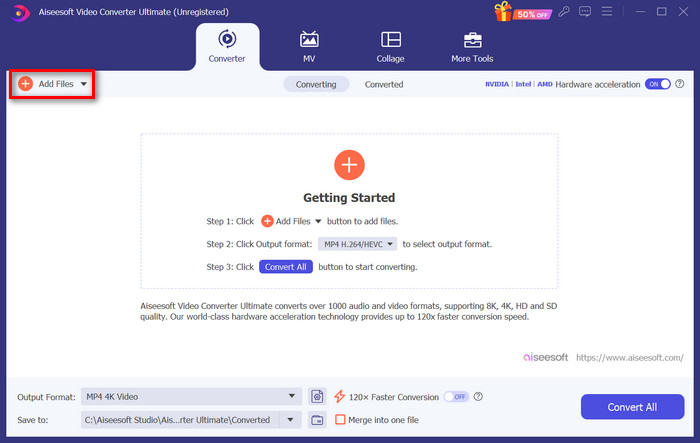
स्टेप 3. जैसे ही H.264 वीडियो फ़ाइल इम्पोर्ट हो जाए, Output format बटन पर क्लिक करके फ़ॉर्मेट की सूची में से MP4 चुनें।.
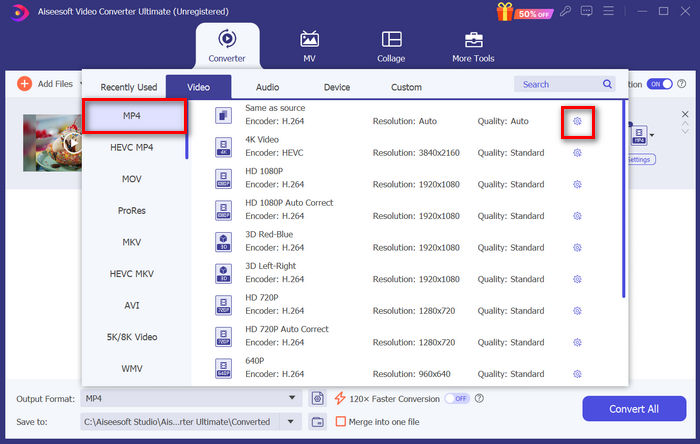
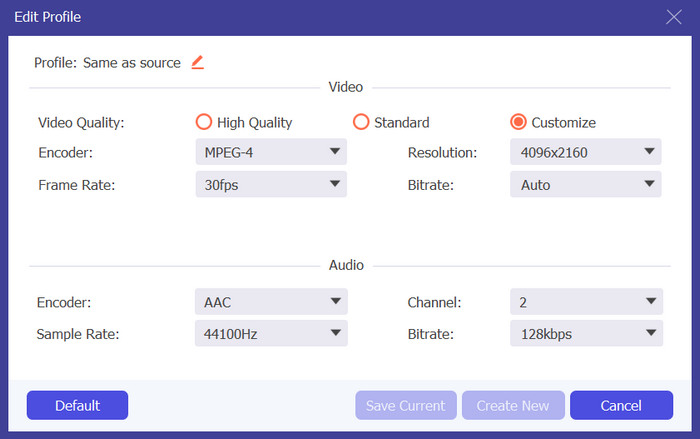
इस बीच, यदि आप Custom Profile को कस्टमाइज़ करना चाहते हैं, तो Settings dialog box पर जाएँ। वहाँ से आप वीडियो कोडेक, क्वालिटी, फ़ाइल नाम आदि को संपादित कर सकते हैं। जब सब हो जाए, तो सेव करने के लिए बस Create New बटन पर क्लिक करें।.
स्टेप 4. सब हो जाने पर, बस Convert All बटन पर क्लिक करें।.
FVC Video Converter Ultimate के साथ, H.264 को MP4 में कनवर्ट करना तेज़ी से किया जा सकता है, बिना आपका ज़्यादा समय और मेहनत लिए। इसके अलावा, आप H.265 और AVCHD से MP4 जैसे अन्य फ़ॉर्मेट भी कनवर्ट कर सकते हैं। इसके अतिरिक्त, आप पूरे प्रोसेस के दौरान उच्च-गुणवत्ता वाले आउटपुट को बनाए रखने का भरोसा रख सकते हैं।.
भाग 3: FFmpeg का उपयोग करके H.264 को MP4 में बदलें
FFmpeg एक कमांड-लाइन टूल है जिसका उपयोग मल्टीमीडिया फ़ाइलों को प्रबंधित करने के लिए किया जाता है, जो प्लेबैक से लेकर रूपांतरण और संपादन तक की क्षमताएँ प्रदान करता है। अपनी बहुमुखी विशेषताओं के साथ, यह टूल उपयोगकर्ताओं को H.264 को MP4 प्रारूप में कुशलतापूर्वक परिवर्तित करने की अनुमति देता है, जो कमांड-लाइन इंटरफ़ेस से सहज लोगों के लिए एक सुविधाजनक समाधान प्रदान करता है।
स्टेप 1. सबसे पहले, आपको अपने कंप्यूटर पर FFmpeg executables प्राप्त करने की आवश्यकता है।.
स्टेप 2. अगला, executables वाले फ़ोल्डर में कमांड-लाइन विंडो खोलें। एक टर्मिनल विंडो पॉप-अप खुलेगी।.
स्टेप 3. उसके बाद, वह H.264 फ़ाइल जोड़ें जिसे आप MP4 में कनवर्ट करना चाहते हैं।.
स्टेप 4. अंत में, यह कमांड दर्ज करें: ./ffmpeg.exe -i inputfilename.mkv outputfilename.mp4 और Enter दबाएँ।.
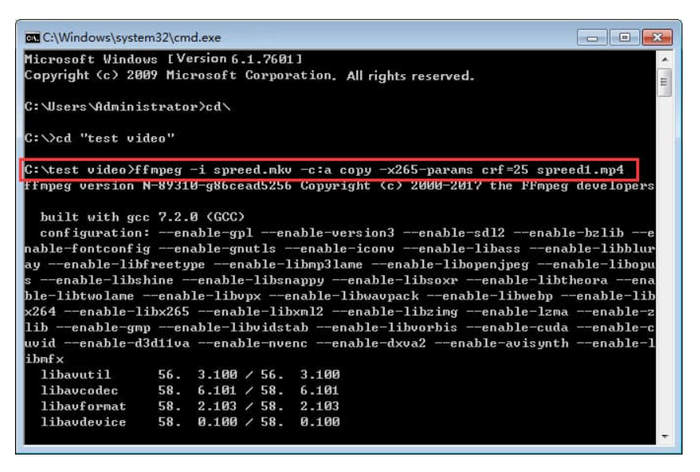
यदि आप कमांड लाइन से परिचित हैं, तो FFmpeg आपके लिए सबसे अच्छा काम कर सकता है जब आप H.264 को MP4 में बदल रहे हों। हालाँकि, यदि नहीं, तो आपको इस टूल को नेविगेट करना मुश्किल लगेगा, जो नए उपयोगकर्ताओं के लिए उपयोगिता की बात आने पर इसकी कमियों में से एक है।
भाग 4: H.264 को MP4 में ऑनलाइन रूपांतरित करें
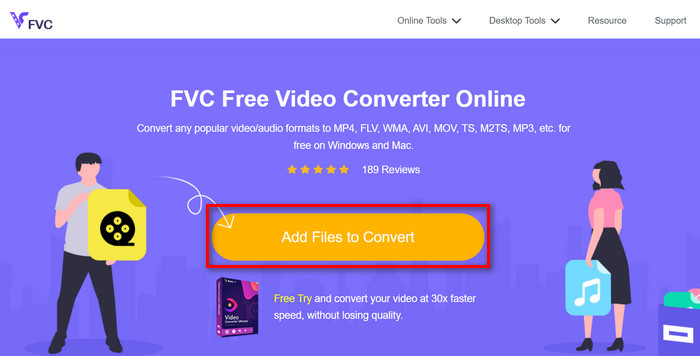
यदि आप H.264 को MP4 में ऑनलाइन कनवर्ट करने के लिए किसी टूल की तलाश कर रहे हैं, तो इसके लिए सबसे अच्छा टूल FVC Free Video Converter Online है। यह टूल H.264 फ़ाइलों को आपके मनचाहे फ़ॉर्मेट में कनवर्ट करने का तेज़ और बेहद सहज तरीका प्रदान करता है, क्योंकि आपको बस फ़ाइल इम्पोर्ट करनी होती है और अपनी पसंद का फ़ॉर्मेट चुनना होता है, और बाक़ी सब अपने आप हो जाता है।.
स्टेप 1. सबसे पहले, जिस H.264 फ़ाइल को आप कनवर्ट करना चाहते हैं, उसे इम्पोर्ट करने के लिए Add Files to Convert बटन पर क्लिक करें।
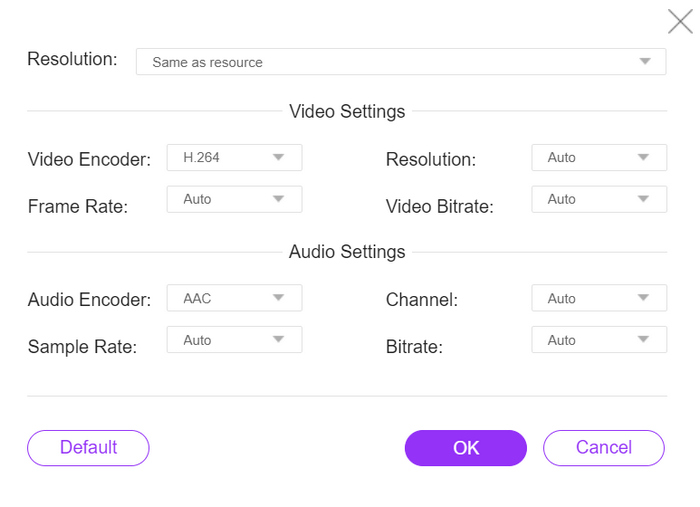
स्टेप 2. अब, आउटपुट फ़ॉर्मेट के लिए MP4 चुनें। साथ ही, यदि आप रेज़ोल्यूशन, वीडियो एन्कोडर्स, बिटरेट आदि को मैन्युअली सेट करना चाहते हैं, तो आउटपुट फ़ॉर्मेट के बगल में गियर आइकन पर क्लिक करें। हो जाने पर, OK बटन पर क्लिक करें।.
स्टेप 3. अंत में, कनवर्ज़न प्रक्रिया शुरू करने के लिए बस Convert बटन पर क्लिक करें।.
आपको परिवर्तित H.264 फ़ाइल की आउटपुट गुणवत्ता के बारे में चिंता करने की कोई ज़रूरत नहीं है, क्योंकि यह टूल 1080P तक के वीडियो रिज़ॉल्यूशन का समर्थन करता है। इसके अलावा, रूपांतरण की गति में इतना समय नहीं लगेगा क्योंकि यह अन्य कनवर्टर टूल की तुलना में 30 गुना तेज़ है।
भाग 5. H.264 को MP4 में बदलने के बारे में अक्सर पूछे जाने वाले प्रश्न
H264 बनाम mp4, कौन बेहतर है?
जब संगतता की बात आती है, तो MP4 बहुत बढ़िया लगता है, यह देखते हुए कि लोग अक्सर बेहतर डिवाइस समर्थन और प्लेबैक अनुभव के लिए H.264 को MP4 में बदलना चुनते हैं। हालाँकि, दोनों प्रारूपों की अपनी ताकत है और वे अलग-अलग उद्देश्यों को प्रभावी ढंग से पूरा करते हैं।
क्या मैं MP4 में कनवर्ट करते समय अपने H.264 वीडियो की मूल गुणवत्ता बरकरार रख सकता हूँ?
हां, आप MP4 में कनवर्ट करते समय अपने H.264 वीडियो की मूल गुणवत्ता को बनाए रख सकते हैं, खासकर यदि आप FVC Video Converter Ultimate या FFmpeg जैसे प्रतिष्ठित रूपांतरण उपकरण का उपयोग करते हैं। ये उपकरण उच्च-गुणवत्ता वाले आउटपुट को सुनिश्चित करने के लिए रिज़ॉल्यूशन, बिटरेट और कोडेक जैसी सेटिंग्स को समायोजित करने के विकल्प प्रदान करते हैं।
कौन से वीडियो प्लेयर H.264 प्रारूप के साथ संगत हैं?
कई वीडियो प्लेयर H.264 प्रारूप चलाने में सक्षम हैं, जिनमें VLC मीडिया प्लेयर, विंडोज मीडिया प्लेयर और क्विकटाइम प्लेयर शामिल हैं।
निष्कर्ष
बस इतना ही! अब आपके पास H.264 से MP4 को बिना किसी परेशानी के कनवर्ट करने के लिए सभी टूल्स और तरीके हैं। चाहे आप डेस्कटॉप सॉफ़्टवेयर पसंद करें, कमांड-लाइन टूल या ऑनलाइन कनवर्टर, चुनाव आपका है। आज ही शुरू करें और किसी भी डिवाइस के साथ कम्पैटिबिलिटी सुनिश्चित करें!
-
 2024 में सर्वश्रेष्ठ मुफ्त एमपीजी से एमपी4 कन्वर्टर (गहराई से समीक्षा)
 आपको MPG को MP4 में बदलने की आवश्यकता क्यों है? इस पोस्ट में उत्तर प्राप्त करें और बाज़ार में उच्च रैंकिंग वाले MPG कनवर्टर से MP4 के बारे में जानें।
-
 ऑडियो को MP4 में: किसी भी ऑडियो फ़ाइल को MP4 फॉर्मेट में कनवर्ट करना
 ऑडियो और विज़ुअल के अनूठे मिश्रण के लिए अपने पसंदीदा गाने, पॉडकास्ट और रिकॉर्डिंग को MP4 प्रारूप में बदलें। जानें कि WMA को MP4 या अन्य ऑडियो को वीडियो प्रारूप में कैसे परिवर्तित करें।
-
 शीर्ष 5 सर्वश्रेष्ठ एफएलवी से एमपी4 कन्वर्टर मुफ़्त और सशुल्क (2024 समीक्षाएँ)
 इस पोस्ट पर बने रहें और FLV और MP4 फ़ाइलों से संबंधित अपडेट के बारे में जानें। साथ ही, हमने MP4 के लिए सबसे विश्वसनीय FLV कनवर्टर तैयार किया है।
